Whether you are a pure gamer or a creator who wants to test and monetize your game, Roblox is one of the go-to platforms to do it. Right when you design your avatar, the best or in a hilarious situation with your co-players, having a screenshot feature is a must. This article covers a how-to guideline for you to be able to do a Roblox screenshot on your device, utilizing the built-in capture feature on your mobile or desktop while gaming. Moreover, you will learn here how to avoid getting blurry and low-quality screenshots.
Part 1. How to Take a Screenshot in Roblox (By Device)
Roblox is available on most operating systems and devices. This means there are various ways to take a screenshot while gaming. This part will provide you with the detailed methods to capture Roblox images.
1. Windows PC
How to take a screenshot on Roblox PC? Your Windows desktop offers different snapshot features. To start, check how to utilize PrtScn:
Print Screen (PrtScn)
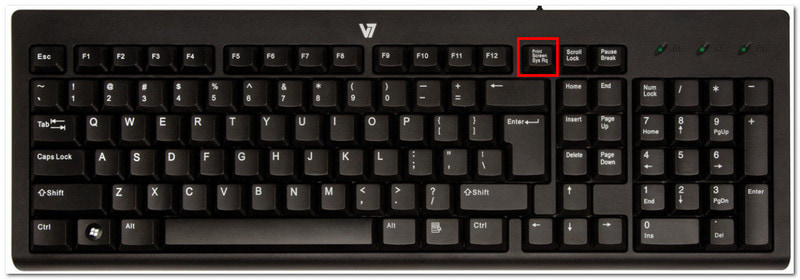
Step 1Find the PrtScn button, which is usually located at the upper right part of your keyboard.
Step 2When the screen dims, choose one of the modes: Rectangular, Freemode, Window, or Fullscreen. Select the area you want to screenshot, then press Ctrl+V to paste it into a blank document.
Snipping Tool / Snip & Sketch
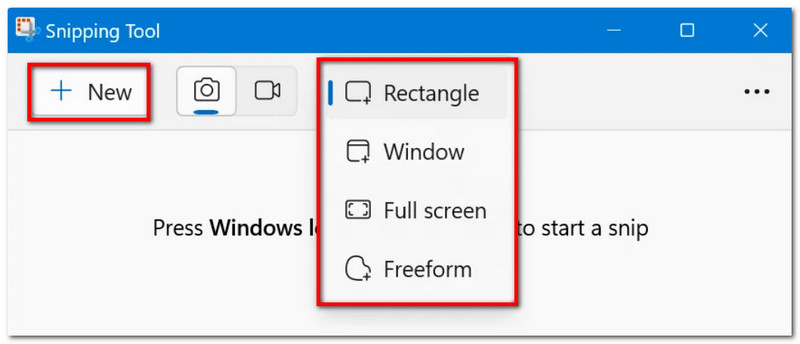
Step 1Open Start and search for the tool. Before taking a screenshot, choose a mode like rectangle or full screen.
Step 2Click the New button to commence screenshotting. You can paste the image to a message chat or a blank document by pressing Ctrl+V.
Xbox Game Bar
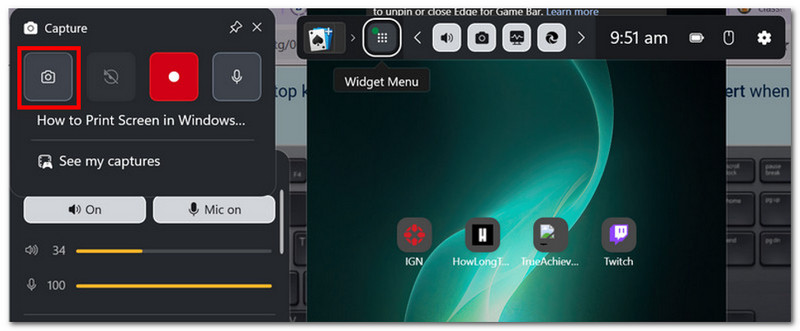
Step 1On your keyboard, press Windows+G altogether. Your screen will show various widgets from Xbox.
Step 2From the Capture widget, click the Camera button to take a screenshot. You can find the new and old Roblox screenshots in the Gallery within the Game Bar.
2. Mac
If you are a Mac user, you are probably familiar with its screenshot functions. However, there are different ways on how to screenshot on Roblox, which you can learn with the following steps:
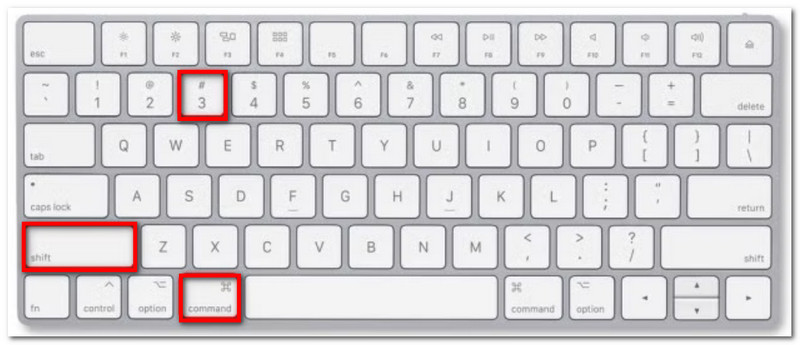
Step 1For Fullscreen mode on Mac, quickly press Shift+Command+3 on your keyboard. When the screen flicks, a screenshot has been taken. Click the thumbnail to preview the image.
Step 2For Partial mode, press Shift+Command+4 on Mac. Use the crosshair cursor to select the desired area to take a screenshot.
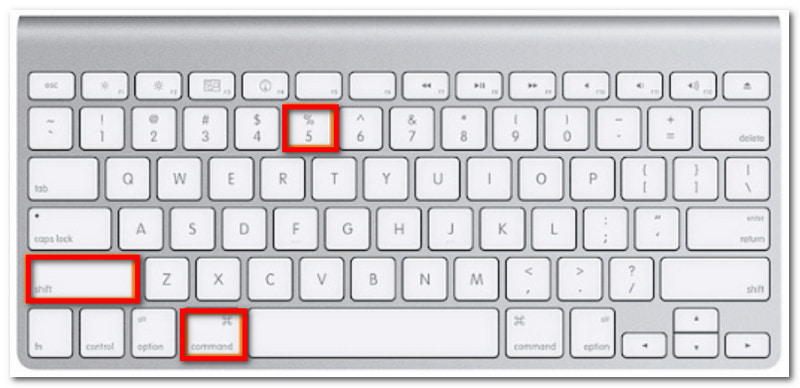
Step 3For more screen capture options, press Shift+Command+5. Other than the regular screenshot modes, this option will provide other features like a screenshot timer and recording tools.
3. Android
Even though Android is different based on mobile units and brands, there is a general way to take a screenshot within Roblox:
Step 1Place your fingers on the Volume Down and Power buttons on the side of your device.
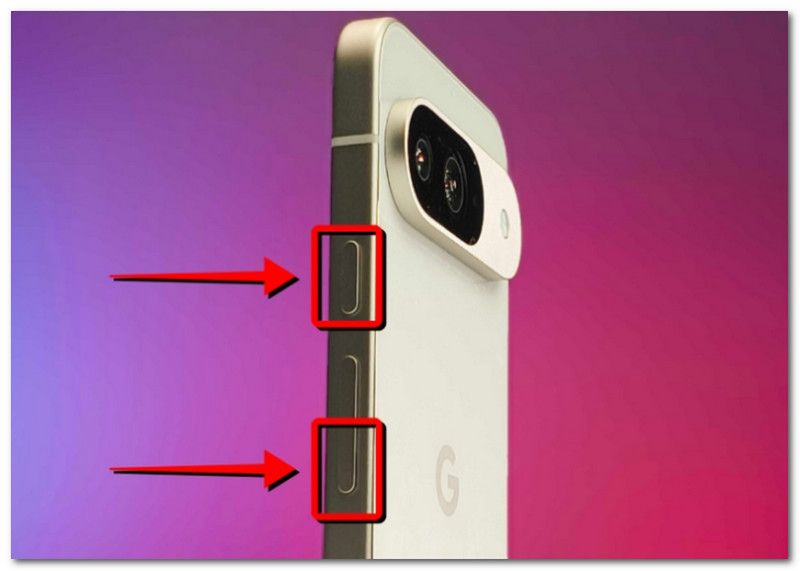
Step 2Press together for 2 seconds, then release. A screenshot is taken, and a thumbnail preview will appear on the notification panel.
4. iPhone / iPad
How to take a screenshot in Roblox on iPhone or iPad? Depending on the iOS series, you might have Face ID or the Home button. Follow the steps below for the two methods:
With Face ID
Step 1Press the Volume Up and Side buttons on your iPhone. Quickly release to take a screenshot on Roblox.
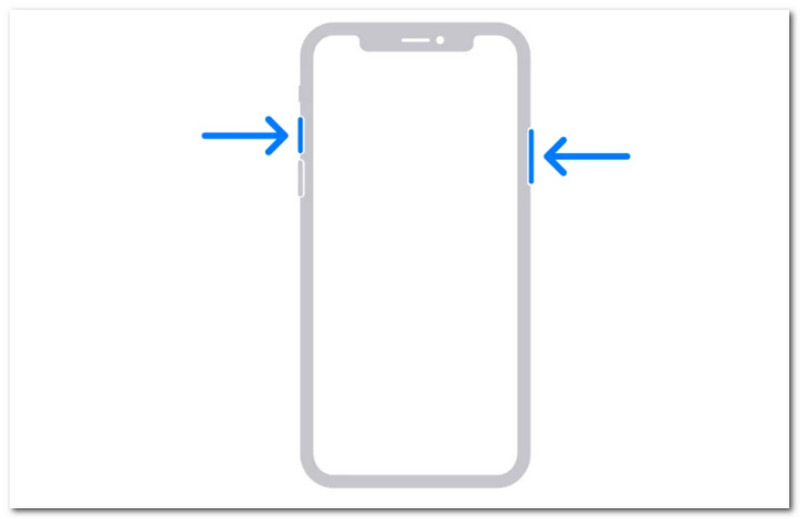
Step 2Tap on the Thumbnail to view the image taken on the Photos app.
With Home Button
Step 1Press the Side and Home buttons on your device. Your iPhone will take a screenshot immediately.
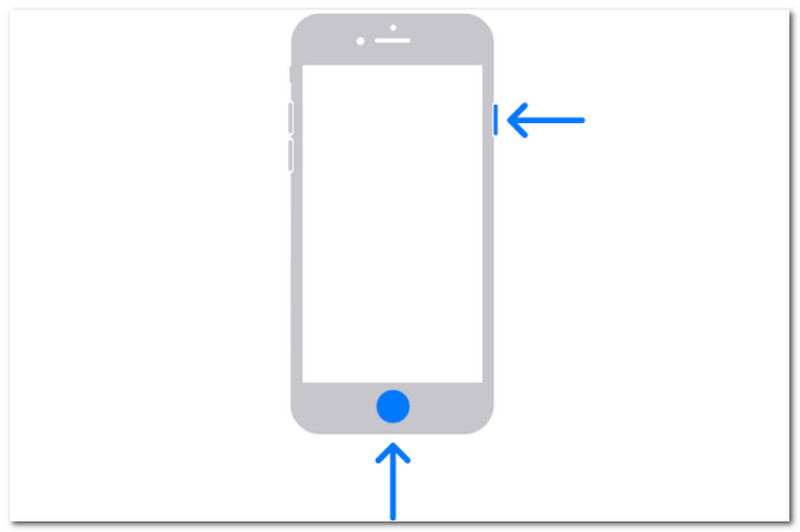
Step 2The photo is saved automatically and can be viewed within the Photos app.
5. Xbox
Roblox is also available for free on Xbox, and if you are more comfortable playing the game with the console, you can take a screenshot by doing this:
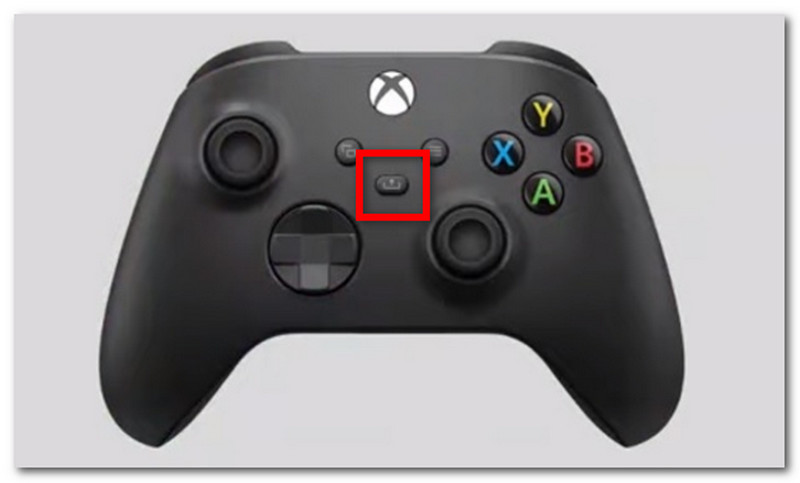
Step 1If you have a standard Xbox controller, double-tap the Xbox button, then press Y to take a screenshot on Roblox.
Step 2If you have the Xbox Series controller, press the Share button to take a screenshot. Press the Xbox button, then go to Capture & Share to access the screenshots.
Part 2. Does Roblox Have a Built-in Screenshot Key
Roblox is a huge platform that hosts various games in different genres. It is only natural that it has a built-in screenshot feature for you to use. However, rather than a helpful option, it does not offer a screenshot key to take screenshots while gaming easily. The recommended solution is to use a third-party tool like AVAide Screen Recorder for desktops. It is a multisolution tool that offers a Snapshot feature to capture onscreen content, whether you are playing, watching, or in a meeting. It allows you to save images in popular formats for easy sharing, supporting PNG, JPG, and TIFF as output formats. Additionally, you can customize and assign a shortcut key to effortlessly activate the screenshot in Roblox. Get started with AVAide Screen Recorder by downloading it on Windows or Mac.
Step 1Click the Download button to get AVAide Screen Recorder. Complete the installation and open the software.

FREE DOWNLOAD For Windows 7 or later
 Secure Download
FREE DOWNLOAD For Mac OS X 10.13 or later
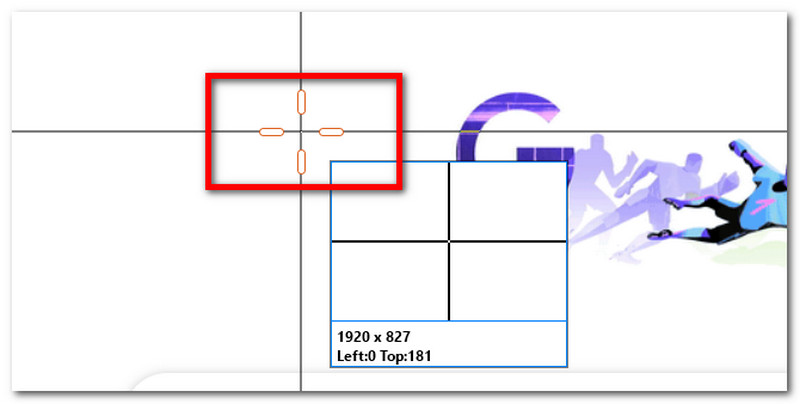
Secure DownloadStep 2Open the dropdown menu at the upper left corner and choose Screen Capture. Your cursor will quickly turn into a crosshair, which you can use to select the area you want to capture.
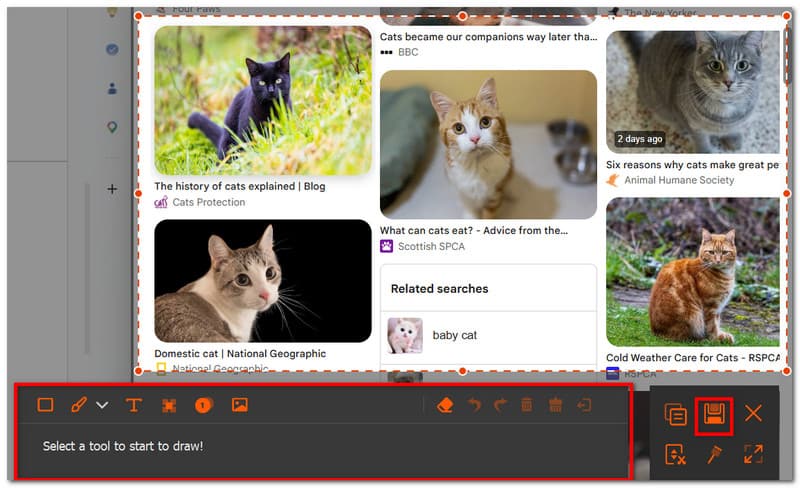
Step 3Optionally, you can edit the picture by drawing on it or adding lines, numbers, and text. Click the Save button to export the screenshot.
Part 3. Where to Find Roblox Screenshots (Folder Locations)
You might be wondering where to find Roblox screenshots if you have taken them using the built-in screenshots of your device. This part talks about the folder locations of your screenshots on Windows, Mac, Android, and iOS.
Windows
When using the PrtScn method, the screenshot is not automatically saved in a local folder, but in the clipboard. You will need to paste it into a Word document to be able to save it. On the other hand, using Snipping Tool or Snip & Sketch will save the screenshot to the Pictures > Screenshots folder.
Mac
By default, your desktop will save the screenshots in the Documents > Screenshot folder. However, you can easily change the location or create a Roblox screenshot folder by pressing Shift+Command+5 and choosing the new location.
Android
If you miss the thumbnail preview when you take a Roblox screenshot, you can always find the image by opening the Gallery app, then navigating to the Screenshot folder.
iPhone / iPad
Both iPhone and iPad have the Photos app, where photos taken, as well as screenshots, are saved automatically.
Part 4. Roblox Screenshot Low Quality - Causes & Fixes
Is the Roblox screenshot in low quality, and you are unsure of the cause and how to fix it? This part will show you the potential problem and the effective solutions to have higher image quality.
Why screenshots look blurry/pixelated
The main cause is that Roblox's built-in screen capture tool saves screenshots with high compression by default, lowering the image quality. You can also consider an internet issue that causes the screenshot's quality to be lowered for faster loading during gameplay.
Fixes
After learning the potential problems, here are the solutions you can try to upgrade your Roblox screenshots.
A. Increase Roblox graphics quality
You can increase the graphic quality by going to Settings > change to Manual, then select the Graphics Quality up to Level 10.
B. Match screenshot resolution to display
Adjust your desktop's display output to full screen to get a better image quality in your screenshots. If you are used to playing in Windowed mode, go to your computer's settings and adjust the output display up to 1080p.
C. Use PNG format
As Roblox saves screenshots as JPG files, you need to use the Snipping Tool or Snip & Sketch to take screenshots and save them as PNGs. Resize PNG is more recommended as it uses lossless compression.
D. Use Game Bar captures
Use the Xbox Game Bar on your computer, as it can take screenshots with better quality. Moreover, this tool operates in the background without interrupting gameplay.
E. Ensure your mobile device's screenshot settings are set to high quality
You can set your mobile phone to a higher image quality for Roblox screenshots by setting the output format to PNG instead of JPG. Just go to Settings > Advanced Features > Screenshots and screen recordings > Format > PNG.
F. Try AVAide Image Upscaler
Use a third-party tool like AVAide Image Upscaler to salvage the low-quality Roblox screenshots. Just visit online, drop the image, and wait for the tool to upscale it naturally. Then, download it to save on your computer.
Part 5. Can I Report Racism & Other Violations with Screenshots
'How can I report to Roblox about racism with a screenshot?' If you have this question on your mind, the short answer is that you can report using screenshots. Pictures are hard evidence for reporting, and you can even use the built-in screen capture in Roblox to attach to your report. You can simply access the Report tab in the platform and select the player you want to report. Specify the reason and drop the picture to submit.
By learning how to take a screenshot in Roblox, you are both enjoying the game and having a copy of your memorable gameplay. This article walked you through methods to take screenshots on different devices, while providing you with solutions for low screenshot quality. More than this, you have learned that AVAide Screen Recorder will make your screen capture more effective not only for screenshots, but also for video and audio recording. Don't forget to try the recommended PNG upscaler to enhance the Roblox screenshot quality.
ABOUT THE AUTHOR

Record screen, audio, webcam, gameplay, online meetings, as well as iPhone/Android screen on your computer.