In this age of the digital world, taking a screenshot has become a common need for everyone. Not only will you have a digital copy of some content you find online, but it will also become a means of communication and can even be used for educational purposes. In this case, this article highlights how to screenshot from a Toshiba laptop, whether you have a Satellite or Tecra. It also walks you through various solutions if PrtSc is not working, and recommends the best third-party tool for a more effective solution.
Method 1: Keyboard Shortcuts for Screenshots
Your device comes with handy native tools, especially if you need a digital copy of onscreen content. With that said, there are many solutions to take a screenshot on a Toshiba laptop, and you can check our prepared list of the most popular methods.
1. Full Screen Screenshot (Copied to Clipboard)
Step 1On your keyboard, locate and press the Fn+Windows+PrtSc buttons altogether. Your screen will flash quickly, indicating a screenshot has been taken.
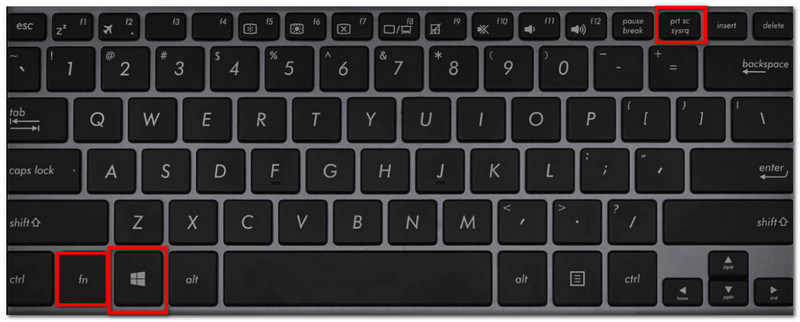
Step 2Prepare a blank Word page or a chat message, then press Ctrl+V to paste the screenshot.
2. Full-Screen Screenshot (Automatically Saved)
Step 1Press the Windows and PrtSc buttons on your keyboard to take a screenshot on a Toshiba laptop.
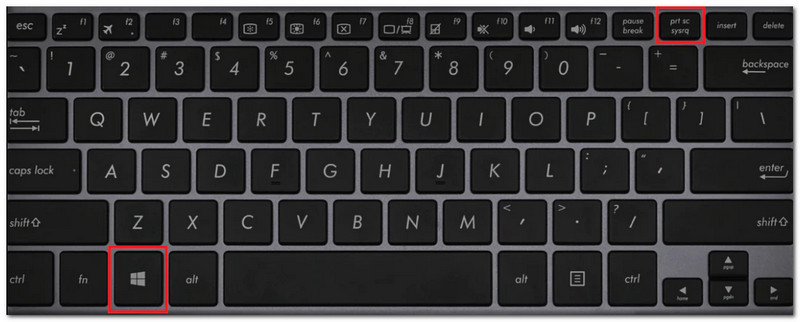
Step 2A screenshot is already taken when your screen dims in a second. Go to your local file folder, then Pictures > Screenshots, and you will find the screenshot saved automatically.
3. Active Window Screenshot
Step 1Prepare the active window you want to capture. Press the PrtSc button on your keyboard.
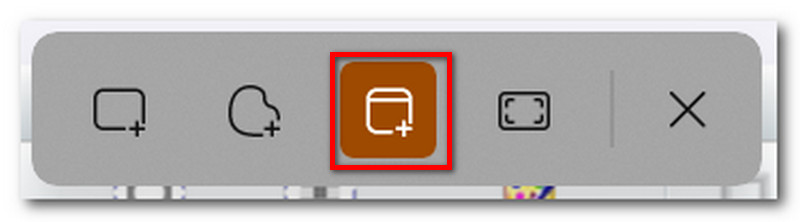
Step 2When your screen dims, and a small widget appears at the top part, choose the Window mode. Hover your mouse over the active window, then click. Paste the image to the desired location.
4. Partial / Custom Area Screenshot
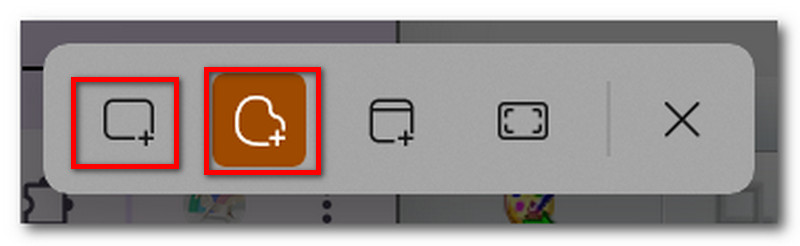
Step 1Press the PrtSc button, but this time, click the Rectangular mode from the options.
Step 2Alternatively, choose the Freeform mode as it allows you to freely pick the area in any shape or natively resize PNG photos.
5. Game Bar Screenshot
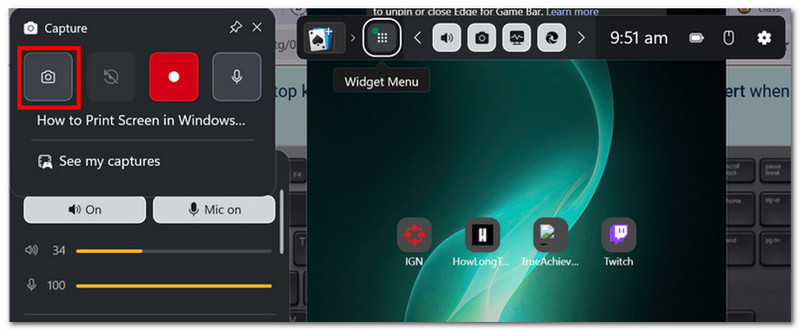
Step 1How do you screenshot on a Toshiba laptop running Windows 10? Press Windows and G keys to activate the Xbox Game Bar.
Step 2Find the Capture menu, then click the Camera button to take a screenshot. Game Bar will capture the whole screen and save the screenshot to its Gallery folder.
Method 2: Using Built-in Windows Tools
1. Snipping Tool (Windows 10, 11 & 7)
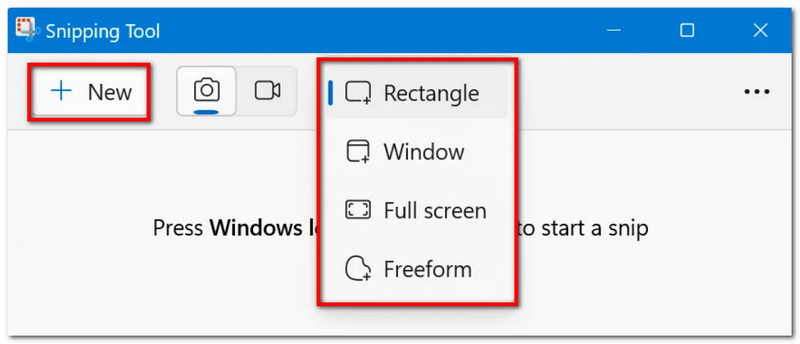
Step 1Open Start on your computer and search for the Snipping Tool. Choose a mode first by opening the dropdown menu.
Step 2Click the New button to initiate taking a screenshot. Simply save the image to the local folder.
2. Snip & Sketch (Windows 10 & 11)
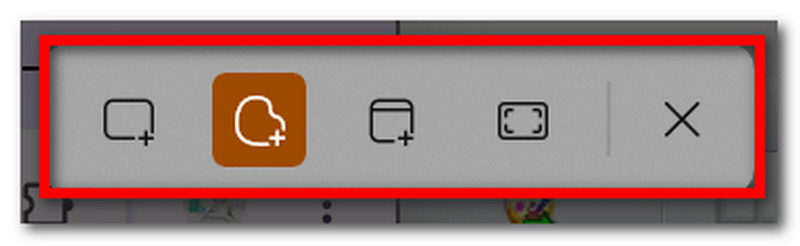
Step 1Press the PrtSc key to activate the tool. When the mini widget appears, choose one mode: Rectangular, Freeform, Window, or Fullscreen.
Step 2Since the image is not automatically saved on your device, you have to paste it somewhere, like a chat box or a blank Word document.
Method 3: Using a Third-Party Tool
To enhance your screenshot experience, it is recommended to invest in AVAide Screen Recorder for all-around needs. With this tool, taking screenshots becomes effortless, and you can expect high-quality output. It supports popular formats like PNG, JPG, GIF, TIFF, or BMP. What makes it more appealing is the built-in editing tool that allows you to add elements, whether you want to highlight, draw, or annotate the screenshot before saving or sharing it online. Follow the steps below on how to screenshot on a Toshiba Satellite:
Step 1Get AVAide Screen Recorder on your computer by clicking the Download button. Once successfully installed, launch the software and choose Screen Capture from the main menu.

FREE DOWNLOAD For Windows 7 or later
 Secure Download
FREE DOWNLOAD For Mac OS X 10.13 or later
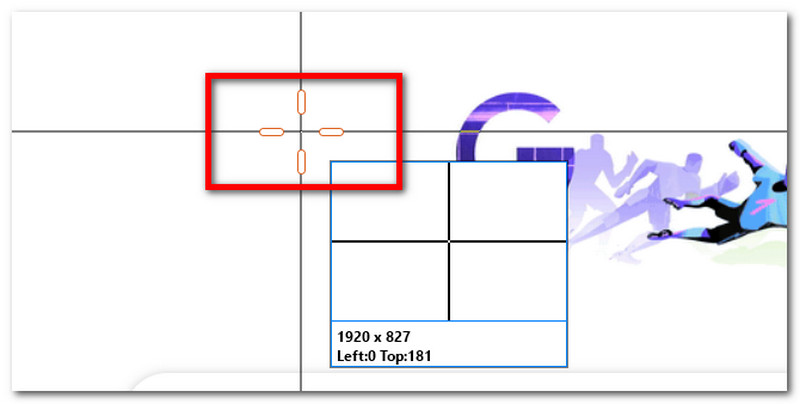
Secure DownloadStep 2With your cursor turning into a crosshair, use it to select the desired part of the screen to capture. Click and hold the left button of your mouse, glide, then release to take a screenshot.
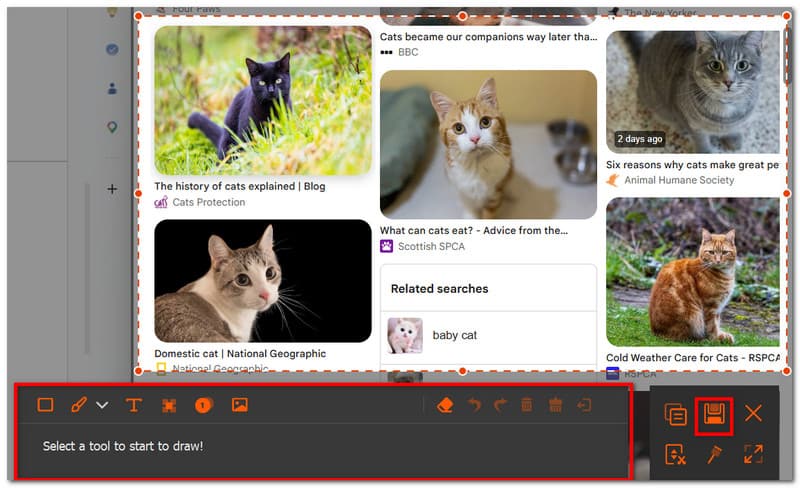
Step 3AVAide will provide you with some options to edit the image, including drawing tools and annotations. Once done, hit Save to export the screenshot. Repeat if needed.
What If You Don't Have a Print Screen Key?
How to screenshot on a Toshiba laptop without the printscreen button? It is not uncommon to lack PrtSc on your keyboard, but it can be inconvenient if you're unfamiliar with other ways to take a screenshot. With that said, you are about to learn 3 solutions to screen capture without the Prinscreen button.
Solution 1: On-Screen Keyboard
Did you know that there is an option for an on-screen keyboard on Toshiba laptops? You only need to follow these steps to use it for screenshotting:
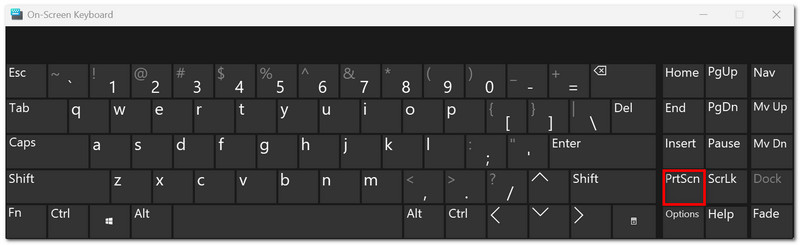
Step 1To activate, go to Settings and navigate to Accessibility. Under Keyboard, toggle on the On-screen Keyboard option.
Step 2Simultaneously press Ctrl+Windows+O to access the keyboard on your screen. Then, click the PrtSc button to activate the Snipping Tool and take a screenshot.
Solution 2: Snipping Tool
Did you know that you can still fully utilize Snipping Tool without using PrtSc? You only need to press Windows+Shift+S on your keyboard to activate the tool. Alternatively, you can search it up on Start to use the app version instead of shortcut keys.
Solution 3: Try Fn Combinations
Sometimes, PrtSc does not work on its own. You will need to try a few Fn combinations to be able to take a screenshot. Here are the combinations you need to know:
- Fn+Windows+Spacebar to take a screenshot and save the image directly in the Pictures folder.
- Fn+Alt+PrtSc to capture the active window, which is copied to your clipboard.
- Fn+PrtSc to screen capture the whole screen, but it is only saved on your clipboard.
Troubleshooting: Print Screen Not Working?
Even if you have learned how to take a screenshot on a Toshiba laptop, you might encounter issues with the PrtSc button not working. There are a few solutions you can try on your end, unless you are sure that the button is overly used and not working anymore, then it is time for a visit to the repair shop.
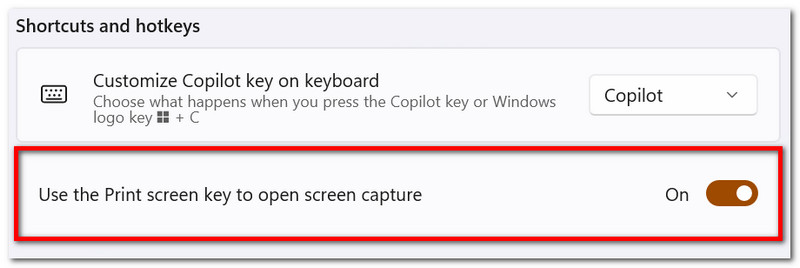
Solution 1. You can go to Settings > Accessibility > Keyboard. Check if the Print screen shortcut is on, and if not, toggle it on.
Solution 2. Use key combinations instead of just the PrtSc button. Return to the abovementioned methods to try Windows and Fn combinations for taking screenshots.
Solution 3. It is best to update the keyboard drivers. Simply search for Device Manager on your device, expand Keyboards, and select Update Driver to update your keyboard. Restart your laptop, then try taking a screenshot again.
How do you screen capture on a Toshiba laptop? In reality, there is not much of a difference between other brands of laptops, as you can still take a screenshot with a PrtSc button on your keyboard. But if there are issues with the native methods, you are encouraged to use AVAide Screen Recorder to effortlessly take a screenshot in any mode. Moreover, it is the best screen recorder for Windows and Mac, capturing high-quality meetings, gameplay, and tutorials without disrupting online activities!
ABOUT THE AUTHOR

Record screen, audio, webcam, gameplay, online meetings, as well as iPhone/Android screen on your computer.