Facebook is a virtual place where you can share your thoughts, days, or just anything random with the public. While it is a public platform, you can't deny that it protects its users for privacy reasons. So, does Facebook notify screenshots taken from posts, Reels, etc.? With this question in your mind, this article allows you to embark on the possibilities when it comes to taking screenshots on Facebook. Take your time finding answers, as well as learning how to take screenshots using various devices like mobiles and computers.
Part 1. Quick Answer Summary Table
Does Facebook or Messenger notify screenshots? It depends on the content you are capturing. To make it quick for you, check the summary table below on which part of the platform allows you to screen capture without notifying others or restrictions.
| Facebook Content | Does Facebook notify screenshots? |
| Facebook Profile Picture | No, unless Profile Picture Guard is activated and you are using Android |
| Facebook Posts | No |
| Stories (Formerly known as My Day) | No |
| Reels | No |
| Regular chats in Messenger | No |
| Disappearing messages in Messenger | No, but restricts users from taking a screenshot |
| Facebook Dating | No, but restricts users from taking a screenshot |
| Video Calls | No |
| Photos & Videos | No |
Part 2. Does Facebook Notify Screenshots?
Discovering the quick answer from the first part, it is still risky to do a Facebook screenshot test. You are on this part to unravel definitive answers on which Facebook content does not detect taking screenshots.
1. Facebook Posts, Photos & Reels
If you are wondering, 'Can Facebook see screenshots of someone's posts, photos, or Reels?' The answer is no. Facebook is incapable of detecting screenshots, as this type of content is for public interaction. Moreover, your phone's operating system does not have a similar level of security system to a third-party app for privacy reasons.
2. Facebook Stories
Can someone see if you screenshot their Facebook story? Definitely, no. Just like Facebook posts and reels, the platform is unable to detect your action and notify the other person because Stories are treated as public interactions.
3. Facebook Messenger
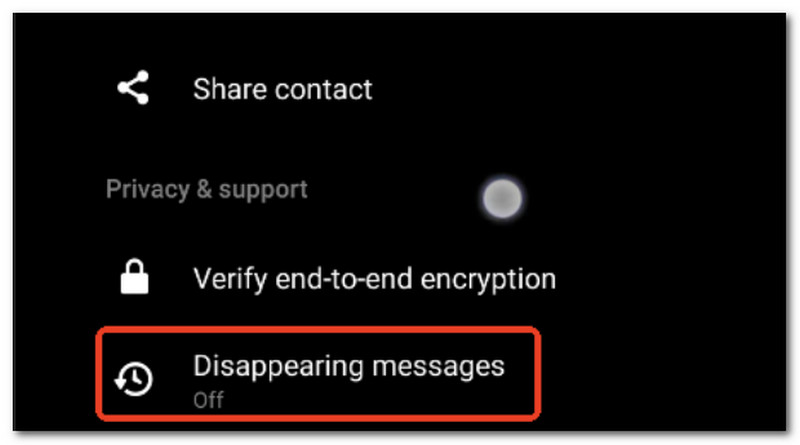
While conversations are meant for private talk, you are safe to take screenshots of regular chats on Facebook Messenger. However, if you and the other person use the platform's Disappearing Messages option, neither of you will be able to take a screenshot. Does Facebook show screenshots? No, but the photo will only appear as black.
4. Facebook Video Calls & Facebook Dating
If you are looking for a date and you want to keep a tab of your match, you can take a Facebook Dating screenshot or use a video recorder to capture a video call without triggering a notification to them. Still, be responsible for this action and make sure not to share their details without their consent.
Part 3. How to Take a Screenshot on Facebook (iPhone & Android)
Undeniably, you will have to use your mobile phone to screenshot a Facebook chat. In this case, this part will guide you on how to take screenshots using Android and iPhone, as well as how to trigger the Scrolling Screenshot feature.
1. On Android
Android phones mostly have a generic way to screenshot. Here are the steps for your guidance:
Step 1Place your fingers on the Power and Volume Down buttons. Hold and press, then quickly release to take a Facebook screenshot.
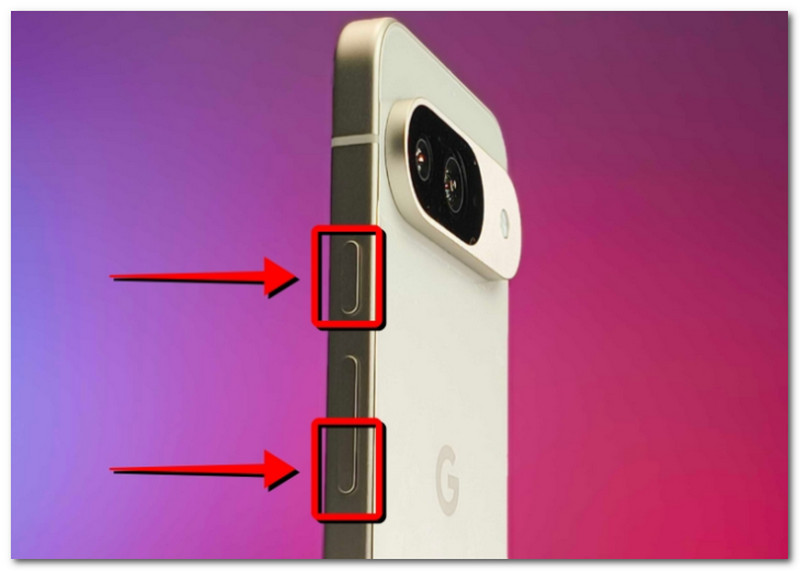
Step 2You will see a thumbnail in the corner of your screen that you can tap to fully preview the screenshot.
2. On iPhone
Depending on your iPhone series, it might have Face ID and Touch ID. Check the steps according to your phone's series:
Step 1If your iPhone has a Face ID, press the Side and Volume Up buttons to initiate a screenshot.
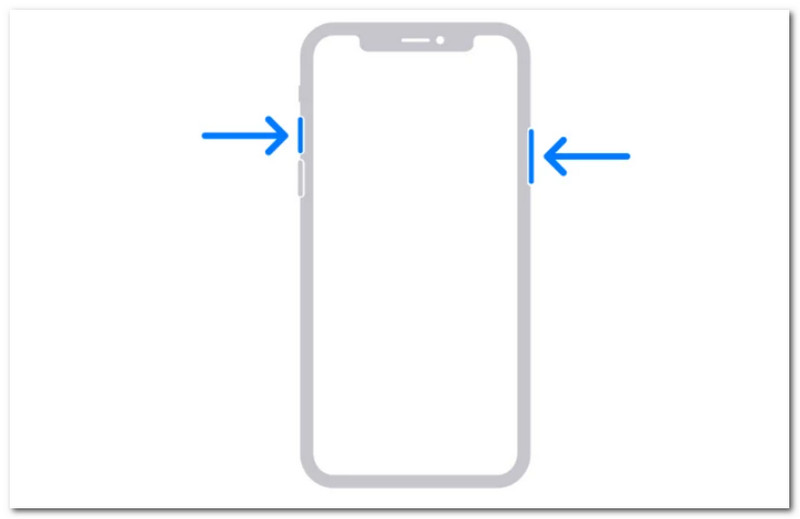
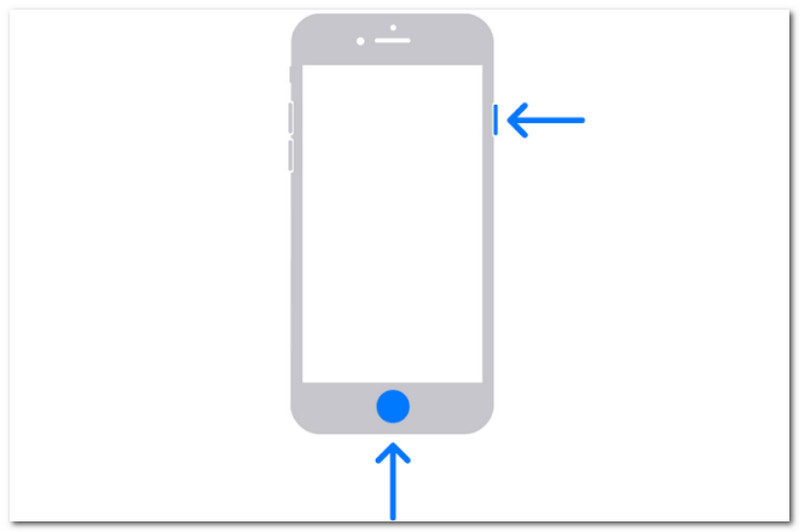
Step 2If you have Touch ID, press the Side and Home buttons to take a screenshot on Facebook. You can find the screenshots saved on the Photos app.
3. Scrolling Screenshots (Long Screenshots)
This part shows how to use the scrolling screenshot feature on Android and iPhone to capture a long Facebook post in one picture.
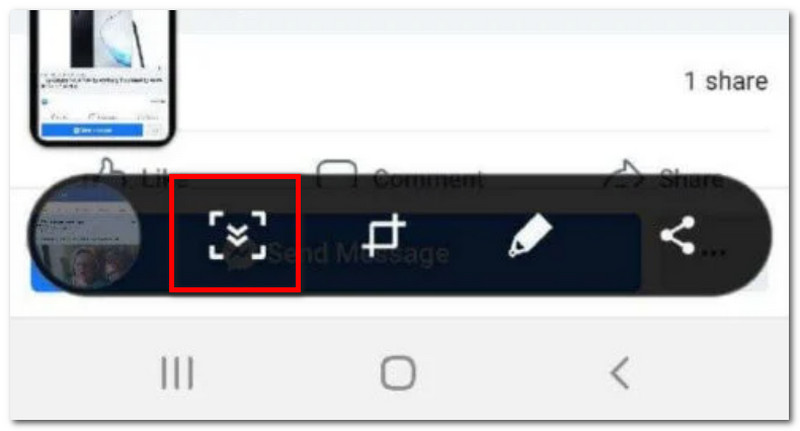
Step 1For Android, press the Power and Volume Down buttons to activate the screenshot feature. Beside the thumbnail, tap the Scrolling Screenshots option to capture the page while scrolling down.
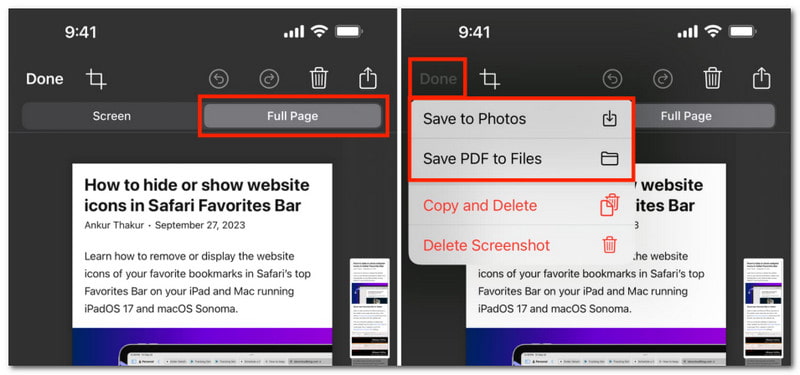
Step 2For iPhone, open Facebook on Safari or Google Chrome. Press Side and Volume Up to take a screenshot. Before 5 seconds, tap on the image and select the Full Page option to take a scrolling screenshot.
Part 4. How to Take a Screenshot on Facebook (Windows & Mac)
When you learn the answer to 'Does Facebook notify when you screenshot a story?' There is no holding you back, especially if AVAide Screen Recorder is your partner. With this solution, you can take as many screenshots as you want and export them in popular formats like PNG, JPG, GIF, etc. It also has customizable shortcut keys that activate the Screen Capture feature in Fullscreen, Window, and Freeform style. It is also noteworthy for its built-in editing functions, allowing you to draw lines, add text, and customize the screenshot before saving or sharing it. Regardless of content, AVAide Screen Recorder is the top choice for Windows and Mac.
Step 1Download and install AVAide Screen Recorder on your computer. Launch the software and select Screen Capture from the dropdown menu.

FREE DOWNLOAD For Windows 7 or later
 Secure Download
FREE DOWNLOAD For Mac OS X 10.13 or later
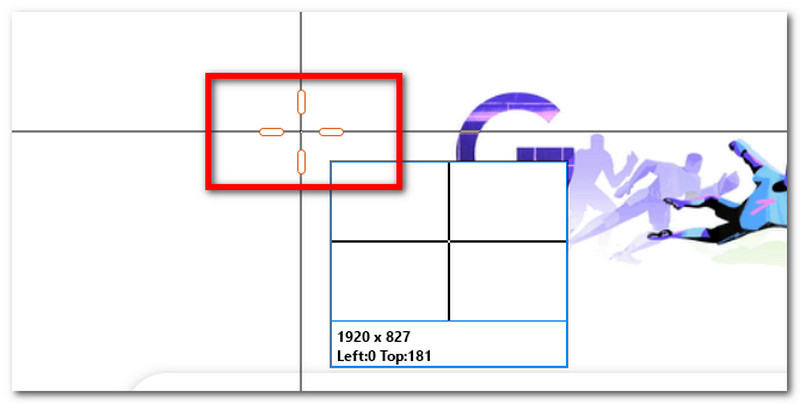
Secure DownloadStep 2Your mouse cursor will turn into a crosshair to select the desired area to capture. Click and hover it, then let go to initiate the screen capture.
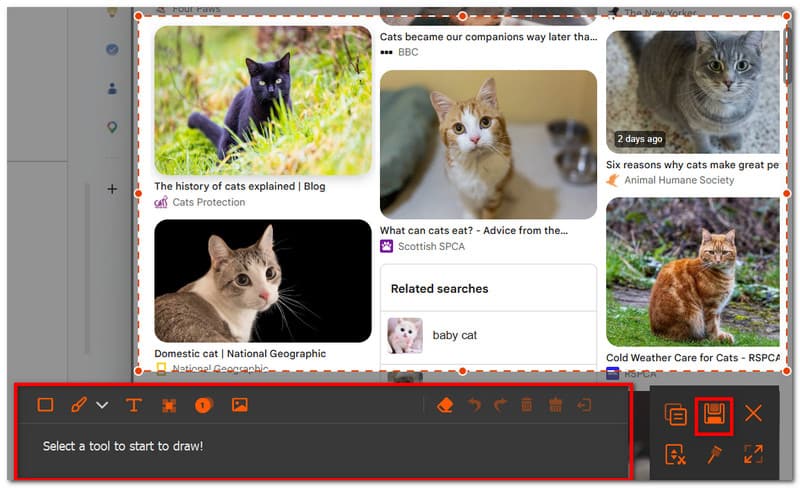
Step 3Various options will appear to let you edit the screenshot, including applying drawing and annotations. Once done, simply click Save to export the image.
Part 5. Facebook Screenshot Not Allowed - How to Fix It
While it is true that the platform does not notify someone when you take a Facebook video call screenshot or of any content, there are still some things that are off-limits. Meaning, Facebook will show the message 'Screenshot Not Allowed' to you to some degree.
Why This Message Appears
The message 'Screenshot Not Allowed' usually appears only to Facebook Dating, Disappearing Messages in Messenger, or the end-to-end encrypted chats that protect the other person's personal information. If the message is not showing, a black screen will appear in your screenshot instead.
How to Bypass "Screenshot Not Allowed"
Important disclaimer: This section explains technical workarounds for informational purposes. Respect others' privacy.
There are a few workarounds that can bypass the screenshot Facebook post blocking. The most popular method is to log in to your computer instead of your phone, then use the built-in screen capture options (either Snipping Tool or Xbox Game Bar on Windows 10/11). You can also use Google Assistant on Android to capture restricted content. Lastly, if you have a spare device, you can take a picture of the desired content, bypassing the restriction naturally.
If you are worried about Facebook screenshot notification, you have learned in this article that the platform is unable to detect and inform the other party. Additionally, you are guided on how to screen capture Facebook, whether you are using Android or iOS. If you are using your desktop, the best way to capture is through AVAide Screen Recorder, which has Screen Capture for high-quality screenshots. Furthermore, if you are looking for a way to download Facebook videos and are unable to, AVAide is the perfect workaround for this.
ABOUT THE AUTHOR

Record screen, audio, webcam, gameplay, online meetings, as well as iPhone/Android screen on your computer.