Discord is a place to go when you want to join an immersive niche community to discuss similar interests with other people online. It is a free platform that you can use on a computer, mobile phone, or even tablet. In certain circumstances, you will need to capture a conversation that you want to share with a friend outside the community. You might wonder, does Discord notify screenshots to other users? This article has the answer, and you can also discover effective solutions here for Discord screenshots.
Part 1. Does Discord Notify Screenshots?
In this part, we will discuss common questions regarding taking Discord screenshots. The following will help clear some misunderstandings if the platform notifies other parties when a screenshot is taken, and other misunderstandings regarding this method.
The Short Answer: No
First, does Discord tell if you screenshot? Fortunately, taking a screenshot of your messages does not trigger the platform to notify anyone in the chat. So, it is fine to take screenshots whether you use Discord on a mobile, online, or computer.
Why Discord Can't Detect Screenshots
To put it simply, Discord is unable to access the device's system-level screenshot feature, speaking of mobile phones and computers. It also means that apps like Discord cannot monitor your screenshot activity, as it is a design for security and privacy. So, it is okay to take screenshots or download Discord videos without notifying others.
Is There Any Way Someone Could Know You Screenshotted?
If you also ask, 'Does Discord tell you when someone screenshots?' the answer is no, and no way to learn if someone has screenshotted the messages. The only way you can know is if the other party asks for your permission or notifies you.
Misunderstandings About Discord Screenshot Notifications
Indeed, Discord is a communication app that allows you to connect with other people via organized virtual spaces. Since it can become a niche community, people often mistake and assume that Discord protects conversations by sending screenshot alerts to everyone in the chat. There are also admins in these spaces, and users misunderstood that all activities within are being monitored. Not only that, many users confuse Discord with other apps, like Snapchat, BeReal, and Telegram, which is not the case. All of these are misunderstandings, but the reality is, you are free to take screenshots on Discord.
Part 2. How to Take a Discord Screenshot on Any Device
After learning more about 'Does Discord show screenshots?' You can now learn the different ways to take screenshots. Discord is available on almost all devices with operating systems like Android, iOS, Windows, and Mac. Without further ado, let's begin the methods for computers.
1. Windows PC
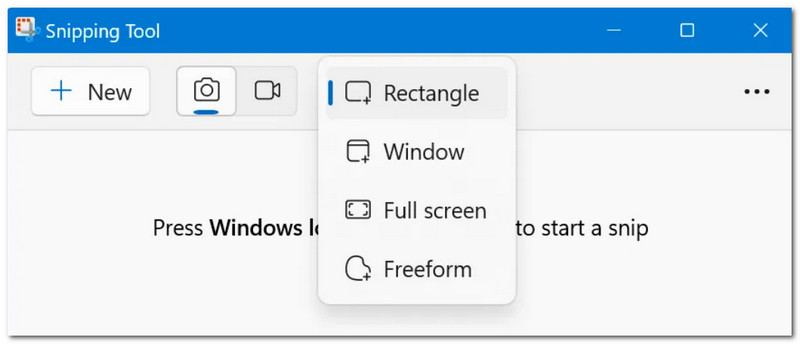
Snipping Tool / Snip & Sketch
Step 1Open the Snipping Tool or Snip & Sketch on your computer from the Start menu.
Step 2Choose your screenshot mode. Drag your cursor to the desired area you want to capture. The screenshot is saved on your clipboard, which you can paste into a blank Word document.
Print Screen (PrtScn)
Step 1Simply press the PrtSc button on your keyboard. When the screen dims, choose a screenshot mode: Fullscreen, Freeform, or Window mode.
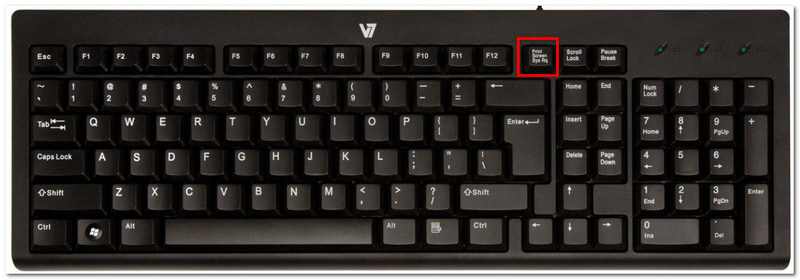
Step 2Take a screenshot on Discord and paste the picture into a blank document to save on your computer.
Xbox Game Bar
Step 1Press Windows and G simultaneously. Your screen will dim and show widgets from Xbox.
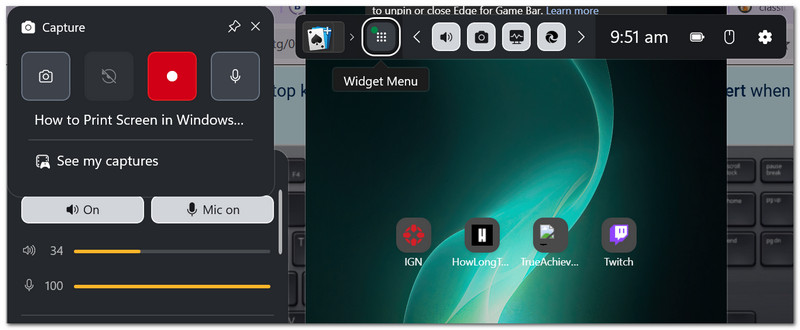
Step 2From the Capture menu, click the Camera button to take Discord screenshots. The image will be automatically saved from the Game Bar's gallery.
2. Mac
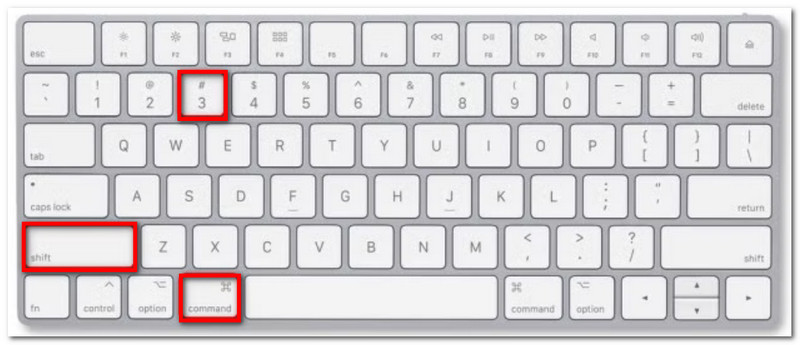
Shift + Command + 3
How to screenshot on Mac in full screen? Press Shift+Command+3. When the screenshot is taken, a thumbnail will appear in the corner of the screen. Click on it to preview or edit.
Shift + Command + 4
For a portion or freeform mode, simultaneously press Shift+Command+4. Your cursor will turn into a crosshair, which you can use to select the desired area.
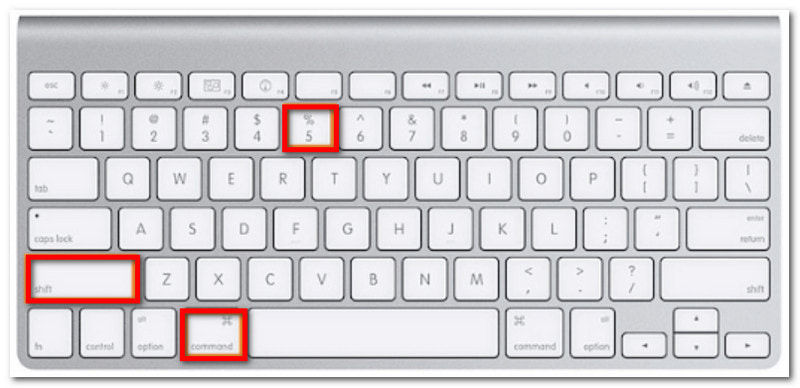
Shift + Command + 5
If you want more screenshot features, press Shift+Command+5. Other than the common screenshot modes, you can set the screenshot timer, choose the designated folder, or hide the mouse cursor when taking screenshots.
3. iPhone
iPhone (with Face ID)
If you have an iPhone X or iPhone 17 or higher, you will have the Face ID feature. To take screenshots with this, here are the steps to follow:
Step 1Locate and press the Power and Volume Up buttons to take a screenshot. Make sure to release quickly.
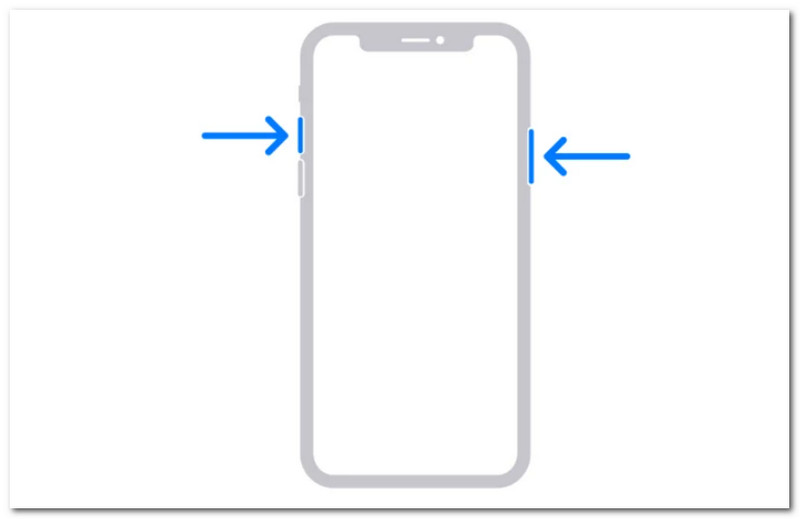
Step 2Check the thumbnail from the lower part of the screen, which you can tap to view, share, or edit the photo.
iPhone (with Touch ID)
If you have an iPhone 5s or models up to iPhone 8 Plus, the device will have the Touch ID or a Home button. Follow the steps to take a Discord mobile screenshot:
Step 1Place your fingers on the Home and Side buttons. Quickly press and release to take a screenshot.
Step 2The photo is automatically saved in the Screenshot folder in the Photos app. You can view, edit, or share it with your friends.
4. Android
Step 1Quickly press and release the Power and Volume Down buttons. Your mobile screen will flash, indicating that a screenshot has been taken.
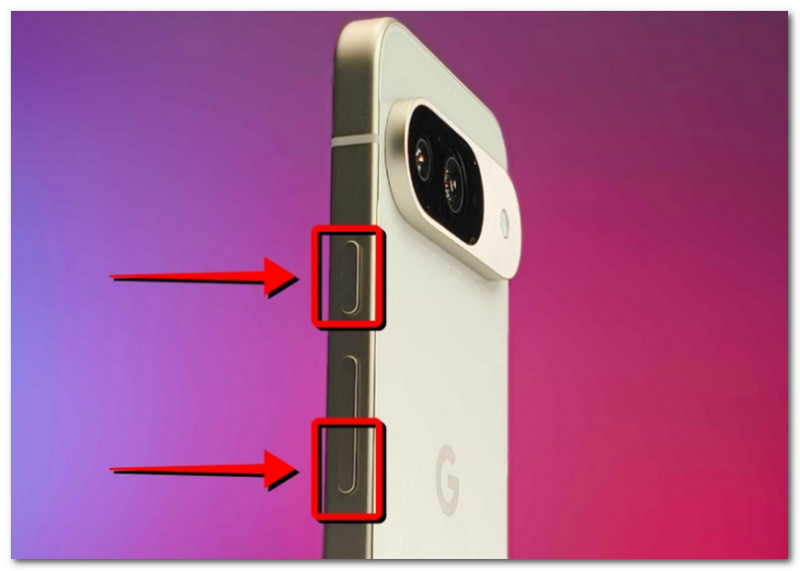
Step 2You can check the screenshot from the notification panel. When you tap on it, you will be directed to the Gallery app, where you can edit the photo.
5. Using Third-Party Screen Capture Tool
AVAide Screen Recorder highlights its epic Screen Capture that will help you take Discord screenshots. The software is designed with a simple interface, where you can take screenshots in full-screen, partial, and window modes. It also emphasizes the custom shortcut keys that can be customized and make it accessible to capture any onscreen content anytime. Of course, it is worth noting the built-in editing features that add elements like drawing, text, and numbers to the screenshot before saving. AVAide is a must-try as it promises high quality and shares screenshots on popular formats, including JPEG, GIF, TIFF, and PNG!
Step 1Download and install AVAide Screen Recorder on your computer. Open the software and choose the Screen Capture mode from the menu.

FREE DOWNLOAD For Windows 7 or later
 Secure Download
FREE DOWNLOAD For Mac OS X 10.13 or later
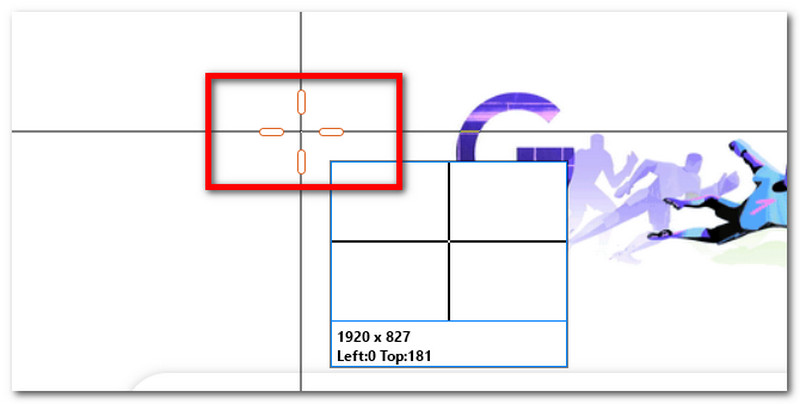
Secure DownloadStep 2When your mouse cursor turns into a crosshair, drag to the desired area and quickly release.
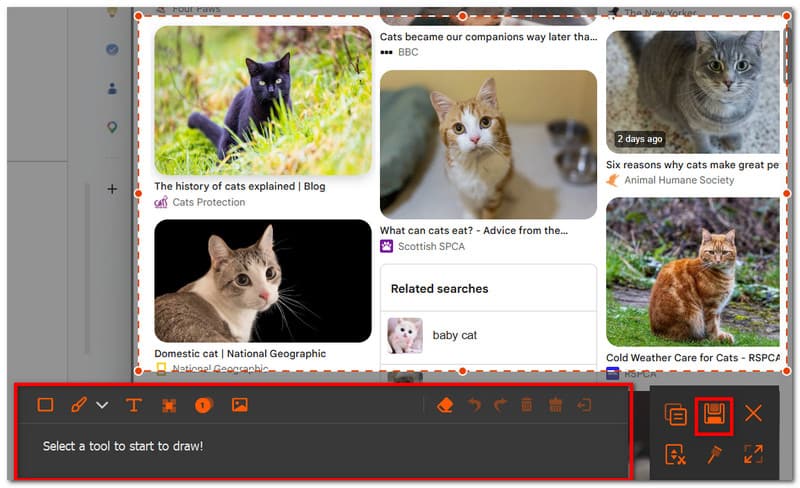
Step 3Use the editing options to add a drawing, annotation, or number on the screenshot. Click the Save button to finish.
Part 3. Fake Discord Screenshots - Generators & Tools
Are you up for a harmless prank to share with your friends? If you are, this part will teach you some tips to create fake Discord Screenshots. You may also want to learn what to keep in mind when creating fake screenshots before sending them to your friends online.
What Is a Fake Discord Screenshot?
Basically, a fake Discord screenshot is a fabricated image of messages that are altered or did not happen in real-life Discord. Depending on the usage, a fake screenshot can be a harmless prank on your friends in the virtual space.
Popular Fake Discord Screenshot Generators
Fake screenshots for Discord are easy to create, as there are many generators you can search up on the internet. Some of the most popular ones are Fake Discord Message Maker by SuperEmotes, Mockly, Lingobrights, and Fake Chat Maker.
Ethical Considerations & Red Flags
When creating a fake Discord screenshot, always consider that it is only for your personal use, such as a playful joke for your friends. There are some cases in which users alter Discord messages and take a screenshot to scam other people, and even use it for harassment. If you are in a position where you receive a Discord screenshot from someone, always check for inconsistencies in the image or verify the message if another party is involved.
Now, you can easily take Discord screenshots after learning that no one will get notified. Furthermore, you have learned the best methods for taking screenshots, whether you use Windows, Mac, iPhone, or Android. But what makes it easier to take screenshots on various devices is through AVAide Screen Recorder. You only need one tool to screen capture a PC and a mobile, and you can expect the best quality. This excellent solution is free to try, just by downloading it on your PC!
ABOUT THE AUTHOR

Record screen, audio, webcam, gameplay, online meetings, as well as iPhone/Android screen on your computer.