A deține un smartphone Motorola este aproape o situație rară, deoarece este popular doar în SUA și Europa. Așadar, dacă pui mâna pe un dispozitiv al acestei mărci, poate fi o experiență alienantă în comparație cu mărcile populare precum iPhone sau Samsung. Chiar și pentru a face o captură de ecran, poate fi uneori dificil. Acestea fiind spuse, ești în locul potrivit, așa cum îți arată acest articol. cum să faci o captură de ecran pe un Motorola cu cele trei metode oficiale. Aici veți învăța și diverse sfaturi, cum ar fi unde sunt salvate capturile de ecran și veți găsi o modalitate fiabilă de a face capturi de ecran ale ecranului telefonului prin intermediul unui computer. Fără alte introduceri, haideți să începem.
Partea 1. Trei moduri principale de a face o captură de ecran pe Motorola
În zilele noastre, fiecare dispozitiv este conceput să aibă o modalitate de a face capturi de ecran, ceea ce devine util atunci când doriți o copie a ecranului sub forma unei imagini. Bineînțeles, Motorola are și această funcție, și nu este vorba doar de o metodă, ci de trei. Această parte discută aceste 3 metode de a face o captură de ecran pe un Motorola.
1. Gestul de captură de ecran cu trei degete (cea mai rapidă metodă)
Această funcție ți s-ar putea părea unică, deoarece nu este distribuită pe scară largă pe dispozitivele Android, motiv pentru care pare o funcție rară pentru realizarea de capturi de ecran. Cu toate acestea, în afară de Motorola, gestul de captură de ecran cu trei degete este o funcționalitate pentru multe mărci Android, cum ar fi Xiaomi, OPPO, Tecno și altele. Acestea fiind spuse, este o funcție avantajoasă, deoarece ai o altă opțiune de a face capturi de ecran, folosind doar trei degete ale unei singure mâini pentru a face acest lucru. Pentru a începe să utilizați această metodă, iată ce trebuie să faceți:
Pasul 1Accesați setările telefonului și accesați meniul Gesturi. Va trebui doar să activați butonul sau să faceți o captură de ecran cu trei degete.
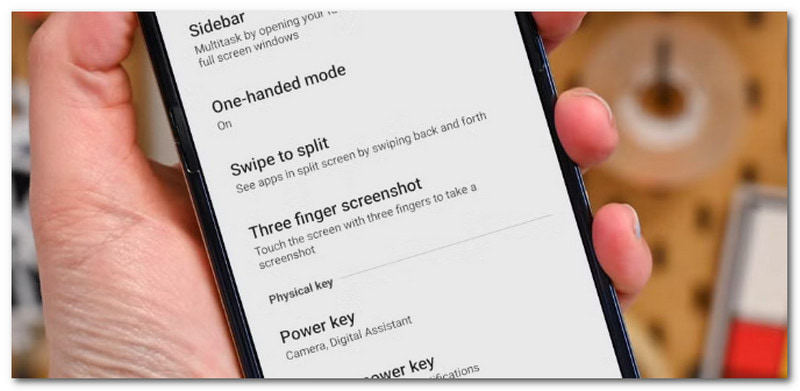
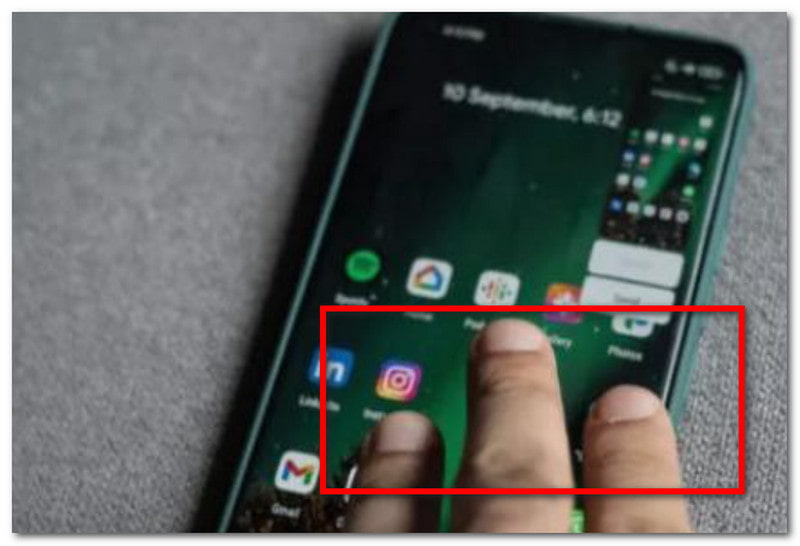
Pasul 2După aceea, pur și simplu așezați trei degete pe ecran și țineți apăsat un timp. Când ecranul clipește, se face o captură de ecran.
2. Apăsarea butonului hardware (metoda universală)
Întrucât majoritatea telefoanelor Motorola sunt integrate cu sistemul Android, puteți utiliza metoda universală pentru a face capturi de ecran. În timp ce gestul cu trei degete trebuie activat din setări, butoanele hardware trebuie doar apăsate pentru a captura ecranul.
Pasul 1Puneți un deget pe butonul de Pornire și un altul pe butonul de Reducere a Volumului.
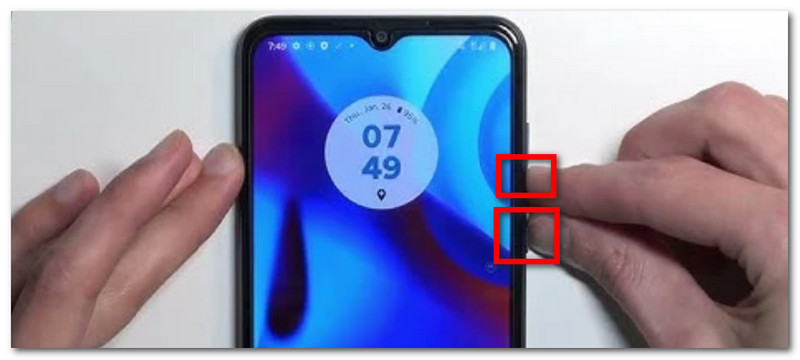
Pasul 2Apăsați și țineți apăsate butoanele simultan până când ecranul clipește. Veți fi notificat că a fost făcută o captură de ecran din bara de stare.
3. Din meniul Power (metoda „cu o singură mână”)
O altă metodă de a face capturi de ecran pe un telefon Moto, care combină atât un buton hardware, cât și unul virtual. Meniul Power conține o comandă rapidă pentru funcțiile încorporate, care, în acest caz, permite accesarea ușoară a opțiunii de captură. Cu toate acestea, depinde în continuare de modelul telefonului, așa că această opțiune poate apărea sau nu pe telefonul dvs. Cu toate acestea, puteți verifica dacă metoda cu o singură mână este disponibilă la dvs. urmând acești pași:
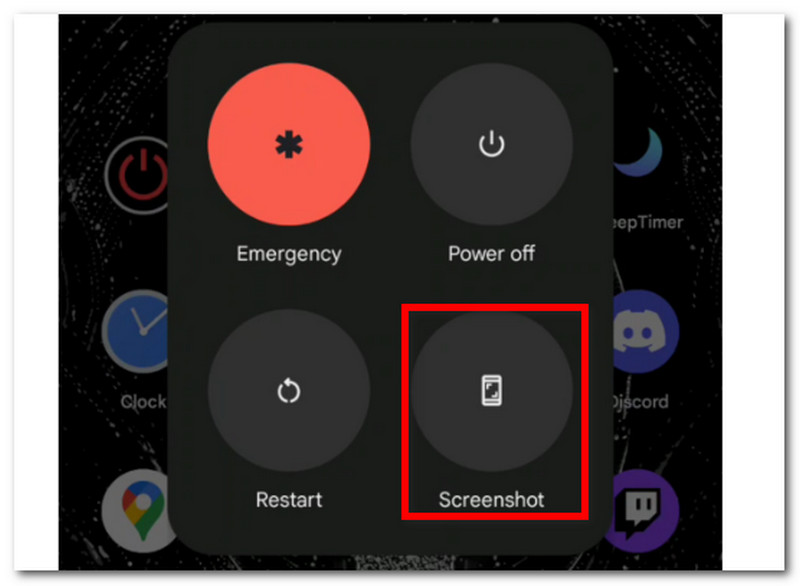
Pasul 1Puneți degetul și apăsați Putere butonul de pe lateralul dispozitivului. Țineți apăsat până când apare un meniu.
Pasul 2Vor apărea câteva opțiuni, inclusiv Oprire, Repornire și Urgență. Asigurați-vă că atingeți Captură de ecran opțiune. O clipire scurtă pe ecran înseamnă că a realizat o captură de ecran.
Partea 2. Cum să faci o captură de ecran Motorola pe computer
AVaide Screen Recorder face posibilă realizarea unei capturi de ecran Motorola G6 prin intermediul computerului. Cu doar câteva clicuri, puteți partaja ecranul telefonului pe desktop și captura conținutul fără limitări. Software-ul se angajează să ofere imagini de înaltă calitate, permițându-vă în același timp să schimbați formatul imaginii de ieșire în PNG, BMP, JPG, GIF și multe altele. Între timp, funcția Screen Capture este ușor de utilizat și puteți chiar personaliza tastele rapide pentru a o accesa cu o singură atingere pe tastatură. Pe de altă parte, acest software oferă înregistrare profesională a ecranului dvs. cu orice conținut și permite chiar și realizarea simultană de capturi de ecran. AVAide este o soluție multifuncțională de care nu ați crezut niciodată că veți avea nevoie. Descărcați-o gratuit pentru Windows sau Mac făcând clic pe butonul Descărcare.
Pasul 1Descărcați și instalați AVAide Screen Recorder. Deschideți software-ul pe computer pentru a începe.

DESCĂRCARE GRATUITĂ Pentru Windows 7 sau o versiune ulterioară
 Descărcare sigură
DESCĂRCARE GRATUITĂ Pentru Mac OS X 10.13 sau o versiune ulterioară
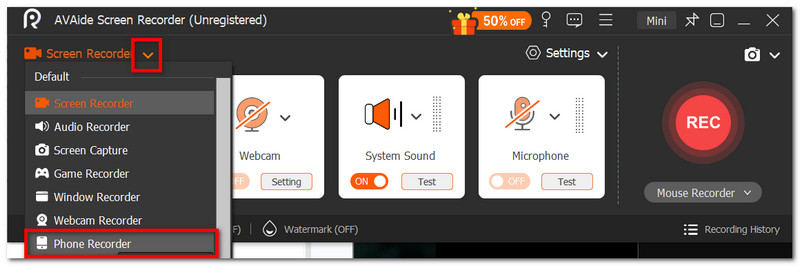
Descărcare sigurăPasul 2Alege Recorder de telefon opțiunea din meniul derulant. Citiți cu atenție instrucțiunile pentru a conecta ecranul telefonului la desktop.
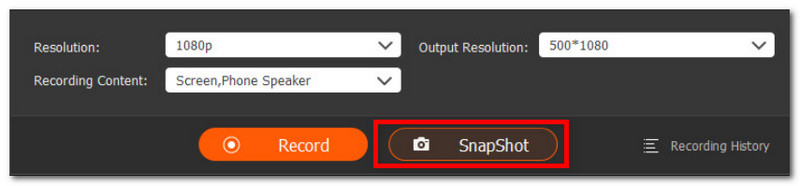
Pasul 3După ce ați terminat, faceți clic pe Instantaneu pentru a face o captură de ecran. De asemenea, puteți face clic pe butonul Record buton pentru a înregistra un videoclip al ecranului telefonului prin intermediul computerului.
Partea 3. Unde sunt salvate capturile mele de ecran?
După ce ați făcut o captură de ecran pe telefonul Motorola, o previzualizare miniaturală va apărea în panoul de notificări, pe care o puteți atinge pentru a o vizualiza. Dar, uneori, miniatura nu va apărea și vă veți pierde dacă a fost făcută o captură de ecran. Așadar, cum găsiți capturile de ecran pe telefonul Motorola? Pentru a vizualiza fotografia făcută, va trebui doar să faceți următoarele:
Cum să găsești capturi de ecran
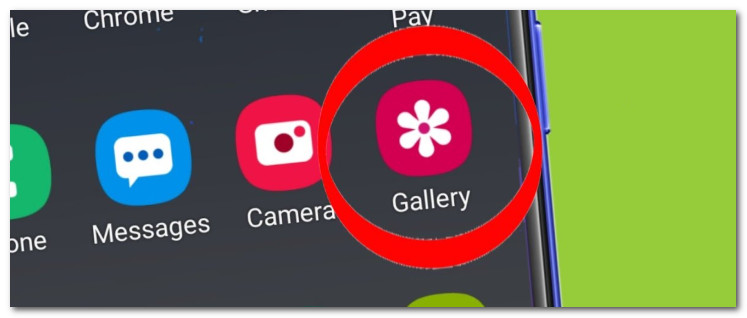
Pasul 1Accesați aplicația Galerie și localizați meniul Captură de ecran. Cea mai recentă fotografie realizată va apărea în partea de sus a listei.
Pasul 2Opțional, accesați folderul Fișiere al telefonului, unde sunt salvate toate fișierele descărcate. Din folderul Imagine, veți vedea că sunt salvate capturile de ecran.
Poți schimba locul în care un Motorola salvează capturile de ecran?
Din păcate, nu există o modalitate implicită de a schimba locul în care Motorola Android salvează capturile de ecran, deoarece imaginile sunt salvate oficial în folderul Fișiere sau în aplicația Galerie. Soluția pentru aceasta este utilizarea unei aplicații terțe care vă permite să organizați și să mutați imaginile după cum doriți, dar aceasta nu schimbă nimic și puteți accesa în continuare imaginile din locațiile implicite.
Partea 4. Depanare: De ce nu funcționează captura de ecran Motorola?
La un moment dat, veți întâmpina o problemă atunci când funcția de captură de ecran de pe Motorola nu funcționează corect. Există multe motive plauzibile, inclusiv spațiu de stocare insuficient, conținutul este în modul Incognito sau dispozitivul este gestionat de la distanță de cineva de la școală sau de la serviciu, care dezactivează funcția. Cel mai rău scenariu ar fi dacă butoanele de pe telefon nu funcționează și va trebui să fie reparate. Dacă nu este cazul, puteți încerca depanarea cu următoarele soluții:
- Testați butoanele de Pornire și de Reducere a Volumului separat. Este o depanare simplă, dar vă va spune dacă butoanele funcționează corect.
- Apăsați butoanele mai mult timp de aproximativ două secunde și așteptați ca ecranul să clipească. De asemenea, verificați previzualizarea capturii de ecran, dacă apare.
- Dacă captura de ecran nu reușește într-o anumită aplicație, încearcă să faci o captură de ecran a unei alte aplicații sau a unui alt site web. Unele aplicații dezactivează în mod natural această funcție din motive de securitate și confidențialitate.
- Asigurați-vă că telefonul are suficient spațiu de stocare pentru mai multe capturi de ecran. Încercați să goliți memoria cache a aplicațiilor și a spațiului de stocare din setările telefonului sau Stocare foto iCloud.
- Opțional, dacă butoanele sunt deteriorate și aveți nevoie de o alternativă temporară, folosiți Asistentul Google. Spuneți asistentului „Fă o captură de ecran”, iar acesta va face treaba.
În concluzie, ați învățat cum să faci o captură de ecran a unui telefon Motorola cu principalele metode. În plus, ați descoperit unde să găsiți capturile de ecran și cum să depanați dacă funcția de captură de ecran de pe telefon nu funcționează. Acestea fiind spuse, vă recomandăm să utilizați AVAide Screen Recorder dacă doriți să capturați ecranul telefonului la o calitate înaltă. De asemenea, este cel mai bun înregistrator de ecran pentru Android, iPhone, camere web și PC.
DESPRE AUTOR

Înregistrați ecranul, sunetul, camera web, jocul, întâlnirile online, precum și ecranul iPhone/Android pe computer.
Înregistrare ecran
- Înregistrare ecran pe Windows
- Înregistrați live pe Instagram
- Extrage videoclipuri din Tubi
- Convertește videoclipuri YouTube în MP3
- Descarcă videoclipuri de la Fansly
- Descărcarea videoclipurilor JW Player
- Descărcați videoclipuri Bilibili
- Descarcă videoclipuri Patreon
- Descarcă videoclipuri SpankBang
- Descarcă videoclipuri Discord
- Descărcați videoclipul DoodSream