Calculatorul tău oferă toate elementele esențiale pentru activitățile online, fie că este vorba de editare, vizionare sau jocuri. O funcție de care oricine va avea nevoie este opțiunea de captură de ecran, care ajută la capturarea unei imagini a întregului ecran sau a unei zone specifice. Deoarece există diverse computere de diferite mărci, acest articol este dedicat să te ghideze în acest sens. cum să faci o captură de ecran pe un Acer cu WindowsPentru început, veți descoperi diferitele modalități de accesare a funcțiilor de captură de ecran încorporate pe un laptop sau desktop, un Chromebook și o tabletă. În plus, consultați soluțiile dacă vă aflați în dificultate și Acer-ul dvs. nu are un buton PrintScreen pentru a face o captură de ecran.
Partea 1. Cum se face o captură de ecran pe un laptop sau desktop Acer cu Windows
Mai jos este explicat cum se face o captură de ecran pe un laptop Acer folosind tastele de comandă rapidă și aplicațiile standard. Sunt furnizați pași clari pentru a-i încerca la tine. Fără alte formalități, hai să începem.
1. Butonul clasic PrintScreen (PrtSc)
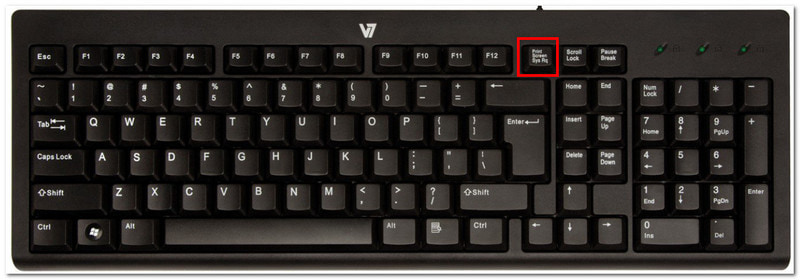
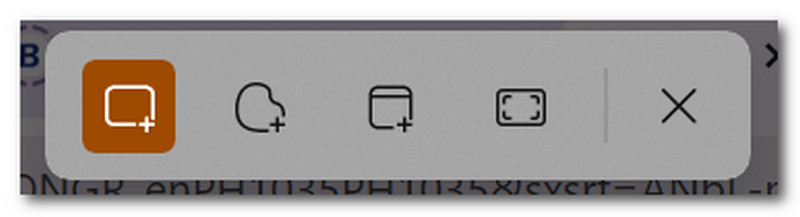
Pasul 1Localizați și apăsați butonul PrtSc din partea dreaptă sus a tastaturii. Ecranul se va întuneca și un mic meniu tip bară va apărea în partea de sus, la mijloc.
Pasul 2Alegeți între moduri: Dreptunghiular, Formă liberă, Fereastră, și Ecran completDupă ce ați terminat, captura de ecran este copiată automat în clipboard, putând fi lipită într-un document gol, în chat-ul de mesagerie și în alte locuri.
2. Instrument de decupare și Decupare și schițare (cel mai potrivit pentru zone personalizate)
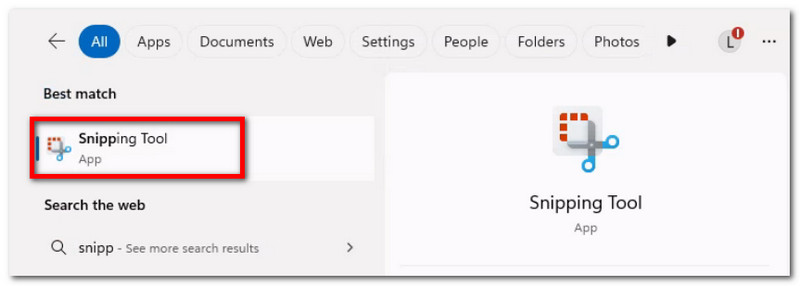
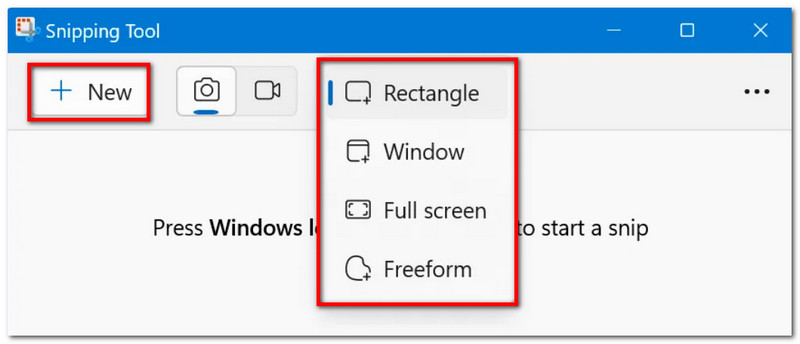
Pasul 1Căutați aplicația în bara de căutare. Rețineți că poate fi denumită astfel Instrument de decupare sau Decupare și schițare, în funcție de versiunea de Windows a dispozitivului.
Pasul 2Alegeți un mod din meniul derulant, apoi faceți clic pe Nou buton pentru a face o captură de ecran. Folosește instrumentele de desen pentru a edita, apoi dă clic pe salva pentru a salva captura de ecran.
3. Bara de jocuri
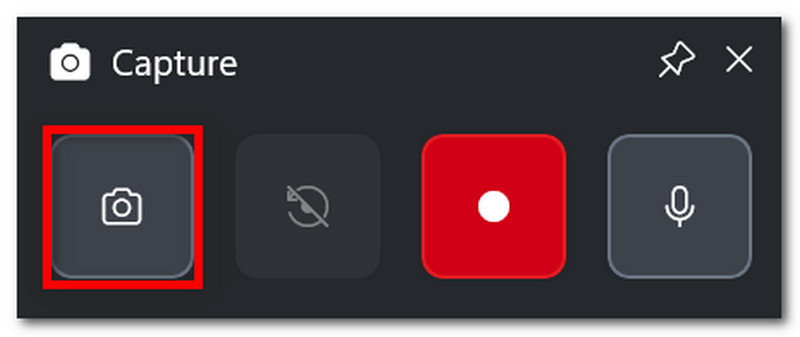
Pasul 1presa Windows + G pe tastatură. Când ecranul se întunecă, vor apărea câteva bare de activități.
Pasul 2Apasă pe aparat foto pictogramă, care este pentru realizarea de capturi de ecran. De asemenea, puteți apăsa Windows + Alt + PrtSc pentru a accesa această funcție în timpul jocului.
4. Înregistrator de ecran AVAide
Cu metodele implicite de a face capturi de ecran, s-ar putea să crezi că dispozitivul tău poate face doar atât. Dar știai că AVaide Screen Recorder Ce poate depăși experiența ta în realizarea de capturi de ecran? Cu designul său elegant și funcțiile numeroase, captura de ecran a devenit ușoară și de înaltă calitate. Cu aceasta, poți face o captură de ecran a întregului ecran, a unei ferestre deschise sau doar a unei zone mici și o poți salva în formate populare precum BMP, JPEG, PNG, GIF sau TIFF. Opțiunile de editare încorporate sunt, de asemenea, benefice, deoarece poți desena liber, adăuga numere sau text și estompa detalii importante din fotografie înainte de a o salva. În cele din urmă, captura de ecran oferită de AVAide nu se limitează doar la un instrument individual, ci poate fi utilizată chiar și atunci când înregistrezi pe computer, cu o cameră web și în orice parte a internetului. Îmbunătățiți-vă experiența de captură de ecran obținând această alternativă minunată pe Windows sau chiar pe Mac.
Pasul 1Apasă pe Descarca și instalați AVAide Screen Recorder pe Acer. După instalarea completă, deschideți software-ul.

DESCĂRCARE GRATUITĂ Pentru Windows 7 sau o versiune ulterioară
 Descărcare sigură
DESCĂRCARE GRATUITĂ Pentru Mac OS X 10.13 sau o versiune ulterioară
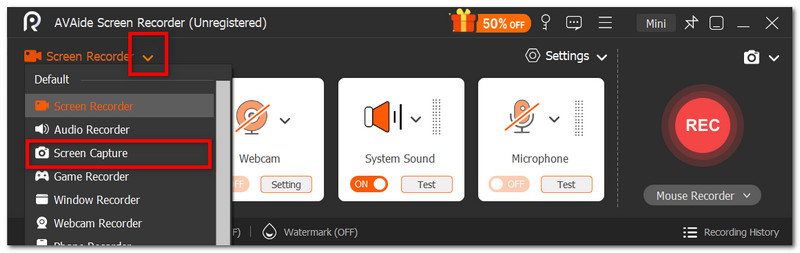
Descărcare sigurăPasul 2Accesați meniul derulant din colțul din stânga al interfeței utilizator și, din listă, alegeți Captură de ecran opțiune. Cursorul se va schimba imediat, putând fi utilizat pentru a selecta zona ecranului pe care doriți să o capturați.
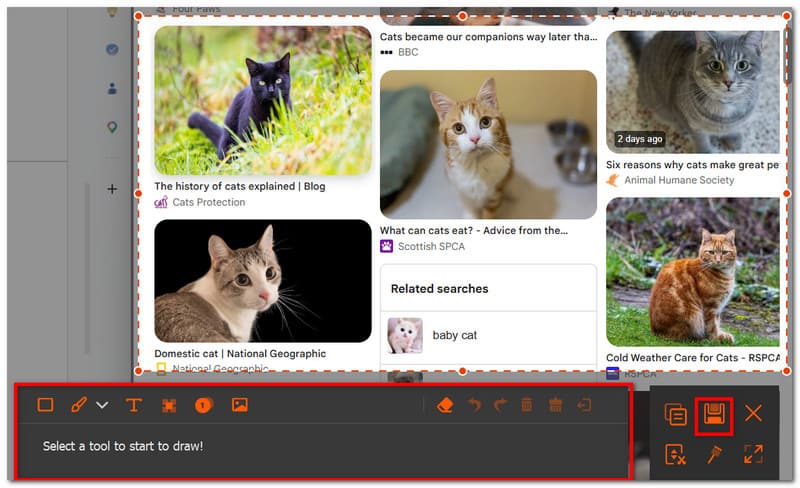
Pasul 3După ce ați făcut-o, puteți edita imaginea folosind opțiunile de editare. După aceea, exportați imaginea făcând clic pe salva buton. Repetați după cum este necesar.
Partea a 2-a: Cum să faci o captură de ecran pe Acer fără butonul PrintScreen
S-ar putea să vă aflați într-o situație dificilă în care tastaturii îi lipsește butonul PrtSc, iar acest lucru vă poate întârzia considerabil munca fără acesta. Așadar, cum se face o captură de ecran pe un computer Acer fără PrtSc? Această secțiune va oferi cele mai bune metode fără combinarea cu PrtSc și sunt native pentru laptopurile Acer.
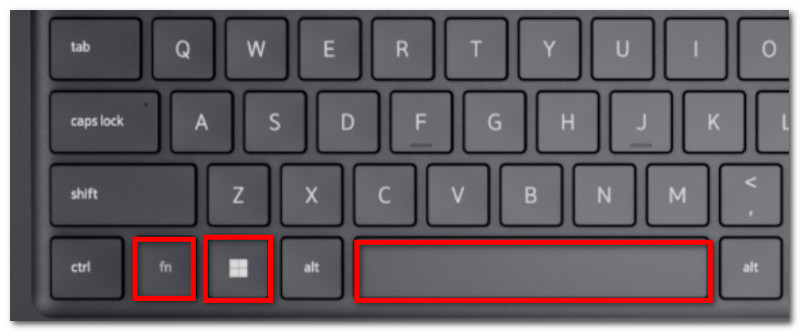
Soluția 1: Apăsați Fn + Windows + Spacebar (comandă rapidă obișnuită Acer) sau Fn + PrtSc
Pasul 1Pe tastatura Acer, apăsați Fn + Windows + Bara de spațiu butoane. Când ecranul clipește, înseamnă că a fost făcută o captură de ecran complet.
Pasul 2Accesați un document Word gol și apăsați Ctrl + V pentru a lipi imaginea. Apoi, puteți salva documentul într-un folder.
Soluția 2: Folosește Windows + Shift + S (deschide bara de captură a instrumentului de decupare)
Pasul 1Apăsați simultan Windows + Shift + S pe tastatură și va deschide instrumentul de decupare.
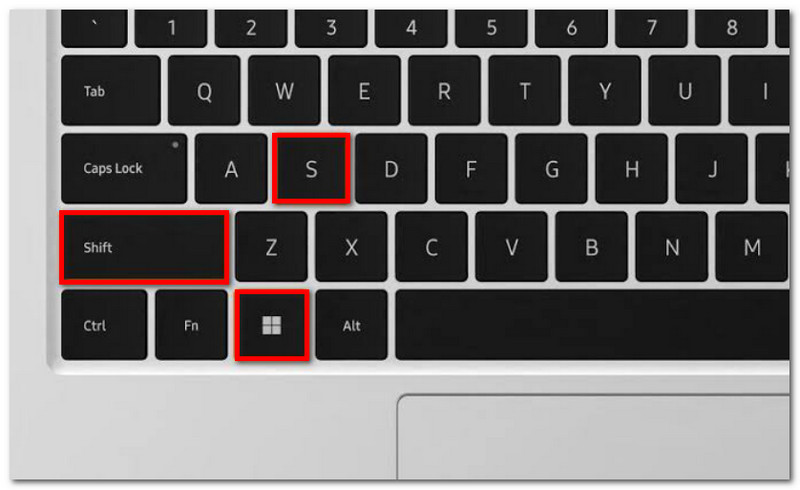
Pasul 2Alegeți modul de captură de ecran și trageți cursorul pentru a selecta zona dorită pentru captură. Folosiți Ctrl + V pentru a lipi imaginea.
Soluția 3: Remaparea unei alte chei
Pasul 1Obțineți PowerToys din Magazinul Microsoft. În partea stângă a interfeței, selectați Manager de tastatură.
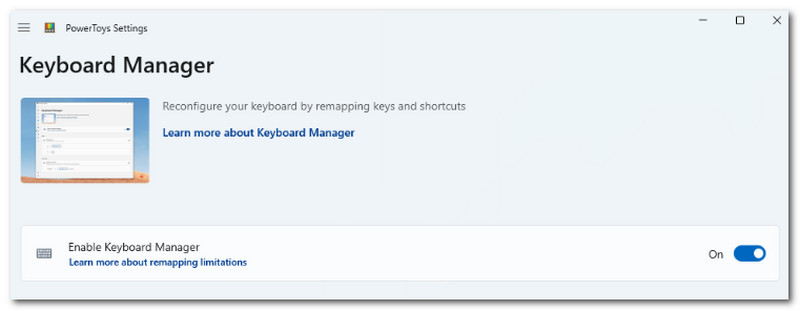
Pasul 2Alegeți orice literă de pe tastatură pentru a accesa instrumentul de decupare atunci când este nevoie. Faceți clic pe O.K pentru a salva modificările.
Partea 3: Cum se face o captură de ecran pe un Chromebook Acer
Chromebook-urile au o modalitate diferită de a face capturi de ecran pe Acer. Deși de cele mai multe ori o tastatură de computer are butonul PrtSc, Chromebook-urile nu îl au. Așadar, cum se face oficial o captură de ecran pe un Chromebook Acer? Urmați pașii următori pentru a face capturi de ecran în modurile ecran complet și parțial cu ușurință:
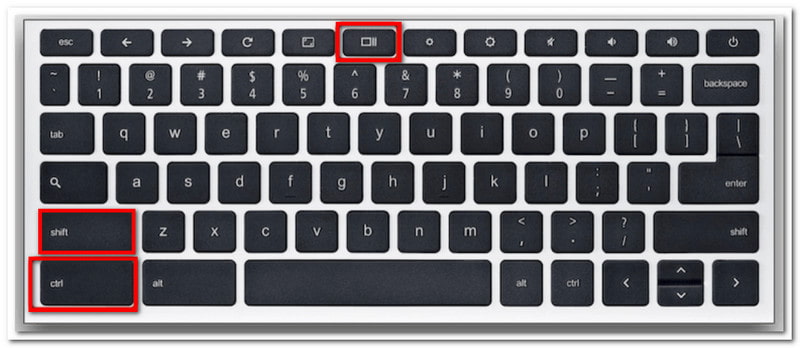
Pasul 1Pentru ecran complet, apăsați Ctrl + Afișare butoane. Butonul Afișare se află de obicei în partea de sus, din mijloc, a tastaturii, cu o pictogramă care prezintă un dreptunghi cu două linii verticale.
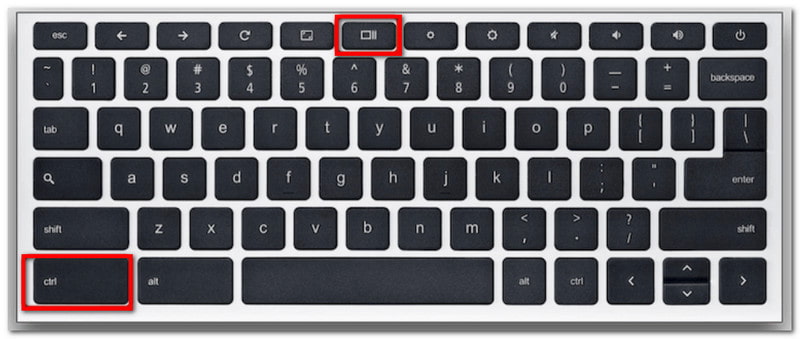
Pasul 2Captura de ecran va fi copiată în clipboard, pe care trebuie să o lipiți într-un document Word gol pentru a o putea salva.
Pasul 3Pentru modul parțial, apăsați Ctrl + Shift + AfișareFolosește mouse-ul pentru a selecta zona pe care dorești să o faci ca ecran.
Partea 4: Cum să faci o captură de ecran pe o tabletă Acer
Tabletele Acer funcționează diferit față de un laptop. Cu toate acestea, realizarea de capturi de ecran pe o tabletă este simplă și necesită doar câteva butoane. Spre deosebire de realizarea de capturi de ecran pe un laptop, care salvează imaginile în funcție de metoda utilizată, capturile de ecran de pe tabletă sunt stocate în aplicația Fotografii. Urmați pașii următori:
Pasul 1Pregătiți conținutul pe care doriți să îl capturați pe tableta Acer. Apăsați și mențineți apăsat butonul Reducere volum și Putere butoane.
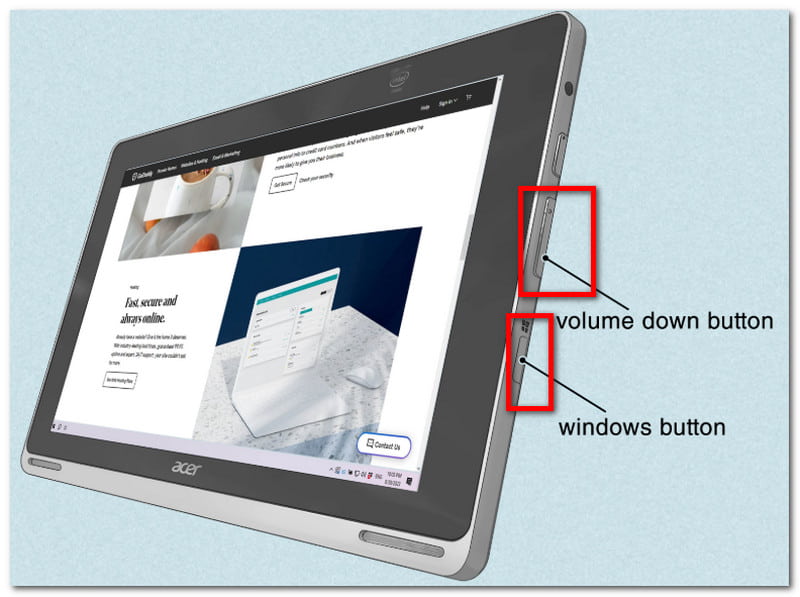
Pasul 2Odată ce ecranul clipește, indică faptul că a fost făcută o captură de ecran. Accesați aplicația Fotografii pentru a vizualiza fotografia sau utilizați un redimensionare foto pentru a decupa captura de ecran.
Cu acest articol, Facerea de capturi de ecran pe Acer Nu a fost niciodată mai ușor, deoarece te ghidează să utilizezi metodele oficiale de captură de ecran pe dispozitivul tău. Nu numai atât, dar ai descoperit și cea mai bună metodă dacă desktopul tău nu are butonul PrintScreen. Nu uita că AVAide Screen Recorder va fi întotdeauna o alternativă excelentă pentru captura de ecran, indiferent dacă vrei să faci o captură de ecran, să înregistrezi videoclipuri sau sunet. Te încurajăm să încerci cea mai bună soluție pentru înregistrarea ecranului pe Windows și Mac.
DESPRE AUTOR

Înregistrați ecranul, sunetul, camera web, jocul, întâlnirile online, precum și ecranul iPhone/Android pe computer.
Înregistrare ecran
- Înregistrare ecran pe Windows
- Înregistrați live pe Instagram
- Extrage videoclipuri din Tubi
- Convertește videoclipuri YouTube în MP3
- Descarcă videoclipuri de la Fansly
- Descărcarea videoclipurilor JW Player
- Descărcați videoclipuri Bilibili
- Descarcă videoclipuri Patreon
- Descarcă videoclipuri SpankBang
- Descarcă videoclipuri Discord
- Descărcați videoclipul DoodSream