Te confrunți cu înregistrări video greoaie la rezoluție scăzută? Indiferent dacă prezinți un raport, propui proiecte sau partajezi o scurtă prezentare, s-ar putea să te gândești la... Instrument de înregistrare a ecranului Loom în acest moment, motiv pentru care îl vom analiza în acest articol. Descoperiți caracteristicile sale, cerințele de sistem, prețurile și toate detaliile pe care trebuie să le cunoașteți. În plus, vă vom prezenta cele mai bune trei alternative pe care le puteți utiliza pe lângă Loom.
Partea 1. Ce este războiul de țesut?
Înregistrator de ecran Loom
Platforme: Desktop, Chrome și mobil
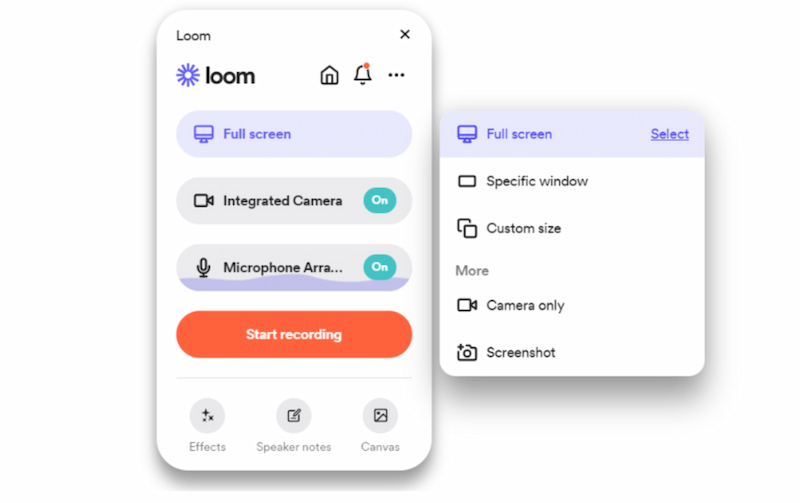
Loom este un instrument conceput pentru a ajuta utilizatorii să înregistreze rapid ecranul pe tot ecranul, într-o regiune personalizată sau într-un mod fereastră. Toate aceste moduri pot fi dotate cu sau fără sunet de sistem sau de microfon. Mai mult decât atât, acest instrument are o interfață simplă pentru ca începătorii să înceapă înregistrarea cu un singur clic.
Mai mult decât atât, acest instrument are o caracteristică unică legată de Loom, care vă permite să invitați și să colaborați cu colegii de echipă pentru vizualizarea, editarea și lăsarea de comentarii la fișierele înregistrate pentru revizuiri și informații.
- Pro
- Interfață curată pentru utilizarea instantanee a instrumentului.
- Acceptă mai multe platforme.
- Instrument bun pentru comunicarea asincronă.
- Precizie ridicată a transcrierilor AI.
- Contra
- Extensiile Chrome oferă mai puține funcții cu suport pentru camera web.
- Videoclipul înregistrat poate fi vizualizat și editat doar în browserul dvs.
Verdict
Ușurință în utilizare: 4/5
Loom Screen Recorder oferă o interfață curată și ușor de utilizat pentru începători. Acest lucru poate face procesul de înregistrare video instantaneu. Deși unele procese avansate de editare ar putea necesita o curbă de învățare.
Valoare: 4/5
Instrumentul este generos oferindu-ne un abonament gratuit, în timp ce abonamentele plătite oferă o colaborare excelentă și utilă cu funcții de inteligență artificială. Prin urmare, valoarea sa este egală cu prețul său.
Colaborare: 4,5/5
Loom are funcții excelente care oferă o experiență uimitoare pentru comunicarea asincronă. Vă puteți bucura de comentarii video și partajarea ușoară a linkurilor, acestea fiind alegeri excelente pentru o configurare de la distanță.
Integrare AI: 3.5
În abonamentele plătite, te poți bucura de funcțiile sale uimitoare integrate cu inteligență artificială, cum ar fi transcrierea automată, crearea de rezumate și sugestii. Cu toate acestea, te poți aștepta ca funcțiile de inteligență artificială pe care le oferă să fie limitate dacă le comparăm cu alte instrumente.
Evaluare generală: 4/5
Acesta este într-adevăr unul dintre cele mai bune instrumente de înregistrare a ecranului care poate fi folosit de profesioniști, educatori și angajați la distanță. Oferă un proces rapid de înregistrare și partajare fără probleme. În același timp, te ajută în sarcina ta cu funcțiile sale de inteligență artificială.
Partea a 2-a. Caracteristici cheie
Vom trece acum la prezentarea caracteristicilor software-ului de înregistrare video Loom. Vedeți toate capacitățile sale și cum utilizatorii Loom Screen Recording de pe Mac, Windows și Chrome pot captura cu ușurință întâlniri, tutoriale și prezentări cu video și audio de înaltă calitate.
Moduri de înregistrare
Aplicația Loom Screen Recording acceptă trei moduri de înregistrare, și anume:
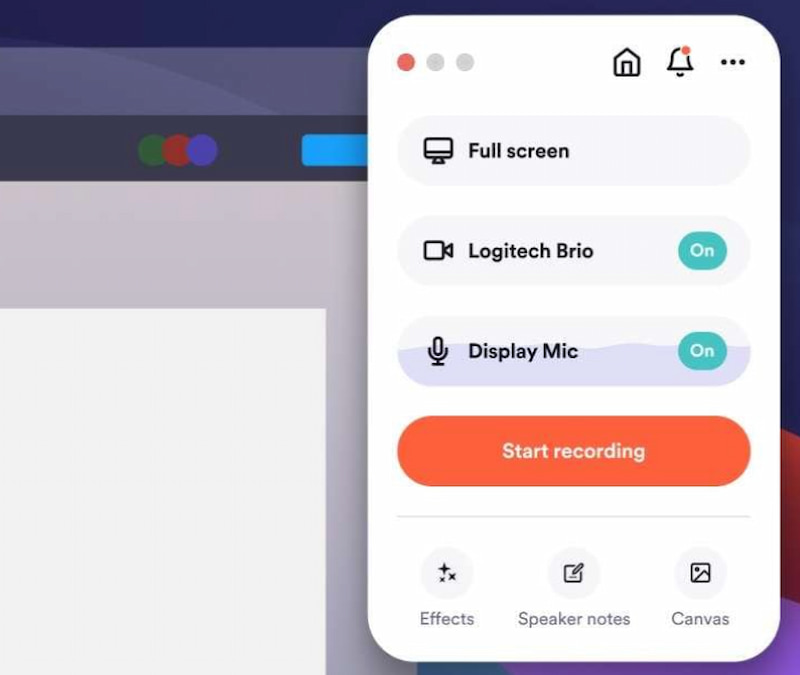
- Ecran complet: Capturați prezentări, tutoriale sau tutoriale.
- Ferestre specifice: Aveți dreptul să alegeți ferestrele pe care doriți să le capturați.
- Dimensiune personalizată: Puteți seta raportul procesului de înregistrare a ecranului.
- Ecran plus cameră: Popular pentru actualizări de echipă și integrare. Îți face o captură de ecran cu tine pe el.
- Înregistrare cu microfon: Acest lucru poate fi aplicat oricărui mod. Trebuie doar să îl activați.
Instrumente de editare
Acest instrument are și funcții de editare de bază:
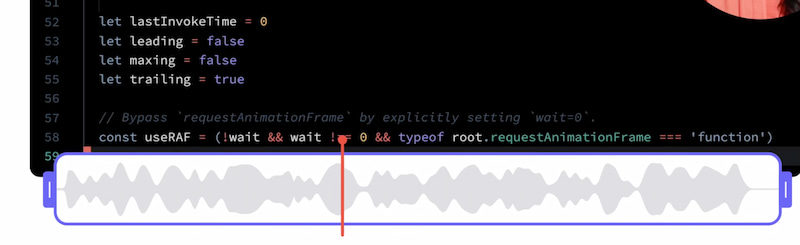
- Decuparea videoclipurilor: Pentru a decupa secțiuni inutile din videoclipuri.
- Instrumente de desen: Adnotează în timpul înregistrării.
- Reacții emoji: Adaugă o interacțiune ușoară.
Funcții bazate pe inteligență artificială
De asemenea, este integrat cu tehnologia AI pentru o procesare și o revizuire mai rapidă a înregistrării.
- Transcrieri cu inteligență artificială: Vă oferă automat transcrieri și rezumate.
- Caracteristici principale ale inteligenței artificiale: Extrageți puncte cheie din înregistrări lungi.
Partajare instantanee
- Linkuri instantanee: Nu este nevoie să descărcați fișiere video.
- Colaborare în echipă: Colegii de echipă pot comenta, reacționa și răspunde.
- Integrări: Funcționează perfect cu Slack și Gmail, apreciat foarte mult de utilizatori.
Partea 3. Cerințe de sistem
În plus, Loom Screen Recorder necesită anumite dispozitive pentru a îndeplini cerințele de sistem. Fără acești factori, instrumentul s-ar putea să nu funcționeze corect. Prin urmare, este mai bine să verificați aceste elemente înainte de a utiliza Loom Screen Recorder.
| Platformă | Sistem de operare minim | CPU | Berbec | Note |
| Desktop | Windows 10+ sau macOS 12.3+. | Intel Skylake (generația a 6-a) sau Apple M1 | 8 GB (16 GB recomandați) | Acceptă înregistrare HD/4K cu abonamentele Business/Enterprise. |
| Browser | Extensia Loom Screen Recorder pentru Chrome necesită cea mai recentă versiune de browser Chrome sau bazată pe Chromium. | N / A | 4 GB+ | • Extensia Loom Screen Recorder funcționează doar pe Chrome, Edge, Brave și Opera, cu o rezoluție de înregistrare limitată la 720p pentru început. • Extensiile Chrome nu pot înregistra baloane ale camerei în aplicații non-Chrome, cum ar fi PowerPoint sau Keynote. |
| Telefon mobil | iOS 15+ sau Android 10+ | N / A | N / A | Aplicațiile mobile permit înregistrarea și partajarea, dar instrumentele de editare sunt limitate în comparație cu cele pentru desktop. |
Partea 4. Cum se folosește războiul de țesut
După ce am descoperit toate funcțiile uimitoare pe care le poate oferi Loom Screen Recorder, haideți să trecem acum la învățarea modului de a înregistra un videoclip Loom cu ușurință. Ți-am pregătit un ghid pentru a-l învăța cu ușurință:
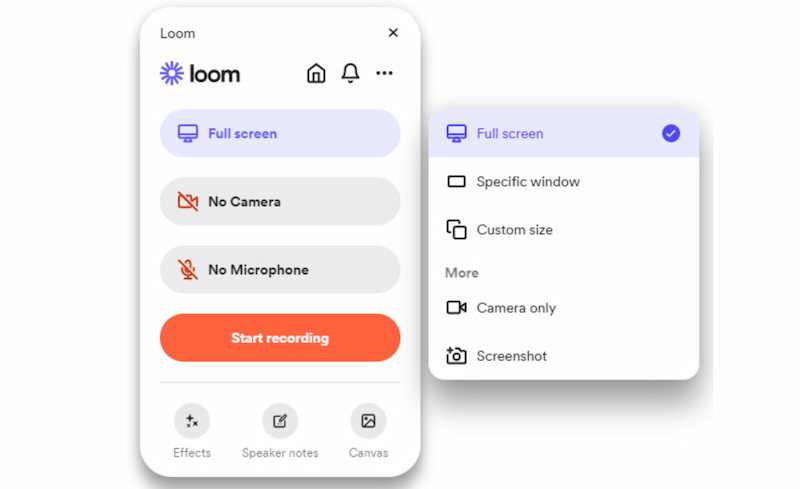
Pasul 1Descărcați Loom Screen Recorder pe computer. De acolo, accesați meniul Start. Apoi, alegeți modul de înregistrare din Ecran complet, Ferestre specifice, sau Dimensiune personalizată.
Pasul 2Apoi, puteți activa sau dezactiva aparat foto sau Microfon pentru înregistrarea video. Apoi, vă rugăm să continuați făcând clic pe Începe să înregistrezi butonul. Fă ce vrei în timp ce înregistrarea este continuă.
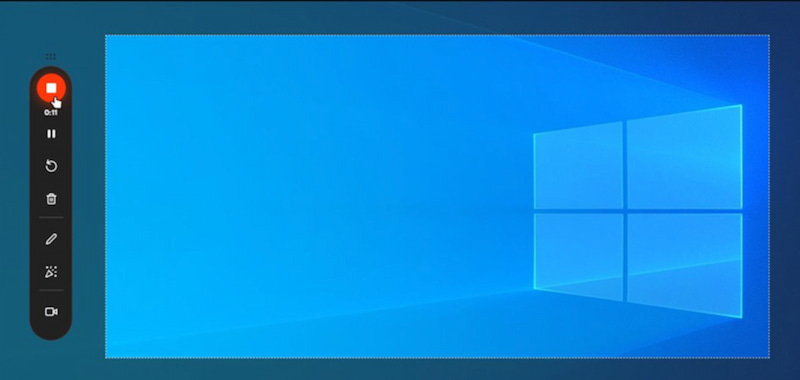
Pasul 3Dacă ați terminat, acum puteți face clic pe Stop Aplicația Loom vă va duce acum la fereastra de previzualizare. De acolo, veți avea opțiunile de a edita sau partaja înregistrarea cu alții.
Putem vedea că Loom Screen Recorder este eficient și ușor de utilizat. Oferă funcțiile de care aveți nevoie pentru a face posibil procesul de înregistrare. Este practic pentru înregistrarea și editarea minimă a videoclipurilor dvs.
Partea 5. Planuri tarifare
Spuneți-ne care sunt planurile tarifare ale Loom Screen Recorder. Vedeți tipurile de abonament din versiunea gratuită și câteva versiuni plătite utile pentru diferite afaceri și scopuri.
| Plan | Preț | Caracteristici cheie |
| Incepator | Gratuit | • 25 de videoclipuri. • Limită de 5 minute. • Înregistrări nelimitate ale întâlnirilor. • Comentarii și reacții. |
| Afaceri | $18 per utilizator pe lună | • Videoclipuri și timp nelimitate. • HD/4K. • Eliminarea mărcii. • Încărcări/descărcări. |
| Afaceri + Inteligență Artificială | $24 per utilizator pe lună | • Toate funcțiile pentru afaceri. • Rezumate și capitole despre inteligența artificială. • Eliminarea tăcerii. |
| Întreprindere | Personalizat | • Securitate avansată. • Controale administrative. • Analiză. • Integrări. |
Partea 6. Alternative la Loom
1. AVaide Screen Recorder
AVaide Screen Recorder Instrumentul oferă o varietate de moduri de înregistrare a ecranului, funcții ale camerei și moduri de înregistrare audio interne și externe. Este instrumentul perfect de înregistrare pentru consumatori, în special pentru acei utilizatori care caută simplitate și înregistrare zilnică fiabilă, deoarece este ușor, are un preț rezonabil și vine cu instrumente de editare de bază.

DESCĂRCARE GRATUITĂ Pentru Windows 7 sau o versiune ulterioară
 Descărcare sigură
DESCĂRCARE GRATUITĂ Pentru Mac OS X 10.13 sau o versiune ulterioară
Descărcare sigură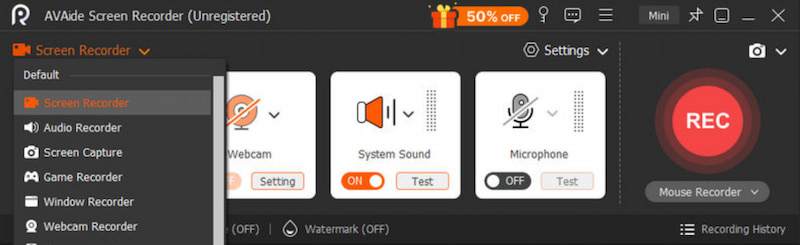
2. Studioul OBS
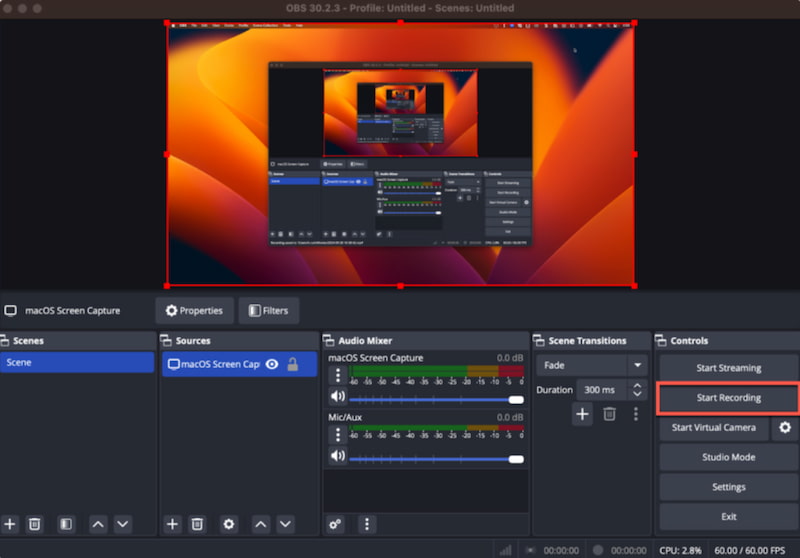
OBS Studio este un instrument care poate înregistra ecranul și sunetul cu funcții extrem de personalizabile. Acest instrument este, de asemenea, gratuit și înregistrator de ecran cu sursă deschisăEste ideal pentru jucători, platforme de radio și profesioniști care necesită o versatilitate ridicată în înregistrare, deoarece permite streaming live complex, diverse surse, suprapuneri și pluginuri.
3. Camtasia
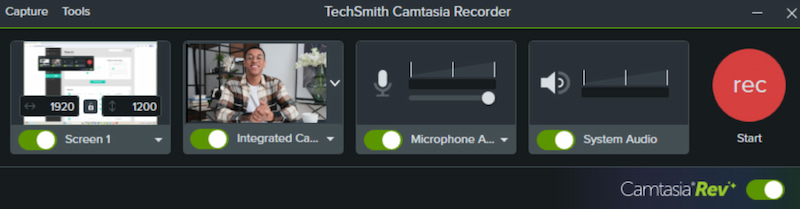
Înregistrarea de calibru profesional este combinată cu funcții puternice de editare, precum teste, efecte și tranziții cu Camtasia. Profesorii și formatorii îl aleg în ciuda costului ridicat, datorită materialului video interactiv și rafinat și a funcțiilor extinse de producție.
Partea 7. Depanare: Înregistratorul de ecran Loom nu funcționează
Problema 1: Addon-ul Chrome nu înregistrează
- Asigură-te că ai cea mai recentă versiune de Chrome.
- Verificați permisiunile pentru cameră, microfon și ecran pentru extensia Loom.
- Dezactivați toate extensiile care intră în conflict.
Problema 2: Funcțiile de inteligență artificială nu se afișează sau videoclipurile nu se procesează
- Verificați o conexiune la internet fiabilă.
- Ștergeți cookie-urile și memoria cache din browser.
- Verifică-ți abonamentul pentru planul Business + AI.
- Reîmprospătați sincronizarea contului deconectându-vă și conectându-vă din nou.
Problema 3: Calitate video slabă
- Rezoluția înregistrărilor din abonamentul Starter gratuit este limitată.
- Pentru înregistrare HD/4K, comutați la aplicația desktop.
- Asigură-te că ecranul și camera web pot suporta rezoluții mai mari.
Putem acum concluziona că Înregistrator de ecran Loom este un instrument excelent care poate oferi funcțiile de care ai nevoie pentru înregistrarea ecranului. Mulți utilizatori apreciază gama sa largă de moduri de înregistrare, de la ecran complet la dimensiune personalizată. Cu toate acestea, versiunea gratuită ar putea fi foarte limitată pentru tine. Din fericire, avem alternative excelente care pot oferi mai mult în înregistrarea ecranului și a sunetului, chiar și în conversie gratuită. Încercați instrumentul AVAide Screen Recorder pentru un proces mult mai eficient de înregistrare a ecranului.
DESPRE AUTOR

Capturați activități pe ecran cu sunet, întâlniri online, videoclipuri de joc, muzică, cameră web etc.
Înregistrare ecran
- Înregistrare ecran pe Windows
- Înregistrați live pe Instagram
- Extrage videoclipuri din Tubi
- Convertește videoclipuri YouTube în MP3
- Descarcă videoclipuri de la Fansly
- Descărcarea videoclipurilor JW Player
- Descărcați videoclipuri Bilibili
- Descarcă videoclipuri Patreon
- Descarcă videoclipuri SpankBang
- Descarcă videoclipuri Discord
- Descărcați videoclipul DoodSream