Trebuie să arăți și să înregistrezi pași, să raportezi o eroare sau să creezi un tutorial rapid pe PC? Am creat sute, dacă nu mii, de înregistrări Windows pentru utilizatorii obișnuiți și mă concentrez pe instrumente simple încorporate în sistemul de operare. Acest ghid îți arată exact... cum să înregistrezi ecranul pe Windows folosind instrumentele implicite disponibile și instrumente terțe care oferă funcții extinse pentru nevoile dvs. de înregistrare. Cu pași clari, puteți produce videoclipuri clare și ușor de partajat.
- Metode de înregistrare a ecranului de top, pe scurt
- Metoda 1: Bara de jocuri Xbox (Alegerea rapidă și ușoară)
- Metoda 2: Instrumentul de decupare (Windows 11)
- Metoda 3: Înregistrator de ecran AVAide
- Metoda 4: Bandicam
- Metoda 5: OBS Studio
- Metoda 6: ScreenRec
- Metoda 7: Război de țesut
- Metoda 8: ShareX
- Metoda 9: Captură de ecran excelentă
- Foaie de scurtături de la tastatură
- Depanare: Probleme frecvente de înregistrare a ecranului
Metode de înregistrare a ecranului de top, pe scurt
Cea mai bună alegere pentru începători: Bara de jocuri Xbox (Windows încorporată, captură rapidă cu un singur clic) și instrumentele de decupare (înregistrarea zonei selectate cu comutări audio simple)
Cel mai bun serviciu gratuit pentru profesioniști: OBS Studio (înregistrare nelimitată, scene multi-sursă, streaming live, open source) și ShareX (gratuit, captură regională, flux de lucru personalizabil).
Cel mai bun înregistrator gratuit cu filigran: Bandicam (înregistrare ușoară, audio și regională de înaltă calitate)
Cel mai bun serviciu multifuncțional plătit pentru înregistrare generală: AVAide Screen Recorder (interfață simplă a ecranului, program de înregistrare, suprapunere cameră web, funcție de blocare, editor încorporat și adnotări în timpul înregistrării)
Cel mai bun pentru înregistrarea videoclipurilor online: Loom (înregistrare bazată pe cloud, partajare de linkuri, comentarii și reacții, compatibil cu Windows, web) și Awesome Screenshot (aplicație bazată pe browser, captură cu markup și editări rapide)
Metoda 1: Bara de jocuri Xbox (Alegerea rapidă și ușoară)
Cauți o soluție de capturare a aplicațiilor sau a jocurilor fără nicio instalare care să funcționeze cu Windows? Bara de jocuri Xbox este o funcție încorporată în Windows 10 și 11 care vine preîncărcată cu posibilitatea de a captura audio și microfon de pe Xbox, precum și de a salva un fișier MP4 cu un singur clic. Află cum să înregistrezi ecranul: Deschide aplicația, apasă Win + G și apasă înregistrare. Următorul proces prezintă configurarea, comutarea audio și locația de înregistrare.
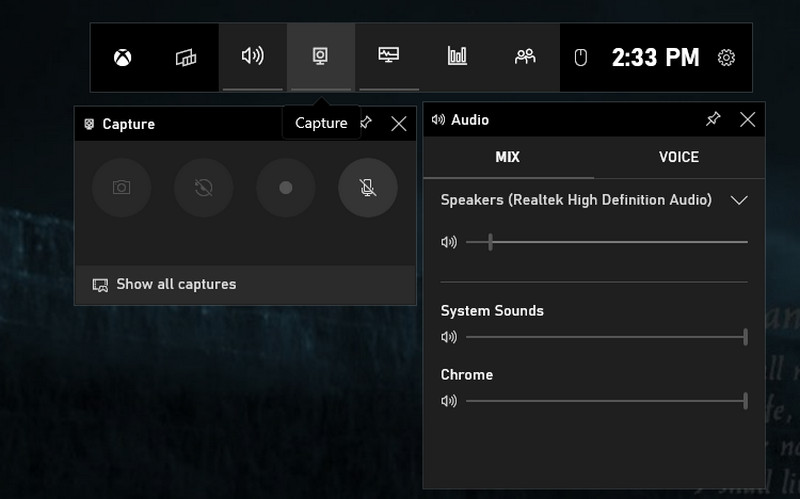
Pasul 1Loveste Windows butonul și G tasta pentru a deschide bara de jocuri Xbox.
Pasul 2Apoi, bifați caseta pentru a confirma și a continua. Ajustați înregistrarea în funcție de nevoile dvs. cu opțiunile disponibile aici. Acum că sunteți gata să începeți înregistrarea, faceți clic pe butonul punct roșu pentru a începe sau puteți apăsa Windows + Alt + R.
Pasul 3Pe ecran va apărea o stare de captură a înregistrării. Dacă ați terminat, faceți clic pe pătrat buton.
Metoda 2: Instrumentul de decupare (Windows 11)
Pe Windows 11, Instrument de decupare este o modalitate simplă și încorporată de a captura orice zonă a ecranului. Înregistrează sunetul sistemului și microfonul, vă permite să selectați o regiune sau ecran complet și salvează direct ca MP4. Dacă vă întrebați cum să înregistrați ecranul fără a instala software nou, acest instrument este cea mai rapidă opțiune nativă. Pașii de mai jos arată cum să îl deschideți, să începeți înregistrarea și să salvați clipul.
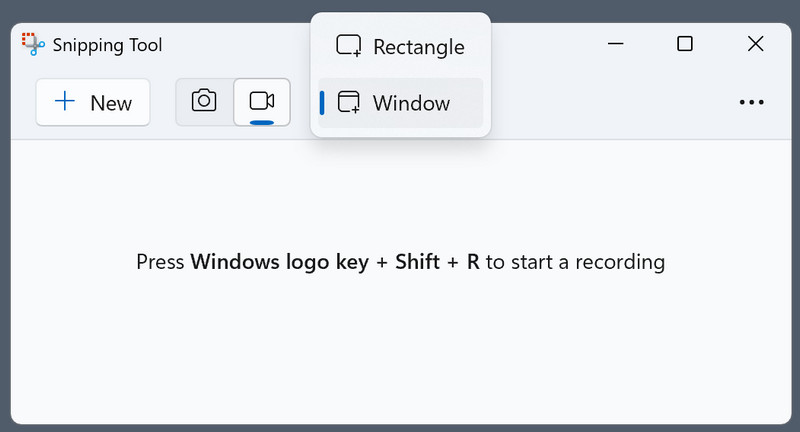
Pasul 1Pentru a-l deschide, faceți clic pe butonul Windows de pe tastatură și tastați instrumentul de decupare disponibil pe Windows.
Pasul 2Pe interfața sa flotantă, faceți clic pe aparat de fotografiat deoarece doriți să utilizați funcția de înregistrare a ecranului. Apoi, ajustați zona în care doriți să fiți capturat desenând un dreptunghi.
Pasul 3Apoi apasa startDupă înregistrare, faceți clic pe Stop butonul pentru a-l salva.
Metoda 3: Înregistrator de ecran AVAide
AVaide Screen Recorder este o aplicație Windows plătită, concepută pentru cei care doresc o aplicație elegantă, înregistrare programată, suprapunere webcam, adnotări și un editor integrat. Înregistrează sunetul și microfonul sistemului dvs., înregistrează în regiune sau pe ecran complet și exportă în formate comune fără filigran. Dacă sunteți în căutarea unei metode de înregistrare pe ecran cu funcții profesionale și un flux de lucru simplu, această aplicație oferă o calitate constantă pentru tutoriale și conținut de instruire. Următorii pași ilustrează instalarea, configurarea audio, setările de înregistrare și opțiunile de export.
Pasul 1În primul rând, trebuie să descarci și să instalezi înregistratorul de ecran pe Windows 10/11 făcând clic pe butonul corespunzător aici. Apoi, treci la pașii următori.

DESCĂRCARE GRATUITĂ Pentru Windows 7 sau o versiune ulterioară
 Descărcare sigură
DESCĂRCARE GRATUITĂ Pentru Mac OS X 10.13 sau o versiune ulterioară
Descărcare sigurăPasul 2Pe interfața principală, selectați Screen RecorderAici, trebuie să configurați corect zona de înregistrare, să adăugați fața prin camera web, sunetul de la microfonul extern și sunetul sistemului generat pe PC. După aceea, faceți clic pe REC butonul pentru a începe înregistrarea.
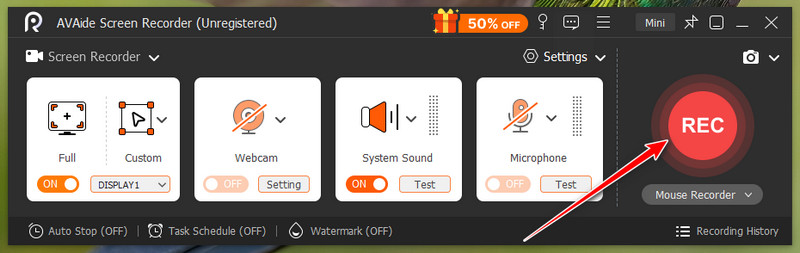
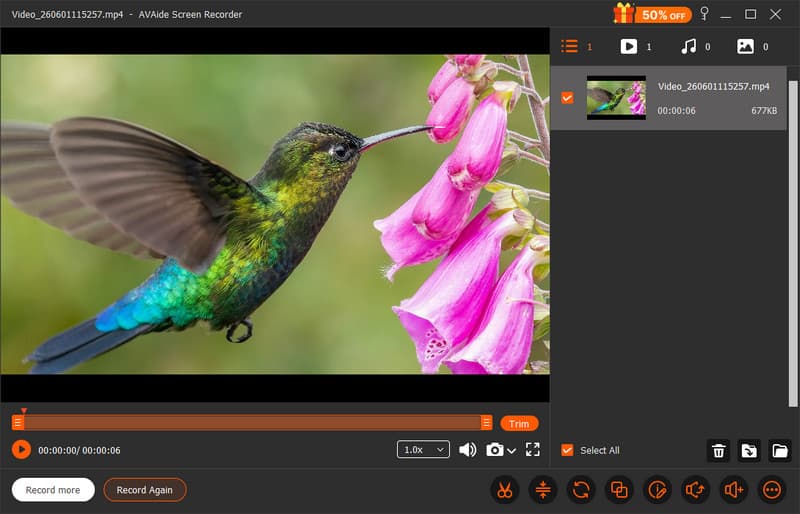
Pasul 3După ce sunteți mulțumit și aplicația și-a făcut treaba la înregistrare, faceți clic pe Stop buton. Acum, puteți partaja videoclipul înregistrat cu toată lumea la fel de ușor cum vă oferă AVAide.
Metoda 4: Bandicam
Bandicam este un înregistrator de captură de ecran ușor, dar eficient, pentru Windows, capabil să creeze înregistrări de înaltă calitate pentru perioade lungi de timp. Are atât funcții de captură regională, cât și de înregistrare pe ecran complet și în ferestre specifice și îi permite să înregistreze audio de la microfon și sistem, să configureze înregistrări și să deseneze în timpul înregistrării. Bandicam este un înregistrator de captură de ecran pentru Windows, stabil, care produce fișiere de dimensiuni mai mici pentru tutoriale și demonstrații sau chiar pentru jocuri. Pașii următori demonstrează instalarea, selectarea modului de captură, configurarea intrării audio și configurarea opțiunilor de exportare.
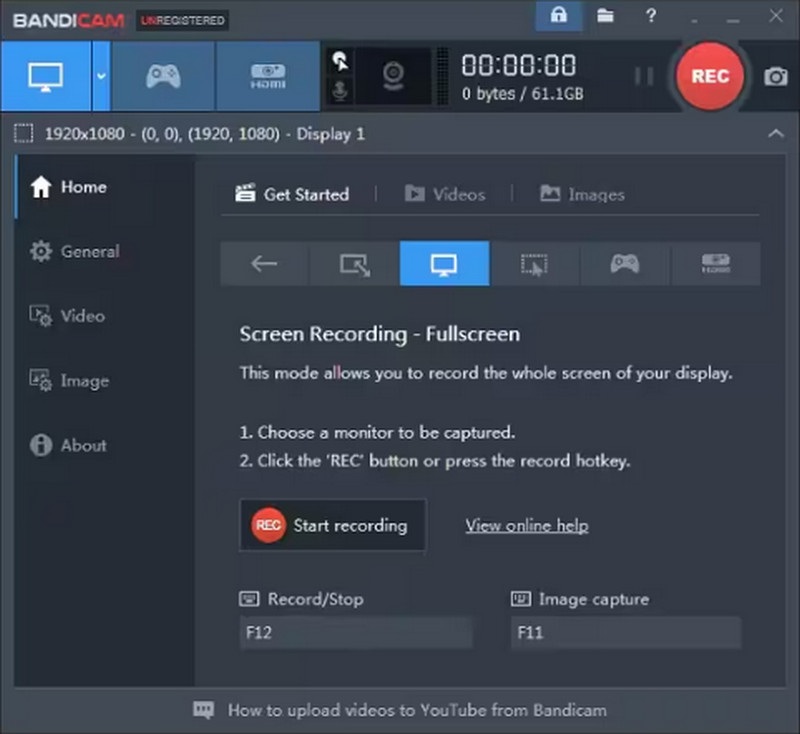
Pasul 1Deschide Bandicam pe computer, alege modul de înregistrare disponibil aici pe care dorești să îl utilizezi și ajustează presetările.
Pasul 2Apoi, faceți clic pe REC pentru a începe înregistrarea, apoi așteptați câteva secunde până când numărătoarea inversă se termină.
Pasul 3După ce înregistrarea este finalizată, faceți clic pe Stop butonul și puteți reda videoclipul înregistrat.
Metoda 5: OBS Studio
OBS Studio este un înregistrator și streamer Windows gratuit, open-source, cu înregistrare nelimitată, fără filigrane și cu posibilitatea de a avea un nivel ridicat de control asupra scenelor, surselor, mixerelor audio și encoderelor sale. Ideal pentru configurații multi-sursă, tranziții personalizate și producerea de rezultate de înaltă calitate, este opțiunea preferată de profesioniștii care apreciază flexibilitatea. Pentru Windows, dacă doriți să înregistrați de pe ecran pe Windows pentru piste audio, rezoluție și opțiuni de bitrate, puteți obține calitate de difuzare cu OBS Studio.
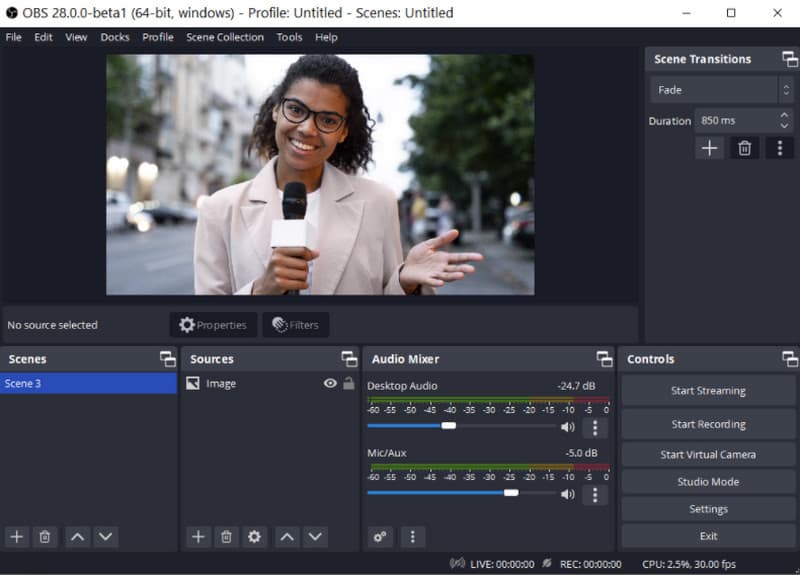
Pasul 1Descărcați și deschideți cea mai recentă versiune de OBS Studio. Redenumiți sau creați un Scenă din caseta din stânga jos a acesteia.
Pasul 2Adăugați sursa pentru ce să înregistrați, faceți clic pe butonul + pentru a adăuga scenele corecte și selectați Captură de afișare. Bifați Setări > Ieșire > Calea de înregistrare > Naviga pentru a selecta locul unde doriți să salvați videoclipul înregistrat.
Pasul 3Acum că sunteți gata, faceți clic pe Începe să înregistrezi butonul și, când doriți să îl opriți, faceți clic pe Opriți înregistrarea buton.
Metoda 6: ScreenRec
ScreenRec este un înregistrator de ecran de încredere, utilizat de peste 14 milioane de oameni din întreaga lume, oferind înregistrare gratuită a ecranului, microfonului, sistemului și camerei web, cu partajare instantanee în cloud și fără filigran pentru a opri capturile de ecran. Oferă o configurare rapidă, un control ușor de utilizat și 2 GB de spațiu de stocare gratuit în cloud pentru partajare rapidă după fiecare înregistrare. ScreenRec este un înregistrator de ecran simplu și rapid pentru utilizatori, tehnicieni de asistență și instructori care nu au nevoie să descarce software complex. Pașii următori demonstrează cum se înregistrează un ecran pe Windows cu acest instrument, precum și cum se partajează clipul utilizând un link.
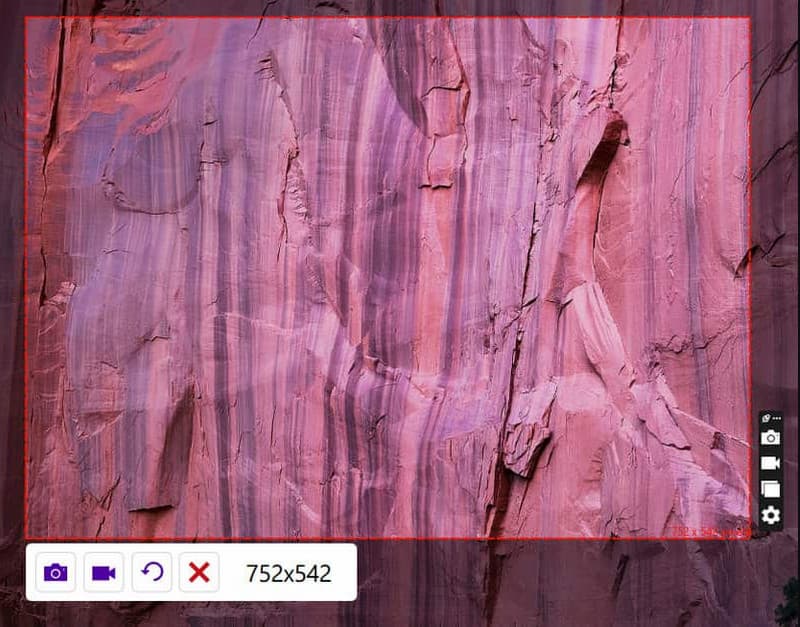
Pasul 1Descărcați aplicația oficială de pe site-ul ScreenRec și urmați procesul de instalare. Apoi, apăsați Alt + S pentru a selecta zona pe care doriți să o capturați.
Pasul 2Pentru a înregistra ecranul, faceți clic pe Cameră video și activați sunetul și microfonul computerului dacă doriți să înregistrați sunet pe acesta.
Pasul 3Bifați pătrat pentru a opri înregistrarea și vi se va oferi o adresă URL unică prin care puteți partaja videoclipul înregistrat cu oricine i-ați trimis linkul.
Metoda 7: Război de țesut
Război de ţesut este un înregistrator de ecran bazat pe cloud care facilitează capturarea ecranului, a camerei web și a microfonului, apoi partajarea imediată printr-un link cu comentarii și reacții. Funcționează pe Windows și oferă o interfață curată, editare rapidă și funcții de colaborare în echipă încorporate. Dacă vă întrebați cum să înregistrați ecranul pe PC pentru o comunicare asincronă rapidă, Loom este ideal pentru profesori, personal de asistență și echipe care au nevoie de partajare instantanee fără a gestiona fișiere. Pașii de mai jos arată instalarea, selectarea modului de înregistrare și cum să partajați linkul video.
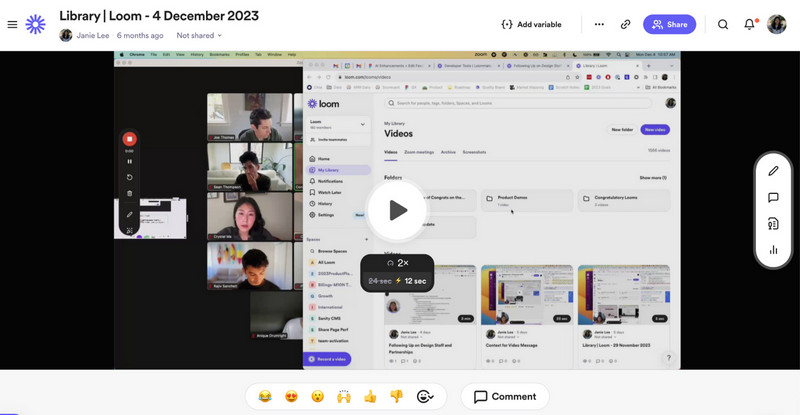
Pasul 1Descărcați Loom pe computer și urmați instrucțiunile de instalare, apoi deschideți-l.
Pasul 2Alege Mod de înregistrare pe care doriți să le utilizați din opțiunile disponibile din meniul său. Activați microfonul și camera dacă aveți nevoie de ele pentru înregistrare. Apoi, faceți clic pe Începe să înregistrezi.
Pasul 3Când ați terminat, faceți clic pe Stop și se va deschide automat într-un browser nou. Faceți clic pe butonul Copiază legătură dacă vrei să îl distribui cu alții online.
Metoda 8: ShareX
ShareX este o aplicație Windows gratuită, open-source, care înregistrează regiuni și întregul ecran, automatizează fluxurile de lucru și încarcă instantaneu fără filigrane. Oferă posibilitatea de a accepta sunetul microfonului și al sistemului, taste rapide personalizate și acțiuni post-captură, cum ar fi adnotarea și partajarea. ShareX este cel mai bun înregistrator de ecran pentru Windows 11 pentru utilizatorii avansați care doresc să înregistreze ecrane pe Windows 11 cu opțiuni gratuite de înaltă calitate și fluxuri de lucru automatizate.
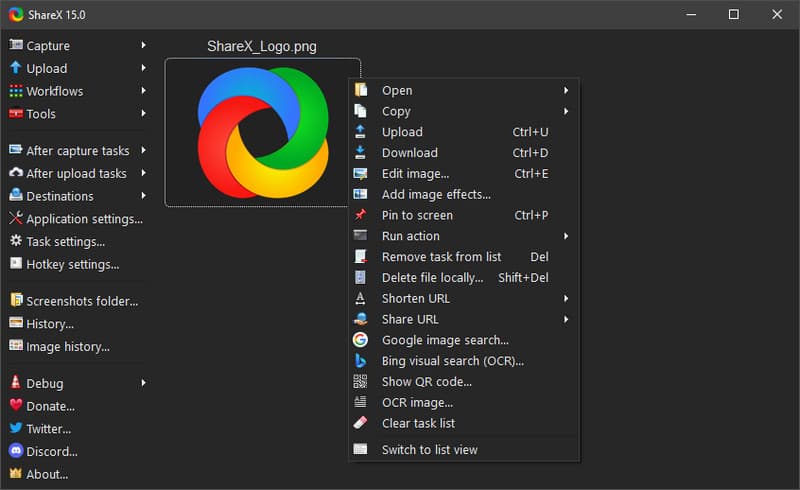
Pasul 1Deschide ShareX și apasă butonul Shift + Print Screen deoarece acestea sunt tastele rapide pentru înregistrare.
Pasul 2Va apărea un cursor, faceți clic și trageți în zona selectată pe care doriți să o înregistrați sau puteți pur și simplu să faceți clic pe activarea înregistrării pe fereastră sau pe ecran complet. După aceea, înregistrarea va începe cu un scurt timp din limita dvs. de înregistrare.
Pasul 3Pentru a termina înregistrarea, faceți clic pe aceleași taste rapide pe care le-am menționat sau pe Stop buton aici.
Metoda 9: Captură de ecran excelentă
Captură de ecran minunată este o aplicație bazată pe browser care poate face și adnota capturi de ecran și vă permite, de asemenea, să înregistrați anumite regiuni și file web. Funcționează pe Windows folosind Chrome sau Edge, acceptă sunet pentru microfon, editare rapidă și partajare. Pentru capturi de ecran bazate pe web, Awesome Screenshot este o extensie utilă dacă doriți să capturați rapid ecranele pentru editare și adnotare rapidă. Așadar, dacă doriți să încercați asta... extensie de înregistrare a ecranului sau aplicația sa descărcabilă, urmați pașii de mai jos.
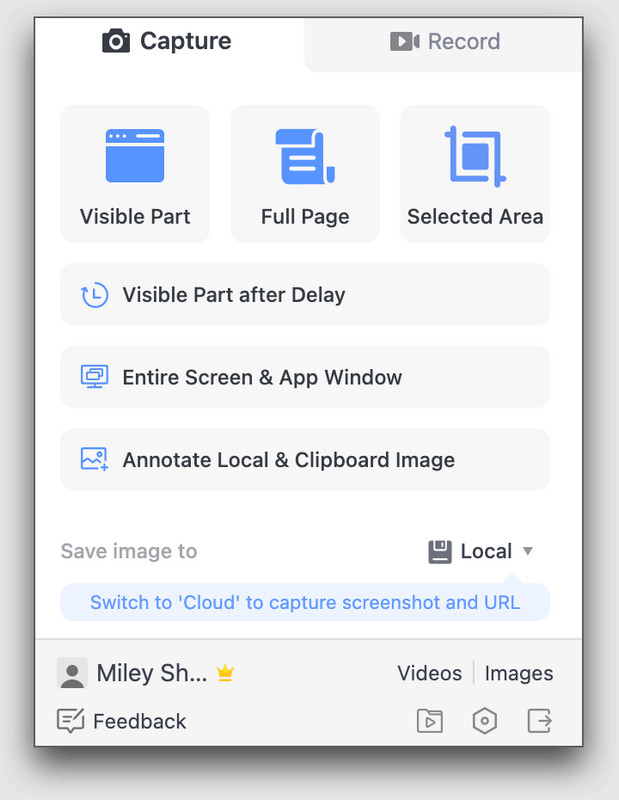
Pasul 1Descarcă aplicația pe desktop sau poți folosi extensia browserului. Alege modul de înregistrare dorit, cum ar fi ecran întreg, o anumită filă, o anumită zonă sau doar camera.
Pasul 2Dacă este necesar, activați microfonul, sunetul sistemului și camera înainte de a face clic pe Începe să înregistrezi.
Pasul 3După ce ați terminat, faceți clic pe Opriți partajarea pentru a încheia înregistrarea.
Foaie de scurtături de la tastatură
Uneori, vrei să faci o înregistrare a ecranului Windows cu o comandă rapidă, deoarece este mai rapidă și mai ușoară. Află ce taste rapide sunt disponibile pe înregistratorul de ecran pe care vrei să îl utilizezi.
| Nume instrument | Începe să înregistrezi | Întrerupe/Reluează înregistrarea | Captură de ecran derulantă | Captură meniu popup | Schimbați stilul panoului de înregistrare | Deschidere/Închidere cameră web | Captură de ecran |
| Bara de jocuri Xbox | Câștig + Alt + R | Nu este disponibil | Nu este disponibil | Nu este disponibil | Câștigă + G | Câștig + Alt + W | Win + Alt + Print Screen |
| Instrument de decupare (Windows 11) | Câștig + Shift + R | Nu este disponibil | Nu este disponibil | Nu este disponibil | Nu este disponibil | Nu este disponibil | Câștig + Shift + S |
| AVaide Screen Recorder | Alt + S | Alt + R | Alt + L | Alt + M | Alt + I | Alt + W | Alt + C |
| Bandicam | Ctrl + F12 | Nu este disponibil | Nu este disponibil | F11 | Nu este disponibil | Tasta Tab | F11 |
| OBS Studio | Setați taste rapide personalizate | Setați taste rapide personalizate | Nu este disponibil | Nu este disponibil | Nu este disponibil | Nu este disponibil | F7 |
| ScreenRec | Alt + S | Nu este disponibil | Nu este disponibil | Nu este disponibil | Nu este disponibil | Nu este disponibil | Alt + S |
| Război de ţesut | Ctrl + Shift + L | Alt + Shift + L | Nu este disponibil | Nu este disponibil | Nu este disponibil | Nu este disponibil | Ctrl + Shift + 1/2 |
| ShareX | Shift + Print Screen | Nu este disponibil | Nu este disponibil | Nu este disponibil | Nu este disponibil | Nu este disponibil | Ecran de imprimare |
| Captură de ecran minunată | Alt + Shift + R | Nu este disponibil | Alt + Shift + F pentru pagină întreagă | Nu este disponibil | Nu este disponibil | Nu este disponibil | Alt + Shift + V/S/F |
Depanare: Probleme frecvente de înregistrare a ecranului
| Problemă | Ce să fac? |
| Înregistrarea nu pornește. | Accesați Setări, apoi Confidențialitate, pentru a verifica dacă înregistrarea ecranului și accesul la microfon sunt activate. |
| Ecran negru la înregistrare | Încercați un alt tip de mod de captură sau închideți aplicațiile video protejate |
| Nu se aude sunet în înregistrare | Activați microfonul și sunetul sistemului din setări sau făcând clic pe tastele rapide disponibile, în funcție de instrument. |
| Înregistrarea se oprește mai devreme | Eliberați spațiu pe disc și reporniți computerul. |
| Camera web nu se afișează | Activează camera web înainte de preînregistrare sau verifică setările acesteia. Încearcă să verifici și permisiunile camerei. |
Acum știi cum să înregistrezi ecranul pe PC folosind instrumente încorporate, cum ar fi Xbox Game Bar și Snipping Tool, precum și aplicații puternice de la terți, cum ar fi AVaide Screen Recorder, OBS Studio, Bandicam și Loom. Găsiți pe cineva care are nevoie de clipuri rapide din joc, videoclipuri de antrenament sau raportări rapide de erori; există suficiente pentru fiecare. Folosiți funcțiile de bază încorporate pentru simplitate sau optați pentru funcții mai avansate atunci când aveți nevoie de un control sporit. Pentru un flux de lucru mai rapid, consultați foaia de comenzi rapide de la tastatură și, dacă întâmpinați probleme, consultați secțiunea de depanare. Aceste sfaturi și instrumente vă vor ajuta să obțineți înregistrări de ecran de un aspect excelent cu Windows, de fiecare dată.
DESPRE AUTOR

Capturați activități pe ecran cu sunet, întâlniri online, videoclipuri de joc, muzică, cameră web etc.
Înregistrare ecran
- Înregistrare ecran pe Windows
- Înregistrați live pe Instagram
- Extrage videoclipuri din Tubi
- Convertește videoclipuri YouTube în MP3
- Descarcă videoclipuri de la Fansly
- Descărcarea videoclipurilor JW Player
- Descărcați videoclipuri Bilibili
- Descarcă videoclipuri Patreon
- Descarcă videoclipuri SpankBang
- Descarcă videoclipuri Discord
- Descărcați videoclipul DoodSream