Cum să înregistrezi muzică pe un iPhoneÎnregistrarea muzicii preferate este o sarcină simplă, datorită funcțiilor predefinite ale telefonului și aplicațiilor fiabile. Indiferent dacă înregistrezi o melodie scurtă, lucrezi la piese instrumentale sau înregistrezi apeluri, iPhone-ul tău poate oferi opțiuni flexibile care pot ajuta atât începătorii, cât și profesioniștii. Așadar, dacă dorești diverse metode pentru a-ți înregistra eficient muzica, ar fi mai bine să începi să citești tot ce este în acest tutorial.
- Partea 1. Înregistrați muzică pe iPhone folosind aplicația încorporată pentru note vocale
- Partea 2. Capturați muzică folosind GarageBand
- Partea 3. Înregistrare multi-track cu aplicații terțe
- Partea 4. Înregistrare în format MP3
- Partea 5. Cum să înregistrezi muzică de pe YouTube pe iPhone
- Partea 6. Sfaturi profesionale pentru o calitate mai bună a sunetului
Partea 1. Înregistrați muzică pe iPhone folosind aplicația încorporată pentru note vocale
Una dintre aplicațiile de înregistrare MP3 pentru iPhone pe care le puteți utiliza pentru a înregistra muzica este aplicația Voice Memos. Este o aplicație încorporată pe care o puteți accesa pe dispozitivul iPhone. Acest înregistrator muzical vă permite să înregistrați și să capturați orice conținut audio în mod clar și instantaneu. Este ideal pentru a nota idei de melodii, melodii și sesiuni complete de repetiții. Cel mai bun aspect este că aplicația are o interfață intuitivă. Puteți tăia fără probleme conținutul înregistrat, îl puteți organiza și îl puteți partaja fără a întâmpina dificultăți. De asemenea, este potrivită pentru muzicienii care doresc... înregistrați audio pe un iPhone, nu putem spune că aplicația Voice Memos ar putea fi instrumentul ideal.
Pentru a afla cum să înregistrezi un MP3 pe un iPhone, poți urma pașii detaliați de mai jos.
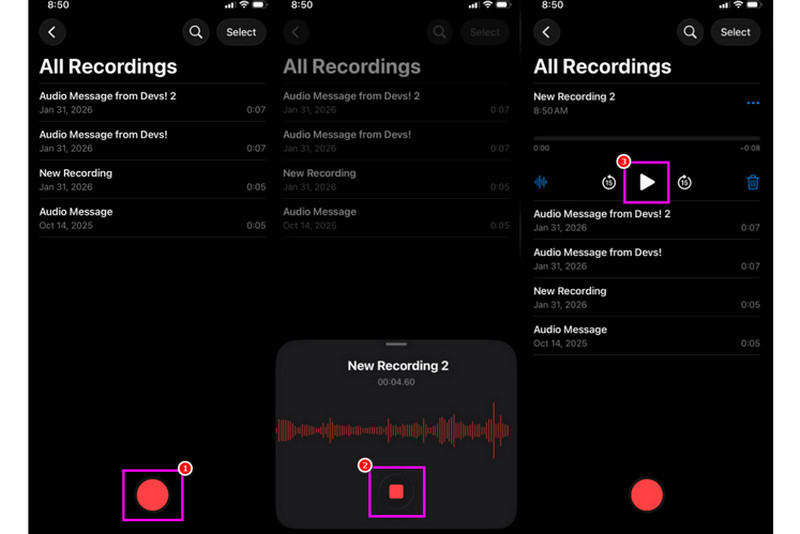
Pasul 1Pe iPhone, treceți la Utilități secțiune și atingeți Note vocale aplicație. Apoi, asigurați-vă că muzica pe care doriți să o înregistrați este deja pregătită.
Pasul 2După aceea, treceți la interfața de jos și apăsați butonul Record buton. După ce ați terminat, puteți reda muzica pe iPhone sau pe un alt dispozitiv.
Pasul 3După ce ați terminat de înregistrat, apăsați butonul Stop buton. Cu acesta, acum aveți muzica înregistrată. Puteți chiar edita sau partaja fișierul dacă doriți.
Partea 2. Capturați muzică folosind GarageBand
Vrei să-ți creezi propria muzică și să o înregistrezi pentru a o salva pe dispozitiv? În acest caz, poți accesa GarageBandAceasta este o aplicație gratuită care vă asigură că puteți înregistra muzică pe iPhone. Cu funcția sa de înregistrare, nu există nicio îndoială că înregistrarea muzicii este o sarcină simplă. Puteți chiar accesa diverse instrumente pe care le puteți utiliza dacă doriți să vă creați propria muzică. Prin urmare, dacă aveți nevoie de o soluție de înregistrare all-in-one, luați în considerare utilizarea acestei aplicații.
Pasul 1Du-te la Magazinul Apple și începeți descărcarea GarageBandDupă instalare, rulați-l pe dispozitiv.
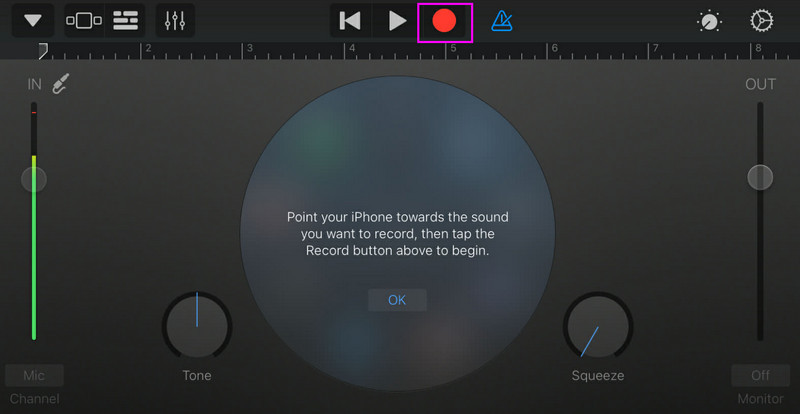
Pasul 2Din interfață, trebuie să selectați și să apăsați butonul Inregistrare audioApoi, interfața principală va apărea pe ecran.
Pasul 3Începeți să înregistrați muzica atingând Record butonul de mai sus. Apoi, atingeți Stop pentru a termina înregistrarea.
Partea 3. Înregistrare multi-track cu aplicații terțe
GarageBand este util pentru înregistrarea muzicii. Cu toate acestea, există mai multe aplicații pe care le puteți accesa și care se adresează în mod specific diferitelor stiluri de compoziție, înregistrare și colaborare pe mai multe platforme. Câteva dintre aplicații sunt:
- BandLab - Acest instrument este ideal pentru colaborarea bazată pe cloud. Este perfect pentru muzicieni, deoarece are funcții mai bune, cum ar fi algoritmi de masterizare, o bibliotecă extinsă de loop-uri și înregistrare multiplă.
- FL Studio Mobil - Acesta este un instrument bazat pe abonament. Producătorii de hip-hop, muzică electronică și pop îl preferă.
- Cubasis 3 - Este o opțiune de studio profesională, portată de la Cubase pentru desktop. Instrumentul poate oferi editare MIDI de elită, piste audio nelimitate și înregistrare multi-track, ceea ce îl face ideal pentru utilizatori.
Metodă eficientă de a înregistra muzică pe un desktop
Cauți un înregistrator desktop care să te ajute să-ți înregistrezi muzica? În acest caz, poți accesa AVaide Screen RecorderAcest program oferă funcția Phone Recorder pentru a înregistra muzica de pe iPhone. Acest software este ideal dacă doriți să salvați înregistrarea direct pe computer. Ceea ce ne place este că acest înregistrator vă poate oferi un proces de înregistrare simplu și fluid, datorită interfeței sale intuitive. De asemenea, acest program asigură salvarea sunetului la cea mai bună calitate, până la 320 kbps, ceea ce duce la o redare audio mai bună. Puteți chiar edita sunetul în funcție de preferințe, ceea ce face ca înregistratorul audio să fie ideal pentru toți utilizatorii.
Pasul 1Descarca AVaide Screen Recorder pe desktop. Apoi, lansați-l pentru a începe procesul.

DESCĂRCARE GRATUITĂ Pentru Windows 7 sau o versiune ulterioară
 Descărcare sigură
DESCĂRCARE GRATUITĂ Pentru Mac OS X 10.13 sau o versiune ulterioară
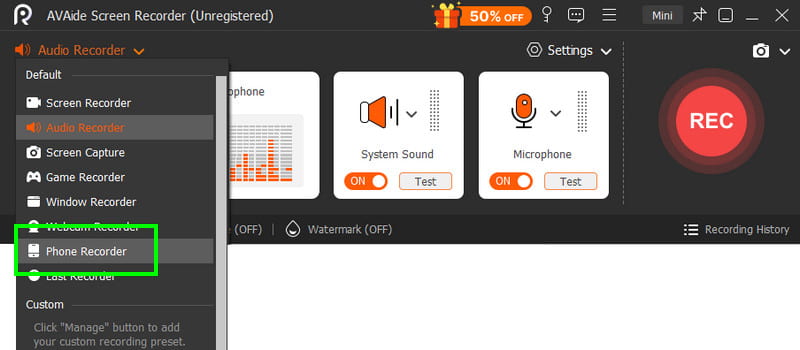
Descărcare sigurăPasul 2Din interfață, accesați scapă jos butonul și selectați Recorder de telefon Apoi atingeți iOS și conectați telefonul.
Pasul 3După aceea, treceți la Înregistrarea conținutului secțiune pentru a debifa Ecran opțiunea și alegeți Difuzor telefon opțiune. După ce ați terminat, atingeți Record pentru a începe procesul de înregistrare.
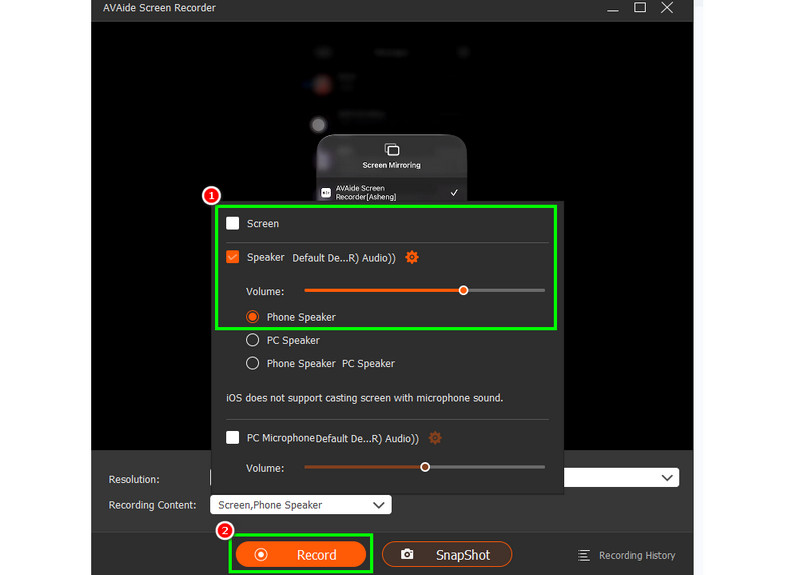
Atingeți Stop pentru a termina înregistrarea.
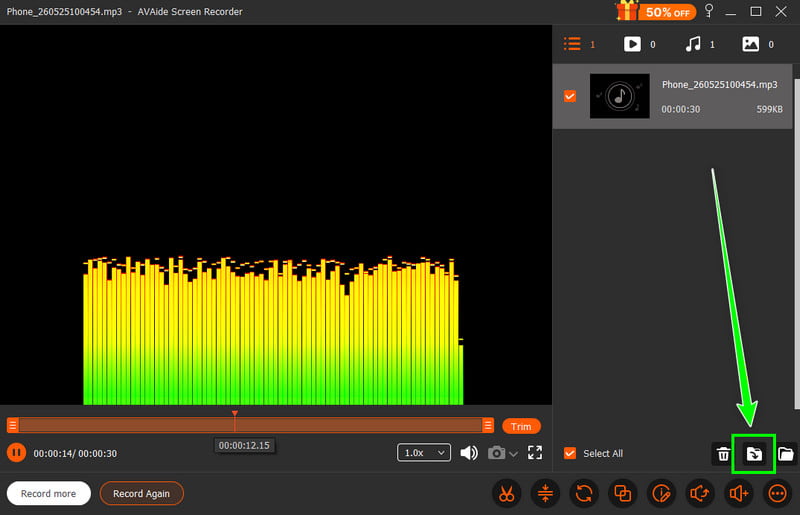
Pasul 4Când apare Previzualizarea, faceți clic pe Export pentru a începe salvarea sunetului înregistrat.
Partea 4. Înregistrare în format MP3
În mod implicit, ecosistemul Apple salvează muzica ca WAV sau AAC. Cu toate acestea, putem spune în continuare că MP3 este printre cele mai portabile formate audio disponibile. Prin urmare, convertirea înregistrărilor în MP3 este cea mai bună opțiune. Pentru a converti înregistrarea, puteți utiliza aplicația Audio Recorder. Cu această aplicație, puteți converti înregistrările din Memo-uri vocale în MP3 pentru o compatibilitate mai bună. Puteți converti AAC în MP3, WAV în MP4, FLAC în WAV și multe altele.
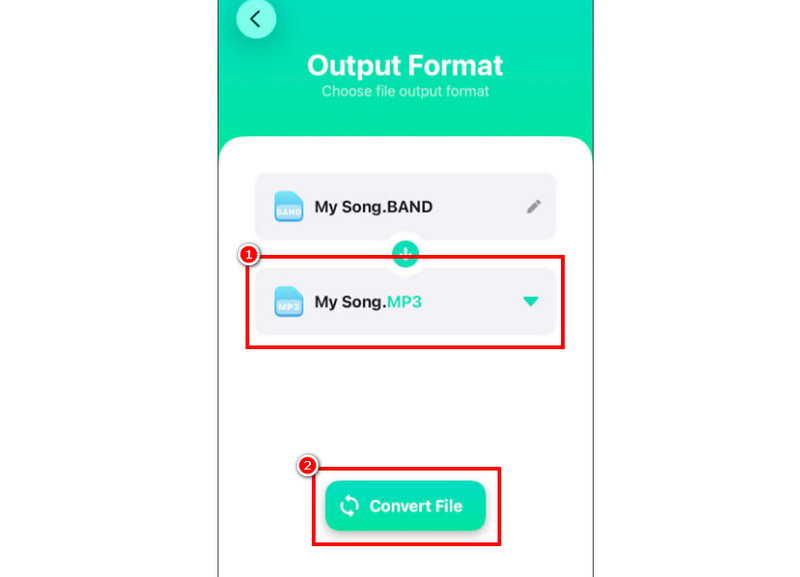
Pasul 1Du-te la ta Magazinul Apple și descărcați Convertor audio aplicație. Apoi, lansați convertorul și începeți să adăugați înregistrarea.
Pasul 2De la Format secțiune, începeți să alegeți MP3 format. Apoi, atingeți butonul Convertit buton.
Pasul 3După procesul de conversie, puteți reda fișierul MP3.
Partea 5. Cum să înregistrezi muzică de pe YouTube pe iPhone
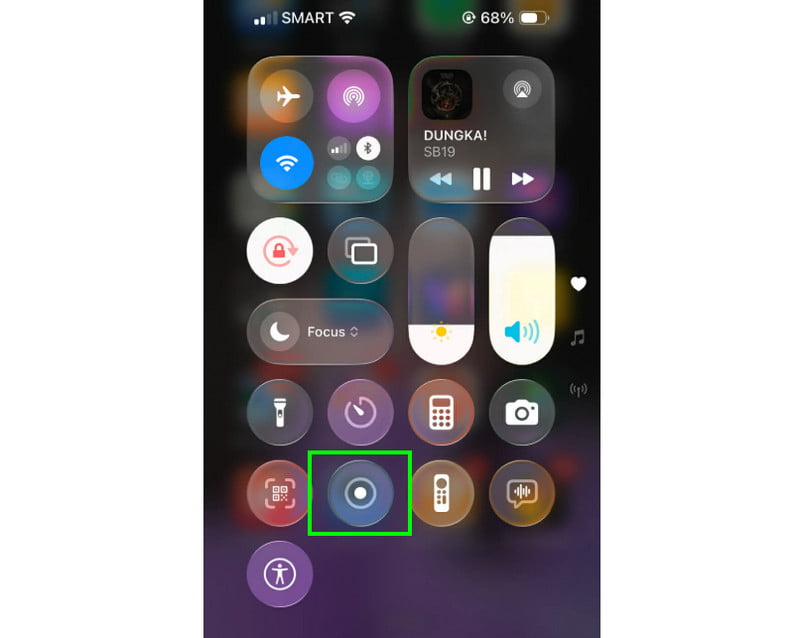
Vrei să înregistrezi muzică de pe YouTube pe iPhone? În acest caz, tot ce trebuie să faci este să utilizezi funcția Recorder de pe dispozitiv. Cu această funcție, poți înregistra orice muzică de pe YouTube. Pentru a porni funcția de înregistrare, tot ce trebuie să faci este să apeși pe Atingere asistată și treceți la secțiunea Centrul de Control. Aceasta a activat funcția Înregistrator. Procedura va începe după numărătoarea inversă de 3 secunde. După aceea, puteți începe să redați muzica de pe YouTube. Atingeți oprire pentru a termina înregistrarea. După ce ați terminat, puteți utiliza orice convertor video în MP3 pentru a transforma videoclipul într-un fișier audio.
Partea 6. Sfaturi profesionale pentru o calitate mai bună a sunetului
Consultați această secțiune și obțineți mai multe informații despre cum să obțineți o calitate mai bună a sunetului.
- Înregistrați întotdeauna într-un loc liniștit pentru a reduce la minimum zgomotul de fundal.
- Când folosești o aplicație precum GarageBand, trebuie să menții echilibrat câștigul de intrare. Evită întotdeauna clipping-ul rămânând sub zona roșie.
- Pentru o calitate mai bună, înregistrați întotdeauna în format AIFF sau WAV.
- Monitorizați înregistrarea cu căști. Puteți utiliza căști cu fir pentru a rezolva problemele în timp real.
La înregistrează o melodie pe un iPhone, utilizați toate metodele furnizate în acest tutorial. Cu aceasta, puteți obține rezultatul dorit după proces. De asemenea, dacă doriți să înregistrați muzică de pe telefon folosind desktopul, puteți accesa AVaide Screen RecorderCu funcția Phone Recorder a acestui program, vă puteți conecta iPhone-ul și puteți înregistra orice muzică și o puteți salva la cea mai bună calitate, ceea ce îl face cel mai bun înregistrator pe care vă puteți baza.
DESPRE AUTOR

Capturați activități pe ecran cu sunet, întâlniri online, videoclipuri de joc, muzică, cameră web etc.
Inregistrare audio
- Înregistrați audio de pe computer
- Cel mai bun software de înregistrare audio
- Înregistrați apelurile iPhone
- Studioul de înregistrări FL
- Cum să înregistrezi podcast
- Descărcați Soundgasm
- Descărcați melodii Audiomack
- Salvează muzică de pe Deezer
- SoundCloud în MP3
- Descărcați X Space Audio
- Descărcare gratuită de muzică