Cum să înregistrezi un mesaj vocal pe un iPhoneEi bine, înregistrarea unui mesaj vocal este o modalitate rapidă de a-ți împărtăși gândurile sau de a trimite fișiere audio personalizate fără a tasta. Cu funcția de mesagerie vocală încorporată în iPhone, poți înregistra, salva și partaja instantaneu clipurile audio cu doar câteva atingeri. Așadar, dacă ești în căutarea unei modalități complete de a înregistra și trimite un mesaj vocal pe telefonul mobil, consultă acest tutorial pentru a obține rezultatul dorit.
Partea 1. Cum să înregistrezi și să trimiți un mesaj vocal în iMessage
iMessage nu este doar un simplu instrument de comunicare. Acesta poate oferi și funcția de mesaje vocale. Cu această funcție, puteți trimite sau partaja mesajele și gândurile dvs. prin intermediul vocii. Aceasta este o funcție ideală dacă doriți să trimiteți mesaje fără a tasta text de la tastatură. Cel mai bun aspect este că trimiterea unui mesaj vocal este simplă, fiind perfectă pentru toți utilizatorii. Așadar, dacă doriți să începeți să înregistrați și să trimiteți mesaje, puteți utiliza instrucțiunile de mai jos.
Cum să înregistrezi un mesaj vocal pe iPhone
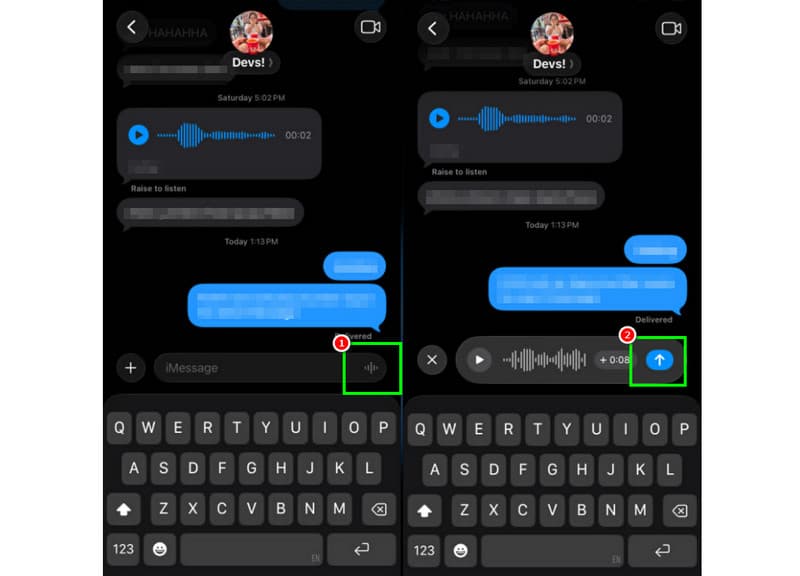
Pasul 1Pe iPhone, lansați iMessage aplicație. Apoi, treceți la persoana cu care doriți să comunicați.
Pasul 2De pe ecran, apăsați și mențineți apăsat butonul Microfon opțiune. În timp ce țineți apăsat, puteți începe înregistrarea și rostirea mesajului.
Pasul 3Pentru a opri înregistrarea, eliberați degetul de pe buton. Apoi, atingeți Trimiteți săgeată buton pentru a trimite mesajul.
Ascultați mesajele vocale primite
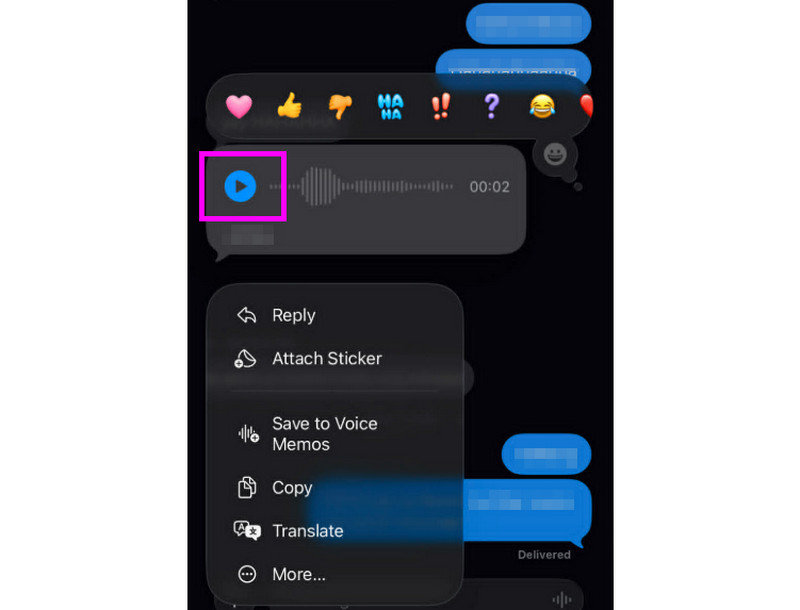
Pasul 1După ce primiți mesajul vocal, puteți atinge Joaca buton.
Pasul 2De asemenea, poți regla volumul de pe butonul lateral al iPhone-ului pentru a auzi mesajul corect.
Pasul 3După două minute, mesajul vocal va expira. Pentru a păstra mesajul, apăsați pur și simplu butonul A pastra opțiunea de mai jos.
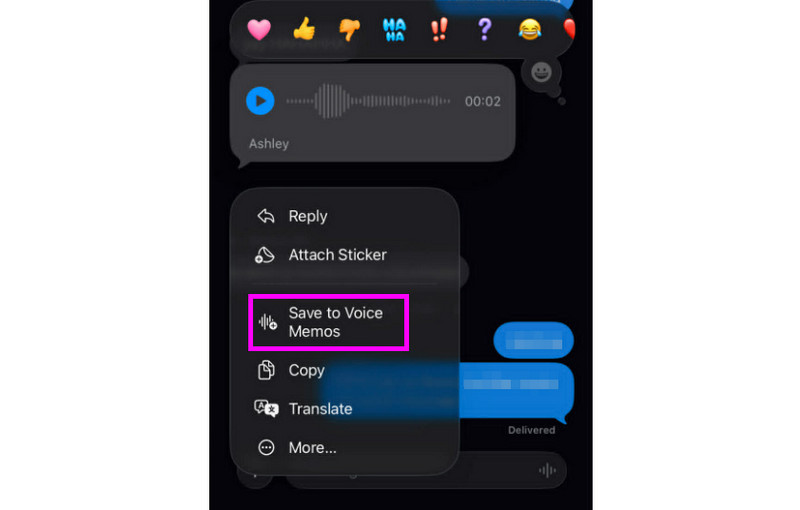
Pasul 4Dacă doriți să salvați mesajul vocal, apăsați lung pe el și atingeți Salvare în Notițe vocale aplicație. Cu aceasta aplicație de înregistrare vocală, puteți reda mesajul oricând și oriunde.
Ajustați setările mesajelor vocale
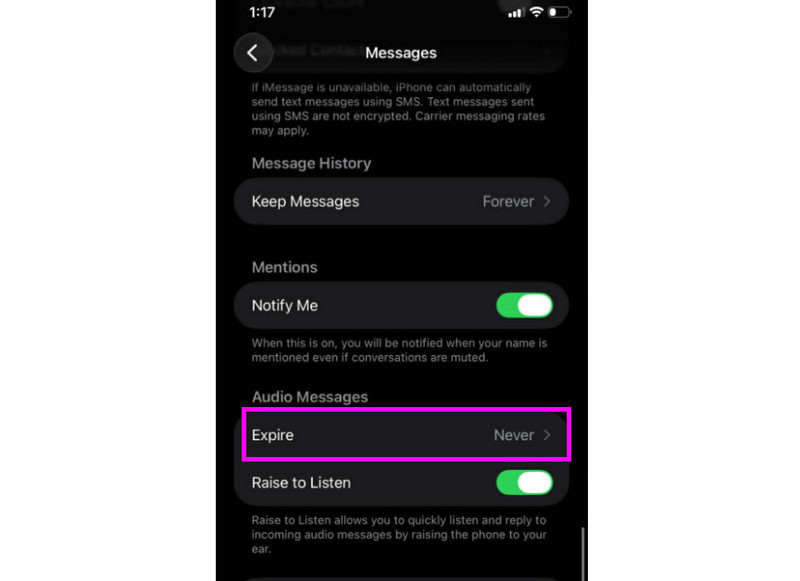
Pasul 1Du-te la ta Setări aplicație. Apoi, treceți la Mesaje aplicația.
Pasul 2Navigați la Mesaje audio > Expira secțiune și atingeți Nu opțiune. În acest fel, niciun mesaj vocal din contul iMessage nu va expira.
Partea 2. Metodă de înregistrare a unui mesaj vocal pe iPhone
Când nu ești disponibil, apelanții vor primi un mesaj personalizat dacă înregistrezi un mesaj vocal pe iPhone. Este simplu să creezi un mesaj nou, să modifici sau să elimini unul vechi și chiar să utilizezi un mesaj temporar pentru evenimente speciale. Poți modifica complet modul în care sună mesajul vocal pentru alte persoane cu doar câteva atingeri în aplicația Telefon. Vezi secțiunea metode și află cum să înregistrezi un mesaj vocal pe un iPhone.
Configurarea mesajului de întâmpinare pentru mesageria vocală
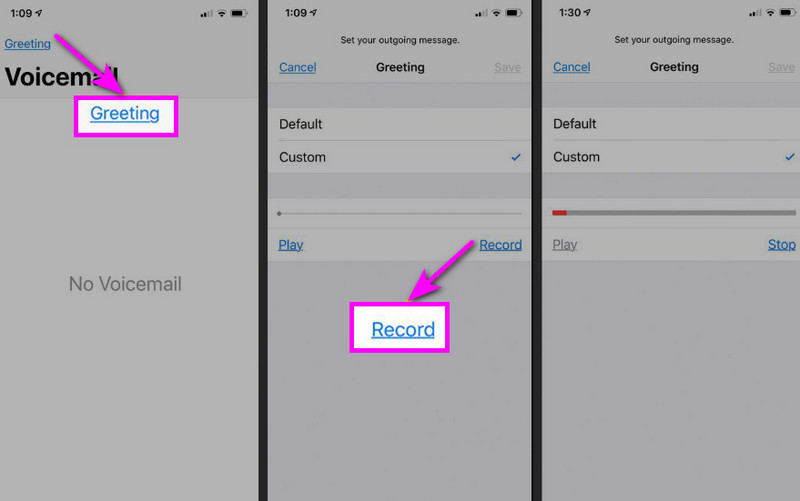
Pasul 1Continuați la Telefon aplicația și atingeți Mesagerie vocală opțiune.
Pasul 2După aceea, apăsați butonul Salut funcția din colțul din stânga sus al ecranului. Apăsați Personalizat > Record a începe înregistrarea audio pe iPhone-ul dvs. ca salutul tău.
Pasul 3Atingeți Stop pentru a termina și a-l reda pentru a-l revedea. După ce ați terminat, apăsați salva pentru a-l seta ca mesaj de întâmpinare activ.
Modificarea sau ștergerea mesajului de întâmpinare
Pasul 1Te poți întoarce la Mesagerie vocală > Salut secțiune.
Pasul 2Lovit Personalizat și înregistrați un nou mesaj de salut care să îl înlocuiască pe cel vechi.
Pasul 3Apoi, pentru a reveni la setările implicite, puteți selecta Mod implicit în loc de Personalizat.
Sfat profesionist: Salut temporar
Dacă nu ești disponibil pentru o perioadă scurtă de timp, înregistrează un mesaj de salut temporar utilizând aceiași pași de la secțiunea Personalizat. După ce te-ai întors, poți pur și simplu să revii la mesajul de salut obișnuit sau la opțiunea implicită.
Partea 3. Depanare - Nu se poate înregistra mesajul vocal
Accesați această secțiune și consultați ghidul de depanare care acoperă unele dintre problemele apărute la înregistrarea sau trimiterea unui mesaj vocal pe un iPhone.
Butonul Microfonului este gri în Mesaje
Soluţie: Asigurați-vă că accesul la microfon este activat. Pentru a face acest lucru, accesați Setări > Confidențialitate și securitate > Microfon și permiteți accesul pentru Mesaje.
Vocea nu se trimite
Soluţie: Verificați întotdeauna conexiunea la internet. În plus, asigurați-vă că iMessage este activat în Setări > Mesaje > iMessage.
Nu se poate înregistra mesajul de salut vocal
Soluţie: Opțiunea Salut va apărea numai dacă operatorul acceptă mesageria vocală vizuală. Dacă lipsește, puteți apăsa și menține apăsat 1 în aplicația telefonului pentru a apela direct mesajul vocal. Apoi, puteți începe să urmați instrucțiunile operatorului pentru a înregistra un salut.
Destinatarii spun că nu te pot auzi
Soluţie: Puteți testa microfonul folosind aplicația Voice Memos. De asemenea, puteți scoate orice carcasă sau accesoriu care ar putea bloca microfonul. O altă metodă pe care o puteți utiliza este curățarea orificiului microfonului folosind o lavetă sau o perie mică.
Referință rapidă: Mesaj vocal vs. Mesagerie vocală
Doriți să aflați mai multe despre mesajele vocale și mesageria vocală? Atunci puteți consulta tabelul simplu de mai jos.
| Caracteristică | Mesaj vocal (iMessage) | Mesagerie vocală (operator) |
| Cum este trimis | • Înregistrat în aplicația Mesaje • Trimis prin iMessage | • Salut înregistrat • Fișiere audio stocate de operator |
| Este nevoie de internet | Da (Wi-Fi sau date celulare) | Nu, funcționează printr-o rețea celulară |
| Depozitare | Salvat în firul de discuție iMessage | Stocat în sistemul de mesagerie vocală al operatorului |
| Control | Utilizatorul poate retrimite, șterge sau salva | Operatorul controlează accesul și stocarea |
Bonus: Cel mai bun instrument care vă ajută să editați înregistrările vocale
După ce salvați înregistrarea vocală sau mesajul vocal, există momente când doriți să o editați pentru a obține un sunet mai bun. Prin urmare, atunci când vine vorba de editarea sunetului, ar fi mai bine să accesați un instrument de editare excelent, cum ar fi AVaide Convertor videoAcest program oferă funcția de editare audio, permițându-vă să editați fișierul audio. Puteți tăia pista audio, o puteți diviza și o puteți îmbina. Puteți chiar ajusta volumul și întârzierea în funcție de preferințele dvs. Cel mai bun aspect este că puteți salva sunetul în orice format utilizând funcția de conversie a programului. Puteți salva înregistrarea vocală ca MP3, WAV, M4A, FLAC și multe altele, cu cea mai bună calitate, de până la 320 kbps. Prin urmare, dacă sunteți în căutarea unui software ideal care să vă ajute să editați înregistrările vocale, nu căutați mai departe decât AVAide Video Converter.

DESCĂRCARE GRATUITĂ Pentru Windows 7 sau o versiune ulterioară
 Descărcare sigură
DESCĂRCARE GRATUITĂ Pentru Mac OS X 10.13 sau o versiune ulterioară
Descărcare sigurăMai multe caracteristici:
- Poate oferi o procedură de editare audio fluidă.
- Programul poate combina mai multe fișiere audio pentru a crea unul singur.
- Poate converti formate audio și video la o viteză de conversie de 120× mai mare.
- Programul poate oferi, de asemenea, editoare video încorporate, cum ar fi mergere, splitter, trimmer, cropper etc.
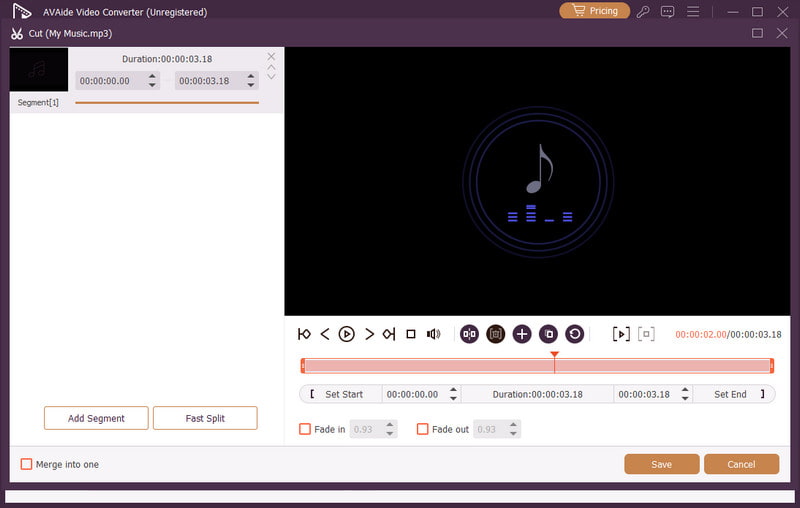
Trimiterea unui mesaj vocal pe un iPhone este o modalitate ideală dacă vrei să trimiți mesajul mai rapid. Datorită acestui tutorial, ai învățat cum să înregistrezi și să trimiți un mesaj vocal eficient. Vei primi chiar suficiente informații despre cum să salvezi mesajul vocal pentru a-l reda fără nicio limitare. În plus, dacă vrei să editezi înregistrările vocale, ar fi mai bine să accesezi AVaide Convertor videoCu funcția de editare audio a acestui program, puteți îmbunătăți sunetul, rezultând o redare audio mai bună și mai satisfăcătoare.
DESPRE AUTOR

Capturați activități pe ecran cu sunet, întâlniri online, videoclipuri de joc, muzică, cameră web etc.
Inregistrare audio
- Înregistrați audio de pe computer
- Cel mai bun software de înregistrare audio
- Înregistrați apelurile iPhone
- Studioul de înregistrări FL
- Cum să înregistrezi podcast
- Descărcați Soundgasm
- Descărcați melodii Audiomack
- Salvează muzică de pe Deezer
- SoundCloud în MP3
- Descărcați X Space Audio
- Descărcare gratuită de muzică