If you need to make Facebook cover image resizer tools work to your advantage, resizing your photos before uploading is the smartest way to keep them sharp and high-quality. Facebook applies heavy compression that often leads to blurry, dull, or distorted images. By preparing your photos with the right dimensions, you ensure cleaner details, accurate colors, and professional-looking results across profile pictures, cover photos, and regular posts.
Part 1. Why You Need to Resize an Image for Facebook
For a casual user, a photographer, or a business owner, Facebook is a very big online photo-sharing platform. However, various issues arise when you upload photos without first processing them, such as blurry, dull, or overly compressed photos. Doing resized images beforehand is even more beneficial in keeping more details, more accurate coloring, and cleaner details. In a platform with billions of uploads, increased sharpness will allow your photos to stand out more than others. Here is some more information explaining why it is important to resize your images for Facebook:
- 1. To Minimize Facebook Heavy Compression: All photos are compressed when uploaded to Facebook. Larger images undergo even stronger compression, which leads to even more distortion due to compression. Resize your image to have more control over quality.
- 2. To Prevent Unwanted Softness and Image Degradation: Big files get automatically downscaled by Facebook, which softens the details of your image. Preemptively resizing should aid in keeping the image as sharp as possible.
- 3. To Maintain Accurate Colors: Precise conversions to a color profile will have to occur with Facebook images. Resizing and exporting in Color Management will maintain color accuracy.
- 4. To Optimize Viewing on High-Resolution Screens: Well-sized images, more specifically images that are 2048 px, are clearer when viewed on a 4K & Retina display.
- 5. To Avoid Incorrect Cropping or Stretching: Facebook image placements have set requirements for their sizes. Resize your images beforehand, or unwanted cropping/stretching will occur.
Part 2. Facebook Image Requirements
Before uploading, it is important to know the exact dimensions Facebook uses for different image types. Using the right size helps you prevent unwanted cropping, distortion, and loss of detail. Below is a clear and updated guide to the recommended image resolutions of Facebook.
| Image Type | Recommended Size | Notes |
| Regular Photos | 720 px, 960 px, or 2048 px (long edge) | Facebook compresses all images; 2048 px gives the best quality. |
| Cover Photo | 851 × 315 px | Must match exact size to avoid cropping or stretching. |
| Full-Width Link Thumbnail | 484 × 252 px | Used for shared links; Facebook may crop if the size is incorrect. |
| Profile Picture (Header) | 180 × 180 px | Displays as a circle; keep key subjects centered. |
Part 3. Free Online Methods to Resize Photos for Facebook
Several online services can resize and enhance photos before uploading to Facebook, and AVAide Image Upscaler is one reliable option. This free, AI-powered photo enhancer improves image resolution, sharpens blurry photos, reduces noise, and enhances colors. It helps keep profile pictures, cover photos, and posts clear, professional, and visually appealing even after Facebook image compression.
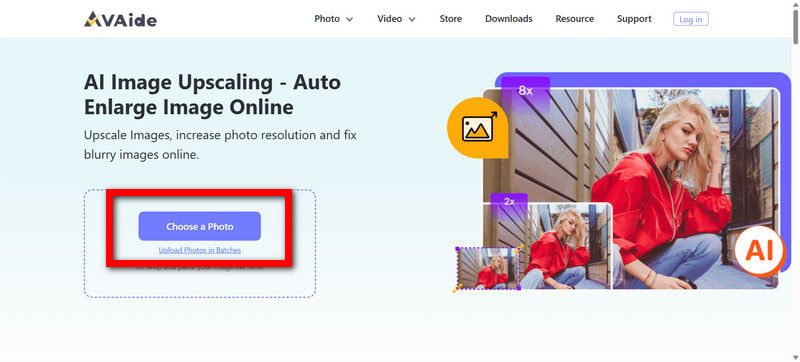
Step 1Go to AVAide Image Upscaler
Visit the official AVAide Image Upscaler website and click Choose a Photo to upload the image you want to prepare for Facebook, whether it is for a profile picture, cover photo, or regular post.
Step 2Choose Your Upscale Level
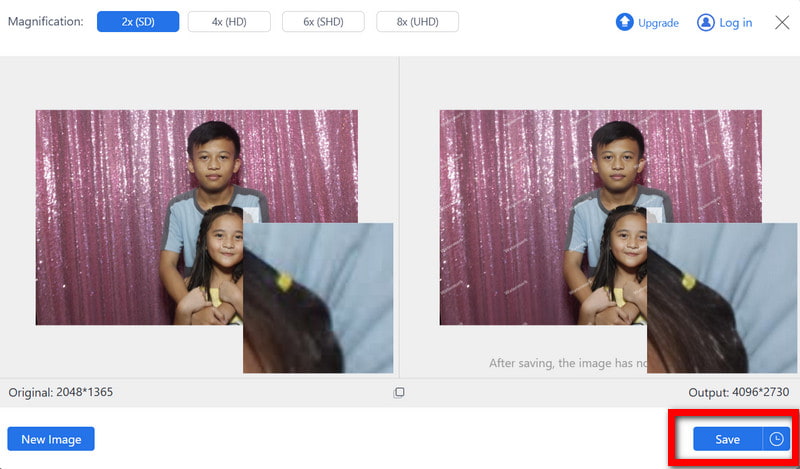
For ideal Facebook posts, profile images, and clear images, a 4× or 8× is good. Once the image is uploaded, you will let AI enhance sharpness, and improve photo quality on the image depending on the level of 2×, 4×, 6× or 8× you select.

Step 3Preview
A positive photo quality difference is the result of processing the photo. Expect useful changes to be made to your image quality. For example: improved lines, details, and color.
Step 4Download Your Enhanced Image
To finish, click Save so that the refined, enlarged, and sharpened image will be saved to your device.
Part 4. How to Resize a Photo for Facebook with Photoshop
Photoshop is great for resizing images to ensure your photos maintain all dimensions, quality, and sharpness when you want to upload them to Facebook; photo resizer. It does not matter if it is the cover photo, profile image, or any other post; it is guaranteed to upload in a clean and detailed format.
Step 1Open up Photoshop and bring in the photo you want to resize.
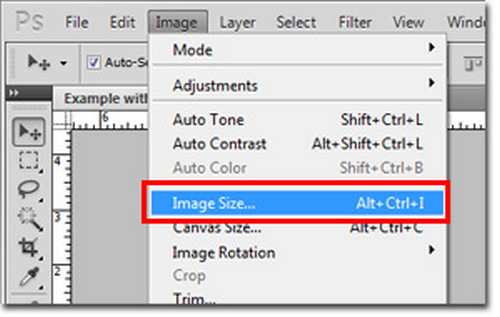
Step 2On Windows, press Ctrl + Alt + I and for Mac, press Cmd + Option + I to then open Image Size.
Step 3Enter a pixel size for the best possible outcome. Profile photo is 180 × 180 px, cover photo is 851 × 315 px, and a regular post could either be 720 px, 960 px, or 2048 px on the long edge. Photoshop should adjust the other dimension automatically, just check Constrain Proportions.
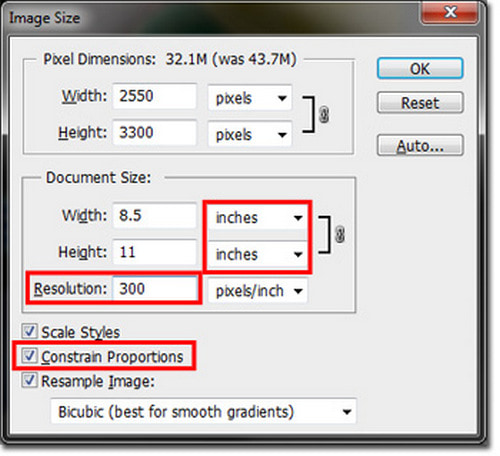
Step 4If you want to maintain some detail, select Bicubic Sharper (reduction) to keep some added detail when lowering resolution.
Step 5Go to File > Save As or File > Export > Save for Web, adjust quality to a range between 85-100%, choose JPEG, and make sure Convert to sRGB is enabled.
Part 5. How to Resize a Photo for Facebook on Android and iPhone
PicsArt is a great alternative that is available for both Android users and iPhone users because they can also manually resize, crop, and adjust the quality of the image or use a GIF resizer to prepare them for Facebook post images, profile photos, and cover images.
Step 1Go to the Google Play Store or Apple App Store, download and launch PicsArt.
Step 2Click the + Edit an image or video button and choose the image you wish to resize.

Step 3Select in a dimension that is Facebook-approved, like:
- 720 px, 960 px, or 2048 px (long edge) for standard posts.
- 180 × 180 px for a profile photo.
- 851 × 315 px for a cover photo.
If Keep Proportions is on, PicsArt should automatically adjust the aspect ratio.
Step 4If needed, access Tools > Crop and enter the dimension manually for a more precise result.
Step 5Click ✔, then Download or Save, and the newly adjusted image will be added to your gallery.
When you resize images for Facebook, you maintain sharper details, accurate colors, and cleaner overall quality despite Facebook's strong compression. Whether you use online tools, Photoshop, or mobile apps, preparing your photos with the right dimensions ensures they appear professional, properly framed, and visually clear on any device.

Our AI technology will automatically enhance the quality of your images, remove noise and fix blurry images online.
PROCESS NOW