Are your WebP images too large to upload quickly? Do you want to save space without losing quality? Wondering how to make your website load faster? All you need to do is compress WebP!
Luckily, you are in the right place. Here, we will share effective ways to reduce your WebP image file size while keeping your pictures clear. With that, your images will be easier to share, faster to load, and still look amazing everywhere you use them.
Part 1: Why Need to Compress WebP
WebP is a popular image format used on the web. It gives good-clarity pictures and makes websites look nice. But using WebP images without checking their size can cause problems. When that happens, compressing them becomes really necessary.
Did you know that compressing WebP comes with many benefits? If you are not familiar with these benefits, please keep reading to learn more.
- 1. Faster Loading Time: Big WebP images take longer to open. It can make your website slow. When you compress them, they load faster. Visitors can see your pages quickly and are more likely to stay.
- 2. Save Storage Space: Large WebP files use a lot of space on your computer or server. Making them smaller saves storage. It is helpful if your site has many images.
- 3. Better Website Performance: Heavy images can slow your site down. Compressed WebP files reduce the strain. Your website stays smooth and works better for everyone.
- 4. Improved User Experience: People do not like waiting for images. Compressed files appear faster. Browsing becomes easier and more fun.
- 5. Lower Data Usage: Some users have slow internet or limited data. Smaller WebP files use less data and download faster. It helps everyone access your site without trouble.
- 6. SEO Benefits: Search engines like fast websites. Compressed images make your pages load faster. It helps your site show up closer to the top in search results.
- 7. Easy Sharing: Large images can be hard to send. Compressed WebP files are smaller and easier to share. They upload quickly to email or social media without problems.
So many benefits, right? It makes websites faster, saves storage, improves user experience, and even helps your site rank better on search engines. So, please do not waste any more time; let us move on and learn how to compress WebP images in the next parts.
Part 2: How to Compress WebP Online
Compressing WebP images online is fast and simple, with no need to install anything. One dependable tool for this is AVAide Image Compressor. With its one-click operation, you can compress WebP image sizes in seconds.
Do you have many WebP images to compress? You can upload them all at once and download the compressed images together. AVAide Image Compressor supports up to 40 images per batch, with each file up to 5 megabytes in size. Impressive, right?
The best part is that it preserves your image clarity, so your pictures stay sharp and clear. With that, you do not have to worry about losing details while making files smaller. Even better, it is free, so you can compress WebP images fast without any cost.
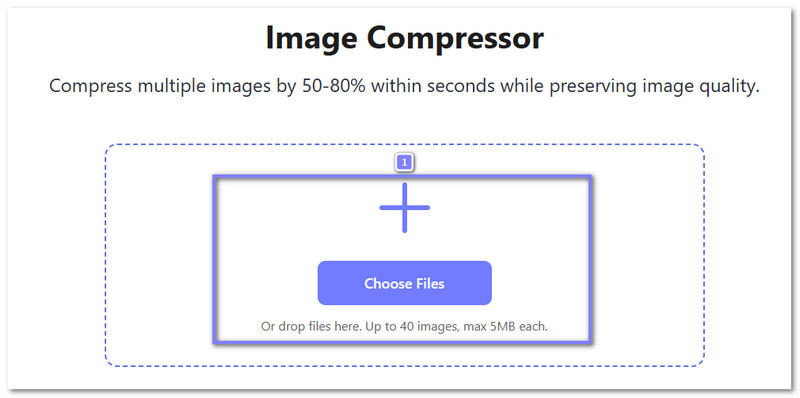
Step 1Head to the main website of AVAide Image Compressor and take a moment to get familiar with it.
Step 2Next, press the Add button to upload the WebP image you want to compress. You can also select and drop the image for a faster process. Note that you can import up to 40 images at once, each with a maximum size of 5 megabytes. It helps if you have many images to compress.
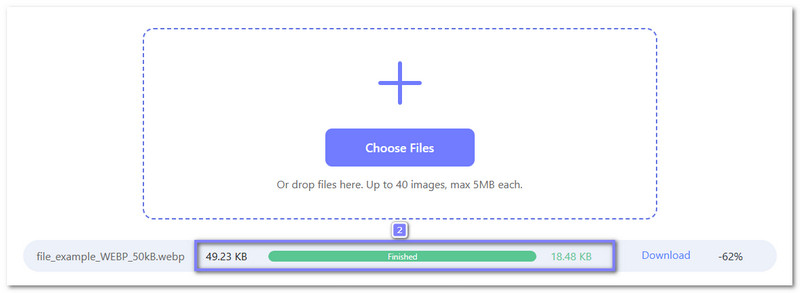
Step 3Once your WebP image is uploaded, AVAide Image Compressor will start compressing it immediately. Once the process finishes, the word Finished will appear in green. You will be able to see how much the file size has changed.
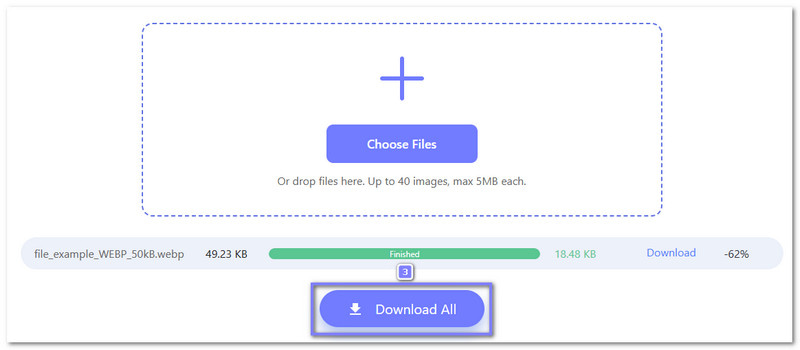
Step 4To finish, press the Download button to save the compressed WebP to your local folder. If you bulk compress WebP images, you can click the Download All button to get them all at once. Now your WebP images are smaller and ready to use online without losing much clarity!
Additional perks you will love: AVAide Image Compressor works with almost all popular image formats, not only WebP. It can shrink your images by 50-80% in seconds while keeping the clarity sharp and clear.
All files are safe with 256-bit SSL encryption and are automatically deleted from the server within 2 hours. Undoubtedly, AVAide Image Compressor makes it easy to compress JPEG, BMP, or WebP images fast, secure, and worry-free.
Part 3: How to Compress WebP in Photoshop
Another way to compress a WebP file effectively is through a powerful photo editor used by professionals and beginners alike. Photoshop lets you edit images, change colors, and optimize files for web use.
You can compress WebP images either with loss or without losing clarity. You can also save, modify, and manage WebP files easily. Its built-in tools give full control over image clarity and file size, making compression simple and fast.
Step 1After you finish editing your image in Photoshop, go to the File menu. Then, choose Save a Copy. It lets you keep your original file safe while making a smaller WebP version. Saving a copy is important because compression can lower the clarity if you overwrite your original.
Step 2In the Save a Copy dialog box, click the Format drop-down menu. Choose WebP as your file type. Then, click Save.
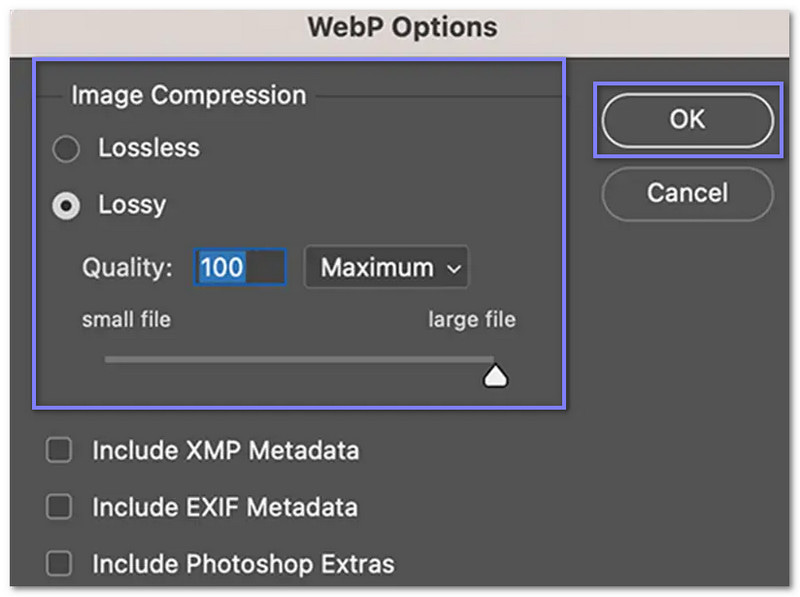
Step 3A new window will open. Here, you can adjust the WebP image compression to make your file smaller. Use the Quality slider to control how much compression you want. Higher clarity means bigger files, and lower clarity means smaller files.
You can also decide if you want to keep EXIF Metadata or XMP Metadata, which stores information about your photo.
Step 4Once you are happy with the settings, click the OK button. Photoshop will compress your image and save it as a WebP file. Now your image is smaller and ready for the web without losing too much clarity.
Additional perks you will love: Photoshop lets you edit layers and apply effects before compression. You can fine-tune the size and resolution to shrink files smartly. It also allows saving presets to compress faster next time. These perks give you full control and keep your WebP images looking great.
You have successfully compressed your WebP image! Now, you can share, upload, or use it online without worrying about slow load times or large file sizes. Your website will load faster, visitors will have a smoother experience, and you will save storage space.
If you want to compress a WebP image without losing quality, you can quickly do it with AVAide Image Compressor right in your web browser. It works on any operating system and is completely free. It makes it simple and safe to get smaller images that still look great.

Reduce the file size of an image online within seconds while preserving the quality. We support JPG, PNG, WEBP, GIF, and more.
PROCESS NOW