Converting JPG to PNG with a transparent background is honestly more flexible for logos, product photos, graphics, and other kinds of layouts. Since a JPG file cannot keep transparency, you have to strip the original background first. This piece goes through a handful of practical ways, including AI-powered tools plus standard image editors, so you can end up with a tidy PNG that actually stays see-through.
- Understanding JPG vs PNG - Why Transparency Matters
- Method 1: Using AVAide Background Eraser (Recommended)
- Method 2: Using Adobe Photoshop (Professional)
- Method 3: Using GIMP (Free & Open-Source)
- Method 4: Using remove.bg (Free AI Online Tool)
- Method 5: Using Windows Photos App (Built-in Tool)
- Which Method Is Best for You?
Understanding JPG vs PNG - Why Transparency Matters
JPG and PNG are two commonly used image formats, but they behave differently with transparency, compression, and image quality. When you know those differences, it gets a lot easier to pick the best option, especially for logos, visual graphics, product images, and any design work that calls for a clean, clear background.
- Feature
- Transparency
- Image quality
- File size
- Best for
- Transparent background
- Repeated editing
| JPG | PNG |
| ❌ Not supported | ✓ Supported |
| Good, but uses lossy compression | High, with lossless compression |
| Usually smaller | Usually larger |
| Photos and detailed images | Logos, graphics, and transparent images |
| ❌ No | ✓ Yes |
| Quality can decrease | Better preserves image quality |
Method 1: Using AVAide Background Eraser (Recommended)
AVAide Background Eraser gives you a simple method to change a JPG into a PNG where the background ends up transparent, sorta. The AI does the heavy lifting by spotting the main subject and clearing the existing background, so you do not have to fuss with manual clicks or selections. It is free to use online too, and once you are done, you can save the finished picture with that transparent look, or swap in a different background.
Step 1Upload the JPG Image
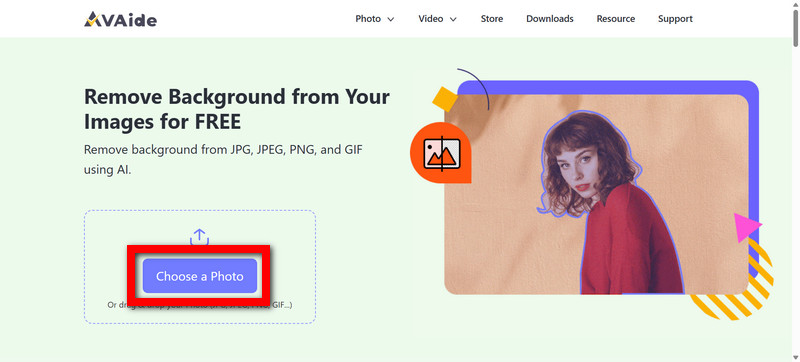
Open AVAide Background Eraser, then click Choose a Photo to upload your JPG. You can also drag and drop a photo right into the outlined area.
Step 2Let the AI Strip the Background
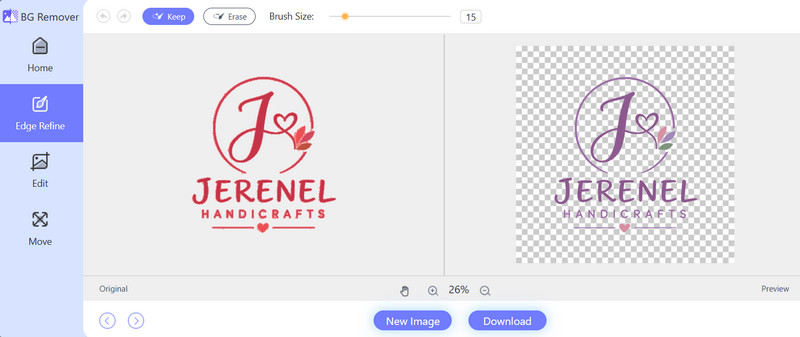
Once you upload the picture, the tool quickly finds the main subject and removes the background too. You do not really need to select anything on your side.
Step 3Check the Transparent Output
Just take a second and preview it after the background is gone. You should notice the main subject stays by itself, on a transparent background, not the original scene anymore.
Step 4Tweak the Background
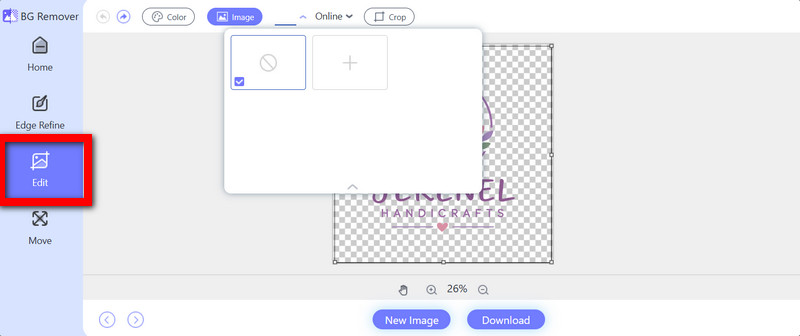
If you want a different mood, go to the Edit area and add a background again. Use Image to load another photo, or pick Color to apply a solid fill.
Step 5Download the Image
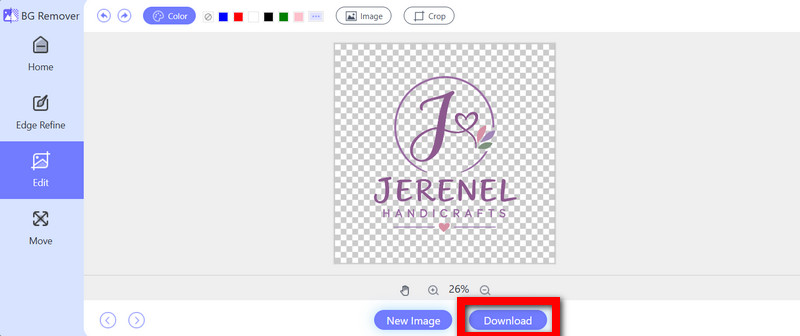
When everything looks good, hit Download. Then save the edited PNG with either the transparent background or the newly added one.
Method 2: Using Adobe Photoshop (Professional)
Adobe Photoshop is kind of powerful when it comes to turning JPG pictures into transparent PNGs, because you can manage background removal really precisely, and the edge refining too. The built-in selection tools help you go faster a bit, while layer masks let you do those careful tweaks when the image is more complex or messy around the borders.
Step 1Open Photoshop and then pick File > Open to bring in the JPG.
Step 2Tap Select Subject, and it picks the main subject for you automatically; most times, it works very well.
Step 3Make a layer mask, or just remove the background so transparency can show through.
Step 4Clean up the edges, a bit more especially around hair, clothing, and those tiny, fine details where things often look weird, or kinda off.
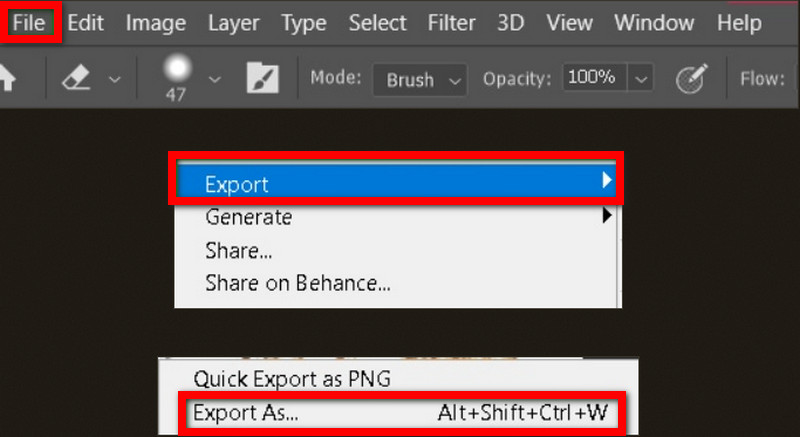
Step 5Go to File > Export > Export As, pick PNG, then turn on transparency.
Method 3: Using GIMP (Free & Open-Source)
GIMP is a free alternative for making transparent PNGs from JPG files, you know. It comes with several selections and background-removal tools, so you get more grip on the cutout process. Even if it takes more hands-on effort than AI-based tools, it still offers useful editing leeway, and you do not need a paid subscription.
Step 1Open GIMP and choose File > Open to load the JPG, and wait for it to show up.
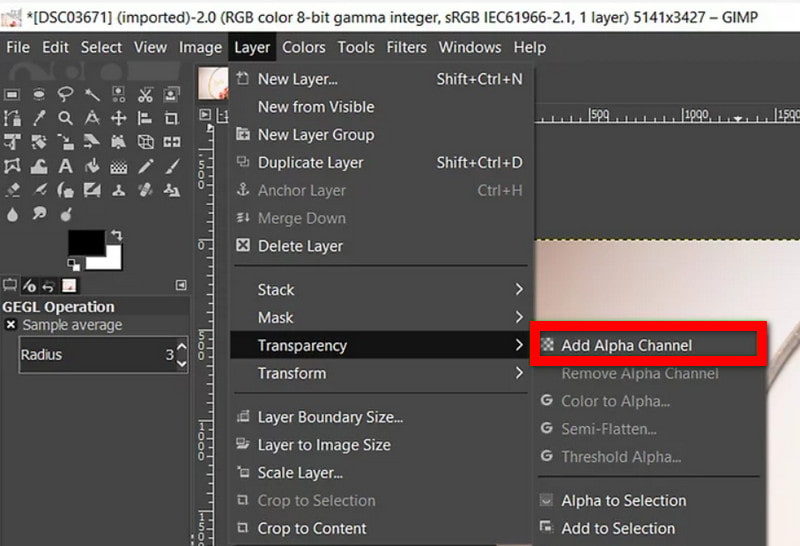
Step 2Right-click the image layer, then choose Add Alpha Channel, so transparency is turned on.
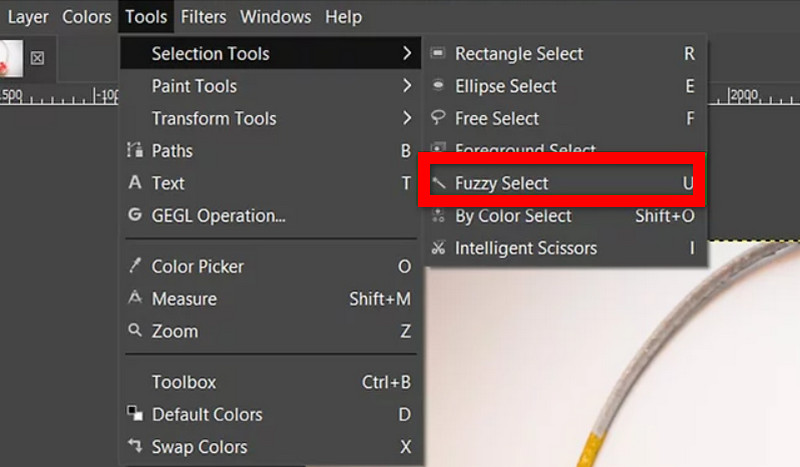
Step 3Use Fuzzy Select or Foreground Select, and then mark and outline the background too.
Step 4Hit Delete and remove the selected background. You will notice the checkerboard, that little grid thing, which means it is transparent.
Step 5Select File > Export As, choose PNG, and then save the final image.
Method 4: Using Remove.bg (Free AI Online Tool)
Remove.bg makes JPG-to-PNG conversion with a transparent background pretty quick, because it uses automatic AI background removal. It spots the main subject and then clears the surrounding background without you having to do manual selections or anything like that. So it feels convenient for product photos, portraits, and other images that need a fast, clean cutout, including projects made with a transparent background logo maker.
Step 1Go to Remove.bg in your browser, then upload your JPG.
Step 2Wait while the AI detects the subject and removes the background, pretty straightforward.
Step 3Look at the preview, just so you are sure the subject and those small details stayed put.
Step 4Confirm it is genuinely transparent. like no background at all, leave it empty.
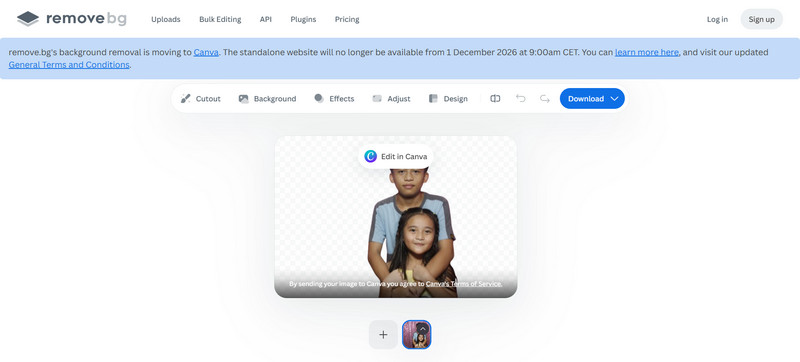
Step 5Hit tap or click the Download option to save it as a PNG.
Method 5: Using Windows Photos App (Built-in Tool)
The Windows Photos app gives you a useful way to remove image backgrounds, without grabbing extra software, as long as you are on the supported newer versions of Windows. It has a built-in background removal thing that can quickly isolate the main subject, so honestly, it is pretty solid for straightforward JPG to PNG conversions, quick little touch-ups, and basic background removal tasks.
Step 1Find the JPG, then open it up in Photos.
Step 2Tap the image editing option to get to the tools, and do not skip it.
Step 3Choose Background Removal so the subject basically gets split out by itself.
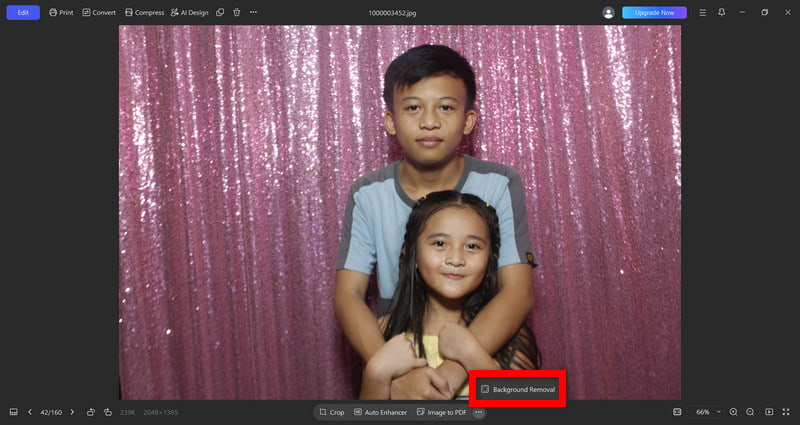
Step 4Look at what you get, then adjust the edges if it needs it, maybe a bit more.
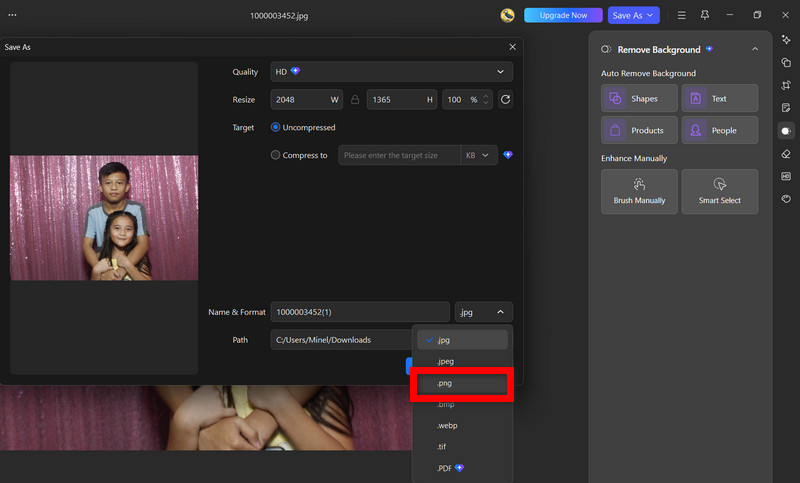
Step 5Save or Export it as PNG, so the transparency is kept correctly.
Which Method Is Best for You?
Honestly, the best method kinda depends on what kind of image it is, how much editing experience you have, and also how much control you need. In my experience, AVAide Background Eraser really stands out because it’s one of the more convenient ways to turn JPG images into transparent PNGs, it combines automatic AI background removal, supports a broad set of formats, and you can even use it for free online, all inside one simple tool.
- Method
- AVAide Background Eraser
- Adobe Photoshop
- GIMP
- Remove.bg
- Windows Photos
| Ease of Use | Best For | Transparency | Cost |
| ★★★★★ 5/5 | Fast, automatic background removal | ✓ | Free |
| ★★★ 3/5 | Professional image editing | ✓ | Paid |
| ★★★ 3/5 | Detailed manual editing | ✓ | Free |
| ★★★★ 4/5 | Quick AI background removal | ✓ | Free/Paid |
| ★★★★ 4/5 | Basic Windows editing | ✓ | Built-in |
Once you learn how to convert JPG to PNG with a transparent background, your images become a lot more adaptable for logos, products, and other creative layouts. Yeah, many tools can do it, but AVAide Background Eraser is still the most straightforward online option, since the background removal is automatic. It gives you clean, transparent images without all the complicated editing steps or that annoying software installation stuff.
ABOUT THE AUTHOR


Uses AI and automated background removal technology to capture complex backgrounds from JPG, JPEG, PNG, and GIF.
PROCESS NOW