I observed that it is sometimes easy to switch the color of the background, but the outcome is hardly ever right. There is a loss of shape of the edges, offness of colors, and the subject may appear pasted in. These problems are a result of poor selection and improper editing procedures. I deal with web and product images, and a clean output is important. This article explains how to edit image background color using tools that fit real tasks. You will observe what options are speedy, which bring balance and which provide total control. The guide has taken five visible sections.
- Part 1: The Easiest Way to Change Background Color Free Online with AI
- Part 2: Change Image Background Color Free Online with Remove.bg
- Part 3: Change Image Background Color Free Online with Canva
- Part 4: Change Image Background Color Free Online with Pixelcut
- Part 5: Change Image Background Color with Photoshop
Part 1: The Easiest Way to Change Background Color Free Online with AI
When I need to change the color of a picture background, I always trust AVAide Background Eraser, and after repeated use, it proves to be a reliable choice. The AI is capable of subject detection even beyond edges, which tend to be problematic. Output appears to be clean without additional tidying, which is important where speed is needed.
Changing the photo background color feels direct and predictable, with common color options ready to use. Since it runs fully online and is free, it fits well into quick editing tasks without adding friction.
Step 1Open your browser and click the Choose a Photo on the official page of the AVAide. This web tool helps a wide range of image formats, making the importing of photos easier.

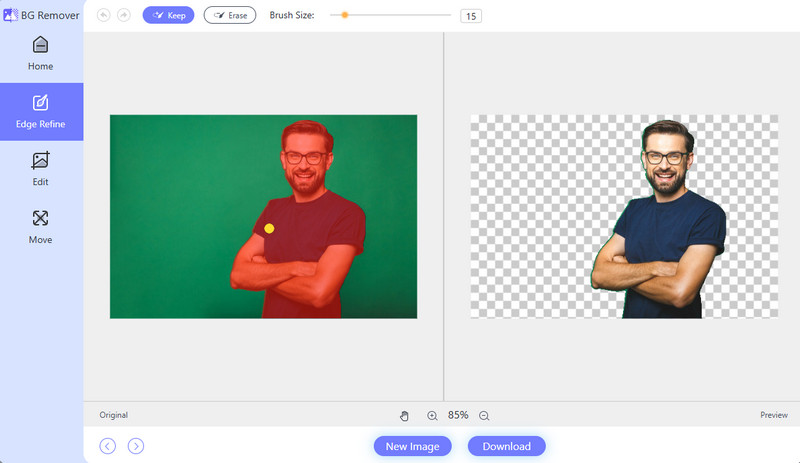
Step 2After importing, it will automatically remove the background of your image, and if you want to refine it more, you can do it with the help of the brush on the highlighted image.
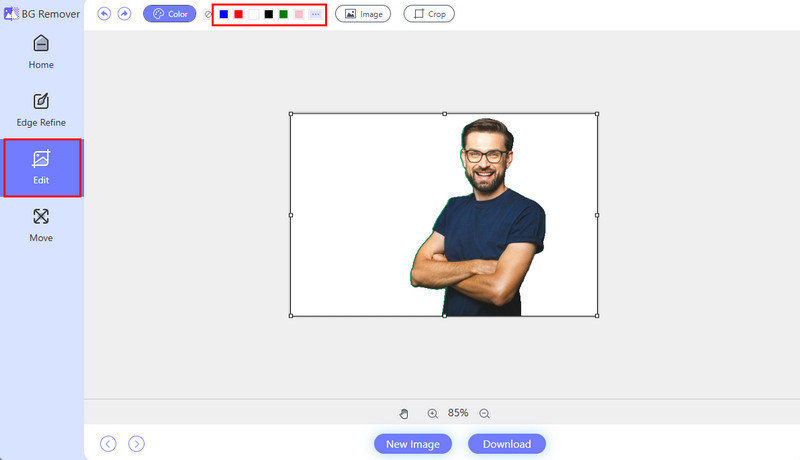
Step 3If you want to add a solid color as the background on your image, then click the Edit button. Pick the color you want to set as a background from the upper section, and it will automatically apply the selected color.
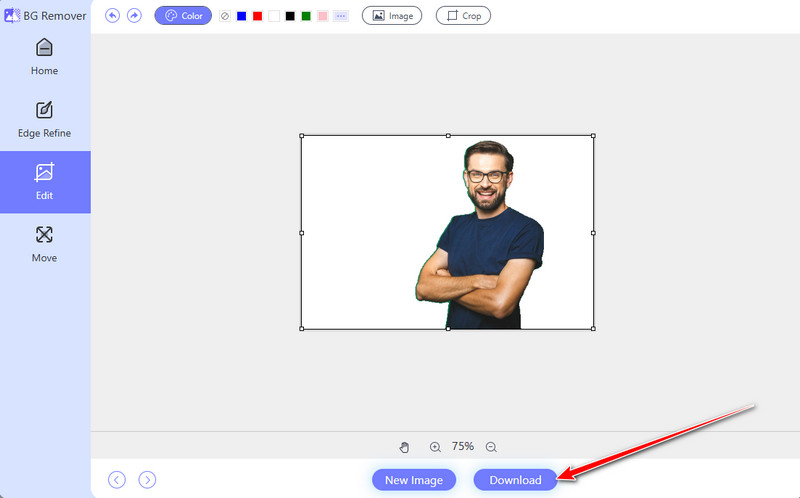
Step 4Once you are satisfied with the background color you choose, click the Download button to export it right away.
Part 2: Change Image Background Color Free Online with Remove.bg
Remove.bg works well when speed matters most. The background removal is usually accurate, keeping the subject clear and edges natural in most cases. After removal, it is easy to change the background color of the image using simple color options. The tool is free and fully online, so there is no need to install anything. This makes it a practical choice for fast edits that deliver clean results with minimal effort.
Step 1Open the web browser and click the Upload Image to import the image you want to edit.
Step 2Click the Background > Color and choose the one you want to use as the solid color for your new background.
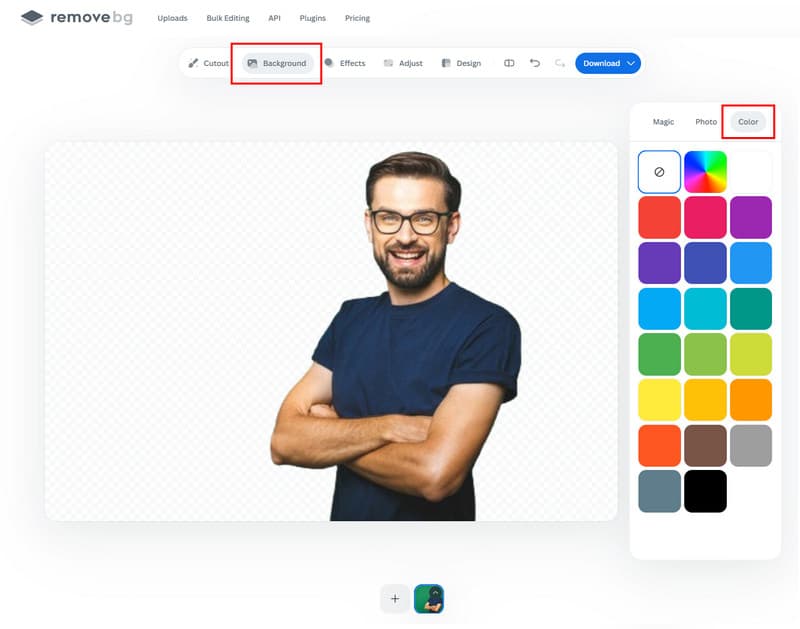
Step 3Now, click the Download button. If you have a logo and you want to make it transparent, then this is the tool you can use to make a transparent background logo.
Part 3: Change Image Background Color Free Online with Canva
Canva is a popular online design tool that makes creating graphics simple and accessible. It allows users to design presentations, social media posts, and marketing materials without installing software. One of its standout features is the ability to change the picture background color easily, giving any image a fresh and professional look.
Step 1Click on the image that has the background you want to adjust.
Step 2Click Create, then choose the Pixel Eraser option to remove the background on your image first.

Step 3Go to Select Area and find the Background. From the colors that appear, choose which one you prefer to use and click Save to export the edited version.
Part 4: Change Image Background Color Free Online with Pixelcut
Pixelcut is a free online tool that uses AI to remove and replace photo backgrounds quickly and accurately. It detects the main subject and separates it cleanly from the background, allowing users to change the background color of the photo without complex software. The process is simple, fast, and works directly in your browser, making it ideal for both beginners and experienced editors.
Step 1Go to the Pixelcut background changer page and upload the image you want to edit. The AI starts processing immediately.
Step 2Pixelcut detects and removes the background, leaving only the subject on a transparent or default canvas.
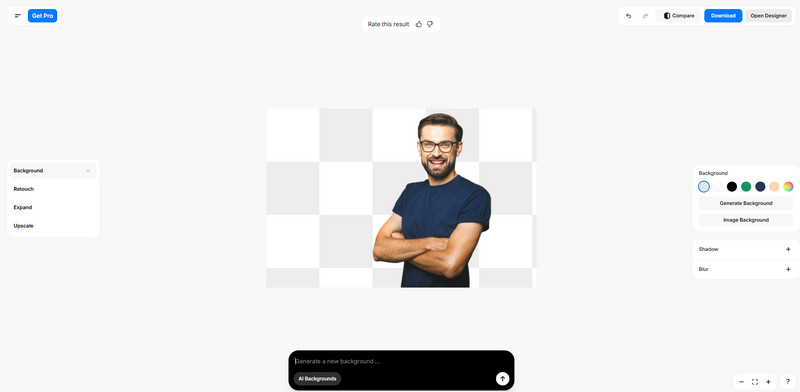
Step 3After removal, add a new background to the picture. You can choose a color from the palette or enter a custom shade to replace the old background.
Step 4Check the edited image to ensure the background looks natural with your subject, then download the photo to your device.
Part 5: Change Image Background Color with Photoshop
Adobe Photoshop is a proficient image editing tool designed for users who need full control over every detail. It allows you to edit picture background color with high precision, making it ideal for complex images, detailed edges, and high-resolution output. Unlike online tools, Photoshop uses layers and masks, which help preserve image quality while giving you flexibility during editing.
Step 1Launch Photoshop and import the image you want to edit. Go to Select and choose Subject. Photoshop will automatically detect and select the main subject in the image.
Step 2Click Select, then choose Inverse. This switches the selection from the subject to the background. In the Layers panel, click the New Adjustment Layer button and select Solid Color.
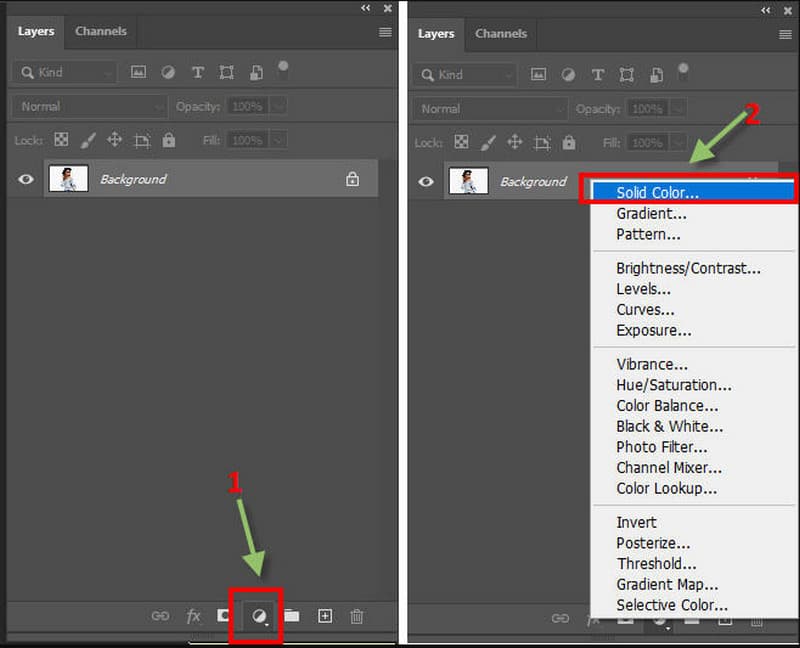
Step 3Pick the Color Picker to select the background color you want. The change applies instantly. Adjust the layer mask if needed to clean up edges or fine details. With it, you can create a grey background.
How to edit a background is the most appropriate depending on your requirements. AI tools are fast and easy. Online editors are freer without being complicated. Finer images are ideal in professional software. Knowledge of these options would save time and enhance outcomes. If you are wondering how I can change the background color of a picture, the key is choosing the right tool for the job. With the methods shared in this article, you can change image backgrounds with better clarity and confidence.
ABOUT THE AUTHOR


Uses AI and automated background removal technology to capture complex backgrounds from JPG, JPEG, PNG, and GIF.
PROCESS NOW