A GIF compressor often becomes necessary when a simple animated image turns into a performance issue. You might be sharing a GIF tutorial, adding motion to a product page, or posting a reaction image on your website, only to notice slower loading times. Large GIF files can quietly drain bandwidth, affect mobile users, and disrupt the browsing experience. Instead of removing animations entirely, compression offers a smarter solution. This article explains why compressing GIFs is important and introduces the best free online and desktop GIF compressors that reduce file size while preserving visual quality and smooth animation.
Part 1. Why Do You Need to Compress GIFs?
GIF files are more considerable than standard image files. Because large files take longer to load and negatively affect website performance and user experience, it is helpful and resourceful to compress GIF files while maintaining smooth animations.
- 1.Faster loading: Compression allows files to load faster. Compounded, the difference is more significant. Even modern mobile devices can struggle to load large files.
- 2.Better website performance: Large GIFs affect the core web vitals and can negatively impact SEO. Having a compressing tool like ours will allow websites to maintain their SEO and core vitals.
- 3.Lower bandwidth use: Large GIF files consume more data. Without compressing GIF files, website administrators will be lowering the data availability of their bandwidth.
- 4.Smoother mobile experience: Big GIFs can lead to slow-loading emails and display failures. There are more devices and software applications where smaller GIFs can be used.
- 5.Professional content workflow: Smaller, compressed GIFs are more user-friendly. Editors and publishers will have a more professional experience with their content.
- 6.Saves storage space: Large uncompressed GIFs take up more storage. There can be more manageable, definite storage when more compacted files are saved.
Part 2. Top 3 Free Online GIF Compressors
When looking for a good and reliable GIF compressor, there are a few options that do a good job and keep the animation quality intact. The tools are fast and simple, and include AVAide Image Compressor, which is the best option.
1. AVAide Image Compressor (Best Free GIF Compressor Online)
Of all the tools, AVAide Image Compressor provides the best free option. It keeps file sizes low and keeps quality, which is better than other tools. With its clear and stable performance and cutting-edge workflows, GIF compression is stable and reliable. It does clear up the quality of images and animations to keep them crisp and clear. The tools are better for batch GIF compression, as you are able to do multiple GIFs in one go and do compression optimizations faster.
- Pros
- High image quality is maintained, and visuals are also clear and maintained.
- Fast batch processes allow for multiple GIFs to be compressed at the same time.
- Performance is good as the tools are quick and stable, and do not put a lot of usage on the devices.
- PNG, JPG, GIF, etc, are some of the multiple image formats that are accepted.
- No payment or installation is needed as the tools are free and secure.
- Cons
- Cannot use the tools or features without an internet connection.
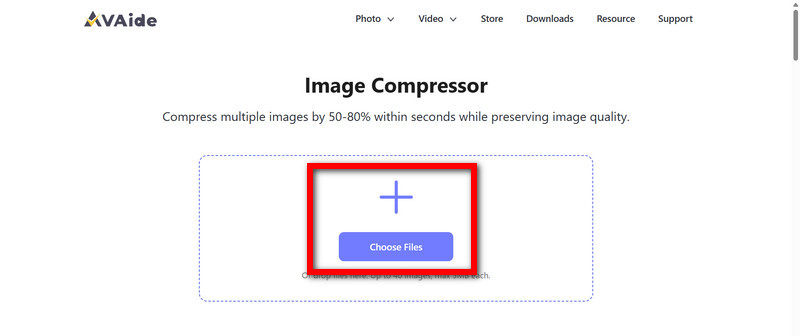
Step 1Access the AVAide Image Compressor
With your device, open a web browser and go to the AVAide Image Compressor Web Page.
Step 2Upload Your GIF Files
To compress multiple files, you must select the images to compress by clicking the Choose Files. From your computer, select one or more GIF images.
Step 3Automatic GIF Compression
As soon as you upload your GIF images, the software begins compressing them and does not need any further instructions.
Step 4Retrieve the Compressed GIFs
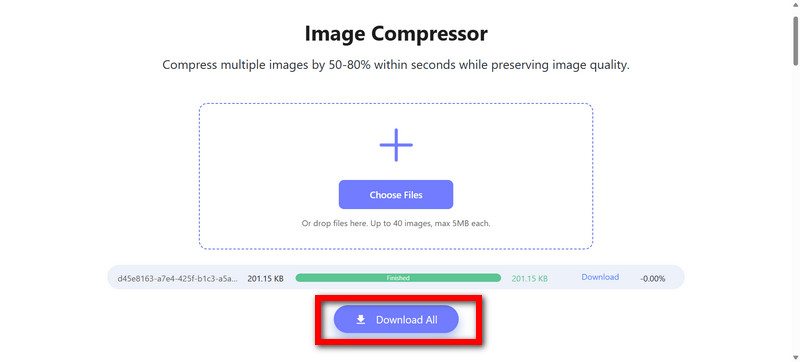
Once the GIFs are optimized and smaller in size, you will see the option Download All to save them to your computer.
2. EZGIF
Some users may prefer EZGIF over the previous option because it allows for as much control during the process as someone would like. Compression control can range anywhere from color, frames, transparency, and how much to compress to reach the right size and quality.
- Pros
- Free to use and readily accessible.
- Has greater customization like color lowering, lossy compressing, and optimization of frames.
- The processing time for smaller and medium-sized files is very quick.
- Requires no deployment of programs.
- Cons
- Small files will take as much time as medium files.
- Uploading very large GIFs can take an enormous amount of time.
- The interface appears very simple and could be considered outdated.
Step 1 Go to the EZGIF GIF Optimizer interface.
Step 2 Select your GIF and press Upload.
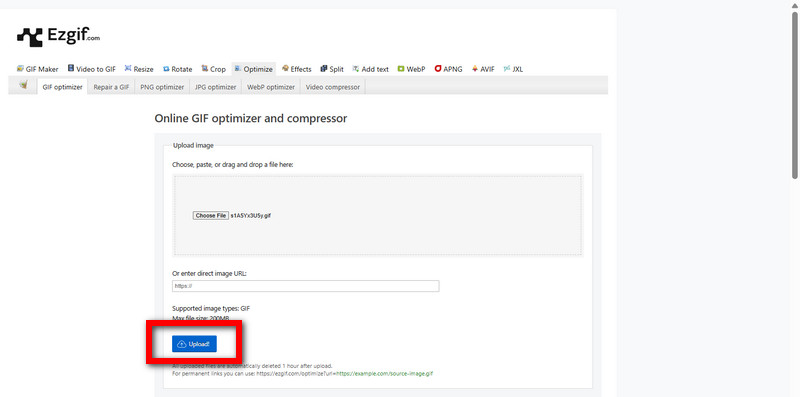
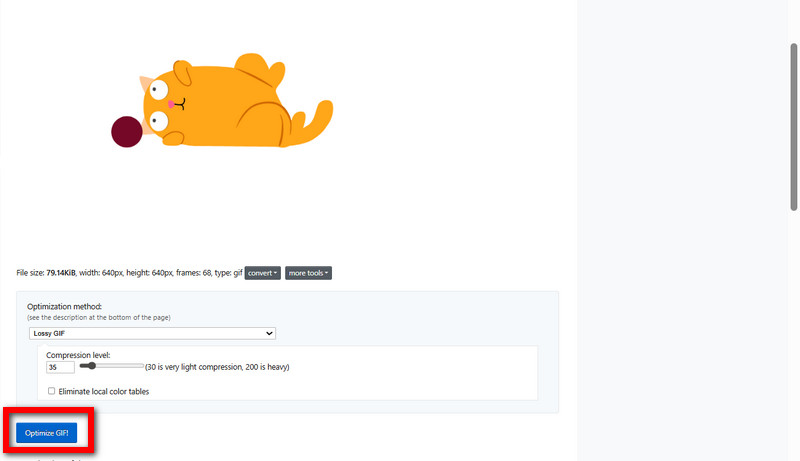
Step 3 Select your method of compression, lossy, or color reduction.
Step 4 Optimize the GIF, and afterward, your new optimized GIF file will be available to download.
3. FreeConvert
For compressed files with the option of customizable compression settings, FreeConvert caters to this. This tool is particularly useful for those users looking for compressed files quickly, but also want the option to edit compression settings.
- Pros
- The user interface is easy to understand.
- Users can edit compression settings.
- Color/frame-based file size reduction can be made in the Advanced Settings.
- GIF files in higher file sizes are also supported.
- Cons
- The free-to-use version of the tool has file size limits.
- Certain regions will have ads.
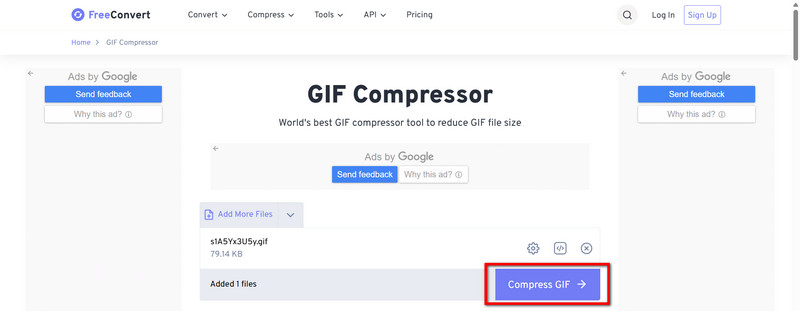
Step 1 Go to the FreeConvert GIF Compressor.
Step 2 Use the Choose Files button to upload your GIF file.
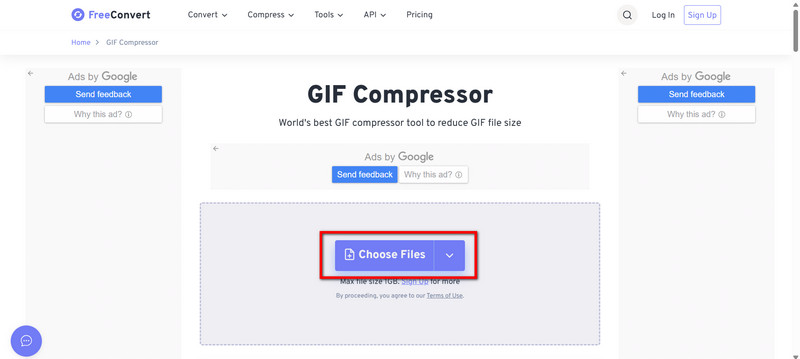
Step 3 If necessary, go to Advanced Settings to change compression levels, or remove colors or frames.
Step 4 Click Compress Now and download the optimized GIF when ready.
Part 3. Top 4 GIF Compressors on Windows and Mac
1. Adobe Photoshop
Photoshop has several functions through which a user can edit a GIF. Features such as removing unnecessary animation frames, adjusting animation settings, and balancing quality and size have made Photoshop valuable to users.
- Pros
- Users can achieve a high level of professionalism.
- Users have control to a high degree to determine the color, frames, and transparency.
- The user can edit GIF images using different layers and still retain the quality.
- Cons
- The user has to incur the cost of using the software.
- There is a learning curve for a new user.
Step 1 To import a GIF, open Photoshop and select Open from the menu.
Step 2 Select Timeline from the menu to view the animation frames.
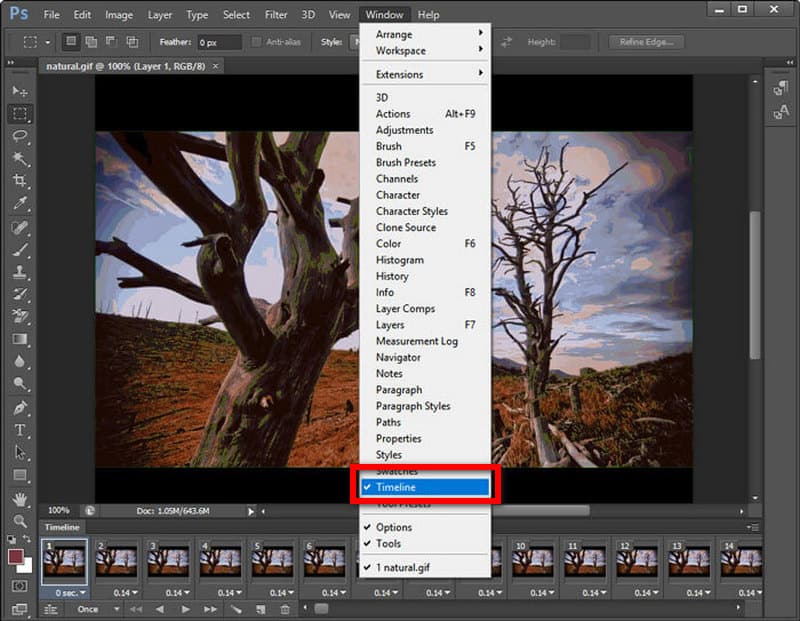
Step 3 To ensure the GIF size is as small as possible, delete frames that are duplicates.
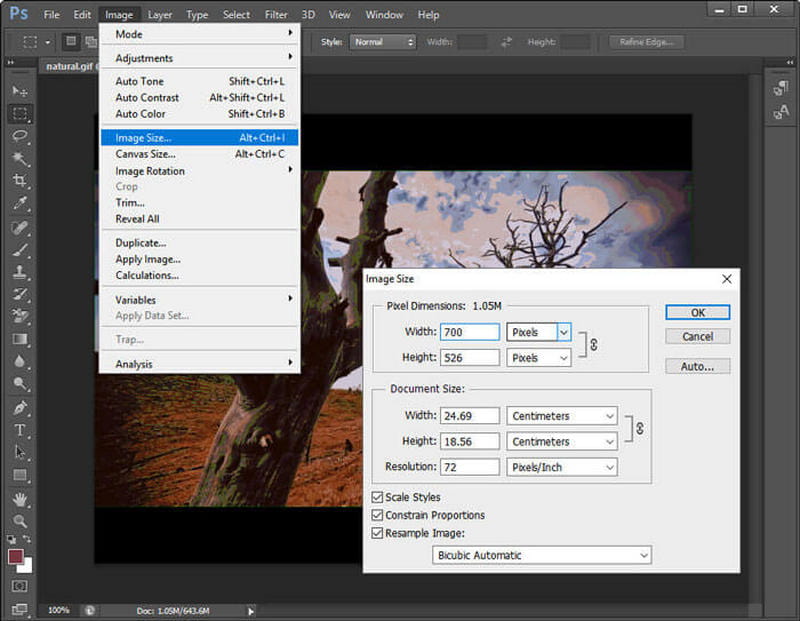
Step 4 Select Export and Save for the Web option from the Export submenu.
Step 5 Select the GIF format, and change the number of colors to reduce the GIF, and change the dithering.
Step 6 To export, click the Save option.
2. GIMP
While GIMP has the same weaknesses as Photoshop, it has a disadvantage in that it costs the user nothing. Features such as layer optimization and color adjustments have made its editing functions of GIF images strong.
- Pros
- There is no charge to users.
- The user can edit the GIF one frame at a time.
- The user can manage transparency as well as optimize the colors.
- Cons
- Fewer presets are available than are available in Photoshop.
- Users have fewer colors.
Step 1 To open a GIF file, start GIMP and select Open.
Step 2 To optimize the GIF, go to the Animation section of the Filters menu and select Optimize (for GIF).
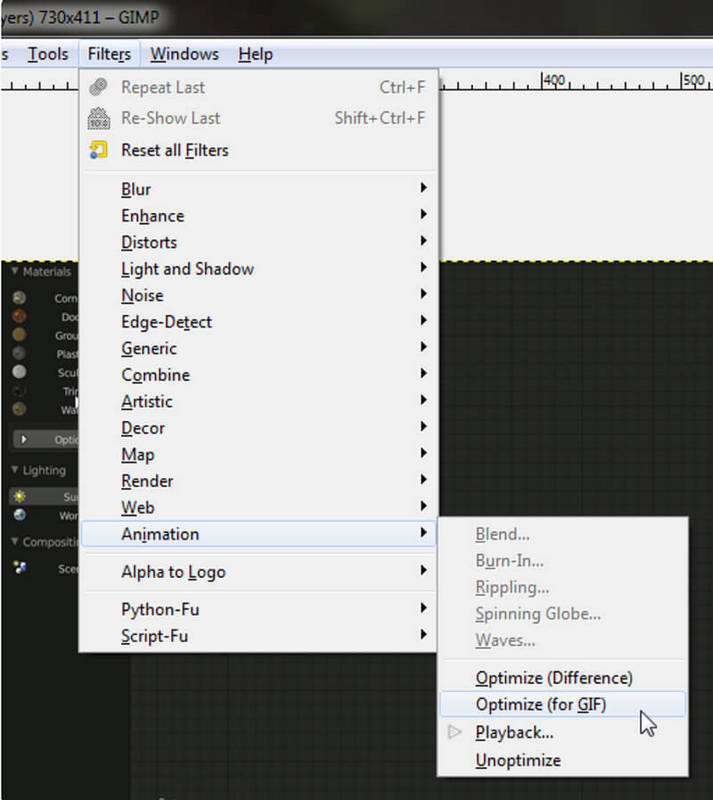
Step 3 If necessary, go to Image > Scale Image to adjust the image size.
Step 4 Export as GIF using File > Export As.
Step 5 Save as optimized GIFs. Enable animation first.
3. Caesium Image Compressor
Caesium Image Compressor is a responsive tool for effective compression with minimals for minimal compromise on quality. It is flexible for different formats, so it is usable for GIFs, PNGs, and JPGs. It is a fast and reliable program for on-the-go desktop optimizations.
- Pros
- Quick compression with adjustable quality.
- Simple and user-friendly interface.
- Easily supports multiple GIFs with batch processing using the GIF resizer.
- Crisp quality is retained, even at high compression.
- Cons
- Few advanced editing.
- Does not allow transparency editing with GIFs.
Step 1 Download the installer for Windows or Mac.
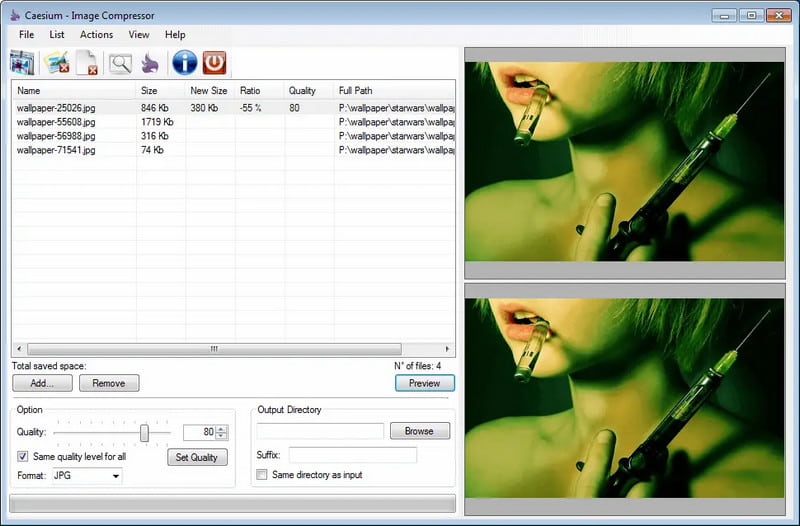
Step 2 Go to the Caesium Image Compressor website to select the app.
Step 3 Drag and drop the GIF after importing it into the program.
Step 4 Select the quality level using the slider or set some desired compression.
Step 5 Select the folder where the saved GIF will be exported.
Step 6 Hit Compress and the app will do the rest.
4. Movavi Video Converter
Aside from videos, the application is also good at GIF compression as it offers resizing dimensions, frame rate diminishing, and color optimization.
- Pros
- Simple and responsive interface.Quick operations with decent quality results.
- Allows for multiple GIF compression at once with the GIF combiner.
- Supports batch GIF compression.
- Cons
- The free version adds limited features.
- The full version requires payment.
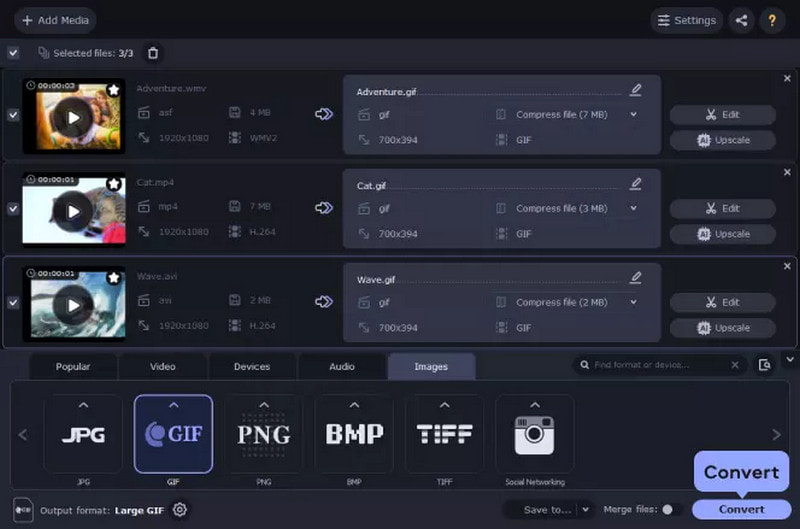
Step 1Open Movavi Video Converter and click Add Media.
Step 2Import your GIF file.
Step 3Select GIF as the output format.
Step 4Click Edit, then reduce resolution or adjust quality settings.
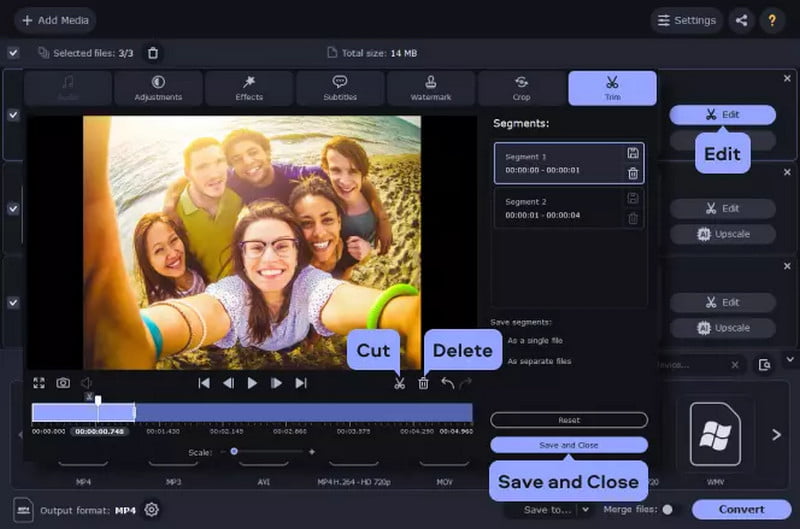
Step 5Click Convert to create a smaller GIF version.
A GIF file compressor helps you keep animations engaging without sacrificing speed or performance. By reducing file size while preserving visual quality, compressed GIFs load faster, use less bandwidth, and perform better across devices. Choosing the right tool ensures smooth animations, improved user experience, and efficient workflows for websites, emails, and digital content.
ABOUT THE AUTHOR


Reduce the file size of an image online within seconds while preserving the quality. We support JPG, PNG, WEBP, GIF, and more.
PROCESS NOW