How to Upscale an image on Adobe? Well, Adobe is an excellent tool that can offer various platforms that can help you upscale your images to a better version. It can even offer various features, such as cropper, effects, filters, add text, watermarks remover, and more. With that, we can tell that Adobe is among the most reliable tools you can access on your desktop and browser. Thus, if you want to learn all the effective methods to upscale images, read the detailed tutorial in this article.
- Part 1: Basic Introduction to Adobe Image Upscaler
- Part 2: How to Upscale an Image Using Adobe Express Online
- Part 3: How to Upscale an Image via Photoshop
- Part 4: How to Use Adobe Firefly Image Upscaler
- Part 5: How to Use Adobe Illustrator to Upscale an Image
- Part 6: How to Use Adobe Lightroom to Upscale an Image
- Part 7: Best Free Online Alternative to Adobe Image Upscaler
Part 1: Basic Introduction to Adobe Image Upscaler
An Adobe Image Upscaler is among the features you can access on various Adobe platforms, such as Adobe Express, Photoshop, Firefly, and more. With this feature, you can ensure a better resolution for your photo. Plus, when upscaling images, you can even manually adjust the photo's brightness, saturation, contrast, and other parameters. Adobe can even offer more advanced features, making it an excellent advanced photo editing tool.
To get more insights about the best Adobe tools, you can check the table below.
| Adobe Tools | Best for | Key Features |
| Adobe Express Online | Quick, browser-based upscaling for social media and casual projects | • Easy drag-and-drop interface • Fast AI-powered enlargement • Ideal for non-professional users who need quick results without installing software |
| Adobe Photoshop | Professional-grade upscaling for detailed editing and print | • Preserve Details 2.0 • resampling Precise control over sharpness, noise reduction, and layer-based editing • Generative Upscale (AI-driven) |
| Adobe Firefly Image Upscaler | AI-driven enhancement for creative projects and natural images | • Specialized AI model trained for textures, landscapes, and creative assets • Integrates with Firefly generative tools for seamless workflow |
| Adobe Lightroom | Photographers needing high-resolution RAW images | • Offers a Super Resolution feature that can upscale the image up to 4 times better • Preserves fine details in RAW files • Integrates smoothly into the photography workflow |
| Adobe Illustrator | Logos, icons, and graphics require infinite scalability | • Transform raster images into vector paths • Best for design assets rather than images • Ensures crisp edges at any size |
Part 2: How to Upscale an Image Using Adobe Express Online
Do you want to use the Adobe Express Image Upscaler? Well, this tool is perfect if you want to upscale your images smoothly. The good part here is that it can automatically enhance your images. Plus, you can also manually improve that image by adjusting the photo's brightness, contrast, shadows, saturation, and more. To start the process, check the methods below.
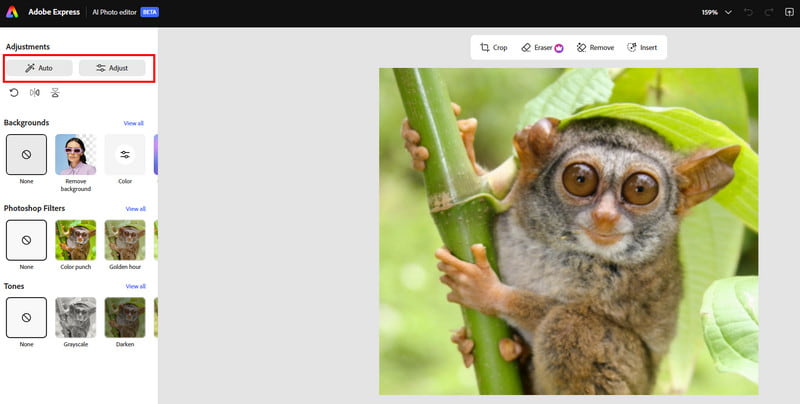
Step 1Go to your main browser and visit the main website of Adobe Express.
Step 2Then, click the Upload Your Photo to start adding the photo from your device. After that, proceed to the next step.
Step 3Click the Auto option to upscale images automatically. You can also tap the Adjust option to manually modify the photo's brightness, saturation, shadow, and other parameters.
Step 4Finally, hit the Download button above to save the upscaled image on your computer.
Part 3: How to Upscale an Image via Photoshop
If you want to upscale an image in Adobe Photoshop, you can do so. Adobe Photoshop is ideal if you want to enlarge your image to your preferred size. Thus, getting the super resolution in Photoshop is a possible task. With that, you start the upscaling process and use the instructions provided below.
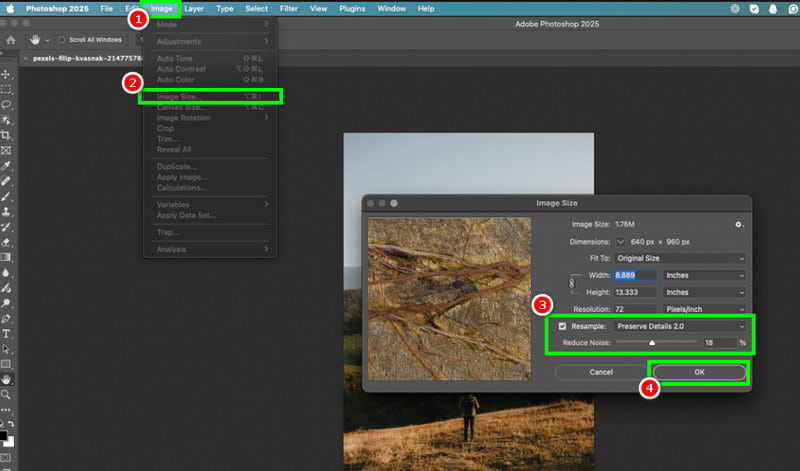
Step 1Download and install Adobe Photoshop on your computer. Then, from the layout, go to the File > Open option to add the image.
Step 2After that, navigate to the Image section and tap the Image Size option.
Step 3Go to the Resample section and select the Preserve Details 2.0 option. This option will help you sharpen the image and reduce the noise. Once done, click the OK button.
Step 4Lastly, go to the File > Save as option to start saving the upscaled photo.
Part 4: How to Use Adobe Firefly Image Upscaler
How to use Adobe Firefly Image Upscaler? First, Firefly is an excellent tool that can generate images. It can even provide a professional-grade output after the generation process. The best part here is that you can upscale the image up to 4K, resulting in a better viewing experience. With this tool, you can insert your preferred resolution for the image.
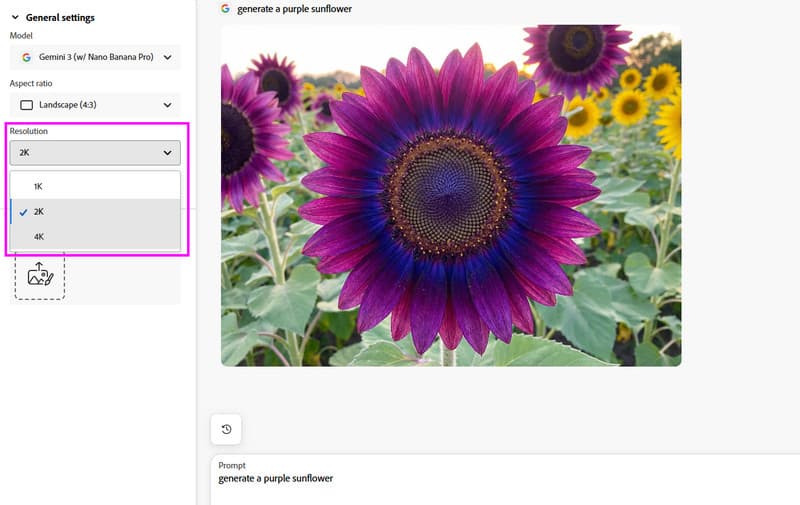
Step 1Go to your browser and visit the Adobe Firefly, and start inserting the prompt you want for generating the image.
Step 2After the loading process, proceed to the left interface and click the 4K resolution under the Resolution section.
Step 3After the upscaling process, hit the Download button above.
Part 5: How to Use Adobe Illustrator to Upscale an Image
Adobe Illustrator is another high-end program you can access on your computer. It can even upscale your images to their best resolution, making it the best photo resolution upscaler. To upscale an image on Adobe Illustrator, see the steps below.
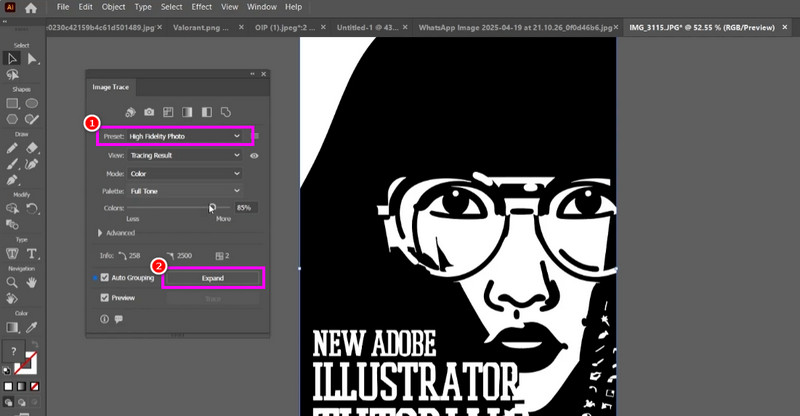
Step 1Download Adobe Illustrator on your computer. Then, after you launch the software, add the image to the canvas.
Step 2After that, go to the button interface and hit the Image Trace function below. After that, go to the Window section and choose the Image Trace feature.
Step 3When a mini window shows up on your screen, go to the Preset section and choose the High Fidelity Photo option.
Step 4Once done, tap the Expand button. After that process, you will see a better version of the image. After that, start saving the upscaled photo.
Part 6: How to Use Adobe Lightroom to Upscale an Image
Upscaling an image on Adobe Lightroom is an ideal process if you want a simple and fast upsampling method. What makes this tool powerful is that it can help you upscale the photo 4 times to its original resolution. With its AI-powered technology, it ensures to offer an accurate result, making it good news for everyone. To begin the upscaling process, check the methods below.
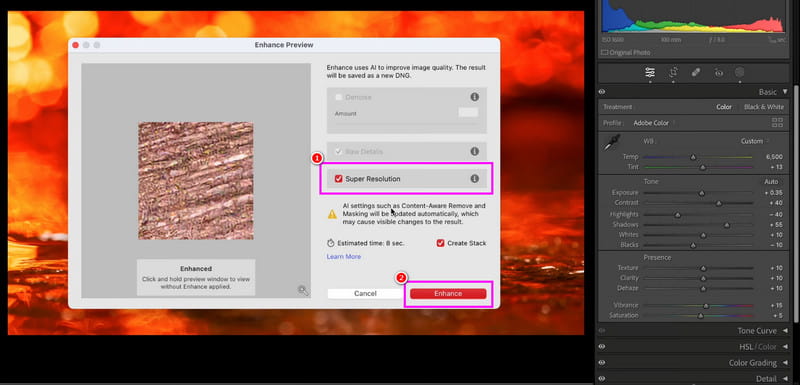
Step 1Install Adobe Lightroom on your desktop. Then, after you launch the program, start adding the image.
Step 2Then, right-click the image and tap the Enhance button. After that, when the Enhance windows show up, click the Super Resolution option.
Step 3Click the Enhance button to begin the final image upscaling process. Once done, proceed to save the image on your computer.
Part 7: Best Free Online Alternative to Adobe Image Upscaler
Adobe is an excellent tool you can use to upscale images. However, some of its tools require a subscription plan to operate. If you need a better replacement for Adobe, you can use AVAide AI Image Upscaler. This tool is better since it lets you upscale your photos 8 times better than the original resolution. It is also free to use, making it accessible to all users. The best part here is that the tool is powered by artificial intelligence, ensuring that it gives you an accurate result. It can even offer precise detail and smooth image enhancement. It can even support various formats, such as JPG, PNG, BMP, WebP, and more. Therefore, if you need an exceptional tool for an ideal image upscaling process, access AVAide AI Image Upscaler.
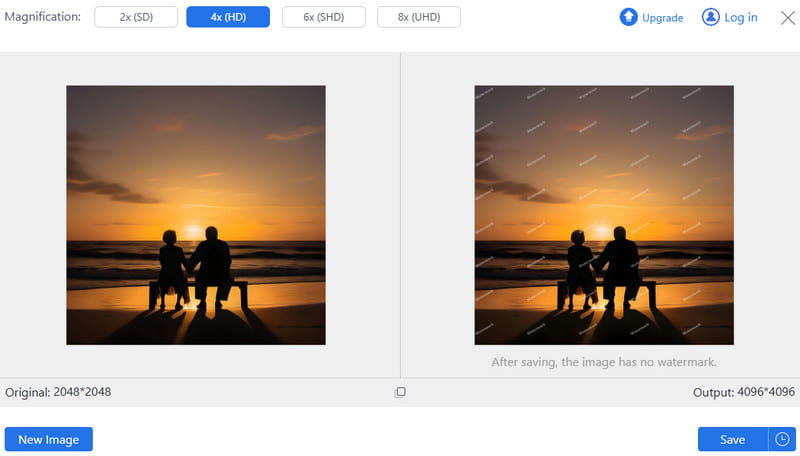
If you want to use Adobe Image Upscaler, you can use all the methods we have provided in this tutorial. With that, you can ensure getting a better version and resolution of your image. Plus, if you are looking for an excellent alternative to Adobe, we suggest using AVAide AI Image Upscaler. This tool is more ideal if you want a free and simple image upscaler. What makes it powerful is that it can upscale your images up to 2×, 4×, 6×, and 8×. Thus, use this tool and achieve your preferred result.
ABOUT THE AUTHOR


Our AI technology will automatically enhance the quality of your images, remove noise and fix blurry images online.
PROCESS NOW