Images can lose details when they are enlarged, compressed, or captured at a low quality. Because of that, you need Super Resolution to improve overall quality, with enhanced details and sharper edges. In this article, we will explain why a modern AI super-resolution method is a better option for processing images than the traditional approach. The good news is you do not need advanced editing skills or expensive software to do so, as we will introduce several free tools and source projects on GitHub that you can use to achieve super-resolution.
Part 1. What Is Image Super Resolution?
What is Super Resolution? Image Super Resolution (ISR) is a technology that improves the overall resolution and visual quality of an image. Most of it uses an advanced AI-powered algorithm to enlarge low-res images, adding more detail while reducing common issues that arise during enlargement, such as blur, pixelation, and noise.
Unlike traditional image resizing, super-resolution does not stretch the image to achieve the desired size; instead, it analyzes the image's patterns and estimates details that may be missing from the original. If you have old photos or small-sized ones and want to prepare them for printing, websites, and other digital content, this is the best option rather than stretching or altering the image, which can lead to poor results.
Part 2. How to Use Image Super Resolution - Free Online Tools
1. AVAide Image Upscaler
For beginners, AVAide Image Upscaler is the best option for enlarging an image without complicated settings, whilst delivering the best results. It uses advanced AI to analyze the uploaded image and enhance details, sharpness, and overall quality while increasing the image size. If you have an old photo that looks blurry and want to fix it, this tool is the best choice for enlarging it. Furthermore, it works in any web browser, so no installation is required. So, if you want your image to look professionally done, this tool's image super-resolution is what you need. Follow the guide below to learn how to use it.
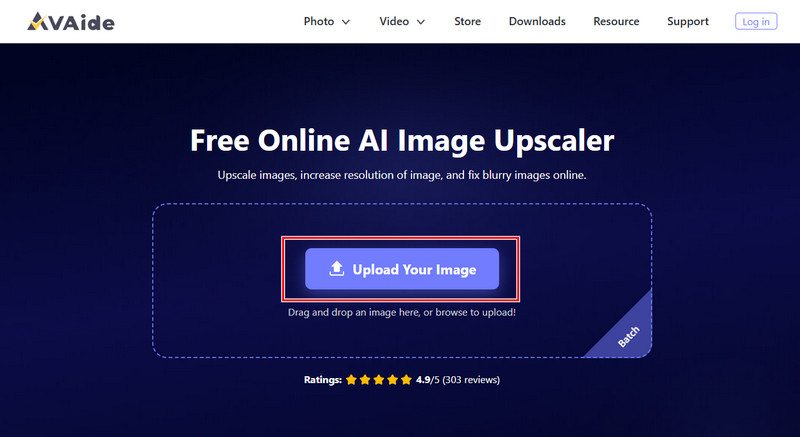
Step 1Open a new tab on your browser, and search for the official webpage of the upscaler. Now that it is open, click Upload Your Image and import the low-quality image you have.
Step 2Under the Magnification, select the enlargement button that you want to apply to the image. No need to worry, all of the options use AI to improve your image quality.
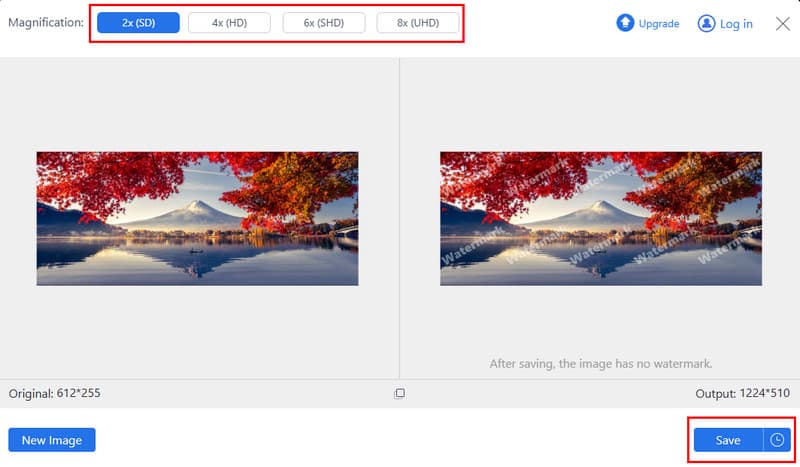
Step 3Once you are done processing the image, click the Save button to download the upscaled image on your device for free. Now, you can use it professionally with the best resolution ever.
2. Upscale.media
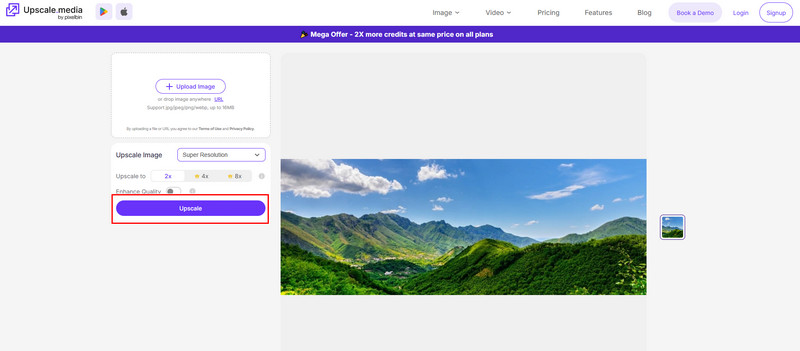
Another alternative for online image enhancement is Upscale.media. It can be useful when your photo appears small for a particular purpose or loses clarity after standard resizing. Just like the previous one, the main advantage of this is the workflow. Improving the quality of your image is on point, making the processing fast while providing a super-resolution output. If you are searching for a free online Super Resolution upscale image solution, then this is worth considering.
Step 1Open the web app in your browser and click Upload to import the image easily.
Step 2Choose the upscale option available here, such as 2x, then activate Enhance Quality to maximize the image's potential. Using a higher upscaling option here requires payment.
Step 3After that, click the Upscale button to initiate the processing.
3. Canva Image Upscaler
For online image design, Canva Photo Editor is a top choice, and it now offers image enhancement and upscaling features to help achieve the best image resolution. It has a dedicated design workspace that you would not see in the previous tool, but it is also a disadvantage because you need to understand the workflow for using it. This is useful for creators who do daily image editing for social media posts, presentations, and marketing, as it has all the tools they need. Learn how to use it by copying the steps below.
Step 1Type in the Canva Image Upscaler in your search bar and click the first result. Then, click the Upload Image button.
Step 2Once the image loads, the app automatically upscales it to the resolution that works best for it.
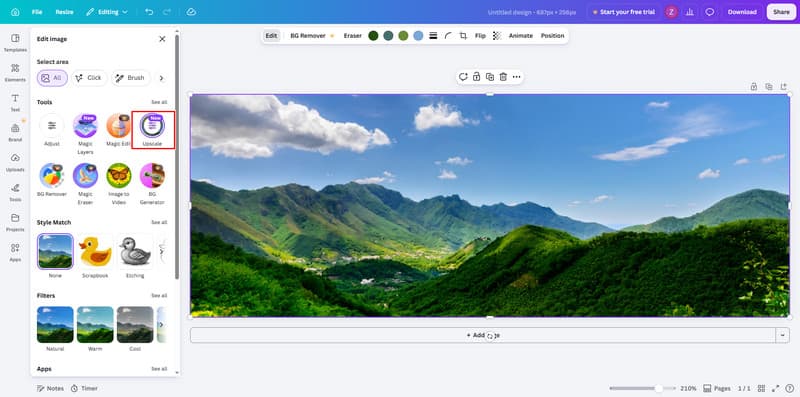
Step 3Then, click the Share button and download it.
Part 3. How to Use Image Super Resolution - GitHub Open-Source Projects
1. Real-ESGRAN
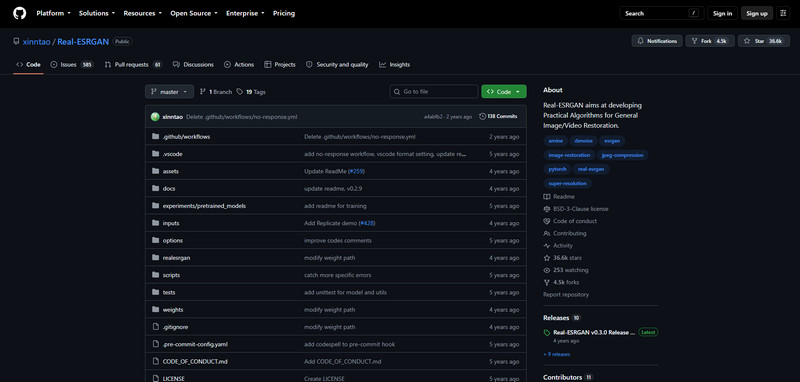
If you want to use an open-source image enhancement tool, Real-ESGRAN can help you. It has an upscale image feature to fix blur and other quality issues. Unlike the previous tools we mentioned here, this one requires you to download and run the project on your computer, which is too much to handle. Since it is an open-source model, you have more control over the image that you are enhancing. Learn how to use it with the steps below.
Step 1Go to the official Real-ESGRAN website to download and extract the file. Then, create a folder where your extracted file is and upload the image you want to that same folder as well.
Step 2Click the address bar of the file explorer, and type in CMD. This will automatically open the folder. Then enter this command to upscale the image:
realesrgan-ncnn-vulkan.exe -i input.jpg -o output.png -n realesrgan-x4plus
Here, -i specifies which image to upscale, -o specifies the output file, and -n selects the general-purpose 4x upscaling model.
Step 3Then, press the Enter button and wait until the app finishes processing.
2. waifu2x
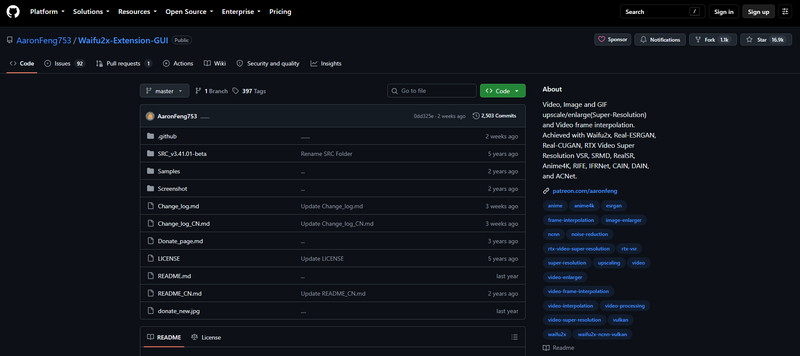
For those who work in artwork, illustration, or images with noticeable noise, then waifu2x is a worthwhile project on GitHub. It was created to upscale images and reduce image noise, but it is a much more complicated tool than Real-ESRGAN. But if you know how to handle the command line properly, the process of super-resolving an image will become simpler for you.
Step 1Download the waifu2X repository and follow the installation process it requires. The original project requires additional dependencies to set up before you can use it for upscaling.
Step 2Create an accessible folder wherein you can place the image and note its file name. Open the Command Prompt, and navigate to the waifu2x folder where the program is installed.
Step 3Use the command provided by the official project to run the upscaling process. A basic example for 2x scaling is:
th waifu2x.lua -model_dir models/my_model -m scale -scale 2 -i input.png -o output.png
The -m scale option tells waifu2x to use its scaling mode, while -scale 2 enlarges the image by a factor of 2x. The -i and -o options specify the input and output files.
Step 4Finally, click Enter and wait for the process to finish.
Part 4. How to Choose the Right Super-Resolution Model
| Features | AVAide Image Upscaler | Upscale.media | Canva Image Upscaler | Real-ESGRAN | waifu2x |
| Best For | General image enhancement | Quick Image enlargement | Image editing, designing, and upscaling | Image quality restoration | Restoring anime photo and illustration |
| Free to Use | Yes | Yes, but other upscaling options need to be paid for | Yes, but other features need the pro version | Yes | Yes |
| Upscaling availability | 2x, 4x, 6x, and 8x | 2x, 4x, and 8x | Available, but still in the development stage | 2x and 4x | 2x |
| Technical Skills | Beginner | Beginner | Beginner | Intermediate | Advanced |
| Recommended Users | For beginners who want to have an upscale image professionally | Casual Users | Besigners and creators | Advanced users | Technical artwork users |
There is no need to wonder what Super Resolution is, because the answer has already been given to you in the first part. Now that you know what it is, choosing the right tool for the job is easier, as we have already listed all the options that work best for you. If you are still wondering what to use, we suggest starting with the AVAide tool first, since it is fast, available online, and has an easy workflow.
ABOUT THE AUTHOR


Our AI technology will automatically enhance the quality of your images, remove noise and fix blurry images online.
PROCESS NOW