Proberen te Speel muziek af tijdens het opnemen van een video. Het opnemen van filmpjes met een iPhone voor TikTok, reisverslagen of korte vlogs kan frustrerend zijn als het geluid plotseling stopt. Veel gebruikers ervaren dit probleem juist op belangrijke momenten. Gelukkig zijn er verschillende eenvoudige manieren om de muziek te laten doorspelen tijdens het opnemen, zowel op iPhones als Android-apparaten.
- Deel 1. iPhone - Muziek afspelen tijdens het opnemen van video
- Deel 2. Android - Muziek afspelen tijdens het opnemen van video
- Deel 3. Waarom pauzeert mijn iPhone de muziek als ik begin met opnemen?
- Deel 4. Muziek stopt of speelt niet af [Snelle oplossingen]
- Deel 5. Wat dacht je van het gebruik van een professionele schermrecorder?
Deel 1. iPhone - Muziek afspelen tijdens het opnemen van video
Methode 1: De ingebouwde methode
iOS 18 brengt een aantal welkome verbeteringen in gebruiksgemak voor iPhone-gebruikers. In het verleden pauzeerden oudere versies van iOS de muziekweergave tijdens het opnemen met de Camera-app, maar deze update lost dat probleem op en stelt gebruikers in staat om naar muziek te luisteren terwijl ze opnemen. Het is de meest eenvoudige en betrouwbare manier, omdat er geen extra apps geïnstalleerd hoeven te worden of trucjes gebruikt hoeven te worden; het werkt direct binnen het iPhone-systeem.
Stap 1Ga naar de Instellingen-app op je iPhone.
Stap 2Druk op Camera onderaan het scherm.
Stap 3 Selecteer Geluid opnemen of dezelfde audio-optie, en schakel de optie in Geluidsweergave toestaan tijdens opname-optie.
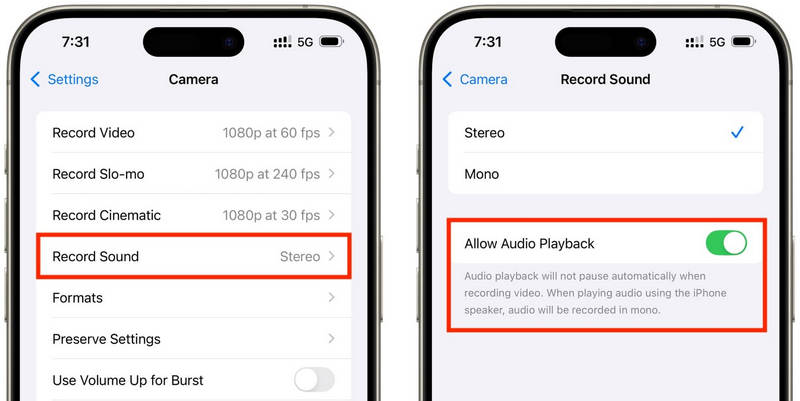
Stap 4Speel een nummer af in de muziek-app van je keuze.
Stap 5Open de Camera app en selecteer de VideomodusJe muziek moet blijven doorspelen tijdens het opnemen.
Methode 2: De QuickTake-truc (voor iOS 17 en ouder)
QuickTake is een van de eenvoudigste manieren om het probleem van haperende muziek tijdens het opnemen van video op oudere iPhones te omzeilen. In tegenstelling tot het volledig overschakelen naar de videomodus, kun je met QuickTake direct vanuit de fotomodus een fragment opnemen, waardoor de achtergrondmuziek blijft doorspelen. Het is snel en gemakkelijk voor korte video's, video's voor Twitter, video's van jezelf op sociale media of elk ander moment dat je wilt vastleggen zonder dat de audio stopt.
Stap 1Speel je nummer af in Apple Music, Spotify of een andere muziekapp.
Stap 2Blijf in de standaardinstellingen Foto modus.
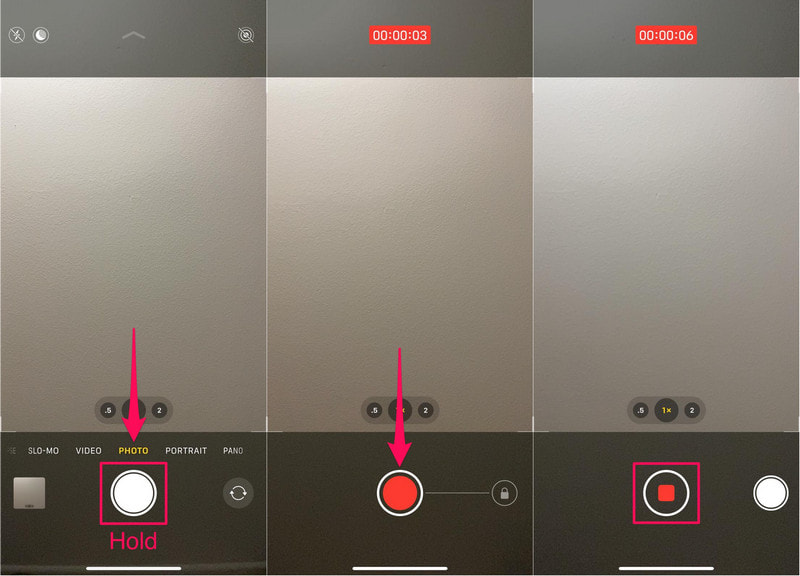
Stap 3Om de video-opname te starten, houd je de knop ingedrukt. Luik knop.
Stap 4 Schuif de ontspanknop naar rechts om de opname te beveiligen, zodat u de ontspanknop niet ingedrukt hoeft te houden.
Stap 5Klik op de Hou op knop zodra voltooid.
Methode 3: Een app van een derde partij gebruiken
Als het afspelen nog steeds wordt onderbroken door muziek, zijn opname-apps van derden de perfecte oplossing. De populairste is Mideo, een app waarmee gebruikers tegelijkertijd muziek kunnen afspelen en video's kunnen opnemen. De app ondersteunt HD- en zelfs 4K-opnames op compatibele apparaten en bevat alle functies die je mag verwachten, zoals in- en uitzoomen, ondersteuning voor de camera's aan de voor- en achterkant en direct opslaan in de Foto's-app.
Stap 1Download Mideo vanuit de App Store.
Stap 2Geef toegang tot de camera en microfoon.
Stap 3Open Apple Music, Spotify of een andere streaming-app en begin met afspelen.
Stap 4Zodra je muziek begint, open je de App.
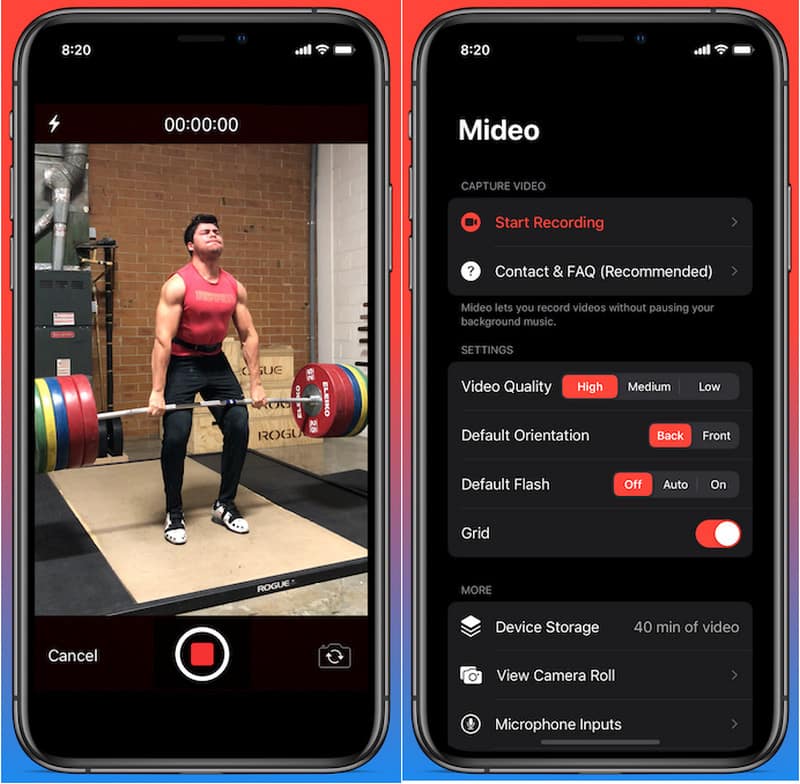
Stap 5druk de Vermelding Druk op de knop en begin met opnemen terwijl je muziek op de achtergrond speelt.
Methode 4: De beeld-in-beeldmodus (PiP) gebruiken
Het afspelen van media hoeft niet te worden gestopt tijdens het opnemen van video; je kunt de Picture-in-Picture-functie gebruiken. Je iPhone kan een video of muziekbestand blijven afspelen, zelfs nadat de Camera-app op de voorgrond is geopend. Dit is een eenvoudige methode waarvoor geen extra opnameprogramma's hoeven te worden geïnstalleerd.
Stap 1Speel een nummer of video af vanuit een app die de Picture-in-Picture-modus ondersteunt.
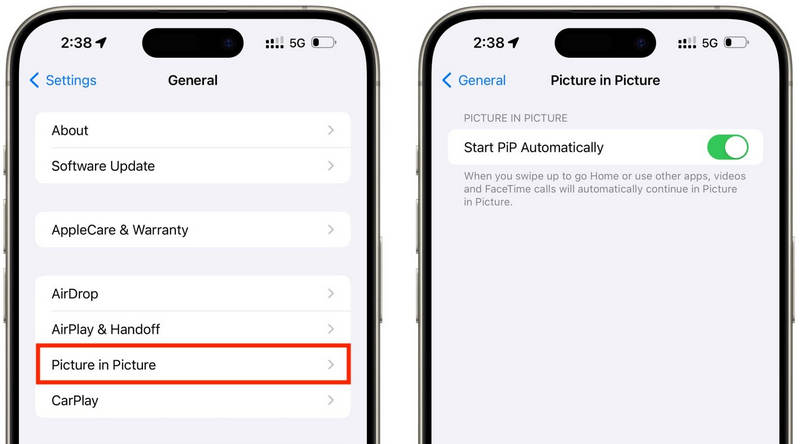
Stap 2Ga naar Instellingen > Algemeen > Afbeelding in afbeeldingschakel het vervolgens in PiP automatisch starten.
Stap 3Veeg omhoog of tik op de PiP-knop in de videospeler om de media te minimaliseren naar een zwevend venster.
Stap 4Start de Camera-app voorzichtig op zonder de mediaweergave te onderbreken.
Stap 5Neem je video op terwijl de muziek of media op de achtergrond blijft spelen.
Deel 2. Android - Muziek afspelen tijdens het opnemen van video
Methode 1: Samsung One UI 7 (ingebouwd)
Met Samsung One UI 7 verbetert het bedrijf de camera- en audiobediening, waardoor het gemakkelijker wordt om muziek af te spelen tijdens het filmen. De functie is geïntegreerd in het systeem, zodat gebruikers een soepelere opname-ervaring hebben zonder extra apps te hoeven installeren. Het is met name handig voor het maken van video's voor sociale media, vlogs of gewone video's met achtergrondmuziek.
Stap 1Open de Camera app, tik vervolgens op de Instellingen knop.
Stap 2Controleer of er audio is of Geavanceerde video-opties.
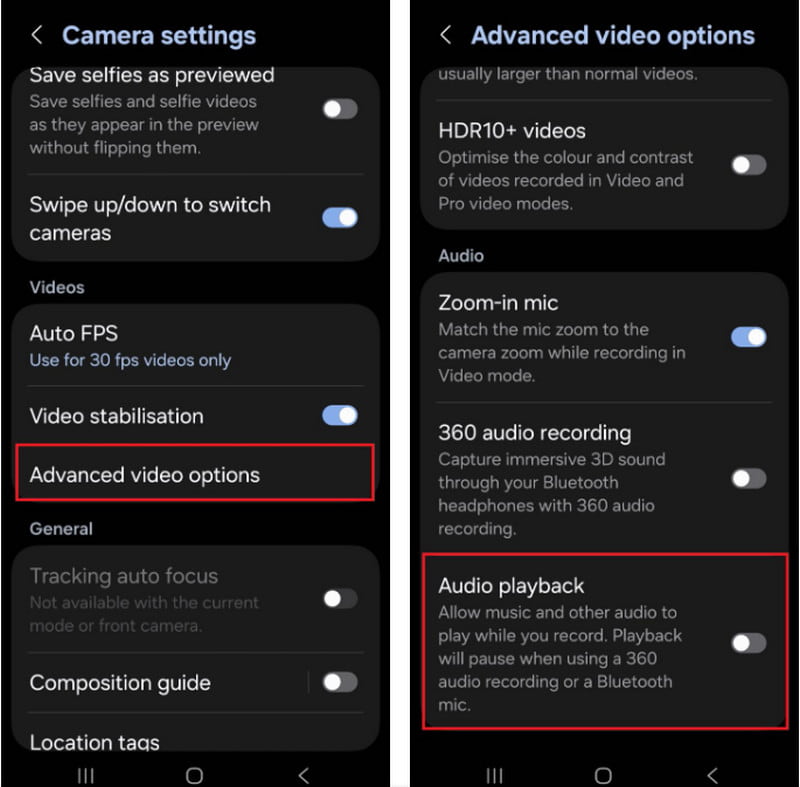
Stap 3Schakel de Audio afspelen.
Stap 4Open een nummer op Spotify, YouTube Music of een andere app.
Stap 5Open de Camera app en start de opname.
Methode 2: De schermrecorder van Google Pixel gebruiken
Met de ingebouwde schermrecorder in Google Pixel-telefoons kun je ook je interne audio opnemen. Het is voornamelijk een app voor schermopnames, maar je kunt er ook muziek mee afspelen tijdens het opnemen. Dit is erg handig voor tutorials, gameplay-demonstraties en app-demonstraties met achtergrondmuziek.
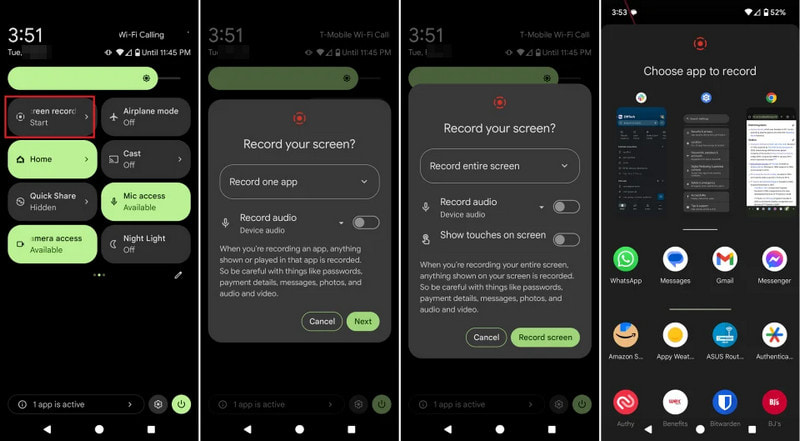
Stap 1 Tik en sleep vanaf de bovenkant van het scherm naar beneden.
Stap 2Kies de schermrecorder die al beschikbaar is.
Stap 3Kies voor interne of apparaataudio-opname.
Stap 4Om de muziek af te spelen, klik je op je favoriete muziek-app.
Stap 5Start de schermopname.
Methode 3: Een app van een derde partij gebruiken
Apps van derden voor het opnemen van video's, zoals Background Video Recorder, worden veel gebruikt op Android omdat ze compatibel zijn met een breed scala aan telefoonmerken en Android-versies. Een aanzienlijk aantal apps biedt audio-weergave op de achtergrond en extra opties voor audio-opname, zoals HD-videokwaliteit, handmatige bediening, filters en stabilisatie. Ze kunnen handig zijn voor mensen die meer opnamemogelijkheden nodig hebben dan de ingebouwde camera-app biedt, met name voor gebruikers die bijvoorbeeld... een podcast opnemen, tutorials, vlogs of content voor sociale media met een betere audio- en videokwaliteit.
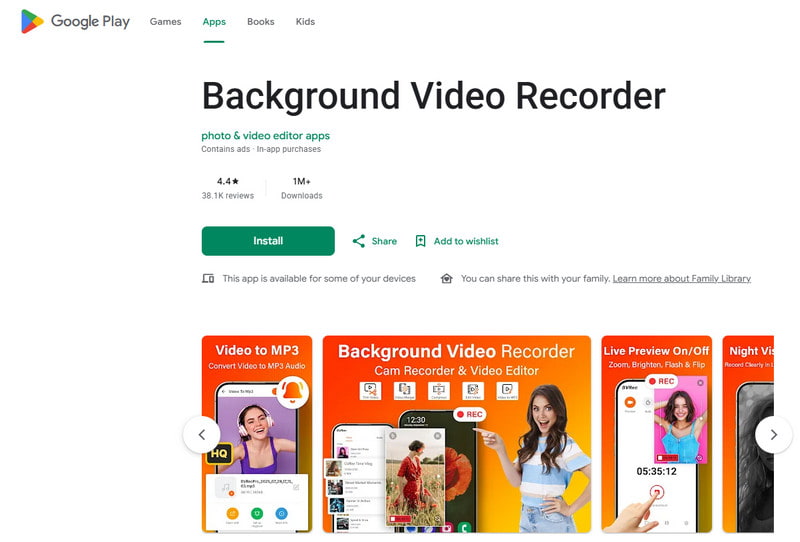
Stap 1Installeer Background Video Recorder vanuit de Google Play Store.
Stap 2Geef toegang tot uw camera, microfoon en opslag wanneer daarom wordt gevraagd.
Stap 3Open Spotify, YouTube Music of een andere muziek-app en start je afspeellijst.
Stap 4Start de recorder en pas indien nodig de videokwaliteit of audio-instellingen aan.
Stap 5Tik op de opnameknop terwijl je muziek op de achtergrond blijft spelen.
Deel 3. Waarom pauzeert mijn iPhone de muziek als ik begin met opnemen?
Sommige iPhone-gebruikers melden dat hun muziek plotseling stopt tijdens het opnemen van een video. Dit komt doordat op iOS-apparaten de microfoon van de camera altijd eerst wordt gebruikt voor het opnemen van audio en niet voor het afspelen van media. Dit gedrag is vergelijkbaar met hoe software die Neemt spraak op met een Mac. Geeft prioriteit aan de microfooningang tijdens opnamesessies. Verschillende mogelijke oorzaken kunnen dit probleem veroorzaken, afhankelijk van uw iPhone-model en iOS-versie.
- De camera-app neemt de audio over: De camera-app geeft automatisch prioriteit aan de microfoon bij video-opnames om de beste geluidskwaliteit te garanderen.
- Oudere iOS-versies hebben beperkingen: In de meeste gevallen wordt de muziek automatisch gepauzeerd tijdens het opnemen van video's op iOS 17 en ouder.
- Je kunt alleen met sommige muziek-apps muziek op de achtergrond afspelen: Sommige streamingapplicaties kunnen het streamen tijdelijk onderbreken als een andere applicatie de audio-opname-instellingen gebruikt.
- Bluetooth-apparaten kunnen conflicten veroorzaken: Draadloze oordopjes of luidsprekers kunnen afleidend werken tijdens opnames.
- De energiebesparende modus kan problemen veroorzaken: De energiebesparende modus kan achtergrondprocessen, zoals het afspelen van muziek, beperken.
Deel 4. Muziek stopt of speelt niet af [Snelle oplossingen]
| Probleem | Snelle oplossing |
| De muziek stopt direct nadat de opname begint. | Gebruik de QuickTake-methode of schakel de ingebouwde afspeelfunctie in via de camera-instellingen. |
| Geen muziek tijdens de opname. | Start zowel de camera- als de muziek-app opnieuw op en probeer dan opnieuw op te nemen. |
| De Bluetooth-audioverbinding wordt verbroken. | Maak opnieuw verbinding met je draadloze oordopjes of luidspreker nadat je Bluetooth hebt uit- en weer ingeschakeld. |
| Opnameprogramma van derden werkt niet. | Update of installeer de opname-app opnieuw om mogelijke compatibiliteitsproblemen op te lossen. |
| De muziek stopt nog steeds op mijn iPhone. | Start je iPhone opnieuw op en installeer de nieuwste beschikbare iOS-update. |
| Er is geen geluid in de opgenomen video. | Zorg ervoor dat de microfoonrechten zijn ingeschakeld voor zowel de camera- als de muziek-app. |
Deel 5. Wat dacht je van het gebruik van een professionele schermrecorder?
AVAide-schermrecorder Dit is professionele schermopnamesoftware voor gebruikers die de voorkeur geven aan vloeiendere opnames van hogere kwaliteit op Windows en Mac. Het kan systeemgeluid, microfoongeluid, webcamvideo en zelfs het scherm in hoge kwaliteit vastleggen. De software is bijzonder handig voor het maken van tutorials, gamevideo's, reactievideo's, online lessen en videopresentaties, zonder vertraging en zonder ingewikkelde installatie.
- Neem video's op in een resolutie tot 4K of 1080p met vloeiende en stabiele prestaties.
- Leg intern geluid en microfoongeluid gelijktijdig vast voor duidelijkere opnames.
- Kies tussen volledig scherm, een geselecteerd venster of een aangepast opnamegebied.
- Neem eenvoudig webcambeelden op of spiegel en leg iPhone- en Android-schermen vast.
- Voeg annotaties toe tijdens het opnemen en knip of bewerk video's direct na de opname.

 Veilige download
Stap 1Installeer AVAide Screen Recorder
Ga naar de officiële AVAide-website en download de software voor Windows of Mac. Installeer het programma en start het vervolgens na de installatie.
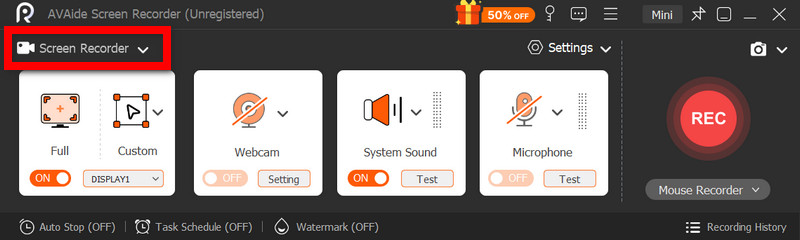
Stap 2Kies de opnamemodus
Om uw schermactiviteit op te nemen, klikt u op de Scherm opnemer optie vanuit het hoofdscherm.
Stap 3Kies het opnamegebied
Selecteer Vol of Aangepast Opnamemodus naar behoefte.
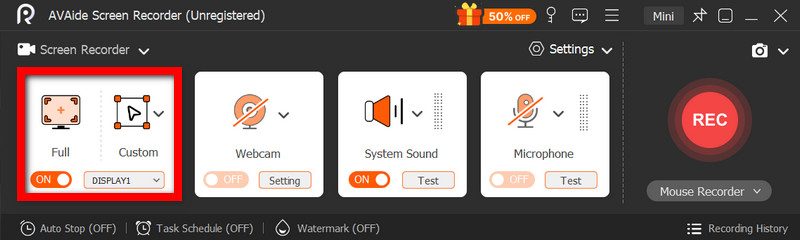
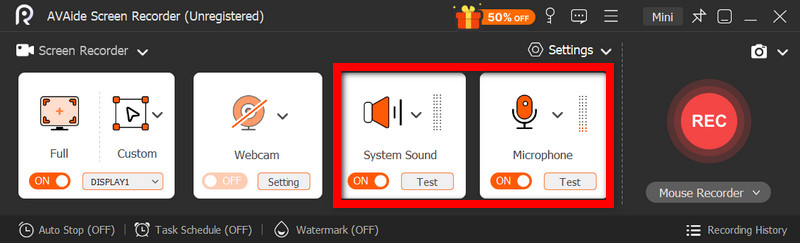
Stap 4Audiobronnen inschakelen
Als je je stem wilt opnemen, schakel dan de optie in. Microfoon; als u het interne geluid wilt opnemen, selecteer dan Systeemgeluid.
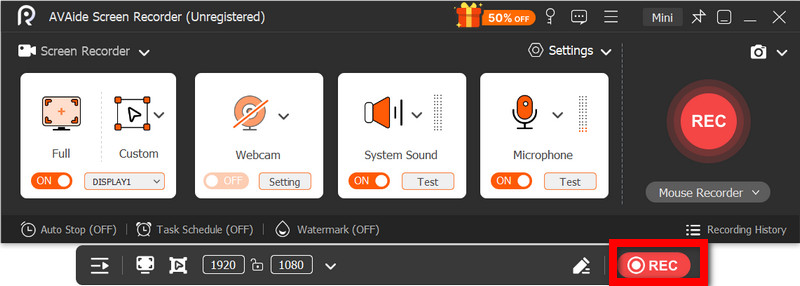
Stap 5Beginnen met opnemen
Klik op de REC Knop om je scherm, video of audio op te nemen.
Stap 6Bewerk en sla de opname op.
Druk na afloop op de knop. Hou op knop. Bekijk de video om een algemene indruk te krijgen, bewerk hem indien nodig kort en sla hem vervolgens op de computer op.
Muziek afspelen tijdens het opnemen Dit is iets waar veel gebruikers moeite mee hebben bij het maken van video's voor sociale media of persoonlijk gebruik. Met de juiste instellingen, methoden of tools kunnen zowel iPhone- als Android-gebruikers eenvoudig video's opnemen zonder dat de achtergrondmuziek stopt.
OVER DE AUTEUR

Leg schermactiviteiten vast met audio, online vergaderingen, gameplay-video's, muziek, webcam, enz.
Schermopname