Ik probeer erachter te komen Hoe maak je schermopnames op een Dell? Het vastleggen van een tutorial, gameplay of vergadering kan verwarrend zijn zonder de juiste tool. Of je nu een snelle of meer geavanceerde oplossing nodig hebt, deze handleiding leidt je door eenvoudige, effectieve methoden om je scherm probleemloos op te nemen.
Deel 1. De eenvoudigste manier: de Xbox Game Bar gebruiken
De Xbox Game Bar is voornamelijk ontworpen voor het opnemen van gameplay, maar kan ook worden gebruikt voor dagelijkse schermopnames. Hiermee kun je je scherm en audio opnemen en de opnames direct opslaan. Het is echter niet mogelijk om je bureaublad of Verkenner vast te leggen; alleen actieve applicatievensters kunnen worden opgenomen.
Stap 1Om de Xbox Game Bar-overlay te openen, drukt u op de Windows + G toetsen op je toetsenbord. Als de vraag gaat over of het een spel is, antwoord dan bevestigend.
Stap 2De Vastleggen Het paneel bevindt zich in de overlay. Als u het niet kunt zien, wordt er een widgetmenu aangemaakt en wordt de optie 'Vastleggen' geselecteerd.
Stap 3Om je scherm op te nemen, klik je op de Opnemen (●) knop of Windows + Alt + RDe tool maakt automatisch een momentopname van het actieve venster.
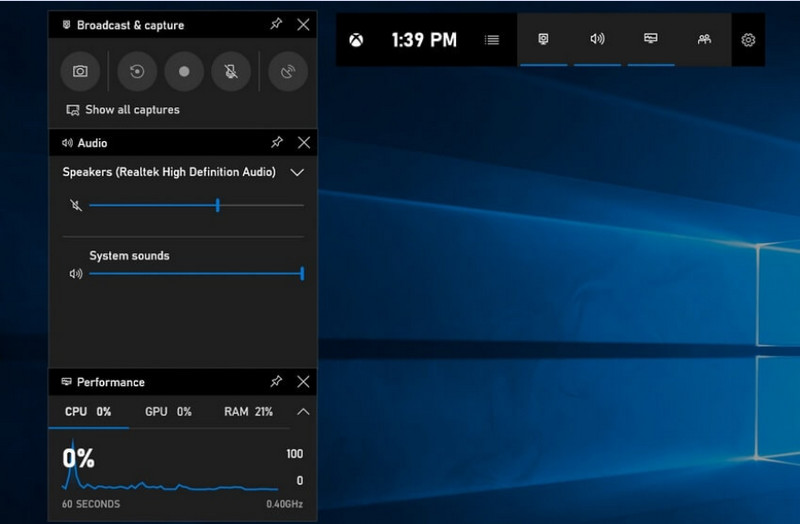
Stap 4U kunt microfoonopname inschakelen door te klikken op de microfoon knop voor of tijdens de opname.
Stap 5Om de opname te stoppen, drukt u op Windows + Alt + R een tweede keer drukken of op de Stop (■) knop op de zwevende balk.
Stap 6De video's die u opneemt, worden automatisch opgeslagen in de Videos > opnamen map op uw computer.
Deel 2. De professionele keuzes
1. OBS-schermopname gebruiken
OBS-schermrecorder is een gratis, open-source schermrecorder die veel gebruikt wordt voor zowel het opnemen als streamen van live content. Het biedt een aanpasbare indeling waarmee je je hele scherm, een specifiek venster of meerdere bronnen tegelijk kunt opnemen. De krachtige video- en audiobediening maakt het een effectieve optie voor gebruikers die niet alleen geïnteresseerd zijn in de meest eenvoudige schermopname.
Prestatie:
OBS Screen Recorder is software met hardwareversnelling die betrouwbare prestaties levert en zorgt voor vloeiende opnames in 1080p met 60 fps. Na installatie werkt het effectief, met een consistente output en minimale vertraging, tijdens langere opnamesessies op compatibele systemen.
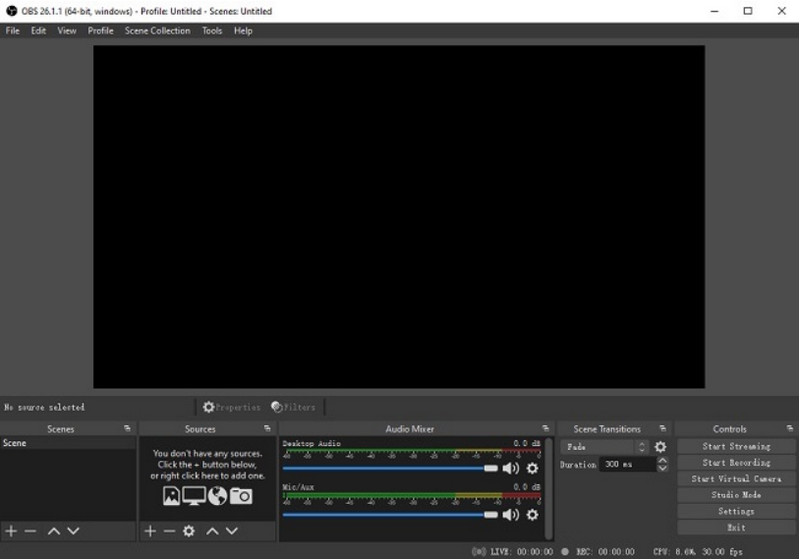
Stap 1Ga naar de officiële OBS Screen Recorder-website, download het installatieprogramma en voltooi de installatie.
Stap 2Open OBS-schermrecorderJe krijgt de hoofdinterface te zien met panelen zoals Scènes en Bronnen.
Stap 3Klik in het paneel Scènes op de + klik op de knop en geef je scène een naam.
Stap 4Je kunt een schermafbeelding of vensterafbeelding (om een specifieke app vast te leggen) toevoegen door te klikken. + in de Bronnen paneel en selecteren Weergave vastleggen of Venster vastleggen.
Stap 5Test de Audiomixer door de microfoon en het systeemgeluid in te schakelen en aan te passen.
Stap 6druk de Beginnen met opnemen knop aan de rechterkant van de interface.
Stap 7Klik na afloop. Stop met opnemenDeze video wordt automatisch in je standaardmap geplaatst.
2. AVAide Screen Recorder gebruiken
AVAide-schermrecorder is een eenvoudige maar efficiënte tool voor het opnemen van schermactiviteit in hoge kwaliteit. Het is bedoeld voor gebruikers die een gebruiksvriendelijk opnamesysteem met heldere audio, een flexibel opnamesysteem met minimale configuratie en intuïtieve bediening nodig hebben.
Prestatie:
AVAide Screen Recorder is geoptimaliseerd voor vloeiende en stabiele opnames, zelfs tijdens lange sessies. Het ondersteunt uitvoer in hoge resolutie tot 4K/1080p met minimale latency in gangbare toepassingen. De software kan gelijktijdige scherm- en audio-opname effectief beheren om ervoor te zorgen dat systeemgeluid en microfooningang synchroon blijven.
- Neemt het scherm op in hoge kwaliteit met vloeiende, vertragingsvrije prestaties.
- Legt systeemgeluid en microfoongeluid gelijktijdig vast met een heldere audio-uitvoer.
- Ondersteunt webcamopname met instelbare beeld-in-beeld-overlay.
- Hiermee kunt u het volledige scherm, een geselecteerd venster of een aangepast gebied opnemen.
- Inclusief ingebouwde bewerkingshul Hulpmiddelen voor het bijsnijden, verbeteren en exporteren van video's.

 Veilige download
Stap 1Download en installeer de tool
Ga naar de officiële website van AVAide Screen Recorder. Download het installatieprogramma voor uw Windows-systeem en volg de installatie-instructies.
Stap 2Start de software
Na de installatie kunt u het programma openen. Op de hoofdinterface kunt u kiezen voor... Scherm opnemer Om te beginnen.
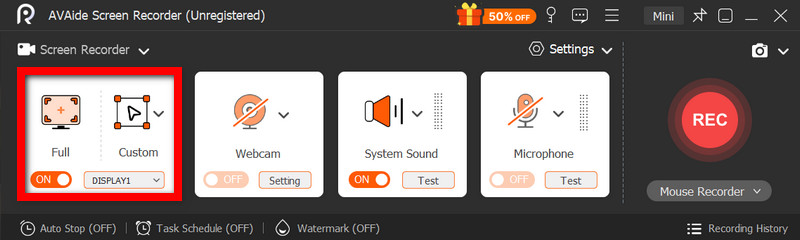
Stap 3Kies een opnamegebied
Kies tussen Vol en Aangepast Opnamemodi afgestemd op uw behoeften.
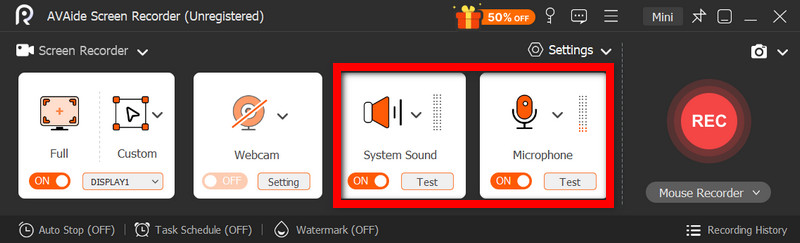
Stap 4Audio en webcam instellen
Inschakelen Systeemaudio en de Microfoon Als je audio nodig hebt, kun je de webcam ook inschakelen om gezichten op te nemen.
Stap 5Beginnen met opnemen
Om je scherm op te nemen, druk je op de REC knop. Indien nodig kunnen er tijdens de opname aantekeningen worden toegevoegd.
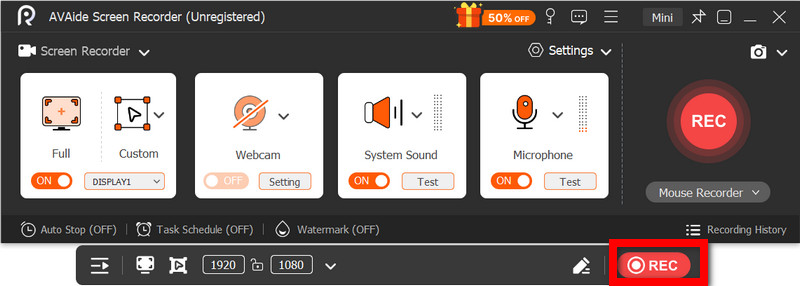
Stap 6Stop en sla de opname op
Klik op de Hou op Druk op de knop als je klaar bent. De opname wordt automatisch opgeslagen en je kunt deze direct bekijken of bewerken.
Deel 3. Andere gratis en eenvoudige methoden
1. Het Knipprogramma gebruiken (Windows 11)
Het Knipprogramma in Windows 11 bevat een ingebouwde schermopnamefunctie, waarmee je snel en eenvoudig schermactiviteit kunt vastleggen zonder extra software te hoeven installeren. Het is vooral effectief voor korte videofragmenten, tutorials en eenvoudige opnames.
Prestatie:
Het Knipprogramma is geschikt voor lichte opnames en maakt het mogelijk om korte fragmenten soepel vast te leggen. Het mist echter functies, ondersteunt geen geavanceerde instellingen en is mogelijk niet zo effectief in het verwerken van lange of veeleisende opnames als specifieke tools.
Stap 1Open het Knipprogramma door op het pictogram te klikken. Begin menu.
Stap 2Om de werkbalk te gebruiken, klikt u op de Vermelding.
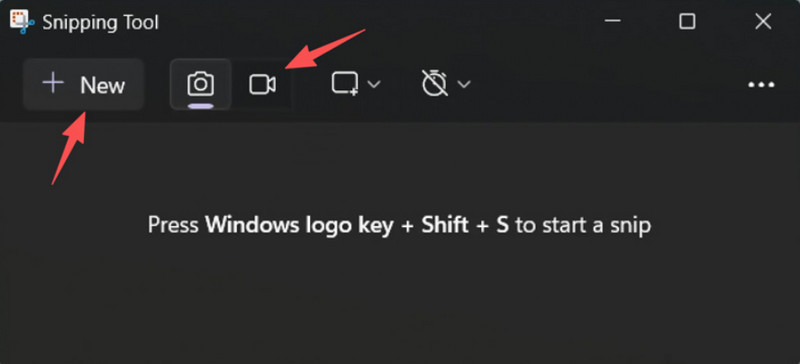
Stap 3Om een nieuwe opname te maken, selecteer Nieuw.
Stap 4Selecteer het gedeelte van het scherm dat u wilt vastleggen.
Stap 5Klik Begin om te beginnen met opnemen.
Stap 6Klik Hou op Sla je opname op als je klaar bent.
2. Microsoft PowerPoint gebruiken (alle Windows-versies)
Microsoft PowerPoint beschikt over een schermopnamefunctie waarmee u een schermafbeelding kunt maken en deze in een presentatie kunt integreren. Het is ook een eenvoudig alternatief voor het maken van handleidingen, demonstraties of lespresentaties zonder dat u extra opnamesoftware nodig hebt.
Prestatie:
PowerPoint levert consistente resultaten bij eenvoudige schermopnames, met name voor presentaties en korte demonstraties. Hoewel de videokwaliteit redelijk is, ontbreken geavanceerde instellingen en is het programma mogelijk niet geschikt voor video's van langere duur.
Stap 1Start Microsoft PowerPoint en bereid een nieuwe of een bestaande presentatie voor.
Stap 2Klik op het tabblad Invoegen en vervolgens op Schermopname.
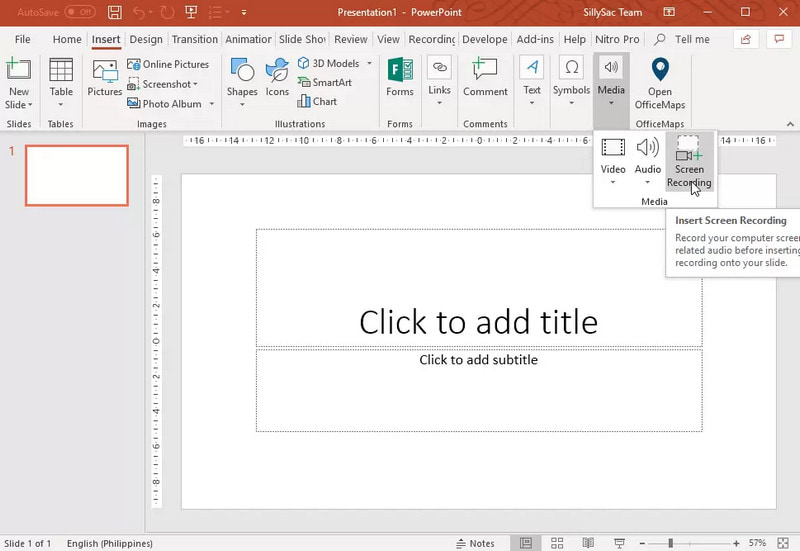
Stap 3Kies het gedeelte van het scherm dat u wilt vastleggen.
Stap 4Schakel indien nodig audio- of muisopname in.
Stap 5Klik Vermelding om te beginnen met het opnemen van je scherm.
Stap 6Om de opname te beëindigen, drukt u op Windows + Shift + Q.
Stap 7Om de opname op te slaan, klikt u met de rechtermuisknop op de video en selecteert u Media opslaan als.
Deel 4. Veelvoorkomende problemen oplossen
| Probleem | Oplossing |
| Game Bar wilde niet openen of opnemen. | In de instellingen kun je de Xbox Game Bar uitschakelen. Ga naar Instellingen > Gamen > Spelbalk en draai het om AANPoging om te drukken Windows + G opnieuw, en herstart uw pc (indien nodig). |
| De opname bevat geen geluid. | Zorg ervoor dat systeemgeluid en microfoon zijn ingeschakeld in de Game Bar-instellingen. Controleer ook of uw geluidsapparaat niet is gedempt of verkeerd is geselecteerd in de Windows-geluidsinstellingen. |
| Mijn Dell-laptop is traag tijdens het opnemen. | Gebruik Sluiten of Minimaliseren om onnodige toepassingen en browsertabbladen te verminderen. Schakel over naar de modus 'Hoge prestaties' in de energie-instellingen en verlaag de opnameresolutie indien nodig om de prestaties te verbeteren. |
| De kwaliteit van de opgenomen video is slecht. | Stel de opnamekwaliteit in op de best beschikbare instelling in de Game Bar, vooral wanneer Google Meet-opname sessies. Stel je beeldscherm in op de native resolutie en update je grafische stuurprogramma's voor een scherper en stabieler beeld. |
Aan het leren Hoe maak je schermopnames op een Dell-laptop? Dit geeft je flexibiliteit voor tutorials, vergaderingen of zelfs het spelen van games. Of het nu een ingebouwde functie is of geavanceerde software, de juiste methode zorgt ervoor dat de opname gemakkelijk en in hoge kwaliteit wordt gemaakt en dat de workflow gestroomlijnd is.
OVER DE AUTEUR

Opnamescherm, audio, webcam, gameplay, online vergaderingen, evenals iPhone/Android-scherm op uw computer.
Schermopname