Hoe maak je schermopnames op een Lenovo-laptop? Het hangt af van de tool die je kiest, van ingebouwde Windows-functies tot geavanceerde software. Deze handleiding laat eenvoudige, duidelijke en efficiënte methoden zien om je scherm op te nemen op Lenovo-apparaten, of het nu voor tutorials, vergaderingen, games of dagelijkse opnames is.
Methode 1. De Xbox Game Bar gebruiken
De ingebouwde opnamefunctie van de Xbox Game Bar is van Microsoft, integreert naadloos met Windows en is de handigste opnameoplossing voor Lenovo-gebruikers. Het is ontworpen voor het spelen van games, maar fungeert ook als standaard applicatierecorder, tutorialmaker en browserrecorder. Het grootste voordeel is dat er geen installatie nodig is; het is direct klaar voor gebruik.
Maar er zijn zeker ook nadelen. Het programma registreert het bureaublad of de bestandsverkenner niet, en de aanpassingsmogelijkheden zijn beperkt tot professionele tools. Desondanks blijft het een van de handigste ingebouwde opties voor informele sessies waarbij kwaliteit en inspanning minder belangrijk zijn.
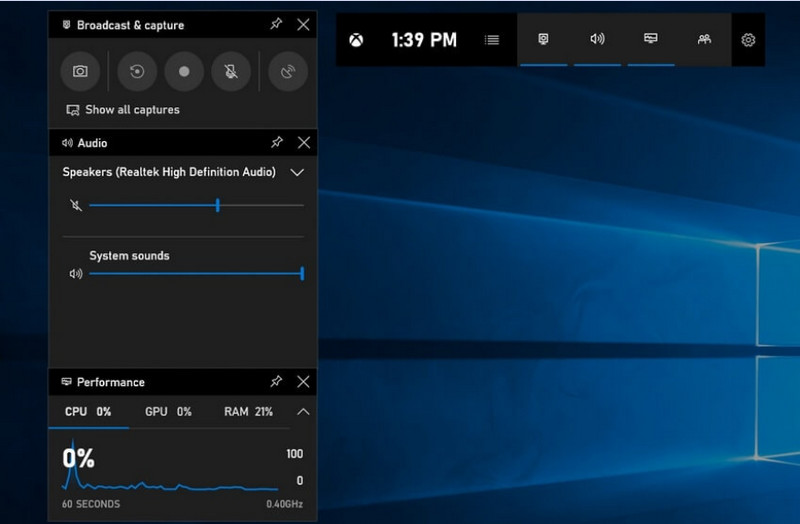
Stap 1Om de Xbox Game Bar te openen, drukt u op Windows + G op je toetsenbord.
Stap 2Vind de Vastleggen paneel of klik erop vanuit het paneel Widgets menu.
Stap 3Klik op de Opnemen (●) knop of druk op Windows + Alt + R.
Stap 4Als u spraak wilt opnemen, schakel dit dan in. Microfoon.
Stap 5druk op Windows + Alt + R nogmaals of klik Stop (■) om te voltooien.
Stap 6Je vindt je opname in Videos > opnamen.
Methode 2. Lenovo Vantage gebruiken
Lenovo Vantage is geen schermrecorder, maar een suite voor systeembeheer en -optimalisatie. De rol van Lenovo Vantage is meer indirect, met slechts enkele functies die het opnameproces zelf ondersteunen. Dit hangt af van het model van het opnameapparaat, of sommige apparaten bieden snelkoppelingen of camera-/schermtools die kunnen helpen bij het opnemen.
De prestaties en beschikbaarheid variëren sterk. Sommige Lenovo-apparaten ondersteunen basisopnamefuncties, maar andere helemaal niet. De mogelijkheden voor schermopname zijn beperkt en enigszins inconsistent, maar het kan waardevol zijn voor gebruikers die binnen het Lenovo-ecosysteem willen blijven. podcast opnemen Inhoud met basishulpmiddelen.
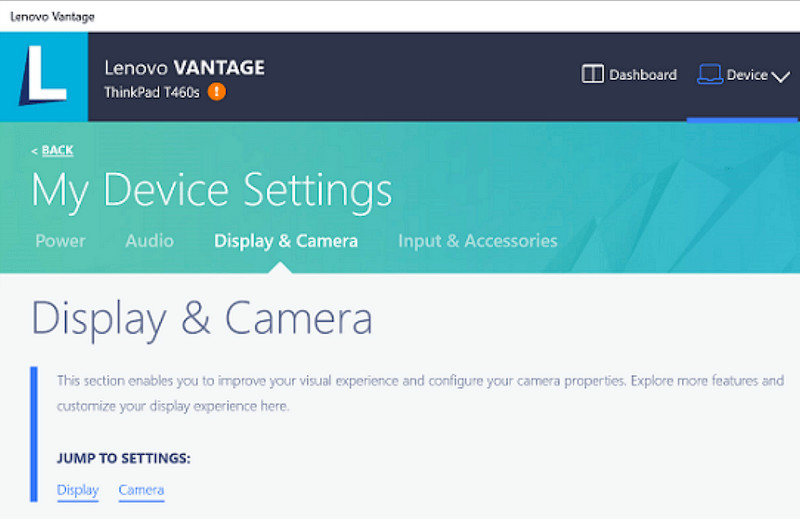
Stap 1Ga naar de Begin menu en klik op Lenovo Vantage.
Stap 2Kraan Mijn apparaatinstellingen > Scherm en camera.
Stap 3Controleer of er opnames of andere beschikbare functies zijn.
Stap 4Zorg ervoor dat alle benodigde opties of snelkoppelingen beschikbaar zijn.
Stap 5Neem de muziek op met behulp van de daarvoor bestemde functie (indien mogelijk).
Stap 6Zoek de opnames die je hebt opgeslagen in je map 'Video's'.
Methode 3. Gebruikmaken van Legion Zone / Lenovo Nerve Center
Lenovo Nerve Center (of Legion Nerve Center - nieuwere tools van Legion hebben Nerve Sense vervangen) is geoptimaliseerd voor Lenovo-apparaten, met name Lenovo Legion-laptops, en is gericht op gamers. Het is ook nauw geïntegreerd met tools voor gameprestaties, zodat gebruikers screenshots van hun games kunnen maken terwijl ze de systeembronnen monitoren en optimaliseren.
Het is echter een vrij eenvoudige recorder. Het draait meer om gebruiksgemak dan om aanpassingsmogelijkheden en biedt slechts basisopnameopties met beperkte controle over resolutie, bitrate en geavanceerde instellingen. Bovendien is het alleen beschikbaar op sommige nieuwere systemen, en andere systemen hebben het vervangen of verwijderd, waardoor het niet meer zo betrouwbaar is als vroeger.
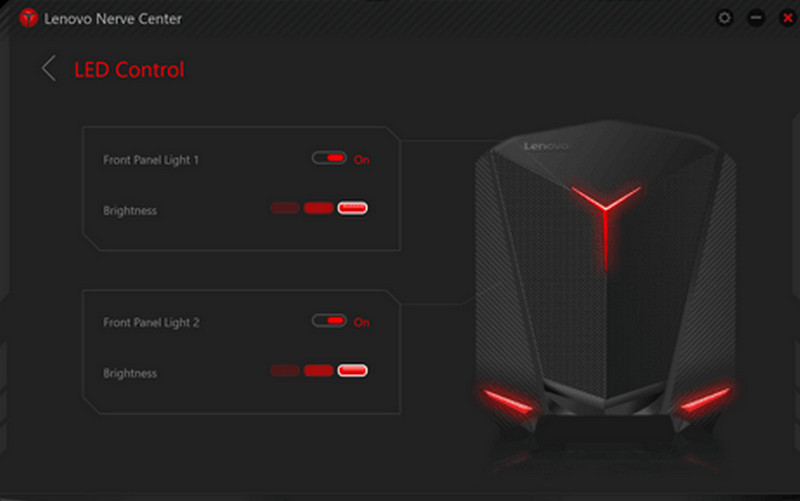
Stap 1Toegang krijgen tot Lenovo Zenuwcentrum of Legioenzone vanaf het apparaat.
Stap 2Ga naar de opname- en/of speltools.
Stap 3Als je de mogelijkheid hebt, wijzig dan de opname-instellingen, zoals de resolutie of de audiokwaliteit.
Stap 4Start het spel of de applicatie op.
Stap 5Neem op met de standaard sneltoets of knop.
Stap 6Stop met opnemen en kijk in je Videos Controleer de map om te zien of het bestand is opgeslagen.
Methode 4. Gebruik maken van AVAide Screen Recorder
AVAide-schermrecorder Deze schermrecorder voor Lenovo is geavanceerder en veelzijdiger dan de ingebouwde schermrecorder. Hij is ontworpen voor gebruikers die waarde hechten aan videokwaliteit, een soepelere werking en meer controle over de opname. Het is de perfecte tool voor het maken van tutorials, het opnemen van vergaderingen of het vastleggen van gameplay, zonder ingewikkelde installatie en met professionele functionaliteit.
Het kan systeemgeluid, microfooningang, webcam en schermgebieden vastleggen, en ondersteunt bovendien full HD- en zelfs 4K-opnames met minimale vertraging in vergelijking met eenvoudige recorders. Dit maakt het een alles-in-één schermopname-applicatie voor zowel werk als vrije tijd.
- Leg video's vast in 1080p of 4K met vloeiende, vertragingsvrije prestaties.
- Neem op in de volledige of aangepaste schermmodus, afhankelijk van uw behoeften.
- Neem tegelijkertijd zowel interne geluiden als spraak op met een heldere uitvoer.
- Voeg Facecam-opname toe voor tutorials, presentaties of gameplayvideo's.
- Trim, comprimeer en verbeter de opnames na het vastleggen.

 Veilige download
Stap 1Download en installeer de software
Bezoek de officiële website van AVAide Screen Recorder. Download het Windows-installatieprogramma, installeer het op je Lenovo-laptop en start het.
Stap 2Kies de opnamemodus
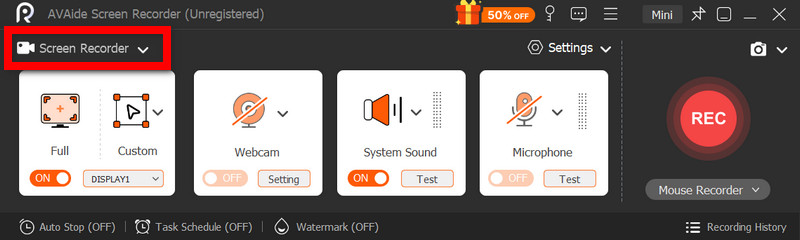
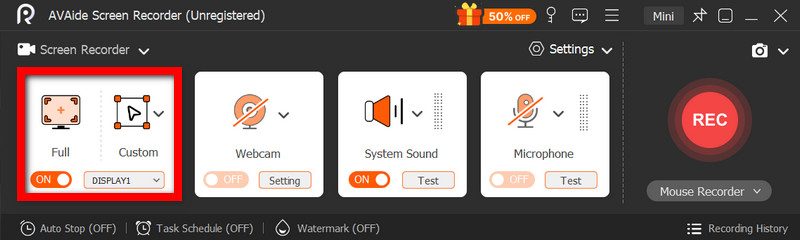
Open de software en klik vervolgens op Scherm opnemer. Neem het hele scherm op met Vol of een deel van het scherm met Aangepast.
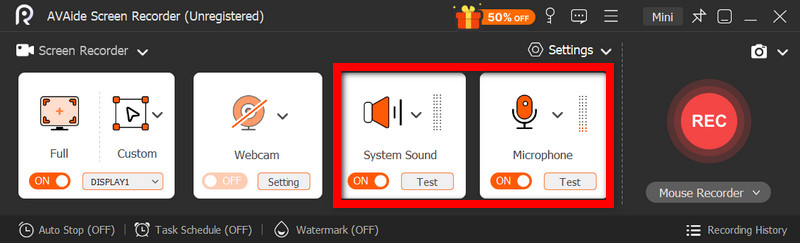
Stap 3Audio-instellingen configureren
Om geluiden van de computer op te nemen, activeer je de functie. SysteemgeluidOm je eigen stem toe te voegen, activeer je de optie. MicrofoonDe webcam kan indien nodig ook worden ingeschakeld.
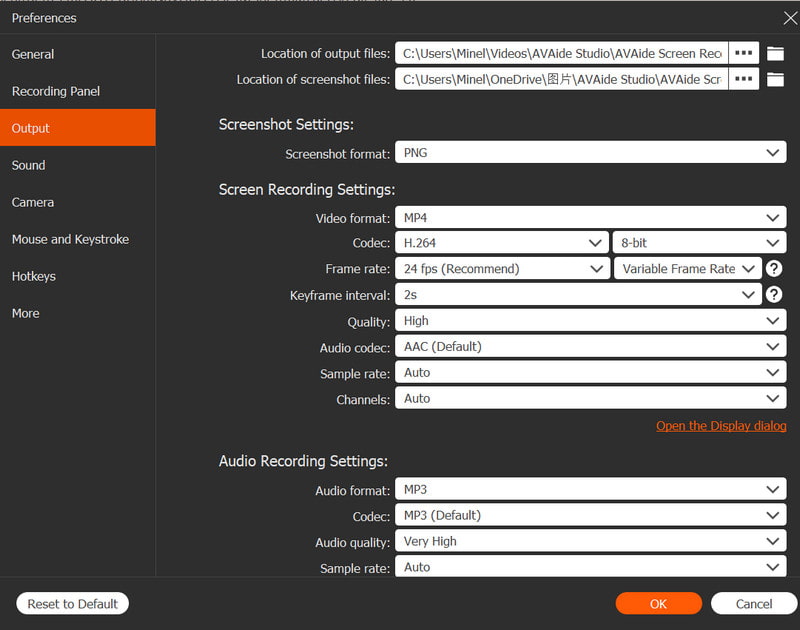
Stap 4Opname-instellingen aanpassen
Gebruik de Instellingen Met deze knop kunt u de videokwaliteit, resolutie, framesnelheid en uitvoerindeling configureren voor optimale opnameprestaties.
Stap 5Beginnen met opnemen
druk de REC Druk op de knop om de opname te starten. Google Meet-opnames, tutorials, gameplay of elke andere schermactiviteit kunnen probleemloos worden opgenomen.
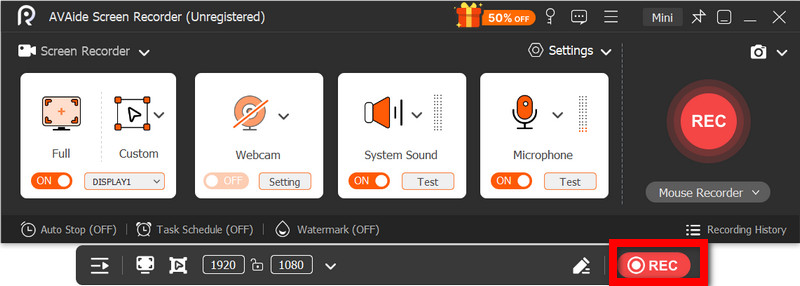
Stap 6Stop en sla de opname op
Klik op de knop als je klaar bent. Hou op knop. Bekijk een voorbeeld van je opname, bewerk deze snel indien nodig en sla hem direct op je computer op.
Methode 5. Snelinstellingen gebruiken
Lenovo Android-tablets hebben een ingebouwde schermopnamefunctie in de snelle instellingen. De beste manier om tutorials, gameplay of app-activiteit op je tablet op te nemen, is zonder apps van derden te downloaden. Eenvoudig, snel en geoptimaliseerd voor mobiel gebruik, ideaal voor snelle opnames onderweg.
Het mist de geavanceerde bewerkings- en aanpassingsmogelijkheden die andere schermopnameprogramma's wel bieden, maar het is voldoende voor eenvoudige schermopnames met geluid.
Stap 1Veeg vanaf de onderkant van het scherm omhoog om de te openen Snelle instellingen.
Stap 2Zoek naar de Schermopname of Scherm opnemer knop. Als deze er niet is, klik dan op de Bewerk knop en voeg deze toe aan je paneel.
Stap 3Klik Scherm opnemerSelecteer vervolgens de gewenste instellingen.
Stap 4Kraan Begin Om te beginnen met opnemen. Er volgt een aftelling voordat de opname start.
Stap 5Tik op de zwevende werkbalk of de meldingenbalk en druk vervolgens op Hou op om de opname te beëindigen.
Veelvoorkomende problemen met schermopname oplossen op Lenovo-computers
Je kunt tips lezen over het oplossen van veelvoorkomende problemen bij het opnemen van het scherm op een Lenovo-apparaat.
Hoewel schermopnames op Lenovo-apparaten over het algemeen geen grote problemen opleveren, bestaat er altijd een kans op problemen, afhankelijk van de gebruikte schermopnametool of het gebruikte apparaat. Hieronder vindt u de meest voorkomende problemen en hoe u deze kunt oplossen.
- Schermopname werkt niet: Start je apparaat opnieuw op en probeer het nogmaals. Zorg ervoor dat ingebouwde tools zoals de Xbox Game Bar zijn ingeschakeld in de Windows-instellingen onder Gaming.
- Geen geluid in de opname: Controleer of het systeemgeluid of de microfoon is ingeschakeld voordat je begint met opnemen. Controleer ook of het systeemvolume niet is gedempt.
- Haperende of video van lage kwaliteit: Verlaag de videokwaliteit of sluit applicaties op de achtergrond af. Het upgraden van je grafische stuurprogramma's kan de prestaties ook verbeteren.
- Kan het bureaublad of de bestandsverkenner niet opnemen: Dit is een van de veelvoorkomende beperkingen van de Xbox Game Bar. Als je je scherm wilt opnemen en alles wilt vastleggen, gebruik dan een geavanceerd programma zoals AVAide Screen Recorder, een van de beste schermopnameprogramma's voor Mac en Windows.
- Opname wordt niet opgeslagen: Zorg ervoor dat uw opslagruimte niet vol is en controleer de standaard opslaglocatie. Wijzig in de instellingen de uitvoermap en probeer het opnieuw.
Lenovo schermopnameknop De opties variëren afhankelijk van uw apparaat en de tool die u gebruikt. Over het algemeen maken ingebouwde functies en apps van derden het opnemen eenvoudig, waardoor u flexibele manieren hebt om schermactiviteit efficiënt vast te leggen, op te slaan en te beheren op Lenovo-apparaten.
OVER DE AUTEUR

Leg schermactiviteiten vast met audio, online vergaderingen, gameplay-video's, muziek, webcam, enz.
Schermopname