Vaše računalo pruža sve osnovne stvari za online aktivnosti, bilo da se radi o uređivanju, gledanju ili igranju igara. Jedna značajka koja će svima trebati je opcija snimke zaslona koja pomaže u snimanju slike cijelog zaslona ili samo jednog određenog područja. Budući da postoje različita računala različitih marki, ovaj članak posvećen je tome da vas vodi kroz Kako napraviti snimku zaslona na Windows Acer računaluZa početak, otkrit ćete različite načine pristupa ugrađenim značajkama snimanja zaslona na prijenosnom ili stolnom računalu, Chromebooku i tabletu. Štoviše, pogledajte rješenja ako se nađete u nevolji i vaš Acer nema gumb PrintScreen za snimanje zaslona.
Dio 1. Kako napraviti snimku zaslona na Acer Windows prijenosnom ili stolnom računalu
Slijedeći postupak je kako napraviti snimku zaslona na Acer prijenosnom računalu pomoću standardnih prečaca i aplikacija. Pruženi su jasni koraci kako biste ih mogli isprobati na svojoj strani. Bez daljnjeg odlaganja, krenimo.
1. Klasični gumb PrintScreen (PrtSc)
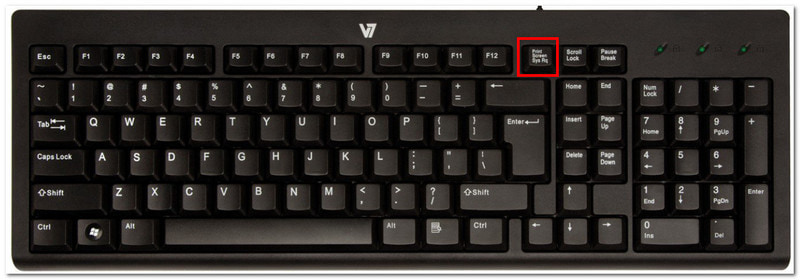
Korak 1Pronađite i pritisnite PrtSc gumb u gornjem desnom dijelu tipkovnice. Zaslon će se zatamniti, a mali izbornik će se pojaviti u gornjem srednjem kutu.
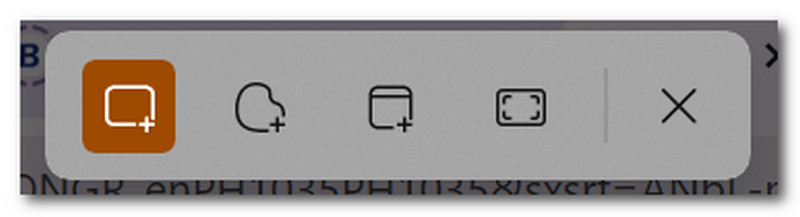
Korak 2Odaberite između načina rada: Pravokutan, Slobodni oblik, Prozor, i Cijeli zaslonNakon što je gotova, snimka zaslona automatski se kopira u međuspremnik, koji se može zalijepiti u prazan dokument, chat za razmjenu poruka i druge sadržaje.
2. Alat za izrezivanje i Izrezivanje i skiciranje (najbolje za prilagođena područja)
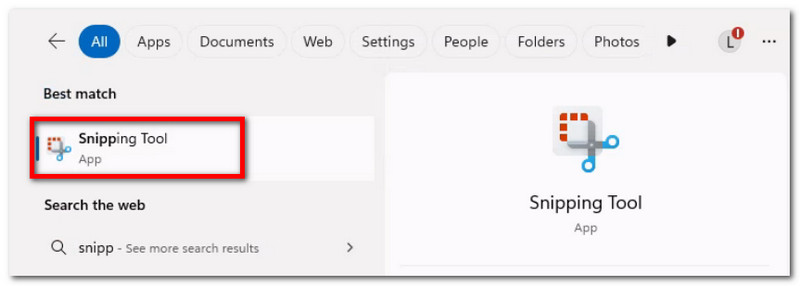
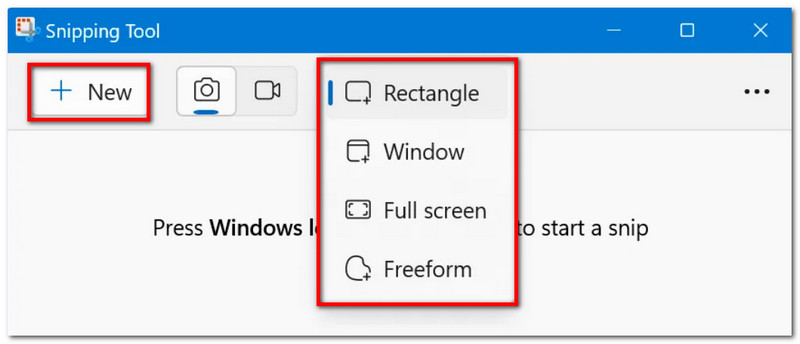
Korak 1Potražite aplikaciju u traci za pretraživanje. Imajte na umu da se može nazvati kao Alat za rezanje ili Izreži i skiciraj, ovisno o verziji sustava Windows na vašem uređaju.
Korak 2Odaberite način rada iz padajućeg izbornika, a zatim kliknite Novi gumb za snimanje zaslona. Pomoću alata za crtanje uredite, a zatim kliknite Uštedjeti za spremanje snimke zaslona.
3. Traka za igre
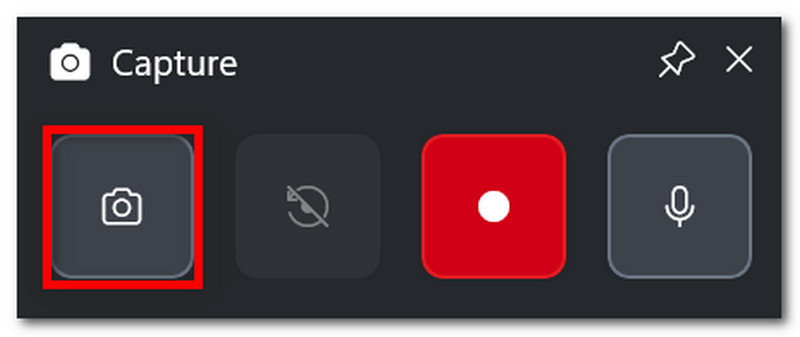
Korak 1Pritisnite Windows + G na tipkovnici. Kada se zaslon zatamni, pojavit će se nekoliko programskih traka.
Korak 2Kliknite na Fotoaparat ikona, koja služi za snimanje zaslona. Također možete pritisnuti Windows + Alt + PrtSc za pristup ovoj značajki tijekom igranja.
4. AVAide Snimač zaslona
S obzirom na zadane načine snimanja zaslona, možda mislite da vaš uređaj može samo toliko. Ali jeste li znali da AVAide Screen Recorder može nadmašiti vaše iskustvo snimanja zaslona? S elegantnim dizajnom i bogatim značajkama, snimanje zaslona postalo je jednostavno i visokokvalitetno. Pomoću njega možete snimiti zaslon cijelog zaslona, otvorenog prozora ili samo malog područja i spremiti ga u popularne formate poput BMP, JPEG, PNG, GIF ili TIFF. Ugrađene opcije uređivanja također su korisne jer možete slobodno crtati, dodavati brojeve ili tekst i zamagljivati važne detalje na fotografiji prije spremanja. Konačno, AVAideovo snimanje zaslona nije ograničeno samo na pojedinačni alat, već se može koristiti čak i kada snimate na računalu, web kamerom i na bilo kojem dijelu interneta. Podignite svoje iskustvo snimanja zaslona na višu razinu nabavkom ove prekrasne alternative na Windows ili čak Mac.
Korak 1Kliknite na preuzimanje datoteka gumb i instalirajte AVAide Screen Recorder na svoj Acer. Nakon što je potpuno instaliran, otvorite softver.

BESPLATNO PREUZIMANJE Za Windows 7 ili noviji
 Sigurno preuzimanje
BESPLATNO PREUZIMANJE Za Mac OS X 10.13 ili noviji
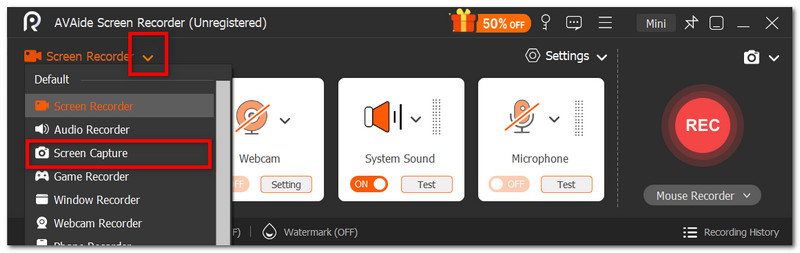
Sigurno preuzimanjeKorak 2Idite na padajući izbornik u lijevom kutu korisničkog sučelja i s popisa odaberite Snimanje zaslona opcija. Vaš će se kursor odmah promijeniti, što možete koristiti za odabir područja zaslona koje želite snimiti.
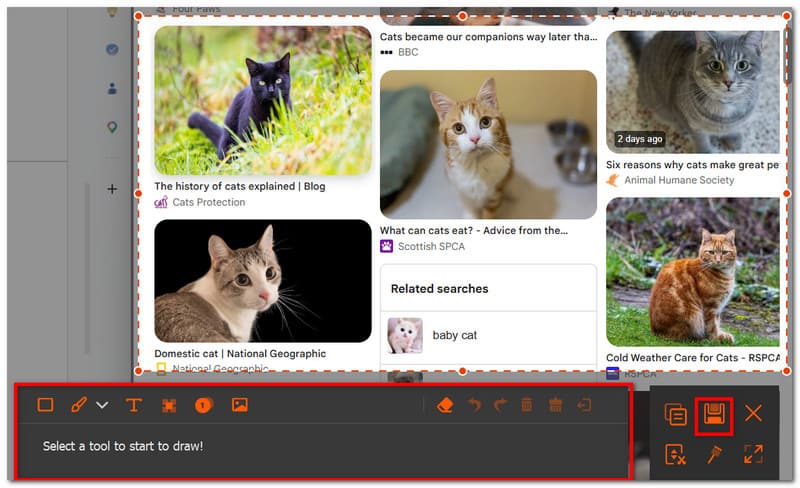
Korak 3Nakon što je snimite, sliku možete urediti pomoću opcija uređivanja. Nakon toga, izvezite sliku klikom na Uštedjeti gumb. Ponovite po potrebi.
Dio 2: Kako napraviti snimku zaslona na Aceru bez gumba PrintScreen
Možda se nađete u izazovnoj situaciji u kojoj na tipkovnici nedostaje tipka PrtSc, a bez nje možete prilično usporiti rad. Dakle, kako napraviti snimku zaslona na Acer računalu bez PrtSc-a? Ovaj dio će pružiti najbolje metode bez kombinacije s PrtSc-om, a izvorne su za Acer prijenosna računala.
Rješenje 1: Pritisnite Fn + Windows + razmaknicu (uobičajeni Acer prečac) ili Fn + PrtSc
Korak 1Na Acer tipkovnici pritisnite Fn + Windows + razmaknica gumbi. Kada zaslon treperi, to znači da je snimljena snimka zaslona preko cijelog zaslona.
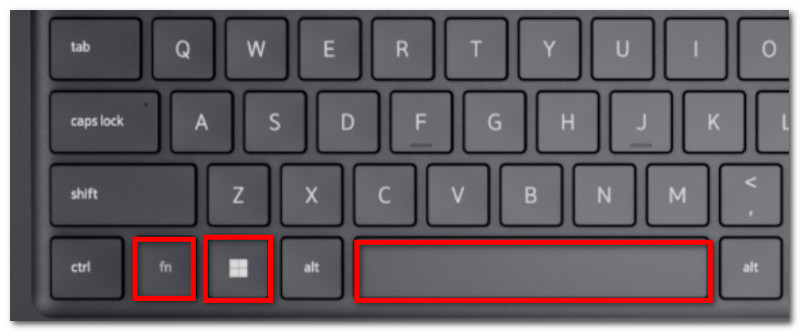
Korak 2Idite na prazan Word dokument i pritisnite Ctrl + V za lijepljenje slike. Zatim dokument možete spremiti u mapu.
Rješenje 2: Koristite Windows + Shift + S (otvara traku za snimanje alata za izrezivanje)
Korak 1Istovremeno pritisnite Windows + Shift + S na tipkovnici i otvorit će se Alat za izrezivanje.
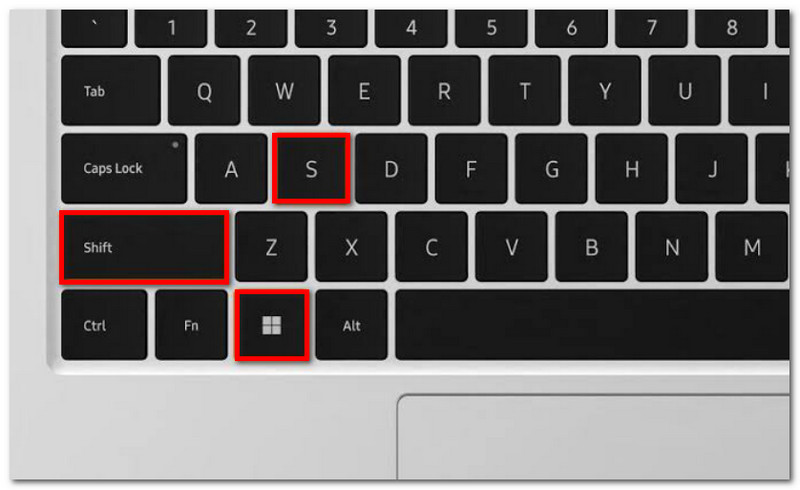
Korak 2Odaberite način snimanja zaslona i povucite kursor da biste odabrali željeno područje za snimanje. Koristite Ctrl + V za lijepljenje slike.
Rješenje 3: Premještanje drugog ključa
Korak 1Preuzmite PowerToys iz Microsoftove trgovine. U lijevom dijelu sučelja odaberite Upravitelj tipkovnice.
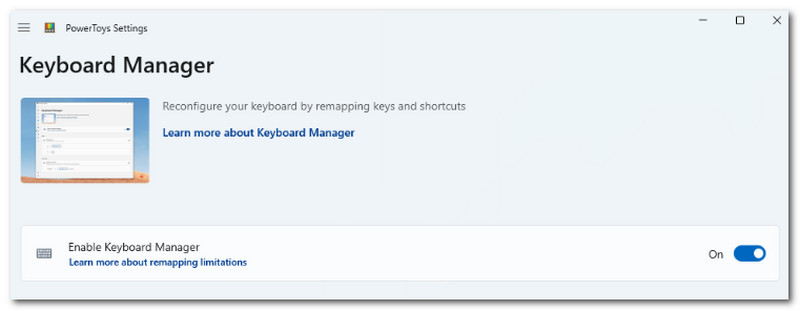
Korak 2Odaberite bilo koje slovo na tipkovnici za pristup alatu za izrezivanje kada je to potrebno. Kliknite u redu da biste spremili promjene.
Dio 3: Kako napraviti snimku zaslona na Acer Chromebooku
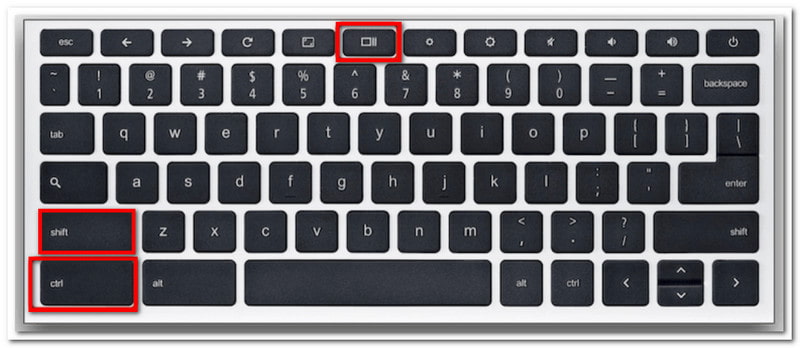
Chromebook na Aceru ima drugačiji način snimanja zaslona. Dok većinu vremena računalna tipkovnica ima tipku PrtSc, Chromebookovi je nemaju. Dakle, kako službeno snimiti zaslon na Acer Chromebooku? Pomoću sljedećih koraka jednostavno snimite zaslon u načinu rada preko cijelog zaslona i djelomično:
Korak 1Za cijeli ekran pritisnite Ctrl + Prikaži gumbi. Gumb Prikaži obično se nalazi u gornjem srednjem dijelu tipkovnice s ikonom koja prikazuje pravokutnik s dvije okomite crte.
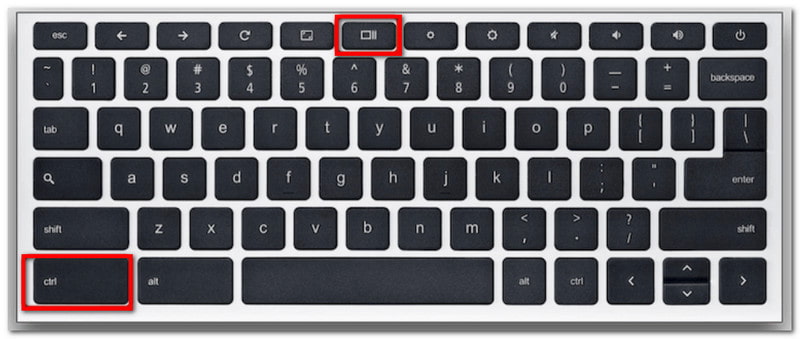
Korak 2Snimka zaslona bit će kopirana u međuspremnik, koji trebate zalijepiti u prazan Word dokument da biste ga mogli spremiti.
Korak 3Za djelomični način rada pritisnite Ctrl + Shift + PrikažiPomoću miša odaberite područje koje želite snimiti.
Dio 4: Kako napraviti snimku zaslona na Acer tabletu
Acer tableti funkcioniraju drugačije od prijenosnih računala. Međutim, snimanje zaslona na tabletu je jednostavno i zahtijeva samo nekoliko gumba. Za razliku od snimanja zaslona na prijenosnom računalu, koje sprema slike ovisno o metodi koju koristite, snimke zaslona na vašem tabletu pohranjuju se u aplikaciji Fotografije. Pogledajte sljedeće korake:
Korak 1Pripremite sadržaj koji želite snimiti na svoj Acer tablet. Pritisnite i držite Smanjivanje glasnoće i Vlast gumbi.
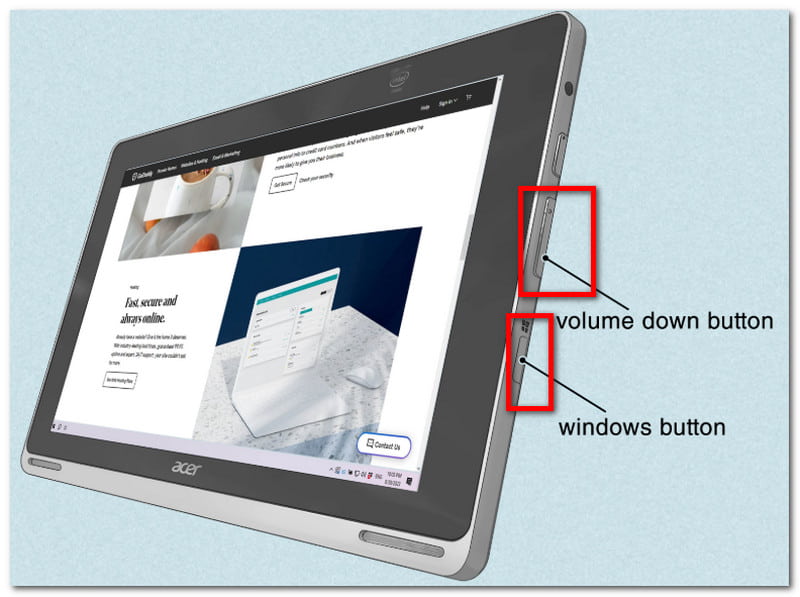
Korak 2Nakon što zaslon zatreperi, to znači da je snimljena snimka zaslona. Posjetite aplikaciju Fotografije da biste pogledali sliku ili upotrijebite alat za promjenu veličine fotografija za obrezivanje snimke zaslona.
S ovim člankom, snimanje zaslona na Aceru Nikad nije bilo lakše, jer vas vodi kroz službene načine snimanja zaslona na vašem uređaju. Ne samo to, već ste otkrili i najbolju metodu ako vaša radna površina nema gumb PrintScreen. Ne zaboravite da će AVAide Screen Recorder uvijek biti izvrsna alternativa za snimanje zaslona, bez obzira želite li snimiti zaslon, videozapis ili zvuk. Preporučujemo vam da isprobate najbolje rješenje za snimanje zaslona na Windowsima i Macu.
O AUTORU

Snimanje zaslona, zvuka, web kamere, igranja, mrežnih sastanaka, kao i iPhone/Android zaslona na vašem računalu.
Snimanje zaslona
- Snimanje zaslona u sustavu Windows
- Snimanje uživo na Instagramu
- Ripni videozapise s Tubija
- Pretvori YouTube videozapise u MP3
- Preuzmite videozapise s Fanslyja
- Preuzimanje JW Player videa
- Preuzmite Bilibili videozapise
- Preuzmite Patreon videozapise
- Preuzmite SpankBang videozapise
- Preuzmite Discord videozapise
- Preuzmite DoodSream video