लेनोवो लैपटॉप पर स्क्रीन रिकॉर्ड कैसे करें यह आपके द्वारा चुने गए टूल पर निर्भर करता है, चाहे वह विंडोज की अंतर्निहित सुविधाएँ हों या उन्नत सॉफ़्टवेयर। यह गाइड लेनोवो डिवाइस पर आपकी स्क्रीन को कैप्चर करने के सरल, स्पष्ट और प्रभावी तरीके दिखाती है, चाहे वह ट्यूटोरियल, मीटिंग, गेम खेलने या रोज़मर्रा की रिकॉर्डिंग के लिए हो।
विधि 1. Xbox गेम बार का उपयोग करना
Xbox गेम बार का बिल्ट-इन रिकॉर्डिंग फ़ीचर माइक्रोसॉफ्ट का है, जो विंडोज़ के साथ आसानी से इंटीग्रेट हो जाता है और लेनोवो उपयोगकर्ताओं के लिए सबसे सुविधाजनक रिकॉर्डिंग समाधान है। इसे गेम खेलने के साथ-साथ एक स्टैंडर्ड एप्लीकेशन रिकॉर्डर, ट्यूटोरियल क्रिएटर और ब्राउज़र रिकॉर्डर के रूप में भी काम करने के लिए बनाया गया है। इसका सबसे बड़ा फ़ायदा यह है कि इसे किसी सेटअप की ज़रूरत नहीं होती; यह तुरंत इस्तेमाल के लिए तैयार है।
लेकिन इसके कुछ नुकसान भी हैं। यह डेस्कटॉप या फ़ाइल एक्सप्लोरर को रिकॉर्ड नहीं करता है, और कस्टमाइज़ेशन केवल पेशेवर टूल्स तक ही सीमित है। फिर भी, यह उन सामान्य सेशन के लिए सबसे सुविधाजनक विकल्पों में से एक है जहाँ गुणवत्ता और मेहनत उतनी महत्वपूर्ण नहीं होती।
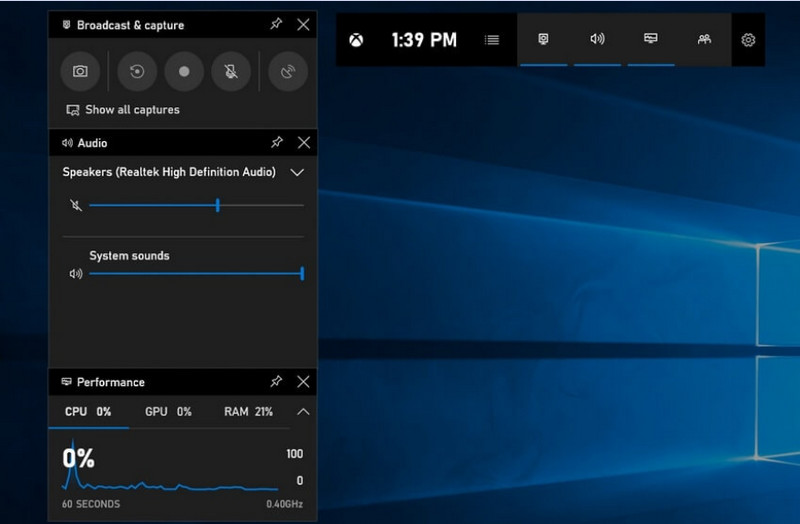
स्टेप 1Xbox गेम बार खोलने के लिए, दबाएँ विंडोज़ + G अपने कीबोर्ड पर।
चरण दोखोजें कब्ज़ा करना पैनल से उस पर क्लिक करें या विजेट मेन्यू।
चरण 3दबाएं रिकॉर्ड (●) बटन या प्रेस विंडोज़ + Alt + R.
चरण 4यदि आप आवाज रिकॉर्ड करना चाहते हैं, तो इसे सक्षम करें। माइक्रोफ़ोन.
चरण 5प्रेस विंडोज़ + Alt + R फिर से या क्लिक करें रुकें (■) को पूरा करने के।
चरण 6आपको अपनी रिकॉर्डिंग यहां मिलेगी वीडियो > कैप्चर.
विधि 2. लेनोवो वैंटेज का उपयोग करना
Lenovo Vantage एक स्क्रीन रिकॉर्डर नहीं है; यह एक सिस्टम मैनेजमेंट और ऑप्टिमाइजेशन सूट है। रिकॉर्डिंग में इसकी भूमिका अप्रत्यक्ष है, इसमें रिकॉर्डिंग प्रक्रिया में सहायता करने वाली बहुत कम सुविधाएं हैं, जो रिकॉर्डिंग डिवाइस मॉडल पर निर्भर करती हैं, या कुछ डिवाइस शॉर्टकट या कैमरा/डिस्प्ले टूल भी प्रदान करते हैं जो रिकॉर्डिंग प्रक्रिया में मदद कर सकते हैं।
इसके प्रदर्शन और उपलब्धता में काफी भिन्नता है। कुछ लेनोवो डिवाइसों पर बुनियादी रिकॉर्डिंग फ़ंक्शन समर्थित हो सकते हैं, लेकिन अन्य पर ये बिल्कुल भी नहीं हो सकते हैं। फुल-स्क्रीन रिकॉर्डर के मामले में इसकी क्षमता सीमित और कुछ हद तक असंगत है, लेकिन यह उन उपयोगकर्ताओं के लिए उपयोगी हो सकता है जो लेनोवो इकोसिस्टम के भीतर रहना चाहते हैं। पॉडकास्ट रिकॉर्ड करें बुनियादी उपकरणों से संतुष्ट।
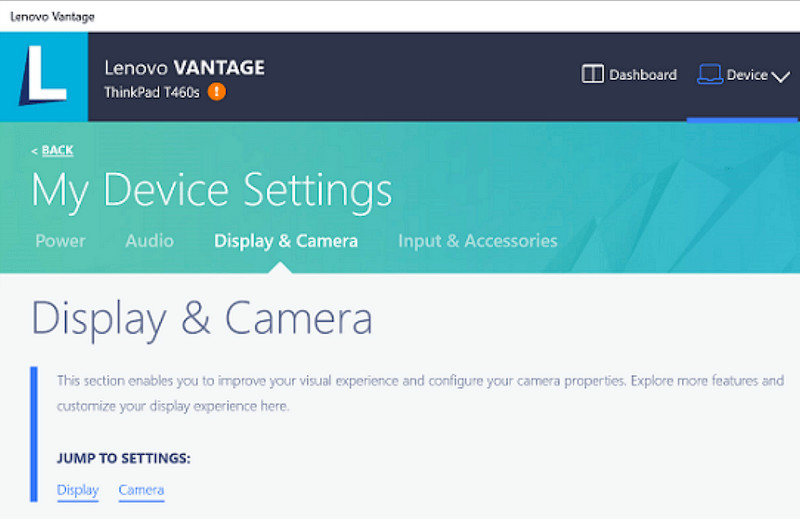
स्टेप 1के पास जाओ शुरू मेनू पर क्लिक करें लेनोवो वैंटेज.
चरण दोनल मेरे डिवाइस की सेटिंग्स > डिस्प्ले और कैमरा.
चरण 3रिकॉर्डिंग या अन्य उपलब्ध सुविधाओं की जांच करें।
चरण 4सभी आवश्यक विकल्प या शॉर्टकट उपलब्ध कराएं।
चरण 5उपलब्ध सुविधा का उपयोग करके संगीत रिकॉर्ड करें (यदि संभव हो)।
चरण 6अपने वीडियो फोल्डर में सेव की गई रिकॉर्डिंग ढूंढें।
विधि 3. लीजन ज़ोन / लेनोवो नर्व सेंटर का उपयोग करना
Lenovo Nerve Center (या Legion Nerve Center - Legion के नए टूल्स ने Nerve Sense की जगह ले ली है) Lenovo डिवाइसों, विशेष रूप से Lenovo Legion लैपटॉप के लिए अनुकूलित है, जो गेमर्स को ध्यान में रखकर बनाया गया है। यह गेमिंग परफॉर्मेंस टूल्स के साथ भी अच्छी तरह से एकीकृत है, जिससे उपयोगकर्ता सिस्टम संसाधनों की निगरानी और अनुकूलन करते हुए अपने गेम के स्क्रीनशॉट ले सकते हैं।
हालांकि, यह एक काफी साधारण रिकॉर्डर है। इसमें सुविधा पर अधिक ध्यान दिया गया है, अनुकूलन पर नहीं, और यह केवल बुनियादी रिकॉर्डिंग विकल्प प्रदान करता है, जिसमें रिज़ॉल्यूशन, बिटरेट और उन्नत सेटिंग्स पर सीमित नियंत्रण होता है। साथ ही, यह केवल कुछ नए सिस्टमों पर ही उपलब्ध है, और अन्य सिस्टमों ने इसे बदल दिया है या अपने सिस्टम से हटा दिया है, इसलिए यह अब उतना विश्वसनीय नहीं रहा जितना पहले था।
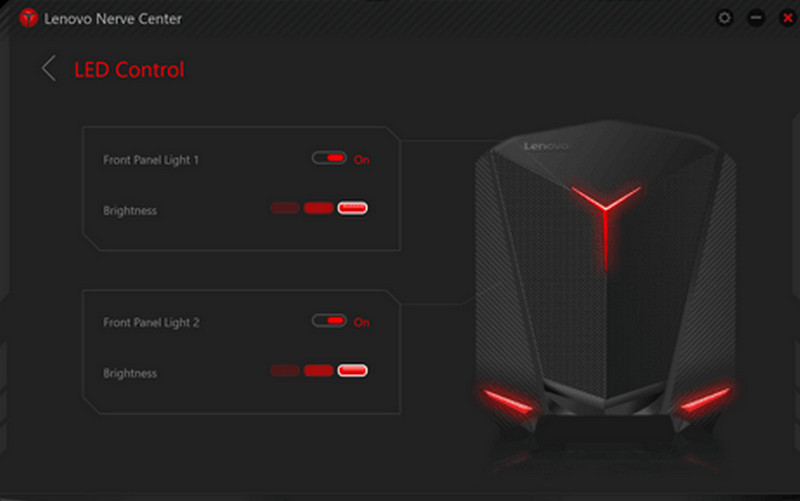
स्टेप 1तक पहुंच लेनोवो नर्व सेंटर या लेगियन ज़ोन डिवाइस से।
चरण दोरिकॉर्डिंग और/या गेमिंग टूल्स पर जाएं।
चरण 3यदि विकल्प उपलब्ध हो, तो रिकॉर्डिंग सेटिंग्स, जैसे कि रिज़ॉल्यूशन या ऑडियो गुणवत्ता, बदलें।
चरण 4गेम या एप्लिकेशन शुरू करें।
चरण 5डिफ़ॉल्ट शॉर्टकट या बटन का उपयोग करके रिकॉर्ड करें।
चरण 6रिकॉर्डिंग बंद करें और अपने अंदर देखें वीडियो यह देखने के लिए फ़ोल्डर में जाएं कि फ़ाइल रिकॉर्ड हुई है या नहीं।
विधि 4. AVAide स्क्रीन रिकॉर्डर का उपयोग करना
AVAide स्क्रीन रिकॉर्डर यह Lenovo के बिल्ट-इन स्क्रीन रिकॉर्डर से कहीं अधिक उन्नत और बहुमुखी स्क्रीन रिकॉर्डर है। यह उन लोगों के लिए बनाया गया है जो उच्च गुणवत्ता वाली वीडियो, सुगम संचालन और रिकॉर्डिंग पर बेहतर नियंत्रण चाहते हैं। ट्यूटोरियल बनाने, मीटिंग रिकॉर्ड करने या गेमप्ले कैप्चर करने के लिए यह एक आदर्श टूल है, जिसके लिए किसी जटिल सेटअप की आवश्यकता नहीं है, और यह सब पेशेवर स्तर पर किया जा सकता है।
यह सिस्टम साउंड, माइक्रोफोन इनपुट, वेबकैम और स्क्रीन एरिया को कैप्चर कर सकता है, साथ ही बेसिक रिकॉर्डर की तुलना में कम लैग के साथ फुल एचडी और यहां तक कि 4के रिकॉर्डिंग को भी सपोर्ट करता है। यह इसे काम और मनोरंजन दोनों के लिए एक ऑल-इन-वन स्क्रीन-कैप्चर एप्लिकेशन बनाता है।
- बिना किसी रुकावट के, सुचारू रूप से 1080p या 4K में वीडियो कैप्चर करें।
- अपनी आवश्यकतानुसार पूर्ण या अनुकूलित स्क्रीन मोड में रिकॉर्ड करें।
- स्पष्ट आउटपुट के साथ आंतरिक ध्वनि और आवाज दोनों को एक साथ रिकॉर्ड करें।
- ट्यूटोरियल, प्रेजेंटेशन या गेमप्ले वीडियो के लिए फेसकैम रिकॉर्डिंग जोड़ें।
- रिकॉर्डिंग करने के बाद उसे ट्रिम करें, कंप्रेस करें और बेहतर बनाएं।

 सुरक्षित डाऊनलोड
स्टेप 1सॉफ्टवेयर डाउनलोड और इंस्टॉल करें
AVAide स्क्रीन रिकॉर्डर की आधिकारिक वेबसाइट पर जाएं। विंडोज इंस्टॉलर डाउनलोड करें, इसे अपने लेनोवो लैपटॉप पर इंस्टॉल करें और चलाएं।
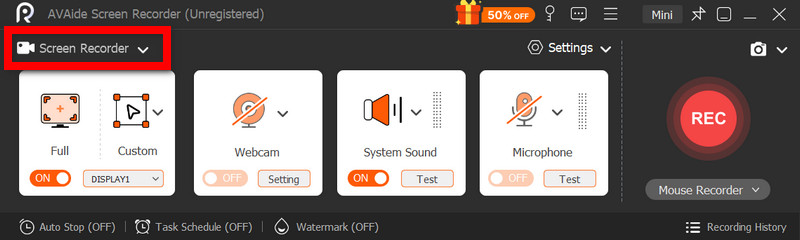
चरण दोरिकॉर्डिंग मोड चुनें
सॉफ्टवेयर खोलें, फिर क्लिक करें स्क्रीन अभिलेखीपूरी स्क्रीन को रिकॉर्ड करें भरा हुआ या स्क्रीन का एक हिस्सा रीति.
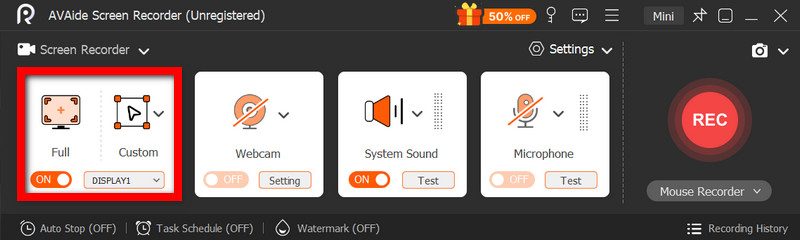
चरण 3ऑडियो सेटिंग्स कॉन्फ़िगर करें
कंप्यूटर द्वारा उत्पन्न किसी भी ध्वनि को रिकॉर्ड करने के लिए, सक्रिय करें सिस्टम साउंडअपनी आवाज़ शामिल करने के लिए, इसे सक्रिय करें। माइक्रोफ़ोनआवश्यकतानुसार वेबकैम को भी चालू किया जा सकता है।
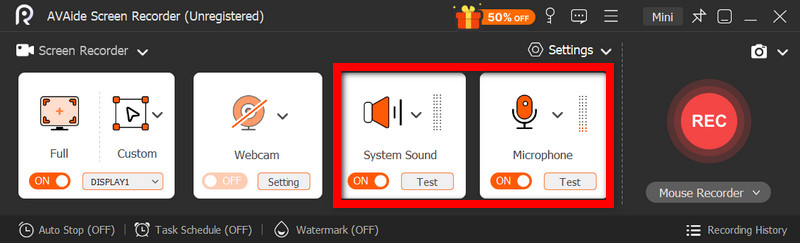
चरण 4रिकॉर्डिंग सेटिंग्स समायोजित करें
उपयोग समायोजन वीडियो की गुणवत्ता, रिज़ॉल्यूशन, फ्रेम दर और आउटपुट प्रारूप को कॉन्फ़िगर करने के लिए बटन का उपयोग करें ताकि सर्वोत्तम रिकॉर्डिंग प्रदर्शन प्राप्त किया जा सके।
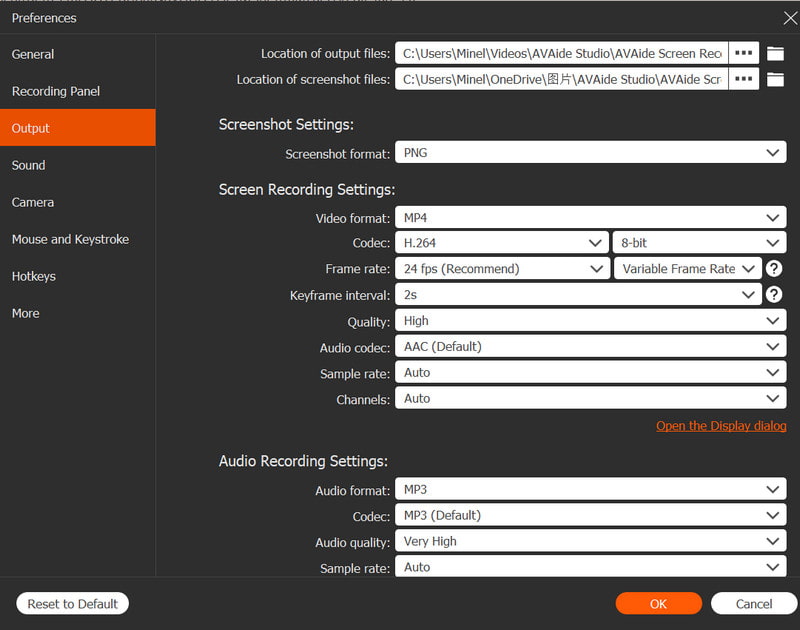
चरण 5रिकॉर्डिंग शुरू
दबाओ आरईसी रिकॉर्डिंग शुरू करने के लिए बटन दबाएं। Google Meet रिकॉर्डिंग, ट्यूटोरियल, गेमप्ले या स्क्रीन पर होने वाली कोई भी गतिविधि आसानी से रिकॉर्ड की जा सकती है।
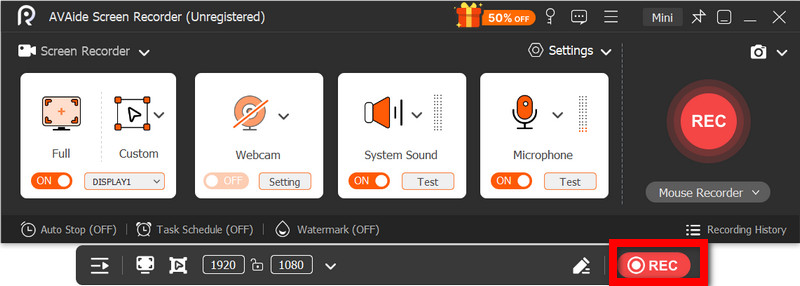
चरण 6रिकॉर्डिंग रोकें और सहेजें
जब आप काम पूरा कर लें, तो क्लिक करें विराम बटन दबाएं। अपनी रिकॉर्डिंग का पूर्वावलोकन करें, यदि आवश्यक हो तो इसे तुरंत संपादित करें और इसे तुरंत अपने कंप्यूटर पर सहेजें।
विधि 5. त्वरित सेटिंग्स का उपयोग करना
लेनोवो एंड्रॉइड टैबलेट में क्विक सेटिंग्स में स्क्रीन रिकॉर्डिंग का विकल्प मौजूद है। ट्यूटोरियल, गेमप्ले या ऐप गतिविधि को रिकॉर्ड करने का सबसे अच्छा तरीका है बिना किसी थर्ड-पार्टी ऐप को डाउनलोड किए। यह आसान, तेज़ और मोबाइल उपयोग के लिए अनुकूलित है, जो चलते-फिरते तुरंत रिकॉर्डिंग के लिए आदर्श है।
इसमें अन्य स्क्रीन कैप्चर टूल में पाए जाने वाले उन्नत संपादन और अनुकूलन सुविधाओं का अभाव है, लेकिन यह ध्वनि के साथ सरल स्क्रीन कैप्चर के लिए पर्याप्त है।
स्टेप 1स्क्रीन के निचले हिस्से से ऊपर की ओर स्वाइप करके इसे खोलें। त्वरित सेटिंग.
चरण दोके लिए देखो स्क्रीन रिकॉर्ड या स्क्रीन अभिलेखी बटन पर क्लिक करें। यदि यह वहां नहीं है, तो क्लिक करें। संपादित करें बटन को अपने पैनल में जोड़ें।
चरण 3क्लिक स्क्रीन अभिलेखीफिर अपनी इच्छित सेटिंग्स का चयन करें।
चरण 4नल शुरू रिकॉर्डिंग शुरू करने के लिए। रिकॉर्डिंग शुरू होने से पहले उलटी गिनती होगी।
चरण 5फ्लोटिंग टूलबार या नोटिफिकेशन बार पर टैप करें, फिर दबाएँ विराम रिकॉर्डिंग समाप्त करने के लिए।
लेनोवो पर स्क्रीन रिकॉर्डिंग से जुड़ी आम समस्याओं का निवारण
आप लेनोवो डिवाइस पर स्क्रीन रिकॉर्डिंग करते समय आने वाली सामान्य समस्याओं को हल करने के लिए सुझाव पढ़ सकते हैं।
वैसे तो Lenovo डिवाइस पर स्क्रीन रिकॉर्डिंग में आमतौर पर कोई बड़ी समस्या नहीं आती, लेकिन इस्तेमाल किए जा रहे स्क्रीन रिकॉर्डिंग टूल या डिवाइस के आधार पर कुछ दिक्कतें आ सकती हैं। नीचे सबसे आम समस्याएं और उन्हें ठीक करने के तरीके दिए गए हैं।
- स्क्रीन रिकॉर्डर काम नहीं कर रहा है: अपने डिवाइस को रीस्टार्ट करें और दोबारा कोशिश करें। Xbox गेम बार जैसे बिल्ट-इन टूल्स के लिए, सुनिश्चित करें कि यह विंडोज सेटिंग्स में गेमिंग के अंतर्गत सक्षम है।
- रिकॉर्डिंग में ऑडियो नहीं है: रिकॉर्डिंग शुरू करने से पहले जांच लें कि सिस्टम साउंड या माइक्रोफ़ोन चालू है या नहीं। साथ ही, यह भी सुनिश्चित कर लें कि आपके सिस्टम का वॉल्यूम म्यूट न हो।
- वीडियो धीमा चल रहा है या उसकी गुणवत्ता खराब है: वीडियो की गुणवत्ता कम करें या बैकग्राउंड में चल रहे एप्लिकेशन बंद कर दें। ग्राफ़िक्स ड्राइवर को अपग्रेड करने से भी परफॉर्मेंस बेहतर हो सकती है।
- डेस्कटॉप या फ़ाइल एक्सप्लोरर को रिकॉर्ड नहीं किया जा सकता: यह Xbox गेम बार की आम सीमाओं में से एक है। यदि आप अपनी स्क्रीन रिकॉर्ड करना चाहते हैं और सब कुछ कैप्चर करना चाहते हैं, तो AVAide स्क्रीन रिकॉर्डर जैसे उन्नत प्रोग्राम का उपयोग करें। मैक के लिए सर्वश्रेष्ठ स्क्रीन रिकॉर्डर और विंडोज़।
- रिकॉर्डिंग सेव नहीं हो रही है: सुनिश्चित करें कि आपका स्टोरेज भरा हुआ न हो, और डिफ़ॉल्ट सेव लोकेशन की जाँच करें। सेटिंग्स में जाकर आउटपुट फ़ोल्डर बदलें और इसे आज़माएँ।
लेनोवो स्क्रीन रिकॉर्डिंग बटन आपके डिवाइस और आपके द्वारा उपयोग किए जाने वाले टूल के आधार पर विकल्प भिन्न हो सकते हैं। कुल मिलाकर, अंतर्निहित सुविधाओं और तृतीय-पक्ष ऐप्स के कारण रिकॉर्डिंग सरल हो जाती है, जिससे आपको लेनोवो डिवाइस पर स्क्रीन गतिविधि को कुशलतापूर्वक कैप्चर करने, सहेजने और प्रबंधित करने के लचीले तरीके मिलते हैं।
लेखक के बारे में

ऑडियो, ऑनलाइन मीटिंग, गेमप्ले वीडियो, संगीत, वेब कैमरा आदि के साथ स्क्रीन गतिविधियों को कैप्चर करें।
स्क्रीन रिकॉर्डिंग
- विंडोज़ पर स्क्रीन रिकॉर्ड
- इंस्टाग्राम लाइव रिकॉर्ड करें
- टुबी से वीडियो रिप करें
- YouTube वीडियो को MP3 में बदलें
- Fansly से वीडियो डाउनलोड करें
- JW प्लेयर वीडियो डाउनलोड करना
- बिलिबिली वीडियो डाउनलोड करें
- Patreon वीडियो डाउनलोड करें
- SpankBang वीडियो डाउनलोड करें
- डिस्कॉर्ड वीडियो डाउनलोड करें
- DoodSream वीडियो डाउनलोड करें