समझने की कोशिश कर रहा हूँ डेल लैपटॉप पर स्क्रीन रिकॉर्डिंग कैसे करें ट्यूटोरियल, गेमप्ले या मीटिंग को रिकॉर्ड करते समय सही टूल के बिना काफी उलझन हो सकती है। चाहे आपको तुरंत रिकॉर्डिंग करनी हो या एडवांस तकनीक की, यह गाइड आपको स्क्रीन रिकॉर्डिंग के आसान और असरदार तरीके बताएगी।
भाग 1. सबसे आसान तरीका: Xbox गेम बार का उपयोग करना
Xbox गेम बार मुख्य रूप से गेमप्ले रिकॉर्ड करने के लिए डिज़ाइन किया गया है, लेकिन इसका उपयोग दैनिक स्क्रीन रिकॉर्डिंग के लिए भी किया जा सकता है। यह आपको अपनी स्क्रीन और ऑडियो रिकॉर्ड करने और क्लिप को तुरंत सेव करने की सुविधा देता है। हालांकि, यह आपके डेस्कटॉप या फ़ाइल एक्सप्लोरर को कैप्चर नहीं कर सकता; यह केवल सक्रिय एप्लिकेशन विंडो को ही कैप्चर कर सकता है।
स्टेप 1Xbox गेम बार ओवरले खोलने के लिए, बटन दबाएँ। विंडोज़ + G अपने कीबोर्ड पर मौजूद कुंजियों को दबाएँ। यदि प्रश्न यह है कि क्या यह एक खेल है, तो सकारात्मक उत्तर दें।
चरण दोNS कब्ज़ा करना पैनल ओवरले में है। यदि आप इसे नहीं देख पा रहे हैं, तो विजेट्स मेनू बन जाएगा और कैप्चर विकल्प चयनित हो जाएगा।
चरण 3अपनी स्क्रीन रिकॉर्ड करना शुरू करने के लिए, क्लिक करें रिकॉर्ड (●) बटन या विंडोज़ + Alt + Rयह टूल सक्रिय विंडो का स्नैपशॉट स्वचालित रूप से कैप्चर कर लेगा।
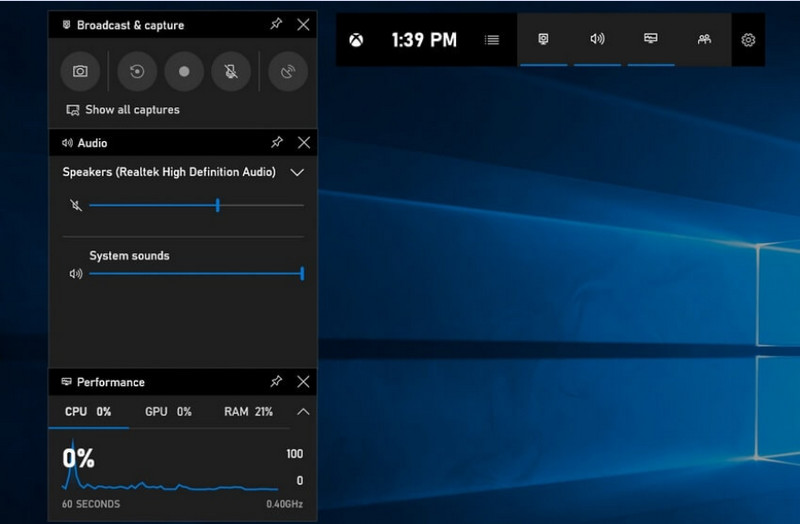
चरण 4माइक्रोफ़ोन रिकॉर्डिंग को चालू करने के लिए क्लिक करें माइक रिकॉर्डिंग से पहले या रिकॉर्डिंग के दौरान बटन दबाएं।
चरण 5रिकॉर्डिंग बंद करने के लिए, दबाएँ विंडोज़ + Alt + R दूसरी बार या दबाएँ रुकें (■) फ्लोटिंग बार पर बटन।
चरण 6आपके द्वारा रिकॉर्ड किए गए वीडियो स्वचालित रूप से संग्रहीत हो जाते हैं। वीडियो > कैप्चर आपके कंप्यूटर का फ़ोल्डर।
भाग 2. व्यावसायिक विकल्प
1. OBS स्क्रीन रिकॉर्डर का उपयोग करना
ओबीएस स्क्रीन रिकॉर्डर यह एक निःशुल्क, ओपन-सोर्स स्क्रीन रिकॉर्डर है जिसका उपयोग आमतौर पर लाइव कंटेंट रिकॉर्ड करने और स्ट्रीम करने के लिए किया जाता है। यह एक अनुकूलन योग्य सेटिंग प्रदान करता है जिससे आप अपनी पूरी स्क्रीन, एक अलग विंडो या एक साथ कई स्रोतों को रिकॉर्ड कर सकते हैं। इसके शक्तिशाली वीडियो और ऑडियो नियंत्रण इसे उन उपयोगकर्ताओं के लिए एक प्रभावी विकल्प बनाते हैं जो केवल सरलतम प्रकार की स्क्रीन रिकॉर्डिंग में रुचि नहीं रखते हैं।
प्रदर्शन:
OBS स्क्रीन रिकॉर्डर एक हार्डवेयर एक्सेलरेशन वाला सॉफ्टवेयर है जो विश्वसनीय प्रदर्शन प्रदान करता है और 1080p 60fps की सुचारू रिकॉर्डिंग को सक्षम बनाता है। एक बार इंस्टॉल होने के बाद, यह संगत सिस्टम पर लंबे रिकॉर्डिंग सत्रों के दौरान लगातार आउटपुट और कम विलंबता के साथ प्रभावी ढंग से काम कर सकता है।
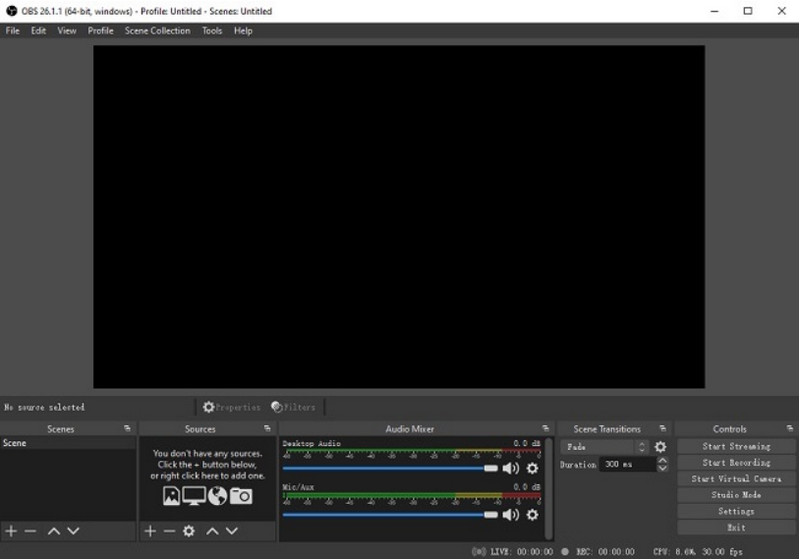
स्टेप 1OBS स्क्रीन रिकॉर्डर की आधिकारिक वेबसाइट पर जाएं, इंस्टॉलर डाउनलोड करें और इंस्टॉलेशन पूरा करें।
चरण दोखुला हुआ ओबीएस स्क्रीन रिकॉर्डरआपको मुख्य इंटरफ़ेस दिखाई देगा जिसमें निम्नलिखित पैनल होंगे: पर्दे तथा सूत्रों का कहना है.
चरण 3सीन्स पैनल में, क्लिक करें + बटन दबाएं और अपने सीन को एक नाम दें।
चरण 4आप डिस्प्ले कैप्चर या विंडो कैप्चर (किसी विशेष ऐप को कैप्चर करने के लिए) जोड़ने के लिए क्लिक कर सकते हैं। + में सूत्रों का कहना है पैनल और चयन डिस्प्ले कैप्चर या विंडो कैप्चर.
चरण 5परीक्षण करें ऑडियो मिक्सर माइक्रोफोन और सिस्टम साउंड को सक्षम और समायोजित करके।
चरण 6दबाओ रिकॉर्डिंग शुरू इंटरफ़ेस के दाईं ओर स्थित बटन।
चरण 7पूरा होने पर क्लिक करें रिकॉर्डिंग बंद करेंयह वीडियो स्वचालित रूप से आपके डिफ़ॉल्ट फ़ोल्डर में डाल दिया जाएगा।
2. AVAide स्क्रीन रिकॉर्डर का उपयोग करना
AVAide स्क्रीन रिकॉर्डर यह उच्च गुणवत्ता में स्क्रीन गतिविधि को रिकॉर्ड करने का एक सरल लेकिन प्रभावी उपकरण है। यह उन उपयोगकर्ताओं के लिए लक्षित है जिन्हें स्पष्ट ऑडियो के साथ उपयोग में आसान रिकॉर्डिंग सिस्टम, न्यूनतम कॉन्फ़िगरेशन के साथ एक लचीला कैप्चर सिस्टम और सहज नियंत्रण की आवश्यकता होती है।
प्रदर्शन:
AVAide स्क्रीन रिकॉर्डर को लंबे रिकॉर्डिंग सत्रों के दौरान भी सुचारू और स्थिर रिकॉर्डिंग के लिए अनुकूलित किया गया है। यह सामान्य अनुप्रयोगों में न्यूनतम विलंबता के साथ 4K/1080p तक उच्च-रिज़ॉल्यूशन आउटपुट का समर्थन कर सकता है। यह सॉफ़्टवेयर सिस्टम ध्वनि और माइक्रोफ़ोन इनपुट को सिंक्रनाइज़ रखने के लिए स्क्रीन और ऑडियो रिकॉर्डिंग को एक साथ प्रभावी ढंग से प्रबंधित कर सकता है।
- उच्च गुणवत्ता में रिकॉर्डिंग स्क्रीन सुचारू और बिना किसी रुकावट के चलती है।
- यह सिस्टम की ध्वनि और माइक्रोफोन को एक साथ कैप्चर करता है और स्पष्ट ऑडियो आउटपुट प्रदान करता है।
- यह वेबकैम रिकॉर्डिंग को सपोर्ट करता है और इसमें एडजस्टेबल पिक्चर-इन-पिक्चर ओवरले की सुविधा है।
- यह पूरी स्क्रीन, चयनित विंडो या किसी कस्टम क्षेत्र की रिकॉर्डिंग की अनुमति देता है।
- इसमें वीडियो को ट्रिम करने, बेहतर बनाने और निर्यात करने के लिए अंतर्निहित संपादन उपकरण शामिल हैं।

 सुरक्षित डाऊनलोड
स्टेप 1टूल डाउनलोड और इंस्टॉल करें
AVAide स्क्रीन रिकॉर्डर की आधिकारिक वेबसाइट पर जाएं। अपने विंडोज सिस्टम के लिए इंस्टॉलर डाउनलोड करें और इंस्टॉलेशन प्रक्रिया का पालन करें।
चरण दोसॉफ्टवेयर लॉन्च करें
प्रोग्राम खोलकर इंस्टॉलेशन प्रक्रिया पूरी की जा सकती है। मुख्य इंटरफ़ेस पर, आप चुन सकते हैं स्क्रीन अभिलेखी साथ शुरू करने के लिए।
चरण 3रिकॉर्डिंग क्षेत्र चुनें
इनमें से चुनें भरा हुआ तथा रीति आपकी आवश्यकताओं के आधार पर रिकॉर्डिंग मोड।
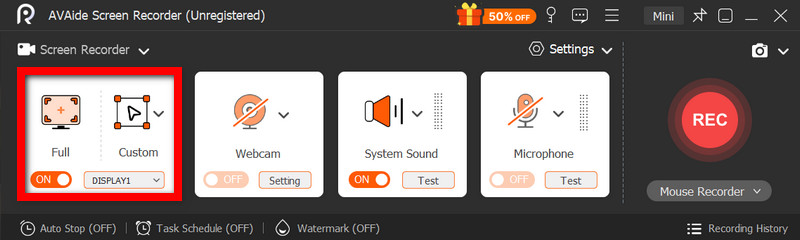
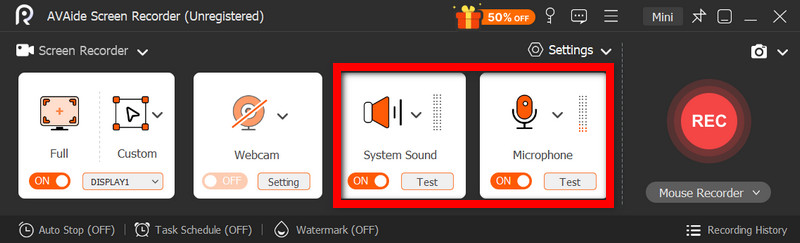
चरण 4ऑडियो और वेबकैम सेटअप करें
सक्षम सिस्टम ऑडियो और यह माइक्रोफ़ोन यदि आपको ऑडियो की आवश्यकता हो। चेहरे रिकॉर्ड करने के लिए वेबकैम भी चालू किया जा सकता है।
चरण 5रिकॉर्डिंग शुरू
अपनी स्क्रीन रिकॉर्ड करना शुरू करने के लिए, बटन दबाएँ। आरईसी बटन। आवश्यकता पड़ने पर रिकॉर्डिंग के दौरान एनोटेशन जोड़े जा सकते हैं।
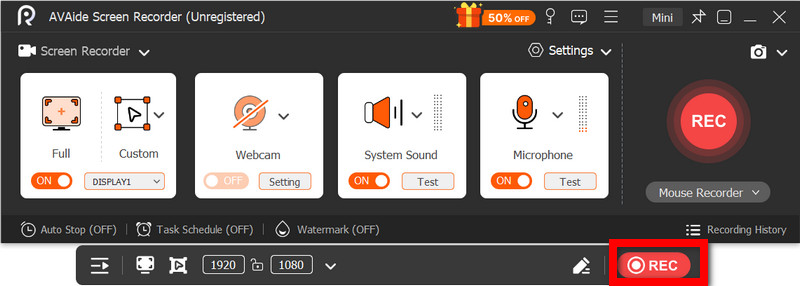
चरण 6रिकॉर्डिंग रोकें और सहेजें
दबाएं विराम रिकॉर्डिंग पूरी होने पर बटन दबाएं। रिकॉर्डिंग अपने आप सेव हो जाएगी और आप इसे तुरंत देख या एडिट कर सकते हैं।
भाग 3. अन्य निःशुल्क और सरल तरीके
1. स्निपिंग टूल का उपयोग करना (विंडोज 11)
विंडोज 11 में मौजूद स्निपिंग टूल में स्क्रीन रिकॉर्डिंग की सुविधा पहले से ही मौजूद है, जिससे अतिरिक्त सॉफ्टवेयर इंस्टॉल किए बिना स्क्रीन गतिविधि को आसानी से और तेजी से कैप्चर किया जा सकता है। यह छोटे वीडियो क्लिप, ट्यूटोरियल और सामान्य रिकॉर्डिंग कार्यों के लिए सबसे प्रभावी है।
प्रदर्शन:
स्निपिंग टूल हल्के रिकॉर्डिंग के लिए उपयुक्त है और छोटे फुटेज को आसानी से कैप्चर करता है। हालांकि, इसमें सुविधाओं की कमी है, उन्नत सेटिंग्स का समर्थन नहीं करता है, और विशिष्ट टूल की तुलना में लंबी या उच्च-प्रदर्शन वाली रिकॉर्डिंग को उतनी कुशलता से हैंडल नहीं कर सकता है।
स्टेप 1स्निपिंग टूल खोलने के लिए उस पर क्लिक करें। शुरू मेन्यू।
चरण दोटूलबार का उपयोग करने के लिए, क्लिक करें अभिलेख.
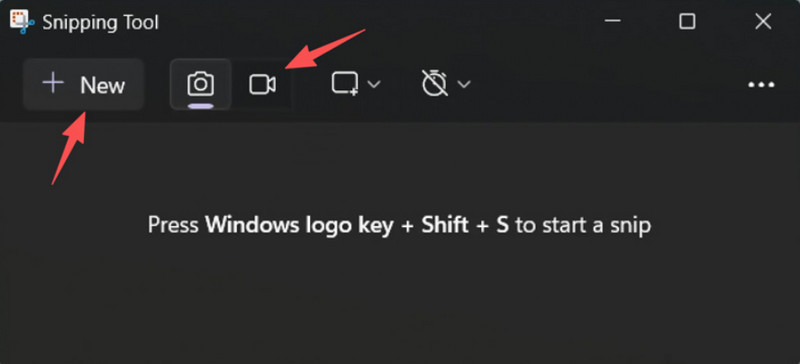
चरण 3नई रिकॉर्डिंग करने के लिए, चुनें नया.
चरण 4स्क्रीन के उस क्षेत्र का चयन करें जिसे आप कैप्चर करना चाहते हैं।
चरण 5क्लिक शुरू रिकॉर्डिंग शुरू करने के लिए.
चरण 6क्लिक विराम जब रिकॉर्डिंग पूरी हो जाए तो उसे सेव कर लें।
2. माइक्रोसॉफ्ट पॉवरपॉइंट का उपयोग करना (विंडोज के सभी संस्करणों के लिए)
Microsoft PowerPoint में स्क्रीन रिकॉर्डिंग की सुविधा है, जिससे आप स्क्रीनशॉट लेकर उसे प्रेजेंटेशन में शामिल कर सकते हैं। यह ट्यूटोरियल, प्रदर्शन या शिक्षण स्लाइड बनाने का एक आसान विकल्प भी है, जिसके लिए अतिरिक्त रिकॉर्डिंग सॉफ़्टवेयर की आवश्यकता नहीं होती।
प्रदर्शन:
सरल स्क्रीन रिकॉर्डिंग में पॉवरपॉइंट लगातार अच्छे परिणाम देता है, खासकर प्रस्तुतियों और छोटे प्रदर्शनों के लिए। हालांकि यह उचित वीडियो गुणवत्ता प्रदान करता है, लेकिन इसमें उन्नत नियंत्रणों की कमी है और लंबी अवधि की रिकॉर्डिंग के दौरान कैप्चर किए गए वीडियो की गुणवत्ता के लिए यह उपयुक्त नहीं हो सकता है।
स्टेप 1माइक्रोसॉफ्ट पॉवरपॉइंट खोलें और एक नई या मौजूदा प्रस्तुति तैयार करें।
चरण दोइन्सर्ट टैब पर क्लिक करें, फिर स्क्रीन रिकॉर्डिंग.
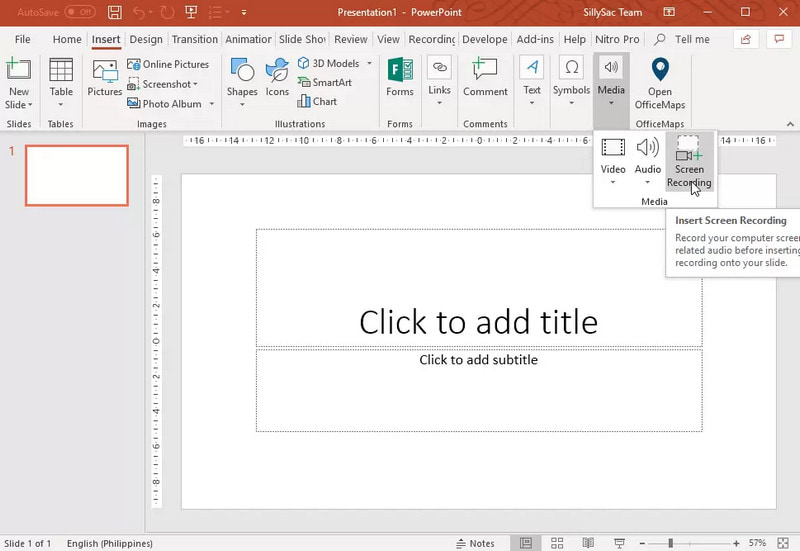
चरण 3स्क्रीन के उस हिस्से को चुनें जिसे आप कैप्चर करना चाहते हैं।
चरण 4आवश्यकता पड़ने पर ऑडियो या पॉइंटर रिकॉर्डिंग की अनुमति दें।
चरण 5क्लिक अभिलेख अपनी स्क्रीन रिकॉर्ड करना शुरू करने के लिए।
चरण 6रिकॉर्डिंग समाप्त करने के लिए, दबाएँ विंडोज़ + शिफ्ट + क्यू.
चरण 7रिकॉर्डिंग को सेव करने के लिए, वीडियो पर राइट-क्लिक करें और चुनें मीडिया को इस रूप में सहेजें.
भाग 4. सामान्य समस्याओं का निवारण
| संकट | समाधान |
| गेम बार खुल नहीं रहा था और न ही रिकॉर्डिंग हो रही थी। | सेटिंग्स में जाकर आप Xbox गेम बार को बंद कर सकते हैं। यहां जाएं समायोजन > जुआ > गेम बार और इसे घुमाएँ परदबाने का प्रयास कर रहा है विंडोज़ + G फिर से, और अपने पीसी को रीस्टार्ट करें (जहां आवश्यक हो)। |
| इस रिकॉर्डिंग में कोई आवाज़ नहीं है। | गेम बार सेटिंग्स में सिस्टम ऑडियो और माइक्रोफ़ोन चालू हैं, यह सुनिश्चित करें। साथ ही, विंडोज साउंड सेटिंग्स में यह भी सुनिश्चित करें कि आपका साउंड डिवाइस म्यूट न हो या गलत तरीके से चयनित न हो। |
| रिकॉर्डिंग के दौरान मेरा डेल लैपटॉप धीमा चल रहा है। | अनावश्यक एप्लिकेशन और ब्राउज़र टैब को कम करने के लिए 'बंद करें' या 'छोटा करें' विकल्प का उपयोग करें। पावर सेटिंग्स में 'उच्च प्रदर्शन' मोड पर स्विच करें और आवश्यकतानुसार रिकॉर्डिंग रिज़ॉल्यूशन को कम करके प्रदर्शन में सुधार करें। |
| रिकॉर्ड किए गए वीडियो की गुणवत्ता खराब है। | गेम बार में रिकॉर्डिंग की गुणवत्ता को सर्वोत्तम उपलब्ध सेटिंग पर सेट करें, खासकर जब गूगल मीट को रिकॉर्ड करना सत्रों के दौरान, अपने डिस्प्ले को उसके मूल रिज़ॉल्यूशन पर सेट करें और ग्राफिक्स ड्राइवर को अपडेट करें ताकि यह अधिक स्पष्ट और स्थिर हो सके। |
सीखना डेल लैपटॉप पर स्क्रीन रिकॉर्ड कैसे करें यह आपको ट्यूटोरियल, मीटिंग या गेम खेलने जैसी गतिविधियों में लचीलापन प्रदान करेगा। चाहे यह कोई अंतर्निहित टूल हो या परिष्कृत सॉफ़्टवेयर, सही विधि का चुनाव यह सुनिश्चित करेगा कि रिकॉर्डिंग आसानी से और उच्च गुणवत्ता के साथ हो और कार्यप्रवाह सुचारू रूप से चले।
लेखक के बारे में

अपने कंप्यूटर पर स्क्रीन, ऑडियो, वेब कैमरा, गेमप्ले, ऑनलाइन मीटिंग, साथ ही iPhone/Android स्क्रीन रिकॉर्ड करें।
स्क्रीन रिकॉर्डिंग
- विंडोज़ पर स्क्रीन रिकॉर्ड
- इंस्टाग्राम लाइव रिकॉर्ड करें
- टुबी से वीडियो रिप करें
- YouTube वीडियो को MP3 में बदलें
- Fansly से वीडियो डाउनलोड करें
- JW प्लेयर वीडियो डाउनलोड करना
- बिलिबिली वीडियो डाउनलोड करें
- Patreon वीडियो डाउनलोड करें
- SpankBang वीडियो डाउनलोड करें
- डिस्कॉर्ड वीडियो डाउनलोड करें
- DoodSream वीडियो डाउनलोड करें