מיינקראפט הוא אחד המשחקים הידועים ביותר כיום, עם למעלה מ-151 מיליון משתמשים פעילים מדי יום. הודות לזמינותו בפלטפורמות שונות כמו פלייסטיישן, מחשב, אקסבוקס וטלפונים, אפשר לחשוב שהוא מיוחד בגלל הדברים שניתן לעשות בעולם המשחק. כאן, תוכלו לחוות, לשחק עם חברים אחרים, לחפש את האוצרות הטובים ביותר ואפילו ליצור עולם משלכם, ותרצו ללכוד את נקודות השיא החשובות הללו. בהתאם לפלטפורמה בה אתם משתמשים, צילומי מסך של מיינקראפט קל כמו שמאמר זה אסף שיטות שתוכלו להשתמש בהן. אז, קפצו פנימה ובואו נתחיל.
חלק 1. איך לצלם צילום מסך במיינקראפט
למיינקראפט יש שתי גרסאות למחשב, עם דרכים שונות לצילום תמונות בתוך המשחק. בדקו את גרסאות Java ו-Bedrock ולמדו כיצד לצלם מסך במיינקראפט במחשב.
1. מהדורת ג'אווה - שיטת F2 הקלאסית
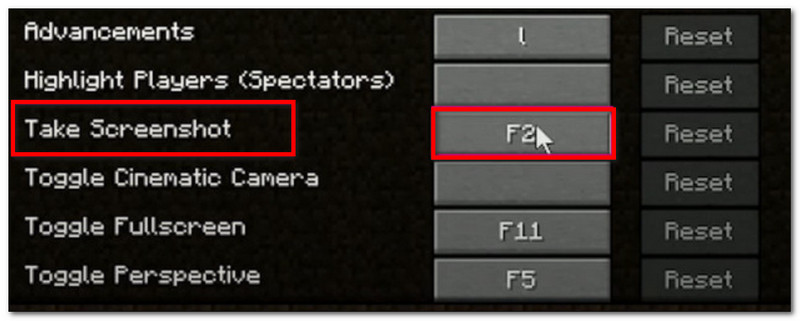
מהדורה זו של Minecraft היא הגרסה המקורית למחשב של המשחק, ויש לה תכונת צילום מסך מובנית בה ניתן להשתמש. כך ניתן לצלם מסך של Minecraft Java:
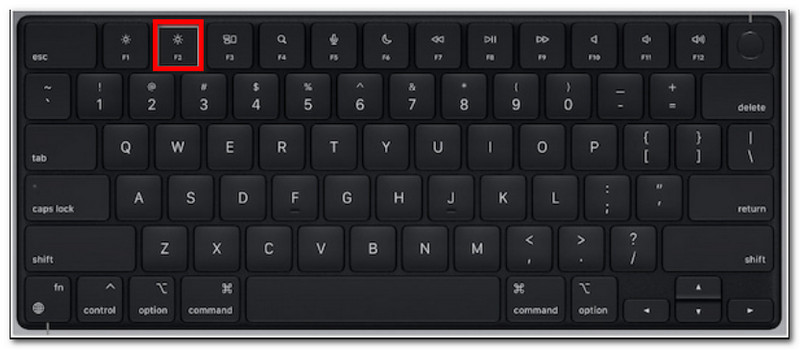
שלב 1הכינו את החלק במשחק שברצונכם לצלם, ולאחר מכן לחצו על F2 במקלדת שלך.
שלב 2כאשר מופיעה הודעה עם שם קובץ, לחץ עליה כדי להציג תצוגה מקדימה של צילום המסך.
2. מהדורת סלע בסיסי - שתי שיטות שונות
מהדורת Bedrock מדגישה משחק בין מכשירים בפלטפורמות שונות. משמעות הדבר היא שגם אם אתם משתמשים במחשב אישי, תוכלו לשחק עם חברים המשתמשים במכשירים שונים. עם זאת, ישנן שתי שיטות פופולריות לצילום מסך במהדורה זו.
שיטה א' (סרגל משחקי Xbox)
שלב 1ללחוץ חלונות + G בו זמנית על המקלדת. המסך יתעמעם, לאחר מכן לחץ על מַצלֵמָה סמל כדי לצלם צילום מסך.
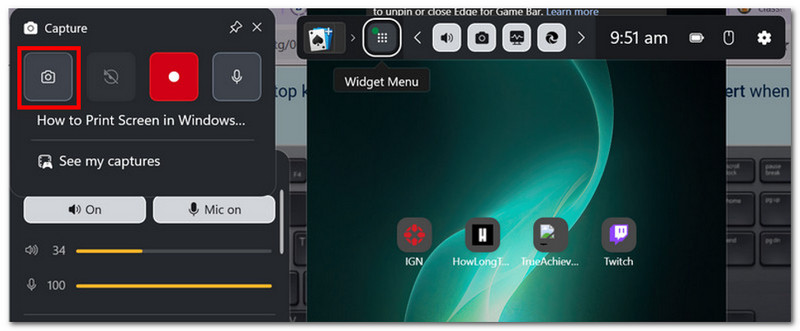
שלב 2ניתן לגשת לתיקיית צילומי המסך של Minecraft מ- סרטונים > לוכדים, שם ממוקמות תמונות שצולמו על ידי גיים בר.
שיטה ב' (מצלמה בתוך המשחק)
שלב 1פתחו את מיינקראפט והיכנסו לעולם. לחצו על צילום מסך של מיינקראפט כפתור או F2 על המסך כדי ללכוד.
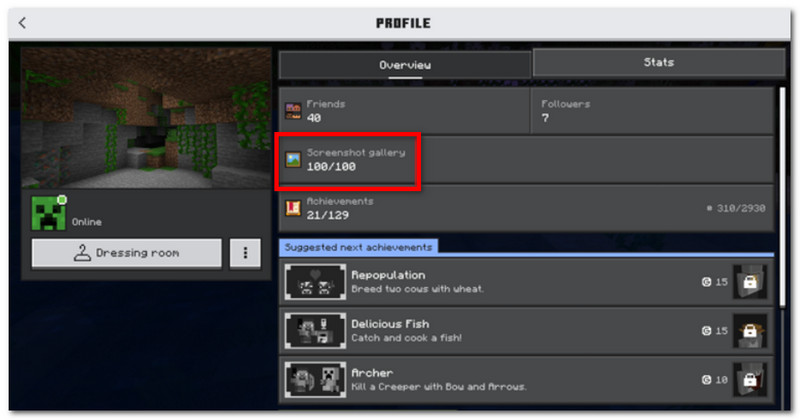
שלב 2כדי למצוא את מיקום צילום המסך של Minecraft, פשוט גשו אל פּרוֹפִיל ופתוח גלריית צילומי מסך.
3. מקליט מסך AVAide
מקליט מסך AVAide הוא כלי חלופי לשימוש עבור מהדורות Minecraft Java ו-Bedrock. זהו פתרון הכל-באחד, שבו ניתן לצלם צילומי מסך ולהקליט וידאו ואודיו. לכידת המסך שלו היא תכונה אינטואיטיבית לצילום מסך במצבים שונים: מסך מלא, חלון פעיל וצורה חופשית באמצעות קיצורי דרך הניתנים להתאמה אישית. מצד שני, הוא מאפשר לך לייצא צילומי מסך בפורמטים פופולריים של תמונות, כולל JPEG, PNG ו-GIF. מה שהופך את AVAide לחלופה הטובה ביותר הוא אפשרות העריכה המובנית לעריכת צילומי מסך בעזרת כלים כמו ציור, הערות ואלמנטים אחרים. שלא לדבר על כך, התוכנה מציעה הקלטת מסך באיכות גבוהה המושלמת ללכידת המשחק שלך במכשירים כמו מחשב וטלפונים ניידים.
שלב 1הורד והתקן את מקליט המסך. פתח אותו ובחר את לכידת מסך מהתפריט השמאלי העליון. ודא ש-Minecraft מוכן במחשב שלך.

 הורדה מאובטחת
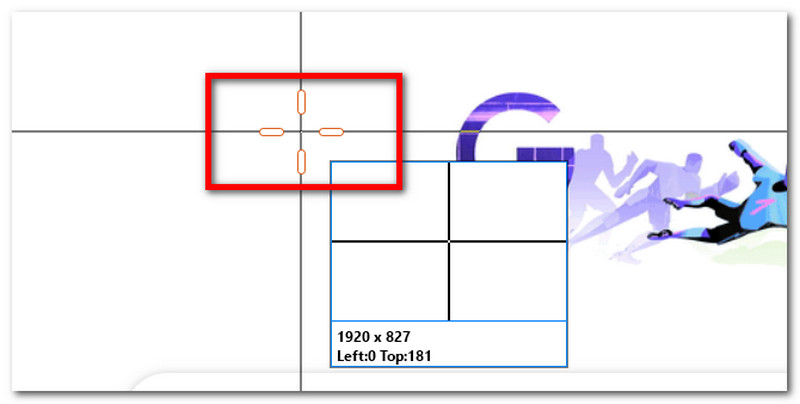
שלב 2כאשר סמן העכבר הופך לצלבת, בחר את האזור שברצונך ללכוד. לחץ. יציאה אם ברצונך לצאת ממצב לכידת המסך.
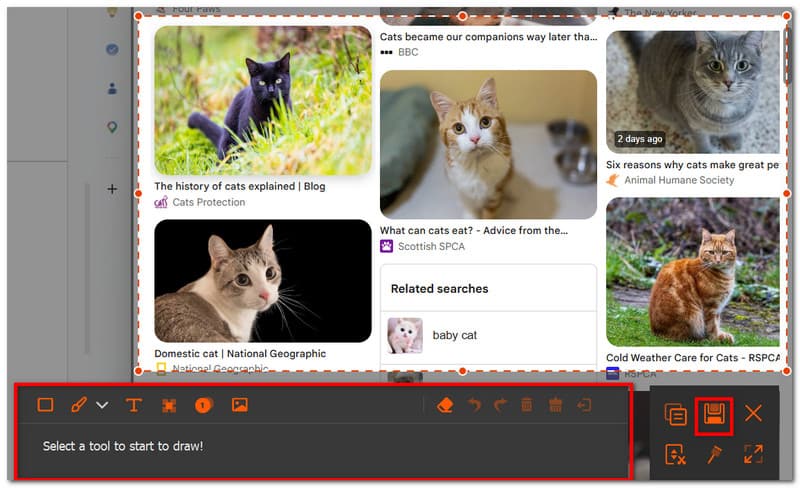
שלב 3השתמש באפשרויות העריכה כדי לערוך את התמונה. לאחר מכן, לחץ להציל כדי לשמור את צילום המסך במכשיר שלך. ספריית צילום המסך של Minecraft תהיה סטודיו AVAide > מקליט מסך AVAide.
חלק 2. היכן למצוא צילומי מסך
מכיוון ש-Minecraft זמין כמעט בכל פלטפורמה, אתם עשויים לתהות, 'היכן נשמרים צילומי מסך של Minecraft?' חלק זה יציג את המיקום המדויק של תיקיית צילומי המסך לאחר שצולמו במערכת ההפעלה הספציפית.
Windows 10/11 (מהדורת ג'אווה)
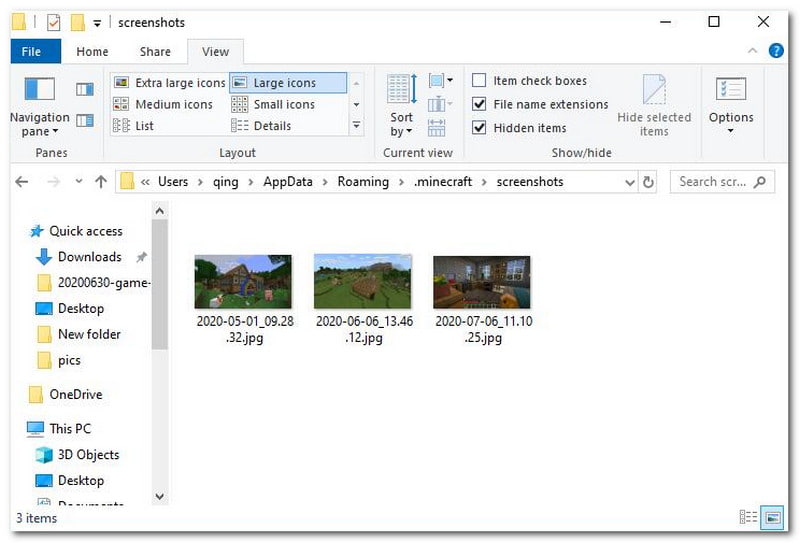
לאחר צילום המסך, תוכלו לגשת אליו מהצ'אט. אבל אם פספסתם אותו, גשו לסרגל החיפוש והקלידו %appdata%, אז לך ל תיקיית .minecraft > צילומי מסך.
Windows 10/11 (מהדורת Bedrock)
ניתן למצוא את גלריית המסכים של Minecraft עבור Bedrock Edition ב-Windows בתוך המשחק, בכתובת פּרוֹפִיל > גלריית צילומי מסך.
מק
אם אתה משחק מיינקראפט ולומד איך לצלם מסך במק, ניתן למצוא אותו ב ~/ספרייה/תמיכה ביישומים/minecraft/צילומי מסך.
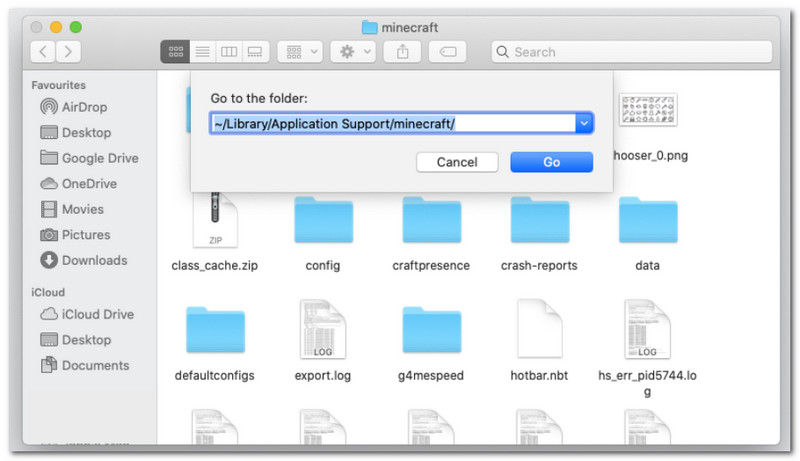
לינוקס
ניתן לגשת לצילומי המסך של המשחק דרך ספריית הבית של Minecraft. ~/.minecraft/צילומי מסך.
כרומבוק
תיקיית צילומי המסך של Minecraft ב-Chromebook זהה לזו של מערכות הפעלה אחרות בעת שימוש בשיטת F2 לצילום מסך. ניתן למצוא את התמונות מה- גלריית צילומי מסך במשחק.
חלק 3. צילומי מסך מהקונסולה והמובייל
לאחר שתלמד כיצד למצוא צילומי מסך של Minecraft ב-Windows 11 ובמערכות הפעלה אחרות, תוכל גם לצלם צילומי מסך במכשירים קטנים יותר ובקונסולות. פעל לפי השלבים לפלטפורמה שבה אתה משחק את המשחק.
נינטנדו סוויץ'
שלב 1השתמשו ב-Joy-Con השמאלי ולחצו על מַצלֵמָה כפתור כדי לצלם צילום מסך של המשחק.
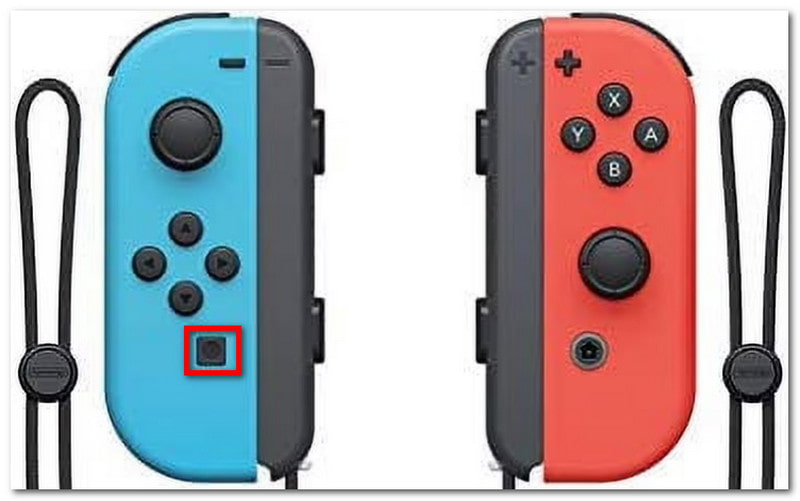
שלב 2כדי לצפות בצילום המסך, צאו מהמשחק ועברו אל אַלבּוֹם היכן שמורים צילומי מסך של מיינקראפט.
פלייסטיישן
שלב 1איך לצלם צילום מסך של Minecraft באמצעות DualShock 4 של PS4? לחצו והחזיקו את הלחצן לַחֲלוֹק למשך כשנייה אחת. אם יש לכם PS5 DualSend, לחצו על הלחצן לִיצוֹר לַחְצָן.
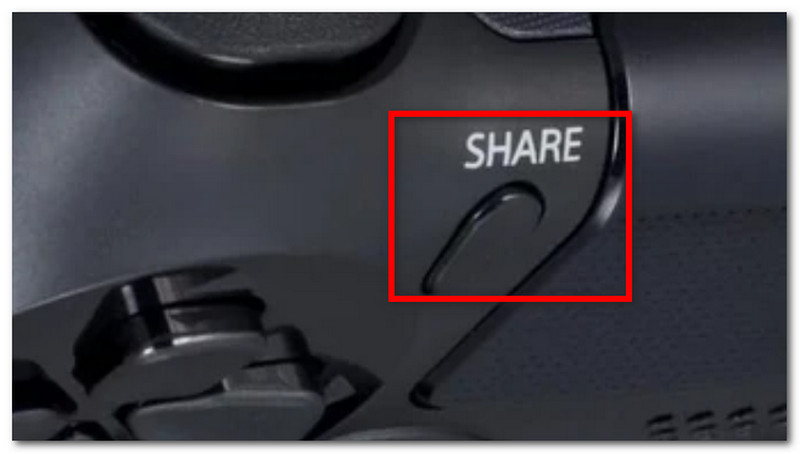
שלב 2ניתן לצפות בצילום המסך על ידי ניווט אל גלריית לכידת אפליקציה או שימוש ב- פלייסטיישן אפליקציה לצפייה בטלפון שלך.
אקס בוקס
שלב 1עבור בקר Xbox סטנדרטי, פשוט הקש פעמיים על אקס בוקס כפתור בחלק האמצעי ולחצו י כדי ללכוד. עבור סדרת Xbox, לחצו על לַחֲלוֹק לחצן פעם אחת כדי לצלם צילום מסך.
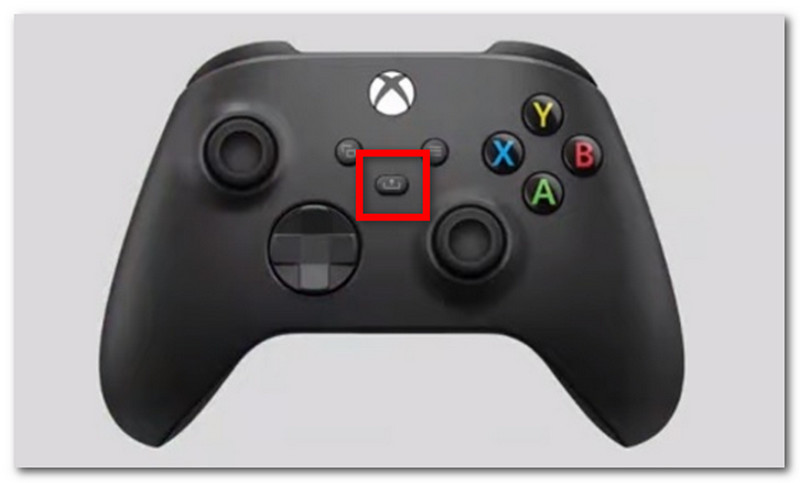
שלב 2אם אינך מכיר כיצד לגשת לצילומי מסך של Minecraft, פשוט לחץ על הלחצן אקס בוקס כפתור ועבור אל לכידת ושיתוף לשונית.
iOS
שלב 1הקש על כּוֹחַ ו הגברת עוצמת הקול כפתורים באייפון שלך כדי לצלם צילום מסך.
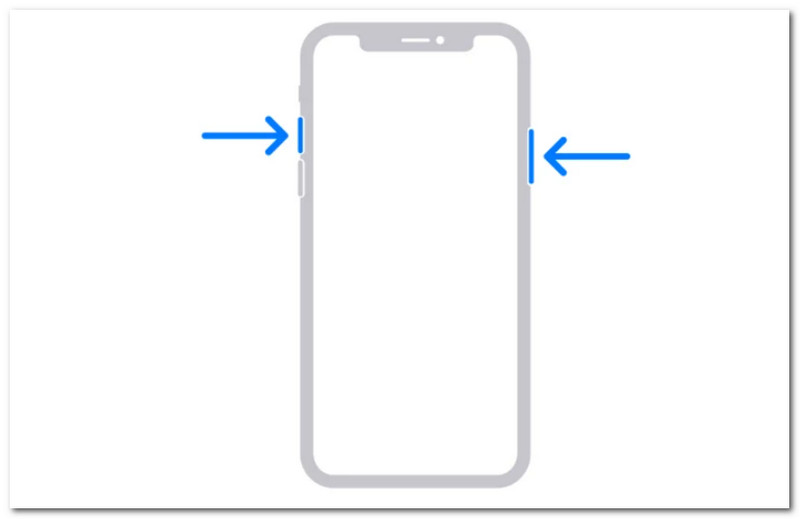
שלב 2איך למצוא צילומי מסך של Minecraft באייפון? ניתן למצוא את צילומי המסך מאפליקציית התמונות.
דְמוּי אָדָם
שלב 1הכינו את המשחק ואת האזור שברצונכם לכבוש. לחצו והחזיקו את כּוֹחַ ו הנמכת עוצמת הקול כפתורים בטלפון שלך.
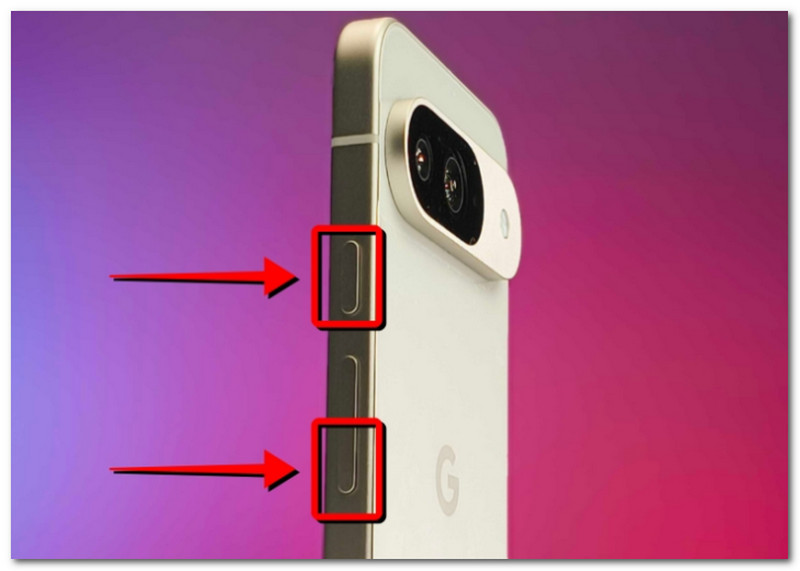
שלב 2כאשר המסך מהבהב, צילום המסך מוכן, ותוכלו לאתר אותו באפליקציית הגלריה.
חלק 4. ניהול אוסף צילומי המסך שלך
מלבד שיתוף צילומי מסך עם חבריך, תוכל גם לנצל זאת כהזדמנות לעקוב אחר התקדמותך בעולם במיינקראפט. אבל צילום מסך אקראי רק יוביל לצילומי מסך שמורים עמוסים ומבלבלים. אם אינך יודע מאיפה להתחיל, תוכל לפעול לפי הכללים הבסיסיים הבאים כדי לנהל את אוסף התמונות שלך.
1. הבנת שמות קבצים
בעת שימוש בשיטת F2 במיינקראפט, חשוב להבין את השם, מכיוון שהוא יכול לעזור לך להגדיר את התאריך שבו צילמת את צילום המסך. שם הקובץ המוגדר כברירת מחדל יהיה שנה-חודש-יום_שעה.חודש.סס.png, שמתורגם לשנה, חודש, יום, שעה, דקה ושנייה שבהם צולם צילום המסך.
2. צור תיקיות משנה
אל תשאירו את צילומי המסך שלכם בתיקייה אחת, מכיוון שזה יאט אתכם במציאת צילומי מסך ספציפיים. הקפידו ליצור תיקיות משנה עם קטגוריות כמו בניית עולם, פרויקט ופונקציה.
3. שינוי שם של קבצים
ניתן לשנות את שם צילומי המסך של Minecraft כדי לזהות אותם לא רק לפי חותמת התאריך אלא גם לפי ההתקדמות בפועל שלך במשחק. בחר תמיד שם קובץ שמדגיש את ההתפתחות שלך במיינקראפט.
4. גבה את הצילומים שלך
כדי להימנע מאובדן צילומי המסך כאשר המכשיר שלכם קורס, הקפידו לגבות אותם באמצעות שירות ענן כמו OneDrive או כונן קשיח חיצוני.
5. שתף צילומי מסך
לאחר הארגון, הציגו את התקדמותכם במשחק Minecraft בפלטפורמות שונות. הצופים שלכם יעריכו את צילומי המסך המסודרים שעוקבים אחר התקדמותכם במשחק.
מיינקראפט הוא משחק אהוב שכל אחד יכול ליהנות ממנו, ולימוד כיצד לצלם צילומי מסך יאפשר לכם לשמור את רגעי המשחק שלכם. מאמר זה לא רק מראה את השיטות השונות ללכידת העולם היפהפה במשחק, אלא גם מראה איך לצפות בצילומי מסך של מיינקראפט בפלטפורמות שונות. כחלופה, מאמר זה ממליץ להשתמש ב-AVAide Screen Recorder מכיוון שהוא גמיש לצילום צילומי מסך במחשב, טלפון וקונסולות משחקים. קבל אחד מה... מקליט המשחק הטוב ביותר בחינם ב-Windows וב-Mac והתחילו את הקלטת המשחק ללא הגבלה.
אודות המחבר

הקלט מסך, אודיו, מצלמת אינטרנט, משחקיות, פגישות מקוונות, כמו גם מסך אייפון/אנדרואיד במחשב שלך.