Versuchen zu Musik während der Videoaufnahme abspielen iPhone-Clips für TikTok, Reiseerinnerungen oder kurze Vlogs können frustrierend sein, wenn der Ton plötzlich ausfällt. Viele Nutzer erleben dieses Problem in wichtigen Momenten. Glücklicherweise gibt es mehrere einfache Möglichkeiten, die Musikwiedergabe während der Aufnahme auf iPhones und Android-Geräten fortzusetzen.
- Teil 1. iPhone – So spielen Sie Musik ab, während Sie ein Video aufnehmen
- Teil 2. Android – So spielen Sie Musik ab, während Sie ein Video aufnehmen
- Teil 3. Warum pausiert mein iPhone die Musik, wenn ich mit der Aufnahme beginne?
- Teil 4. Musik stoppt oder spielt nicht ab [Schnelle Lösungen]
- Teil 5. Wie wäre es mit der Verwendung eines professionellen Bildschirmrekorders?
Teil 1. iPhone – So spielen Sie Musik ab, während Sie ein Video aufnehmen
Methode 1: Die eingebaute Methode
iOS 18 bietet iPhone-Nutzern einige willkommene Verbesserungen in puncto Benutzerfreundlichkeit. Früher wurde die Musikwiedergabe in älteren iOS-Versionen während der Kameraaufnahme pausiert, doch dieses Update behebt das Problem und ermöglicht es Nutzern, während der Aufnahme Musik zu hören. Es ist die einfachste und zuverlässigste Methode, da keine zusätzlichen Apps installiert oder Tricks angewendet werden müssen; sie funktioniert direkt im iPhone-System.
Schritt 1Öffne die Einstellungen-App auf deinem iPhone.
Schritt 2Tippen Sie auf die Kamera unten auf dem Bildschirm.
Schritt 3 Wählen Tonaufnahme oder die gleiche Audiooption und schalten Sie die Audiowiedergabe zulassen Option während der Aufnahme.
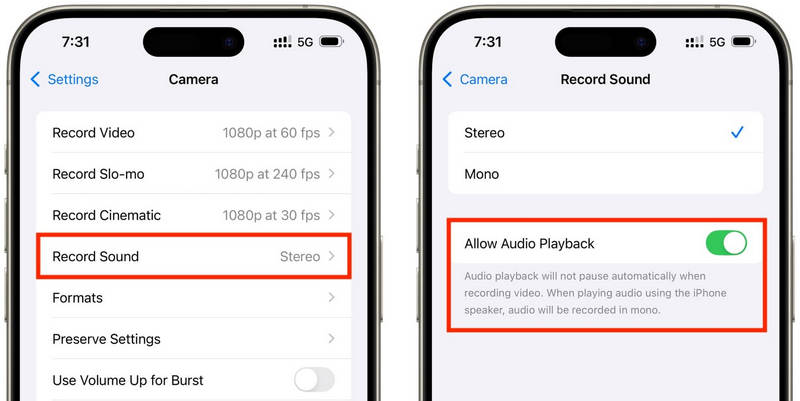
Schritt 4Spiele einen Song in der Musik-App deiner Wahl ab.
Schritt 5Öffne das Kamera App und wählen Sie die VideomodusIhre Musik sollte während der Aufnahme weiterlaufen.
Methode 2: Der QuickTake-Trick (Für iOS 17 und älter)
QuickTake ist eine der einfachsten Möglichkeiten, das Problem der Musikunterbrechung bei Videoaufnahmen auf älteren iPhones zu umgehen. Im Gegensatz zum kompletten Wechsel in den Videomodus ermöglicht QuickTake das Aufnehmen von Clips direkt aus dem Fotomodus, sodass die Hintergrundmusik weiterläuft. Es eignet sich ideal für kurze Videos, Videos für Twitter, Videos von sich selbst in sozialen Medien oder jeden beliebigen Moment, den Sie festhalten möchten, ohne die Audioaufnahme zu unterbrechen.
Schritt 1Spiele deinen Song in Apple Music, Spotify oder einer anderen Musik-App ab.
Schritt 2Standardeinstellungen beibehalten Foto Modus.
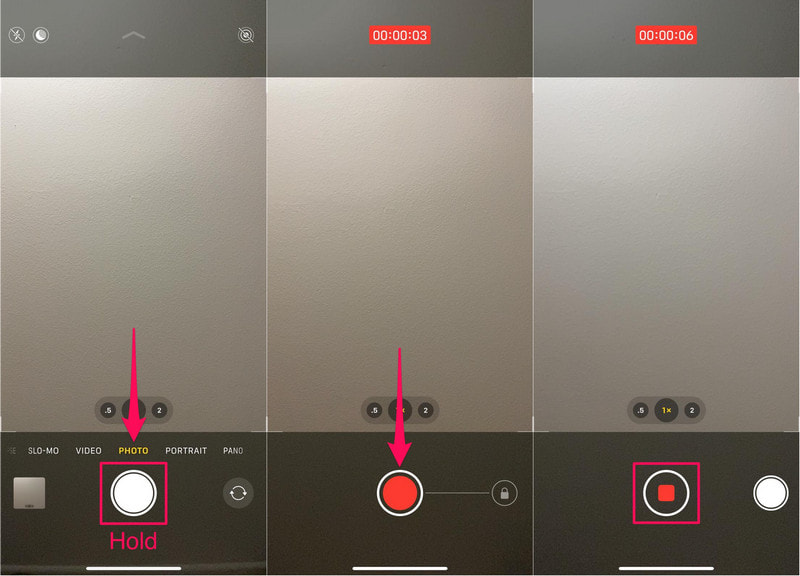
Schritt 3Um die Videoaufnahme zu starten, halten Sie die Taste gedrückt. Verschluss Taste.
Schritt 4 Bewegen Sie den Auslöser nach rechts, um die Aufnahme zu starten, damit Sie den Auslöser nicht gedrückt halten müssen.
Schritt 5Klicken Sie auf Stoppen Sobald die Fertigstellung abgeschlossen ist, klicken Sie auf die Schaltfläche.
Methode 3: Verwendung einer Drittanbieter-App
Sollte die Wiedergabe weiterhin durch Musik unterbrochen werden, sind Aufnahme-Apps von Drittanbietern die ideale Lösung. Die beliebteste ist Mideo, eine App, mit der Nutzer gleichzeitig Musik abspielen und Videos aufnehmen können. Sie unterstützt HD- und sogar 4K-Aufnahmen auf kompatiblen Geräten und bietet alle erwarteten Funktionen wie Zoom-Steuerung, Unterstützung für Vorder- und Rückkamera sowie das sofortige Speichern in der Fotos-App.
Schritt 1Lade Mideo aus dem App Store herunter.
Schritt 2Zugriff auf Kamera und Mikrofon gewähren.
Schritt 3Öffne Apple Music, Spotify oder eine andere Streaming-App und starte die Wiedergabe.
Schritt 4Sobald Ihre Musik startet, öffnen Sie die App.
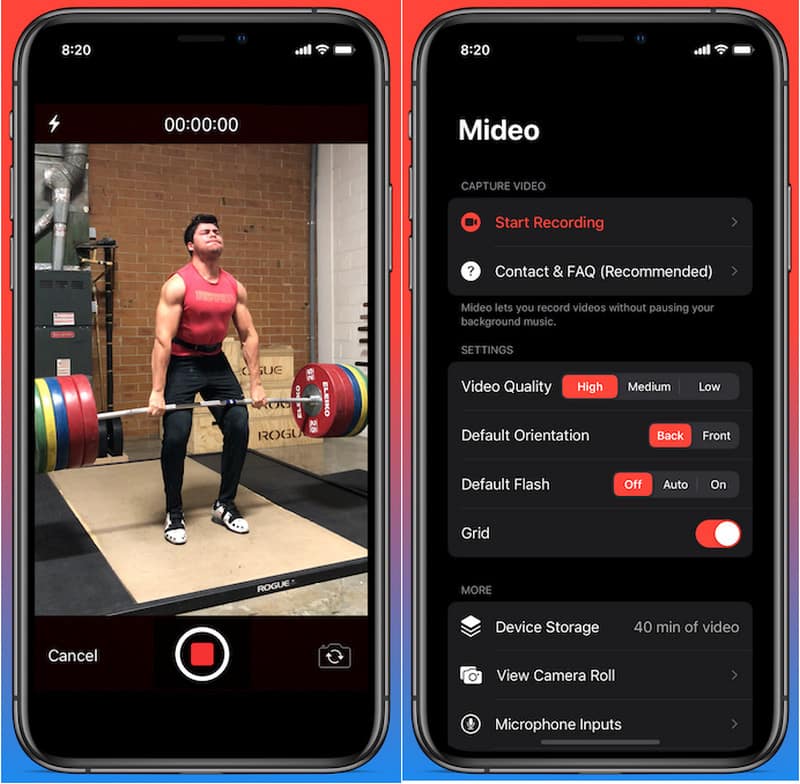
Schritt 5Drücken Sie die Schallplatte Drücken Sie die Taste und starten Sie die Aufnahme, während Ihre Musik im Hintergrund läuft.
Methode 4: Verwendung des Bild-in-Bild-Modus (PiP)
Die Medienwiedergabe muss während der Videoaufnahme nicht unterbrochen werden; Sie können die Bild-in-Bild-Funktion nutzen. Ihr iPhone kann eine Video- oder Musikdatei auch dann weiter abspielen, wenn Sie die Kamera-App im Vordergrund öffnen. Dies ist eine einfache Methode, für die keine zusätzlichen Aufnahmeprogramme installiert werden müssen.
Schritt 1Spiele einen Song oder ein Video aus einer App ab, die den Bild-in-Bild-Modus unterstützt.
Schritt 2Gehe zu Einstellungen > Allgemein > Bild im Bild, dann einschalten PiP automatisch starten.
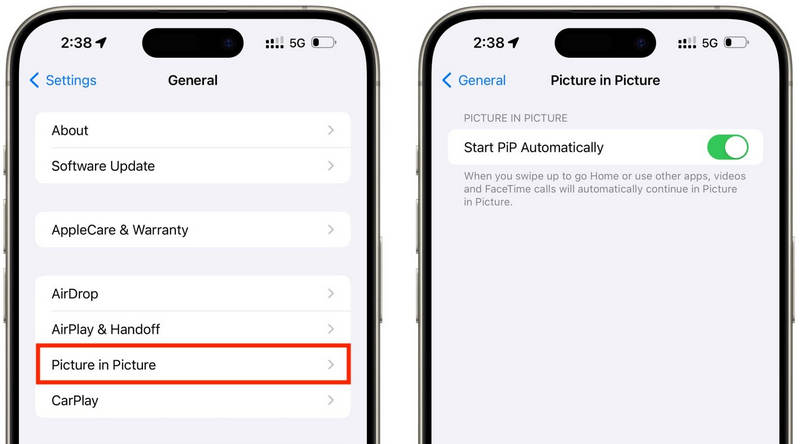
Schritt 3Durch Wischen nach oben oder Tippen auf die PiP-Schaltfläche im Videoplayer wird das Medium in ein schwebendes Fenster minimiert.
Schritt 4Starten Sie die Kamera-App vorsichtig, ohne die Medienwiedergabe zu unterbrechen.
Schritt 5Nehmen Sie Ihr Video auf, während die Musik oder die Medien im Hintergrund weiterlaufen.
Teil 2. Android – So spielen Sie Musik ab, während Sie ein Video aufnehmen
Methode 1: Samsung One UI 7 (integriert)
Mit Samsung One UI 7 optimiert das Unternehmen die Kamera- und Audiosteuerung, um das Abspielen von Musik während Videoaufnahmen zu vereinfachen. Die Funktion ist ins System integriert, sodass Nutzer ein flüssigeres Aufnahmeerlebnis genießen können, ohne zusätzliche Apps installieren zu müssen. Dies ist besonders hilfreich für Social-Media-Videos, Vlogs oder lockere Videos mit Hintergrundmusik.
Schritt 1Öffne das Kamera App, dann tippen Sie auf Einstellungen Taste.
Schritt 2Prüfen Sie, ob Audio verfügbar ist oder Erweiterte Videooptionen.
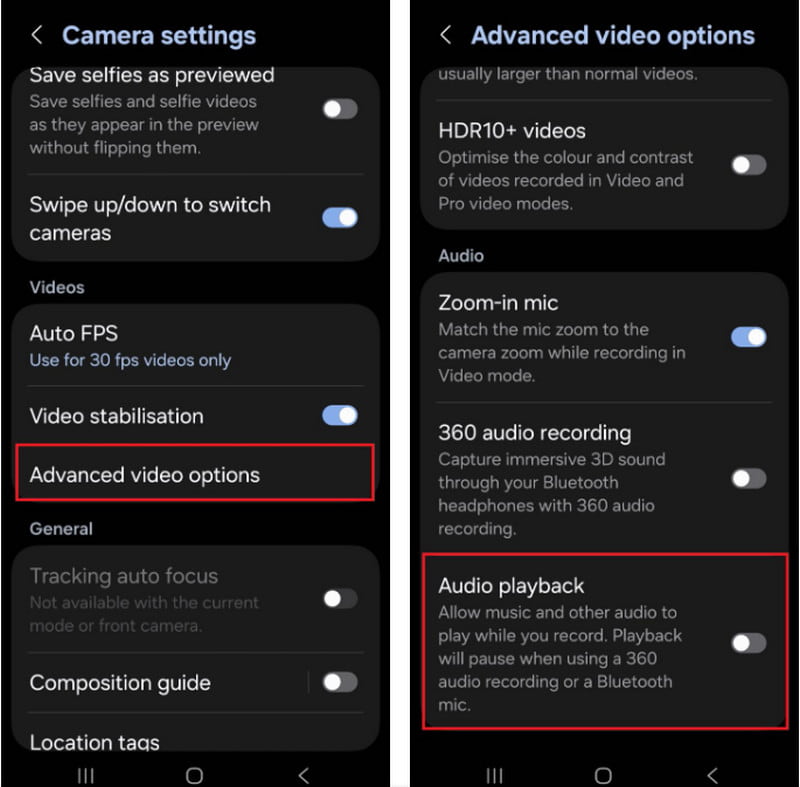
Schritt 3Aktivieren Sie die Audiowiedergabe.
Schritt 4Öffne einen Song auf Spotify, YouTube Music oder einer anderen App.
Schritt 5Öffne das Kamera App öffnen und Aufnahme starten.
Methode 2: Verwendung des Google Pixel Bildschirmrekorders
Der in Google Pixel-Smartphones integrierte Bildschirmrekorder ermöglicht auch die Aufnahme des internen Tons. Er ist primär für Bildschirmaufnahmen gedacht, kann aber während der Aufnahme auch Musik abspielen. Das ist besonders hilfreich für Tutorials, Gameplay-Demonstrationen und App-Vorführungen mit Hintergrundmusik.
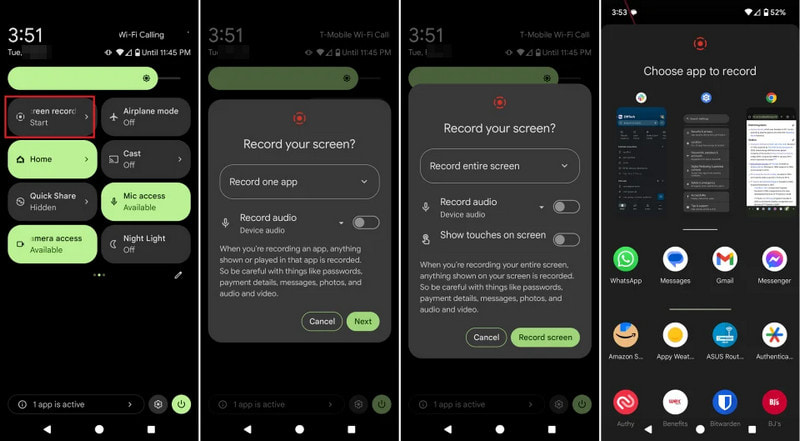
Schritt 1 Tippen und ziehen Sie vom oberen Bildschirmrand nach unten.
Schritt 2Wählen Sie den bereits verfügbaren Bildschirmrekorder aus.
Schritt 3Wählen Sie zwischen interner und Geräte-Audioaufnahme.
Schritt 4Um die Musik abzuspielen, klicken Sie auf Ihre bevorzugte Musik-App.
Schritt 5Starten Sie die Bildschirmaufnahme.
Methode 3: Verwendung einer Drittanbieter-App
Aufnahme-Apps von Drittanbietern wie Background Video Recorder sind auf Android weit verbreitet, da sie mit einer Vielzahl von Smartphone-Marken und Android-Versionen kompatibel sind. Viele dieser Apps bieten Audiowiedergabe im Hintergrund und zusätzliche Aufnahmeoptionen wie HD-Videoqualität, manuelle Steuerung, Filter und Stabilisierung. Sie sind besonders hilfreich für Nutzer, die mehr Aufnahmeoptionen benötigen als die integrierte Kamera-App bietet, insbesondere für diejenigen, die … einen Podcast aufnehmenTutorials, Vlogs oder Social-Media-Inhalte mit besserer Audio- und Videoqualität.
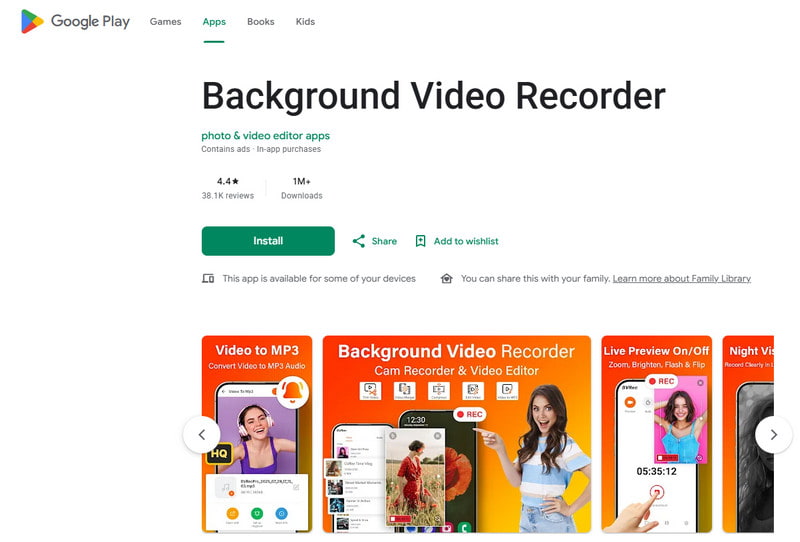
Schritt 1Installieren Sie Background Video Recorder aus dem Google Play Store.
Schritt 2Erlauben Sie den Zugriff auf Ihre Kamera, Ihr Mikrofon und Ihren Speicher, wenn Sie dazu aufgefordert werden.
Schritt 3Öffne Spotify, YouTube Music oder eine andere Musik-App und starte deine Playlist.
Schritt 4Starten Sie den Rekorder und passen Sie gegebenenfalls die Videoqualität oder die Audioeinstellungen an.
Schritt 5Tippen Sie auf die Aufnahmetaste, während Ihre Musik im Hintergrund weiterläuft.
Teil 3. Warum pausiert mein iPhone die Musik, wenn ich mit der Aufnahme beginne?
Einige iPhone-Nutzer berichten, dass ihre Musikwiedergabe beim Aufnehmen eines Videos plötzlich stoppt. Dies liegt daran, dass bei iOS-Geräten das Kameramikrofon immer zuerst für die Audioaufnahme und nicht für die Medienwiedergabe verwendet wird. Dieses Verhalten ähnelt dem von Software, die Sprachaufnahmen auf dem Mac Die Mikrofonaufnahme wird während der Aufnahme priorisiert. Je nach iPhone-Modell und iOS-Version können verschiedene Ursachen für dieses Problem vorliegen.
- Die Kamera-App übernimmt die Audiosteuerung: Die Kamera-App priorisiert automatisch das Mikrofon für Videoaufnahmen, um die beste Audioqualität zu gewährleisten.
- Ältere iOS-Versionen sind mit Einschränkungen verbunden: In den meisten Fällen wird die Musikwiedergabe bei Videoaufnahmen unter iOS 17 und älteren Versionen automatisch pausiert.
- Musikwiedergabe im Hintergrund ist nur bei einigen Musik-Apps möglich: Bei einigen Streaming-Anwendungen kann es vorkommen, dass die Wiedergabe vorübergehend unterbrochen wird, wenn eine andere Anwendung die Audioaufnahmeeinstellungen verwendet.
- Bluetooth-Geräte können Konflikte verursachen: Kabellose Ohrhörer oder Lautsprecher können während Aufnahmen ablenken.
- Der Batteriesparmodus kann Störungen verursachen: Der Energiesparmodus kann Hintergrundprozesse wie die Musikwiedergabe einschränken.
Teil 4. Musik stoppt oder spielt nicht ab [Schnelle Lösungen]
| Problem | Schnelle Lösung |
| Die Musik pausiert unmittelbar nach Beginn der Aufnahme. | Verwenden Sie die QuickTake-Methode oder aktivieren Sie die integrierte Wiedergabefunktion in den Kameraeinstellungen. |
| Während der Aufnahme darf keine Musik gespielt werden. | Starten Sie sowohl die Kamera- als auch die Musik-App neu und versuchen Sie dann erneut, eine Aufnahme zu machen. |
| Bluetooth-Audioverbindung unterbrochen. | Verbinden Sie Ihre kabellosen Ohrhörer oder Ihren Lautsprecher erneut, nachdem Sie Bluetooth aus- und wieder eingeschaltet haben. |
| Drittanbieter-Aufnahmegerät funktioniert nicht. | Aktualisieren oder installieren Sie die Aufnahme-App neu, um mögliche Kompatibilitätsprobleme zu beheben. |
| Die Musikwiedergabe auf meinem iPhone stoppt immer noch. | Starten Sie Ihr iPhone neu und installieren Sie das neueste verfügbare iOS-Update. |
| Im aufgenommenen Video ist kein Ton zu hören. | Stellen Sie sicher, dass die Mikrofonberechtigungen sowohl für die Kamera- als auch für die Musik-App aktiviert sind. |
Teil 5. Wie wäre es mit der Verwendung eines professionellen Bildschirmrekorders?
AVAide Screen Recorder ist eine professionelle Bildschirmaufnahmesoftware für alle, die flüssigere und qualitativ hochwertigere Aufnahmen unter Windows und Mac bevorzugen. Sie zeichnet System- und Mikrofon-Audio, Webcam-Video und sogar den Bildschirm in hoher Qualität auf. Die Software eignet sich besonders gut für die Erstellung von Tutorials, Spielvideos, Reaktionsvideos, Online-Kursen und Videopräsentationen – ruckelfrei und ohne komplizierte Einrichtung.
- Nehmen Sie Videos in bis zu 4K- oder 1080p-Auflösung mit flüssiger und stabiler Leistung auf.
- Nehmen Sie gleichzeitig interne Audio- und Mikrofontöne auf, um klarere Aufnahmen zu erzielen.
- Wählen Sie zwischen Vollbildmodus, ausgewähltem Fenster oder einem benutzerdefinierten Aufnahmebereich.
- Webcam-Aufnahmen erstellen oder iPhone- und Android-Bildschirme spiegeln und erfassen – ganz einfach.
- Fügen Sie während der Aufnahme Anmerkungen hinzu und bearbeiten oder kürzen Sie Videos direkt nach der Aufnahme.

 Sicherer Download
Schritt 1Installieren Sie den AVAide Screen Recorder
Besuchen Sie die offizielle AVAide-Website und laden Sie die Windows- oder Mac-Software herunter. Installieren Sie das Programm und führen Sie es anschließend aus.
Schritt 2Wählen Sie den Aufnahmemodus.
Um Ihre Bildschirmaktivitäten aufzuzeichnen, klicken Sie auf die Schaltfläche Bildschirm recorder Option vom Hauptbildschirm aus.
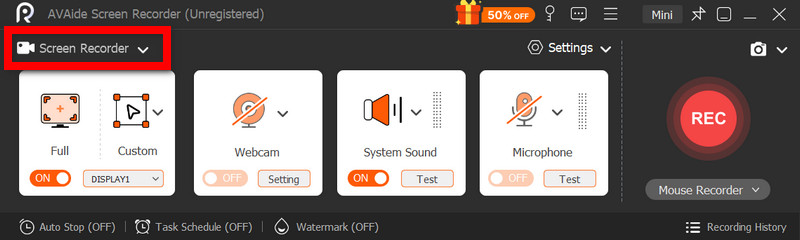
Schritt 3Wählen Sie den Aufnahmebereich
Wählen Voll oder Brauch Aufnahmemodus nach Bedarf.
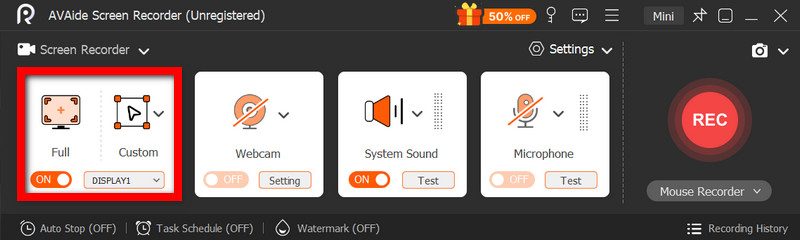
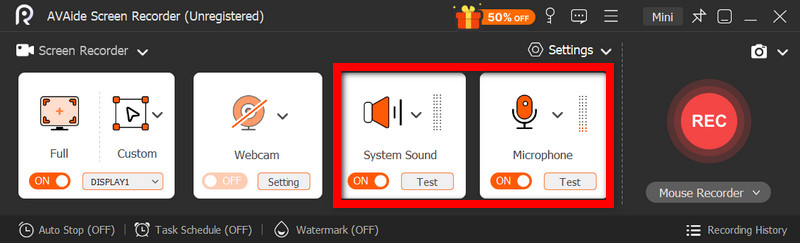
Schritt 4Audioquellen aktivieren
Wenn Sie Ihre Stimme aufnehmen möchten, schalten Sie die Mikrofon; Wenn Sie den internen Ton aufnehmen möchten, wählen Sie Systemton.
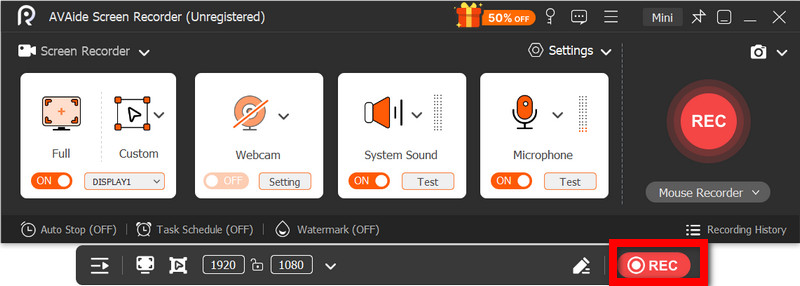
Schritt 5Starte die Aufnahme
Drücke den AUFN Taste zum Aufzeichnen Ihrer Bildschirm-, Video- oder Audioaktivitäten.
Schritt 6Aufnahme bearbeiten und speichern
Wenn der Vorgang abgeschlossen ist, drücken Sie die Taste Stoppen Klicken Sie auf die Schaltfläche. Sehen Sie sich das Video an, um einen allgemeinen Eindruck zu bekommen, bearbeiten Sie es bei Bedarf kurz und speichern Sie es dann auf dem Computer.
Musik abspielen während der Aufnahme Viele Nutzer haben damit Schwierigkeiten, wenn sie Videos für soziale Medien oder den privaten Gebrauch erstellen. Mit den richtigen Einstellungen, Methoden oder Tools können sowohl iPhone- als auch Android-Nutzer problemlos Videos aufnehmen, ohne die Hintergrundmusik zu unterbrechen.
ÜBER DEN AUTOR

Erfassen Sie Bildschirmaktivitäten mit Audio, Online-Meetings, Gameplay-Videos, Musik, Webcam usw.
Bildschirmaufnahme
- Bildschirmaufnahme unter Windows
- Instagram Live aufnehmen
- Rippen Sie Videos von Tubi
- Konvertieren Sie YouTube-Videos in MP3
- Laden Sie Videos von Fansly herunter
- Herunterladen von JW Player-Videos
- Laden Sie Bilibili-Videos herunter
- Patreon-Videos herunterladen
- SpankBang-Videos herunterladen
- Discord-Videos herunterladen
- DoodSream-Video herunterladen