Popular games like God of War Ragnarok, Spider-Man: Miles Morales, and Call of Duty: Modern Warfare II are just some of the exciting titles you can play on PS5. Are you one of those playing these games?
While playing these games, you might want to capture your best moments or share your gameplay with others. If so, this write-up has you covered. It will show you how to record on PS5, as well as how to take screenshots.
Are you ready? It is going to be exciting!
Part 1: How to Record on PS5 in HD
You just pulled off an amazing move on your PS5 and want to share the moment with friends or online. Good thing, AVAide Screen Recorder lets you capture your gameplay in HD and 4K, showing everything on your screen clearly. Your voice is synced, so viewers can hear both the game sounds and your commentary while you play.
In addition, it supports webcam recording, letting people see your reactions when you get excited. You can save your recordings in MOV, MP4, and AVI and share them instantly. But you will need a capture card and HDMI cables to record directly on your computer. Once set up, you can create high-quality gameplay videos easily.
- Record games in full HD at up to 60 fps.
- Set start and end times for automatic recording.
- Record long gameplay sessions without interruptions.
- Record videos without any watermark for clean results.
- Trim, merge, compress, convert, or boost audio after recording.

 Secure Download
Follow the steps below to learn how to record on PS5 in HD using AVAide Screen Recorder:
Step 1Go to the Settings section on your PS5. Find the HDCP option and turn it off. This step is essential because HDCP can block your video signal, and your capture card will not record the gameplay if it is still on.

Step 2Take your first HDMI cable and plug it into the HDMI In port of your capture card. Next, connect the other end to your PS5. Then, use the second HDMI cable and plug it into the HDMI Out port of the capture card. After that, connect the other end to your TV or monitor. It gives you a clear HD passthrough.
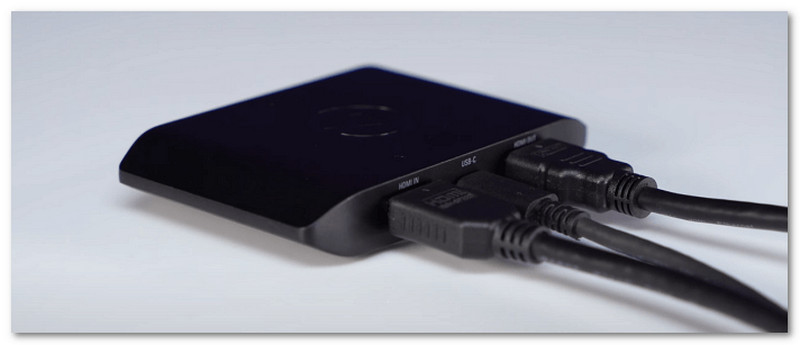
Step 3Plug the capture card into your computer with the USB cable included. Make sure all cables are tight. Once everything is set, your capture card should show the PS5 screen on your computer.
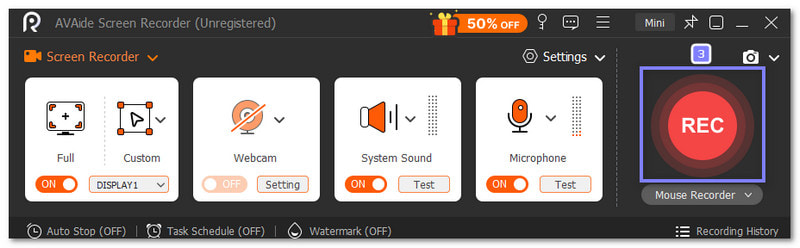
Step 4It is time to use AVAide Screen Recorder. On the main screen, choose whether you want to record your full screen or only a custom area. It would be best to select Full for complete gameplay.
Next, please move to the System Sound option and turn it on so the program records the audio from your PS5. Of course, you can also turn on the Microphone option if you want to add your voice while playing. If you want your face to appear in the video, you can turn on the Webcam option as well.
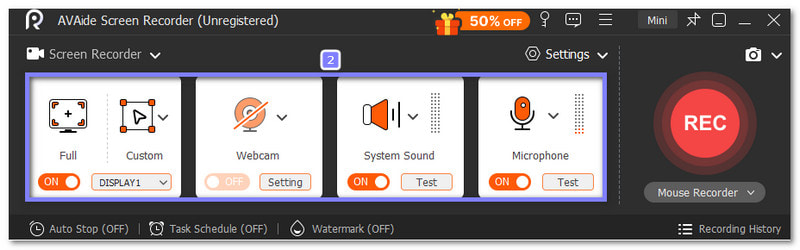
Step 5Once everything is settled, press the REC button to start recording your PS5 gameplay in HD. Play your game like normal. If you want to capture any moments while recording, you can use the Snapshot button to take screenshots. Once you finish, hit the Stop button, and AVAide Screen Recorder will show a preview.
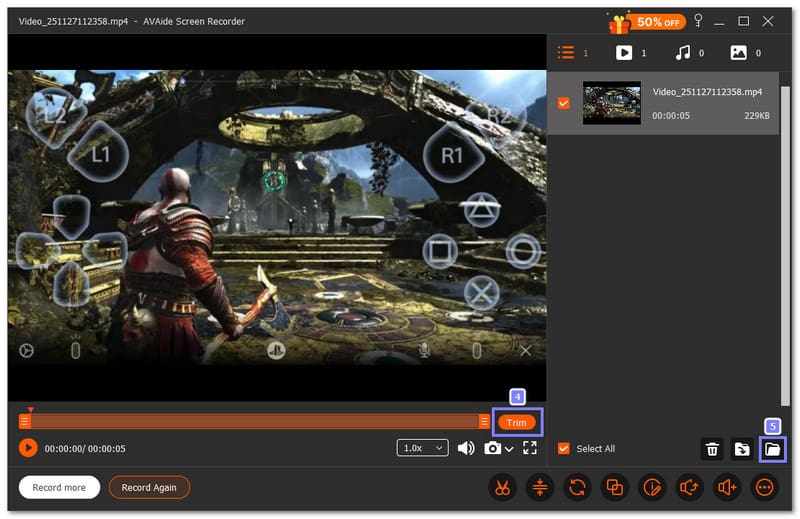
Step 6After watching your gameplay, if you spot parts at the start or end that you do not need, you can use the Trim option to remove them. Once everything looks good, press the Export button to save your HD gameplay recording to your computer.
- If you are a Steam player, you can also use AVAide Screen Recorder to record your Steam gameplay in HD with audio and webcam.
Part 2: How to Record Gameplay on PS5 with Built-in PS5 Game Recorder
The PS5 has a built-in game recorder that lets you save gameplay from 15 seconds up to 1 hour, which makes it easy to master how to record gameplay on PS5 for YouTube or any platform you like. It captures your screen, your microphone audio, and even party chat if you turn it on. If this built-in recorder fits your needs, the steps below will guide you through the whole process.
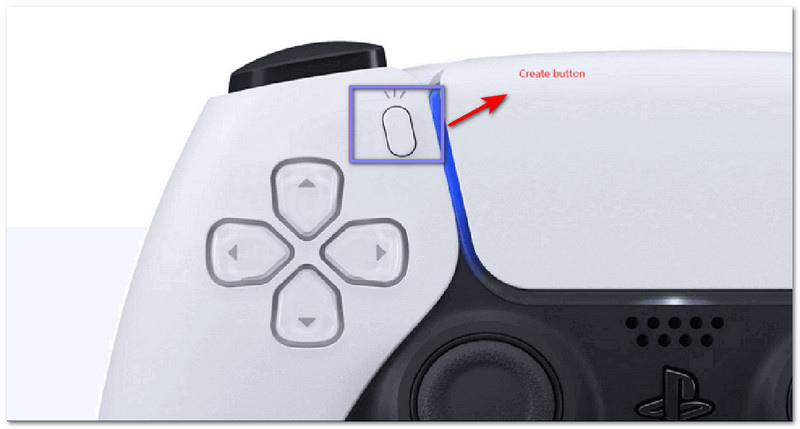
Step 1Start your PS5 and open the game you want to play. Once you want to record your gameplay, press the Create button on your DualSense controller. A small recording menu will appear on the screen. It lets you choose what you want to do, like taking clips or screenshots.
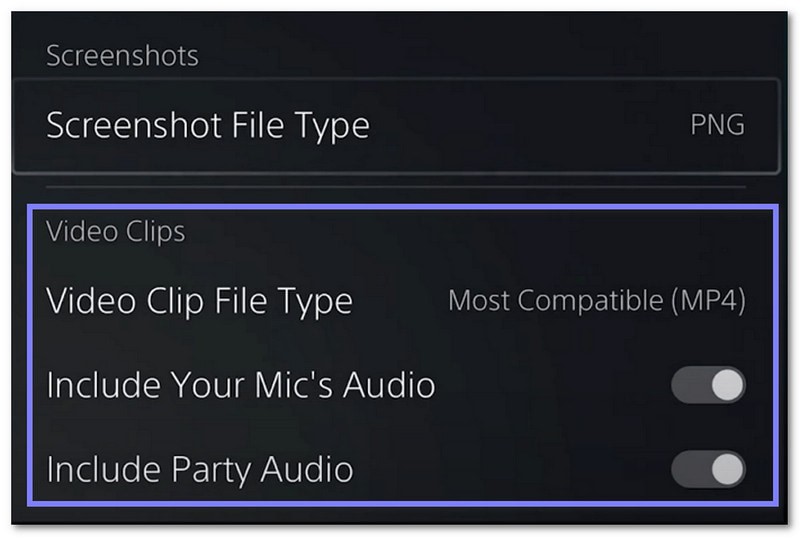
Step 2Go to the Capture Options button in the bottom-right corner of the menu. It is where you can change your recording settings. You can pick your Screenshot File Type, your Video Clip File Type, and choose if you want to Include Your Mic's Audio or Include Party Audio.
Step 3Look at the center-bottom part of the menu. To record your gameplay, pick Start New Recording, then press X. The PS5 will start recording right away. You can now play, and the system will save everything on the screen.

Step 4So, how to stop gameplay recording on PS5? Just press the Create button again, and the menu will show up like before, and then choose the option to stop the recording.
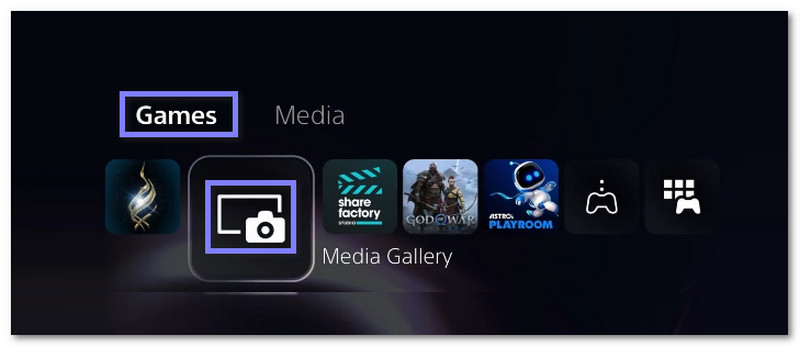
Step 5Go back to the Home screen and open Games > Media Gallery. It is where all your PS5 recordings and screenshots are stored. You can open a clip and choose to share, edit, delete, or add it to Favorites. It makes it easy to manage everything you recorded with the built-in PS5 game recorder.
Part 3: How to Screenshot on PS5
You are done with learning how to screen record on PS5, but what about taking screenshots?
The Create menu gives you a fast way to grab a picture of whatever is on your screen. The system stores everything in the Media Gallery, so you can check your screenshots right after you take them.
Step 1Pick up your DualSense controller and press the Create button. It will open the Create menu on your screen.
Step 2In the Create menu, look for the Take Screenshot option. Choose it to capture the screen you are looking at, and the PS5 will save the screenshot right away.
Step 3Press the Create button again if you need another screenshot. You can take as many as you need. The system saves each one in the same place, so you do not lose anything.
Step 4Once you are done, go to your Media Gallery on the PS5 home screen. It is where all your screenshots are stored. You can open them, share them, edit them, or delete the ones you do not want.

Additional Details: If your screenshot is saved as PNG and you want to convert it, changing your screenshot to JPG is easy. You can rely on many image converters on different devices to do it.
These days, you can easily record your PS5 gameplay because it has a built-in game recorder, which is really amazing. You also learned how to record PS5 gameplay on PC using AVAide Screen Recorder.
It can capture anything on your screen with audio, has no time limit, and even lets you add your face while playing. That makes your videos more fun and personal. It is impressive and will surely wow anyone you share your gameplay with!
Record screen, audio, webcam, gameplay, online meetings, as well as iPhone/Android screen on your computer.