You find the perfect photo, but when you enlarge it, it turns fuzzy and jagged. Frustrating, right? Comprehending how to enlarge an image without losing quality prevents that disappointment. Even the tiny file can be turned sharp and clear with the help of the right tools and techniques. This article demonstrates why it matters in terms of the quality of the image, gives a walkthrough of the free online options, discusses the Photoshop techniques, and provides professional tips on how to preserve all the details.
Part 1: Why Enlarging Images Without Losing Quality Matters
When it comes to small pictures, it is easy to ignore them, and when you are in need of them for a big problem, problems soon become apparent. Blow up an image sloppily, and the details are lost, the edges are pixelated, and what was previously something perfect begins to feel amateurish. To every individual involved with images, be it a site on the web, social media or print, it is not an option to have images that are sharp instead of blurred. This is the reason why quality is important:
1. Professionalism Starts with Clarity
Using an image enlarger without losing quality, which is the reason why your vision is clear and sharp. Smart or pixelated photos can render even a well-thought-out work to look sloppy.
2. Details Make a Difference
When you enlarge an image without losing quality, textures, lines, and small elements stay intact. Every detail contributes to a polished, high-quality result.
3. Printing Demands Precision
If you want to know how to enlarge an image without losing quality for print, then it is vital to maintain resolution. Poor quality enlargements will create blurred images that reduce the effect.
4. Viewer Engagement Improves
People respond to sharp visuals. Using an enlarge image without losing quality online keeps images clear and engaging, ensuring your audience notices every detail.
5. Brand Consistency Relies on Sharpness
When you enlarge images without losing quality, logos, product photos, and graphics retain their integrity. Platform consistency builds your brand awareness.
6. Efficiency Saves Time
Choosing the right method, such as enlarging an image without losing quality online for free, reduces rework. Clearly defined pictures at the beginning save time and frustration.
Enlarging images without losing quality is not just a technical skill; it is a cornerstone of effective visual communication. In the next sections, you will discover free online tools and Photoshop techniques to make your images bigger while keeping every detail intact.
Part 2: How to Enlarge an Image Without Losing Quality Free Online
When you need to make a small photo larger without losing sharpness, using AI to enlarge the image without losing quality is the fastest solution. AVAide Image Upscaler is an unrestricted online tool that can enlarge images up to 8x while keeping edges crisp, colors vibrant, and details intact. All you need to do is upload a photo, select a size and leave AI to do the rest. It works best in social media posts, presentations, or individual projects by producing quality results in a matter of seconds and without any complex software.
Step 1Open a browser on your iPhone or computer and go to the AVAide Image Upscaler website.
Step 2Click Choose a Photo and upload the image you want to enlarge. This can be a small or slightly blurry photo that you need to be sharper.
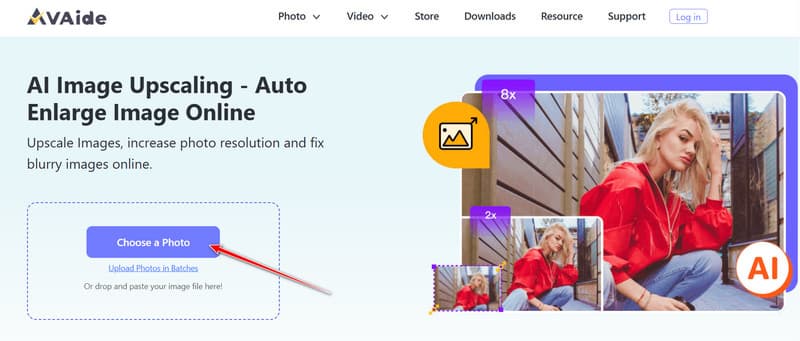
Step 3Select the magnification level you want. The AI will automatically enhance and upscale your image. Once the process is complete, click Save to download the high-quality version.
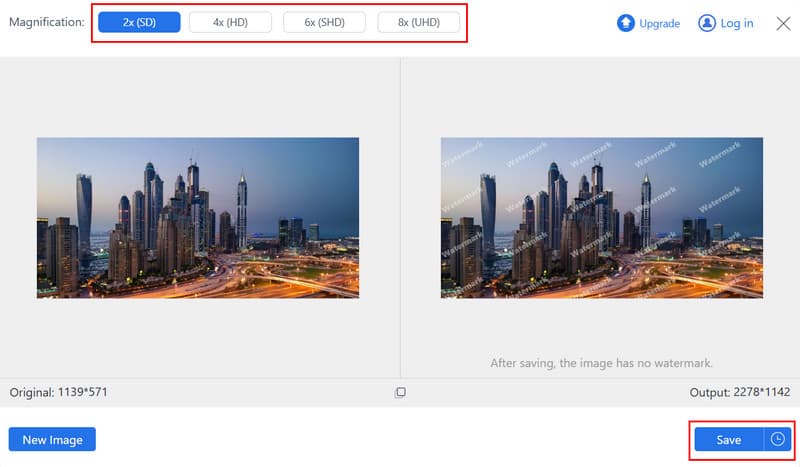
With just three steps, you can turn any small or blurry image into a crisp, professional-looking visual without any technical skills.
Part 3: How to Enlarge Images in Photoshop Without Losing Quality
If you are searching for the best way to enlarge an image without losing quality, Photoshop offers unmatched control and precision. In comparison to other basic resizing tools, Photoshop photo editor has better resampling algorithms capable of intelligently creating new pixels and maintaining textures, edges and clarity. This is perfect for designers, professionals in the printing industry and any other person who requires professional-level output when upscaling pictures.
Step 1Open your picture in Photoshop, go to Image > Image Size. This will open the dialog for resizing; all the adjustments are made here.
Step 2Check the Resample box. This enables Photoshop to recalculate pixels and enlarge the image while maintaining detail instead of stretching it.
Step 3Select Preserve Details (Enlargement) as the resampling method. This tells Photoshop to enhance and preserve fine details for the clearest results.
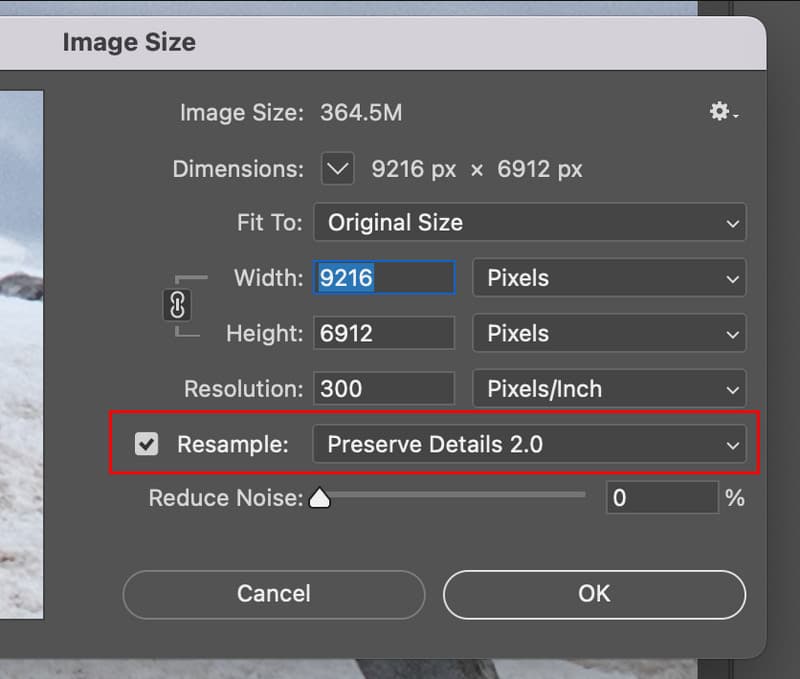
Step 4Choose width and height accordingly and select the resolution, 300 DPI to print or 72 DPI to web, and click on OK. Photoshop will enlarge without diminishing the blur or pixelation.
By following these steps, you can confidently enlarge images without losing quality, ensuring they remain sharp, detailed, and professional, whether for print or digital use.
Part 4: Tips When Enlarging Images Without Losing Quality
To enlarge the images without any loss of quality, it needs the correct strategy, exact adjustments, and effective tools. The following are some of the tips that you can use in order to ensure your visuals are sharp and professional:
1. Start with the Highest-Quality Source
The clearer your original image, the better you can enlarge an image without losing quality. Sometimes it is a low-resolution file that restricts the extent to which you can magnify before the details start to be blurred.
2. Use AI-Powered Tools When Possible
Modern AI tools, often called image enlargers without losing quality, can intelligently add pixels and restore details automatically, giving sharper results than traditional methods.
3. Avoid Scaling Too Much at Once
Enlarging an image gradually in steps helps software preserve edges and textures, making it easier to enlarge the image without losing quality.
4. Choose the Right File Format
Work with lossless or high-quality formats like PNG or TIFF. This ensures that enlarging an image online for free without losing quality produces the best results.
5. Pay Attention to Compression
Avoid saving in heavily compressed formats during editing. Compression reduces detail and can make it harder to enlarge the image in Photoshop without losing quality or with any tool.
6. Preview at Full Size
Always view your big picture in full size. This is used to detect any blur, pixelation or artifacts before it is used.
7. Keep Adjustments Subtle
After enlargement, subtle sharpening or contrast adjustments help retain natural appearance without introducing unwanted artifacts.
These are some of the tips that will ensure that you always produce high-quality enlargements, whether you are using online tools, AI upscalers, and so on.
Blurry or pixelated images no longer have to limit your creativity. Knowing how to enlarge an image without losing quality gives you the power to turn small visuals into crisp, professional-looking graphics for any purpose. In addition, you can also count on AI solutions, free online upscalers, or intelligent resizing methods; the correct method will retain all the details, color, and edges. Using the tips provided in this guide, you will be assured of producing good-quality pictures that appear to be sharp and refined, regardless of the size or platform.

Our AI technology will automatically enhance the quality of your images, remove noise and fix blurry images online.
PROCESS NOW