Unpixelate images and restore clarity to blurry or low-resolution photos using modern tools and apps. Pixelated pictures can make memories, products, or creative projects appear unclear, but AI-powered solutions make enhancement simple. From online tools like AVAide Image Upscaler to Photoshop and mobile apps for iOS and Android, this guide covers the best tools and step-by-step methods to sharpen, enhance, and bring your photos back to professional quality.
Part 1. What is the Meaning of Unpixelating Image?
Unpixelating an image is a specific action aimed at correcting a digital image that is pixelated by making it clearer and adding more detail. Digital images are a set number of pixels that exist in tiny squares of color. In a pixelated image, the squares are visible due to an overly aggressive zoom, a heavily compressed image, or a low-resolution image.
There are a number of methods a software tool could employ to unpixelate an image, including sharpening, AI enhancement, upscaling, or noise reduction. Unfortunately, none of these methods can fully restore details in images. In order to losslessly restore an image to the sharpness of the original, more details would have to be provided. However, these AI methods can guess the details to help it be a clearer version of itself and restore the image to something approximating the original.
Part 2. The Best Way to Unpixelate an Image
Thanks to its innovative AI technology, AVAide Image Upscaler can instantly improve resolution, restore details, and smooth blocky areas, making it one of the best tools for unpixelating images. It can enhance images that are small and blurry by a factor of 8 while remaining crisp and clear. This makes it perfect for product photos, portraits, graphic designs, and any other images that might be heavily pixelated. It is completely free, and because it works entirely in the browser without registration, installation, or enabling a watermark, it is very accessible for everyone.
Key Features:
- • Enlarges pixelated images and rebuilds lost details for a sharper result.
- • Fixes pixel blocks, noise, and blur in low-resolution photos instantly.
- • Recovers textures, outlines, and details for more realistic images.
- • Uploads common formats without needing conversion or extra tools.
- • Downloads clean, watermark-free photos for printing, social media, or business use.
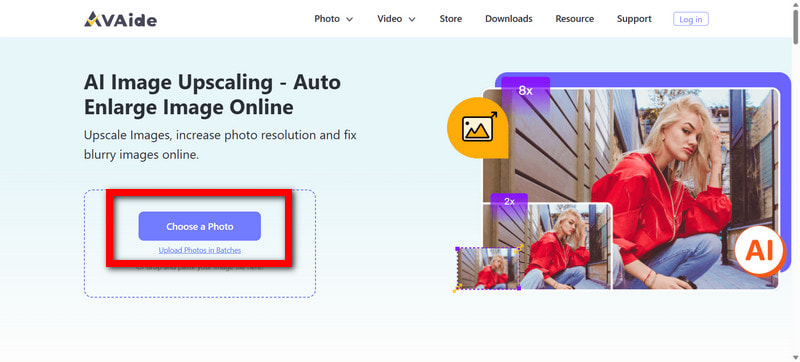
Step 1Head to the official AVAide Image Upscaler Website
No downloading or installing is necessary. Just open any browser and navigate to the official AVAide Image Upscaler webpage.
Step 2Upload the Pixelated Image
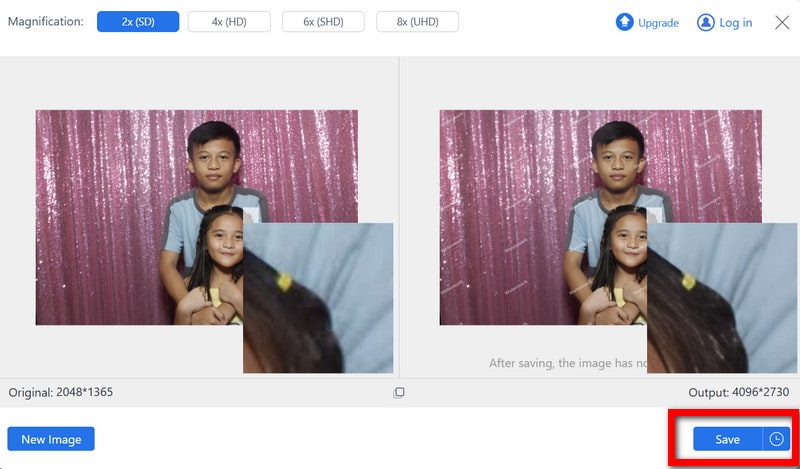
Click Choose a Photo to find the blocky or blurry image in your storage. AVAide Image Upscaler supports JPG, JPEG, and BMP image formats.
Step 3Select Your Preferred Upscale Level
You can resize images by 2×, 4×, 6×, or 8× larger than the original. For images that are heavily pixelated or of very low resolution, it is advised to select a higher value.

Step 4Allow the AI to Enhance the Image Automatically
The second you finish uploading your picture, it will start to work on:
- • Remove Pixelation
- • Sharpen Edges
- • Restore Fine Details
- • Reduce Noise
- • Improve Clarity and Resolution
A preview of the enhanced version should load immediately.
Step 5Download Your Improved Image
Once you have made successful edits to your photo, click Save to save the improved photo to your computer. These edits are watermark-free, so you can use the photo anywhere you would like.
Part 3. How to Unpixelate an Image with Photoshop
Photoshop has powerful tools you can use to edit your image manually. You are able to decrease the pixelation, sharpen any edges, and recreate any details that were lost in the image. Unlike the tools that are able to edit automatically, Photoshop gives you control over the editing, making it a better option for people who like to have control over their editing.

Step 1Open the program and the image of your choice. You can do this by going to File > Open and selecting the pixelated image you want to enhance.
Step 2Up next, select the noise and try to reduce it. You can do this by going to Filter > Noise > Reduce Noise. You will want to smooth the image out by adjusting the noise, Smart Sharpen, and the details.
Step 3You will see a Filter option, go to that and select the Sharpen and Smart Sharpen.
Step 4For the final edit, go to Image > Image Size, select Preserve Details 2.0, and increase the resolution in the image.
Step 5You can use any of the tools (Blur Tool, High Pass Filter, and Camera Raw Filter) to reduce any unevenness in the skin.
Part 4. How to Unpixelate an Image on iOS and Android
Photo enhancement tools that reduce noise, sharpen images, and enhance low-quality images by using AI are available on mobile applications. Millions of users rely on the apps listed below that provide instant photo enhancements.
Use PhotoDirector (iOS)
PhotoDirector is an AI tool mobile application that is highly rated for enhancing resolution and restoring low-quality images, and reducing blurriness. PhotoDirector is an AI tool mobile application that enhances, improves, and restores low-quality images, reduces blurriness, and can add pixels to photos for better clarity.
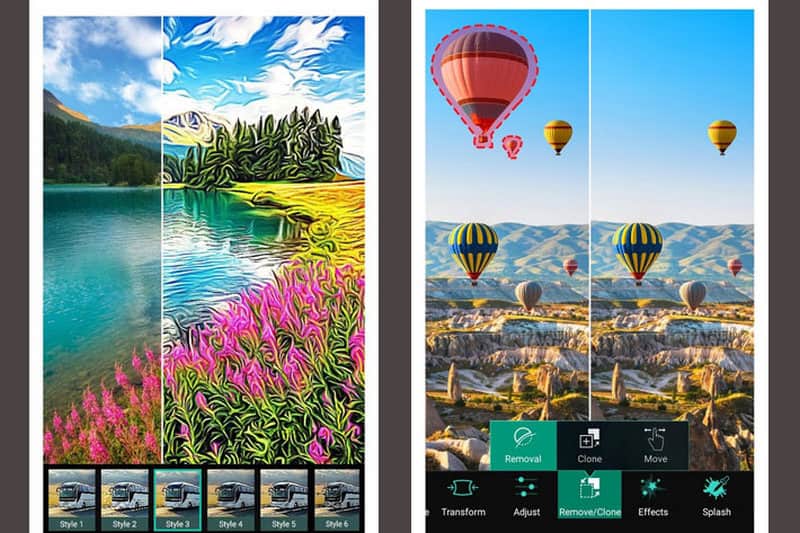
Step 1You must download the application from the App Store and open it.
Step 2Click the AI Enhance button on the interface.
Step 3You must choose the image that is blurred from your collection.
Step 4The AI system must automatically analyze the image.
Step 5The image must be saved on your phone, or you can post it directly from the application on any social media platform.
Use Remini (Android)
Remini is a popular AI-powered mobile pixel enhancer app that restores and improves low-quality images. It reduces pixelation, sharpens details, and enhances clarity in just a few seconds, making it ideal for fixing blurry or pixelated photos on Android devices.
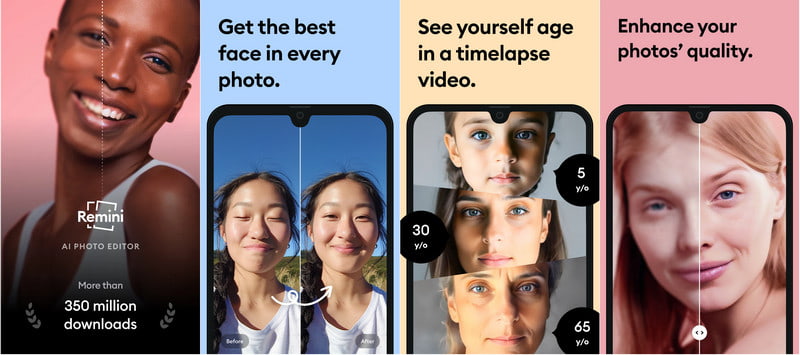
Step 1Download Remini from the Google Play Store and open the app on your Android device.
Step 2Tap Enhance in the app’s main menu.
Step 3Select the pixelated image from your gallery that you want to restore.
Step 4Allow the AI to automatically analyze the photo, reduce pixelation, and sharpen details.
Step 5Save the enhanced image to your device or share it online.
Learning how to unpixelate an image allows you to restore clarity and detail to blurry or low-resolution photos quickly. Whether using AI-powered online tools, professional software like AVAide Image Upscaler, Photoshop, or mobile apps for iOS and Android, these methods make it easy to enhance, sharpen, and improve your images for any purpose.

Our AI technology will automatically enhance the quality of your images, remove noise and fix blurry images online.
PROCESS NOW