Upscale the image to 4K not only makes the sharpness, resolution, and visual detail better, but it also keeps colors and textures intact. Many images look blurry or pixelated on modern screens. This makes them hard to use for printing, design, or digital projects. You can fix this with online tools or software like Photoshop and GIMP. This guide gives clear steps for desktop and mobile users. You will learn free and paid ways to make any image crisp. Each method keeps the original details and clarity.
Part 1: What Is a 4K Image?
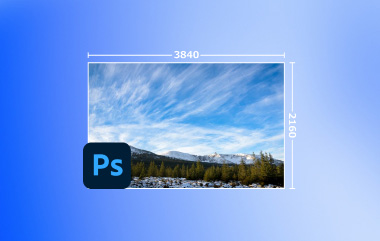
A 4K image is a picture with extremely high resolution, which is digital. It is approximately 3,840 pixels wide and 2,160 pixels tall. This resolution provides more detailed and smooth edges as well as colors compared to the normal HD images. Many creators now want to make the image 4K to ensure their visuals look crisp on large screens, professional prints, and digital projects.
Enhancing image quality often involves tools and techniques to enhance photo 4K. These methods increase pixel count while keeping textures, colors, and edges accurate. You can also convert a picture to 4K using trusted software or online platforms. This helps maintain clarity even when images are enlarged.
• The resolution of the original is higher, the better it is when converting it to 4K.
• Trustworthy applications can make an image 4K without any sharpness or detail loss.
• By keeping dimensions in proportions, make sure that your improved photo looks natural.
• The processing of high-resolution images takes more space and computing power to execute.
• Intelligent or AI-based algorithms are used to preserve textures, edges, and color fidelity when you improve a photo to 4K.
Following these guidelines ensures your images are sharp, professional, and high-quality. In the next section, we will show the best free online methods to enhance an image 4K quickly and easily, without compromising detail.
Part 2: The Best Way to Upscale an Image to 4K Free Online
If you want to convert an image to 4K resolution online for free, AVAide Image Upscaler is a reliable and easy-to-use tool. It allows you to upscale an image to 4K while maintaining sharpness, enhancing colors, and reducing noise. The tool also keeps batch conversion so that you can improve multiple photos at once. Its automatic color correction, noise reduction, and intelligent upscaling ensure that every image you enhance looks sharp, vibrant, and professional.
Step 1Open AVAide Image Upscaler in your browser. Click the Choose a Photo button and choose the image you want to enhance from your device.
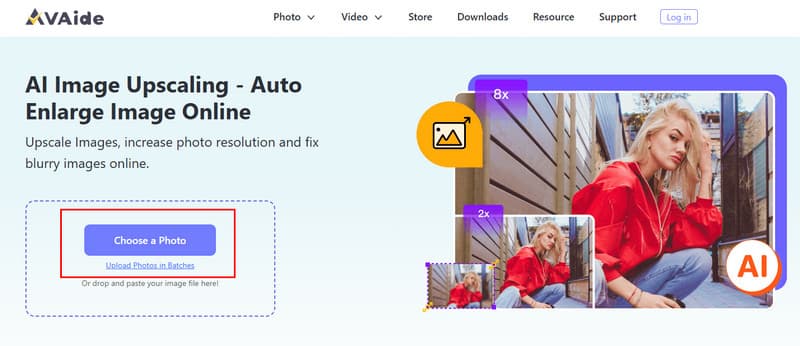
Step 2After uploading, you can choose the desired upscaling level to make your image sharper and more detailed. The tool offers several magnification options to ensure your photo looks professional and clear at 4K resolution.
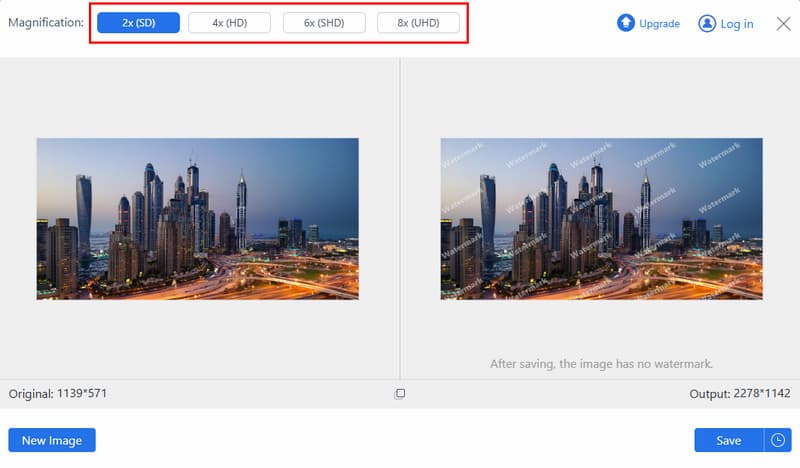
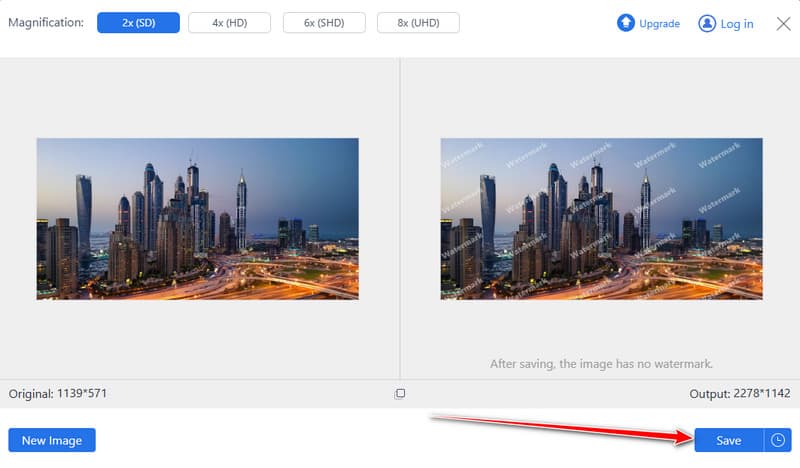
Step 3After you are comfortable with the preview, you are then allowed to save your upscaled image by clicking on the Save button.
Part 3: How to Convert an Image to 4K with Photoshop
Adobe Photoshop is an enhanced tool when the user needs to have fine control over the quality of the image. It lets you convert an image to 4K while keeping details sharp, colors vibrant, and textures intact. Photoshop will enable you to edit all the features of your image, unlike online upscalers, which are only used to produce good results that are not professional. It can recognize every typical format, such as JPG, PNG, BMP, and TIFF.
Step 1Install the latest version of Adobe Photoshop and launch it. Click File and select Open to add the image you want to convert to 4K.
Step 2Go to the top menu, click Image, and select Image Size. This is where you can adjust the resolution and dimensions of your photo.
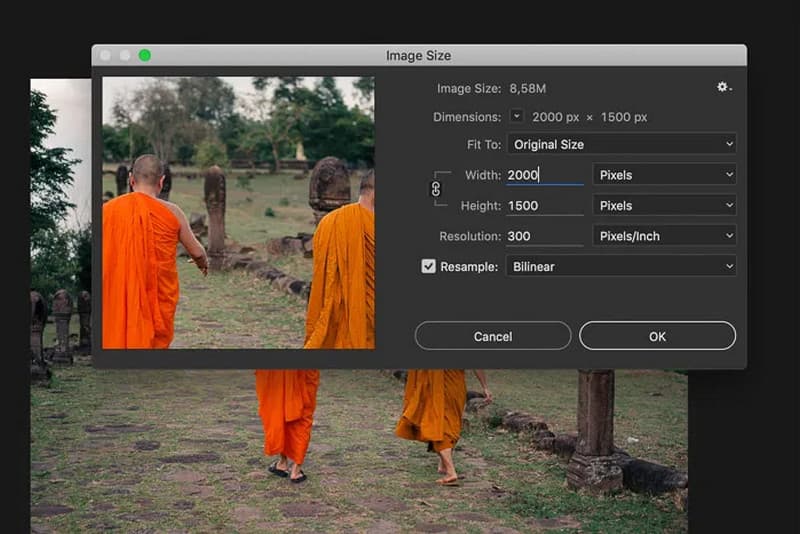
Step 3Make sure Resample is checked. Select any one of the algorithms listed in the menu, such as Bicubic Sharper, to increase the size of your picture and maintain its clarity and sharpness.
Step 4Enter 3840 pixels for width and 2160 pixels for height. Ensure that the chain icon is connected so as not to lose the aspect ratio. Click on OK, and export the image. Additionally, you can also use Photoshop to fix blurry pictures you have with its advance editing features.
Part 4: How to Convert an Image to 4K on iPhone and Android
For mobile users, Picwand AI Photo Editor is a convenient tool to make images 4K directly on your iPhone or Android device. The editor allows you to upscale images while enhancing details. It also offers other features such as background removal and watermark editing, making it a versatile choice for mobile image enhancement.
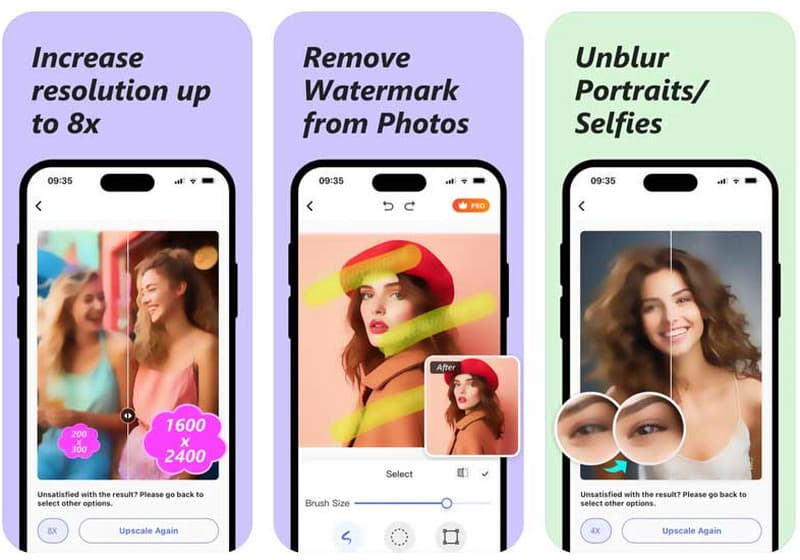
Step 1Download Picwand AI Photo Editor from the App Store or Google Play Store. Open the app and select the AI Photo Editor feature. Tap Add Photo and allow access to your photo library.
Step 2Choose the photo you want to upscale. Picwand will automatically enhance it. You can slide the preview to compare the original and upscaled image.
Step 3Tap the options you need to enlarge your image to the desired resolution. When done, tap Download to save the photo to your device, or use Share to send it directly.
Part 5: How to Convert an Image to 4K with GIMP
GIMP is a free, powerful image editor that gives you complete control over your photos. If you want to make a 4K photo, GIMP is an excellent option. Unlike simple online tools, it allows you to manage resolution, scaling, and detail carefully, ensuring your upscaled images look professional and sharp.
Step 1Launch GIMP on your computer. Tick the File menu and pick Open to add the image you want.
Step 2Go to the Image menu and click Scale Image. The Scale Image window will appear, where you can adjust the dimensions and resolution.
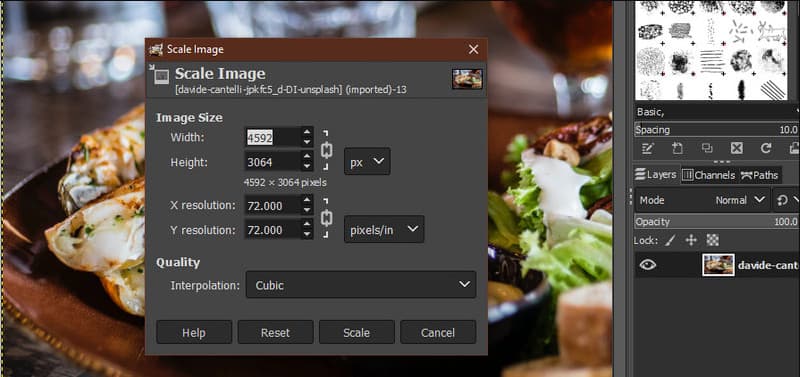
Step 3Enter 3840 pixels for width and 2160 pixels for height. In order to preserve the quality of the image, select an interpolation strategy like Cubic or Sinc. These will retain the details, sharpness and textures in case of enlarging your photo. Click Scale in order to implement the changes.
Step 4After scaling, go to File and select Export. Choose a file format and destination folder, then click Export to save your newly upscaled 4K image. You can also add pixels to a photo with GIMP.
Upscaling your images to 4K makes them clearer, sharper, and more vibrant. With the steps in this guide, you can make photos 4K using online tools, Photoshop, GIMP, or mobile apps like Picwand. Whether you want a quick edit on your phone or full control on a computer, these methods help your photos look their best.

Our AI technology will automatically enhance the quality of your images, remove noise and fix blurry images online.
PROCESS NOW