Máy tính của bạn cung cấp đầy đủ các chức năng cần thiết cho các hoạt động trực tuyến, dù là chỉnh sửa, xem phim hay chơi game. Một tính năng mà bất kỳ ai cũng cần là chức năng chụp ảnh màn hình, giúp bạn chụp toàn bộ màn hình hoặc chỉ một khu vực cụ thể. Vì có nhiều loại máy tính của các thương hiệu khác nhau, bài viết này sẽ hướng dẫn bạn cách sử dụng chức năng này. Cách chụp ảnh màn hình trên máy tính Windows AcerĐể bắt đầu, bạn sẽ khám phá các cách khác nhau để truy cập tính năng chụp ảnh màn hình tích hợp trên máy tính xách tay hoặc máy tính để bàn, Chromebook và máy tính bảng. Hơn nữa, hãy xem các giải pháp nếu bạn gặp khó khăn và máy Acer của bạn không có nút PrintScreen để chụp ảnh màn hình.
Phần 1. Cách chụp ảnh màn hình trên máy tính xách tay hoặc máy tính để bàn Acer chạy hệ điều hành Windows.
Sau đây là cách chụp ảnh màn hình trên máy tính xách tay Acer bằng các phím tắt và ứng dụng thông thường. Các bước hướng dẫn rõ ràng được cung cấp để bạn có thể thử. Không cần dài dòng nữa, chúng ta cùng bắt đầu.
1. Nút PrintScreen (PrtSc) cổ điển
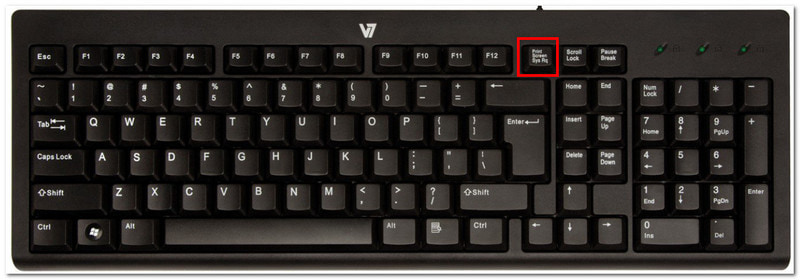
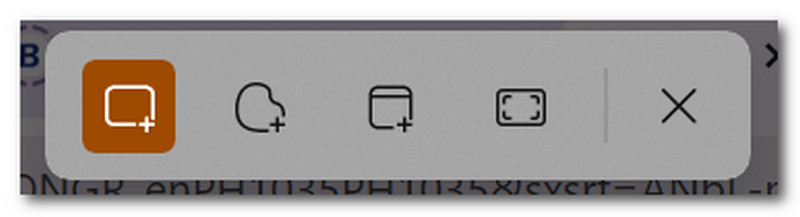
Bước 1Tìm và nhấn vào PrtSc Nhấn nút ở góc trên bên phải bàn phím. Màn hình sẽ tối đi và một thanh menu nhỏ sẽ hiện lên ở giữa phía trên.
Bước 2Chọn giữa các chế độ: Hình chữ nhật, Hình thức tự do, Cửa sổ, và Toàn màn hìnhSau khi hoàn tất, ảnh chụp màn hình sẽ được tự động sao chép vào clipboard của bạn, từ đó bạn có thể dán vào một tài liệu trống, tin nhắn trò chuyện và các ứng dụng khác.
2. Công cụ Snipping Tool & Snip & Sketch (Tốt nhất cho các khu vực tùy chỉnh)
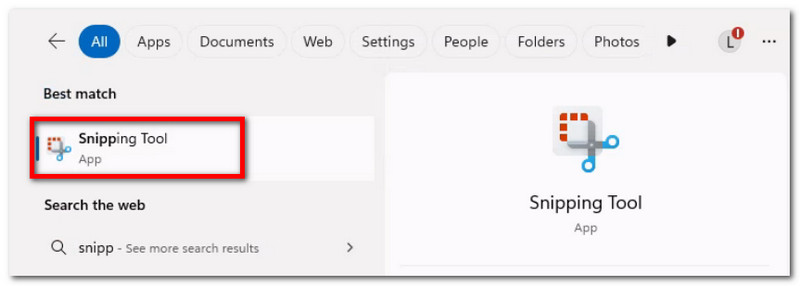
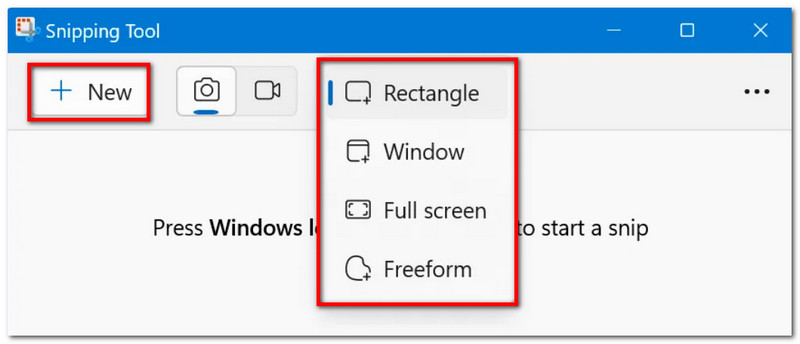
Bước 1Tìm kiếm ứng dụng trong thanh tìm kiếm của bạn. Lưu ý rằng tên ứng dụng có thể là... Công cụ cắt hoặc là Cắt & Phác thảoTùy thuộc vào phiên bản Windows trên thiết bị của bạn.
Bước 2Chọn chế độ từ menu thả xuống, sau đó nhấp vào Mới Nhấn nút để chụp ảnh màn hình. Sử dụng các công cụ vẽ để chỉnh sửa, sau đó nhấp chuột. Cứu Để lưu ảnh chụp màn hình.
3. Quán bar trò chơi
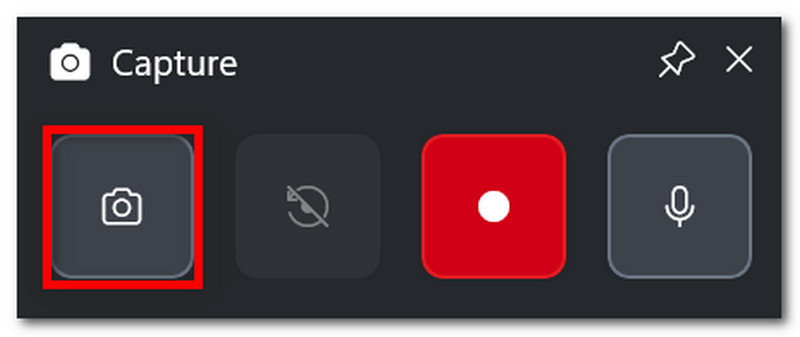
Bước 1Nhấn Windows + G trên bàn phím của bạn. Khi màn hình tối đi, một vài thanh tác vụ sẽ xuất hiện.
Bước 2Nhấn vào Máy ảnh biểu tượng này dùng để chụp ảnh màn hình. Bạn cũng có thể nhấn Windows + Alt + PrtSc để truy cập tính năng này trong khi chơi game.
4. Phần mềm ghi màn hình AVAide
Với các cách chụp ảnh màn hình mặc định, bạn có thể nghĩ rằng thiết bị của mình chỉ có thể làm được bấy nhiêu. Nhưng bạn có biết rằng... AVAide Screen Recorder Liệu có phần mềm nào có thể vượt qua trải nghiệm chụp ảnh màn hình thông thường của bạn? Với thiết kế đẹp mắt và nhiều tính năng phong phú, việc chụp ảnh màn hình trở nên dễ dàng và chất lượng cao hơn. Với phần mềm này, bạn có thể chụp ảnh màn hình toàn bộ màn hình, cửa sổ đang mở hoặc chỉ một vùng nhỏ, và lưu lại ở các định dạng phổ biến như BMP, JPEG, PNG, GIF hoặc TIFF. Các tùy chọn chỉnh sửa tích hợp cũng rất hữu ích, cho phép bạn tự do vẽ, thêm số hoặc văn bản và làm mờ các chi tiết quan trọng trong ảnh trước khi lưu. Cuối cùng, tính năng chụp ảnh màn hình của AVAide không chỉ giới hạn ở một công cụ riêng lẻ, mà còn có thể được sử dụng ngay cả khi bạn đang quay video trên máy tính, với webcam và trên bất kỳ đâu trên internet. Nâng cao trải nghiệm chụp ảnh màn hình của bạn bằng cách tải xuống phần mềm tuyệt vời này trên Windows hoặc thậm chí cả Mac.
Bước 1Nhấn vào Tải xuống Nhấn vào nút và cài đặt AVAide Screen Recorder trên máy Acer của bạn. Sau khi cài đặt hoàn tất, hãy mở phần mềm.

TẢI VỀ MIỄN PHÍ Đối với Windows 7 trở lên
 An toàn tải
TẢI VỀ MIỄN PHÍ Dành cho Mac OS X 10.13 trở lên
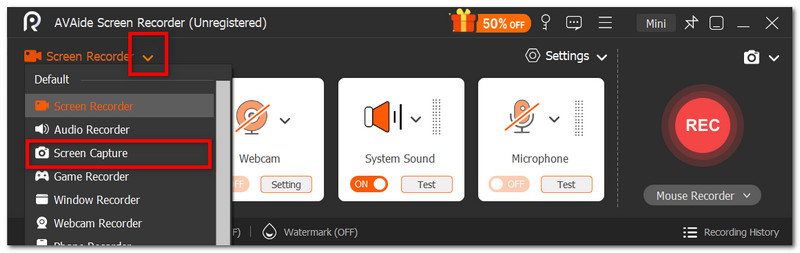
An toàn tảiBước 2Vào menu thả xuống ở góc bên trái giao diện người dùng, và từ danh sách, chọn... Chụp màn hình Tùy chọn này cho phép con trỏ chuột của bạn thay đổi ngay lập tức, và bạn có thể sử dụng nó để chọn vùng màn hình cần chụp.
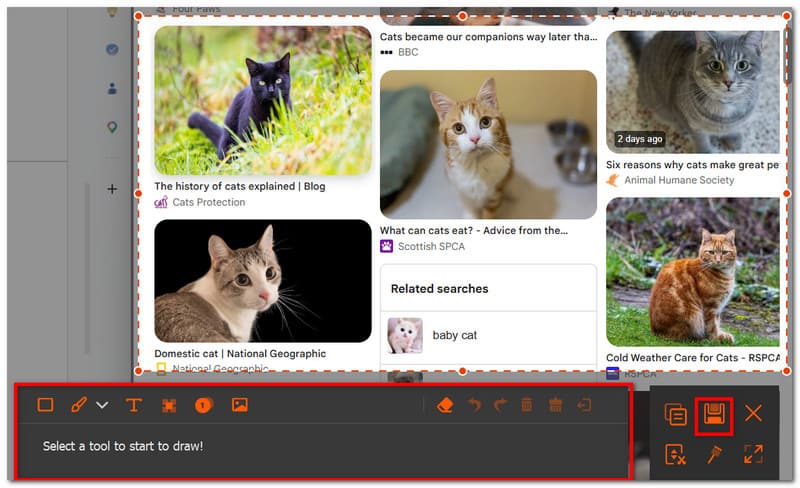
Bước 3Sau khi chụp ảnh, bạn có thể chỉnh sửa ảnh bằng các tùy chọn chỉnh sửa. Sau đó, xuất ảnh bằng cách nhấp vào biểu tượng xuất. Cứu nút. Lặp lại khi cần.
Phần 2: Cách chụp ảnh màn hình trên máy Acer mà không cần nút PrintScreen
Bạn có thể gặp phải tình huống khó khăn khi bàn phím thiếu nút PrtSc, và điều này có thể làm chậm công việc của bạn đáng kể. Vậy làm thế nào để chụp ảnh màn hình trên máy tính Acer không có PrtSc? Phần này sẽ cung cấp các phương pháp tốt nhất mà không cần kết hợp với PrtSc và dành riêng cho máy tính xách tay Acer.
Giải pháp 1: Nhấn Fn + Windows + Spacebar (phím tắt thông dụng của Acer) hoặc Fn + PrtSc
Bước 1Trên bàn phím Acer của bạn, hãy nhấn Fn + Windows + Phím cách các nút. Khi màn hình nhấp nháy, điều đó có nghĩa là bạn đã chụp ảnh màn hình toàn màn hình.
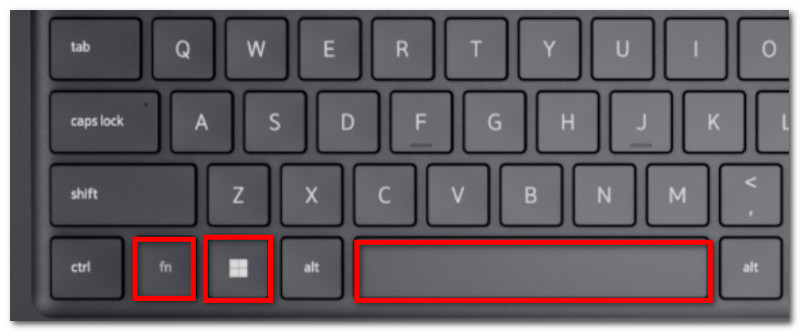
Bước 2Mở một tài liệu Word trống và nhấn Ctrl + V Dán hình ảnh vào. Sau đó, bạn có thể lưu tài liệu vào một thư mục.
Giải pháp 2: Sử dụng tổ hợp phím Windows + Shift + S (mở thanh chụp màn hình của công cụ Snipping Tool)
Bước 1Nhấn đồng thời Windows + Shift + S Nhấn vào phím trên bàn phím của bạn, và nó sẽ mở công cụ Snipping Tool.
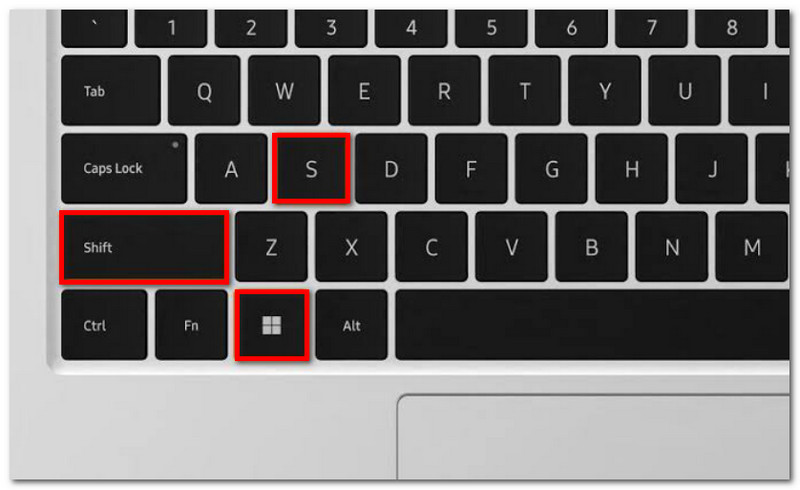
Bước 2Chọn chế độ chụp màn hình và kéo con trỏ để chọn vùng cần chụp. Sử dụng Ctrl + V để dán hình ảnh.
Giải pháp 3: Gán lại phím khác
Bước 1Tải PowerToys từ Microsoft Store. Từ phần bên trái của giao diện, chọn... Trình quản lý bàn phím.
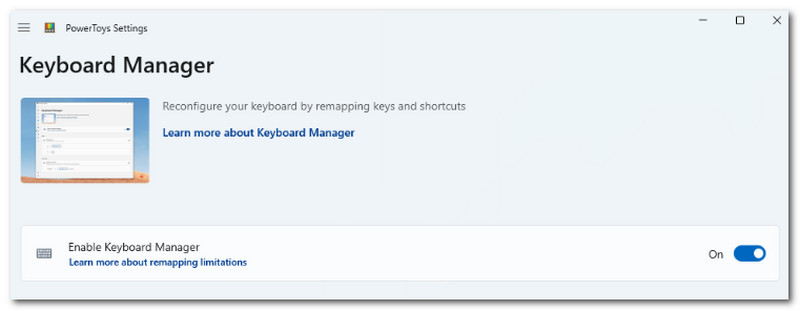
Bước 2Chọn bất kỳ phím nào trên bàn phím để truy cập Công cụ Chụp màn hình khi cần. Nhấp chuột VÂNG để lưu các thay đổi.
Phần 3: Cách chụp ảnh màn hình trên Acer Chromebook
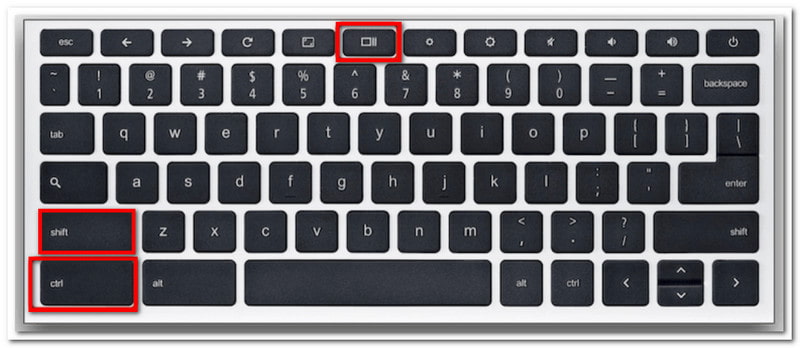
Chromebook của Acer có cách chụp ảnh màn hình khác biệt. Trong khi hầu hết bàn phím máy tính đều có nút PrtSc, Chromebook lại không có. Vậy làm thế nào để chụp ảnh màn hình trên Acer Chromebook một cách chính thức? Hãy làm theo các bước sau để chụp ảnh màn hình ở chế độ toàn màn hình và một phần một cách dễ dàng:
Bước 1Để xem toàn màn hình, hãy nhấn Ctrl + Hiển thị các nút. Nút Hiển thị thường nằm ở phần trên giữa bàn phím của bạn, có biểu tượng là một hình chữ nhật với hai đường thẳng đứng.
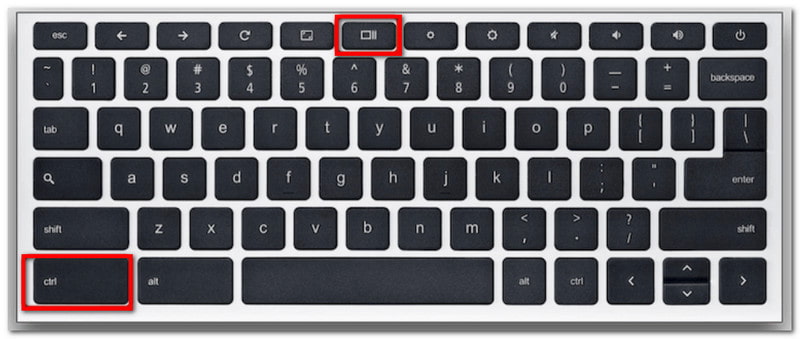
Bước 2Ảnh chụp màn hình sẽ được sao chép vào clipboard của bạn, bạn cần dán ảnh đó vào một tài liệu Word trống để lưu lại.
Bước 3Để bật chế độ một phần, hãy nhấn Ctrl + Shift + Hiển thịSử dụng chuột để chọn vùng bạn muốn chụp ảnh màn hình.
Phần 4: Cách chụp ảnh màn hình trên máy tính bảng Acer
Máy tính bảng Acer hoạt động khác với máy tính xách tay. Tuy nhiên, chụp ảnh màn hình trên máy tính bảng rất đơn giản và chỉ cần một vài nút bấm. Không giống như chụp ảnh màn hình trên máy tính xách tay, hình ảnh được lưu tùy thuộc vào phương pháp bạn sử dụng, ảnh chụp màn hình trên máy tính bảng được lưu trong ứng dụng Ảnh. Hãy xem các bước sau:
Bước 1Chuẩn bị nội dung bạn muốn chụp trên máy tính bảng Acer. Nhấn và giữ Giảm âm lượng và Quyền lực nút.
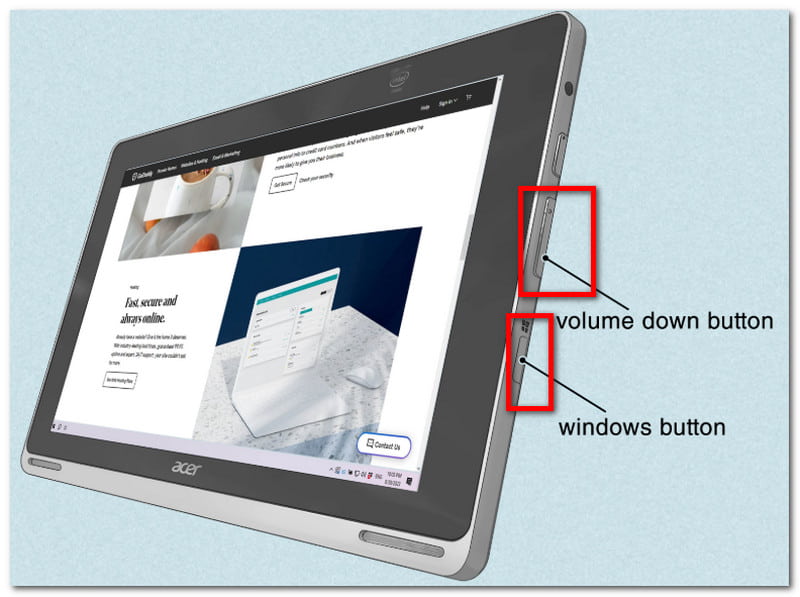
Bước 2Khi màn hình nhấp nháy, điều đó cho biết ảnh chụp màn hình đã được chụp. Hãy mở ứng dụng Ảnh để xem ảnh hoặc sử dụng một công cụ khác. chỉnh sửa ảnh để cắt bớt ảnh chụp màn hình.
Với bài viết này, Chụp ảnh màn hình trên Acer Việc chụp ảnh màn hình chưa bao giờ dễ dàng hơn thế, vì phần mềm này hướng dẫn bạn sử dụng các cách chụp ảnh màn hình chính thức trên thiết bị của mình. Không chỉ vậy, bạn còn tìm ra phương pháp tốt nhất nếu máy tính của bạn không có nút PrintScreen. Đừng quên rằng AVAide Screen Recorder sẽ luôn là một lựa chọn tuyệt vời để ghi lại màn hình, cho dù bạn muốn chụp ảnh màn hình, quay video hay ghi âm. Chúng tôi khuyến khích bạn thử giải pháp ghi màn hình tốt nhất trên Windows và Mac.
GIỚI THIỆU VỀ TÁC GIẢ

Ghi lại màn hình, âm thanh, webcam, trò chơi, cuộc họp trực tuyến, cũng như màn hình iPhone / Android trên máy tính của bạn.