Hướng dẫn quay màn hình trên máy tính xách tay Lenovo Việc lựa chọn công cụ nào phụ thuộc vào tính năng bạn chọn, từ các tính năng tích hợp sẵn của Windows đến phần mềm chuyên dụng. Hướng dẫn này sẽ chỉ ra các phương pháp đơn giản, rõ ràng và hiệu quả để quay màn hình trên các thiết bị Lenovo, dù là để hướng dẫn, họp, chơi game hay ghi hình hàng ngày.
Phương pháp 1. Sử dụng Xbox Game Bar
Tính năng ghi hình tích hợp của Xbox Game Bar là của Microsoft, tích hợp liền mạch với Windows và là giải pháp ghi hình tiện lợi nhất cho người dùng Lenovo. Nó được tạo ra để chơi game đồng thời cũng đóng vai trò là trình ghi ứng dụng tiêu chuẩn, trình tạo hướng dẫn và trình ghi trình duyệt. Ưu điểm hàng đầu là nó không cần thiết lập; sẵn sàng sử dụng ngay lập tức.
Tuy nhiên, cũng có những nhược điểm rõ rệt. Nó không ghi lại màn hình nền hoặc File Explorer, và khả năng tùy chỉnh bị hạn chế đối với các công cụ chuyên nghiệp. Mặc dù vậy, nó vẫn là một trong những lựa chọn tích hợp tiện lợi nhất cho các phiên làm việc thông thường, nơi chất lượng và công sức không quá quan trọng.
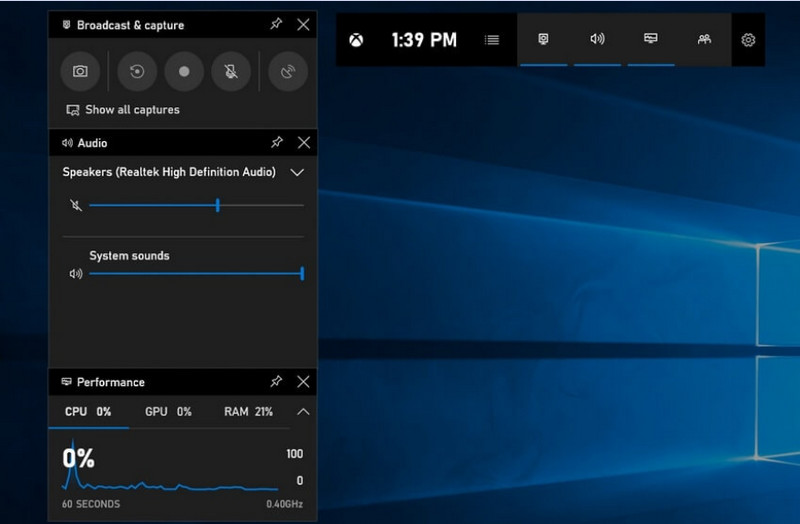
Bước 1Để mở Xbox Game Bar, hãy nhấn Windows + G trên bàn phím của bạn.
Bước 2Tìm Chiếm lấy bảng điều khiển hoặc nhấp vào nó từ Tiện ích thực đơn.
Bước 3Nhấn vào Ghi lại (●) nút hoặc nhấn Windows + Alt + R.
Bước 4Nếu bạn muốn ghi âm giọng nói, hãy bật chức năng này. Cái mic cờ rô.
Bước 5Nhấn Windows + Alt + R lại hoặc nhấp chuột Dừng lại (■) để hoàn thành.
Bước 6Bạn sẽ tìm thấy bản ghi âm của mình ở đây. Video > Chụp.
Phương pháp 2. Sử dụng Lenovo Vantage
Lenovo Vantage không phải là phần mềm ghi màn hình; nó là một bộ công cụ quản lý và tối ưu hóa hệ thống. Chức năng ghi màn hình của nó chỉ mang tính gián tiếp, với rất ít tính năng hỗ trợ trực tiếp quá trình ghi, tùy thuộc vào kiểu thiết bị ghi, hoặc thậm chí một số thiết bị còn cung cấp các phím tắt hoặc công cụ camera/màn hình có thể hỗ trợ quá trình ghi.
Hiệu năng và khả năng sử dụng có sự khác biệt đáng kể. Một số thiết bị Lenovo có thể hỗ trợ các chức năng ghi hình cơ bản, nhưng một số khác lại hoàn toàn không có. Khả năng ghi hình toàn màn hình của tính năng này còn hạn chế và không nhất quán, nhưng nó có thể hữu ích cho những người muốn tiếp tục sử dụng hệ sinh thái của Lenovo. ghi âm podcast Nội dung được tạo bằng các công cụ cơ bản.
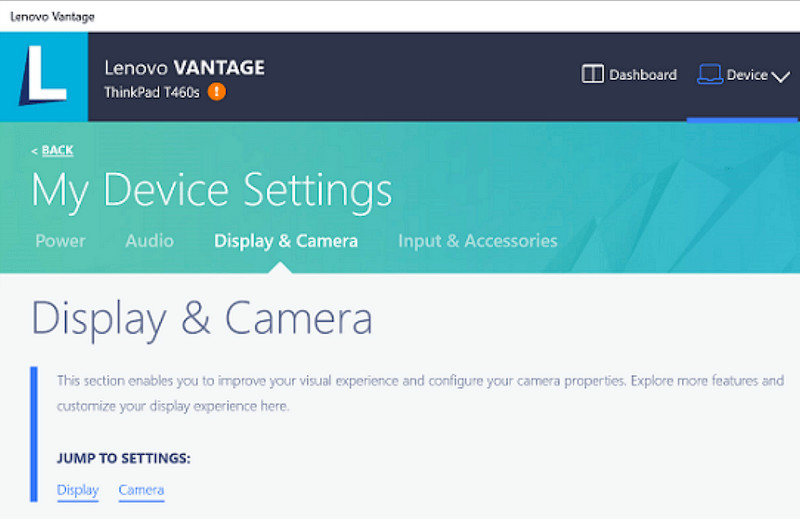
Bước 1Đi đến Khởi đầu menu và nhấp vào Lenovo Vantage.
Bước 2Vô nhẹ Cài đặt thiết bị của tôi > Màn hình & Camera.
Bước 3Kiểm tra các bản ghi âm hoặc các chức năng khác có sẵn.
Bước 4Cung cấp mọi tùy chọn hoặc phím tắt cần thiết.
Bước 5Hãy ghi âm nhạc bằng chức năng được cung cấp (nếu có thể).
Bước 6Tìm các bản ghi âm bạn đã lưu trong thư mục Video của mình.
Phương pháp 3. Sử dụng Legion Zone / Lenovo Nerve Center
Lenovo Nerve Center (hay Legion Nerve Center - các công cụ mới hơn từ Legion đã thay thế Nerve Sense) được tối ưu hóa cho các thiết bị Lenovo, đặc biệt là dòng máy tính xách tay Lenovo Legion, hướng đến game thủ. Nó cũng được tích hợp chặt chẽ với các công cụ hiệu năng chơi game, cho phép người dùng chụp ảnh màn hình trò chơi trong khi theo dõi và tối ưu hóa tài nguyên hệ thống.
Tuy nhiên, đây là một máy ghi âm khá cơ bản. Nó chú trọng đến sự tiện lợi hơn là khả năng tùy chỉnh, và chỉ cung cấp các tùy chọn ghi âm cơ bản với khả năng kiểm soát hạn chế về độ phân giải, tốc độ bit và các cài đặt nâng cao. Ngoài ra, nó chỉ có sẵn trên một số hệ thống mới hơn, và một số hệ thống khác đã thay thế hoặc loại bỏ nó, vì vậy nó không còn đáng tin cậy như trước đây nữa.
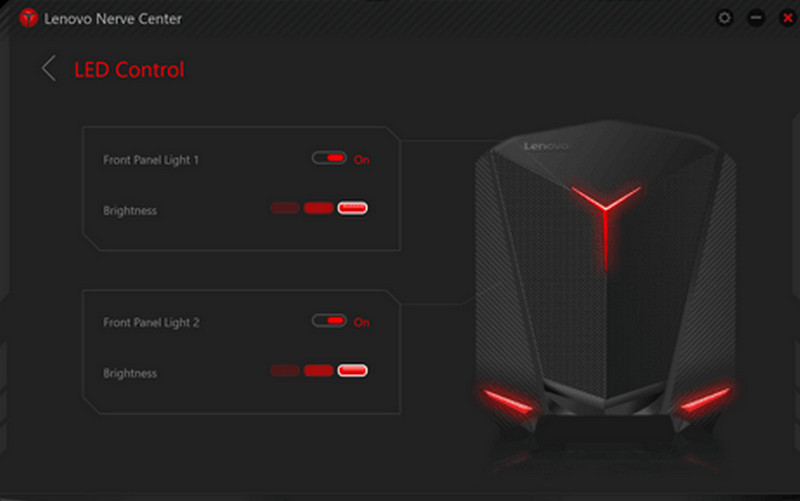
Bước 1Truy cập Trung tâm điều khiển Lenovo hoặc là Khu vực Quân đoàn từ thiết bị.
Bước 2Truy cập vào các công cụ ghi hình và/hoặc chơi game.
Bước 3Nếu có thể, hãy thay đổi các cài đặt ghi âm, chẳng hạn như độ phân giải hoặc chất lượng âm thanh.
Bước 4Khởi động trò chơi hoặc ứng dụng.
Bước 5Ghi hình bằng phím tắt hoặc nút mặc định.
Bước 6Dừng ghi âm và nhìn vào... Video Thư mục để kiểm tra xem tệp đã được ghi lại chưa.
Phương pháp 4. Sử dụng phần mềm ghi màn hình AVAide
AVAide Screen Recorder Đây là phần mềm ghi màn hình cao cấp và đa năng hơn so với trình ghi màn hình tích hợp sẵn trên Lenovo. Nó được thiết kế dành cho những người muốn chất lượng video tốt hơn, hoạt động mượt mà hơn và khả năng kiểm soát ghi hình tốt hơn. Đây là công cụ hoàn hảo để tạo hướng dẫn, ghi lại các cuộc họp hoặc quay lại quá trình chơi game, không cần thiết lập phức tạp, tất cả đều ở cấp độ chuyên nghiệp.
Ứng dụng này có thể thu âm thanh hệ thống, tín hiệu micro, hình ảnh webcam và toàn bộ màn hình, đồng thời hỗ trợ quay phim Full HD và thậm chí 4K với độ trễ tối thiểu so với các phần mềm ghi hình cơ bản. Điều này biến nó thành một ứng dụng ghi màn hình đa năng, hữu ích cho cả công việc và giải trí.
- Quay video ở độ phân giải 1080p hoặc 4K với hiệu năng mượt mà, không giật lag.
- Ghi hình ở chế độ TOÀN MÀN HÌNH hoặc TÙY CHỈNH tùy theo nhu cầu của bạn.
- Ghi lại đồng thời cả âm thanh bên trong và giọng nói với chất lượng âm thanh rõ nét.
- Thêm tính năng ghi hình bằng Facecam cho các video hướng dẫn, thuyết trình hoặc video chơi game.
- Cắt, nén và cải thiện chất lượng bản ghi âm sau khi thu.

 An toàn tải
Bước 1Tải xuống và cài đặt phần mềm
Truy cập trang web chính thức của AVAide Screen Recorder. Tải xuống trình cài đặt Windows, cài đặt nó trên máy tính xách tay Lenovo của bạn và chạy chương trình.
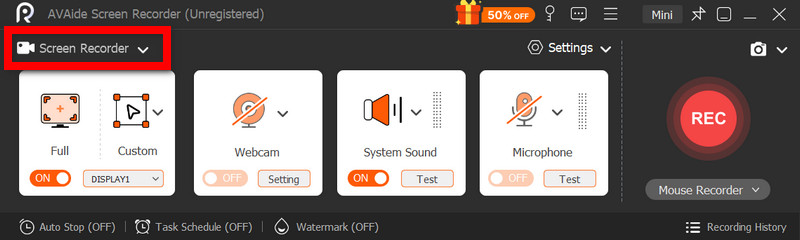
Bước 2Chọn chế độ ghi
Mở phần mềm, sau đó nhấp chuột. Trình ghi màn hìnhGhi lại toàn bộ màn hình bằng Đầy hoặc một phần của màn hình với Phong tục.
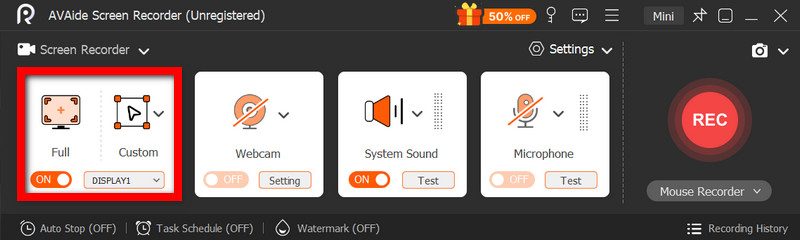
Bước 3Cấu hình cài đặt âm thanh
Để ghi lại bất kỳ âm thanh nào do máy tính phát ra, hãy kích hoạt Hệ thống âm thanhĐể thêm giọng nói của riêng bạn, hãy kích hoạt chức năng này. Cái mic cờ rôWebcam cũng có thể được bật lên khi cần thiết.
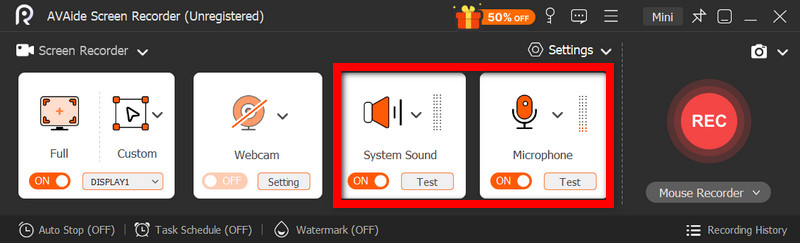
Bước 4Điều chỉnh cài đặt ghi âm
Sử dụng Cài đặt Nút này dùng để cấu hình chất lượng video, độ phân giải, tốc độ khung hình và định dạng đầu ra nhằm đạt được hiệu suất ghi hình tối ưu.
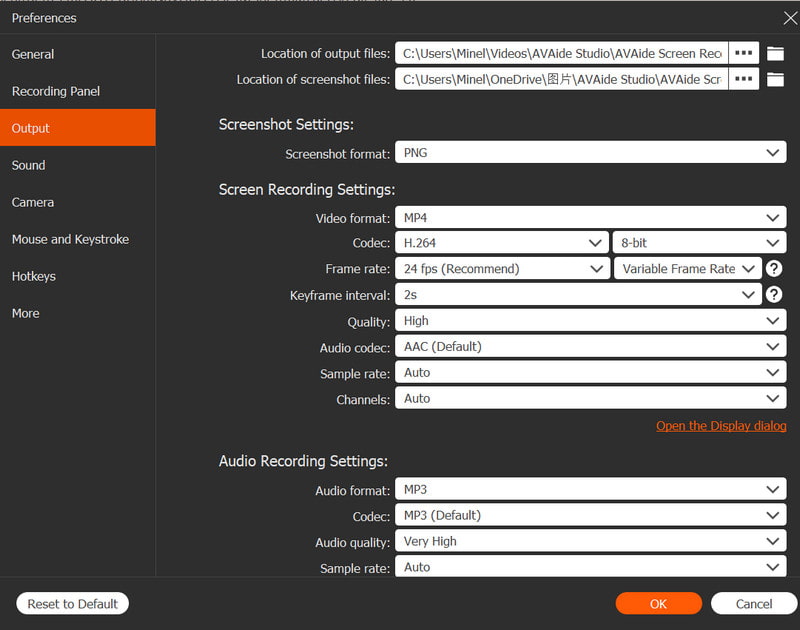
Bước 5Bắt đầu ghi âm
Nhấn vào GHI Nhấn nút để bắt đầu ghi. Bạn có thể ghi lại các bản ghi Google Meet, hướng dẫn, trò chơi hoặc bất kỳ hoạt động nào trên màn hình một cách mượt mà.
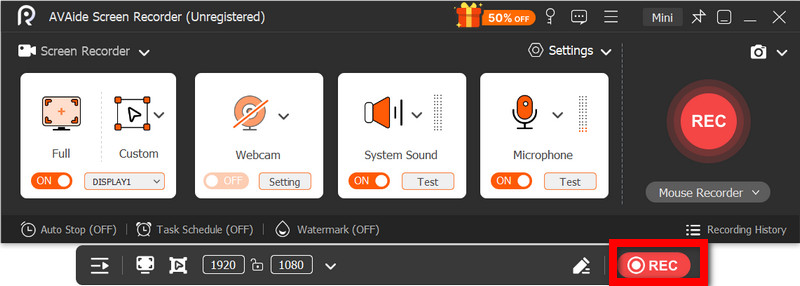
Bước 6Dừng và Lưu Bản ghi
Khi bạn hoàn thành, hãy nhấp vào Ngừng lại Nút này cho phép bạn xem trước bản ghi âm, chỉnh sửa nhanh chóng nếu cần và lưu ngay vào máy tính.
Phương pháp 5. Sử dụng cài đặt nhanh
Trên máy tính bảng Android của Lenovo, có tùy chọn ghi màn hình tích hợp sẵn trong cài đặt nhanh. Cách tốt nhất để ghi lại hướng dẫn, trò chơi hoặc hoạt động ứng dụng trên máy tính bảng của bạn là không cần tải xuống ứng dụng của bên thứ ba. Dễ sử dụng, nhanh chóng và được tối ưu hóa cho thiết bị di động, đây là giải pháp lý tưởng để ghi lại nhanh chóng khi đang di chuyển.
Nó thiếu các tính năng chỉnh sửa và tùy chỉnh nâng cao có trong các công cụ chụp màn hình khác, nhưng nó đủ dùng cho việc chụp màn hình đơn giản kèm âm thanh.
Bước 1Vuốt lên từ cuối màn hình để mở. Cài đặt nhanh.
Bước 2Tìm kiếm Ghi lại màn hình hoặc là Trình ghi màn hình nút. Nếu không thấy, hãy nhấp vào Biên tập nút đó và thêm nó vào bảng điều khiển của bạn.
Bước 3Nhấp chuột Trình ghi màn hìnhSau đó, chọn các cài đặt bạn mong muốn.
Bước 4Vô nhẹ Khởi đầu Để bắt đầu ghi âm. Sẽ có một bộ đếm ngược trước khi quá trình ghi âm bắt đầu.
Bước 5Chạm vào thanh công cụ nổi hoặc thanh thông báo, sau đó nhấn Ngừng lại Kết thúc quá trình ghi âm.
Khắc phục sự cố thường gặp khi quay màn hình trên Lenovo
Bạn có thể đọc các mẹo để giải quyết các sự cố thường gặp khi quay màn hình trên thiết bị Lenovo.
Mặc dù nhìn chung không có sự cố lớn nào khi quay màn hình trên các thiết bị Lenovo, nhưng vẫn luôn có khả năng xảy ra vấn đề tùy thuộc vào công cụ hoặc thiết bị quay màn hình được sử dụng. Dưới đây là những sự cố phổ biến nhất và cách khắc phục chúng.
- Ứng dụng ghi màn hình không hoạt động: Khởi động lại thiết bị của bạn và thử lại. Đối với các công cụ tích hợp sẵn như Xbox Game Bar, hãy đảm bảo rằng nó đã được bật trong Cài đặt Windows ở mục Chơi game.
- Không có âm thanh trong bản ghi âm: Kiểm tra xem âm thanh hệ thống hoặc micro đã được bật trước khi ghi âm chưa. Đồng thời, xác minh rằng âm lượng hệ thống của bạn không bị tắt tiếng.
- Video bị giật hoặc chất lượng thấp: Giảm chất lượng video hoặc đóng các ứng dụng đang chạy ngầm. Nâng cấp trình điều khiển đồ họa cũng có thể cải thiện hiệu suất.
- Không thể ghi hình màn hình Desktop hoặc File Explorer: Đây là một trong những hạn chế phổ biến của Xbox Game Bar. Nếu bạn muốn ghi lại màn hình và toàn bộ nội dung, hãy sử dụng một chương trình nâng cao như AVAide Screen Recorder, một trong những phần mềm hàng đầu hiện nay. phần mềm quay màn hình tốt nhất cho Mac và Windows.
- Quá trình ghi âm không lưu được: Hãy đảm bảo bộ nhớ của bạn không bị đầy và kiểm tra vị trí lưu mặc định. Trong phần cài đặt, thay đổi thư mục đầu ra và thử lại.
Nút ghi màn hình Lenovo Các tùy chọn sẽ khác nhau tùy thuộc vào thiết bị và công cụ bạn sử dụng. Nhìn chung, các tính năng tích hợp sẵn và ứng dụng của bên thứ ba giúp việc ghi hình trở nên đơn giản, cung cấp cho bạn nhiều cách linh hoạt để ghi lại, lưu trữ và quản lý hoạt động màn hình một cách hiệu quả trên các thiết bị Lenovo.
GIỚI THIỆU VỀ TÁC GIẢ

Ghi lại các hoạt động trên màn hình bằng âm thanh, cuộc họp trực tuyến, video trò chơi, nhạc, webcam, v.v.