Bạn đã bao giờ có một cuộc gọi điện thoại mà trong đó những chi tiết quan trọng được chia sẻ, nhưng bạn lại quên ngay sau đó chưa? Hoặc có thể ai đó đã đưa ra chỉ dẫn cho bạn, và bạn không có cách nào để ghi chép lại? Trong những trường hợp như vậy, việc học hỏi sẽ rất hữu ích. Cách ghi âm cuộc gọi trên điện thoại Android Điều đó rất hữu ích.
Hướng dẫn này sẽ giúp bạn học cách thực hiện. Cho dù bạn đang sử dụng Samsung, Google Pixel, Xiaomi, OnePlus hay bất kỳ điện thoại Android nào khác, các phương pháp dưới đây đều dành cho bạn. Hãy dành thời gian và đọc kỹ từng phần.
- Điều kiện tiên quyết: Những cân nhắc pháp lý trước khi bắt đầu ghi âm
- Phương pháp 1: Sử dụng trình ghi âm cuộc gọi tích hợp sẵn trên điện thoại của bạn
- Phương pháp 2: Cách ghi âm cuộc gọi trên Android mà không cần ứng dụng
- Phương pháp 3: Tự động ghi âm cuộc gọi mà không cần thông báo
- Tìm các cuộc gọi đã ghi âm trên Android ở đâu?
- Cách tắt chức năng ghi âm cuộc gọi trên Android
Điều kiện tiên quyết: Những cân nhắc pháp lý trước khi bắt đầu ghi âm
Trước khi ghi âm cuộc gọi trên Android, bạn cần nắm rõ các quy định pháp luật cơ bản. Những quy định này rất quan trọng, giúp bạn tránh rắc rối và tôn trọng quyền riêng tư. Ở nhiều nơi, việc ghi âm cuộc gọi mà không được phép là không được chấp nhận.
Luôn đảm bảo người kia biết bạn đang ghi âm. Một số điện thoại đã có âm thanh cảnh báo hoặc tiếng bíp khi bắt đầu ghi âm. Tuy nhiên, vẫn tốt hơn là nên xin phép trước. Luật pháp không giống nhau ở mọi nơi. Vì vậy, bạn nên kiểm tra các quy định tại khu vực của mình trước khi bắt đầu ghi âm.
Phương pháp 1: Sử dụng trình ghi âm cuộc gọi tích hợp sẵn trên điện thoại của bạn
Chức năng ghi âm cuộc gọi tích hợp là một tính năng phổ biến trên điện thoại Android. Đây là phương pháp ghi âm cuộc gọi đơn giản nhất. Không cần cài đặt thêm ứng dụng nào khác. Chỉ cần vài thao tác chạm là bạn có thể bắt đầu ghi âm nếu điện thoại của bạn có tính năng này.
1. Cách ghi âm cuộc gọi trên Samsung (One UI)
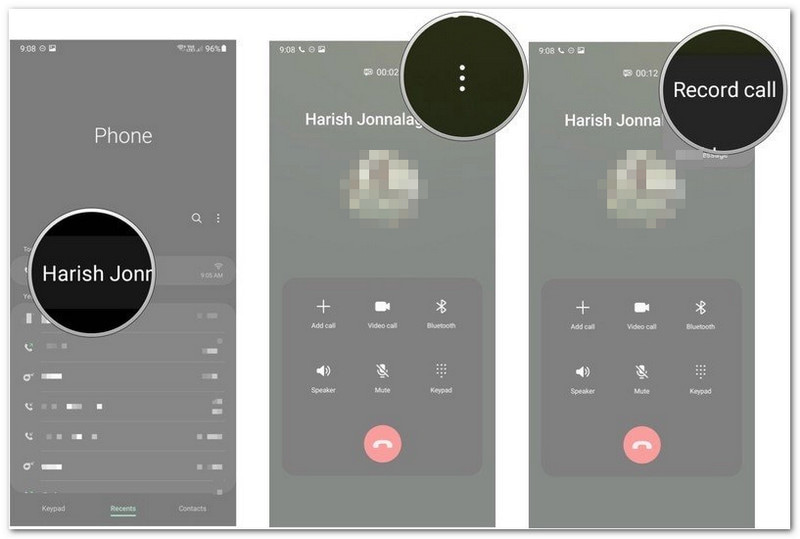
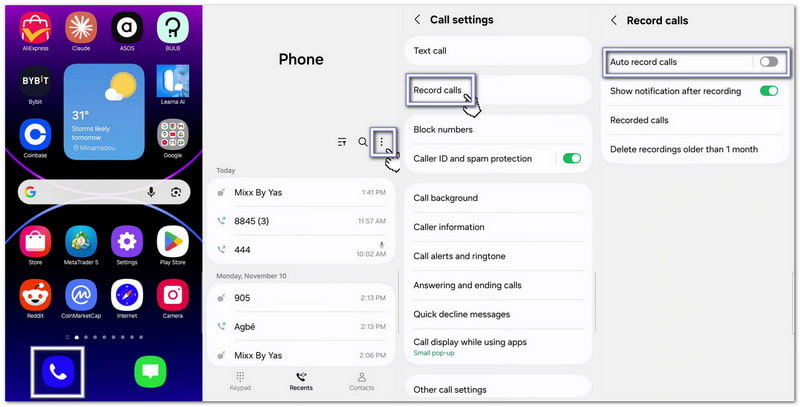
Điện thoại Samsung có sẵn chức năng ghi âm cuộc gọi trong ứng dụng Điện thoại, rất hữu ích nếu bạn đang học cách ghi âm cuộc gọi trên điện thoại Samsung.
- Mở Điện thoại Ứng dụng. Thực hiện hoặc trả lời cuộc gọi.
- Sau khi cuộc gọi được kết nối, hãy nhấn Ghi âm cuộc gọi.
- Để tự động ghi âm tất cả cuộc gọi, hãy nhấn vào biểu tượng này. menu ba chấm và lựa chọn Cài đặt.
- Lựa chọn Ghi âm cuộc gọi.
- Bật Tự động ghi âm cuộc gọi.
Thông tin bổ sung:Bạn cũng có thể Quay màn hình trên SamsungỨng dụng này ghi lại cả hoạt động trên màn hình và âm thanh của bạn, rất phù hợp cho các cuộc gọi video.
2. Cách ghi âm cuộc gọi trên Google Pixel
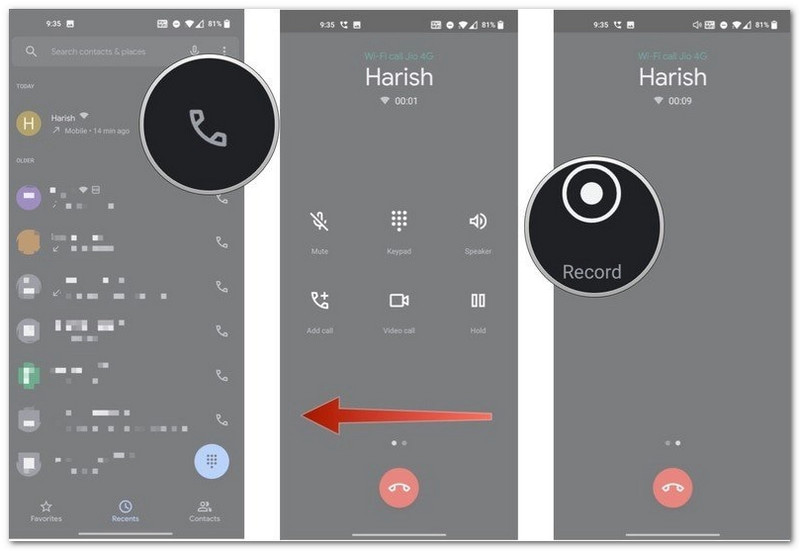
Điện thoại Google Pixel sử dụng ứng dụng Google Phone. Tính năng ghi âm cuộc gọi có thể không khả dụng ở mọi quốc gia hoặc nhà mạng.
- Mở Điện thoại Ứng dụng trong khi đang gọi. Vuốt sang trái để xem thêm các tùy chọn cuộc gọi.
- Vô nhẹ Ghi.
- Để tự động ghi âm các cuộc gọi từ số lạ, hãy mở Cài đặt điện thoại > Ghi âm cuộc gọi.
- Bật Luôn ghi lại.
- Vô nhẹ Ngừng lại khi bạn muốn kết thúc quá trình ghi âm.
- Ứng dụng Google Phone sẽ phát một tin nhắn để thông báo cho cả hai người biết cuộc gọi đang được ghi âm.
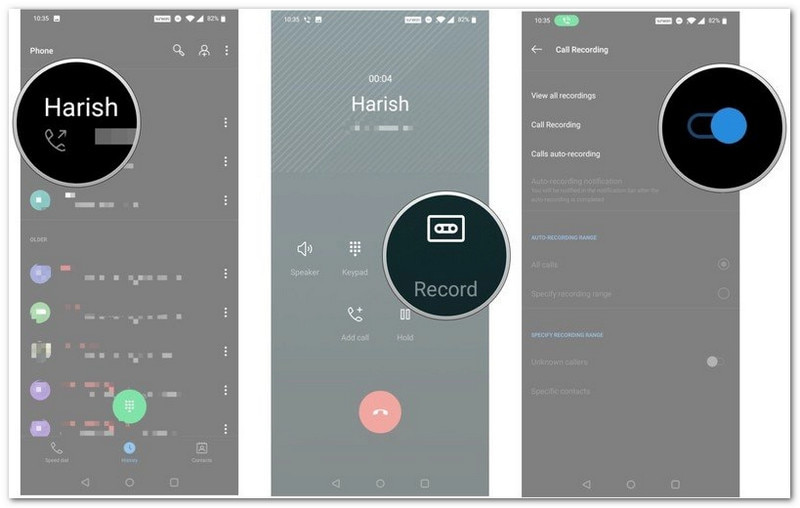
3. Các thương hiệu Android khác (Xiaomi, OnePlus, Không có gì, v.v.)
Nhiều hãng điện thoại Android sử dụng ứng dụng Điện thoại riêng của họ. Các bước thường tương tự nhau.
- Thực hiện hoặc nhận cuộc gọi. Chờ cho đến khi cuộc gọi được kết nối.
- Vuốt hoặc cuộn để xem các tùy chọn cuộc gọi.
- Vô nhẹ Ghi.
- Vô nhẹ Bắt đầu ghi âm nếu có thông báo xuất hiện.
- Vô nhẹ Ngừng lại một khi đã hoàn thành.
Phương pháp 2: Cách ghi âm cuộc gọi trên Android mà không cần ứng dụng
Nếu điện thoại của bạn không có trình ghi âm tích hợp, bạn vẫn có thể tìm hiểu cách ghi âm cuộc gọi trên Android mà không cần ứng dụng và lưu lại cuộc trò chuyện. Các phương pháp này không yêu cầu ứng dụng ghi âm cuộc gọi chuyên dụng.
1. Sử dụng chức năng ghi âm tích hợp sẵn trong ứng dụng Google Phone (nếu có).
Một số điện thoại Android hỗ trợ ghi âm thông qua ứng dụng Google Phone.
- Thực hiện hoặc trả lời cuộc gọi.
- Vô nhẹ Ghi trên màn hình cuộc gọi.
- Vô nhẹ Ngừng lại khi cuộc gọi kết thúc.
Bản ghi âm sẽ được lưu trong lịch sử cuộc gọi của bạn.
- Cả hai người sẽ nghe một thông báo ghi âm trước khi quá trình ghi âm bắt đầu.
2. Sử dụng thiết bị thứ hai để ghi âm cuộc gọi loa ngoài
Đây là một trong những phương pháp đơn giản nhất.
- Bật Loa ngoài trong suốt cuộc gọi.
- Đặt một chiếc điện thoại, máy tính bảng hoặc máy tính khác ở gần đó.
- Hãy sử dụng thiết bị thứ hai để ghi âm cuộc trò chuyện.
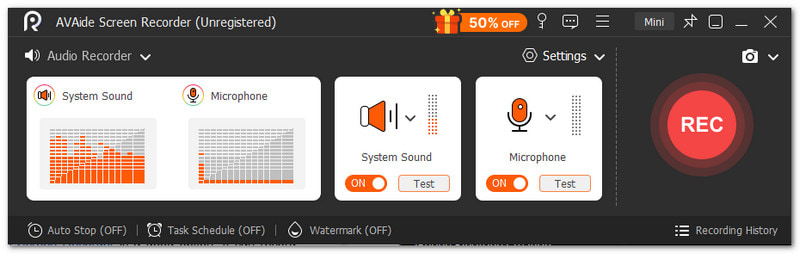
Nếu bạn đang sử dụng máy tính Windows hoặc Mac, AVAide Screen Recorder Đây là một lựa chọn tốt. Nó có trình ghi âm tích hợp có thể ghi lại cuộc gọi trên Android với âm thanh rõ ràng.

TẢI VỀ MIỄN PHÍ Đối với Windows 7 trở lên
 An toàn tải
TẢI VỀ MIỄN PHÍ Dành cho Mac OS X 10.13 trở lên
An toàn tảiCuộc gọi đã ghi âm của bạn được lưu trực tiếp vào máy tính để dễ dàng truy cập. Thời lượng cuộc gọi dài hay ngắn đều được máy tính xử lý tốt. Nếu có những phần không cần thiết ở đầu hoặc cuối, bạn có thể sử dụng tính năng cắt để loại bỏ chúng và chỉ giữ lại phần cần thiết.
Những điều chính khác bạn có thể mong đợi:
- Quay videobao gồm cả âm thanh và webcam.
- Ghi lại màn hình điện thoại với âm thanh chất lượng cao.
- Cho phép xem trước ngay lập tức sau khi ghi hình, kèm tùy chọn ghi hình lại.
- Hỗ trợ nhiều định dạng phương tiện như MP4, WMV, AVI, GIF, MP3, và nhiều định dạng khác.
3. Sử dụng cầu nối hội nghị
Phương pháp này rất hiệu quả đối với những cuộc gọi quan trọng.
- Tham gia cuộc họp qua Zoom hoặc Google Meet trên điện thoại Android của bạn.
- Hãy tham gia cuộc họp tương tự trên máy tính của bạn.
- Bắt đầu cuộc trò chuyện qua điện thoại.
- Nhấp chuột Ghi trên máy tính của bạn.
Âm thanh sẽ được lưu trực tiếp vào máy tính của bạn để dễ dàng truy cập sau này.
Phương pháp 3: Tự động ghi âm cuộc gọi mà không cần thông báo
Một số điện thoại Android cung cấp thêm các tùy chọn để ghi âm cuộc gọi thoại. Các cài đặt này có thể giảm bớt thao tác thủ công và giúp việc ghi âm dễ dàng hơn. Hãy nhớ rằng các tính năng khả dụng phụ thuộc vào kiểu máy, nhà mạng và vị trí của điện thoại bạn đang sử dụng.
1. Thay thế thông báo bằng tiếng bíp (Cài đặt mặc định trên một số thương hiệu)
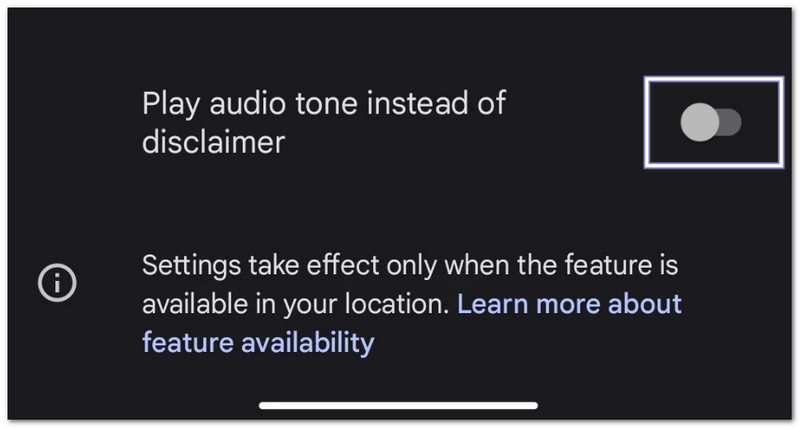
Một số điện thoại Android cho phép bạn sử dụng tiếng bíp ngắn thay vì thông báo bằng giọng nói.
- Mở Điện thoại ứng dụng.
- Chạm vào menu ba chấm hoặc là Cài đặt cái nút.
- Lựa chọn Ghi âm cuộc gọi.
- Bật Phát âm báo thay vì thông báo từ chối trách nhiệm..
- Nếu bạn không tìm thấy tùy chọn này, có thể điện thoại hoặc khu vực của bạn không hỗ trợ tính năng đó.
2. Thiết lập ghi âm cuộc gọi hoàn toàn tự động (không cần can thiệp thủ công)
Điện thoại của bạn có chức năng tự động ghi âm cuộc gọi.
- Vào phần cài đặt của điện thoại.
- Vô nhẹ Ghi âm cuộc gọi.
- Bật Ghi âm cuộc gọi tự động.
- Lựa chọn Tất cả cuộc gọi hoặc các số đã chọn.
Sau khi được kích hoạt, quá trình ghi âm sẽ tự động bắt đầu dựa trên các cài đặt của bạn.
3. Ứng dụng của bên thứ ba với các tính năng ẩn
Nếu điện thoại của bạn không cung cấp đủ các tùy chọn ghi âm, một số ứng dụng của bên thứ ba có thể hữu ích.
- Khối ACR - Ghi âm các cuộc gọi điện thoại thông thường và một số cuộc gọi internet.
- Ứng dụng ghi âm cuộc gọi tự động chuyên nghiệp - Hỗ trợ ghi âm tự động và các tùy chọn điều khiển ghi âm bổ sung.
Quan trọng: Các hạn chế của Android có thể giới hạn cách hoạt động của các ứng dụng này. Một số điện thoại có thể yêu cầu thêm quyền truy cập. Chất lượng ghi âm cũng có thể khác nhau tùy thuộc vào thiết bị.
Tìm các cuộc gọi đã ghi âm trên Android ở đâu?
Sau khi ghi âm cuộc gọi, bạn có thể thắc mắc tìm các cuộc gọi đã ghi âm ở đâu trên Android. Vị trí phụ thuộc vào thương hiệu điện thoại và ứng dụng Danh bạ của bạn.
Trên Samsung (One UI)
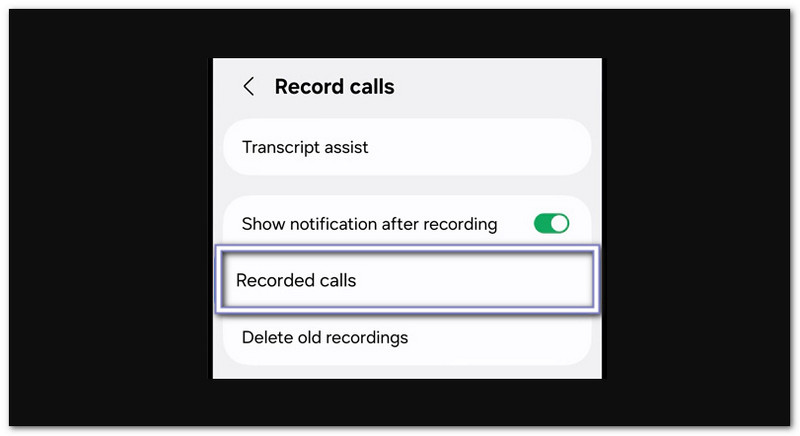
Tính năng ghi âm cuộc gọi của Samsung nằm trong ứng dụng Điện thoại.
- Mở Điện thoại ứng dụng.
- Chạm vào menu ba chấm.
- Lựa chọn Cài đặt.
- Vô nhẹ Ghi âm cuộc gọi.
- Mở Cuộc gọi đã ghi âm.
Trên ứng dụng Google Phone (Pixel và các điện thoại khác có trình quay số Google)
Google Phone lưu trữ các bản ghi âm trong lịch sử cuộc gọi của bạn.
- Mở Điện thoại ứng dụng.
- Vô nhẹ Gần đây.
- Chọn cuộc gọi đã ghi âm.
- Vô nhẹ Lịch sử hoặc là Chơi cái nút.
Trên hệ điều hành Xiaomi / MIUI / HyperOS
Bạn có thể tìm thấy các bản ghi âm ở hai nơi.
Phương án 1:
- Mở Điện thoại ứng dụng.
- Đi đến Gần đây.
- Chạm vào Mũi tên hoặc là Chi tiết nút bên cạnh cuộc gọi.
Phương án 2:
- Mở Quản lý tập tin.
- Đi đến Kho > MIUI > máy ghi âm > call_rec.
Trên các thương hiệu khác (Vị trí chung)
Hầu hết điện thoại Android lưu bản ghi âm trong Trình quản lý tập tin.
- Mở Quản lý tập tin.
- Kiểm tra các thư mục như... Âm thanh, Gọi, hoặc là Bản ghi âm cuộc gọi.
- Bạn cũng có thể tìm kiếm Bản ghi cuộc gọi.
Nếu bạn không tìm thấy các tệp, hãy kiểm tra Cài đặt điện thoại > Ghi âm cuộc gọi Vị trí lưu.
Cách tắt chức năng ghi âm cuộc gọi trên Android
Nếu bạn cũng muốn tìm hiểu cách tắt tính năng ghi âm cuộc gọi trên Android, bạn có thể tham khảo hướng dẫn bên dưới.
- Mở Điện thoại hoặc là Trình quay số ứng dụng.
- Chạm vào menu ba chấm.
- Lựa chọn Cài đặt.
- Vô nhẹ Ghi âm cuộc gọi hoặc là Tự động ghi âm cuộc gọi.
- Bật tính năng Tắt.
Sau đó, điện thoại của bạn sẽ tự động ngừng ghi âm các cuộc gọi trong tương lai. Các bản ghi âm hiện có sẽ vẫn được lưu lại trừ khi bạn xóa chúng thủ công.
Bài viết này trả lời câu hỏi, "Bạn có thể ghi âm cuộc gọi trên điện thoại Android không?"?" Và câu trả lời là có. Cho dù bạn sử dụng thiết bị nào, luôn có cách để ghi âm cuộc gọi của mình. Ngay cả trên máy tính, bạn vẫn có thể lưu lại cuộc trò chuyện. Một công cụ đơn giản mà bạn có thể sử dụng là... AVAide Screen RecorderNó hoạt động tốt với các bản ghi âm dài và cung cấp các tính năng hữu ích cho việc ghi âm.
GIỚI THIỆU VỀ TÁC GIẢ

Ghi lại các hoạt động trên màn hình bằng âm thanh, cuộc họp trực tuyến, video trò chơi, nhạc, webcam, v.v.