Have you encountered a rare file container that is supposed to store JPG or PNG, but you can't open it with a simple tool? This is the case for RAR, a container that allows multiple files and folders to compress in a single file. It helps reduce storage consumption without losing quality, and is a good alternative for compressing files on your computer. However, you might need to convert your RAR file to JPG to open the images without requiring special software. If you are looking for a way to safely convert the file, then read further for the recommended online tools.
Part 1: What Does RAR to JPG Mean
Before anything else, you might wonder what RAR is and why you need to convert it to a well-known format like JPG. To make you understand, RAR is a compressed archive, or you can think of a digital folder that compresses various files into a single file. It is also developed to make it easier to share files, as well as providing strong encryption and error recovery. As for JPG, this is a popular image format that is used for digital images because of its lossy compression. It is widely compatible with different platforms and devices, making it the best choice for pictures.
Now, why convert RAR to JPG if one is a file container while the other is an image format? To be exact, you only need to convert RAR if it's corrupted or the files within it are in different formats. Converting your file to JPG allows you to edit, increase JPG resolution, and more. With that said, you can now proceed with how to convert a RAR file to JPG.
Part 2: 5 Ways to Convert RAR to JPG
1. Aspose
Aspose is a versatile online converter that allows you to convert RAR to various formats like JPG, BMP, SVG, etc. It boasts its ability to convert 10 files at a time with a fast conversion process. This tool is designed with a simple interface, but it is packed with different options for conversion. On top of that, Aspose is available to download on mobile phones from Google Play and App Store, which is a great alternative if you want to convert through your phone. Follow the steps below on how to convert a RAR file to JPG with Aspose:
Step 1Upload the RAR file to the Aspose online converter. Other upload options can be from Google Drive or Dropbox.
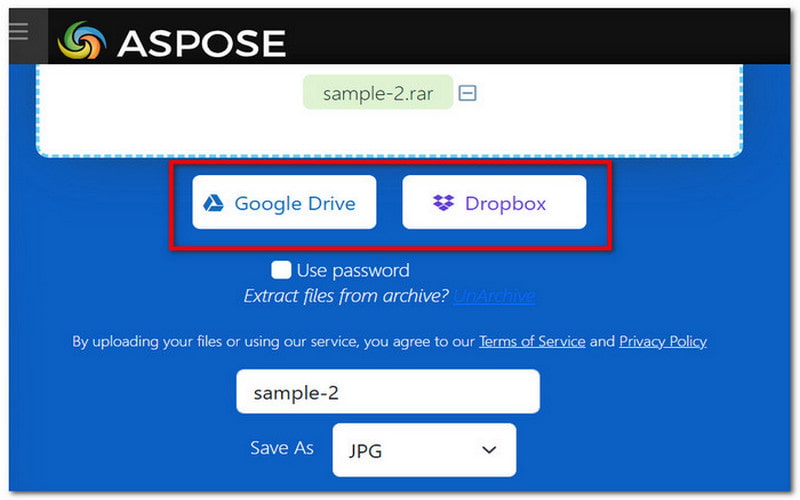
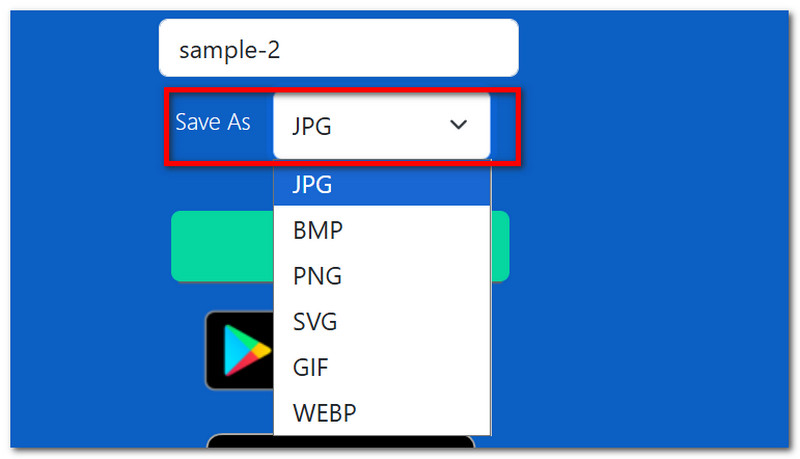
Step 2You can change the file name and the output image format to JPG, BMP, GIF, etc.
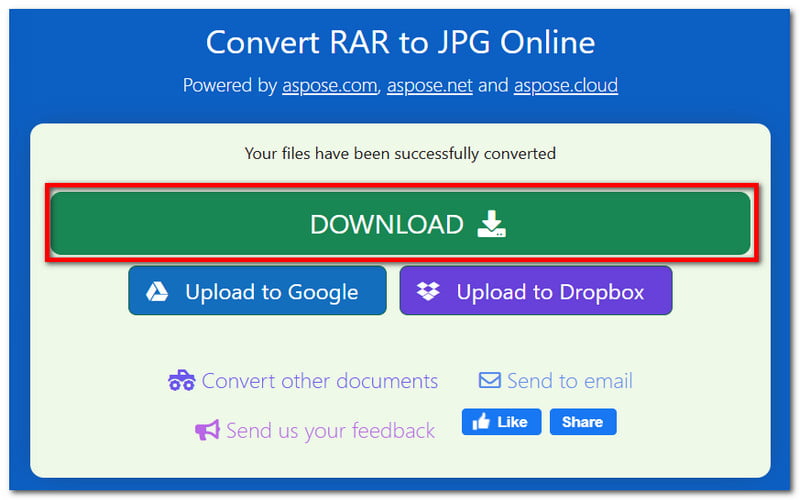
Step 3Click the Convert button to process. Then, click the Download button to export converted files.
2. Convertise
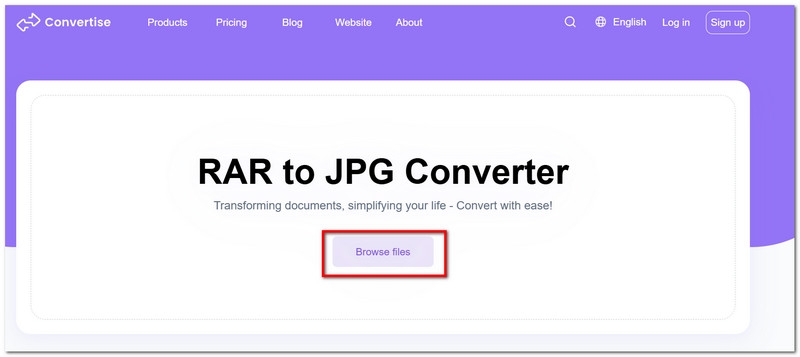
Convertise is a converter you should try for a simple conversion. Its priority is to provide online conversion in an easy way, where you can just upload files and convert. But one of its good factors is its top-notch security, giving data privacy to the user by deleting the uploads right after converting them. You also don't need to install software to use Convertise, which is a good point for a quick conversion.
Step 1Click Browse Files to upload RAR. Then, choose the desired output format like JPG, TIFF, or BMP.
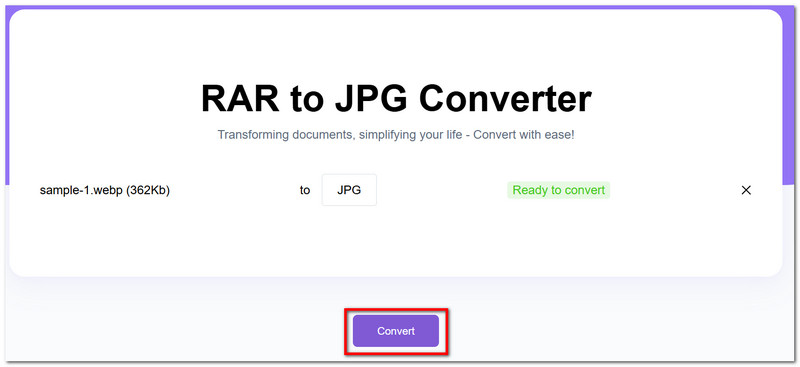
Step 2Click the Convert button to process. Once done, click Download to save the converted image.
3. ConvertImage
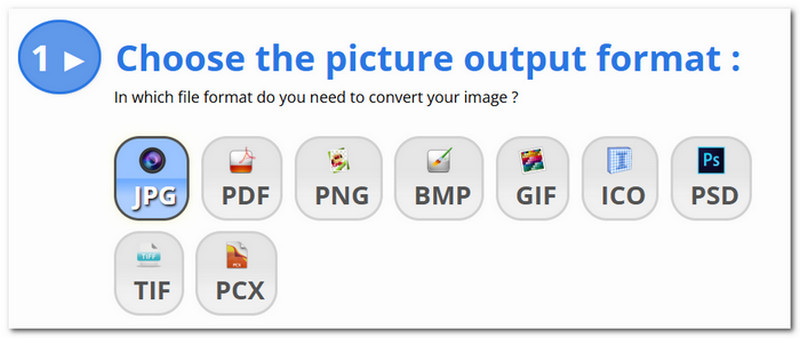
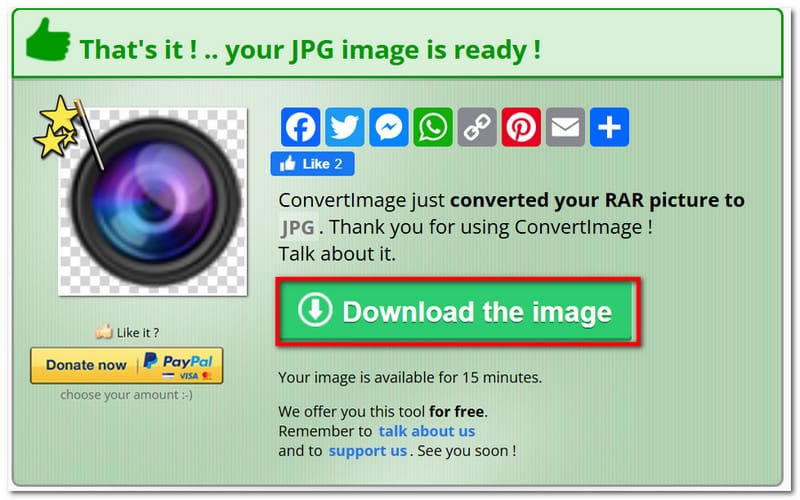
ConvertImage is another alternative RAR file to JPG converter, and it might be a little different than other converters. For one, this converter offers various tools, allowing you to enhance JPEG, JPG, and PNG quality, apply photo effects, and overall picture editing. Of course, its ability to convert RAR is worth mentioning because not only does it convert to popular formats, but it also supports rare outputs like ICO, PSD, and PCX.
Step 1Go to ConvertImage and scroll down to its page. Choose the output format first.
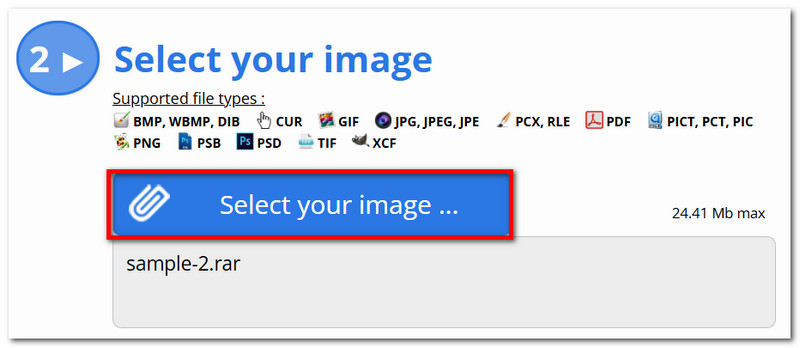
Step 2Click Select Your Image and browse for the RAR file you want to convert. Click Convert This Image.
Step 3After the process, you can click the Download the Image button to export converted files to your device.
4. ezyZip
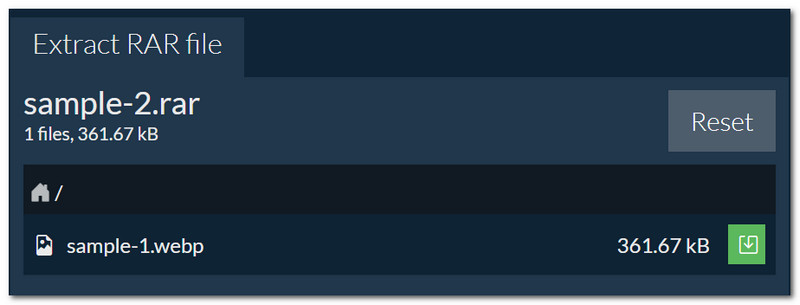
You can convert RAR to JPG with ezyZip online with its sleek interface and easy steps. The online tool consists of a simple navigation, allowing you to convert files without any hitch. Not only that, ezyZip can see other files with RAR, and will suggest you use its All-purpose RAR File Extractor to get documents, music, and other files easily. There are a few ads within the website that might interrupt your experience. But it is recommended to use an ad-blocker to remove the pop-ups.
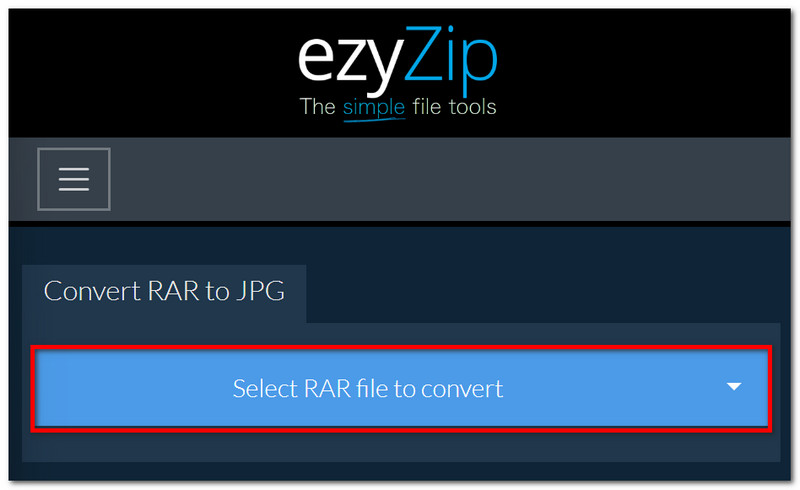
Step 1Upload your RAR file to ezyZip online. If the upload has different files within, you can use the All-purpose RAR File Extractor for extraction.
Step 2Allow the tool to process the uploaded files. It will convert the files to JPG immediately. Then, you can click the Download button to save.
5. GroupDocs
Another way to learn how to convert RAR to JPG is through GroupDocs. If you are familiar with CloudConverter or FreeConvert, this online tool has a similar purpose of providing various conversions for rare file formats. Although its interface is too clean for conversion, it guarantees a good result for the converted files. However, it does not support multiple files to be converted at once, so it is not recommended if you have many RAR files. Still, GroupDocs is a good option for a quick conversion online.
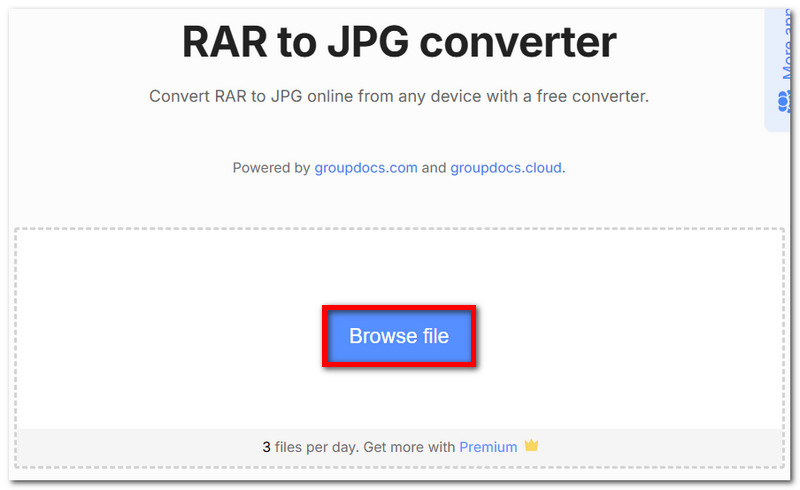
Step 1Drag and drop your RAR file to GroupDocs. Wait for a few moments to let the online tool check the files within it.
Step 2After successfully checking the content of the file, it will suggest the right output format. But you can still choose the desired one.
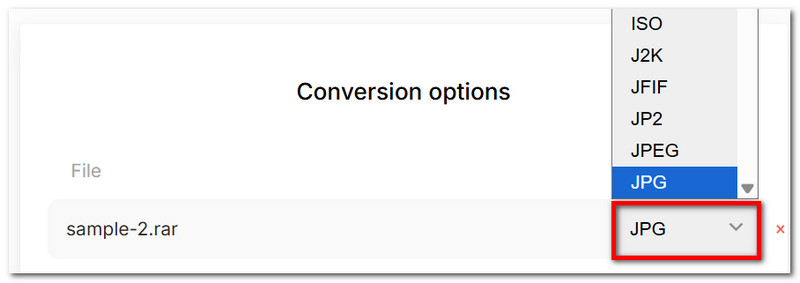
Step 3Click the Convert Now button to process. Finally, click Download Result to export your converted files. You can repeat the process for other RAR files.
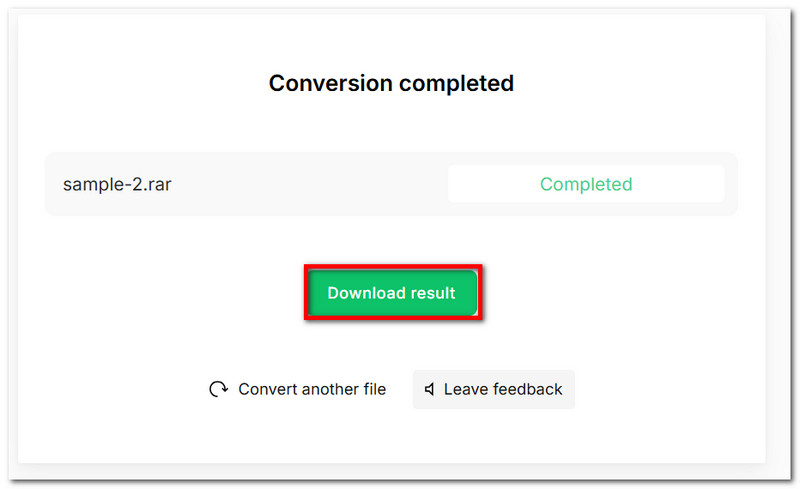
Part 3: The Easiest Way to Convert Any Image to JPG Free Online
It becomes difficult to convert a RAR file to JPG online when most of the online converters are either not free or offer the worst image quality. Good thing AVAide Image Converter is available for converting all types of image formats. With this online tool, you can freely convert over 100 different formats to popular outputs like JPG, GIF, and PNG without losing the original quality. What makes AVAide more appealing is that, unlike other online tools, you don't have to install anything; rather, conversion is made easier with just one click. More than this, it supports multiple files to convert in one go, which saves you more time. AVAide Image Converter is compatible with popular web browsers, especially on Google Chrome, Safari, and Microsoft Edge, where you can convert RAR to JPG unlimitedly.
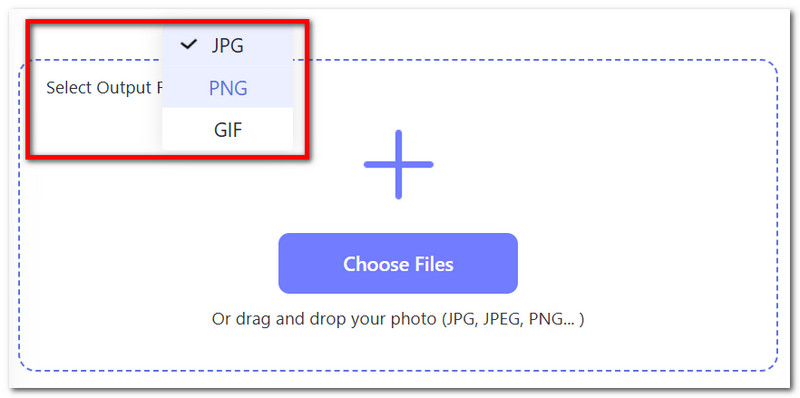
Step 1In your web browser, search for AVAide Image Converter. First, choose the output format to JPG, PNG, or GIF.
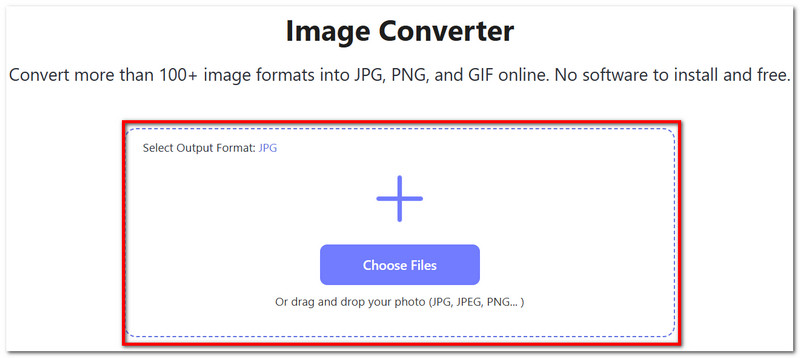
Step 2Click the Choose Files button to upload or drag and drop the RAR file from your folder. Immediately, the Image Converter will convert the uploaded file to JPG. You can add more files to create a batch conversion.
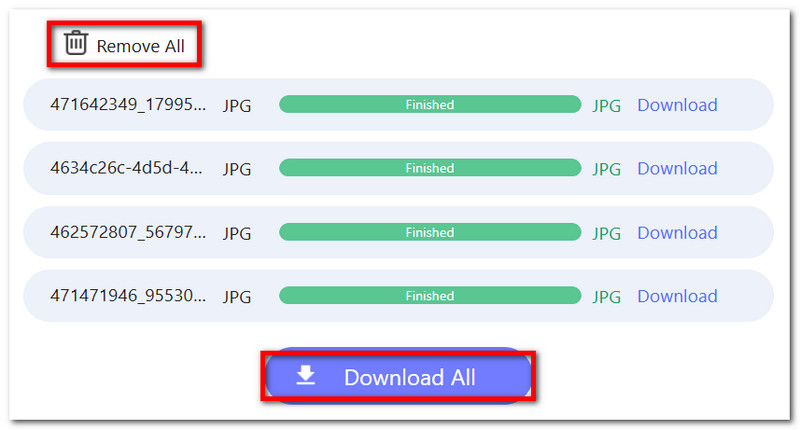
Step 3Once done, click the Download All button to export all converted images. If an unwanted file is uploaded, click Remove All to delete it.
Now it is possible to convert a RAR file to JPG. You might think it will be challenging with how rare it is, but there are a lot of ways to convert RAR online. More than that, AVAide Image Converter will be the best choice for any type of image conversion, giving a great experience with a promising result. You can visit the website and start your conversion for free.

You can easily convert your photo from any image format to a popular JPG, PNG, or GIF with no quality loss.
PROCESS NOW