เคยไหมที่ต้องบันทึกหน้าจออย่างรวดเร็ว แต่ต้องมาแก้ไขคุณภาพเสียงหรือวิดีโอในภายหลัง? ส่วนใหญ่มักเกิดจากการตั้งค่าที่ไม่ครบถ้วนหรือตั้งค่าไม่เหมาะสม Screencastify ฟังก์ชันนี้ช่วยให้ผู้ใช้ Chrome สามารถบันทึกแท็บ เดสก์ท็อป และภาพจากเว็บแคมได้โดยไม่ต้องติดตั้งแอปพลิเคชันใดๆ การตั้งค่านี้เป็นขั้นตอนแรกสู่การสอน การสาธิต และการประชุมทีมที่ชัดเจนยิ่งขึ้น ในบทความนี้ คุณจะได้เรียนรู้วิธีหลีกเลี่ยงข้อผิดพลาดในการใช้งานแต่ละฟังก์ชัน
- ส่วนที่ 1. Screencastify คืออะไร?
- ส่วนที่ 2 คุณสมบัติหลักและสิ่งใหม่ๆ
- ส่วนที่ 3. ความปลอดภัยและความเป็นส่วนตัวของ Screencastify
- ส่วนที่ 4 วิธีการใช้งาน Screencastify
- ส่วนที่ 5. ราคาและการใช้งานเวอร์ชันฟรีของ Screencastify
- ส่วนที่ 6. ทางเลือกที่ดีที่สุดสำหรับ Screencastify
- ส่วนที่ 7 ตัวอย่างและการใช้งาน Screencastify
ส่วนที่ 1. Screencastify คืออะไร?
Screencastify คือแพลตฟอร์มสร้างวิดีโอและบันทึกหน้าจอที่ออกแบบมาเพื่อให้การสร้างบทเรียน วิดีโอฝึกอบรม และงานนำเสนอสั้นๆ ทำได้ง่ายขึ้น บางคนรู้จัก Screencastify ในชื่อส่วนขยาย Screencastify สำหรับเบราว์เซอร์ Google Chrome แต่ Screencastify ทำได้มากกว่าแค่บันทึกหน้าจอเดสก์ท็อปของคุณ: มันมีฟังก์ชันการตัดต่อวิดีโอ การจัดเก็บ การแชร์ และคุณสมบัติสำหรับห้องเรียนด้วย
โปรแกรมนี้ใช้งานง่าย เหมาะสำหรับครู ทีมงานที่ทำงานทางไกล และผู้สร้างวิดีโอที่กำลังมองหาวิธีที่มีประสิทธิภาพในการสร้างวิดีโออย่างรวดเร็ว เพื่อตัดสินใจว่านี่คือโซลูชันที่เหมาะสมหรือไม่ ควรพิจารณาคุณสมบัติ ราคา ข้อจำกัด และวิธีการใช้งานในส่วนต่อไปนี้
ส่วนที่ 2 คุณสมบัติหลักและสิ่งใหม่ๆ
เพื่อให้เข้าใจว่า Screencastify คืออะไร เราควรมาดูว่าแพลตฟอร์มนี้พัฒนาไปไกลกว่าการบันทึกวิดีโอในเบราว์เซอร์แบบธรรมดาอย่างไร ปัจจุบัน Screencastify รวมการบันทึกวิดีโอ การตัดต่อ การแชร์ และการทำงานร่วมกันไว้ในระบบเดียว ทำให้มีประโยชน์สำหรับครู ทีมงานที่ทำงานทางไกล ผู้ฝึกสอน และผู้สร้างสรรค์ที่ต้องการผลลัพธ์อย่างรวดเร็วโดยไม่ต้องใช้ซอฟต์แวร์ขั้นสูง ด้านล่างนี้คือคุณสมบัติที่สำคัญที่สุดและการอัปเดตใหม่ๆ ที่ช่วยปรับปรุงประสบการณ์การใช้งานของผู้ใช้
1. การบันทึกที่รวดเร็วผ่านเบราว์เซอร์
ส่วนขยาย Screencastify สำหรับ Chrome ช่วยให้ผู้ใช้สามารถเริ่มบันทึกได้โดยตรงจากเบราว์เซอร์ สามารถบันทึกแท็บ หน้าจอเต็ม หรือเว็บแคมได้โดยไม่ต้องติดตั้งโปรแกรมขนาดใหญ่บนเดสก์ท็อป ทำให้การตั้งค่าทำได้ง่ายและมีประสิทธิภาพ
2. การเข้าถึงบัญชีที่ปลอดภัย
กระบวนการเข้าสู่ระบบของ Screencastify เชื่อมต่อผู้ใช้กับวิดีโอที่บันทึกไว้ การตั้งค่า และเครื่องมือบนคลาวด์ ช่วยให้ผู้ใช้สามารถใช้งานอุปกรณ์ต่างๆ ได้อย่างเป็นระเบียบ พร้อมทั้งจัดการโปรเจกต์ต่างๆ ได้อย่างง่ายดาย
3. เครื่องมือแก้ไขในตัว
สำหรับผู้ใช้ที่กำลังเรียนรู้การใช้งาน Screencastify เครื่องมือตัดต่อวิดีโอถือเป็นจุดเริ่มต้นที่ง่ายที่สุด สามารถตัดแต่ง ตัดต่อ และรวมวิดีโอได้โดยไม่ต้องใช้ซอฟต์แวร์อื่นเพิ่มเติม
4. ส่งออกและบันทึกไฟล์ได้ง่าย
ผู้ใช้หลายคนถามถึงวิธีการบันทึกวิดีโอจาก Screencastify หลังจากบันทึกเสร็จแล้ว แพลตฟอร์มนี้มีตัวเลือกการส่งออกและการแชร์ที่ทำให้ง่ายต่อการเก็บสำเนาไว้ในเครื่องหรือส่งลิงก์
5. การตัดต่อตามบทถอดเสียง
การอัปเดตล่าสุดช่วยให้ผู้ใช้สามารถแก้ไขวิดีโอผ่านข้อความถอดเสียงได้ ซึ่งช่วยประหยัดเวลาโดยการลบข้อผิดพลาดในการพูดหรือช่วงหยุดชั่วคราวได้เร็วกว่าการแก้ไขไทม์ไลน์ด้วยตนเอง
6. ตัวเลือกการดาวน์โหลดเพื่อใช้งานแบบออฟไลน์
ผู้ใช้งานที่ต้องการดาวน์โหลดไฟล์ Screencastify สามารถบันทึกวิดีโอเพื่อใช้ในการนำเสนอ เก็บเป็นเอกสาร หรือแบ่งปันในกรณีที่การเข้าถึงอินเทอร์เน็ตมีจำกัด
7. ประสิทธิภาพการบันทึกที่เชื่อถือได้
โปรแกรมบันทึกหน้าจอ Screencastify ยังคงเป็นจุดแข็งหลักของแพลตฟอร์มนี้ ออกแบบมาเพื่อใช้ในการบันทึกบทเรียนสั้นๆ การอัปเดตทีม การสาธิต และบทเรียนต่างๆ โดยไม่ต้องตั้งค่าอะไรมาก
8. คุณสมบัติการจับภาพหน้าจอแบบเต็มหน้าจอ
โปรแกรมบันทึกหน้าจอ Screencastify รองรับการบันทึกเดสก์ท็อป แท็บเบราว์เซอร์ และการซ้อนทับภาพจากเว็บแคม ทำให้มีประโยชน์สำหรับการสาธิตซอฟต์แวร์และวิดีโอฝึกอบรม
9. การเข้าถึงวิดีโอที่บันทึกไว้
ผู้ใช้จำนวนมากค้นหาวิธีดาวน์โหลดวิดีโอจาก Screencastify เมื่อต้องการสำรองข้อมูลหรือเก็บไว้ดูแบบออฟไลน์ แพลตฟอร์มนี้มีตัวเลือกในการส่งออกวิดีโอที่บันทึกไว้ในรูปแบบทั่วไป
ส่วนที่ 3. ความปลอดภัยและความเป็นส่วนตัวของ Screencastify
แอป Screencastify ใช้การอนุญาตผ่านเบราว์เซอร์เพื่อเข้าถึงหน้าจอ ไมโครโฟน และกล้องของคุณหลังจากที่คุณอนุมัติแล้วเท่านั้น วิธีนี้ช่วยให้ผู้ใช้ควบคุมสิ่งที่จะบันทึกได้ แต่ก็หมายความว่าการจัดการสิทธิ์อย่างระมัดระวังเป็นสิ่งสำคัญ โดยเฉพาะอย่างยิ่งบนอุปกรณ์ที่ใช้งานร่วมกัน การบันทึกจะถูกจัดเก็บไว้ในระบบคลาวด์เพื่อให้เข้าถึงและแชร์ได้ง่าย ดังนั้นผู้ใช้จึงต้องจัดการการตั้งค่าความเป็นส่วนตัวเพื่อหลีกเลี่ยงการเปิดเผยเนื้อหาที่ละเอียดอ่อน เนื่องจากทุกอย่างเชื่อมโยงกับการเข้าสู่ระบบ Screencastify การรักษาความปลอดภัยบัญชีของคุณด้วยรหัสผ่านที่รัดกุมและการตรวจสอบสิทธิ์แบบสองขั้นตอนจะช่วยปกป้องวิดีโอที่จัดเก็บและข้อมูลส่วนบุคคลได้
ความเสี่ยงด้านความเป็นส่วนตัวส่วนใหญ่มาจากการแบ่งปันข้อมูลมากกว่าการบันทึกข้อมูล โปรแกรมบันทึกหน้าจอที่ดีที่สุดบน Chromeวิดีโอจะถูกแชร์ผ่านลิงก์ซึ่งอาจเป็นส่วนตัวหรือสาธารณะ ดังนั้นการตั้งค่าที่ไม่ถูกต้องอาจทำให้เนื้อหาถูกเปิดเผยโดยไม่ตั้งใจ เรื่องนี้สำคัญอย่างยิ่งสำหรับผู้ใช้งานด้านการศึกษาที่ต้องใช้ Screencastify ในการส่งงานและรับคำติชม โดยรวมแล้ว Screencastify ถือว่าปลอดภัยเมื่อมีการจัดการสิทธิ์ การรักษาความปลอดภัยบัญชี และการตั้งค่าการแชร์อย่างเหมาะสม เนื่องจากผู้ใช้มีบทบาทสำคัญมากกว่าตัวเครื่องมือเองในการรักษาความเป็นส่วนตัว
ส่วนที่ 4 วิธีการใช้งาน Screencastify
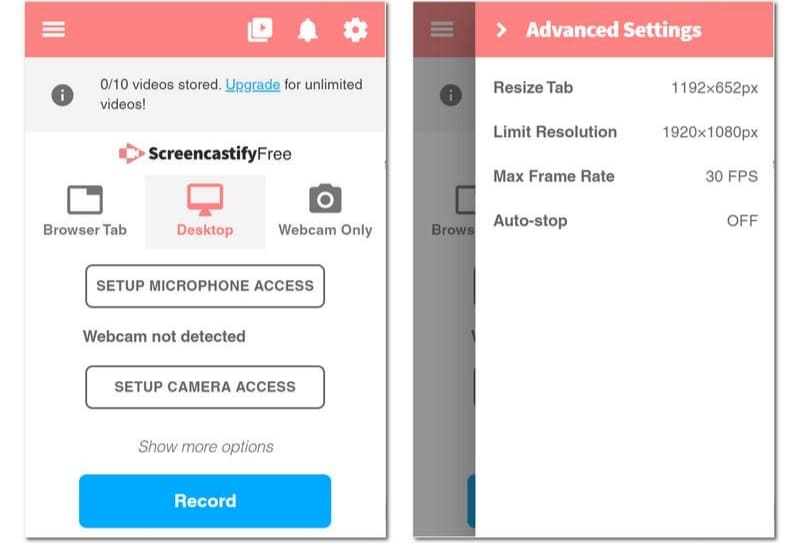
วิธีใช้งาน Screencastify เริ่มต้นด้วยขั้นตอนการตั้งค่าที่ง่ายดาย ซึ่งช่วยให้คุณติดตั้งเครื่องมือ สร้างบัญชี และเริ่มบันทึกได้ภายในไม่กี่นาที เมื่อตั้งค่าอย่างถูกต้องแล้ว ก็จะกลายเป็นวิธีที่รวดเร็วในการบันทึกหน้าจอ เว็บแคม หรือการบันทึกแบบแท็บโดยตรงจากเบราว์เซอร์ของคุณ
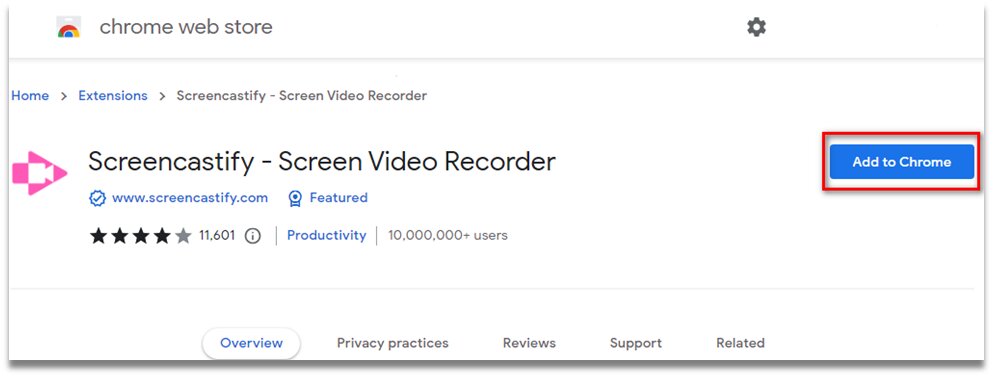
ขั้นตอนที่ 1ติดตั้ง Screencastify
ค้นหาโปรแกรมเสริม Screencastify ใน Chrome Web Store แล้วคลิก เพิ่มลงใน Chromeหลังจากติดตั้งแล้ว ให้ปักหมุดไว้ที่แถบเครื่องมือของเบราว์เซอร์ เพื่อให้คุณสามารถเข้าถึงได้อย่างรวดเร็วทุกเมื่อที่ต้องการ
ขั้นตอนที่ 2ตั้งค่าบัญชีของคุณ
เปิดส่วนขยายและลงชื่อเข้าใช้หรือสร้างบัญชีใหม่ ทำตามคำแนะนำในการตั้งค่า รวมถึงการขออนุญาตเข้าถึงหน้าจอ ไมโครโฟน และกล้อง เพื่อให้แน่ใจว่าเครื่องมือทำงานได้อย่างถูกต้อง
ขั้นตอนที่ 3เริ่มบันทึก
คลิกปุ่มส่วนขยายอีกครั้งเพื่อเริ่มบันทึก เลือกโหมด เช่น แท็บนี้ เต็มหน้าจอ หรือ เว็บแคมเท่านั้น ปรับการตั้งค่าเสียง จากนั้นเริ่มบันทึกเนื้อหาหน้าจอของคุณโดยคลิกที่ปุ่ม บันทึก.
ขั้นตอนที่ 4บันทึกและแชร์
ถ้าเสร็จแล้ว ให้คลิกที่นี่ หยุด กดปุ่ม แล้วแท็บใหม่จะปรากฏขึ้น แก้ไขวิดีโอที่บันทึกไว้โดยใช้คุณสมบัติของแท็บนั้น จากนั้นคลิก แบ่งปัน เพื่อบันทึกไปยังไดรฟ์ของคุณ
ส่วนที่ 5. ราคาและการใช้งานเวอร์ชันฟรีของ Screencastify
| คุณสมบัติ | ฟรี | สตาร์ทเตอร์ | มือโปร |
| ราคา | $0 | $19 | $25 |
| การเรียกเก็บเงิน | ตลอดไป | รายเดือน | รายเดือน |
| ขีดจำกัดวิดีโอ | วิดีโอสูงสุด 10 รายการ | ไม่ จำกัด | ไม่ จำกัด |
| ระยะเวลาการบันทึกสูงสุด | 30 นาที | 60 นาที | 180 นาที |
| เครื่องมือตัดต่อวิดีโอ | ไม่ได้รับการสนับสนุน | การแก้ไขขั้นพื้นฐาน | การแก้ไขขั้นพื้นฐานด้วย AI ขั้นสูง |
| เครื่องมือสำหรับการทำงานร่วมกัน | ไม่ได้รับการสนับสนุน | การทำงานร่วมกันขั้นสูง | เวิร์กโฟลว์ AI ขั้นสูง |
| คำบรรยายและบทถอดเสียง | ไม่ได้รับการสนับสนุน | ไม่ได้รับการสนับสนุน | ได้รับการสนับสนุน |
ส่วนที่ 6. ทางเลือกที่ดีที่สุดสำหรับ Screencastify
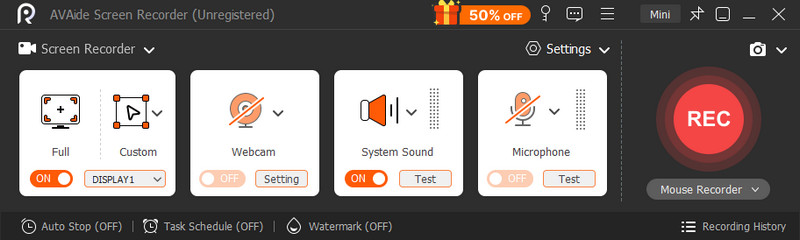
หากคุณรู้สึกว่า Screencastify มีข้อจำกัดมากเกินไป ลองดูตัวเลือกอื่นๆ ดู โปรแกรมบันทึกหน้าจอ AVAide ฟีเจอร์นี้เปรียบเสมือนการอัปเกรดที่ยืดหยุ่นและใช้งานง่ายกว่าเดิม ช่วยให้คุณบันทึกทั้งหน้าจอ หน้าต่างเดียว หรือเฉพาะพื้นที่ที่เลือกไว้ พร้อมทั้งบันทึกเสียงระบบ ไมโครโฟน และเว็บแคมได้อย่างราบรื่นในเวลาเดียวกัน ซึ่งโดยพื้นฐานแล้วมีทุกสิ่งที่คุณต้องการสำหรับบทเรียน การสาธิต หรือการนำเสนอออนไลน์

ดาวน์โหลดฟรี สำหรับ Windows 7 หรือใหม่กว่า
 ดาวน์โหลดอย่างปลอดภัย
ดาวน์โหลดฟรี สำหรับ Mac OS X 10.13 หรือใหม่กว่า
ดาวน์โหลดอย่างปลอดภัยสิ่งที่ทำให้มันโดดเด่นในฐานะทางเลือกแทน Screencastify คือความเรียบง่ายโดยไม่รู้สึกว่าพื้นฐานเกินไป: มันทำงานเป็นแอปพลิเคชันบนเดสก์ท็อป ดังนั้นจึงมีความเสถียรมากกว่าส่วนขยายเบราว์เซอร์ทั่วไป และจะไม่จำกัดการใช้งานของคุณโดยไม่จำเป็น คุณยังได้รับฟีเจอร์ที่มีประโยชน์ เช่น การใส่คำอธิบายประกอบแบบเรียลไทม์และการตั้งค่าเอาต์พุตที่ง่ายดาย ช่วยให้คุณปรับแต่งการบันทึกของคุณได้อย่างรวดเร็วโดยไม่ต้องใช้เครื่องมือเพิ่มเติม มันเป็นโปรแกรมบันทึกที่ทำงานได้อย่างเงียบๆ และมีประสิทธิภาพโดยไม่รบกวนการใช้งานของคุณ
ส่วนที่ 7 ตัวอย่างและการใช้งาน Screencastify
Screencastify เป็นโปรแกรมที่ใช้กันอย่างแพร่หลาย เพราะเหมาะกับการใช้งานบันทึกในชีวิตประจำวันในหลากหลายสาขา หากคุณต้องการใช้งาน โปรแกรมนี้ มีตัวอย่างและกรณีการใช้งานที่คุณควรรู้ดังต่อไปนี้ เครื่องบันทึกวิดีโอ:
- การศึกษา: ครูบันทึกวิดีโอการสอน อธิบายแนวคิดด้วยภาพ และให้คำติชมสั้นๆ ผ่านวิดีโอแก่นักเรียน
- นักเรียน: ใช้สำหรับงานวิดีโอ การอธิบายโครงงาน และการนำเสนอที่บันทึกไว้
- ธุรกิจและการฝึกอบรม: ช่วยสร้างสื่อต้อนรับพนักงานใหม่ วิดีโอฝึกอบรมภายใน และการสาธิตผลิตภัณฑ์ โดยไม่ต้องใช้ซอฟต์แวร์ที่ซับซ้อน
- การสร้างเนื้อหา: เหมาะอย่างยิ่งสำหรับบทเรียนสั้นๆ การสาธิตการใช้งานเบราว์เซอร์ และวิดีโอแนะนำวิธีการใช้งานแบบง่ายๆ
- การสื่อสาร: ช่วยให้สามารถบันทึกหน้าจอได้อย่างรวดเร็ว เพื่อการแบ่งปันแนวคิดหรือคำแนะนำได้อย่างชัดเจนและมีประสิทธิภาพ
โดยสรุปแล้ว Screencastify เป็นเครื่องมือที่เรียบง่ายแต่มีประสิทธิภาพ เหมาะสำหรับการใช้งานในด้านการศึกษา ธุรกิจ และการสร้างคอนเทนต์ ตัวอย่าง Screencastify จากบันทึกการสอน ผลงานของนักเรียน วิดีโอฝึกอบรม และบทช่วยสอนสั้นๆ แสดงให้เห็นถึงจุดแข็งของการบันทึกหน้าจอที่รวดเร็ว ชัดเจน และแชร์ได้ง่าย
เกี่ยวกับผู้เขียน

จับภาพกิจกรรมบนหน้าจอด้วยเสียง การประชุมออนไลน์ วิดีโอการเล่นเกม เพลง เว็บแคม ฯลฯ