หากคุณเป็นผู้ใช้ Mac และต้องการบันทึกหน้าจอและเสียง คุณไม่จำเป็นต้องมองหาที่อื่นอีกแล้ว เพราะ QuickTime Player มีทุกสิ่งที่คุณต้องการอยู่แล้ว
ในนี้ การบันทึกหน้าจอ QuickTime ในคู่มือนี้ เราจะสอนวิธีการใช้งานตั้งแต่ต้นจนจบ ตั้งแต่การเปิดโปรแกรมไปจนถึงการหยุดและการบันทึกภาพ เริ่มกันเลย!
ส่วนที่ 1. บทนำโดยย่อเกี่ยวกับการบันทึกหน้าจอด้วย QuickTime
QuickTime Player เป็นโปรแกรมฟรีบนระบบปฏิบัติการ Mac มีการติดตั้งมาให้แล้วล่วงหน้า คุณจึงสามารถใช้งานได้ทันที แม้ว่าจะเป็นที่รู้จักในฐานะโปรแกรมเล่นมีเดีย แต่ก็ยังทำหน้าที่เป็นโปรแกรมบันทึกวิดีโอได้อีกด้วย เครื่องบันทึกหน้าจอสำหรับ Macด้วยเหตุนี้ คุณจึงสามารถจับภาพหน้าจอได้โดยไม่ต้องใช้แอปพลิเคชันจากภายนอก นอกจากนี้ อินเทอร์เฟซยังเรียบง่าย จึงใช้งานง่าย
1. ความสามารถหลัก
- สามารถบันทึกได้
สำหรับการใช้งานทั่วไป โปรแกรมนี้ครอบคลุมฟังก์ชันพื้นฐาน คุณสามารถบันทึกหน้าจอแบบเต็มหน้าจอได้ หรือเลือกบันทึกเฉพาะพื้นที่ก็ได้ ในขณะเดียวกัน คุณสามารถบันทึกวิดีโอจากเว็บแคมโดยใช้ "การบันทึกภาพยนตร์แบบใหม่" นอกจากนี้ยังสามารถบันทึกเสียงจากไมโครโฟนได้ และยังสามารถแสดงการคลิกเมาส์บนหน้าจอได้อีกด้วย - ไม่สามารถบันทึก (โดยตรง)
น่าเสียดายที่มันไม่สามารถบันทึกเสียงระบบได้ เนื่องจากข้อจำกัดด้านความปลอดภัยของระบบปฏิบัติการ Mac นอกจากนี้ ยังไม่สามารถบันทึกหน้าจอและเว็บแคมพร้อมกันได้ - ข้อจำกัด
เพราะมันเป็นพื้นฐาน เครื่องเล่นวิดีโอ 4K และถึงแม้ว่าจะเป็นโปรแกรมบันทึกวิดีโอ แต่ก็มีบางฟีเจอร์ที่ขาดหายไป ตัวอย่างเช่น มันบันทึกวิดีโอได้เฉพาะในรูปแบบ .mov เท่านั้น ส่งผลให้ขนาดไฟล์อาจมีขนาดใหญ่ นอกจากนี้ยังไม่มีฟีเจอร์การแก้ไขขั้นสูง เช่น การแก้ไขไทม์ไลน์ และการเพิ่มคำอธิบายประกอบหรือเอฟเฟ็กต์ต่างๆ
ส่วนที่ 2 วิธีเริ่มบันทึกหน้าจอด้วย QuickTime
หากคุณต้องการทราบวิธีการใช้ QuickTime Player ในการบันทึกหน้าจอพร้อมเสียง คุณก็เพียงแค่ทำการตั้งค่าเบื้องต้นก่อนเริ่มใช้งาน
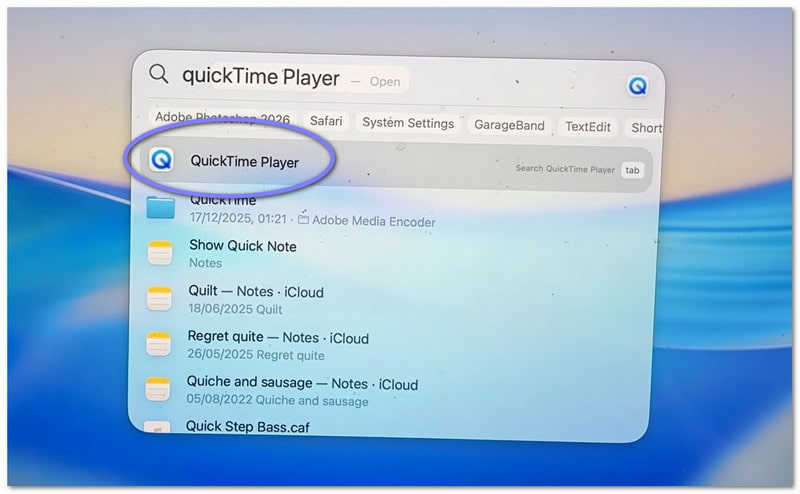
ขั้นตอนที่ 1ขั้นแรก ไปที่... แอปพลิเคชั่น เปิดโฟลเดอร์และโปรแกรม หากต้องการวิธีที่เร็วกว่า ให้ใช้การค้นหา Spotlight กด สั่งการ + ช่องว่างจากนั้นพิมพ์ QuickTime Player- กด เข้า ที่จะเปิดมัน
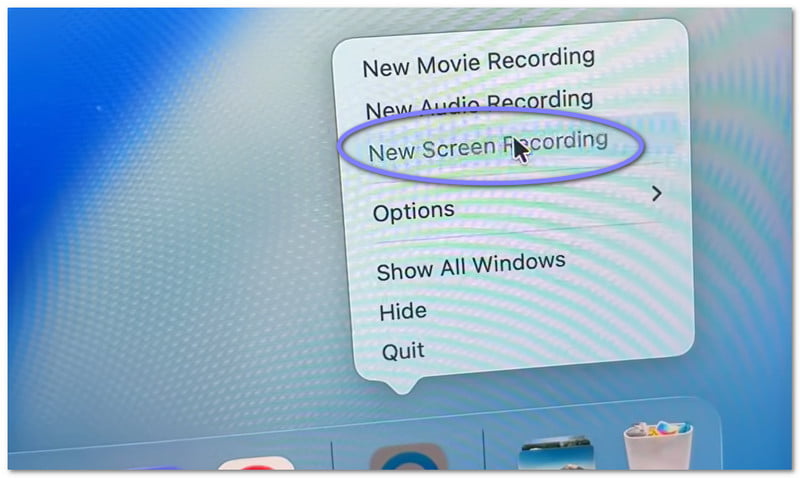
ขั้นตอนที่ 2เมื่อโปรแกรมเปิดขึ้นแล้ว ให้ไปที่แถบเมนูด้านบน คลิก ไฟล์แล้วเลือก การบันทึกหน้าจอใหม่คุณจะเห็นหน้าจอแสดงการบันทึกขนาดเล็กปรากฏขึ้น หากต้องการใช้ทางลัด ให้กดปุ่ม สั่งการ + ควบคุม + เอ็นโปรแกรมบันทึกหน้าจอจะเปิดขึ้นทันที
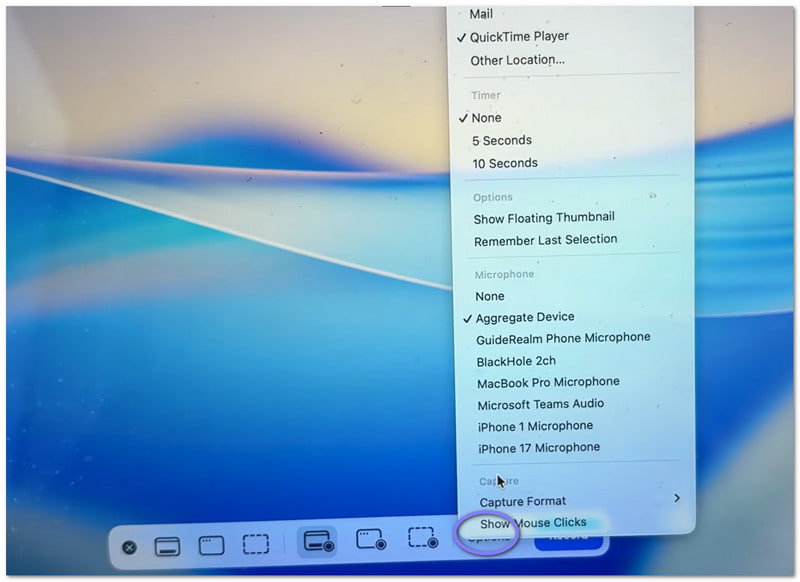
ขั้นตอนที่ 3ก่อนเริ่มต้น โปรดตรวจสอบการตั้งค่าสักครู่ คลิกที่นี่ ตัวเลือก ปุ่มบนแผงบันทึกเสียง ตรงนี้คุณสามารถเลือกไมโครโฟนได้หากต้องการบันทึกเสียงของคุณ นอกจากนี้ คุณยังสามารถตั้งเวลาสั้นๆ ได้หากต้องการเวลาในการเตรียมตัว และยังสามารถเลือกตำแหน่งที่คุณต้องการบันทึกไฟล์หลังจากบันทึกเสร็จแล้วได้อีกด้วย
ขั้นตอนที่ 4ทีนี้ ให้ตัดสินใจว่าคุณต้องการบันทึกอะไร หากต้องการบันทึกทั้งหมด ให้คลิกที่ใดก็ได้บนหน้าจอ มันจะบันทึกทั้งหน้าจอ หากต้องการบันทึกเพียงบางส่วน ให้เลือกและลากเมาส์เพื่อเลือกพื้นที่
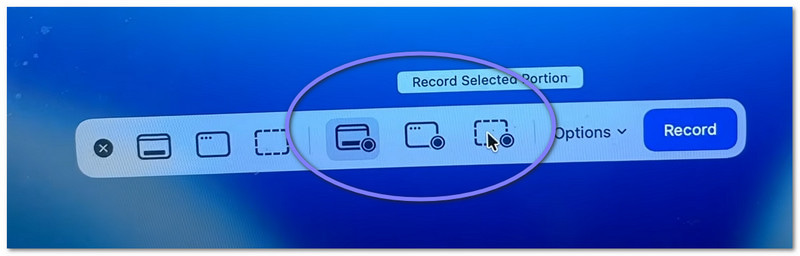
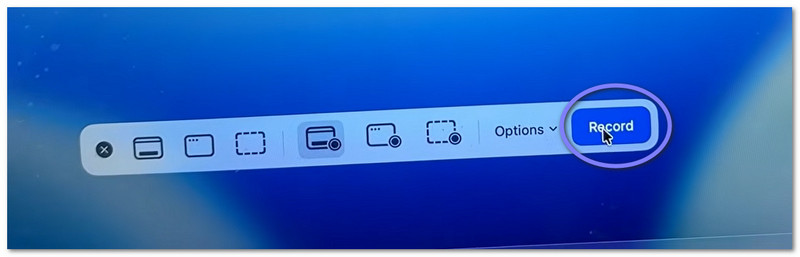
ขั้นตอนที่ 5สุดท้ายให้คลิกที่ บันทึก กดปุ่มเพื่อเริ่ม หลังจากนั้นไม่นาน การบันทึกของคุณจะเริ่มขึ้น ระหว่างการบันทึก ให้ทำกิจกรรมอื่นๆ ตามที่ต้องการ
ส่วนที่ 3 วิธีการหยุดและบันทึกการบันทึก QuickTime
ด้านล่างนี้ เราจะสอนวิธีการหยุดบันทึกหน้าจอด้วย QuickTime รวมถึงวิธีการบันทึกไฟล์อย่างถูกต้อง:
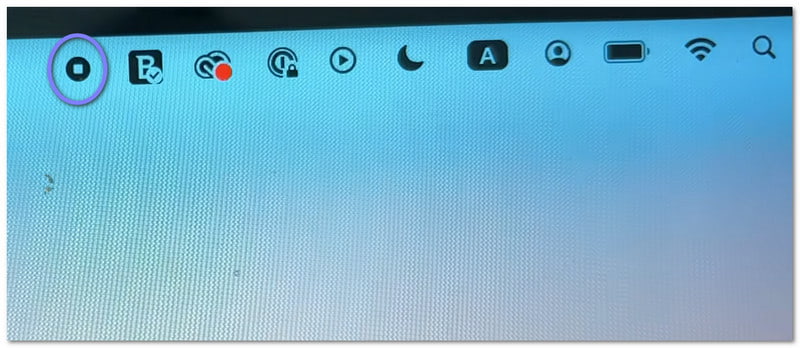
ขั้นตอนที่ 1ขั้นแรก เลื่อนเคอร์เซอร์ไปที่มุมขวาบนของหน้าจอ มองหา หยุด ปุ่มนี้มีลักษณะเป็นวงกลมที่มีสี่เหลี่ยมเล็กๆ อยู่ข้างใน คลิกเพื่อหยุดการบันทึก หรืออีกทางเลือกหนึ่ง คุณสามารถกดปุ่ม สั่งการ + ควบคุม + เอสค บนแป้นพิมพ์ของคุณ
ขั้นตอนที่ 2หลังจากที่คุณหยุดบันทึกแล้ว อาจมีภาพตัวอย่างเล็กๆ ปรากฏขึ้นที่มุมหน้าจอ นั่นคือวิดีโอที่คุณบันทึกไว้ คุณสามารถคลิกได้ทันทีหากต้องการเปิดดูวิดีโอ หากคุณไม่สนใจ วิดีโอนั้นก็จะถูกบันทึกโดยอัตโนมัติ
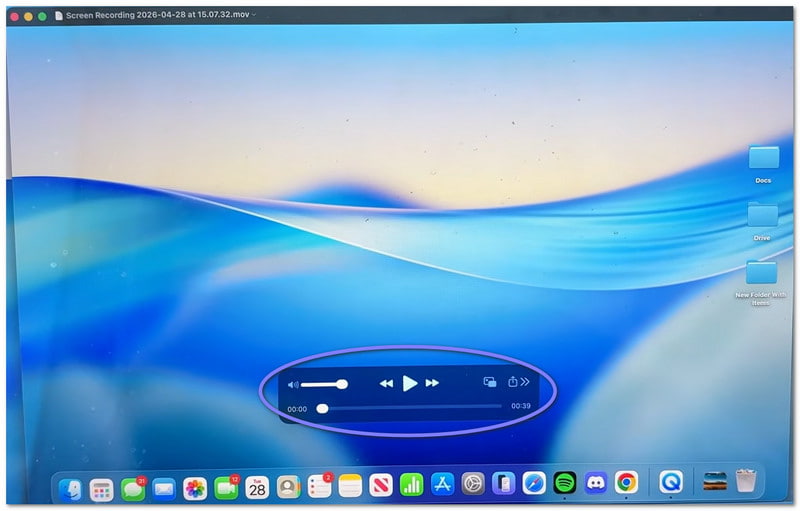
ขั้นตอนที่ 3โดยค่าเริ่มต้น วิดีโอจะบันทึกไว้ที่เดสก์ท็อปหรือตำแหน่งที่คุณเลือก หากคุณต้องการบันทึกด้วยตนเอง ให้เปิดวิดีโอก่อน จากนั้นไปที่แถบเมนูแล้วคลิก ไฟล์, แล้ว บันทึกหลังจากนั้น ให้พิมพ์ชื่อไฟล์ เลือกตำแหน่งที่คุณต้องการจัดเก็บ แล้วคลิก บันทึก.
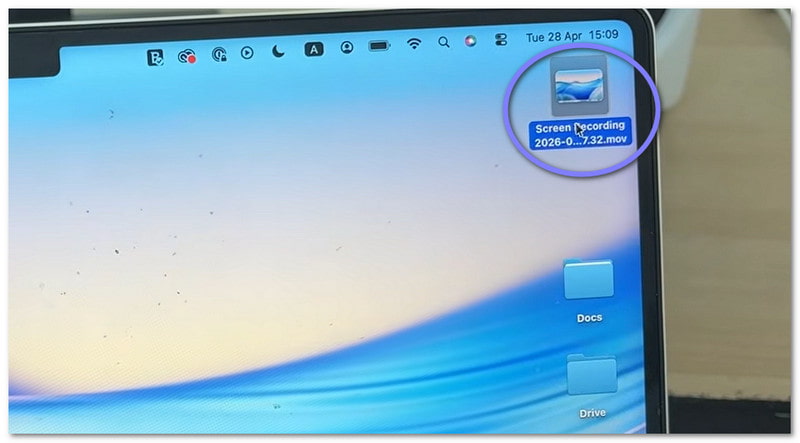
ขั้นตอนที่ 4เมื่อวิดีโอเปิดขึ้น คุณสามารถแก้ไขง่ายๆ ได้ เช่น ตัดส่วนต้นหรือส่วนท้ายออก คุณยังสามารถหมุนวิดีโอได้หากต้องการ นอกจากนี้ คุณยังสามารถแชร์วิดีโอได้โดยตรงจากแอปพลิเคชัน
ส่วนที่ 4 การแก้ไขปัญหา
บางครั้ง การบันทึกหน้าจออาจไม่เป็นไปตามที่วางแผนไว้ ปัญหาเล็กๆ น้อยๆ อาจเกิดขึ้นได้ แต่ข่าวดีก็คือ ปัญหาส่วนใหญ่แก้ไขได้ง่ายใน QuickTime Player
1. "โปรแกรม QuickTime Player พบข้อผิดพลาดขณะบันทึกหน้าจอของคุณ"
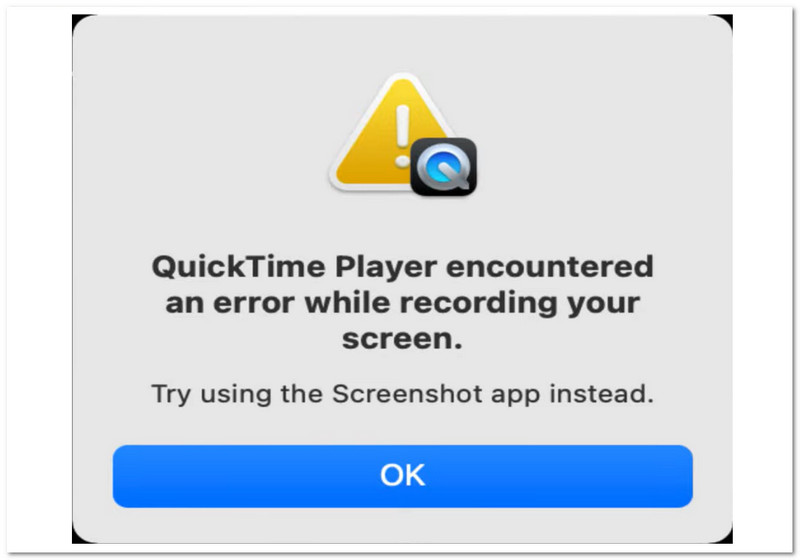
มีสาเหตุพื้นฐานไม่กี่ประการที่ทำให้เกิดข้อผิดพลาด "QuickTime Player พบข้อผิดพลาดขณะบันทึกหน้าจอของคุณ"
ขั้นแรก ตรวจสอบตำแหน่งที่บันทึกไฟล์ หากคุณบันทึกไปยังไดรฟ์ภายนอก ลองเปลี่ยนไปบันทึกที่เดสก์ท็อปดู วิธีนี้มักจะช่วยแก้ปัญหาได้ ต่อไป ตรวจสอบพื้นที่จัดเก็บข้อมูลของคุณ หากดิสก์ของคุณเต็ม การบันทึกอาจล้มเหลว
นอกจากนี้ โปรดตรวจสอบให้แน่ใจว่าได้เปิดใช้งานการอนุญาตแล้ว ไปที่ การตั้งค่าระบบ > ความเป็นส่วนตัวและความปลอดภัย > การบันทึกหน้าจอจากนั้น ตรวจสอบว่าอนุญาตให้ใช้งาน QuickTime Player หรือไม่
2. การบันทึก QuickTime ของฉันไม่มีเสียง!
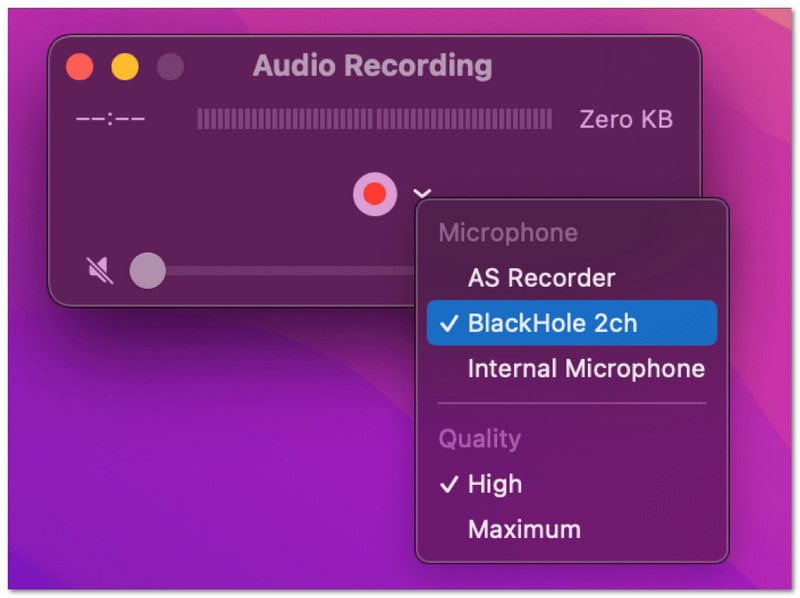
หากวิดีโอของคุณไม่มีเสียง โปรดตรวจสอบการตั้งค่าก่อนบันทึก เปิด... ตัวเลือก ไปที่เมนู จากนั้นเลือกไมโครโฟน เช่น "ไมโครโฟนในตัว" หากไม่ได้เลือกไมโครโฟน จะไม่มีการบันทึกเสียง นอกจากนี้ โปรดทดสอบไมโครโฟนของคุณก่อนเพื่อให้แน่ใจว่าใช้งานได้
3. QuickTime ไม่สามารถบันทึกเสียงระบบได้
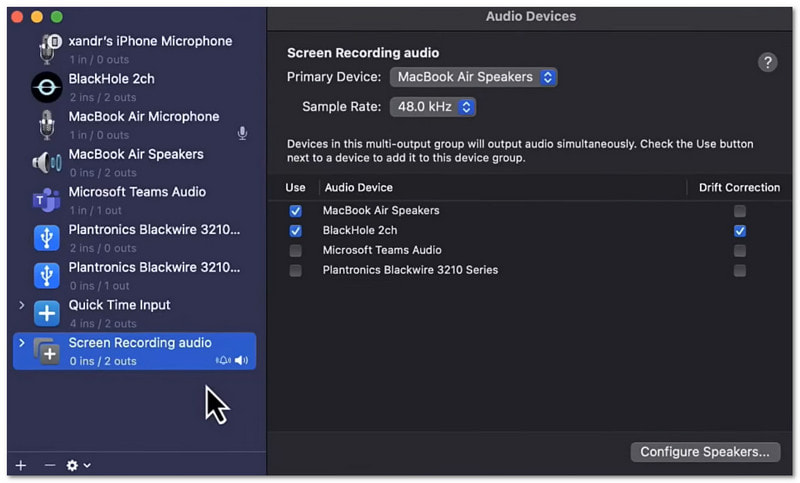
เป็นเรื่องปกติ โปรแกรม QuickTime Player ไม่สามารถบันทึกเสียงระบบได้โดยค่าเริ่มต้น เนื่องจากเป็นข้อกำหนดของระบบปฏิบัติการ Mac หากต้องการบันทึกเสียงระบบ คุณต้องใช้เครื่องมือเพิ่มเติม เช่น Background Music หรือ Loopback
ส่วนที่ 5. มีโปรแกรมอื่นที่ใช้แทน QuickTime สำหรับ Windows หรือไม่
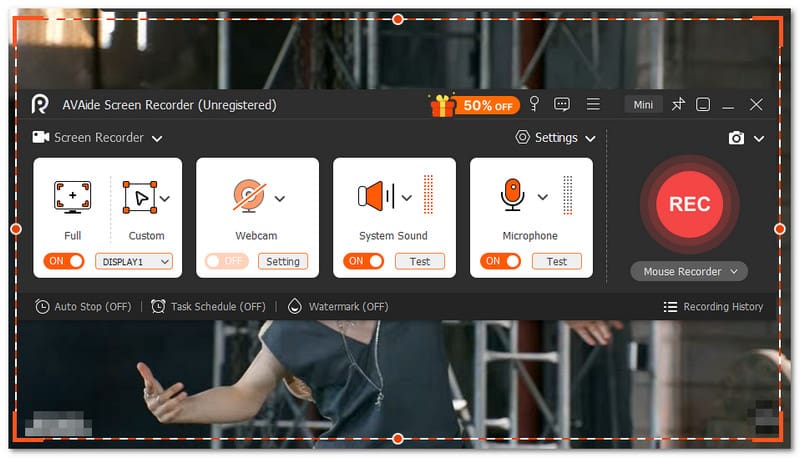
ใช่แล้ว มีโปรแกรมทางเลือกอื่นนอกเหนือจาก QuickTime สำหรับบันทึกหน้าจอใน Windows และโปรแกรมนั้นก็คือ... โปรแกรมบันทึกหน้าจอ AVAide.

ดาวน์โหลดฟรี สำหรับ Windows 7 หรือใหม่กว่า
 ดาวน์โหลดอย่างปลอดภัย
ดาวน์โหลดฟรี สำหรับ Mac OS X 10.13 หรือใหม่กว่า
ดาวน์โหลดอย่างปลอดภัยด้วยเครื่องมือนี้ คุณสามารถเลือกบันทึกหน้าจอแบบเต็มหน้าจอหรือแบบกำหนดเองได้อย่างง่ายดาย คุณยังสามารถเปิดเว็บแคม เสียงระบบ และไมโครโฟนได้อีกด้วย คุณไม่จำเป็นต้องตั้งค่าที่ซับซ้อน เพียงแค่เปิดใช้งานสิ่งที่คุณต้องการด้วยการคลิกเพียงครั้งเดียว ที่ดียิ่งกว่านั้นคือ มันช่วยให้คุณบันทึกวิดีโอหน้าจอคุณภาพสูงโดยไม่มีความล่าช้า รองรับความละเอียดสูงสุดถึง 4K ดังนั้นทุกอย่างจึงดูคมชัดและราบรื่น
ดังนั้นไม่ว่าคุณจะบันทึกอะไรก็ตาม เช่น วิดีโอสอนการใช้งาน วิดีโอเกม การประชุม หรือวิดีโอออนไลน์ ก็สามารถบันทึกได้อย่างคมชัดและเสถียร
คุณสมบัติที่สำคัญ:
- คุณสามารถตั้งเวลาให้เครื่องมือเริ่มและหยุดการบันทึกโดยอัตโนมัติได้
- คุณสามารถบันทึกได้นานหลายชั่วโมงอย่างราบรื่นโดยไม่มีอาการกระตุกหรือปัญหาด้านประสิทธิภาพ
- คุณสามารถดูบันทึกการบันทึกของคุณได้ทันทีหลังจากนั้น และบันทึกใหม่ได้หากคุณไม่พอใจ
- คุณสามารถเพิ่มข้อความ รูปภาพ กระดานไวท์บอร์ด และเครื่องหมายเน้นจุดสำคัญขณะบันทึก เพื่อเน้นประเด็นสำคัญได้
- คุณสามารถตัดแต่ง ตัด บีบอัด รวม แปลงวิดีโอ และปรับแต่งหรือเพิ่มระดับเสียงหลังจากการบันทึกได้
การเรียนรู้เป็นอย่างไรบ้าง วิธีใช้ QuickTime Player ในการบันทึกหน้าจอมันง่ายไม่ใช่เหรอ? คุณสามารถเริ่มต้นได้อย่างรวดเร็วและทำให้เสร็จโดยไม่มีปัญหาอะไรเลย
ข้อเสียเพียงอย่างเดียวคือมันมีฟังก์ชันการใช้งานจำกัด มันไม่มีประสิทธิภาพเท่ากับเครื่องบันทึกเสียงแบบเต็มรูปแบบ โปรแกรมบันทึกหน้าจอ AVAide.
ดังนั้น ไม่ว่าคุณจะเป็นผู้ใช้ Windows หรือ Mac คุณก็สามารถใช้ AVAide Screen Recorder ได้เช่นกัน ดาวน์โหลดเลยตอนนี้ แล้วเพลิดเพลินไปกับฟีเจอร์ต่างๆ และประสบการณ์การบันทึกที่ราบรื่น!
เกี่ยวกับผู้เขียน

บันทึกช่วงเวลาที่ดีที่สุดด้วย AVAide Screen Recorder Screencast ปรับแต่งและแชร์ในไม่กี่วินาที