วิธีบันทึกข้อความเสียงบน iPhoneการบันทึกข้อความเสียงเป็นวิธีที่รวดเร็วในการแบ่งปันความคิดหรือส่งข้อความเสียงส่วนตัวโดยไม่ต้องพิมพ์ ด้วยฟีเจอร์ข้อความเสียงในตัวของ iPhone คุณสามารถบันทึก บันทึก และแชร์คลิปเสียงของคุณได้ทันทีในไม่กี่แตะ ดังนั้น หากคุณกำลังมองหาวิธีที่ครบวงจรในการบันทึกและส่งข้อความเสียงบนมือถือของคุณ โปรดดูบทแนะนำนี้เพื่อให้ได้ผลลัพธ์ที่คุณต้องการ
ส่วนที่ 1 วิธีการบันทึกและส่งข้อความเสียงใน iMessage
iMessage ไม่ใช่แค่เครื่องมือสื่อสารธรรมดาเท่านั้น มันยังมีฟีเจอร์ข้อความเสียงอีกด้วย ด้วยฟีเจอร์นี้ คุณสามารถส่งหรือแชร์ข้อความและความคิดของคุณผ่านเสียงได้ นี่เป็นฟังก์ชันที่เหมาะอย่างยิ่งหากคุณต้องการส่งข้อความโดยไม่ต้องพิมพ์ข้อความใดๆ จากแป้นพิมพ์ ส่วนที่ดีที่สุดคือ การส่งข้อความเสียงนั้นง่ายมาก ทำให้เหมาะสำหรับผู้ใช้ทุกคน ดังนั้น หากคุณต้องการเริ่มต้นบันทึกและส่งข้อความ คุณสามารถทำตามคำแนะนำด้านล่างได้เลย
วิธีบันทึกข้อความเสียงบน iPhone
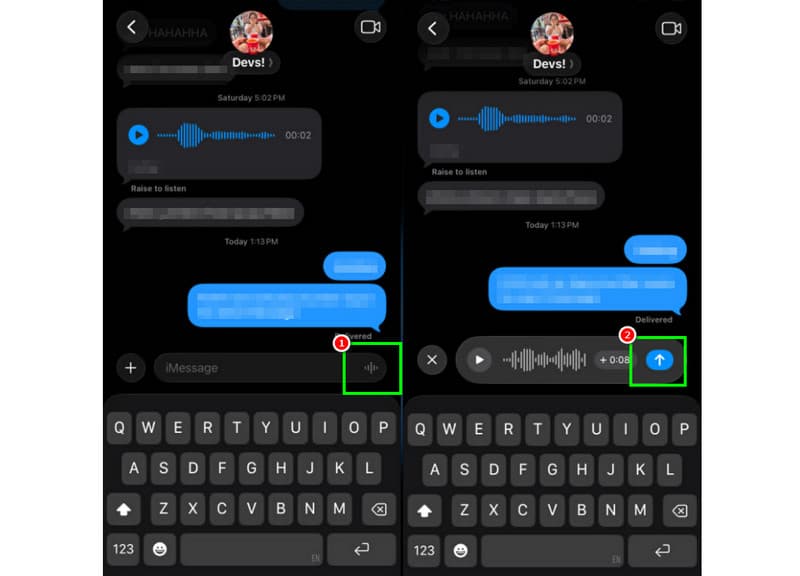
ขั้นตอนที่ 1บน iPhone ของคุณ ให้เปิดใช้งาน iMessage เปิดแอปพลิเคชัน จากนั้นไปที่บุคคลที่คุณต้องการติดต่อสื่อสารด้วย
ขั้นตอนที่ 2จากหน้าจอของคุณ ให้กดค้างไว้ที่ ไมโครโฟน ตัวเลือกนี้: ขณะกดค้าง คุณสามารถเริ่มบันทึกและพูดข้อความของคุณได้
ขั้นตอนที่ 3หากต้องการหยุดการบันทึก ให้ปล่อยนิ้วออกจากปุ่ม จากนั้นแตะที่... ส่งลูกศร ปุ่มสำหรับส่งข้อความ
ฟังข้อความเสียงขาเข้า
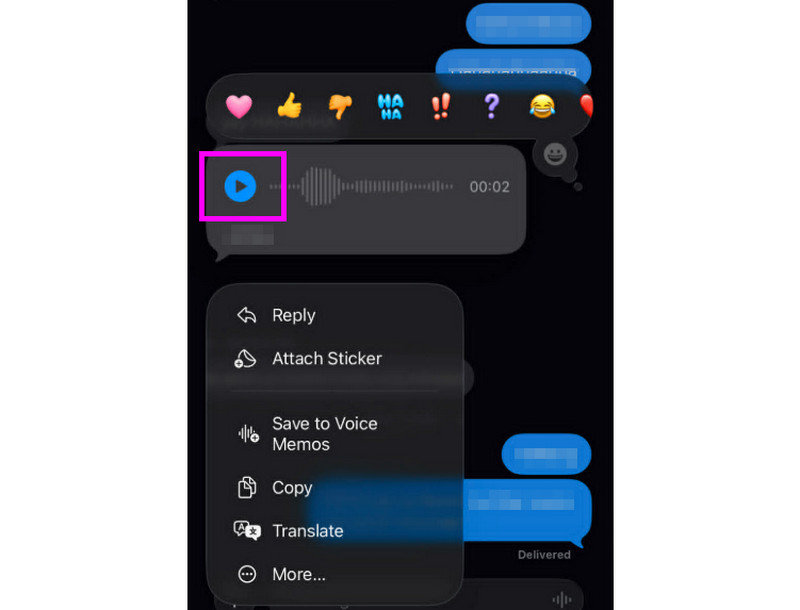
ขั้นตอนที่ 1หลังจากที่คุณได้รับข้อความเสียงแล้ว คุณสามารถแตะได้ เล่น ปุ่ม.
ขั้นตอนที่ 2นอกจากนี้ คุณยังสามารถปรับระดับเสียงจากปุ่มด้านข้างของ iPhone เพื่อให้ได้ยินข้อความได้อย่างชัดเจน
ขั้นตอนที่ 3ข้อความเสียงจะหมดอายุหลังจากสองนาที หากต้องการเก็บข้อความไว้ ให้กดปุ่ม เก็บไว้ ตัวเลือกด้านล่างนี้
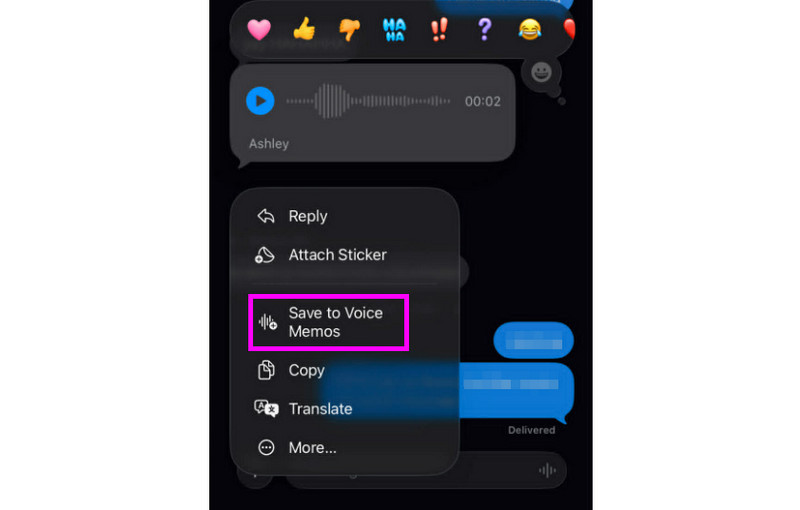
ขั้นตอนที่ 4หากต้องการบันทึกข้อความเสียง เพียงกดค้างไว้แล้วแตะที่ไอคอน บันทึกเป็นบันทึกเสียง แอปนี้ ด้วยแอปนี้ แอปบันทึกเสียงคุณสามารถฟังข้อความนี้ซ้ำได้ทุกเมื่อและทุกที่
ปรับการตั้งค่าข้อความเสียง
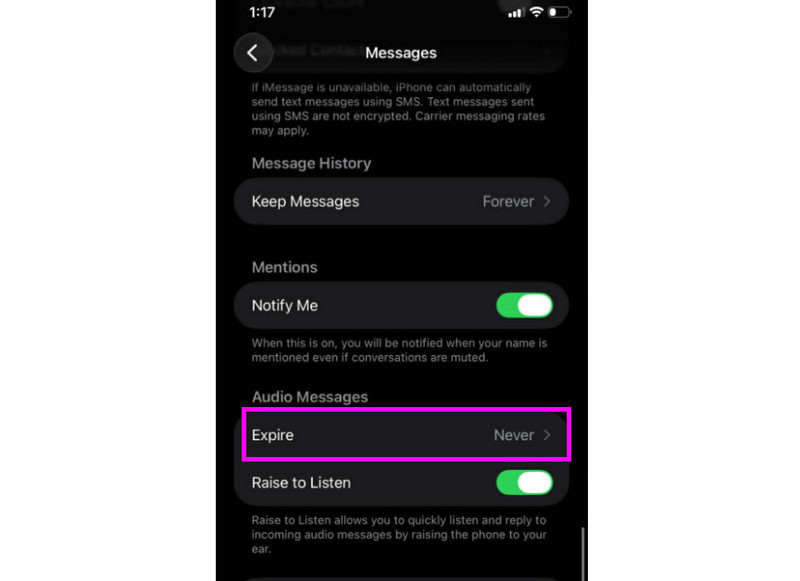
ขั้นตอนที่ 1ไปที่ .ของคุณ การตั้งค่า แอป จากนั้น ดำเนินการต่อที่ ข้อความ แอป.
ขั้นตอนที่ 2นำทางไปยัง ข้อความเสียง > หมดอายุ ส่วนและแตะ ไม่เคย ตัวเลือกนี้จะช่วยให้ข้อความเสียงใดๆ จาก iMessage ของคุณไม่หมดอายุ
ส่วนที่ 2 วิธีการบันทึกข้อความเสียงต้อนรับบน iPhone
เมื่อคุณไม่ว่าง ผู้โทรจะได้รับข้อความที่กำหนดเองหากคุณบันทึกข้อความเสียงตอบรับไว้ใน iPhone ของคุณ การสร้างข้อความตอบรับใหม่ การแก้ไข หรือการลบข้อความเก่า รวมถึงการใช้ข้อความตอบรับชั่วคราวสำหรับโอกาสพิเศษนั้นทำได้ง่าย คุณสามารถปรับแต่งเสียงข้อความเสียงของคุณให้ผู้อื่นได้ยินได้อย่างสมบูรณ์ด้วยการแตะเพียงไม่กี่ครั้งในแอปโทรศัพท์ ดูวิธีการด้านล่างและเรียนรู้วิธีบันทึกข้อความเสียงบน iPhone
การตั้งค่าข้อความเสียงต้อนรับของคุณ
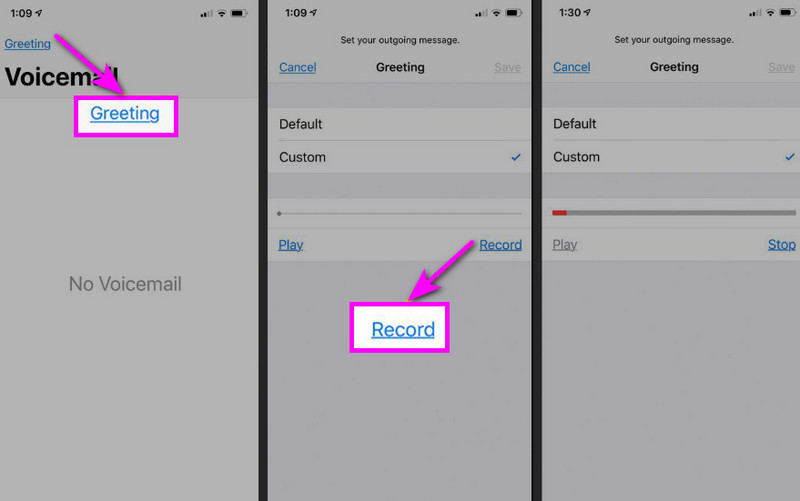
ขั้นตอนที่ 1ไปที่ โทรศัพท์ แอปและแตะที่ ข้อความเสียง ตัวเลือก.
ขั้นตอนที่ 2จากนั้นกดปุ่ม การทักทาย ฟังก์ชันนี้ทำงานจากมุมบนซ้ายของหน้าจอ กด... กำหนดเอง > บันทึก เริ่ม การบันทึกเสียงบน iPhone ของคุณ เพื่อเป็นคำทักทายของคุณ
ขั้นตอนที่ 3แตะ หยุด เพื่อทำขั้นตอนนี้ให้เสร็จและเล่นเพื่อตรวจสอบ เมื่อเสร็จแล้ว ให้กด บันทึก เพื่อตั้งค่าให้เป็นข้อความทักทายที่ใช้งานอยู่
การเปลี่ยนหรือลบคำทักทายของคุณ
ขั้นตอนที่ 1คุณสามารถกลับไปที่ ข้อความเสียง > การทักทาย ส่วน.
ขั้นตอนที่ 2ตี กำหนดเอง และบันทึกคำทักทายใหม่เพื่อใช้แทนคำทักทายเดิม
ขั้นตอนที่ 3จากนั้น หากต้องการกลับไปใช้ค่าเริ่มต้น คุณสามารถเลือกได้ ค่าเริ่มต้น แทนที่จะเป็นแบบกำหนดเอง
เคล็ดลับมือโปร: ข้อความทักทายชั่วคราว
หากคุณไม่ว่างในช่วงเวลาสั้นๆ ให้บันทึกข้อความทักทายชั่วคราวโดยใช้ขั้นตอนเดียวกันกับในส่วน "กำหนดเอง" เมื่อคุณกลับมาแล้ว คุณสามารถเปลี่ยนกลับไปใช้ข้อความทักทายปกติหรือตัวเลือกเริ่มต้นได้เลย
ส่วนที่ 3 การแก้ไขปัญหา - บันทึกข้อความเสียงไม่ได้
เข้ามาที่ส่วนนี้เพื่อดูคู่มือการแก้ไขปัญหา ซึ่งครอบคลุมปัญหาบางประการที่เกิดขึ้นเมื่อบันทึกหรือส่งข้อความเสียงบน iPhone
ปุ่มไมโครโฟนในแอปข้อความถูกปิดใช้งาน (เป็นสีเทา)
สารละลาย: โปรดตรวจสอบให้แน่ใจว่าได้เปิดใช้งานการเข้าถึงไมโครโฟนแล้ว โดยไปที่ การตั้งค่า > ความเป็นส่วนตัวและความปลอดภัย > ไมโครโฟน และอนุญาตการเข้าถึงสำหรับแอปข้อความ
ไม่สามารถส่งเสียงได้
สารละลาย: ตรวจสอบการเชื่อมต่ออินเทอร์เน็ตของคุณเสมอ และตรวจสอบให้แน่ใจว่าได้เปิดใช้งาน iMessage แล้วใน การตั้งค่า > ข้อความ > iMessage
ไม่สามารถบันทึกข้อความเสียงต้อนรับได้
สารละลาย: ตัวเลือกข้อความทักทายจะปรากฏขึ้นก็ต่อเมื่อผู้ให้บริการเครือข่ายรองรับระบบฝากข้อความเสียงแบบภาพเท่านั้น หากไม่พบตัวเลือกนี้ คุณสามารถกดค้างที่หมายเลข 1 ในแอปโทรศัพท์เพื่อโทรไปยังระบบฝากข้อความเสียงโดยตรง จากนั้น คุณสามารถเริ่มทำตามคำแนะนำของผู้ให้บริการเครือข่ายเพื่อบันทึกข้อความทักทายได้
ผู้รับบอกว่าไม่ได้ยินคุณ
สารละลาย: คุณสามารถทดสอบไมโครโฟนได้โดยใช้แอปพลิเคชันบันทึกเสียง นอกจากนี้ คุณยังสามารถถอดเคสหรืออุปกรณ์เสริมใดๆ ที่อาจปิดกั้นไมโครโฟนออกได้ อีกวิธีหนึ่งคือการทำความสะอาดช่องไมโครโฟนโดยใช้ผ้าหรือแปรงขนาดเล็ก
ข้อมูลอ้างอิงฉบับย่อ: ข้อความเสียง กับ ระบบฝากข้อความเสียง
อยากรู้ข้อมูลเพิ่มเติมเกี่ยวกับข้อความเสียงและระบบฝากข้อความเสียงใช่ไหม? งั้นลองดูตารางด้านล่างนี้เลย
| คุณสมบัติ | ข้อความเสียง (iMessage) | ระบบฝากข้อความเสียง (ผู้ให้บริการ) |
| วิธีการจัดส่ง | • บันทึกไว้ในแอปข้อความ • ส่งผ่าน iMessage | • ข้อความทักทายที่บันทึกไว้ • ไฟล์เสียงที่จัดเก็บโดยผู้ให้บริการ |
| จำเป็นต้องใช้อินเทอร์เน็ต | ใช่ (ผ่าน Wi-Fi หรือข้อมูลมือถือ) | ไม่ครับ ใช้งานได้ผ่านเครือข่ายโทรศัพท์มือถือ |
| พื้นที่จัดเก็บ | บันทึกไว้ในเธรด iMessage แล้ว | บันทึกไว้ในระบบข้อความเสียงของผู้ให้บริการ |
| ควบคุม | ผู้ใช้สามารถส่งซ้ำ ลบ หรือบันทึกได้ | ผู้ให้บริการควบคุมการเข้าถึงและการจัดเก็บข้อมูล |
โบนัส: เครื่องมือที่ดีที่สุดที่จะช่วยคุณแก้ไขไฟล์เสียง
หลังจากบันทึกเสียงหรือข้อความเสียงแล้ว บางครั้งคุณอาจต้องการแก้ไขเพื่อให้ได้คุณภาพเสียงที่ดีขึ้น ดังนั้น เมื่อพูดถึงการแก้ไขเสียง การใช้เครื่องมือแก้ไขเสียงที่ดีเยี่ยมอย่างเช่น จึงเป็นทางเลือกที่ดีกว่า AVide Video Converterโปรแกรมนี้มีฟีเจอร์แก้ไขเสียง ช่วยให้คุณแก้ไขไฟล์เสียงได้ คุณสามารถตัดแต่งแทร็กเสียง แยก และรวมแทร็กเสียงได้ คุณยังสามารถปรับระดับเสียงและการหน่วงเวลาตามความต้องการของคุณได้อีกด้วย ส่วนที่ดีที่สุดคือ คุณสามารถบันทึกเสียงในรูปแบบใดก็ได้โดยใช้ฟีเจอร์แปลงไฟล์ของโปรแกรม คุณสามารถบันทึกเสียงของคุณเป็น MP3, WAV, M4A, FLAC และอื่นๆ ด้วยคุณภาพที่ดีที่สุดถึง 320 kbps ดังนั้น หากคุณกำลังมองหาซอฟต์แวร์ที่เหมาะสมสำหรับการแก้ไขบันทึกเสียงของคุณ AVAide Video Converter คือคำตอบ

ดาวน์โหลดฟรี สำหรับ Windows 7 หรือใหม่กว่า
 ดาวน์โหลดอย่างปลอดภัย
ดาวน์โหลดฟรี สำหรับ Mac OS X 10.13 หรือใหม่กว่า
ดาวน์โหลดอย่างปลอดภัยคุณสมบัติเพิ่มเติม:
- สามารถนำเสนอขั้นตอนการตัดต่อเสียงที่ราบรื่นได้
- โปรแกรมนี้สามารถรวมไฟล์เสียงหลายไฟล์เข้าด้วยกันเพื่อสร้างไฟล์เดียวได้
- สามารถแปลงไฟล์เสียงและวิดีโอได้ด้วยความเร็วในการแปลงที่เร็วกว่าเดิมถึง 120 เท่า
- โปรแกรมนี้ยังมีเครื่องมือแก้ไขวิดีโอในตัว เช่น การรวม การแยก การตัดแต่ง การครอบตัด ฯลฯ
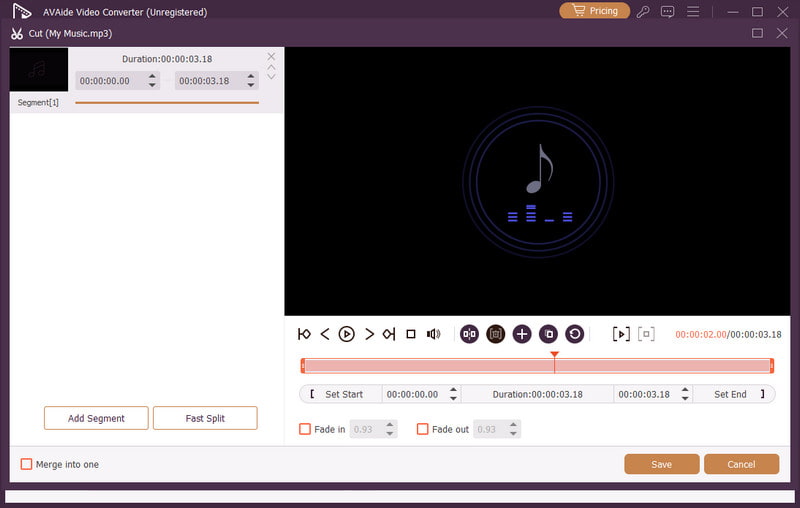
การส่งข้อความเสียงบน iPhone เป็นวิธีที่เหมาะสมหากคุณต้องการส่งข้อความได้เร็วขึ้น ด้วยบทช่วยสอนนี้ คุณได้เรียนรู้วิธีการบันทึกและส่งข้อความเสียงอย่างมีประสิทธิภาพแล้ว คุณยังได้รับข้อมูลเชิงลึกเกี่ยวกับวิธีการบันทึกข้อความเสียงเพื่อเล่นได้โดยไม่มีข้อจำกัดใดๆ นอกจากนี้ หากคุณต้องการแก้ไขการบันทึกเสียงของคุณ คุณควรเข้าถึงข้อมูลเพิ่มเติม AVide Video Converterด้วยฟีเจอร์แก้ไขเสียงของโปรแกรมนี้ คุณสามารถปรับปรุงคุณภาพเสียงของคุณ ส่งผลให้การเล่นเสียงดีขึ้นและน่าพึงพอใจยิ่งขึ้น
เกี่ยวกับผู้เขียน

จับภาพกิจกรรมบนหน้าจอด้วยเสียง การประชุมออนไลน์ วิดีโอการเล่นเกม เพลง เว็บแคม ฯลฯ