Försöker lista ut hur man skärmar in en inspelning på en Dell Även om det kan kännas förvirrande att spela in en handledning, ett spel eller ett möte utan rätt verktyg. Oavsett om du behöver något snabbt eller mer avancerat, guidar den här guiden dig genom enkla och effektiva metoder för att spela in din skärm smidigt.
Del 1. Det enklaste sättet: Använda Xbox Game Bar
Xbox Game Bar är främst utformad för att spela in spel, men kan också användas för daglig skärminspelning. Den låter dig spela in din skärm och ljud, och spara klipp direkt. Den kan dock inte spela in från skrivbordet eller Utforskaren; den kan bara spela in aktiva programfönster.
Steg 1För att öppna Xbox Game Bar-överlägget, tryck på Windows + G tangenterna på ditt tangentbord. Om frågan gäller om det är ett spel, svara jakande.
Steg 2De Fånga panelen finns i överlägget. Om du inte kan se den skapas en Widgets-meny och alternativet Fånga väljs.
Steg 3För att börja spela in din skärm, klicka på Spela in (●) knapp eller Windows + Alt + RVerktyget tar automatiskt en ögonblicksbild av det aktiva fönstret.
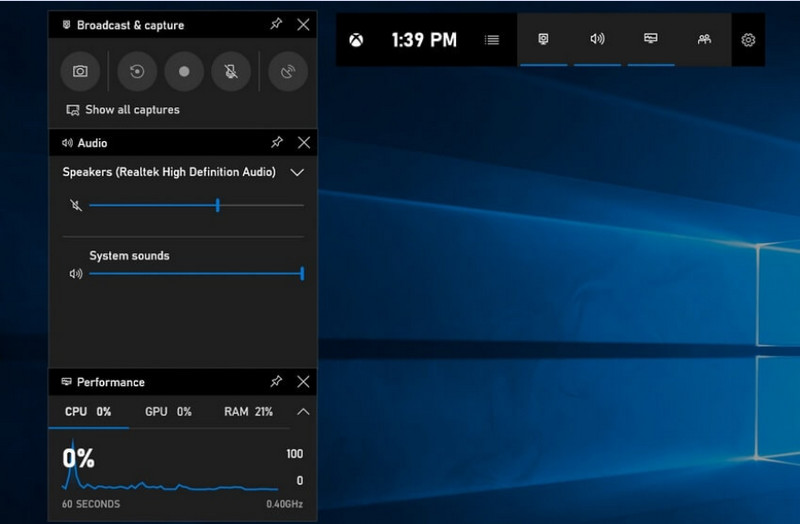
Steg 4Mikrofoninspelning kan aktiveras genom att klicka på Mic -knappen före eller under inspelning.
Steg 5För att avsluta inspelningen, tryck på Windows + Alt + R en andra gång eller tryck på Stopp (■) knappen på den flytande listen.
Steg 6Videor du spelar in lagras automatiskt i videoklipp > Fångar mappen på din dator.
Del 2. De professionella valen
1. Använda OBS-skärminspelaren
OBS-skärminspelare är en gratis skärminspelare med öppen källkod som vanligtvis används för både inspelning och streaming av liveinnehåll. Och den erbjuder ett anpassningsbart arrangemang som låter dig spela in hela din skärm, ett separat fönster eller flera källor samtidigt. Dess kraftfulla video- och ljudkontroller gör den till ett effektivt alternativ för användare som inte bara är intresserade av den enklaste typen av skärminspelning.
Prestanda:
OBS Screen Recorder är en programvara med hårdvaruacceleration som ger pålitlig prestanda och möjliggör smidig inspelning i 1080p och 60fps. När den är installerad kan den fungera effektivt, med jämn utdata och låg latens, under längre inspelningssessioner på kompatibla system.
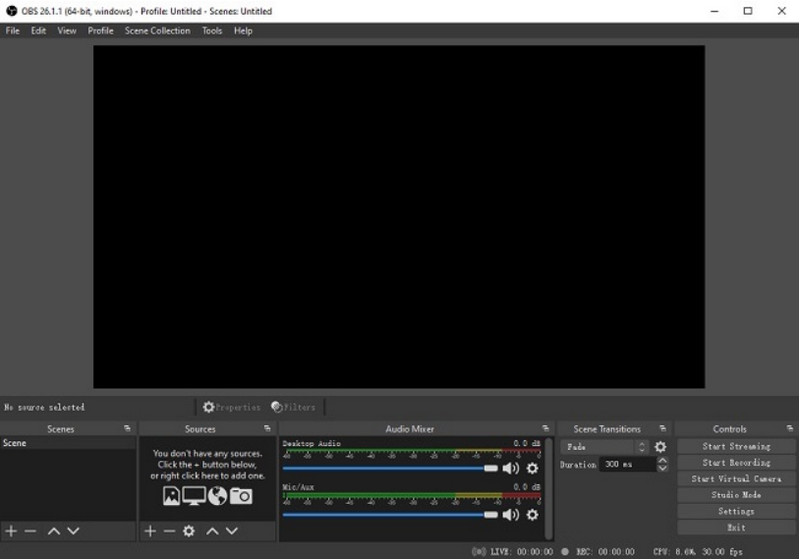
Steg 1Gå till den officiella webbplatsen för OBS Screen Recorder, ladda ner installationsprogrammet och slutför installationen.
Steg 2Öppen OBS-skärminspelareDu kommer att presenteras med huvudgränssnittet med paneler som Scener och Källor.
Steg 3I panelen Scener klickar du på + knappen och ge din scen ett namn.
Steg 4Du kan lägga till en skärmbild eller fönsterbild (för att avbilda en viss app) genom att klicka på + i Källor panel och välja Display Capture eller Fönsterinspelning.
Steg 5Testa Ljudmixer genom att aktivera och justera mikrofonen och systemljudet.
Steg 6tryck på Börja spela in knappen på höger sida av gränssnittet.
Steg 7När du är klar klickar du på Stoppa inspelningDen här videon kommer automatiskt att läggas i din standardmapp.
2. Använda AVAide-skärminspelaren
AVAide-skärminspelare är ett enkelt men effektivt verktyg för att spela in skärmaktivitet i hög kvalitet. Det riktar sig till användare som behöver ett lättanvänt inspelningssystem med tydligt ljud, ett flexibelt inspelningssystem med minimal konfiguration och intuitiva kontroller.
Prestanda:
AVAide Screen Recorder är optimerad för att spela in smidigt och stabilt, även under långa sessioner. Den stöder högupplöst utdata till 4K/1080p med minimal latens i vanliga applikationer. Programvaran kan effektivt hantera samtidig skärm- och ljudinspelning för att säkerställa att systemljud och mikrofoningång är synkroniserade.
- Spelar in skärmen i hög kvalitet med jämn och laggfri prestanda.
- Spelar in systemljud och mikrofon samtidigt med tydlig ljudutgång.
- Stöder webbkamerainspelning med justerbar bild-i-bild-överlagring.
- Tillåter inspelning av helskärm, ett valt fönster eller en anpassad region.
- Inkluderar inbyggda redigeringsverktyg för att trimma, förbättra och exportera videor.

 Säker nedladdning
Steg 1Ladda ner och installera verktyget
Gå till den officiella webbplatsen för AVAide Screen Recorder. Hämta installationsprogrammet för ditt Windows-system och följ installationsprocessen.
Steg 2Starta programvaran
Installationen kan följas genom att programmet öppnas. I huvudgränssnittet kan du välja Skärminspelare till att börja med.
Steg 3Välj inspelningsområde
Välj mellan Full och Beställnings inspelningslägen baserat på dina behov.
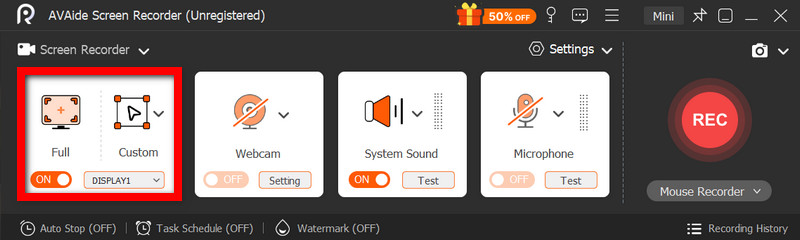
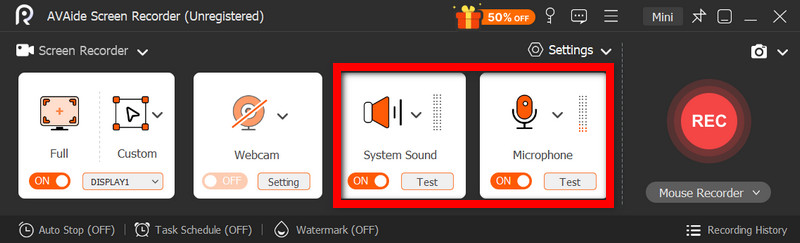
Steg 4Konfigurera ljud och webbkamera
Aktivera Systemljud och den Mikrofon om du behöver ljud. Webbkameran kan också slås på för att spela in ansikten.
Steg 5Börja spela in
För att börja spela in din skärm, tryck på REC knappen. Anteckningar kan läggas till under inspelningen om det behövs.
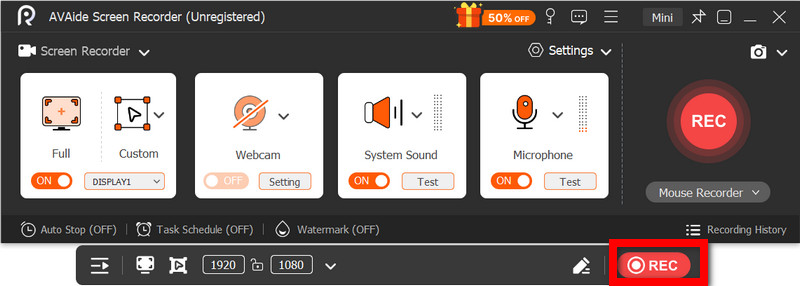
Steg 6Stoppa och spara inspelningen
Klicka på Sluta knappen när du är klar. Inspelningen sparas automatiskt och du kan förhandsgranska eller redigera den direkt.
Del 3. Andra gratis och enkla metoder
1. Använda klippverktyget (Windows 11)
Skärmklippsverktyget i Windows 11 har inbyggd skärminspelning, vilket ger ett enkelt och snabbt sätt att fånga skärmaktivitet utan att installera extra programvara. Det är mest effektivt med korta klipp, handledningar och enkelt inspelningsarbete.
Prestanda:
Skärmklippsverktyget är lämpligt för lätta inspelningar och erbjuder smidig inspelning av små bilder. Det saknar dock funktioner, stöder inte avancerade inställningar och hanterar kanske inte långa eller högpresterande inspelningar lika effektivt som vissa verktyg.
Steg 1Öppna klippverktyget genom att klicka på Start meny.
Steg 2För att använda verktygsfältet, klicka på Spela in.
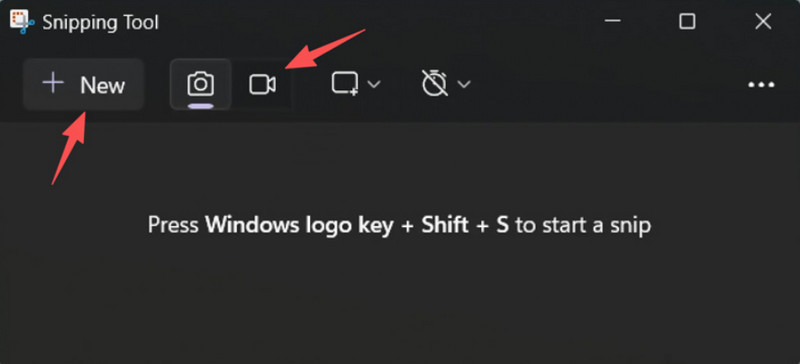
Steg 3För att spela in en ny inspelning, välj Ny.
Steg 4Välj det område av skärmen som du vill ta en inspelning av.
Steg 5Klick Start för att börja spela in.
Steg 6Klick Sluta när du är klar och spara din inspelning.
2. Använda Microsoft PowerPoint (alla Windows-versioner)
Microsoft PowerPoint har en skärminspelningsfunktion som låter dig ta en skärmdump och integrera den i en presentation. Det är också ett enkelt alternativ till att skapa handledningar, demonstrationer eller undervisningsbilder utan att behöva ytterligare inspelningsprogram.
Prestanda:
PowerPoint ger konsekventa resultat vid enkel skärminspelning, särskilt för presentationer och korta demonstrationer. Även om det erbjuder rimlig videokvalitet saknar det avancerade kontroller och kanske inte är lämpligt för kvaliteten på videor som spelas in under långvariga inspelningar.
Steg 1Starta Microsoft PowerPoint och förbered en ny eller en befintlig presentation.
Steg 2Klicka på fliken Infoga och sedan Skärminspelning.
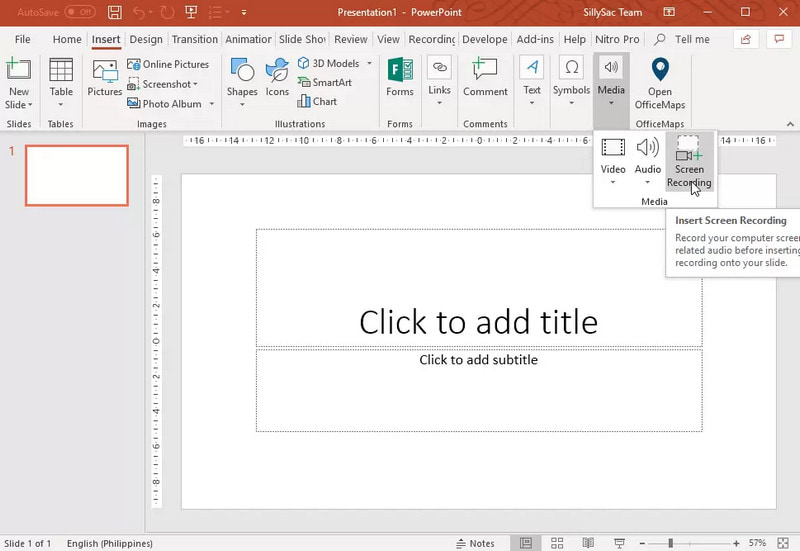
Steg 3Välj den del av skärmen som du vill ta en bild av.
Steg 4Tillåt ljud- eller pekarinspelning vid behov.
Steg 5Klick Spela in för att börja spela in din skärm.
Steg 6För att avsluta inspelningen, tryck Windows + Skift + Q.
Steg 7För att spara inspelningen, högerklicka på videon och välj Spara media som.
Del 4. Felsökning av vanliga problem
| Problem | Lösning |
| Spelfältet öppnades inte eller spelade in. | I inställningarna kan du stänga av Xbox Game Bar. Gå till inställningar > Spel > Game Bar och vrid den PÅFörsöker trycka på Windows + G igen och starta om datorn (vid behov). |
| Inspelningen har inget ljud. | Se till att systemljud och mikrofon är aktiverade i inställningarna för spelfältet. Se också till att din ljudenhet inte är avstängd eller felaktigt vald i Windows ljudinställningar. |
| Min Dell-bärbara dator går långsamt under inspelning. | Använd Stäng eller Minimera för att minska onödiga program och webbläsarflikar. Växla till Högpresterande läge i energiinställningarna och minska inspelningsupplösningen vid behov för att förbättra prestandan. |
| Den inspelade videokvaliteten är dålig. | Ställ in inspelningskvaliteten på bästa möjliga inställning i spelfältet, särskilt när inspelning av Google Meet sessioner. Ställ in skärmen på dess ursprungliga upplösning och uppdatera grafikdrivrutinerna för att göra den skarpare och mer stabil. |
Inlärning hur man spelar in en skärm på en Dell-bärbar dator ger dig flexibilitet för handledning, möten eller till och med spelande. Oavsett om det är ett inbyggt verktyg eller sofistikerad programvara, kommer rätt metod att säkerställa att inspelningen görs enkelt och av hög kvalitet, och att arbetsflödet effektiviseras.
OM FÖRFATTAREN

Spela in skärm, ljud, webbkamera, gameplay, onlinemöten, samt iPhone/Android-skärm på din dator.
Skärminspelning