YouTube är hem för miljontals videor som visar upp människors kreativitet genom bloggar, användbara tips eller recensioner. Men eftersom de vill skydda innehållet på webbplatsen förbjuder YouTube sina användare att ladda ner videor utanför plattformen. Eftersom det finns personer som laddar upp innehåll som inte är deras eget och inte korrekt meddelar den ursprungliga skaparen, ses detta som ett olaga beteende. Om det är för personligt bruk är ett sätt att få en egen kopia genom att spela in. Den här artikeln kommer att vägleda dig. hur man spelar in YouTube-videor på olika enheter, till exempel din dator eller telefon.
- Del 1. Spela in YouTube-videor på PC eller Mac (på skrivbordet)
- Del 2. Spela in YouTube-videor på iPhone eller Android (på mobilen)
- Del 3. Spela in YouTube-videor på Xbox (på konsolsättet)
- Del 4. Hur man spelar in ljud från YouTube (endast extrahera ljud)
- Del 5. Hur man spelar in högkvalitativt innehåll för din YouTube-kanal
Del 1. Spela in YouTube-videor på PC eller Mac (på skrivbordet)
1. Inbyggda verktyg (enklaste och gratis)
Hur spelar man in en YouTube-video på datorn? Oavsett om du använder en dator med Windows eller Mac kan du spela in videor från YouTube och andra webbplatser på ett gratis sätt. Kolla in följande steg för hur du gör det.
Windows - Xbox-spelfältet
Se till att din dator är uppdaterad till Windows 10 eller senare för att få Xbox Game Bar. Gör sedan följande:
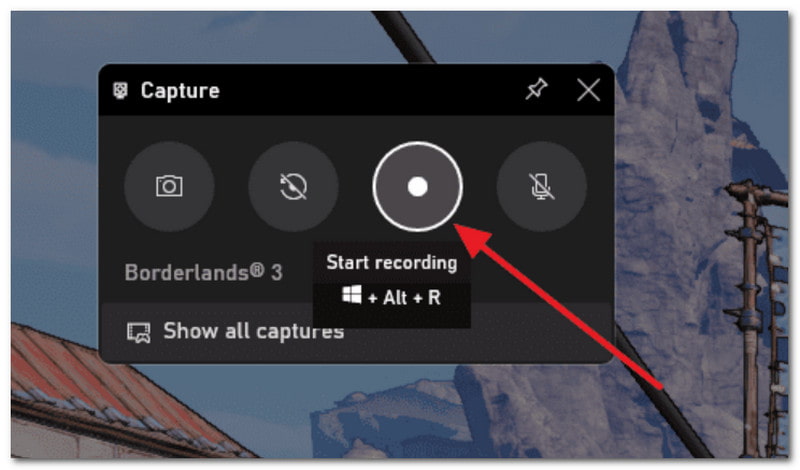
Steg 1Öppna YouTube och hitta videon du vill spela in. Tryck samtidigt på Windows och G tangenterna på ditt tangentbord.
Steg 2Från högra hörnet klickar du på Cirkel knappen för att starta inspelningen. Sedan kan du klicka på samma knapp för att stoppa när du är klar.
Mac - QuickTime Player
Även om QuickTime Player används för att spela upp mediefiler på Mac, kan den också användas som en YouTube-videoinspelare. Här är stegen att följa:
Steg 1Öppna QuickTime Player på din dator och klicka på Fil. Välj den Ny skärminspelning alternativ.
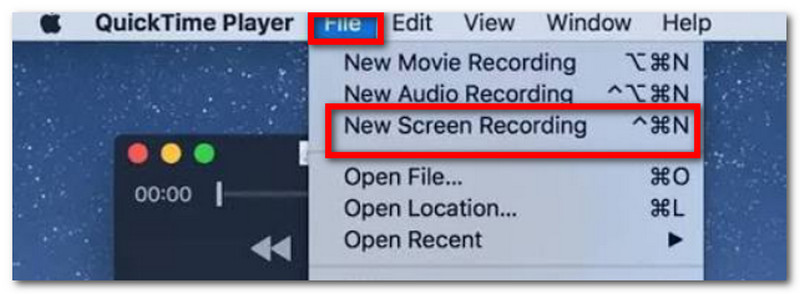
Steg 2Från den lilla pilen bredvid inspelaren kan du justera några inställningar. Klicka sedan på Spela in knappen för att spela in YouTube-videor.
2. Webbläsartillägg (enklast för en video)
Loom är ett av de enklaste sätten att spela in YouTube-videor som ett tillägg. Det erbjuder en snabb inlärningskurva för att fånga innehåll på skärmen och genererar en länk att dela med andra. Dess funktioner inkluderar även inspelning av video, mikrofon och internt ljud samtidigt, samt att spara videor till molnet automatiskt. Med det sagt, så här använder du Loom som en YouTube-skärminspelare:
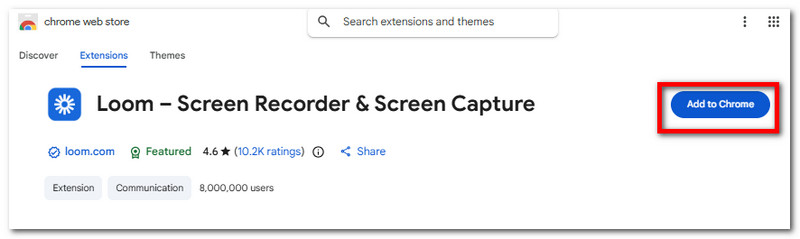
Steg 1Öppna Chrome Web Store och ladda ner Loom för att lägga till det i din webbläsare. Från Tillägg ikonen kan du fästa Loom så att du kan använda den när som helst.
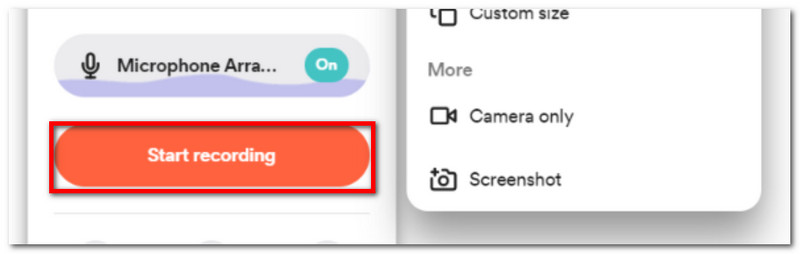
Steg 2Ställ in skärminspelaren som önskat och klicka sedan på Börja spela in för att spela in YouTube-videor. Dina videor kommer att sparas på det konto som är registrerat i Loom.
3. AVAide skärminspelare
Förutom videor kanske du också vill lära dig hur du spelar in ljud från YouTube separat. AVAide-skärminspelare är ett toppval för att spela in högkvalitativt innehåll på Windows och Mac. Programvaran är utformad med ett elegant gränssnitt, vilket gör att du kan bekanta dig med hur du navigerar i dess verktyg. Självklart erbjuder den olika sätt att spela in, till exempel via mikrofon, webbkamera, onlinemöte och på skärmen. Naturligtvis sparar Screen Recorder inspelat innehåll i populära utdataformat och stöder MP3, MP4, MOV, M4A med mera. Dessutom låter den dig lägga till anteckningar, ställa in ett inspelningsschema och anpassa det område på skärmen som du vill spela in. AVAide Screen Recorder är verkligen ett måste för utmärkt video- och ljudinspelning!
Steg 1Ladda ner AVAide Screen Recorder till din enhet. Läs instruktionerna noggrant för att installera programvaran korrekt.

GRATIS NEDLADDNING För Windows 7 eller senare
 Säker nedladdning
GRATIS NEDLADDNING För Mac OS X 10.13 eller senare
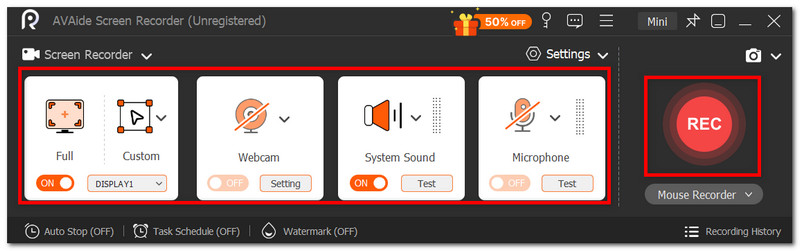
Säker nedladdningSteg 2Från inställningsmenyn kan du ställa in skärmstorlek, ljudingång etc. När du är klar klickar du på knappen REC för att spela in skärmen på YouTube.
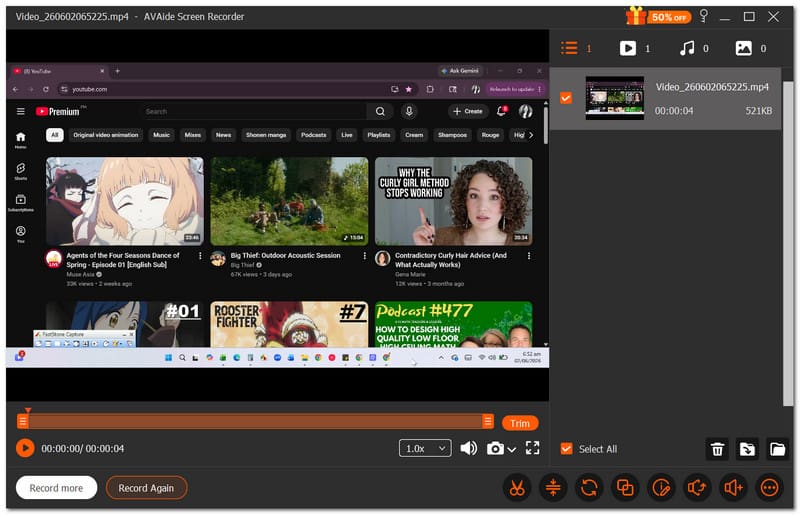
Steg 3Klicka på Sluta knappen om du är klar med inspelningen. Förhandsgranska resultatet eller spara det på den lokala mappenheten.
Del 2. Spela in YouTube-videor på iPhone eller Android (på mobilen)
Det finns inget svårt sätt att lära sig spela in en YouTube-video på en iPhone eller Android, eftersom din telefon har en inbyggd skärminspelare för att spela in innehåll på skärmen. Observera dock att skärminspelaren på din telefon inte spelar in video med ljud. En tredjepartsapp kan vara det enda alternativet för att spela in skärm med ljud.
För iPhone:
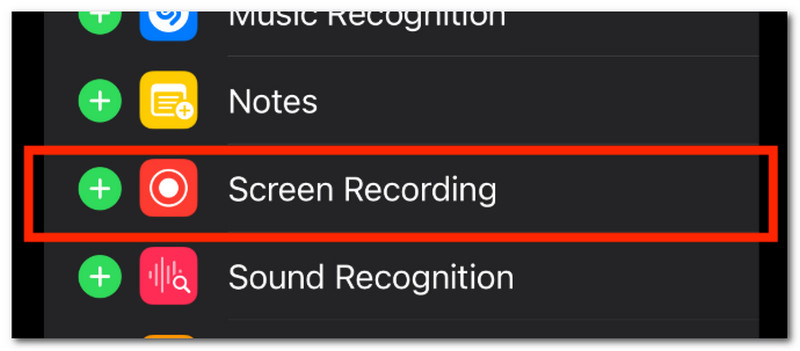
Steg 1Gå till Inställningar på din telefon och navigera till Kontrollcenter. Tryck på Plus knappen för att lägga till skärminspelaren i kontrollcentret.
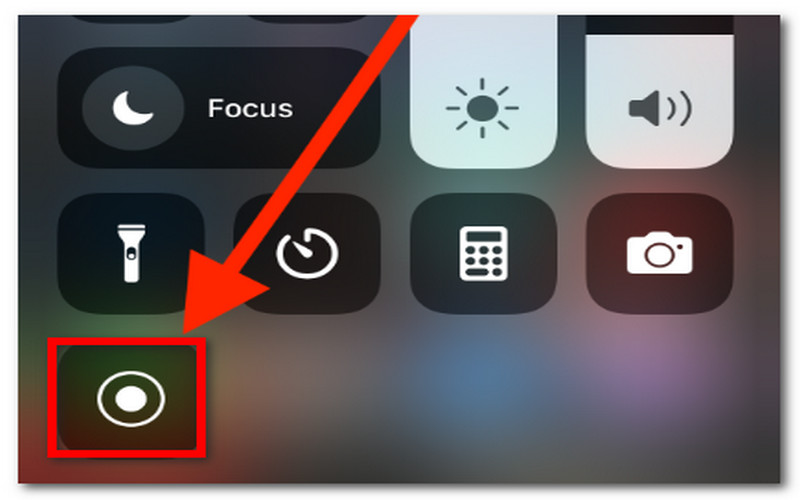
Steg 2Från skärmens övre högra hörn sveper du nedåt och trycker på Spela in knappen. När inspelningen är klar trycker du på knappen igen i Kontrollcentret. Den inspelade videon kan ses från Foto-appen.
För Android:
Steg 1Svep från den övre delen av telefonen för att komma åt snabbpanelen. Skärminspelning.
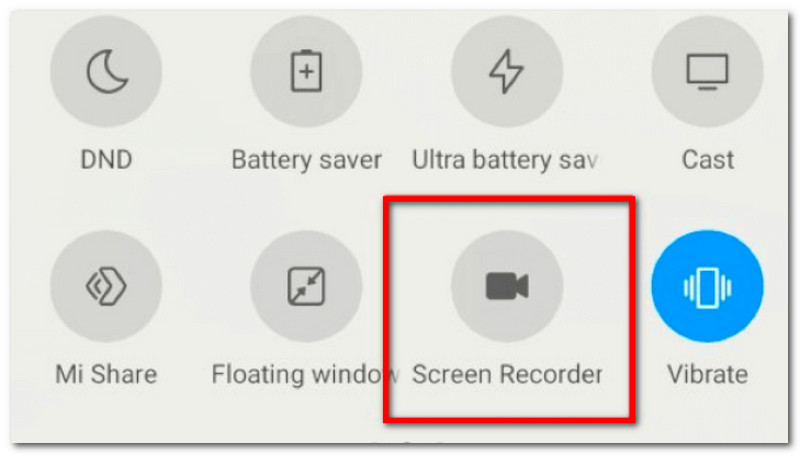
Steg 2Du kan också konfigurera att spela in ljud från enheten i din video. Tryck sedan på aviseringen Skärminspelare för att stoppa inspelningen.
Del 3. Spela in YouTube-videor på Xbox (på konsolsättet)
Ett sätt att spela in YouTube-videor med din konsol är att använda ett PC-inspelningskort. Det låter dig visa datorns innehåll på konsolen, vilket du kan spela in med Xbox inbyggda skärminspelare. Kolla in följande guide om hur du spelar in en YouTube-video på Xbox:
Steg 1Sätt in X HDMI-kabel in i HDMI-ingångsport på det externa inspelningskortet. Anslut sedan inspelningskortets USB-kabel till datorn.
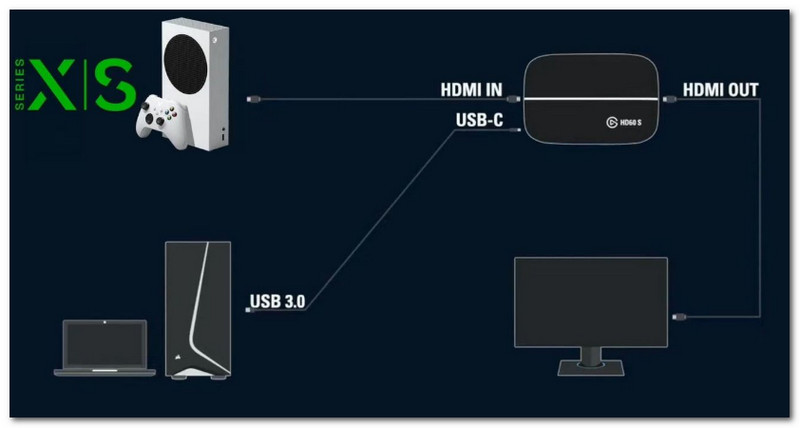
Steg 2Från infångningskortets HDMI-utgång, dra en annan HDMI-kabel till skärmen. Du behöver programvara som OBS Studio på din dator för att lägga till inspelningskortet som en Videoinspelningsenhet.
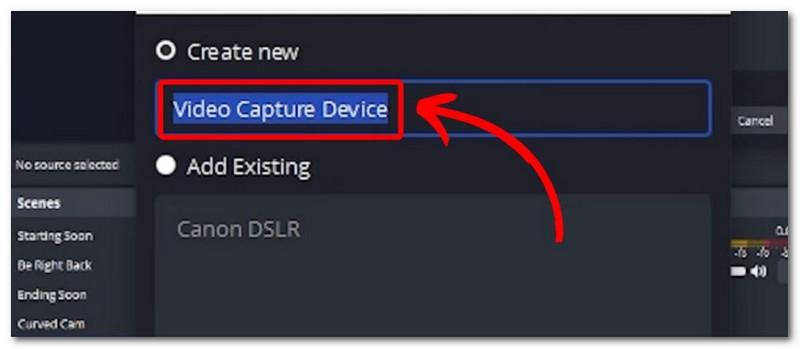
Steg 3Öppna YouTube och tryck sedan på Xbox knappen för att navigera till Fånga och dela fönster. Klick Börja spela in för att spela in YouTube-videor.
Del 4. Hur man spelar in ljud från YouTube (endast extrahera ljud)
För att spela in ljud från YouTube finns det två pålitliga sätt. Den här delen visar hur man använder Audacity, en gratis ljudinspelningslösning som du kan få på Windows och Mac, och en YouTube till MP3-konverterare för att ladda ner YouTube-videor som ljudfiler.
Metod 1: Programvara för systemljudinspelning (Audacity)
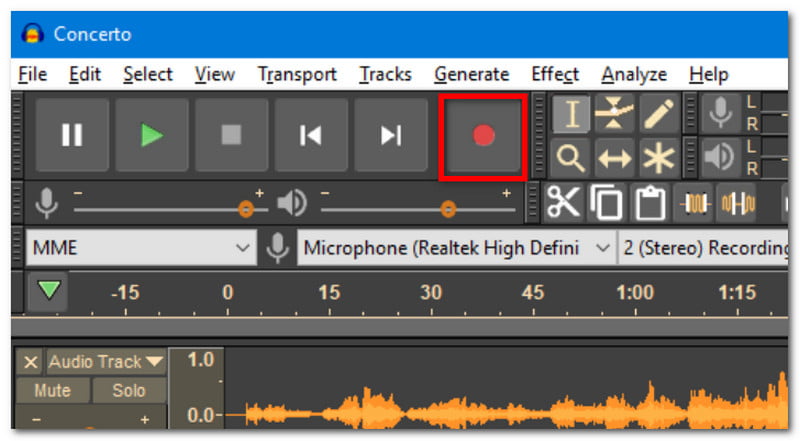
Steg 1 Ladda ner och installera Audacity på din dator. Öppna programvaran och ställ in inställningarna efter dina önskemål.
Steg 2Klick Spela in för att spela in YouTube-videon. Du kan redigera ljudspåret genom att trimma början och slutet av ljudklippet och exportera det till en mapp.
Metod 2: Online YouTube till MP3-konverterare
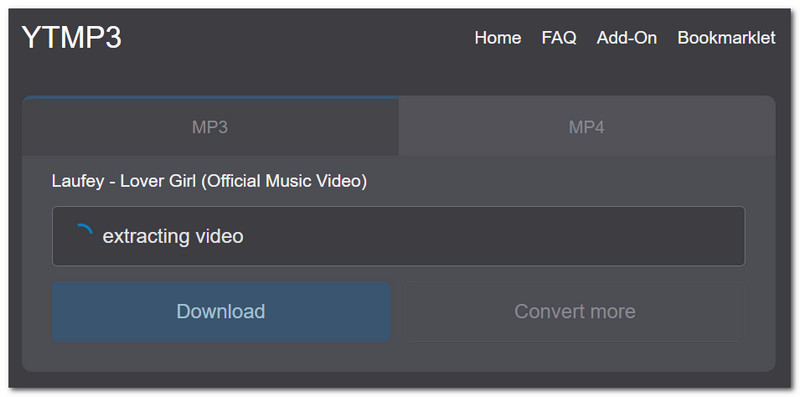
Steg 1Öppna YouTube-appen och sök efter videon du vill konvertera till ljud. Kopiera länken och sök sedan efter YouTube to MP3 Converter för att klistra in länken.
Steg 2Klicka sedan Konvertera för att omvandla videon till ljud och vänta tills processen är klar. Klicka på Ladda ner för att spara ljudfilen.
Del 5. Hur man spelar in högkvalitativt innehåll för din YouTube-kanal
Du kanske har frågat "Behöver jag ett stativ för att spela in YouTube-videor" på Reddit när du planerade att spela in ditt eget innehåll. Du behöver lite utrustning för att komma igång med inspelningen, och om du är nybörjare kanske du vill börja med följande:
Utrustningsrekommendationer
Att ha en smartphone är redan en bra början för inspelning. Men hur spelar man in YouTube-videor effektivt på en iPhone? Börja investera i små verktyg som ett stativ och en ljusring för en bra ljuseffekt.
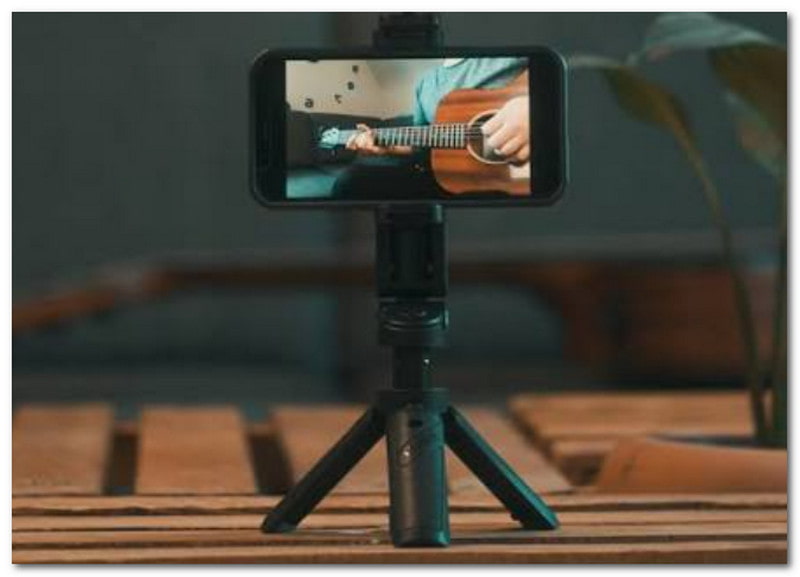
Det krävs några försök att komma igång med inspelningen. Vid det laget kan du också fördjupa dig i professionella verktyg som green screen, ljusinställningar och en kamera för att spela in YouTube-videor.
Hur man spelar in sin skärm + Face Cam för handledning
Om du vill ha ett tema med handledningar eller spel på Twitch med en video från spegelns främre kamera, då rekommenderas det att kontrollera programvara som stöder inspelning av innehåll på skärmen och webbkameran samtidigt. OBS Studio skulle vara ett bra förslag, men på grund av dess komplexa inlärningskurva är det inte lämpligt för nybörjare. Du kan istället prova AVAide Screen Recorder för att enkelt spela in din skärm med en ansiktskamera via din webbkamera. Denna skärminspelningsprogramvara för YouTube erbjuder högkvalitativa videor och en enkel inlärningskurva.
Sammanfattningsvis är det möjligt att spela in YouTube-videor på olika sätt. Den här artikeln vägledde dig också. hur man spelar in ljud från en YouTube-video med enkla metoder. Men i verkligheten kan du uppnå allt detta enklare med AVAide Screen Recorder eftersom den är utrustad för att hjälpa dig spela in högkvalitativa videor och ljud från din dator med bara några få klick. Prova det idag genom att ladda ner den mångsidiga skärminspelningsprogramvaran för Windows eller Mac.
OM FÖRFATTAREN

Fånga skärmaktiviteter med ljud, onlinemöten, spelvideor, musik, webbkamera, etc.
Skärminspelning