


Den inbyggda Android-skärminspelaren kanske inte har tillräckligt med funktioner. Det finns dock några praktiska tips du kan lära dig för att göra enklare och mer mångsidiga inspelningar på din telefonskärm. Det här inlägget visar dig omfattande Android-skärminspelning handledning.
Om du föredrar avancerad skärminspelning för spel, handledningar eller professionella demonstrationer kan vi också hjälpa dig att undvika röran och ge dig de bästa skärminspelningsmetoderna och apparna för Android som finns tillgängliga idag, komplett med steg-för-steg-handledning som hjälper dig att uppnå skarpa resultat i hög upplösning.
- Del 1: Hur man använder den inbyggda Android-skärminspelaren
- Del 2: Några märkesspecifika Android-inspelareverktyg
- Del 3: 4 fler mångsidiga sätt att spela in skärm på Android
- Bonus: Spela in skärmen på dator och mobiltelefon med bästa kvalitet
- Del 4: Vanliga frågor om hur man spelar in skärm på Android
Del 1: Hur man använder den inbyggda Android-skärminspelaren
De flesta enheter som kör Android 11 eller senare har en inbyggd skärminspelningsapp som finns i snabbinställningspanelen. Du kan helt enkelt använda den för att spela in telefonens skärm.
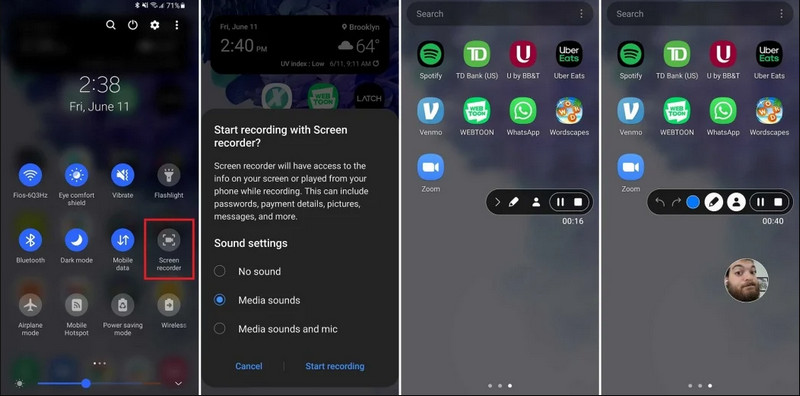
Steg 1Åtkomst till snabbinställningar
Svep nedåt två gånger från skärmens överkant för att expandera hela snabbinställningsmenyn.
Steg 2Välj skärminspelare
Söka efter SkärminspelningOm du inte ser den trycker du på Redigera -knappen (med en pennikon) och dra skärminspelningsrutan till ditt aktiva rutnät.
Steg 3Konfigurera inspelningsinställningar
När du hittar Android Skärminspelare verktyget har du flera inspelningsalternativ. Att välja rätt alternativ kan göra din Android-skärminspelning effektiv.
- Inget ljud: Spela endast in telefonskärmen utan systemljud eller externt ljud.
- Medieljud: Spela in skärmen med alla systemljud, inklusive ljud från alla appar i din telefon.
- Medialjud och mikrofon: Spela in både systemljud och externa ljud (telefonens inbyggda mikrofon eller mikrofonen från dina hörlurar).
Steg 4Starta och stoppa skärminspelning
Gör ditt val och tryck på Börja omkodning knappen. En nedräkning visas i statusfältet. För att stoppa Android-skärminspelningen trycker du på Sluta knappen (om det finns en statusfält för inspelning) eller svep nedåt i aviseringspanelen och tryck på den röda Sluta knapp.
Del 2: Några märkesspecifika Android-inspelareverktyg
Många Android-telefontillverkare erbjuder egna skärminspelare med avancerade funktioner som Selfie Camera-överlägg. Kolla in några populära Android-märkens specialinspelningsfunktioner:
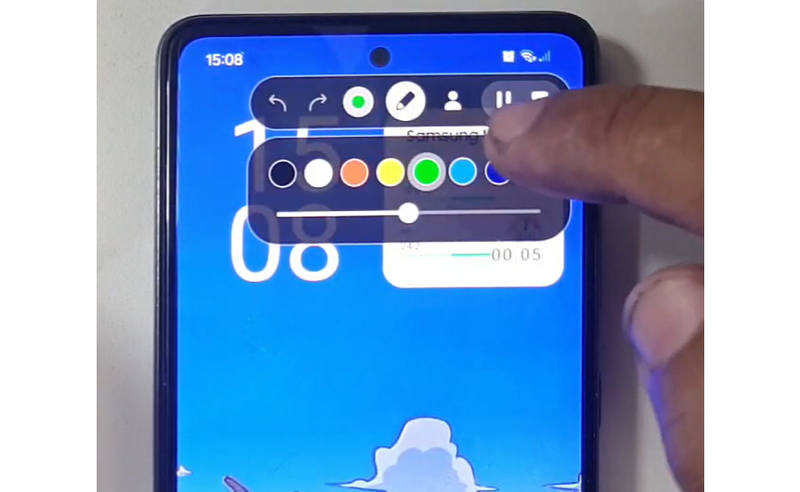
Samsung (One UI): Inkluderar en skärminspelare med ett verktygsfält som låter dig rita på skärmen i realtid.
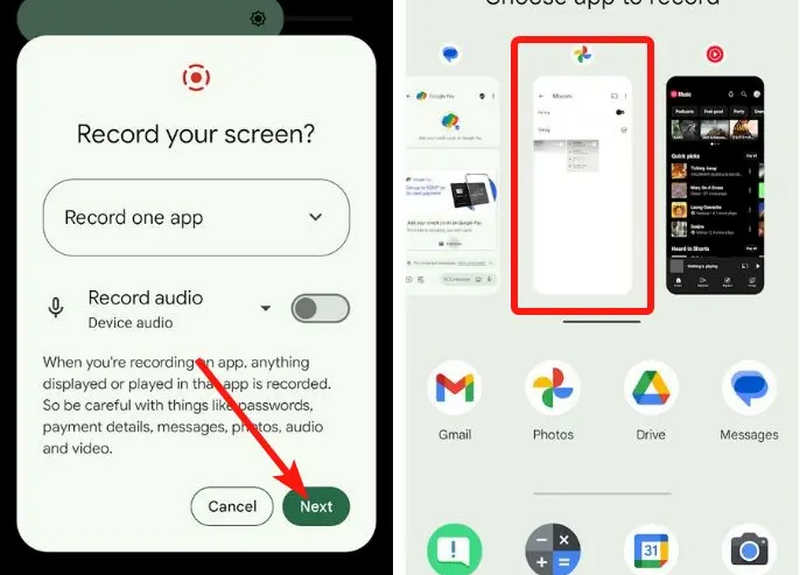
Google Pixel: Du kan välja en specifik app (t.ex. en bankapp eller WhatsApp) att spela in. Om du avslutar appen eller drar ner aviseringspanelen under sessionen kommer dessa åtgärder inte att visas i den slutliga videon.
Xiaomi (MIUI/HyperOS): Har en dedikerad "Screen Recorder"-app med djupgående anpassningsmöjligheter för bildfrekvenser (FPS) och bithastigheter.
Huawei & Honor (HarmonyOS / MagicOS): En unik hårdvaru- och mjukvaruintegration där du kan starta eller stoppa en inspelning genom att helt enkelt dubbelknacka på skärmen med två knogar.
OPPO, vivo och realme (ColorOS / OriginOS): När ett spel startas optimerar skärminspelaren automatiskt CPU/GPU-resurser för att säkerställa att inspelning av ett 4K/60FPS-klipp inte orsakar lagg eller bildrutefall i spelet.
Del 3: 4 fler mångsidiga sätt att spela in skärm på Android
Om din Android-telefon inte har tillfredsställande skärminspelningsfunktioner kan du kolla in de fyra Android-skärminspelningsapparna. De kan erbjuda några praktiska och praktiska funktioner.
1. A-Ö-skärminspelare
AZ-skärminspelare är en mycket populär Android-skärminspelningsapp i Play Store. Den kan spela in högupplöst video på din Android-telefonskärm. Appen låter dig också justera upplösning, bildfrekvens och bithastighet beroende på olika inspelningsändamål.
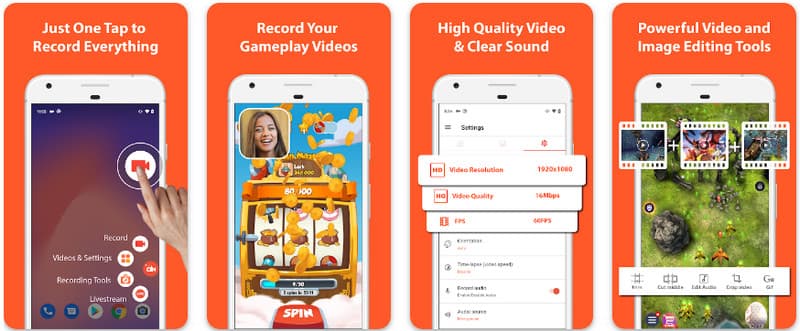
Dessutom låter AZ Screen Recorder användare spela in ljudet som spelas på enheten med hjälp av en mikrofon. Detta gör inspelning till och med de mest komplicerade och högklassiga inspelningarna möjliga. Dess enkla arrangemang av knappar och konsekventa prestanda gör appen till en favorit för många. Lär dig hur du spelar in en Android-skärm med detta med hjälp av handledningen nedan.
Steg 1När du har laddat ner appen på din Android startar du den. Klicka sedan på kamera knappen för att komma åt skärminspelningsfunktionen för den.
Steg 2Knacka Börja nu för att starta skärminspelningen på din Android, och en nedräkning visas på skärmen.
Steg 3För att stoppa skärminspelningen på din Android-telefon, tryck på Spela in knappen igen. Med den här appen kan du också skärminspelning på din iPhone med ljud aktiveras.
2. Mobizen Screen Recorder
Mobizen-skärminspelare är en annan app för skärminspelning på Android som är gratis tillgänglig i Play Store och lovar enkel och högkvalitativ inspelning. Den erbjuder alternativ för HD-inspelning med justerbara parametrar och ren inspelning för att ta bort vattenstämplar. Dessutom har Mobizen intern ljudinspelning, som kan användas för inspelningen, samt ansiktskamera och GIF, vilket kan lägga till mer till inspelningen. Den använder också en enkel överblick över de olika funktionerna och kontrollerna som hjälper användaren att starta Android-skärminspelning eller redigera innehållet utan att behöva krångla mycket med appen. Ta reda på hur du spelar in skärm med Android med hjälp av den här appen.
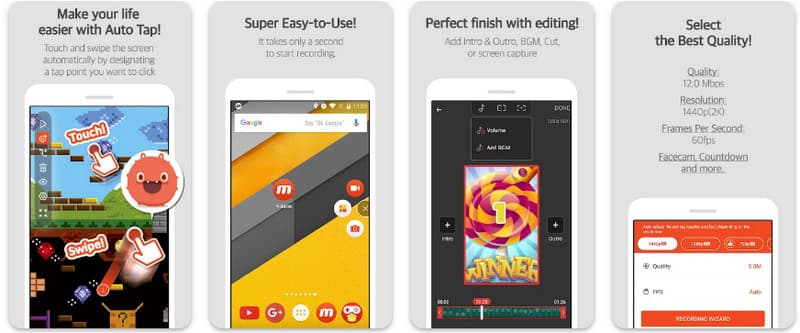
Steg 1Ladda ner den nu på din Android och öppna appen.
Steg 2Gör de inställningar som krävs innan du kan använda skärminspelaren. En flytande inspelningslist visas på skärmen. Tryck på kamera knappen då Börja nu för att starta skärminspelningen.
Steg 3När du är klar trycker du på M och den sluta knappen för att stoppa skärminspelningen på din Android-telefon.
3. Skärminspelare - XRecorder från Inshot
Skärminspelare - XRecorder är ett kraftfullt allt-i-ett-verktyg för Android som förenklar skärminspelning genom att erbjuda HD-inspelning, upp till 1080p vid 60FPS, utan att root-åtkomst eller vattenstämplar krävs. Som en förstklassig metod för skärminspelning på Android 17/16 ger den en sömlös användarupplevelse genom ett flytande kontrollfönster som låter dig starta, pausa och rita på skärmen i realtid med hjälp av ett inbyggt penselverktyg. Utöver enkel videoinspelning stöder den intern ljudinspelning, facecam-överlägg för streamers och integrerad videoredigering, vilket gör det till ett idealiskt val för alla som behöver skapa professionella handledningar, spelklipp eller tydliga demonstrationer direkt från sin mobila enhet.
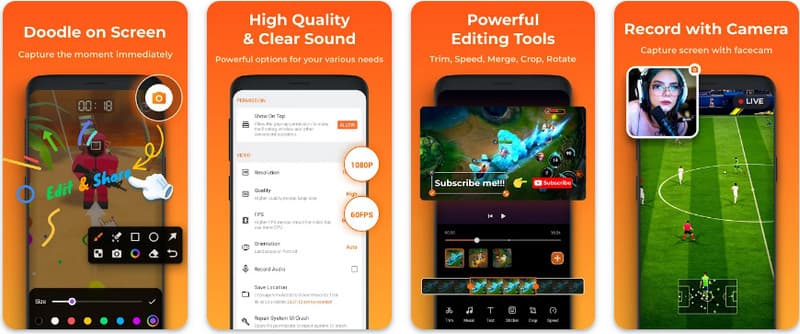
Steg 1När nedladdningen av XRecorder är klar, öppna den och tryck på Aktivera flytande ikon.
Steg 2Efter det trycker du på Spela in för att starta inspelning och Börja nu att bekräfta.
Steg 3Som du kan se visas längden på inspelningen som en flytande ikon; tryck på sluta för att spara inspelningen.
4. Super Screen Recorder
Super Screen Recorder är en topplösning för alla som letar efter ett professionellt sätt att spela in skärmdumpar på Android med maximal flexibilitet. Denna kraftfulla app levererar HD-inspelning och utmärker sig genom att erbjuda en vattenstämpelfri upplevelse även i gratisversionen, vilket säkerställer att ditt innehåll förblir rent och professionellt. Den har en integrerad ansiktskamera för att fånga realtidsreaktioner och ett mångsidigt penselverktyg som låter dig rita på skärmen under inspelning, en viktig funktion för att skapa engagerande handledningar eller genomgångar. Oavsett om du är nybörjare eller avancerad användare erbjuder Super Screen Recorder den robusta anpassning som behövs för att bemästra Android-skärminspelning med lätthet.
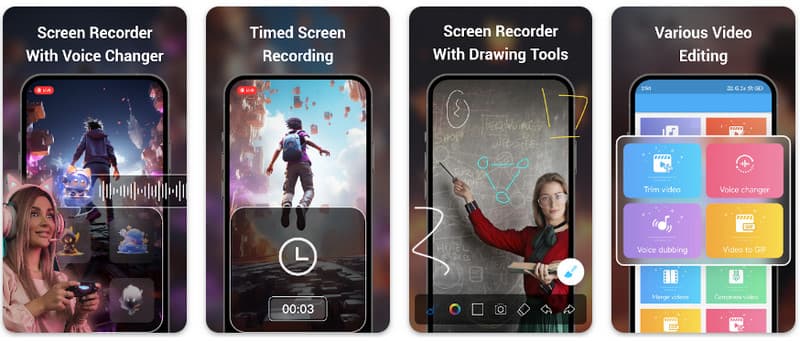
Steg 1Öppna Super Screen Recorder på din Android och aktivera sedan den flytande funktionen i appen för att använda den.
Steg 2På skärmen trycker du på kamera knappen, bekräfta inställningarna och tryck på Börja nu. Sedan visas en nedräkning på tre sekunder innan inspelningen börjar.
Steg 3Tryck på fyrkant för att avsluta inspelningen och spara den på din Android-enhet.
Bonus: Spela in skärmen på dator och mobiltelefon med bästa kvalitet
Tror du att man kan spela in skärmen på sin Android-telefon på en dator? AVAide-skärminspelare är främst utformad för skärminspelning på Windows och Mac. Men den kan också spela in helskärmsläge på din Android-telefon. Detta är särskilt användbart när du behöver skapa en handledning för vissa operationer på Android och sedan redigera videon direkt på din Mac eller Windows.
För skärminspelning på Windows och Mac stöder AVAide Screen Recorder AV1- och HEVC-codecs, vilket kan komprimera inspelningsresultatet kraftigt samtidigt som bästa videokvalitet bibehålls. Den fullständiga hårdvaruaccelerationen låter dig spela in långa videor med mycket låg CPU-användning. Ännu mer intressant är att den har en förbättrad mikrofon som förbättrar skärpan genom att eliminera bakgrunds- och ekoljud. Programvaran gör utmärkta inspelningar med enkla navigerings- och redigeringsfunktioner, som trimning och anteckningar. Även om det är en dyr programvara rekommenderas den starkt eftersom den kan användas för personliga och affärsmässiga ändamål.
- Spela in din Android- eller iOS-enhet med bästa videokvalitet.
- Gör enkelt handledningsinspelningar med rit- och anteckningsfunktioner.
- Stöd för AV1- och HEVC-utdatakodekar för att komprimera utdatavideon kraftigt.
- Erbjud lättanvända videoredigeringsfunktioner för att redigera dina inspelningar på Android.
Steg 1Du kan nu ladda ner skärminspelaren på din PC genom att klicka på nedladdningsknappen här. Installera sedan appen genom att följa uppmaningen på skärmen och starta den för att gå vidare till nästa steg.

GRATIS NEDLADDNING För Windows 7 eller senare
 Säker nedladdning
GRATIS NEDLADDNING För Mac OS X 10.13 eller senare
Säker nedladdningSteg 2Nu när det redan körs in i ditt system, placera inspelningsramen i området där du vill börja spela in. Här kan du spela in hela skärmen genom att välja alternativet Helskärm istället för alternativet Region.

Steg 3Därefter kan systemet och mikrofoninspelningen ställas in om det behövs. Om du vill lägga till ditt ansikte till inspelningen, aktivera alternativet Webbkamera här. Klicka sedan REC för att starta nedräkningen och börja spela in.

Steg 4När du avslutar inspelningen klickar du på sluta knappen, som är en röd fyrkant. Till nästa fönster som visas kan du redigera inspelningen du tog tidigare med de alternativ som finns här, placera sedan markören på inspelningen och tryck på ladda ner knappen för att spara den. Denna app bevisar sitt värde som bästa öppen källkod-inspelare tillgänglig.

Del 4: Vanliga frågor om hur man spelar in skärm på Android
Var hittar jag skärminspelningen i mina inställningar?
För att komma åt den inbyggda funktionen skärminspelning på Android utan tredjepartsappar, svep nedåt två gånger från skärmens överkant för att öppna Snabbinställningar panel och leta efter Skärminspelning (eller ikonen "Skärminspelning"). Om den inte syns trycker du på Redigera (pennan)-knappen för att dra skärminspelningsreglaget till dina aktiva rutor. När du har lagt till det kan du helt enkelt trycka på ikonen, välja dina ljudinställningar, till exempel inspelning av interna systemljud eller din mikrofon, och trycka på start för att börja spela in din skärm direkt från dina systeminställningar.
Varför kan jag inte hitta skärminspelning på min Android?
Avsaknaden av ett inbyggt alternativ för skärminspelning på Android beror vanligtvis på att din enhet kör ett äldre operativsystem, eftersom den inbyggda funktionen bara standardiserades med Android 11Om din programvara är uppdaterad kan det hända att reglaget helt enkelt är dolt för dig. Snabbinställningar menyn; du kan vanligtvis visa den genom att trycka på Redigera knappen i meddelandepanelen och dra rutan "Skärminspelning" till din aktiva vy. Dessutom kan vissa instegsenheter med "Go Edition" eller specifika tillverkarversioner inaktivera den här funktionen för att spara systemresurser. I så fall är det mest effektiva alternativet att använda en tredjepartsapp som XRecorder eller Super Screen Recorder.
Varför försvann skärminspelningsknappen?
Skärminspelningsknappen försvinner vanligtvis eftersom den av misstag flyttades ut ur det aktiva området för snabbinställningar. Du kan ofta återställa den genom att trycka på Redigera (pennikon) i meddelandepanelen och dra panelen bakåt. Den kan också vara dold på grund av energisparläge, begränsad av en arbetsprofil eller helt enkelt kräva att systemet startas om för att uppdatera användargränssnittet efter en programuppdatering.
Genom att använda handledningen som listas här har du lärt dig hur man skärminspelning på Android Samsung. Denna handledning kommer till stor nytta för dig när det gäller din skärminspelningsuppgift, särskilt om du är en Android-användare. Dela denna information med din Android-användarvän för att ge dem en uppfattning om hur man gör det.
OM FÖRFATTAREN

Spela in skärm, ljud, webbkamera, gameplay, onlinemöten, samt iPhone/Android-skärm på din dator.
Skärminspelning


