Vill utforska hur man spelar in ett Webex-möteInspelning är ett perfekt sätt om du vill spara viktiga presentationer, diskussioner eller utbildningssessioner för framtida referens. Dessutom kan du med den inbyggda inspelningsfunktionen i Webex spela in både video och ljud, tillsammans med delat innehåll, vilket säkerställer att inget viktigt innehåll missas. Så om du vill lära dig hur du spelar in ett möte på Webex, se den här guiden, eftersom vi erbjuder alla de bästa metoderna du kan använda.
Del 1. Vem kan spela in ett Webex-möte
Undrar du vem som kan spela in ett möte på Webex? Det är bara mötesvärden och eventuella utsedda medvärdar som kan spela in sessioner i Webex. Dessutom kan vanliga deltagare inte starta inspelningar om inte värden uttryckligen tillåter det. Observera dessutom att du måste ha ett abonnemang för att få tillgång till inspelningsfunktionen.
Del 2. Hur man aktiverar inspelning
Att aktivera inspelningsfunktionen på webbplatsen är lika enkelt så länge du är administratör. För att aktivera inspelning måste du:
Steg 1Logga in på Webex kontrollhubb eller Webbplatsadministratör via administratörsuppgifter. Fortsätt sedan till Tjänster > Mötesinställningar sektion.
Steg 2Efter det, lokalisera Inspelning och aktivera inspelningen. Du kan också välja lagringstyper, som molninspelning, lokal inspelning med mera, baserat på ditt abonnemang.
Steg 3För nästa process, ange behörigheter för värdar och medvärdar att hantera och kontrollera inspelningen.
Del 3. Hur man spelar in ett Webex-möte på datorn
Om du vill lära dig hur du spelar in möten i Webex kan du läsa all information i det här inlägget. Vi lär dig hur du spelar in ett Webex-möte i molnet och på en lokal dator.
Metod 1: Spela in Webex-möte i molnet
Att spela in mötet i molnet är en perfekt metod, särskilt om du vill bevara dina inspelningar eller dela filen med andra användare. Du kan till och med komma åt videon var som helst utan att ladda ner den till din enhet. Så för att starta processen kan du följa de enkla instruktionerna nedan.
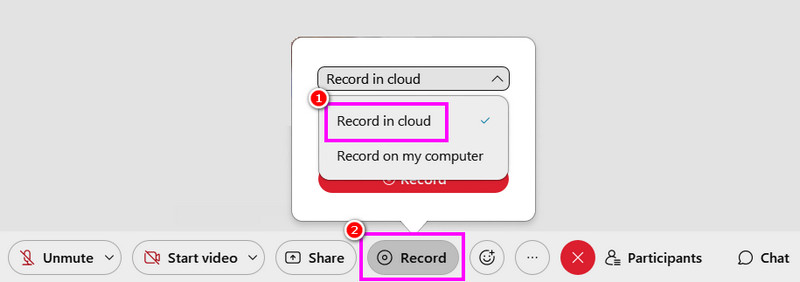
Steg 1Tillgång Webex på din dator. Efter det kan du till och med skapa ditt konto.
Steg 2När du är klar kan du nu klicka på Starta ett Webex-möte alternativ. Klicka sedan på Spela in knapp.
Steg 3Välj Spela in i molnet > Spela in knappen för att starta inspelningsprocessen. För att stoppa inspelningen, använd Sluta knapp.
Metod 2: Spela in Webex-möte i lokal inspelning
Förutom att spela in i molnet kan du även spara och spela in ett Webex-möte på din dator. Den här metoden är bättre om du vill ha din egen inspelning och samling av dina möten. Det vi gillar här är att inspelningsprocessen är enkel tack vare den omfattande layouten. Du kan till och med spara videon i bästa kvalitet för bättre videouppspelning. Kolla stegen nedan för en effektiv Webex-inspelningsprocess.
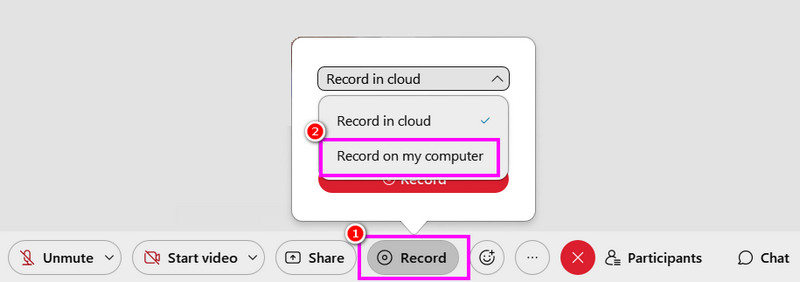
Steg 1Efter åtkomst Webex, kör den för att starta processen.
Steg 2Tryck sedan på från huvudgränssnittet Starta ett Webex-möte knappen. Efter det, från Spela in avsnitt, välj Spela in på min dator alternativet för att starta inspelningen.
Steg 3Knacka Sluta för att slutföra inspelningsprocessen. När det är klart sparas filen på din dator.
Metod 3: Spela in Webex-möte med AVAide-skärminspelaren
Om du är en deltagare i Webex-mötet kan det vara omöjligt för dig att spela in mötet eftersom endast värdar och medvärdar kan göra det. Om du inte har tillåtelse att spela in är det bästa att använda en bättre skärminspelare, som AVAide-skärminspelareDet är enkelt att spela in ett Webex-möte med den här inspelaren. Det beror på att programmet har ett omfattande och snyggt användargränssnitt. Du kan till och med spela in både video och ljud, vilket gör det mer elegant och kraftfullt. Utöver det kan du till och med ta en skärmdump under inspelningsprocessen. Du kan också spara inspelningen med bästa kvalitet, så att du får en tillfredsställande tittarupplevelse. För att börja spela in ditt möte på Webex, följ stegen nedan.
Steg 1Ladda ner och starta AVAide-skärminspelare på din dator. Klicka på knapparna nedan för att komma åt inspelaren direkt.

GRATIS NEDLADDNING För Windows 7 eller senare
 Säker nedladdning
GRATIS NEDLADDNING För Mac OS X 10.13 eller senare
Säker nedladdningSteg 2Från huvudgränssnittet kan du välja hur du vill spela in ditt möte genom att klicka på Full eller Beställnings alternativ. Du kan också slå på Systemljud för att spela in ljudet på din dator.
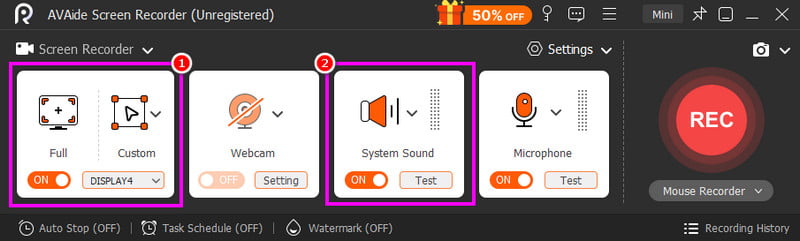
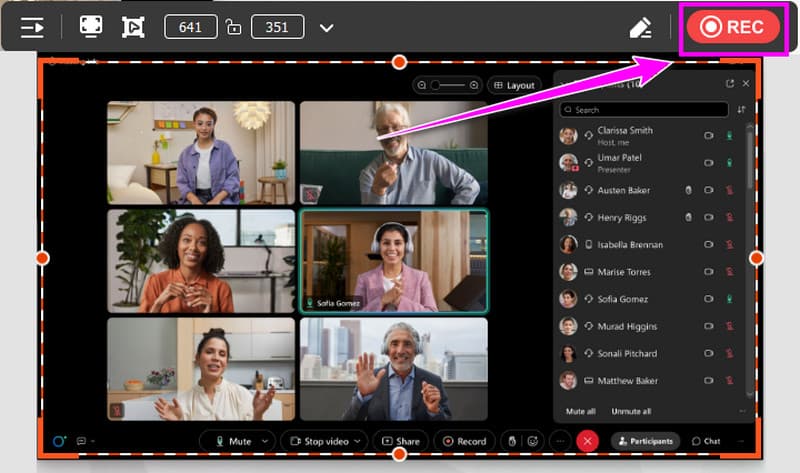
Steg 3Klicka på REC knappen, så visas nedräkningen på tre sekunder. Efter nedräkningen börjar inspelningsprocessen. Markera Sluta för att avsluta inspelningen.
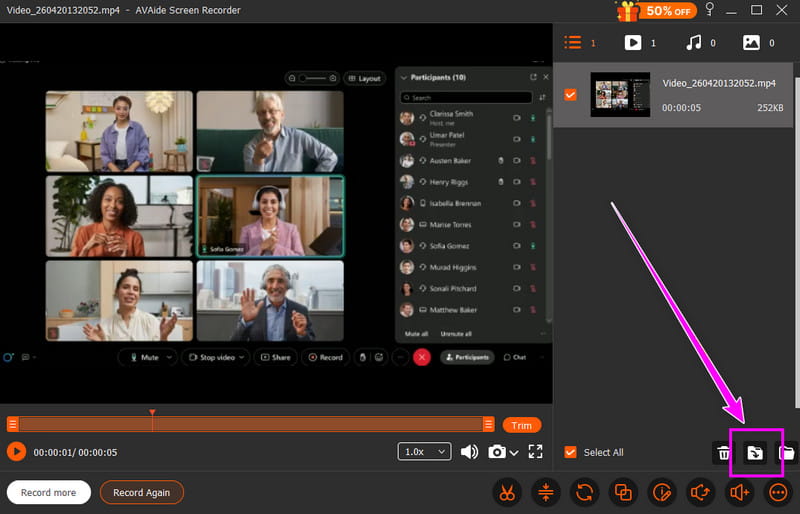
Steg 4När förhandsgranskningen visas kan du börja spara videon genom att klicka på Exportera knappen nedan.
Del 4. Hur man spelar in ett Webex-möte på telefonen
Du kan också spela in en session i Webex med din mobiltelefon. Det fina här är att du kan spela in skärmen på iPhone och Android, tack vare deras inbyggda inspelningsfunktion. Med den här funktionen kan du effektivt spela in ett möte utan att ladda ner någon tredjepartsinspelare.
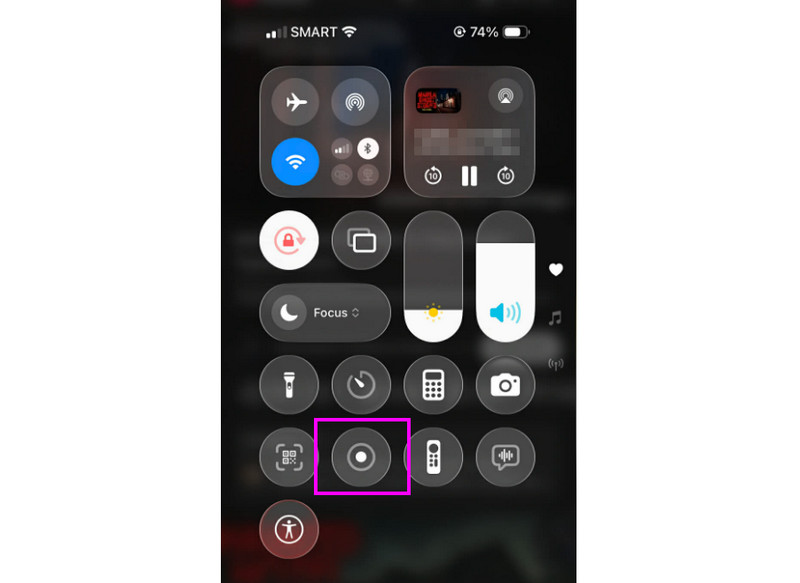
Steg 1Från din telefon kan du fortsätta till Underrättelse avsnitt. Leta sedan efter Spela in knapp.
Steg 2Tryck på Spela in knappen, så visas en 3-sekunders nedräkning. Därefter börjar den officiella inspelningsprocessen.
Steg 3Tryck Sluta för att slutföra inspelningsprocessen. Sedan kan du nu kontrollera inspelningarna i appen Foton eller Galleri.
Del 5. Hur man spelar in ett Webex-möte i en webbläsare
Om du vill ha bästa online-inspelaren, kan du prova att använda verktyget Online Screen Recorder. Den här inspelaren är praktisk om du vill spela in ett Webex-möte i din webbläsare. Det vi gillar här är att inspelningsprocessen är enkel. Den kan till och med ge dig en smidig sparprocess. Den enda nackdelen här är att den saknar grundläggande redigeringsfunktioner för att förbättra videor. Den visar också olika irriterande annonser på skärmen.
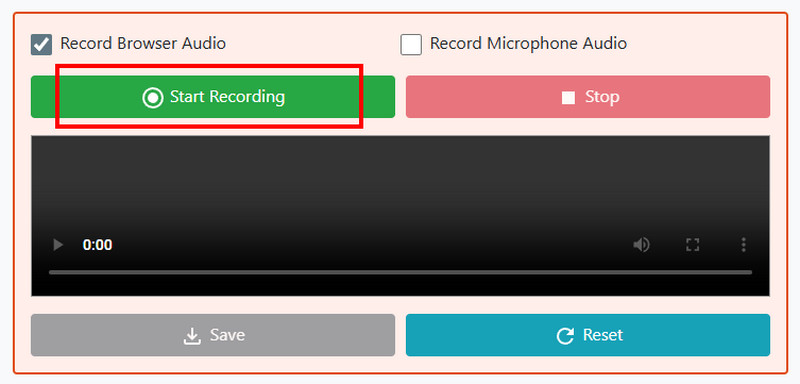
Steg 1Gå till din webbläsare och öppna Online-skärminspelare.
Steg 2Efter det klickar du på Börja spela in knappen. Välj sedan Webex-mötet för att starta inspelningsprocessen.
Steg 3Slutligen, tryck på Sluta knappen för att slutföra inspelningen av ditt Webex-möte.
Del 6. Hur man laddar ner Webex-inspelning
Fortsätt till det här avsnittet och lär dig hur du laddar ner Webex-inspelningar.
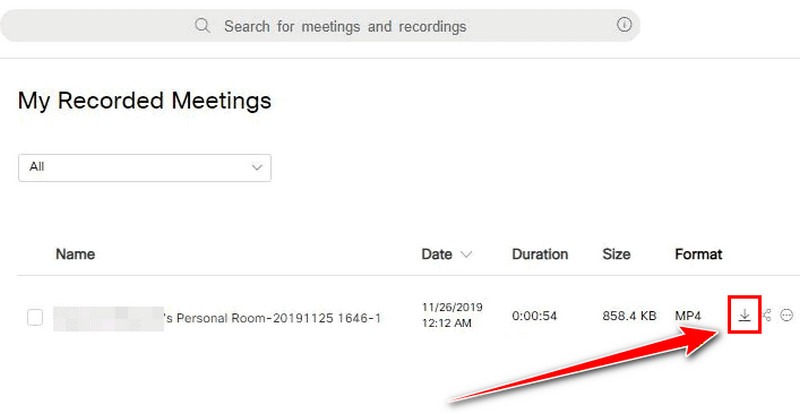
Steg 1Logga in på din Webex kontot och fortsätt till Inspelningar sektion.
Steg 2Välj sedan inspelningarna och tryck på Ladda ner symbolen från det högra gränssnittet.
Steg 3Sedan sparas inspelningen som en MP4-fil på din dator.
Nu har du lärt dig hur man spelar in en session i WebexDu utforskar till och med hur du sparar inspelningarna i ditt moln och på din dator. Dessutom, om du vill ha en smidigare inspelningsprocess kan du prova att använda AVAide-skärminspelareDen kan till och med erbjuda olika grundläggande redigeringsverktyg, så att du kan förbättra videon för bättre uppspelning.
OM FÖRFATTAREN

Spela in skärm, ljud, webbkamera, gameplay, onlinemöten, samt iPhone/Android-skärm på din dator.
Skärminspelning