YouTube TV has become a one-stop shop for binge-watchers online. On this platform, you can watch on-demand entertainment, tutorials, podcasts, documentaries, gaming, and music 24/7. While traditional TV schedules make shows or programs available only at specific times, YouTube lets you watch content whenever it's convenient. Users may now watch continuously without switching platforms, and as long as they want. But there's still a question left unanswered. Can you record on YouTube TV? This post covers a thorough guide to recording shows while managing them from your account. Be sure to read everything so you won't miss a show.
- Part 1. The Basics – How to Record Any Show on YouTube TV
- Part 2. How to Record YouTube TV on a Computer
- Part 3. Can you record on YouTube TV using an iPhone?
- Part 4. Advanced Recording Features and Edge Cases
- Part 5. Managing your DVR Library
- Part 6. Troubleshooting – Fixing Common Recording Issues
Part 1. The Basics – How to Record Any Show on YouTube TV
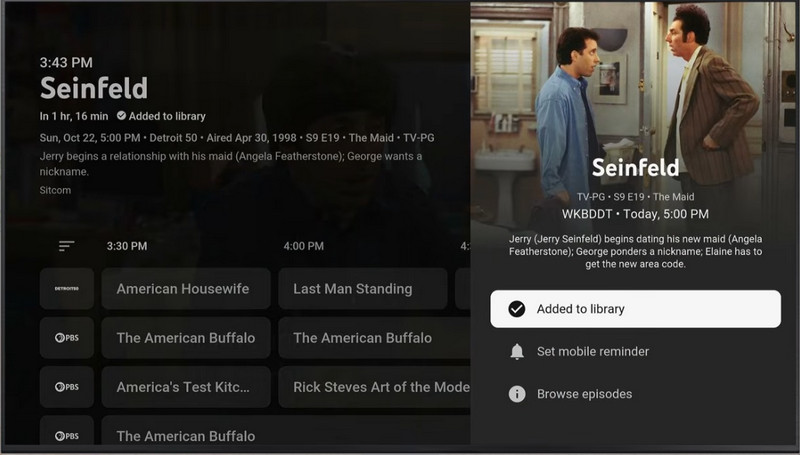
There are multiple ways to record any show on YouTube TV. One of those methods is adding your favorite shows to your library. In this way, all the series and shows you follow will be available to watch whenever you want. By the way, content from the YouTube TV library is accessible when connected to the internet. That means the shows and programs added to your library will not be accessible offline. Nevertheless, they are available for you to watch anytime you wish, ensuring you won't miss any show. Now, here are the steps on how to watch recorded shows on YouTube TV by adding them to your library.
Step 1Launch YouTube TV in your web browser, on your smart TV, Android TV, or streaming device.
Step 2Click the search button at the top of the interface and type in the name of your target channel. After that, select the channel.
Step 3The live streaming will be enabled. Then, you have to stop the video using the TV remote control, clicking on the computer screen, or tapping on the smartphone display.
Step 4This time, press Down on your remote if you are watching on a Smart TV, or scroll up from your phone screen and click the plus sign button underneath the progress bar. Press down on your remote control again and select the Add to library option.
Part 2. How to Record YouTube TV on a Computer
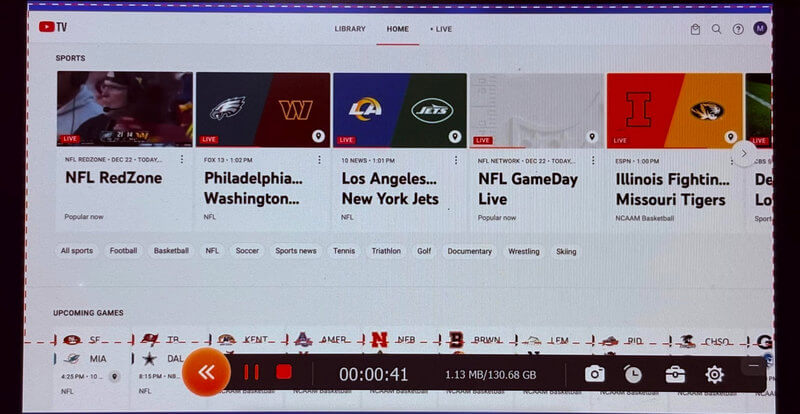
Watching YouTube TV shows offline is not feasible. You always need an internet connection to access them. But the thing about screen recorders is that they allow users to watch their shows or programs later. There is no need for an internet connection to access your saved shows. And if you want a clear recording of YouTube TV programs, AVAide Screen Recorder is a perfect software for that. This tool offers a crystal clear 1080p recording. Plus, it can produce 60 fps even at 4 K resolution. Its recording options consist of region selection, full-screen mode, webcam feed recording, system sound settings, and more. You will literally not miss any program, as it lets you set scheduled recording tasks. To show you how to record future shows on YouTube TV with this app, follow the instructions below.
Step 1Grab one of its installers by clicking the Free Download button. Proceed to the installation once the installer is downloaded. Open the app after being installed.

FREE DOWNLOAD For Windows 7 or later
 Secure Download
FREE DOWNLOAD For Mac OS X 10.13 or later
Secure DownloadStep 2Based on your needs, choose between Full and Custom. When you need to stream to another device with a larger screen, use the full-screen recording option. On the other hand, when planning to watch on mobile or portable devices, the custom option will suffice. Then, make sure that the system sound setting is turned on. Do this by clicking the toggle button of System Sound.
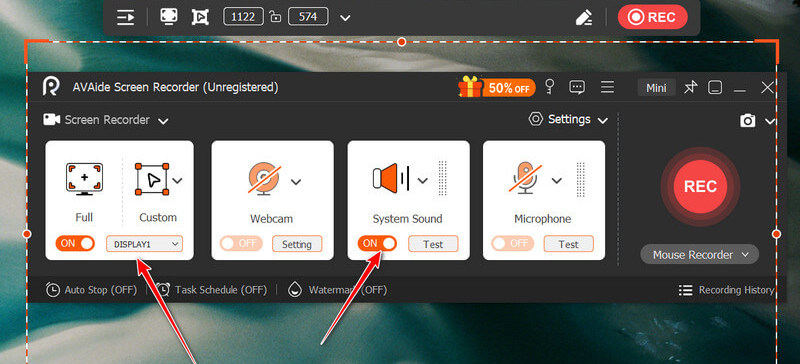
Step 3If you are happy with the settings, go to the YouTube TV website and find the show you want to watch. Click the REC button, and the recording will commence.
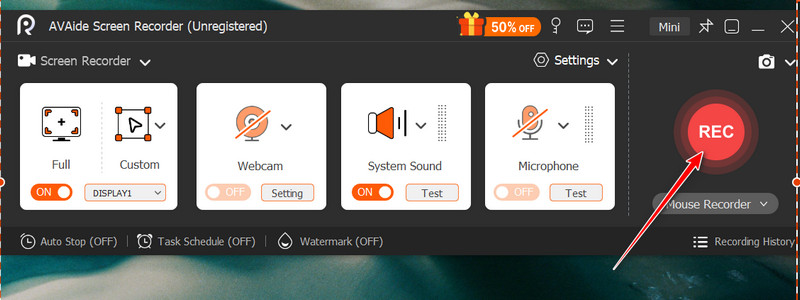
Step 4After recording, click the Stop button in the floating panel. Then a preview will appear, allowing you to rewatch the recorded show. Clicking the Save button lets you save the final recording and choose where to store it.
Part 3. Can You Record on YouTube TV on an iPhone?
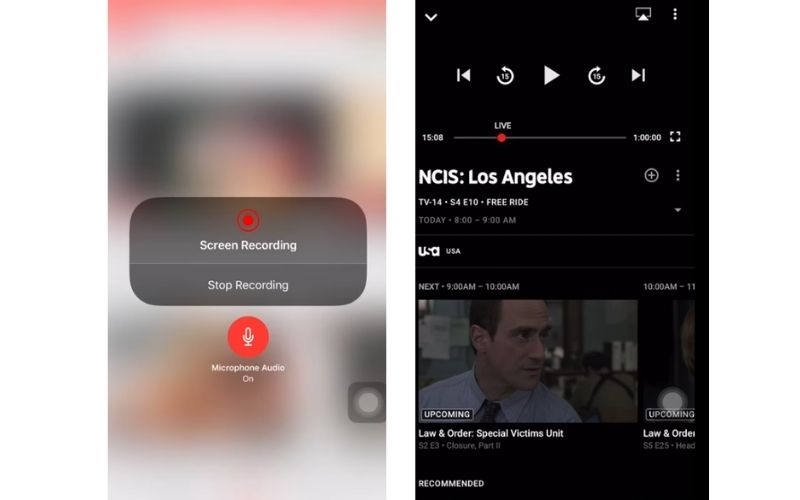
The answer to this question is yes. Using the built-in recorder on iOS devices, you can capture on-screen activity on your iPhone. There are some limitations, but it does the job when solely talking about recording. That said, here are the steps on how to record YouTube TV content on your mobile device.
Step 1Open the YouTube app and look for the channel you want to record. Once found, play the show.
Step 2Then, access the Control Center option by swiping down at the top right corner. For lower model units, you can access the Control Center by swiping up in the middle of your screen.
Step 3Now, tap the Record button, and the session will start after a 3-second countdown. Be sure that the show you want to record is playing.
Step 4Once the video ends, go back to the Control Center and stop the recording by tapping the same button. The recorded video can be found in the Photos app.
Part 4. Advanced Recording Features & Edge Cases
1. How to Schedule a Show to Record in Advance
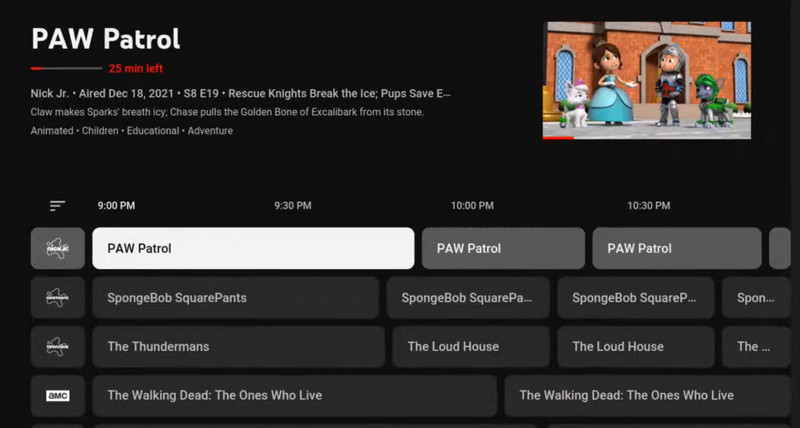
Step 1If there's an upcoming show that will air later, choose the channel title under that air date.
Step 2Once the channel is clicked, a small preview of the show will appear along with control options.
Step 3From here, click the Add to library button. Then a notification will pop up indicating that the channel has been added. As soon as the show or program becomes available, the recording will also commence.
2. For Sports Fans – How to Record a Game on YouTube TV
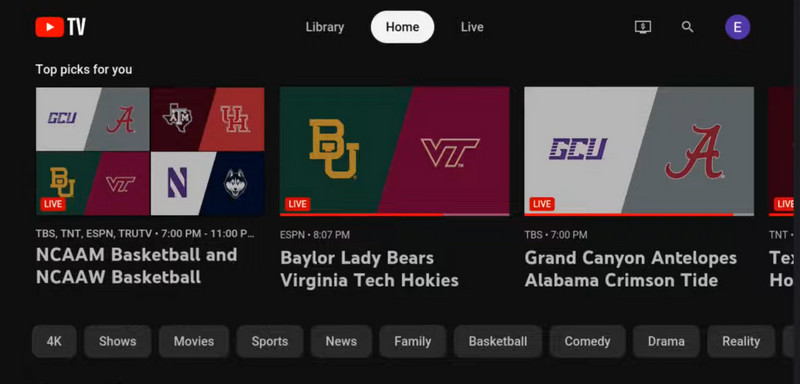
Step 1On YouTube TV, search for any sport you want to record. You may use the filter feature and search for Sports. It will show you all the upcoming games.
Step 2Now, hover over the game you are interested in. Then, click the three-dots button.
Step 3Next, click Add to library, then click the plus button for the specific game event. If you wish to record gameplay streams from other platforms, that is also possible.
3. Setting It to "Record Only New Episodes"
While it is a great feature, YouTube TV does not support it yet. That means you cannot prevent reruns or previous episodes from being recorded. Once added to your library, it will record the entire thing.
4. How Far in Advance Can You Schedule?
YouTube TV's DVR runs in the cloud. Its library system is running in the cloud rather than on a traditional DVR. In essence, there is no limit on how far in advance you can schedule a recording.
Part 5. Managing Your DVR Library
1. How to Watch Your Recorded Shows
Step 1Launch the YouTube TV app and sign in to your account.
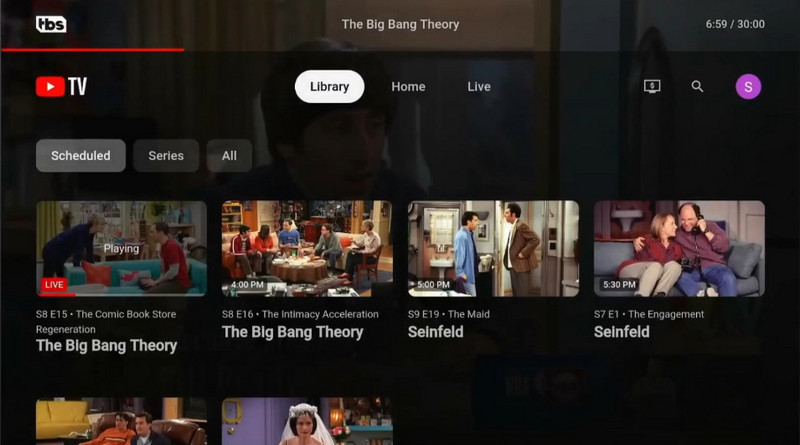
Step 2Then, go to the Library tab. When you click on this tab, you will see the different shows you have recorded from various channels.
Step 3Now, click on a specific show and start watching your recorded content.
2. How to Delete Recordings on YouTube TV
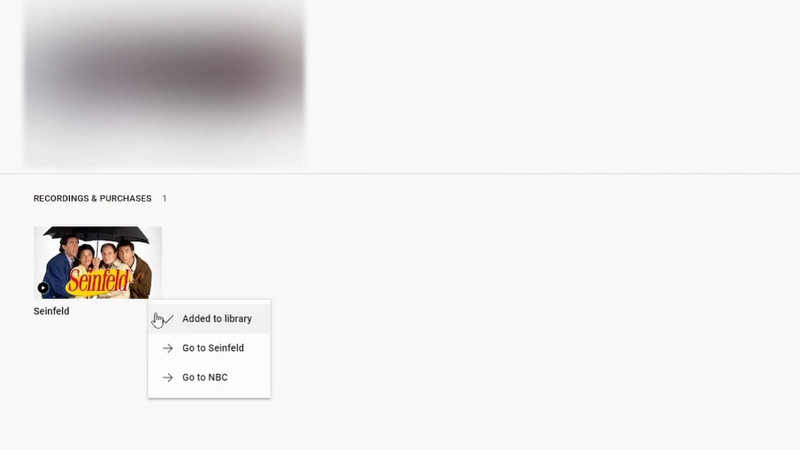
Step 1You will also need to go to your Library tab. Then, find the show that you wish to remove from your collection.
Step 2Once found, click the three-dot button on it, then select the Added to library option.
Step 3After that, a message will appear below the screen confirming the deletion of a recorded show.
3. How to Stop Recording on YouTube TV
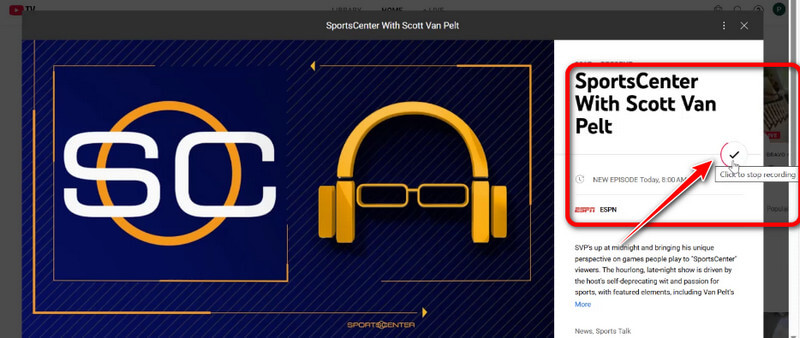
Step 1To stop recording, navigate to the Library tab at the top of the screen.
Step 2Scroll through your recordings and find the specific show you wish to stop from being recorded.
Step 3Now, click on the program's thumbnail to show its details. Click on the check mark button at the upper right-hand side of the window to stop recording.
4. Is There a Limit to How Many Shows You Can Record?
By default, YouTube TV's recording feature captures all episodes, including past ones. Yet no matter how many recordings you have, YouTube TV provides an unlimited cloud DR space. This will let you save as many recordings as you want without running out of room.
Part 6. Troubleshooting – Fixing Common Recording Issues
1. "Restricted Recording" or "Cannot Access Recordings" Error
There are specific digital streaming rights that YouTube TV must adhere to, as it is an internet-based service. These issues occur for reasons including technical synchronization and location settings.
What you can do is update the app version or use a stable internet connection. You may also clear the cache or reinstall the YouTube TV to resolve synchronization glitches. However, if you see an exclamation mark ("!") or lock image, that usually means the content is unavailable in your current location or restricted due to licensing.
2. Fix: The "Add" (+) Button is Missing
There are instances when the Add button is nowhere to be found on an event page or a show. This issue can be fixed by forcibly closing the app or clearing the cache from your device's settings app.
3. Why Are My Shows Not Recording Future Episodes?
If you are one of those YouTube TV users who are unable to access your recorded programs, it's possible the show was accidentally removed from your library. To fix that, you can go to your library tab and verify whether the show is still there by checking the checkbox on its content details.
Some encounter account drift. It occurs when you have multiple Google accounts, and the currently logged-in credentials are incorrect. Simply verify the profile by clicking it in the top-right corner.
That is the nitty-gritty of YouTube TV. You now know how to record a show on YouTube TV, troubleshoot issues, and understand its limitations. While it cannot filter out rerun recordings, its unlimited storage makes up for the limitations.
ABOUT THE AUTHOR

Capture the best moment with AVAide Screen Recorder. Screencast, customize, and share in seconds.