Learning how to record TV shows is helpful today because we all have busy days. Sometimes, we plan to watch a show, but work, school, or other things get in the way. When that happens, it feels bad to miss an episode you were excited for.
The good news is you can record your TV shows and watch them when you are free. It is easy, and anyone can do it with the right tools. So, please keep reading to explore the options you have to record your favorite shows.
Part 1: Record Digital TV Shows Using a DVR//PVR
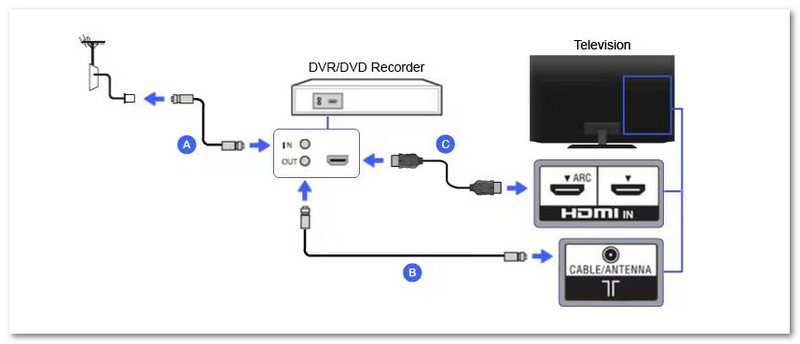
Recording TV shows has never been easier with DVRs, also known as PVRs for personal use. These devices act like small computers that save your shows and videos in digital formats, letting you watch them anytime. A DVR can record programs directly from your TV or antenna and store them on devices like SD cards, USB drives, or SSDs. They are simple to use and allow you to pause, rewind, or schedule recordings.
Here is how to record a TV show on TV using a DVR/PVR:
Step 1Make sure your DVR is connected to your digital TV with an RF modulator and that other devices are turned off to avoid interruptions. Please check that your cables are long enough to reach your TV.
Step 2Connect the yellow RCA video cable from the DVR's video out to the video in on the RF modulator.
Step 3Use a coaxial cable to connect the RF modulator to the TV and set both devices to the same channel.
Step 4Plug your TV power cord into the DVR, then plug the DVR into the wall and turn on your TV.
Step 5Press Record on your remote. Even if the show has already started, the DVR will record the full program.
Part 2: Record TV Shows on Computer
You can also record TV shows using your Windows or Mac computer with AVAide Screen Recorder. It is even easier because you do not need to plug in anything. You can record right away using your computer. It can capture multiple input sources at the same time, like system sound and a microphone.
You can also pick the resolution you want, like 720p, 1080p, or 4K, and choose 30fps or 60fps for smoother playback. In addition, AVAide Screen Recorder also supports many video file formats such as MP4, AVI, MKV, and MOV. With that, you can save your recording in the format that works best for your device.
Check the guide below to learn how to record TV shows using it:
Step 1Start by downloading and installing AVAide Screen Recorder on your Windows or Mac computer. After the installation finishes, open the program.

FREE DOWNLOAD For Windows 7 or later
 Secure Download
FREE DOWNLOAD For Mac OS X 10.13 or later
Secure DownloadStep 2Get the TV show ready on your computer screen before you begin. On the main interface of AVAide Screen Recorder, ensure that the Screen Recorder option is selected.
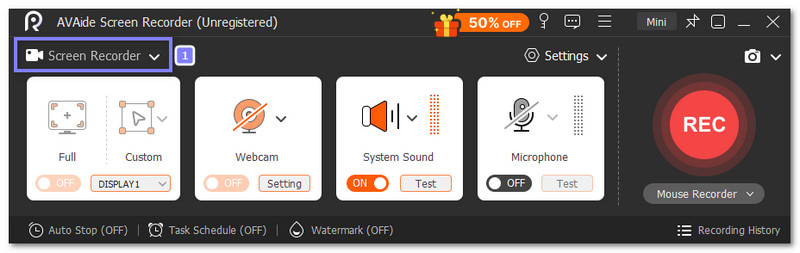
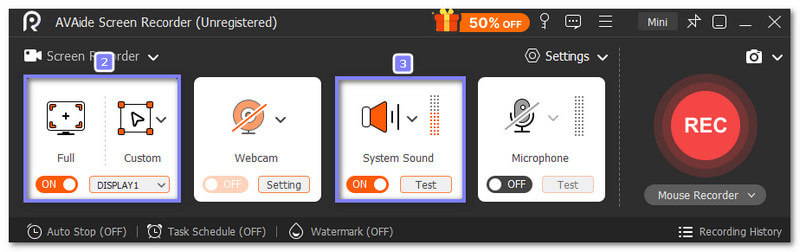
Step 3It is time to set up your recording settings. You need to pick your screen recording area, so the recorder knows what part of your screen to capture. Next, turn on System Sound so the recorder can capture the show's audio clearly.
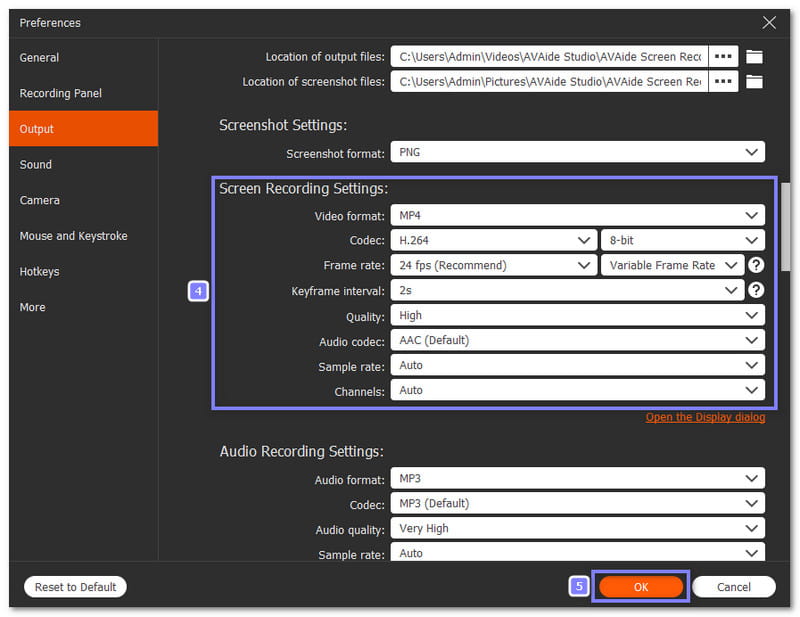
Step 4You can also open the Settings option to change the video format, codec, frame rate, quality, etc. Do not forget to click OK to apply the settings you made.
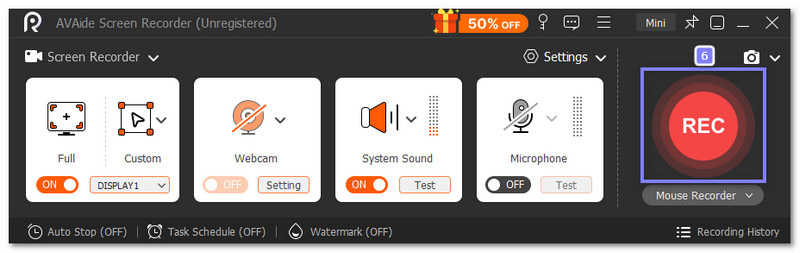
Step 5Your settings are settled, so now, click the REC button to start recording. After you press the button, proceed to play the TV show on your screen.
Step 6Once the TV show is finished, click the red Stop button. A preview display will appear where you can watch your recorded video. You can trim parts you do not need. When you are happy with it, save the recording to your computer. Now, you have the full TV show saved and ready to watch anytime.
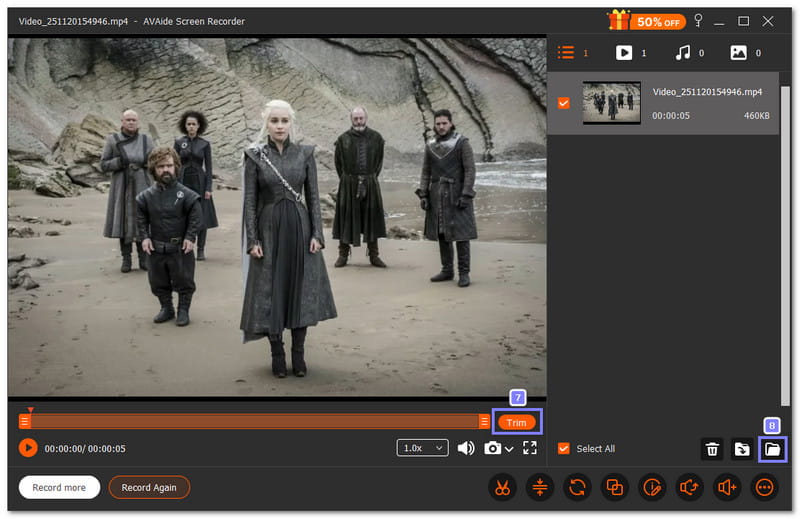
After finishing your TV show recording with AVAide Screen Recorder, you can also use it to record KBO live streams for offline watching. It is perfect if you are a sports fan and do not want to miss any game.
Part 3: Record TV Shows on VCR
Before DVRs became common, VCRs were the main way to record TV shows. These video cassette recorders started in the 1980s and could capture analog audio and video, and now even some digital formats. They offer high-quality sound and clear video, plus features like copy protection and recording timers.
Refer to the steps provided to discover how to record a TV show without a DVR, but using a VCR:
Step 1Gather an antenna, a DTV converter box, a two-way splitter, coaxial cables, and RCA audio/video cables (yellow, red, and white).
Step 2Connect the antenna to the splitter, then run coaxial cables from the splitter to both the DTV converter box and your TV.
Step 3Connect RCA cables from the converter box output to the VCR input, matching the colors, and then connect the VCR output back to the TV input.
Step 4Turn on your TV and select VCR or antenna as the input source.
Step 5Press Record on your VCR remote to capture the show. Your VCR will save it so you can watch it later.
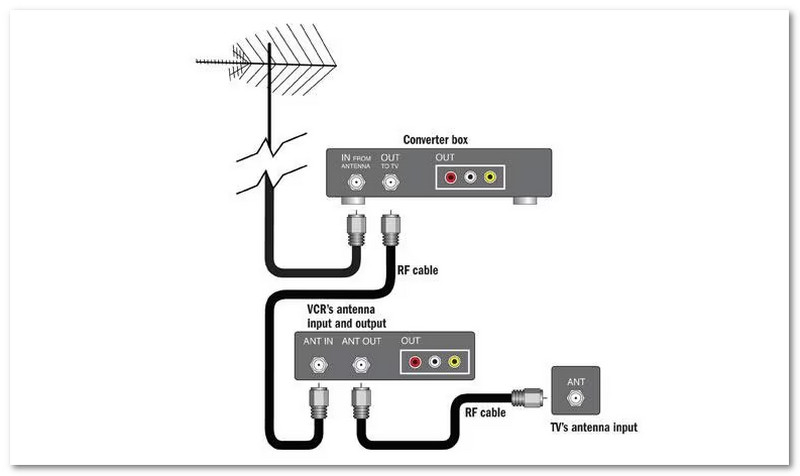
Keep in mind: While VCRs use VHS tapes, it is essential to know that VCRs and VHS are not the same. A VCR (Video Cassette Recorder) is the device that records and plays videos, while VHS (Video Home System) is the type of tape it uses.
Part 4: Record TV Shows from Set-Top Box
A set-top box, or cable box, can turn your TV signal into content you can watch and record. These boxes let you save shows directly onto a digital storage device, making it easy to keep your favorite programs. With simple connections and smart TV options, you can schedule recordings, choose shows from a guide, or record by time.
So, how to record a show on TV from a set-top box? Find out the steps below!
Step 1Get a digital storage device and connect it to your set-top box.
Step 2A pop-up will appear on your TV screen. Follow the instructions to set up your smart TV and click YES.
Step 3Use your remote to select Guide or press the Smart TV button.
Step 4Choose the show to record by title or schedule a timer for later recording.
Step 5Press OK to start recording. The set-top box will save the show to your storage device, ready to watch anytime.
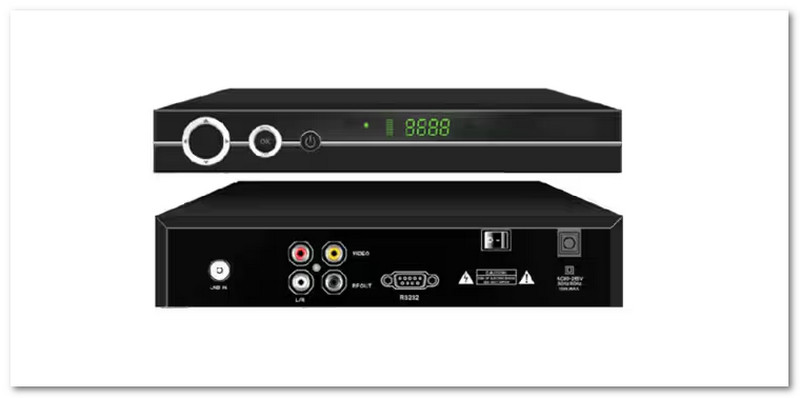
To wrap up, learning how to record TV shows on TV gives you many choices. You can use a DVR or PVR, a VCR, or even a set-top box to save your shows. Each method works and can help you watch later.
But if you do not have any of these devices, you can still record right on your computer with AVAide Screen Recorder. Just get the TV show ready on your screen and press the REC button. It is quick, easy, and works for anyone!
ABOUT THE AUTHOR

Record screen, audio, webcam, gameplay, online meetings, as well as iPhone/Android screen on your computer.