Streaming videos, like movies, shows, live sports, and gaming sessions, are everywhere today. Many people record streams nowadays so they can watch later, save important moments, or share content with friends.
If it is your first time and you want to give it a try, you can rely on our how-to record streaming video guide. Whether offline or online, we have easy-to-use tools you can try.
Part 1: Best Tool to Record a Streaming Video
If you want to record a streaming video, it makes sense to use the best recorder, right? Like AVAide Screen Recorder. It works on both Windows and Mac and lets you record your streaming video in 1080p or 4K, keeping every detail sharp.
Moreover, it offers scheduled recording, which lets you set a start and stop time in advance. It is perfect for capturing streams while you are away or busy. On top of that, it is easy to use, so anyone can start recording without a complicated setup.
So, how to record streaming video using it? Refer to the tutorial below!
Step 1Go to the official AVAide Screen Recorder site and get it on your Windows or Mac computer. After downloading, please install the program and launch it to start the recording process.

FREE DOWNLOAD For Windows 7 or later
 Secure Download
FREE DOWNLOAD For Mac OS X 10.13 or later
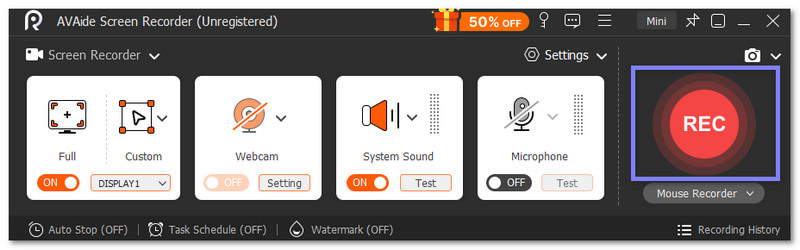
Secure DownloadStep 2On the interface, choose how you want to record. You can select Full to capture your whole screen or Custom to record only the part of the screen where your streaming video is playing.
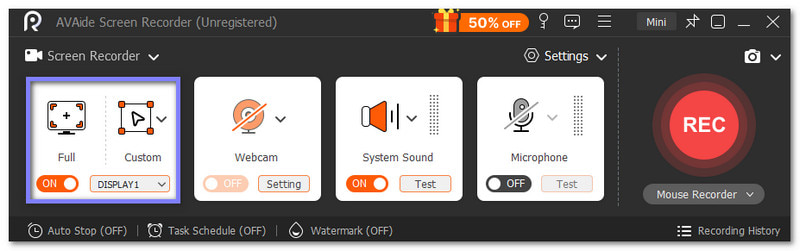
Step 3Turn on System Sound to record the video's audio and Microphone if you want to add your own voice or commentary. These are essential because they make sure both the stream and your commentary are captured clearly.
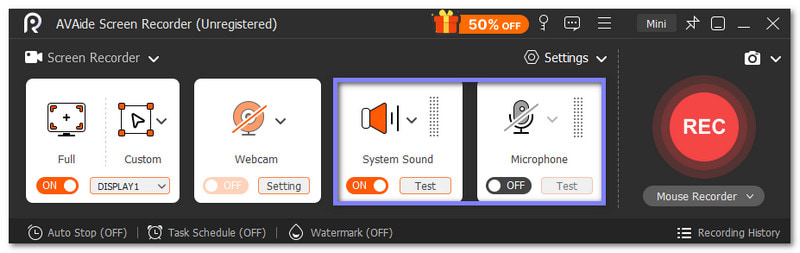
Step 4Prepare your streaming video on the screen, then click the REC button to start recording. Once you finish, click Stop to end the recording. After that, a preview of your video will appear so you can check it.
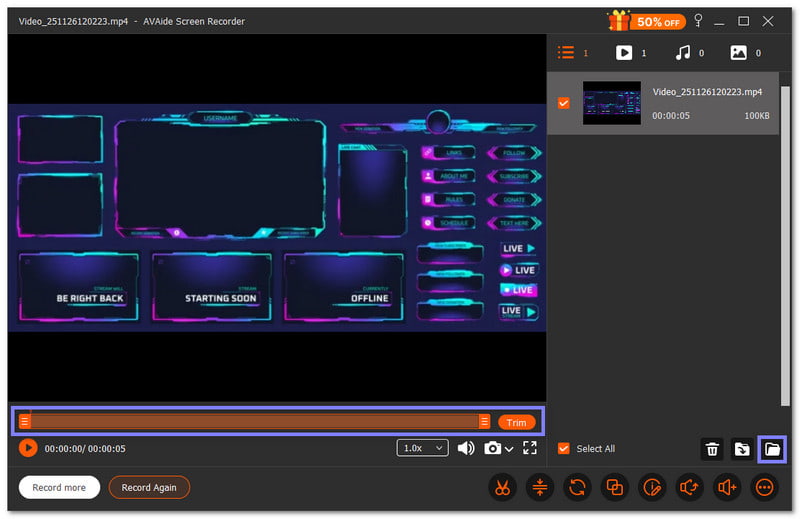
Step 5Watch your recorded streaming video. Have you seen a part you do not need? That is the use of the Trim option, to remove start or end parts you do not need. Once you are happy with your video, click Import at the bottom to save it to your computer.
Bonus: You can use AVAide Screen Recorder not only for live streaming videos but also to record Teams meetings, Zoom calls, or webinars. This way, you can save important discussions, revisit key points, and share meeting highlights easily.
Part 2: How to Capture and Record Streaming Video in OBS
With OBS, you can capture your screen, record webcams, or even use a capture card for a high-quality video. You can customize everything from layouts to audio settings, giving you full control over how your streaming videos are recorded. You can also combine multiple sources, add filters, and fine-tune scenes in real time.
Find out how to capture and record streaming video in OBS below:
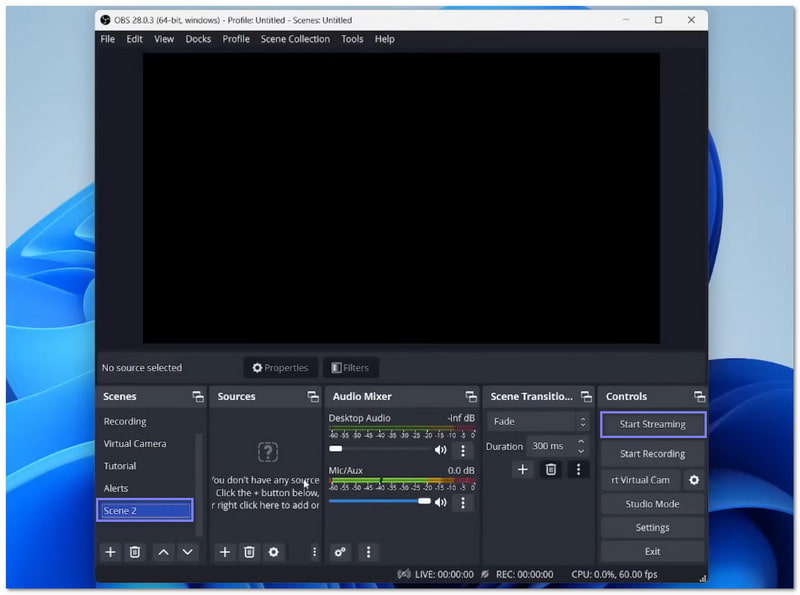
Step 1Open OBS and finish the setup so the program can run correctly. Then, add a new Scene and choose what video you want to capture.
Step 2Add your sources inside the Scene. Each source sits on its own layer, so you can move things around or stack them in the order you like.
Step 3Go to Settings, then Audio, and pick the mic and desktop sound you want to record. It makes sure OBS can hear your voice and the sounds in the video you watch.
Step 4Right-click a source and pick Filters to add basic visual or audio effects. Then, open Settings again and go to the Stream tab. Here, choose the platform you want to stream to and paste your stream key.
If you want OBS to save your live stream on your computer, go to Output and turn on Automatically record when streaming.
Step 5Hit Start Streaming once you are ready. OBS will stream and record at the same time. If you need to send your video to many platforms at once, you must use an RTMP server or a plugin that handles multi-stream tools.
Bonus: OBS is also great for recording gameplay. So, you can also use it to record gameplay on Steam, Epic Games, or other computer games.
Part 3: How to Record Live Streaming Video Online
Sometimes, you just want to hit record and go, without installing anything. That is where Screenapp.io shines. It is a free online platform that captures live streaming videos instantly. No downloads, no clutter, and saving your recordings is quick and simple. It is perfect for short streams or clips, though longer recordings over 45 minutes may be limited.
Discover how to record streaming videos using Screenapp.io below:
Step 1Visit Screenapp.io in your browser and click Record Screen on the home page.
Step 2The site will ask for permission to use your screen and microphone. Click Allow so Screenapp.io can capture the live streaming video with both sound and visuals. This step is important because it cannot record without access.
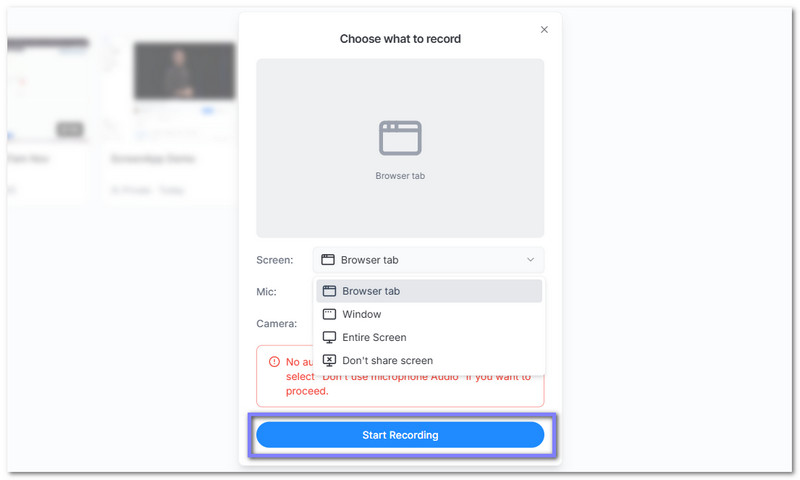
Step 3Pick what you want to capture. You can choose your whole Screen, a Window, or a specific Tab. It helps you control what will appear in your recording and keeps everything simple to manage.
Step 4Click Start Recording to begin. Screenapp.io will record your activity on the screen along with your audio if you turned your mic on. You can watch your stream, talk, or show anything you need while it records in the background.
Step 5Once you finish, click Stop. The site will process your video and then show a Download button.
Part 4: What to Consider When Recording Streaming Videos
You have learned how to record a streaming video above. Now, let us focus on the essential things you need to consider when doing it. These points will help your videos look and sound better and avoid problems.
1. High-quality video looks clear and smooth. Check if the platform supports high-definition or full high-definition. Remember, recording in higher resolution is better but takes more space.
2. Good sound makes videos easy to watch. Make sure the recorder captures audio clearly. You can adjust the volume if needed before starting.
3. Slow internet can make recordings lag or freeze. Use a fast and stable connection to keep the video smooth and avoid interruptions.
4. Pick a program that is easy, reliable, and supports your device. Test it first to make sure it records both video and audio well.
5. High-definition recordings take up a lot of space. Make sure your computer or drive has enough storage. You can compress files later if needed, but clarity may drop.
6. Some videos are protected by copyright. Record only for personal use or if allowed. Check the platform rules to avoid legal problems.
You must remember the key points before recording a streaming video, like legal and copyright issues, video and audio clarity, internet speed, recording program, etc.
Once that is ready, you can go ahead and record live streaming video smoothly. If you want the best, AVAide Screen Recorder stands out with its scheduled recording, ease of use, and sharp, professional results.
ABOUT THE AUTHOR

Record screen, audio, webcam, gameplay, online meetings, as well as iPhone/Android screen on your computer.