Telegram has solidified its position as a powerhouse in the social media landscape, largely due to its unparalleled file-sharing capabilities. Unlike many competitors that compress media, Telegram allows users to transmit high-definition videos and documents up to 2GB in size (4GB for Premium users) without compromising a single pixel of quality. It is this "lossless" philosophy that has attracted hundreds of millions of users worldwide.
However, the platform's robust privacy settings often create a hurdle for those looking to archive content. While public files are easy to grab, many creators now utilize "Restricted Content" features in private channels, which disable the standard save-to-gallery and forwarding functions. If you have found yourself staring at a video you can't seem to save, don't worry. This guide provides a comprehensive walkthrough on how to download Telegram video across PC, Android, and iOS, ranging from native internal settings to advanced third-party tools and browser extensions that bypass common restrictions.
- Part 1: Difference Between Simple and Private Videos in Telegram
- Part 2: How to Download Simple Telegram Video Directly
- Part 3: How to Download Telegram Videos on Private Channel
- Part 4: How to Download Telegram Videos via Chrome Extension
- Part 5: How to Save Videos on Telegram That Can't Share
- Part 6: FAQs of Telegram Video Download
Part 1: Difference Between Simple and Private Videos in Telegram
First, you should know that some videos on Telegram are from Private Channels, so you cannot directly download them to your phone or computer. Let's see how simple and private videos differ in Telegram.
| Feature | Simple (Public/Normal) Video | Private (Restricted) Video |
| Downloadable | Yes, with one click. | No, usually blocked by admins. |
| Forwarding | Allowed. | Often disabled. |
| Searchability | Found via global search. | Invisible to non-members. |
| File Limit | Up to 2GB (4GB for Premium). | Up to 2GB (4GB for Premium). |
| How to Save | Native "Save" button. | Requires bots, scripts, or cache extraction. |
Part 2: How to Download Simple Telegram Video Directly
For the majority of public channels and standard groups, Telegram acts as a powerful cloud drive. You can download Telegram videos directly to your local storage without using any third-party software because these simple videos do not have content protection enabled. Whether you are using a smartphone or a computer, the process is seamless and preserves the original resolution.
Save Telegram Videos on iPhone or Android
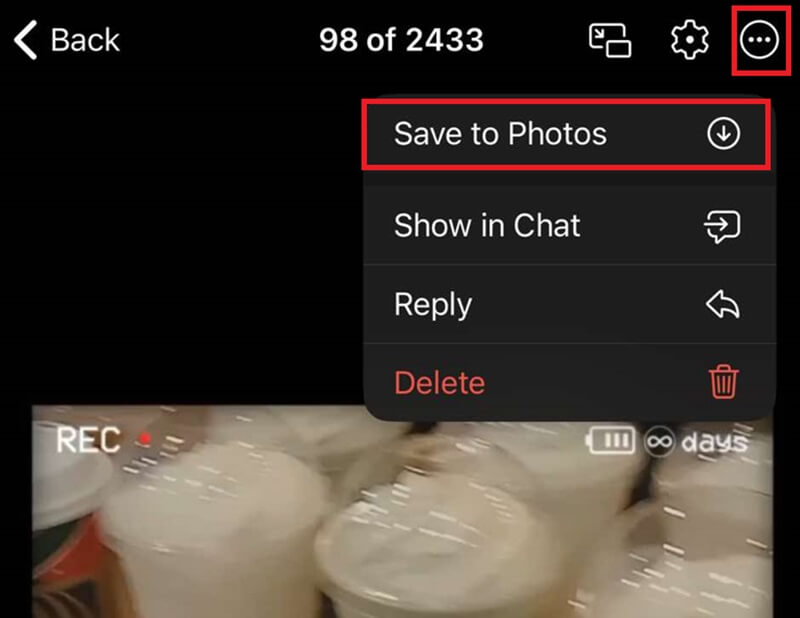
Step 1Open the chat and tap the video to open the full-screen preview.
Step 2Tap the More button on the top right side.
Step 3Select Save to Photos or Save to Gallery to download the Telegram video to your phone.
Save Telegram Video on PC and Mac Desktop
The desktop application is the most efficient way to download large Telegram video files (up to 2GB or 4GB) because it utilizes your PC's full hardware acceleration and disk speed.
Step 1Launch the Telegram Desktop app and navigate to the chat or channel containing the video.
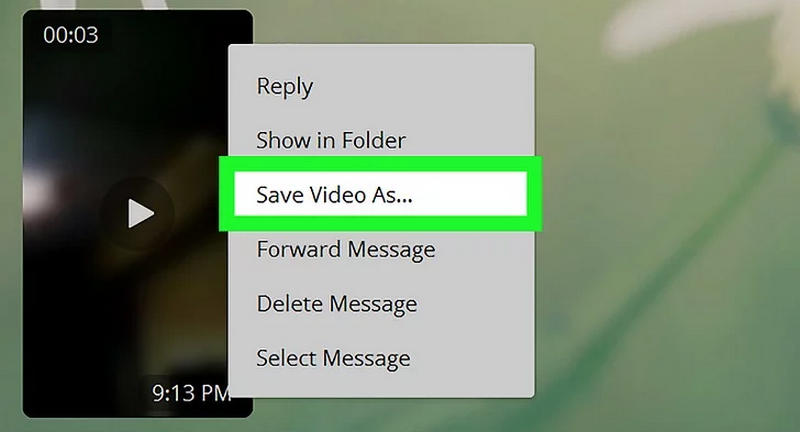
Step 2Right-click directly on the video bubble.
Step 3Select Save Video As from the context menu.
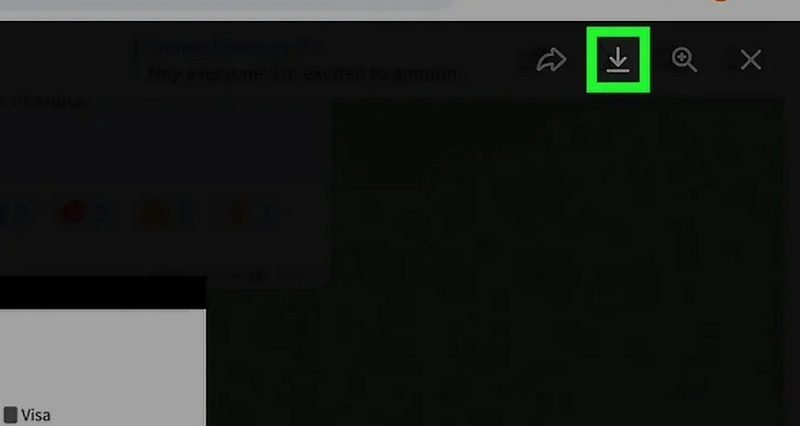
Step 4Choose your destination folder on your hard drive and click Save. You can also click the Download button (downward arrow) in the top-left corner of the video player to save it to your default "Telegram Desktop" downloads folder.
Download Telegram Videos Online
If you don't want to install the desktop Telegram application, or if you are using a public computer, Telegram Web is the perfect solution.
Step 1Go to web.telegram.org/a/ and log in to your Telegram account.
Step 2Open the chat where the video is located.
Step 3For simple videos, hover your mouse over the video. A Download button (downward arrow) will appear. Click it to save the Telegram video directly to your browser's default download folder.
Part 3: How to Download Telegram Videos on Private Channel
Can't save videos from private Telegram channels? Don’t worry! You can use Telegram bots and the File Manager app to access hidden video files.
Method 1: Download Private Channel Videos with Telegram Bots
Telegram bots can help you download private videos from Telegram. These tiny programs are designed to help Telegram users with different specific needs, such as downloading private videos. Follow the guide below on how to download videos from Telegram's private channel.
Step 1Go to Telegram and type the Telegram bot that caters to saving videos from private channels in the search box. Hit the first channel that appears in the results.
Step 2Open the video you want to grab and hit the long press. Once the selection appears, tap the Copy link address.
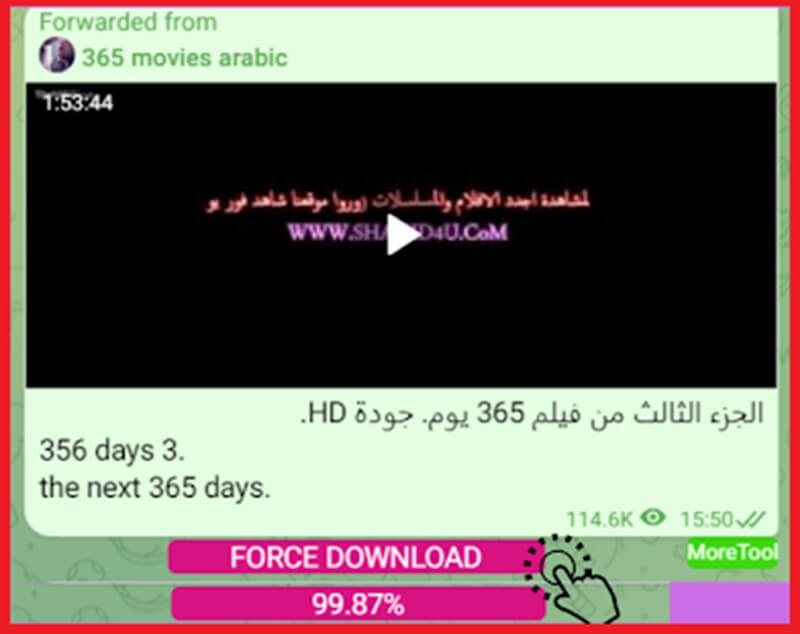
Step 3Now paste the video link into the Telegram bot, which will process the file in a few seconds. Once the file appears, hit the More button (with three dots) and download the Telegram video from private channel.
- Pros
- No installation required.
- Easy steps to get the download link of Telegram restricted videos.
- Cons
- It is not safe to click sensitive links from unknown bots.
- Not all Telegram bots work reliably.
- Some Telegram bots require a fee.
Method 2: Access Telegram Videos via File Manager (Android)
Though you can download videos from Telegram private channels with bots, it is hard to find the path to the folder. Instead of spending time on finding hidden path folders, you can use a file manager app to download videos to the Gallery or Downloads folder.
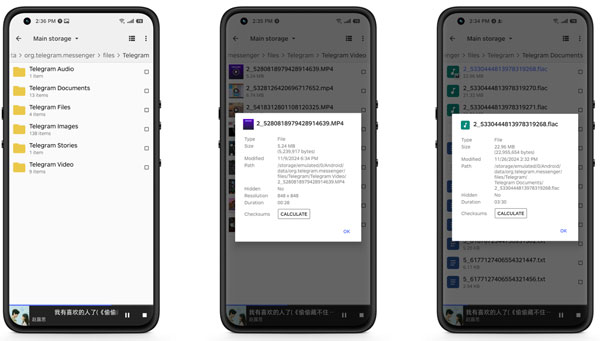
Step 1Open Telegram. Play the video you want to save. The Telegram app cache will save the video automatically.
Step 2Open the File Manager app. Find the Telegram folder within the app. You can find it in the internal storage space.
Step 3Once you find the target Telegram private video, you can copy it to the Downloads or Gallery folder manually.
- Pros
- There is no need to use third-party Telegram bots.
- Keep all your Telegram data safe.
- Cons
- It only works after watching or buffering the video.
- The file name may not be descriptive. It is hard to find the specific video.
Part 4: How to Download Telegram Videos via Chrome Extension
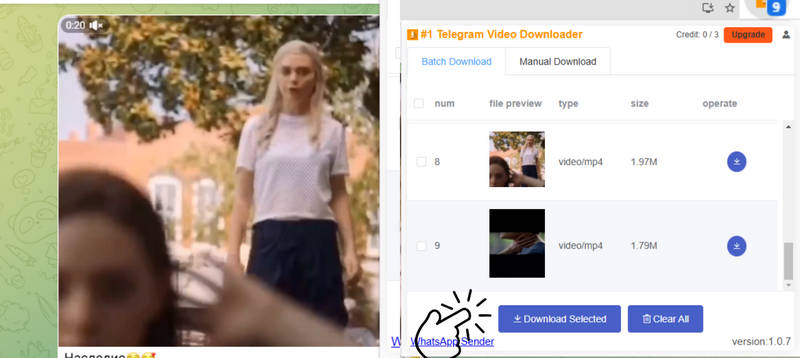
When Telegram private channel restrictions block standard downloads, a reliable Chrome extension is your best alternative. The Private Video Downloader provides a free, registration-free experience directly within your browser. With an intuitive interface, it enables unlimited downloads and local encryption. You can easily export videos to MP4, 3GP, or M4A, making it a versatile tool for any user looking to archive restricted Telegram content.
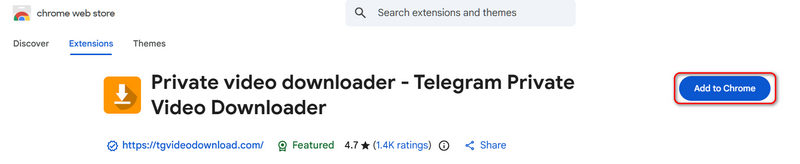
Step 1Search for Telegram Private Video Downloader in Chrome, and then you may see it's link in the Web Store. Visit it and click the Add to Chrome button. Then, click Add extension on the popup window.
Step 2Visit your Telegram and open a private channel. This extension will detect all videos.
Step 3Select your desired videos. Click the Download Selected button to download videos from a private channel.
Part 5: How to Save Videos on Telegram That Can't Share
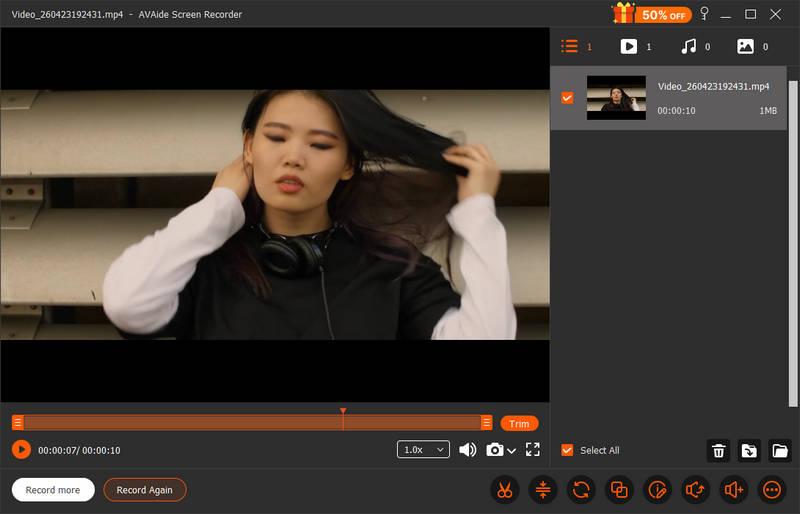
How about dealing with files that are easily obtained from Telegram? When the download option is disabled from your Telegram account, you may think there is no way you can save these files. Understanding Telegram's privacy and public options, you can still gather exclusive video from this platform using a screen recorder. That being said, AVAide Screen Recorder is a robust software that lets you seamlessly record Telegram and other computing activities on your PC. This tool is accessible on Mac and Windows devices and can capture screen activities up to 8K resolution, providing a clear and crisp Telegram video recording.
Moreover, it contains a wide range of impressive features like an annotation function that allows you to highlight and even add text to telegram videos in real-time. Not only that, this tool guarantees not only capturing your screen but also the system sound and microphone. So, if you wish to know how to download Telegram videos that are not downloadable, here is what you should do with the help of AVAide Screen Recorder.
Step 1Install the Telegram Screen Grabber
Hit the Download button below to see which one suits your operating system. Afterward, double-click the installer to run and launch the tool.

FREE DOWNLOAD For Windows 7 or later
 Secure Download
FREE DOWNLOAD For Mac OS X 10.13 or later
Secure DownloadStep 2Select Recording Preferences
You can see the recording options list on the AVAide Screen Recorder's main screen. First, hit the Video button and select the frame ratio of your choice. Afterward, toggle ON the System Sound to capture the file's audio.

Step 3Record Telegram Video
Now it is time to get a Telegram-restricted video download. Hit the Start button on the program after selecting your recording options and open your Telegram app. Go to the video you wish to download and play the file.

Step 4Save Output
Once you are done playing the video, hit the Stop button to adjourn the recording. AVAide Screen Recorder automatically saves your file, and you can tick the Preview button to check your videos.
Part 6: FAQs of Telegram Video Download
Does Telegram notify when you save a video?
No, Telegram won't notify anyone when you save a video. However, if you take a screenshot in an end-to-end chat, the other person will receive a notification: "You took a screenshot"/
Is Telegram safe for private videos?
Telegram can be safe for private videos only if you use Secret Chats and trust the recipient. Otherwise, it's about as private as most major cloud messaging apps.
Can I record a Telegram video call without them knowing?
Telegram doesn't detect or notify when you record a video call. You can use AVAide Screen Recorder to record Telegram video call secretly.
Telegram video download is not that difficult, whether you want to save a standard or private video. If you need a reliable way to overcome Telegram's download restrictions, AVAide Screen Recorder is the ultimate choice. It allows you to safely capture restricted Telegram videos for offline viewing while adding professional creative improvements via its annotation toolkit. From Telegram to other protected platforms, this recorder ensures you can save and customize any content that lacks a traditional download button.
ABOUT THE AUTHOR

Record screen, audio, webcam, gameplay, online meetings, as well as iPhone/Android screen on your computer.