Importanța înregistrării ecranului poate fi descoperită doar atunci când oportunitatea dispare. Videoconferințele, poveștile care dispar și erorile care nu mai apar te-ar putea lăsa fără dovezi sau context. De aceea, mulți utilizatori se bazează acum pe un... înregistrator de ecran pentru iPhone pentru a captura tutoriale, jocuri, întâlniri și sarcini zilnice în timp real. Cu toate acestea, nu există așa ceva ca o înregistrare la fel de ușoară ca apăsarea unui buton. Produsul final poate fi influențat de calitatea audio, claritatea video și capacitatea de stocare. În acest ghid, veți învăța să înregistrați fără capcane comune, clar și lin.
- Partea 1. Înregistratorul de ecran iPhone încorporat (The Baseline)
- Partea 2. Cele mai bune aplicații terțe de înregistrare a ecranului pentru iPhone și iPad
- Partea 3. Tabel comparativ. Ce înregistrator de ecran ar trebui să alegeți?
- Partea 4. Cum să editați înregistrările ecranului pe iPhone
- Partea 5. Depanarea problemelor comune de înregistrare a ecranului
Partea 1. Înregistratorul de ecran iPhone încorporat (The Baseline)
Orice aplicație de înregistrare a ecranului pentru iPhone pe care o descărcați va merita să cunoașteți capacitățile înregistratorului încorporat. Pentru a vă ajuta să creați tutoriale, jocuri, tutoriale ale aplicațiilor, apeluri video sau să depanați probleme tehnice, Apple a integrat o aplicație nativă de înregistrare a ecranului în iOS. Este ușor de accesat din Centrul de Control, iar înregistrările sunt salvate automat în aplicația Fotografii, permițând editarea și partajarea rapidă.
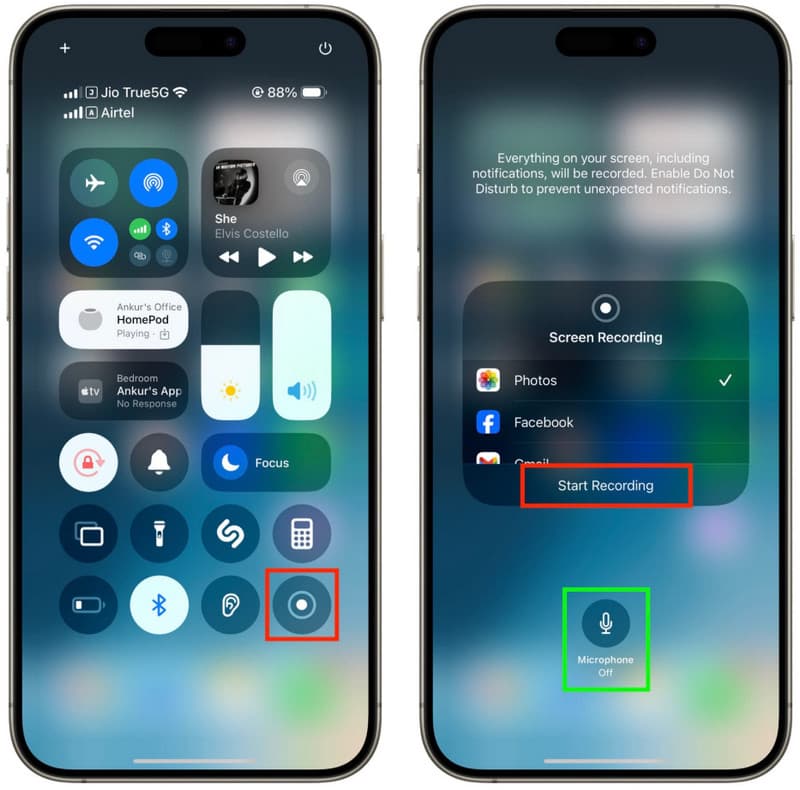
Recorderul încorporat este adecvat pentru utilizarea zilnică, dar are unele limitări. Uneori există probleme cu microfonul încorporat pentru înregistrarea audio, fișiere de dimensiuni mari sau notificări care întrerup înregistrarea. Funcția oferă, de asemenea, capacități de editare limitate în comparație cu aplicațiile dedicate de înregistrare. Înțelegerea acestor puncte forte și puncte slabe permite utilizatorului să determine ce oferă recorderul implicit și dacă are nevoie de un produs mai sofisticat pentru a-și satisface nevoile de înregistrare.
Partea 2. Cele mai bune aplicații terțe de înregistrare a ecranului pentru iPhone și iPad
1. Înregistrează!: Înregistrator de ecran
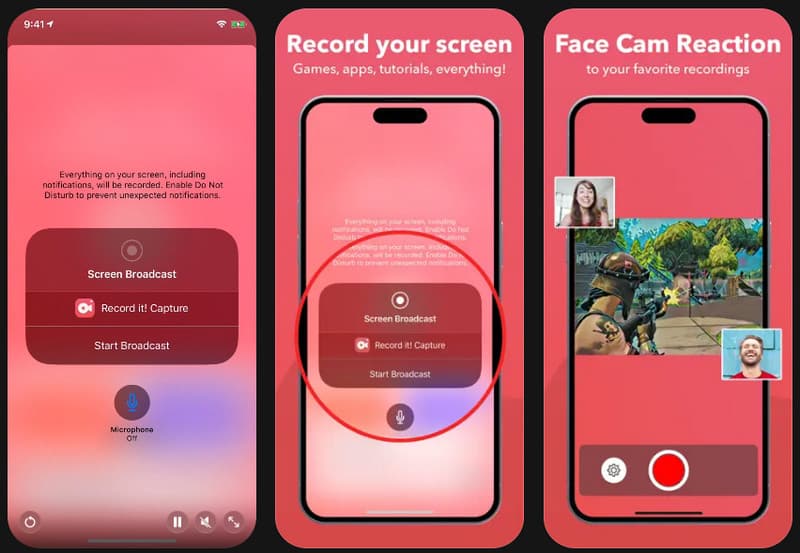
Înregistrează-l! este un înregistrator de ecran simplu și ușor de utilizat pentru iPhone și iPad, ideal pentru începători. Aplicația permite înregistrarea cu FaceCam, narațiunea vocală și partajarea directă pe platforme precum YouTube și TikTok. Interfața sa rămâne curată și ușor de navigat, fiind ideală pentru videoclipuri de joc, prezentări ale aplicațiilor, tutoriale și videoclipuri cu reacții. Această aplicație este potrivită pentru cei care caută un înregistrator de ecran iPhone fiabil pentru nevoile zilnice de înregistrare, deoarece aveți nevoie doar de câteva atingeri pentru configurare.
- Pro
- Interfață simplă și prietenoasă pentru începători
- Acceptă FaceCam și narațiune audio
- Instrumente de editare încorporate
- Partajare rapidă pe rețelele sociale
- Contra
- Filigran în versiunea gratuită
- Unele funcții necesită un abonament
2. Înregistrator DU
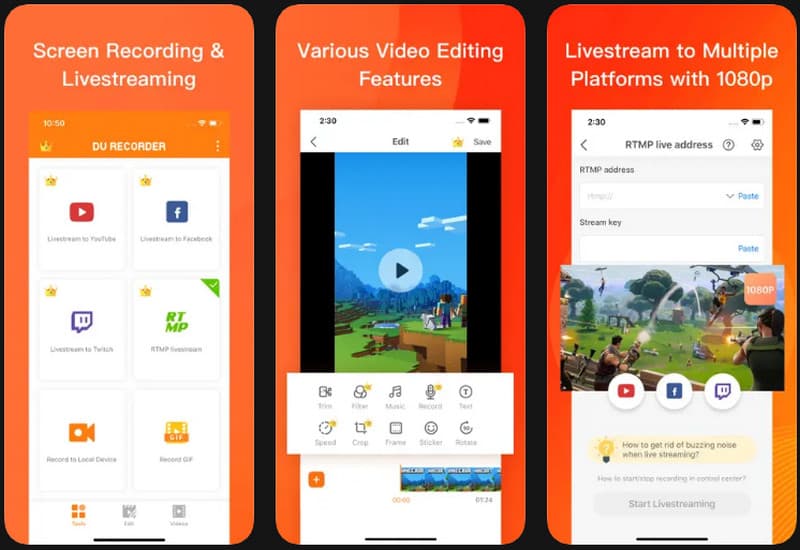
Înregistrator DU DU Recorder este o aplicație de înregistrare cu funcții avansate pentru cei care au nevoie de mai multe capacități de înregistrare decât cele oferite de iPhone-ul standard. Oferă toate funcțiile de streaming live, înregistrare HD, înregistrare cu microfon încorporat și editare video într-o singură aplicație. Este deosebit de bună pentru capturarea videoclipurilor pentru meciuri de jocuri, lecții online, prezentări și tutoriale lungi. DU Recorder oferă un înregistrator de sunet excelent pe iPhone și capacități de înregistrare video și are o interfață foarte ușor de utilizat pentru utilizatorii care doresc doar să înregistreze întregul ecran și sunetul iPhone-ului.
- Pro
- Acceptă transmisiuni în direct
- Înregistrare audio de înaltă calitate
- Instrumente avansate de editare
- Setări multiple de export
- Contra
- Din cauza versiunii gratuite, sunt afișate reclame
- Trebuie achiziționate anumite echipamente de top
3. Captura TechSmith
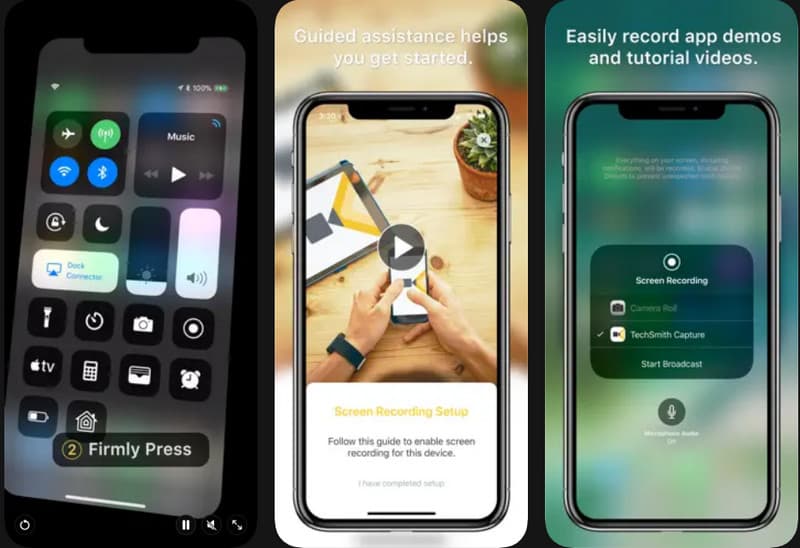
Captură TechSmith este destinată tutorialelor de afaceri, videoclipurilor de instruire și prezentărilor tehnice. Aplicația captează bine activitatea ecranului și se integrează ușor cu alte instrumente pentru editare video ulterioară, cum ar fi Camtasia și Snagit. Această aplicație este utilizată de mulți educatori, instructori și echipe de asistență datorită înregistrării video simple, dar de înaltă calitate. Persoanele care caută o aplicație de înregistrare a ecranului pentru un iPhone se vor orienta către TechSmith Capture, care oferă o experiență de captură de ecran curată și fără complicații.
- Pro
- Înregistrări de calitate profesională
- Transfer ușor de fișiere către Camtasia
- Interfață simplă și ușor de utilizat
- Conceput pentru tutoriale și demonstrații
- Contra
- În cadrul aplicației, există doar câteva opțiuni de editare
- Mai puține funcții de personalizare
4. Înregistrați
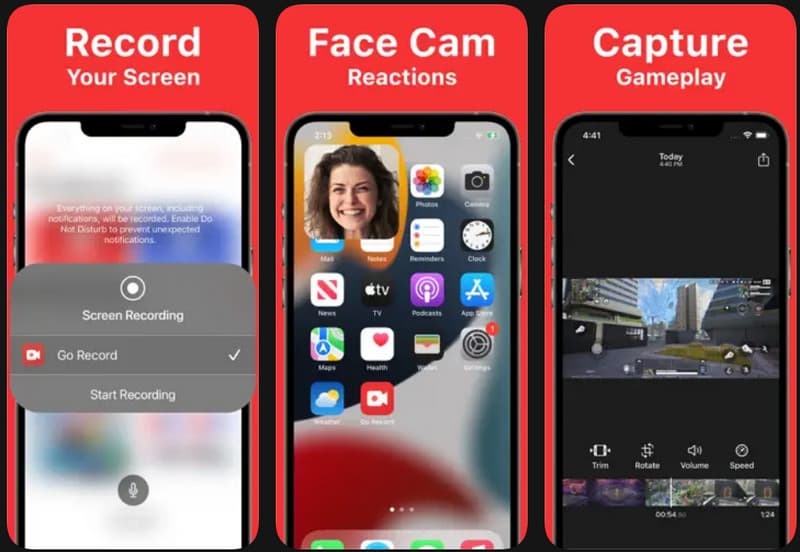
Înregistrare este un program de înregistrare ușor de utilizat pentru crearea de videoclipuri de joc, tutoriale și conținut cu reacții. Creatorii care doresc să explice ce trebuie făcut în timpul unei înregistrări pot folosi narațiunea cu microfon sau suprapunerea camerei aplicației. Navigarea este ușoară, fără a permite confuzie la prima configurare. De asemenea, oferă o funcționare fluidă pe ecrane mai mari, ceea ce îl face o alegere utilă pentru un înregistrator de ecran fiabil într-o sală de clasă cu iPad, o prezentare sau o demonstrație a oricărei aplicații.
- Pro
- Comenzi ușor de utilizat
- Suportă înregistrarea cu camera facială
- Excelent pentru videoclipuri de jocuri
- Performanță fluidă pe iPad
- Contra
- Funcții de editare limitate
- Această versiune gratuită este susținută de reclame.
5. Înregistrator de ecran, Înregistrator video
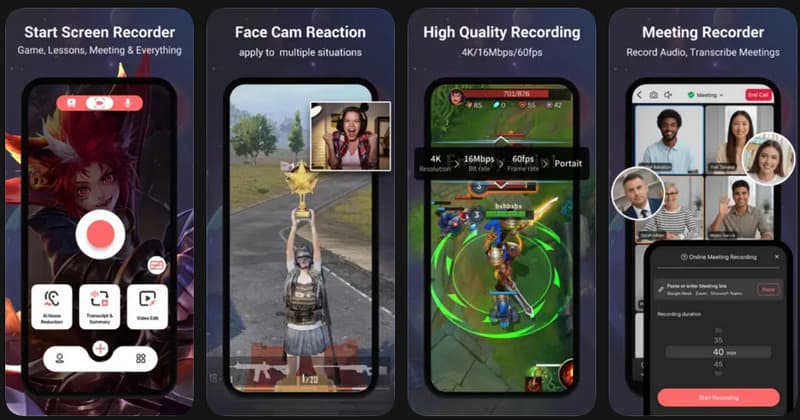
Înregistrator de ecran, Înregistrator video a fost concepută pentru cei care creează conținut, educă sau utilizează frecvent rețelele sociale pe telefoanele lor. Aplicația va permite, de asemenea, înregistrarea de înaltă rezoluție, narațiunea audio și suprapunerile camerei de reacție și va avea o interfață foarte ușor de utilizat, fără a fi necesare cunoștințe tehnice. Sesiunile mai lungi mențin o calitate bună a înregistrării, reducând întârzierea sau pierderile de cadre. Utilizatorii care caută un înregistrator video pentru ecranul iPhone-ului, care oferă o experiență fluidă cu o gamă largă de funcții de editare, pot opta pentru această aplicație.
- Pro
- Suport pentru înregistrare HD
- Înregistrare fluidă a sesiunilor lungi
- Suport pentru narațiune vocală
- Aspect prietenos pentru începători
- Contra
- Funcțiile premium sunt disponibile prin abonament
- Exportul fișierelor mai mari poate dura mai mult
6. Război de țesut
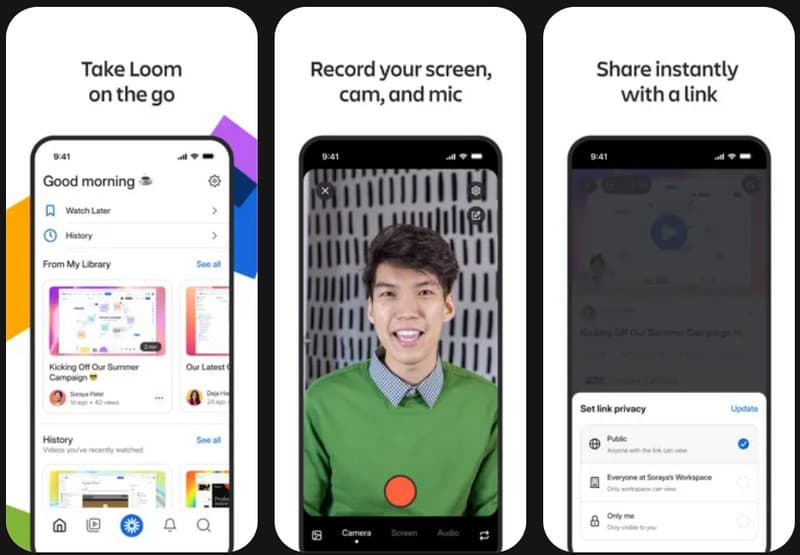
Război de ţesut este utilizat în mod obișnuit pentru a comunica cu oamenii în timp ce se lucrează la un proiect, pentru a colabora la un proiect online și pentru a partaja videoclipuri rapid. Spre deosebire de alte aplicații, aceasta permite utilizatorilor să partajeze videoclipuri instantaneu prin linkuri cloud, pe lângă simpla înregistrare. Utilizatorii pot captura ecranul, camera frontală și microfonul într-o singură fotografie, perfect pentru prezentări, feedback în echipă sau instruire la distanță. Mulți profesioniști consideră Loom una dintre cele mai bune aplicații de înregistrare a ecranului pentru utilizatorii de iPhone care au nevoie de comunicare rapidă și partajare simplă, fără editare complexă. Nu doar atât, dar oferă și... software gratuit de înregistrare a ecranului pentru Windows și Mac.
- Pro
- Partajare instantanee în cloud
- Ideal pentru munca la distanță
- Suportă cameră web și înregistrare vocală
- Interfață simplă, ordonată și organizată
- Contra
- Pentru a utiliza toate funcțiile, aveți nevoie de un cont
- Câteva opțiuni de editare offline
7. Recorder AZ
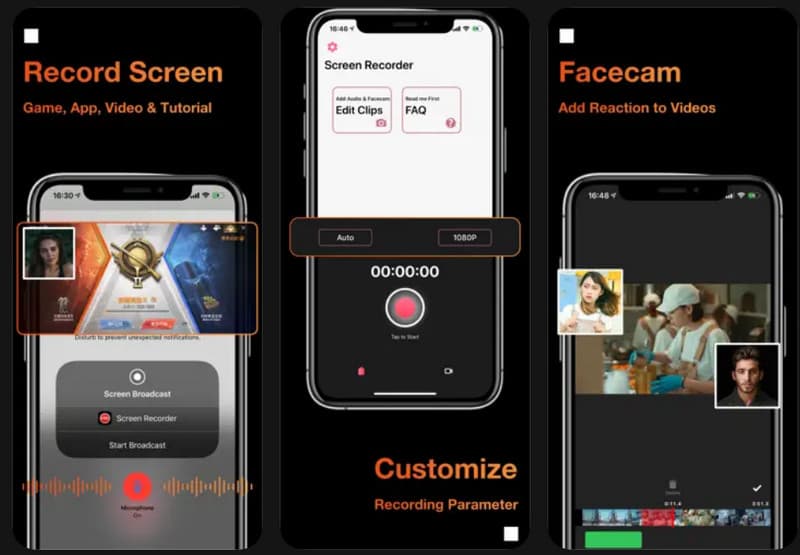
AZ Recorder este o aplicație de înregistrare stabilă și ușor de utilizat, care acceptă înregistrarea ecranului HD, sunetul microfonului și înregistrarea jocurilor. Aplicația are instrumente pentru realizarea de capturi de ecran și opțiuni simple de editare care vă permit să editați sau să tăiați videoclipuri fără a descărca software suplimentar. Este mai puțin afectată în timpul înregistrărilor mai lungi și oferă un set de control simplu pentru începători. Utilizatorii care caută un înregistrator de ecran gratuit pentru iPhone ar prefera AZ Recorder, deoarece oferă toate opțiunile de înregistrare necesare fără a necesita o plată imediată.
- Pro
- Funcții gratuite de înregistrare de bază
- Performanță HD stabilă
- Proces de configurare ușor
- Conține funcții simple de editare
- Contra
- Reclame în versiunea gratuită
- Unele dintre instrumentele avansate trebuie actualizate
Partea 3. Tabel comparativ. Ce înregistrator de ecran ar trebui să alegeți?
| Aplicații | Cel mai bine utilizat pentru | Înregistrare FaceCam acceptată | Instrumente de editare | Cele mai bune caracteristici |
| Înregistrează-l! | Tutoriale și clipuri de pe rețelele sociale | da | De bază | Înregistrare ecran, narațiune vocală și partajare rapidă |
| Înregistrator DU | Jocuri și transmisiuni în direct | da | Avansat | Înregistrare HD, transmisie live și audio intern |
| Captură TechSmith | Tutorial profesional | Nu | Limitat | Captură de înaltă calitate și integrare Camtasia |
| Înregistrare | Conținut de pe rețelele sociale | da | De bază | Suprapunere Facecam și înregistrare cu microfon |
| Înregistrator de ecran, Înregistrator video | Prezentarea și colaborarea la locul de muncă | da | Moderat | Captură HD, înregistrare vocală și editare simplă |
| Război de ţesut | Prezentarea și colaborarea în cadrul lucrărilor | da | Minim | Partajare în cloud, înregistrare webca și linkuri de echipă |
| AZ Recorder | Înregistrarea zilnică a ecranului | da | De bază | Înregistrare HD, capturi de ecran și editare de bază |
Partea 4. Cum să editați înregistrările ecranului pe iPhone
Poți edita gratuit înregistrările de ecran pe iPhone folosind doar aplicația Poze încorporată. Nu sunt necesare aplicații suplimentare, iar procesul este suficient de simplu pentru începători. Urmează pașii de mai jos pentru a curăța și îmbunătăți înregistrările.
Pasul 1Deschide Fotografii aplicația de pe iPhone, apoi localizați înregistrarea ecranului în Recente sau Videoclipuri album.
Pasul 2 Atingeți înregistrarea ecranului, apoi atingeți Editați | × în colțul din dreapta sus. Aceasta deschide instrumentele de editare încorporate.
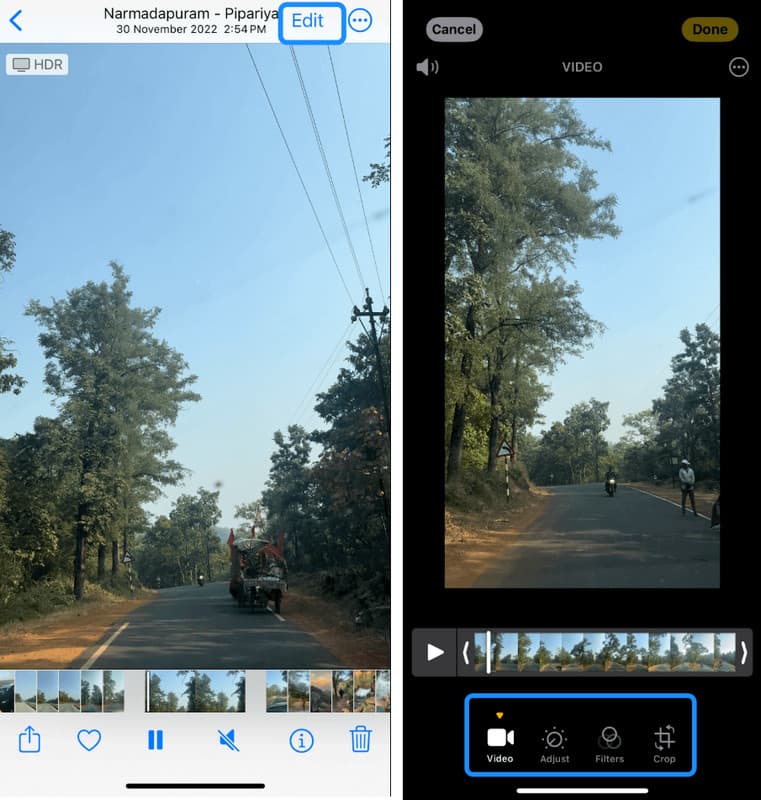
Pasul 3Folosește glisoarele galbene de la începutul sau sfârșitul cronologiei pentru a elimina părțile nedorite, cum ar fi întârzieri, greșeli sau secțiuni inutile.
Pasul 4Atingeți Gata, apoi alegeți Salvați videoclipul pentru a înlocui originalul sau Salvare ca clip nou să păstreze ambele versiuni.
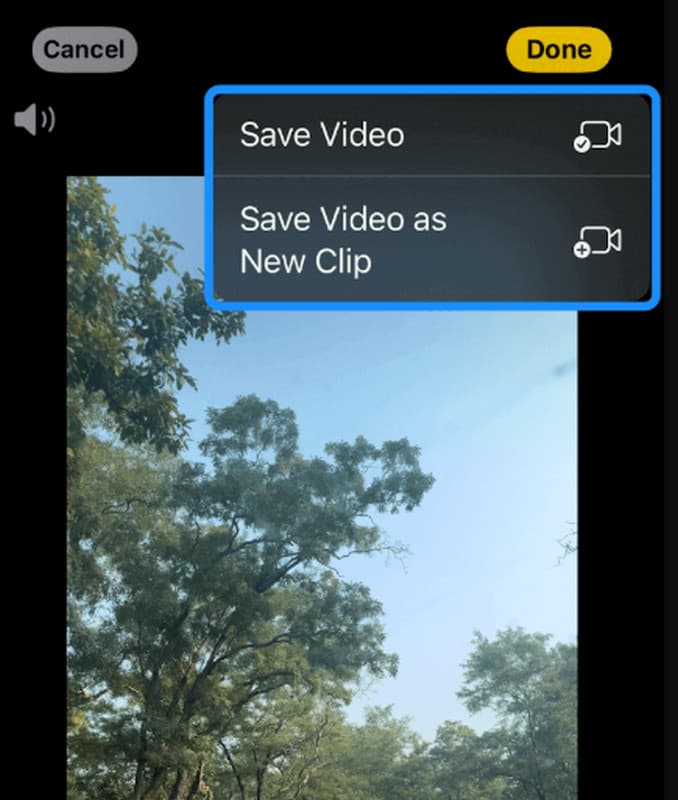
Această metodă simplă vă permite să îmbunătățiți rapid înregistrările realizate cu orice înregistrator de ecran pentru iPhone, fără a fi nevoie de software terț.
Partea 5. Depanarea problemelor comune de înregistrare a ecranului
Chiar dacă folosești un înregistrator de ecran pentru iPhone de înaltă calitate, există încă situații în care pot apărea alte probleme, cum ar fi probleme de calitate audio și video sau probleme cu accesul la înregistrarea ecranului. Aceste probleme se datorează setărilor, dispozitivelor de stocare sau performanței dispozitivului, nu funcției de înregistrare în sine. Cele mai frecvente probleme și cauzele acestora sunt enumerate mai jos.
Nu se aude sunet în înregistrare
De obicei, apare atunci când microfonul nu este dezactivat înainte de înregistrare. Este posibil și atunci când Modul Silențios sau Focalizarea împiedică captura audio. Uneori, problema poate fi rezolvată verificând accesul la microfon în Centrul de Control.
Înregistrarea se oprește pe neașteptate
Acest lucru se datorează adesea spațiului de stocare insuficient sau unui număr excesiv de aplicații în fundal care rulează simultan. Pentru a păstra performanța sistemului, iPhone-urile pot încheia automat înregistrările atunci când resursele sunt insuficiente.
Opțiunea de înregistrare a ecranului lipsește
Acest lucru se întâmplă atunci când Înregistrarea ecranului nu a fost adăugată în Centrul de control. Poate fi activată manual în Setări pentru a face funcția din nou vizibilă.
Calitate video slabă sau întârziere
Această problemă este adesea legată de utilizarea intensă a dispozitivului, versiuni iOS învechite sau prea multe aplicații care rulează în fundal. Închiderea aplicațiilor neutilizate și actualizarea sistemului pot îmbunătăți performanța.
Sfat bonus: Care este cel mai bun înregistrator de ecran pe Mac/Windows
Când trebuie să înregistrați pe computer, un înregistrator de ecran de înaltă calitate pentru Mac sau Windows vă poate ajuta să obțineți rezultate mai bune. Cea mai bună opțiune este AVaide Screen RecorderUșor de utilizat și funcționează excelent pentru tutoriale, întâlniri, jocuri și prezentări. Puteți captura simultan ecranul, sunetul sistemului și microfonul, puteți captura imagini HD și apoi le puteți edita. Este potrivit atât pentru începători, cât și pentru profesioniști, oferind o configurare simplă cu înregistrări clare și fluide.

DESCĂRCARE GRATUITĂ Pentru Windows 7 sau o versiune ulterioară
 Descărcare sigură
DESCĂRCARE GRATUITĂ Pentru Mac OS X 10.13 sau o versiune ulterioară
Descărcare sigură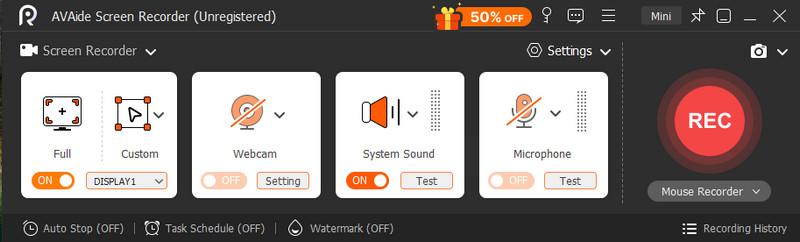
Salvează-ți cu ușurință tutorialele, experiențele din joc și momentele importante pe telefon folosind un înregistrator de ecran bun. Instrumentul încorporat este util pe iPhone, dar mulți utilizatori ar prefera alte instrumente care oferă mai multe funcții și control. Selectarea instrumentului potrivit înregistrator de ecran pentru iPhone este crucial, în funcție de contextul utilizării sale, fie că este vorba de școală, serviciu sau în scopuri personale. Selecția corectă și instalarea simplă permit înregistrarea ușoară și productivă a informațiilor clare și utile în orice moment.
DESPRE AUTOR

Capturați activități pe ecran cu sunet, întâlniri online, videoclipuri de joc, muzică, cameră web etc.
Înregistrare ecran
- Înregistrare ecran pe Windows
- Înregistrați live pe Instagram
- Extrage videoclipuri din Tubi
- Convertește videoclipuri YouTube în MP3
- Descarcă videoclipuri de la Fansly
- Descărcarea videoclipurilor JW Player
- Descărcați videoclipuri Bilibili
- Descarcă videoclipuri Patreon
- Descarcă videoclipuri SpankBang
- Descarcă videoclipuri Discord
- Descărcați videoclipul DoodSream