Minecraft este unul dintre cele mai cunoscute jocuri din prezent, cu peste 151 de milioane de utilizatori activi zilnic. Fiind disponibil pe diferite platforme precum PlayStation, PC, Xbox și telefoane, ai putea crede că este special datorită lucrurilor pe care le poți face în lumea jocului. Aici, poți face farming, te poți juca cu alți prieteni, poți căuta cele mai bune comori și chiar îți poți crea propria lume, și vei dori să surprinzi aceste momente importante. În funcție de platforma pe care o folosești, poți... Capturi de ecran Minecraft este la fel de simplu ca acest articol a adunat metode pe care le-ai putea folosi. Așadar, hai să începem.
Partea 1. Cum să faci o captură de ecran în Minecraft
Minecraft are două versiuni pentru PC care au modalități diferite de a captura fotografii în joc. Verifică edițiile Java și Bedrock și află cum să faci capturi de ecran în Minecraft pe PC.
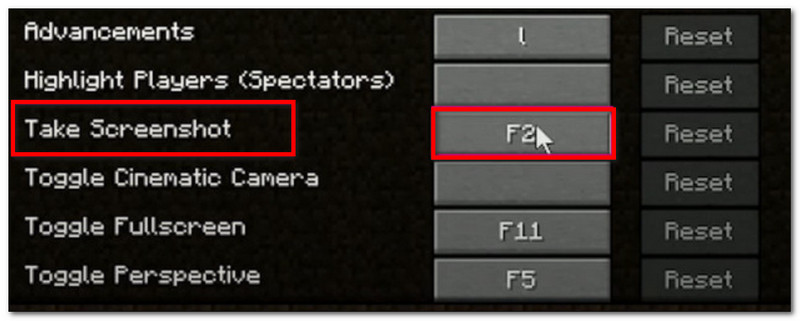
1. Ediția Java - Metoda clasică F2
Această ediție de Minecraft este versiunea originală a jocului pentru computer și are o funcție de captură de ecran încorporată pe care o puteți utiliza. Iată cum puteți face o captură de ecran din Minecraft Java:
Pasul 1Pregătiți partea din joc pe care doriți să o capturați, apoi apăsați F2 pe tastatura ta.
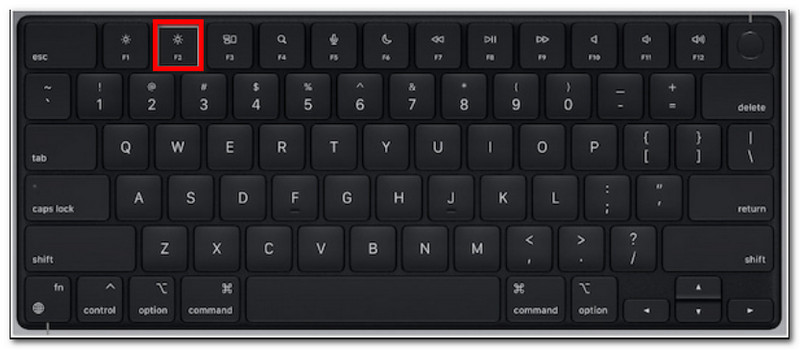
Pasul 2Când apare un mesaj cu un nume de fișier, faceți clic pe acesta pentru a previzualiza captura de ecran.
2. Ediția Bedrock - Două metode diferite
Ediția Bedrock pune în valoare jocul cross-device pe diverse platforme. Aceasta înseamnă că, chiar dacă folosești un PC, poți juca cu prieteni care folosesc dispozitive diferite. Acestea fiind spuse, există două metode populare de captură de ecran în această ediție.
Metoda A (Bara de jocuri Xbox)
Pasul 1presa Windows + G simultan pe tastatură. Ecranul se va întuneca, apoi faceți clic pe aparat foto pictogramă pentru a face o captură de ecran.
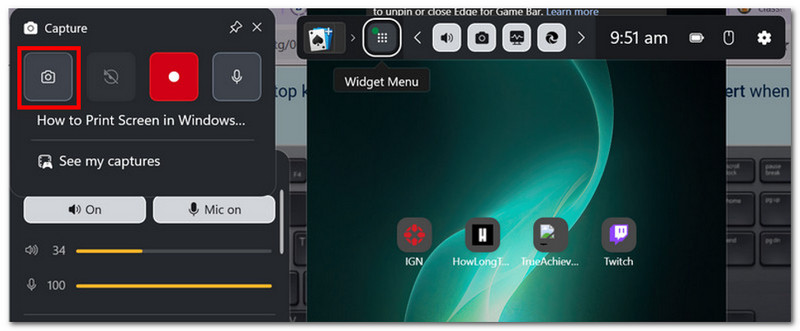
Pasul 2Puteți accesa folderul cu capturi de ecran din Minecraft Videoclipuri > Capturi, unde se află fotografiile realizate de Game Bar.
Metoda B (Cameră în joc)
Pasul 1Deschide Minecraft și intră într-o lume. Apasă pe Captură de ecran Minecraft sau F2 de pe ecran pentru a captura.
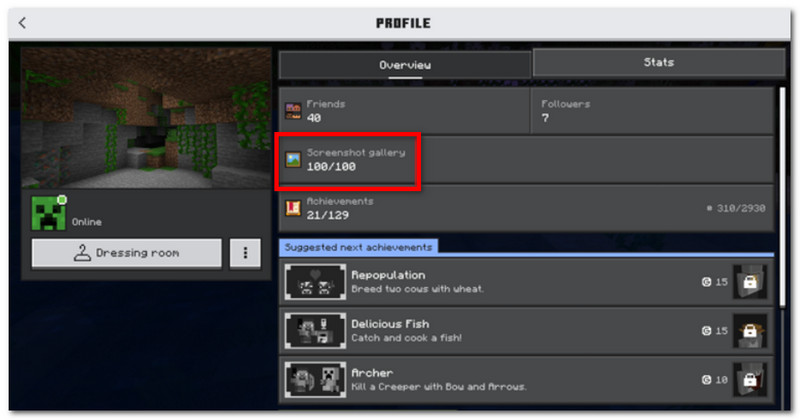
Pasul 2Pentru a găsi locația capturii de ecran din Minecraft, pur și simplu accesați Profil și deschis Galerie de capturi de ecran.
3. Înregistrator de ecran AVAide
AVaide Screen Recorder este un instrument alternativ de utilizat pentru edițiile Minecraft Java și Bedrock. Este o soluție all-in-one, unde puteți face capturi de ecran și înregistrări video și audio. Funcția Screen Capture este o funcție intuitivă pentru a face capturi de ecran în diferite moduri: Ecran complet, Fereastră activă și Formă liberă folosind comenzi rapide personalizabile. Pe de altă parte, vă permite să exportați capturi de ecran în formate de imagine populare, inclusiv JPEG, PNG și GIF. Ceea ce face din AVAide cea mai bună alternativă este opțiunea de editare încorporată pentru a edita capturile de ecran cu instrumente precum desen, adnotări și alte elemente. Ca să nu mai vorbim de faptul că software-ul oferă înregistrări de ecran de înaltă calitate, perfecte pentru capturarea jocului pe dispozitive precum PC și telefoane mobile.
Pasul 1Descărcați și instalați înregistratorul de ecran. Deschideți-l și alegeți Captură de ecran din meniul din stânga sus. Asigurați-vă că Minecraft este pregătit pe computer.

DESCĂRCARE GRATUITĂ Pentru Windows 7 sau o versiune ulterioară
 Descărcare sigură
DESCĂRCARE GRATUITĂ Pentru Mac OS X 10.13 sau o versiune ulterioară
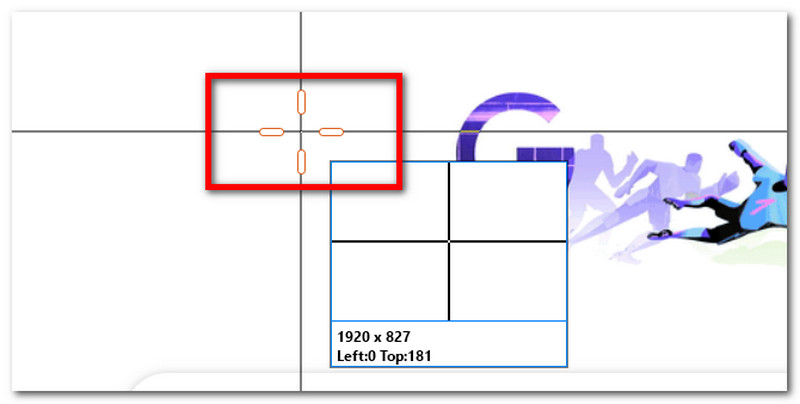
Descărcare sigurăPasul 2Când cursorul mouse-ului se transformă într-o cruce, selectați zona pe care doriți să o capturați. Apăsați Esc dacă doriți să ieșiți din Captura de ecran.
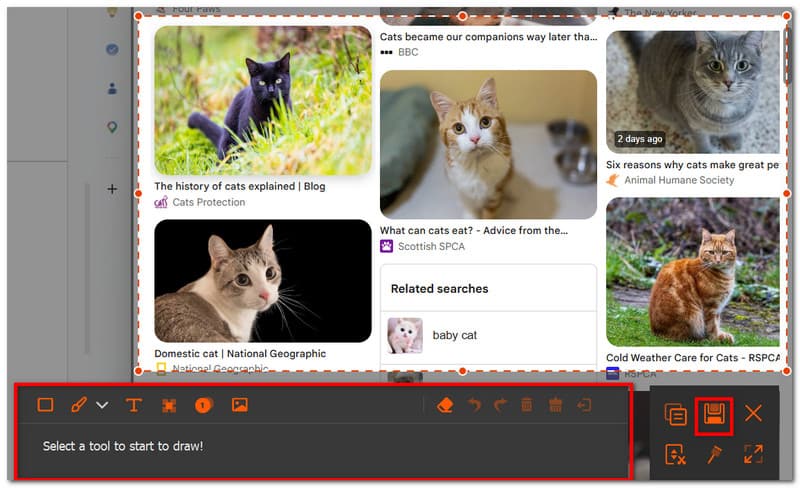
Pasul 3Folosește opțiunile de editare pentru a edita imaginea. Apoi, dă clic pe salva pentru a salva captura de ecran pe dispozitivul dvs. Directorul de capturi de ecran din Minecraft ar fi AVAide Studio > Înregistrator de ecran AVAide.
Partea a 2-a. Unde se găsesc capturi de ecran
Întrucât Minecraft este disponibil pe aproape orice platformă, te-ai putea întreba: „Unde sunt salvate capturile de ecran din Minecraft?” Această secțiune va afișa locația exactă a folderului în care au fost salvate capturile de ecran odată ce au fost făcute pe sistemul de operare specific.
Windows 10/11 (Ediția Java)
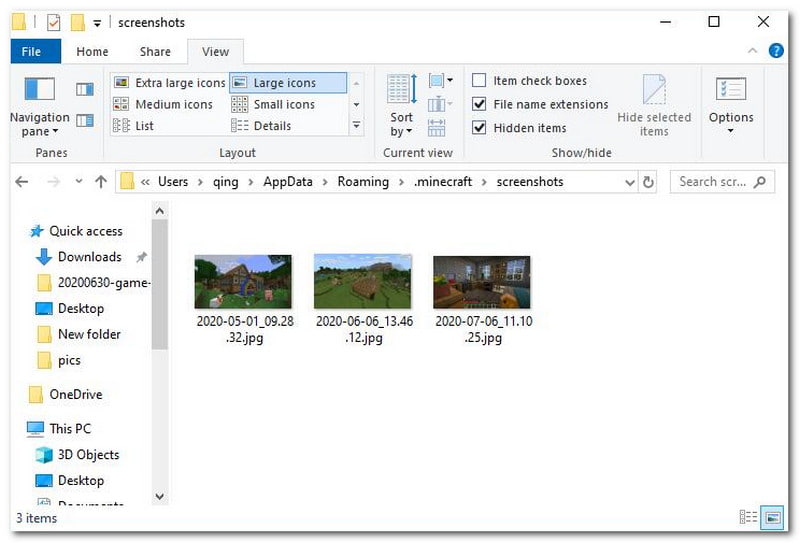
După ce ați făcut captura de ecran, o puteți accesa din chat. Dar dacă ați ratat-o, accesați bara de căutare și tastați %appdata%, apoi du-te la dosarul .minecraft > capturi de ecran.
Windows 10/11 (ediția Bedrock)
Galeria de capturi de ecran Minecraft pentru Bedrock Edition pe Windows poate fi găsită în joc, situată pe Profil > Galerie de capturi de ecran.
Mac
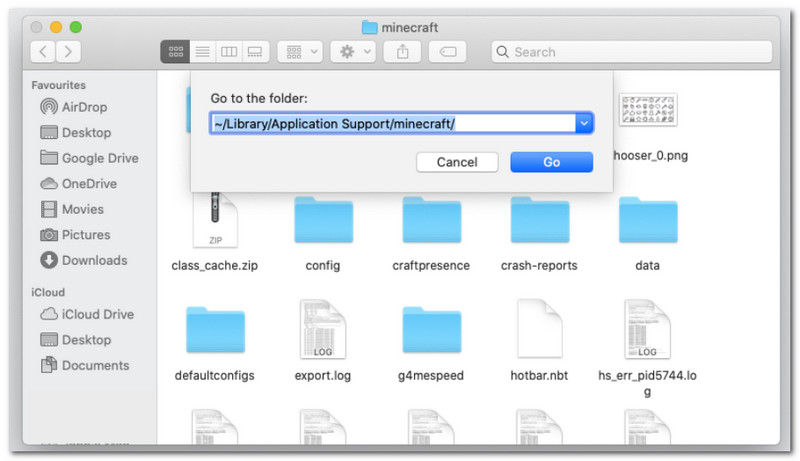
Dacă joci Minecraft și înveți cum să faci o captură de ecran pe Mac, poate fi găsit în ~/Bibliotecă/Suport Aplicații/minecraft/capturi de ecran.
Linux
Puteți accesa capturile de ecran ale jocului din directorul principal al Minecraft. ~/.minecraft/capturi de ecran.
Chromebook
Folderul de capturi de ecran Minecraft de pe Chromebook este același cu cel de pe alte sisteme de operare atunci când se utilizează metoda F2 pentru realizarea de capturi de ecran. Puteți găsi fotografiile din Galerie de capturi de ecran în joc.
Partea 3. Capturi de ecran pentru consolă și mobil
După ce ai învățat cum să găsești capturi de ecran Minecraft pe Windows 11 și alte sisteme de operare, poți face capturi de ecran și pe dispozitive și console mai mici. Urmează pașii pentru platforma pe care joci.
Nintendo Switch
Pasul 1Folosește butonul Joy-Con din stânga și apasă butonul aparat foto buton pentru a face o captură de ecran a jocului.
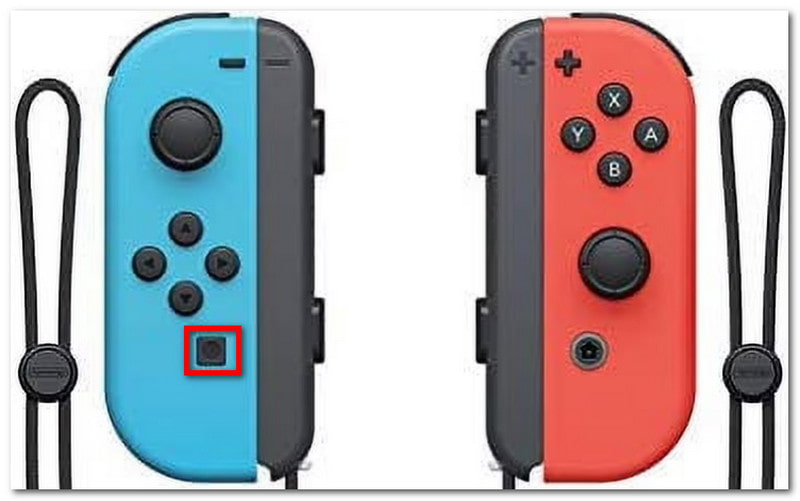
Pasul 2Pentru a vizualiza captura de ecran, ieșiți din joc și accesați Album unde sunt salvate capturile de ecran din Minecraft.
PlayStation
Pasul 1Cum se face o captură de ecran Minecraft folosind DualShock 4 pe PS4? Apăsați și mențineți apăsat butonul Acțiune timp de aproximativ o secundă. Dacă aveți un PS5 DualSend, apăsați butonul Crea buton.
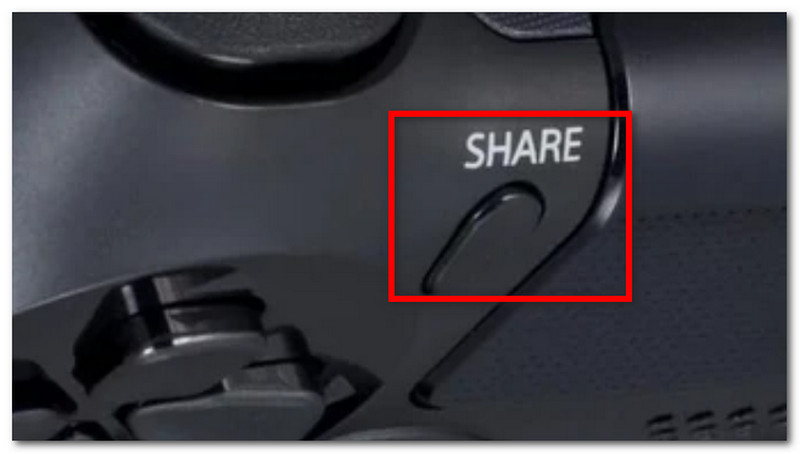
Pasul 2Puteți vizualiza captura de ecran navigând la Galerie de captură aplicația sau folosind PlayStation aplicație pentru a o vizualiza pe telefon.
Xbox
Pasul 1Pentru un controler Xbox standard, pur și simplu atingeți de două ori Xbox butonul din partea din mijloc și apăsați Y pentru a captura. Pentru Xbox Series, apăsați butonul Acțiune apăsați butonul o dată pentru a face o captură de ecran.
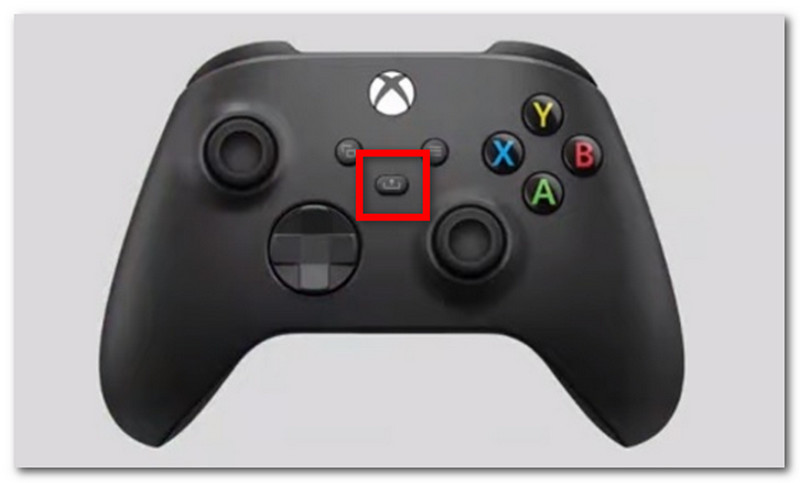
Pasul 2Dacă nu ești familiarizat cu modul de accesare a capturilor de ecran din Minecraft, pur și simplu apasă butonul Xbox butonul și accesați Capturați și partajați fila.
iOS
Pasul 1apasă pe Putere și Mărire volum butoanele de pe iPhone pentru a face o captură de ecran.
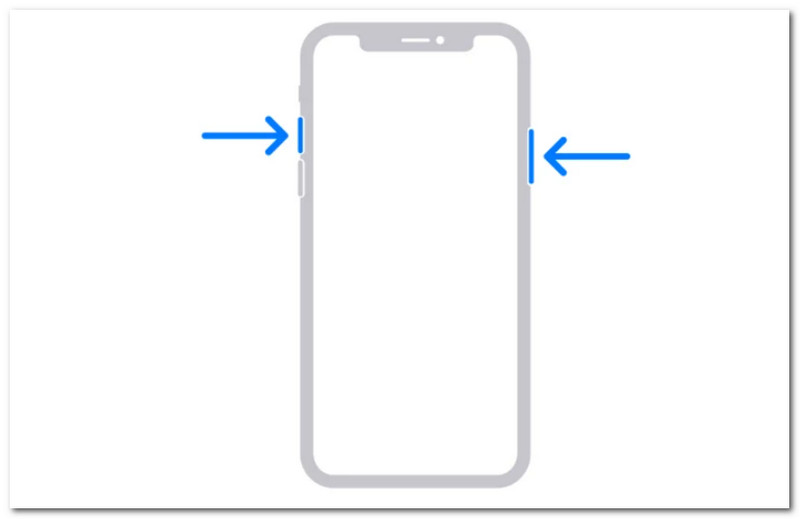
Pasul 2Cum găsești capturi de ecran din Minecraft pe iPhone? Poți găsi capturile de ecran din aplicația Poze.
Android
Pasul 1Pregătiți jocul și zona pe care doriți să o capturați. Apăsați și mențineți apăsat butonul Putere și Reducere volum butoane de pe telefon.
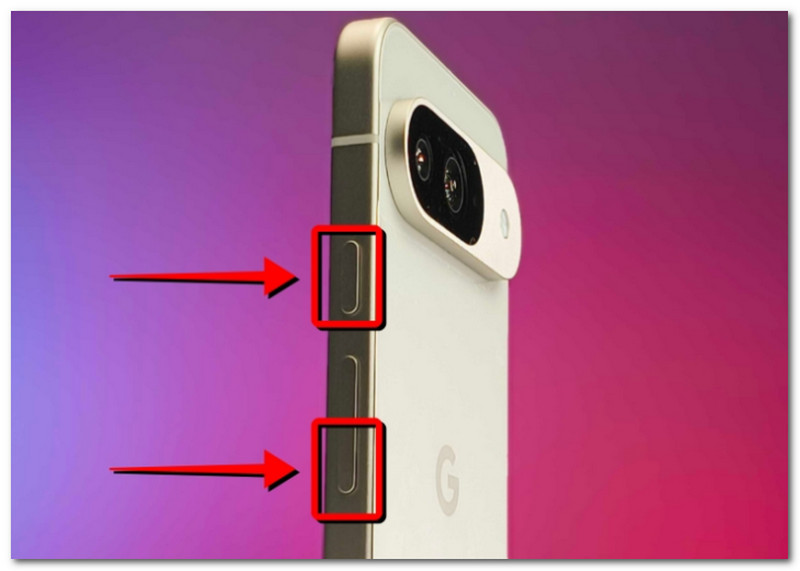
Pasul 2Când ecranul clipește, captura de ecran este gata și o puteți găsi în aplicația Galerie.
Partea a 4-a. Gestionarea colecției de capturi de ecran
Pe lângă partajarea capturilor de ecran cu prietenii tăi, poți folosi acest lucru și ca o oportunitate de a-ți urmări progresul în Minecraft. Însă realizarea aleatorie a capturilor de ecran va duce doar la capturi de ecran salvate aglomerate și confuze. Dacă nu știi de unde să începi, poți urma aceste reguli de bază pentru a-ți gestiona colecția de capturi de ecran.
1. Înțelegerea numelor de fișiere
Când folosești metoda F2 pe Minecraft, este important să înțelegi numele, deoarece te poate ajuta să definești data la care ai făcut captura de ecran. Numele implicit al fișierului va fi AAAA-LL-ZZ_HH.LL.SS.png, care se traduce prin anul, luna, ziua, ora, minutul și secunda în care a fost făcută captura de ecran.
2. Creați subfoldere
Nu lăsa capturile de ecran într-un singur folder, deoarece te va încetini în găsirea anumitor capturi de ecran. Asigură-te că creezi subfoldere cu categorii precum construirea lumii, proiect și funcție.
3. Redenumiți fișierele
Poți schimba numele capturilor de ecran din Minecraft pentru a le identifica nu doar prin data de lansare, ci și prin progresul tău real în joc. Alege întotdeauna un nume de fișier care evidențiază dezvoltarea ta în Minecraft.
4. Faceți o copie de rezervă a fotografiilor dvs.
Pentru a evita pierderea capturilor de ecran atunci când dispozitivul se blochează, asigură-te că le faci o copie de rezervă cu un serviciu cloud precum OneDrive sau pe un hard disk extern.
5. Partajați capturi de ecran
După organizare, prezintă-ți progresul în jocul Minecraft pe diverse platforme. Spectatorii tăi vor aprecia capturile de ecran organizate care urmăresc progresul jocului tău.
Minecraft este un joc îndrăgit de care se poate bucura oricine, iar învățarea modului de a face capturi de ecran vă va permite să salvați momentele importante din joc. Acest articol nu numai că prezintă diversele metode pentru a surprinde frumoasa lume din joc, dar arată și... cum să vezi capturi de ecran din Minecraft pe diferite platforme. Ca alternativă, acest articol recomandă utilizarea AVAide Screen Recorder, deoarece este flexibil pentru realizarea de capturi de ecran pe computer, telefon și console de jocuri. Obțineți unul dintre cele mai bune înregistratoare de jocuri gratuit pe Windows și Mac și începe înregistrarea nelimitată a jocului.
DESPRE AUTOR

Înregistrați ecranul, sunetul, camera web, jocul, întâlnirile online, precum și ecranul iPhone/Android pe computer.
Înregistrare ecran
- Înregistrare ecran pe Windows
- Înregistrați live pe Instagram
- Extrage videoclipuri din Tubi
- Convertește videoclipuri YouTube în MP3
- Descarcă videoclipuri de la Fansly
- Descărcarea videoclipurilor JW Player
- Descărcați videoclipuri Bilibili
- Descarcă videoclipuri Patreon
- Descarcă videoclipuri SpankBang
- Descarcă videoclipuri Discord
- Descărcați videoclipul DoodSream