


Înregistratorul de ecran încorporat în Android s-ar putea să nu aibă suficiente funcții. Cu toate acestea, există câteva sfaturi practice pe care le puteți învăța pentru a face înregistrări mai ușoare și mai versatile pe ecranul telefonului. Această postare vă va arăta în detaliu... Înregistrarea ecranului Android tutorial.
Dacă preferi înregistrarea avansată a ecranului pentru jocuri, tutoriale sau demonstrații profesionale, te putem ajuta să eviți aglomerația pentru a-ți oferi cele mai bune metode și aplicații de înregistrare a ecranului pentru Android disponibile astăzi, completate cu tutoriale pas cu pas care să te ajute să obții rezultate clare, de înaltă definiție.
- Partea 1: Cum se utilizează înregistratorul de ecran Android încorporat
- Partea a 2-a: Câteva instrumente de înregistrare Android specifice mărcii
- Partea 3: 4 metode mai versatile de înregistrare a ecranului pe Android
- Bonus: Înregistrați ecranul pe desktop și telefon mobil la cea mai bună calitate
- Partea 4: Întrebări frecvente despre cum se înregistrează ecranul pe Android
Partea 1: Cum se utilizează înregistratorul de ecran Android încorporat
Majoritatea dispozitivelor care rulează Android 11 sau o versiune ulterioară vin cu o aplicație nativă de înregistrare a ecranului, situată în panoul Setări rapide. O poți folosi pur și simplu pentru a înregistra ecranul telefonului.
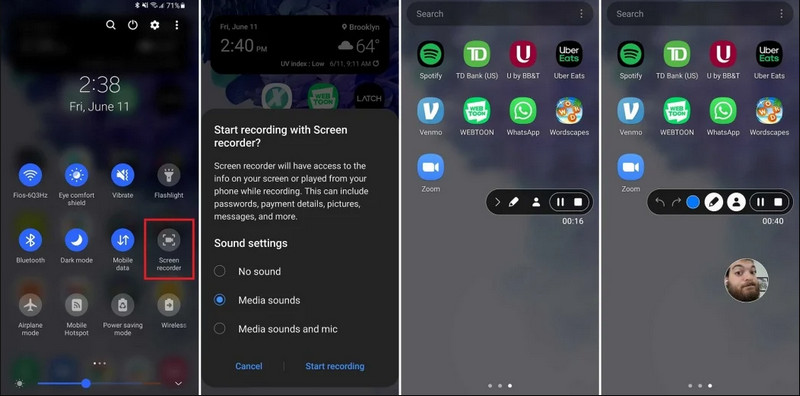
Pasul 1Accesați Setările rapide
Glisează în jos de două ori din partea de sus a ecranului pentru a extinde meniul complet Setări rapide.
Pasul 2Selectați Înregistratorul de ecran
Caută Înregistrare ecranDacă nu îl vedeți, atingeți Editați | × (cu o pictogramă Creion) și trageți dala Înregistrare ecran în grila activă.
Pasul 3Configurați setările de înregistrare
Când găsești Android-ul Screen Recorder instrument, aveți mai multe opțiuni de înregistrare. Alegerea uneia potrivite poate face ca înregistrarea ecranului Android să fie eficientă.
- Niciun sunet: Înregistrați doar ecranul telefonului, fără sunetul sistemului sau sunetul extern.
- Sunete media: Înregistrați ecranul cu toate sunetele sistemului, inclusiv sunetul din toate aplicațiile din telefon.
- Sunete media și microfon: Înregistrați atât sunetele sistemului, cât și sunetele externe (microfonul încorporat al telefonului sau microfonul din căști).
Pasul 4Pornirea și oprirea înregistrării ecranului
Faceți alegerea și atingeți Începeți recodificarea O numărătoare inversă va apărea în bara de stare. Pentru a opri înregistrarea ecranului Android, atingeți butonul Stop (dacă există o bară de stare a înregistrării) sau glisați în jos fereastra de notificări și atingeți butonul roșu Stop buton.
Partea a 2-a: Câteva instrumente de înregistrare Android specifice mărcii
Mulți producători de telefoane Android oferă înregistratoare de ecran proprietare cu funcții avansate, cum ar fi suprapunerile camerei pentru selfie-uri. Consultați funcțiile speciale de înregistrare ale unor mărci Android populare:
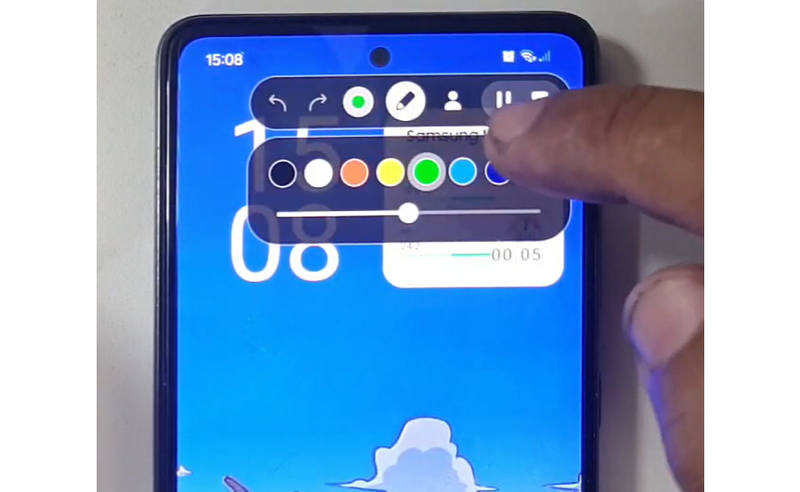
Samsung (One UI): Include un înregistrator de ecran cu o bară de instrumente care vă permite să desenați pe ecran în timp real.
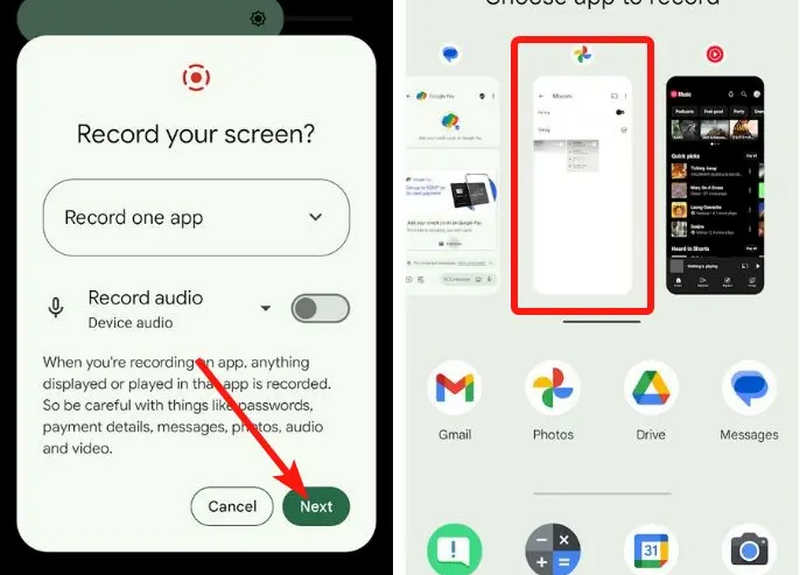
Google Pixel: Poți selecta o anumită aplicație (de exemplu, o aplicație bancară sau WhatsApp) pentru a înregistra. Dacă ieși din aplicație sau trage în jos fereastra de notificări în timpul sesiunii, acele acțiuni nu vor apărea în videoclipul final.
Xiaomi (MIUI/HyperOS): Dispune de o aplicație dedicată „Screen Recorder” cu personalizare profundă a ratelor de cadre (FPS) și a ratelor de biți.
Huawei și Honor (HarmonyOS / MagicOS): O integrare unică hardware-software prin care poți porni sau opri o înregistrare pur și simplu lovind de două ori ecranul cu două încheieturi.
OPPO, vivo și realme (ColorOS / OriginOS): Când se lansează un joc, înregistratorul de ecran optimizează automat resursele CPU/GPU pentru a se asigura că înregistrarea unui clip 4K/60FPS nu provoacă lag în joc sau pierderi de cadre.
Partea 3: 4 metode mai versatile de înregistrare a ecranului pe Android
Dacă telefonul tău Android nu are funcții de înregistrare a ecranului satisfăcătoare, poți verifica cele patru aplicații Android de înregistrare a ecranului. Acestea pot oferi câteva funcții convenabile și practice.
1. AZ Screen Recorder
AZ Screen Recorder este o aplicație de înregistrare a ecranului pentru Android foarte populară în Magazin Play. Poate înregistra videoclipuri de înaltă rezoluție pe ecranul telefonului tău Android. Aplicația îți permite, de asemenea, să ajustezi rezoluția, rata de cadre și rata de biți în funcție de diferitele scopuri de înregistrare.
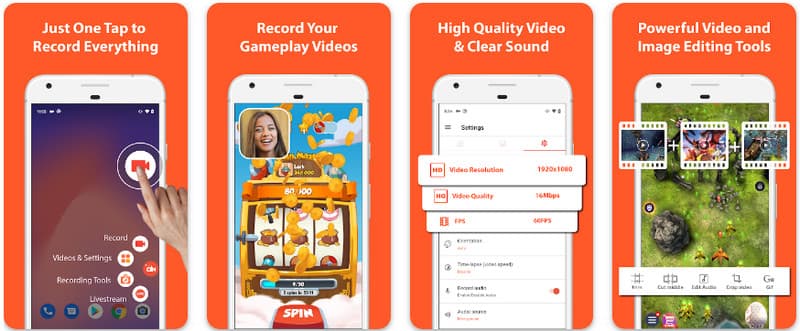
Mai mult, AZ Screen Recorder permite utilizatorilor să înregistreze sunetul redat pe dispozitiv folosind un microfon. Acest lucru face înregistrarea chiar și a celor mai complicate și de înaltă standarde posibile. Aranjarea simplă a butoanelor și performanța constantă fac din aplicație un favorit pentru mulți. Aflați cum să înregistrați un ecran Android cu aceasta folosind tutorialul de mai jos.
Pasul 1După ce ați descărcat aplicația pe Android, lansați-o. Apoi, faceți clic pe aparat de fotografiat butonul pentru a accesa caracteristica de înregistrare a ecranului a acestuia.
Pasul 2Atingeți Începe acum pentru a începe înregistrarea ecranului pe Android, iar pe ecran va apărea o numărătoare inversă.
Pasul 3Pentru a opri înregistrarea ecranului pe telefonul Android, atingeți Record din nou butonul. Cu această aplicație, puteți, de asemenea, să înregistrarea ecranului pe iPhone cu sunete activat.
2. Mobizen Screen Recorder
Mobizen Screen Recorder este o altă aplicație pentru înregistrarea ecranului pe Android, disponibilă gratuit în Magazin Play și promite înregistrare ușoară și de înaltă calitate. Oferă opțiuni pentru înregistrare de înaltă definiție cu parametri reglabili și înregistrare curată pentru eliminarea filigranelor. În plus, Mobizen are și înregistrare internă a sunetului, care poate fi utilizată pentru înregistrare, precum și cameră facială și GIF, care pot adăuga mai multă valoare înregistrării. De asemenea, utilizează o accesare simplă a diferitelor funcții și controale care ajută utilizatorul să pornească înregistrarea ecranului Android sau să editeze conținutul fără prea multe probleme cu aplicația. Află cum să înregistrezi ecranul cu Android folosind această aplicație.
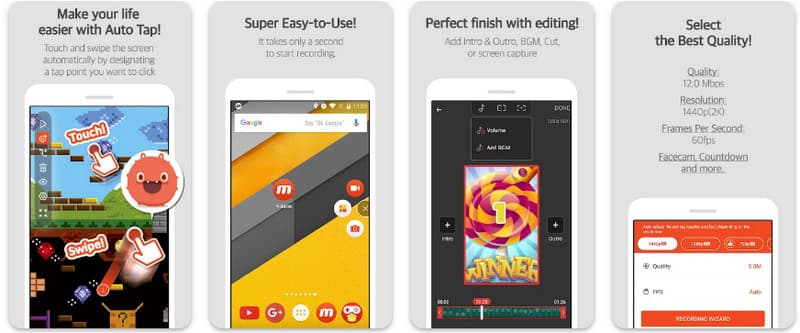
Pasul 1Descărcați-l acum pe Android și deschideți aplicația.
Pasul 2Efectuați configurarea necesară înainte de a putea utiliza înregistratorul de ecran. O bară de înregistrare plutitoare va apărea pe ecran. Atingeți aparat de fotografiat butonul, atunci Începe acum pentru a iniția înregistrarea ecranului.
Pasul 3Când ați terminat, atingeți M si Stop buton pentru a opri înregistrarea ecranului pe telefonul tău Android.
3. Screen Recorder - XRecorder by Inshot
Înregistrator de ecran - XRecorder este un utilitar Android puternic, multifuncțional, care simplifică captura de ecran oferind înregistrare de înaltă definiție, până la 1080p la 60FPS, fără a necesita acces root sau impunerea de filigrane. Fiind o metodă premium pentru înregistrarea ecranului pe Android 17/16, oferă o experiență de utilizare fără probleme prin intermediul unei ferestre de control plutitoare care vă permite să porniți, să întrerupeți și să desenați pe ecran în timp real folosind un instrument de pensulă încorporat. Dincolo de simpla captură video, acceptă înregistrare audio internă, suprapuneri FaceCam pentru streameri și editare video integrată, ceea ce îl face o alegere ideală pentru oricine are nevoie să creeze tutoriale profesionale, clipuri de joc sau demonstrații clare direct de pe dispozitivul mobil.
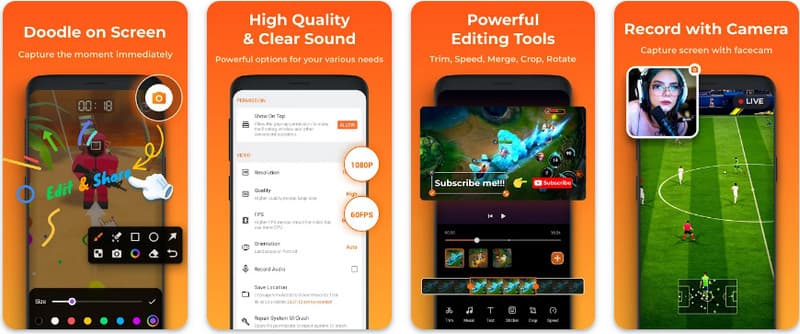
Pasul 1Când descărcarea XRecorder este terminată, deschideți-l și atingeți Activați pictograma plutitoare.
Pasul 2După aceea, atingeți Record butonul pentru a iniția înregistrarea și Începe acum a confirma.
Pasul 3După cum puteți vedea, lungimea înregistrării apare ca o pictogramă plutitoare; atingeți Stop butonul pentru a salva înregistrarea.
4. Super Screen Recorder
Super Screen Recorder este o soluție de top pentru oricine caută o modalitate profesională de a înregistra ecranul pe Android cu flexibilitate maximă. Această aplicație puternică oferă captură de înaltă definiție și se remarcă prin oferirea unei experiențe fără filigran chiar și în versiunea sa gratuită, asigurând că conținutul rămâne curat și profesional. Dispune de o cameră facială integrată pentru captarea reacțiilor în timp real și un instrument pensulă versatil care vă permite să desenați pe ecran în timpul înregistrării, o funcție esențială pentru crearea de tutoriale sau ghiduri captivante. Indiferent dacă sunteți începător sau un utilizator avansat, Super Screen Recorder oferă personalizarea robustă necesară pentru a stăpâni cu ușurință înregistrarea ecranului Android.
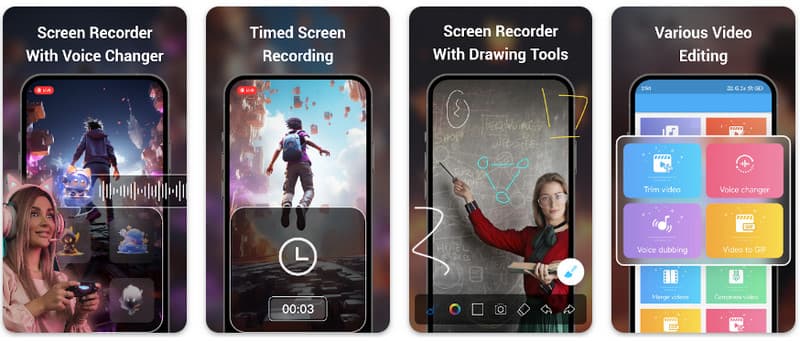
Pasul 1Deschideți Super Screen Recorder pe Android, apoi activați funcția plutitoare a aplicației pentru ao utiliza.
Pasul 2Pe ecran, atingeți aparat de fotografiat butonul, confirmați setările și atingeți Începe acum. Apoi, va apărea o numărătoare inversă de trei secunde înainte de a începe înregistrarea.
Pasul 3Apasă pe pătrat butonul pentru a termina înregistrarea și a o salva pe dispozitivul Android.
Bonus: Înregistrați ecranul pe desktop și telefon mobil la cea mai bună calitate
Crezi că poți înregistra ecranul telefonului tău Android pe computer? AVaide Screen Recorder este conceput în principal pentru înregistrarea ecranului pe Windows și Mac. Dar poate înregistra și ecranul complet al telefonului Android. Acest lucru este util în special atunci când trebuie să creați un tutorial pentru anumite operațiuni pe Android și apoi să editați direct videoclipul pe Mac sau Windows.
Pentru înregistrarea ecranului pe Windows și Mac, AVAide Screen Recorder este compatibil cu codecurile AV1 și HEVC, care pot comprima puternic rezultatul înregistrării, păstrând în același timp cea mai bună calitate video. Accelerarea hardware completă vă permite să înregistrați videoclipuri lungi cu un consum foarte redus al procesorului. Și mai interesant este faptul că are un microfon îmbunătățit care sporește claritatea prin anularea sunetelor de fundal și a ecoului. Software-ul realizează înregistrări excelente cu funcții simple de navigare și editare, cum ar fi decuparea și adnotările. Deși este un software costisitor, este foarte recomandat deoarece poate fi utilizat în scopuri personale și de afaceri.
- Înregistrează-ți dispozitivul Android sau iOS la cea mai bună calitate video.
- Creați cu ușurință înregistrări tutoriale cu funcții de desen și adnotare.
- Acceptă codecurile de ieșire AV1 și HEVC pentru o comprimare puternică a videoclipului de ieșire.
- Oferă funcții de editare video ușor de utilizat pentru a edita înregistrările pe Android.
Pasul 1Acum puteți descărca ecranul de înregistrare pe computer, bifând butonul de descărcare de aici. Apoi, instalați aplicația urmând solicitarea de pe ecran și lansați-o pentru a trece la pasul următor.

DESCĂRCARE GRATUITĂ Pentru Windows 7 sau o versiune ulterioară
 Descărcare sigură
DESCĂRCARE GRATUITĂ Pentru Mac OS X 10.13 sau o versiune ulterioară
Descărcare sigurăPasul 2Acum că rulează deja în sistemul dvs., plasați cadrul de înregistrare în zona în care doriți să începeți înregistrarea. Aici, vă puteți înregistra întregul ecran selectând opțiunea Ecran complet în loc de opțiunea Regiune.

Pasul 3În continuare, sistemul și înregistrarea microfonului pot fi configurate dacă este necesar. Dacă doriți să adăugați fața dvs. la înregistrare, activați opțiunea Cameră web aici. Apoi, faceți clic REC pentru a începe numărătoarea inversă și a începe înregistrarea.

Pasul 4Când ați încheiat înregistrarea, faceți clic pe Stop butonul, care este un pătrat roșu. În următoarea fereastră care apare, puteți edita înregistrarea pe care ați făcut-o mai devreme cu opțiunile disponibile aici, apoi plasați cursorul pe înregistrare și apăsați butonul Descarca butonul pentru a-l salva. Această aplicație își dovedește valoarea ca cel mai bun înregistrator open-source disponibil.

Partea 4: Întrebări frecvente despre cum se înregistrează ecranul pe Android
Unde pot găsi înregistrarea ecranului în setări?
Pentru a accesa funcția încorporată înregistrare ecran pe Android fără aplicații terțe, glisați în jos de două ori din partea de sus a ecranului pentru a deschide Setări rapide panou și căutați Înregistrare ecran (sau pictograma „Înregistrare ecran”). Dacă nu este vizibilă, atingeți Editați | × (creion) pentru a trage comutatorul de înregistrare a ecranului în dalele active. După adăugare, puteți pur și simplu să atingeți pictograma, să alegeți preferințele audio, cum ar fi înregistrarea sunetelor interne ale sistemului sau a microfonului și să apăsați pe Start pentru a începe capturarea ecranului direct din setările sistemului.
De ce nu găsesc înregistrarea ecranului pe Android-ul meu?
Absența unei opțiuni native de înregistrare a ecranului pe Android se datorează de obicei faptului că dispozitivul rulează un sistem de operare mai vechi, deoarece funcția încorporată a fost standardizată doar cu Android 11Dacă software-ul este actualizat, este posibil ca comutatorul să fie pur și simplu ascuns. Setări rapide meniu; de obicei, îl puteți dezvălui atingând Editați | × din fereastra de notificări și trăgând dala „Înregistrare ecran” în vizualizarea activă. În plus, este posibil ca unele dispozitive „Go Edition” de nivel de bază sau skin-uri de la anumiți producători să dezactiveze această funcție pentru a economisi resurse de sistem, caz în care utilizarea unei aplicații terțe, cum ar fi XRecorder sau Super Screen Recorder, este cea mai eficientă soluție.
De ce a dispărut butonul de înregistrare a ecranului?
Butonul de înregistrare a ecranului dispare de obicei deoarece a fost mutat accidental din zona activă Setări rapide; îl puteți restaura adesea atingând butonul Editare (pictogramă creion) în fereastra de notificări și trăgând dala înapoi. De asemenea, este posibil să fie ascunsă din cauza Modului de economisire a energiei, restricționată de un Profil de lucru sau pur și simplu să necesite o repornire a sistemului pentru a actualiza interfața cu utilizatorul după o actualizare de software.
Folosind tutorialul enumerat aici, ați învățat cum să înregistrați ecranul pe Android Samsung. Acest tutorial vă va ajuta foarte mult în ceea ce privește sarcina de înregistrare a ecranului, mai ales dacă sunteți un utilizator Android. Partajați aceste informații cu prietenul dvs. utilizator Android pentru a le oferi o idee despre cum să o facă.
DESPRE AUTOR

Înregistrați ecranul, sunetul, camera web, jocul, întâlnirile online, precum și ecranul iPhone/Android pe computer.
Înregistrare ecran
- Înregistrare ecran pe Windows
- Înregistrați live pe Instagram
- Extrage videoclipuri din Tubi
- Convertește videoclipuri YouTube în MP3
- Descarcă videoclipuri de la Fansly
- Descărcarea videoclipurilor JW Player
- Descărcați videoclipuri Bilibili
- Descarcă videoclipuri Patreon
- Descarcă videoclipuri SpankBang
- Descarcă videoclipuri Discord
- Descărcați videoclipul DoodSream


