Ao participar de uma reunião ou aula online pelo Zoom, você provavelmente deseja Fazer capturas de tela no Zoom para uso posterior. Aqui, oferecemos um guia completo sobre como tirar screenshots no Zoom usando os recursos padrão do Windows, Mac e dispositivos móveis, ou com os recursos integrados do próprio Zoom. Além disso, abordaremos uma preocupação comum: o Zoom consegue detectar quando você tira um screenshot? Você encontrará a resposta neste artigo.
- Parte 1. Como tirar uma captura de tela no Zoom em um PC (Windows)
- Parte 2. Como tirar uma captura de tela no Zoom em um Mac
- Parte 3. Como tirar uma captura de tela no Zoom em dispositivos móveis (iPhone e Android)
- Parte 4. Usando os recursos integrados do Zoom
- Parte 5. O Zoom notifica as capturas de tela?
Parte 1. Como tirar uma captura de tela no Zoom em um PC (Windows)
1. Usando a tecla Print Screen (tela cheia)
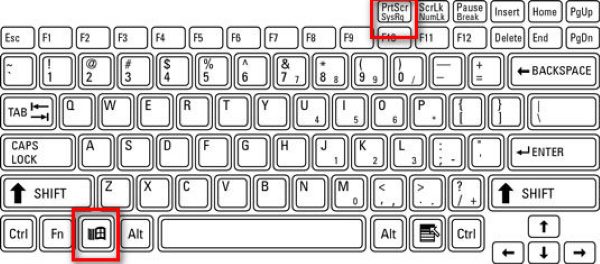
Use a tecla de atalho para captura de tela no Windows para capturar a tela inteira. Com a reunião do Zoom em andamento, pressione janelas juntamente com o PrtScn tecla (que geralmente está localizada ao lado das teclas de função).
Uma cópia de tudo o que estiver visível na sua tela será imediatamente capturada e salva em C:\Users\SEU_NOME_DE_USUÁRIO\Pictures\Screenshots (no Windows 10 e 11).
2. Usando a Ferramenta de Recorte / Recorte e Esboço (Ideal para Zoom)
Imprensa Ganhar + Mudança + S Escurece a área de trabalho e exibe uma barra de ferramentas de captura na parte superior. Em seguida, você pode desenhar um retângulo ou escolher entre capturas de formato livre, de janela ou de tela inteira.
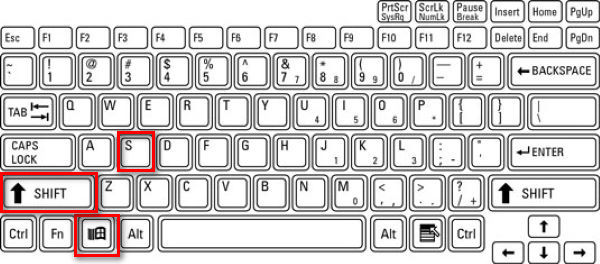
Esta função é ideal para o Zoom, pois permite capturar apenas a janela do Zoom ou parte dela. Após o recorte, a imagem é copiada para a área de transferência e uma notificação é exibida. Clique na notificação para editar a captura de tela.
3. Usando Alt + PrtScn (somente janela ativa)
Passo 1Clique na janela do Zoom para garantir que ela esteja ativa.
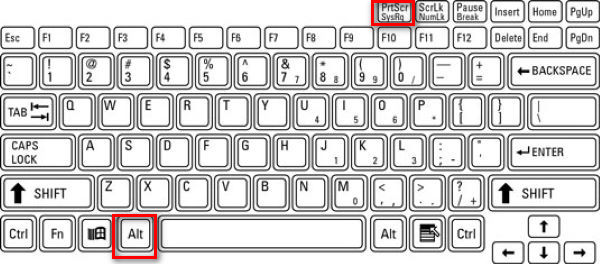
Passo 2Imprensa Alt. + PrtScn.
Isso captura apenas a janela ativa, que é a reunião do Zoom, e a copia para a área de transferência.
4. Utilizando uma ferramenta de terceiros
Prefiro usar uma ferramenta de terceiros para capturar telas no Zoom, porque as imagens ficam salvas em um local específico que eu configurei, separadas de outras capturas de tela feitas pelo Windows, o que facilita a busca por imagens específicas.
Existem diversas ferramentas para capturar telas de chamadas do Zoom, como ShareX, Icecream Screen Recorder, Snagit e outras. Gravador de tela AVAideAssim como no AVAide Screen Recorder, você pode colocar as imagens na mesma pasta, facilitando a organização de todas as capturas de tela. Vou mostrar como fazer isso passo a passo.
Passo 1Baixe e instale o gravador.

DOWNLOAD GRATUITO Para Windows 7 ou posterior
 Download seguro
DOWNLOAD GRATUITO Para Mac OS X 10.13 ou posterior
Download seguroPasso 2Inicie o gravador
etapa 3Entre em uma reunião do Zoom
Passo 4Clique no câmera botão no canto superior direito da janela do AVAide Screen Recorder.
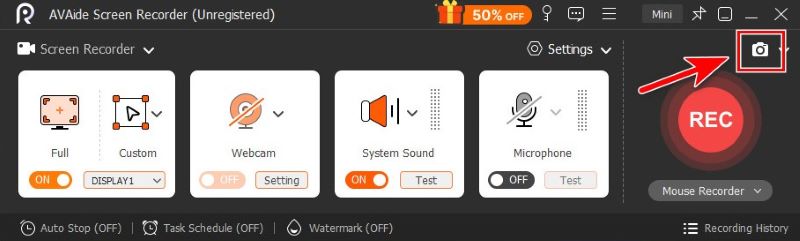
Etapa 5Recorte à mão livre arrastando o mouse ou posicione o ponteiro sobre o Zoom para capturar a janela.
Etapa 6Quando estiver satisfeito com o recorte, clique Salve e escolha a pasta onde deseja salvá-lo.
Parte 2. Como tirar uma captura de tela no Zoom em um Mac
Os recursos integrados do sistema são suficientes para tirarmos screenshots no Mac.
1. Captura de tela inteira
Para capturar a tela inteira em um Mac, pressione Comando + Mudança + 3.

2. Captura Seletiva (Ideal para Zoom)
Se precisar capturar uma determinada região retangular na tela da reunião, pressione Comando + Mudança + 4.

3. Capturar uma janela específica
Passo 1imprensa Comando + Mudança + 4
Passo 2Acesse o espaço.

O cursor se transforma em um ícone de câmera. Clique na janela de zoom para capturar apenas essa janela.
4. Usando o aplicativo de captura de tela
Passo 1 Imprensa Comando + Mudança + 5 Para abrir a barra de ferramentas de Captura de Tela da Apple.

Passo 2Selecione a ferramenta de sua preferência.

Eu recomendaria Capturar uma janela e Capturar uma porçãoIdeal para usar apenas a janela do Zoom, sem distrações.

- Você também pode usar os recursos padrão do Mac ou uma ferramenta de terceiros para Edite sua captura de tela no Mac Como preferir.
Parte 3. Como tirar uma captura de tela no Zoom em dispositivos móveis (iPhone e Android)
1. No iPhone/iPad
O método depende do modelo do seu dispositivo.
Passo 1Inicie sua reunião no Zoom.
Passo 2Faça uma captura de tela.
- Para iPhones com Identificação facial e sem Home botão (iPhone X e posteriores, exceto iPhone SE) e iPads com Sem lar botão:
aperte o Botão lateral + Aumentar o volume. - Para iPhones ou iPads com um Início botão (iPhone SE, 8 e anteriores, iPads mais antigos):
aperte o Botão lateral/superior + Início.
Solte ambos rapidamente. Você verá a tela piscar, capturando toda a sua tela, e uma miniatura aparecerá para editar ou salvar.
2. No Android
Atalho: A maioria dos telefones Android usa o clássico Poder + Diminuir o volume O atalho varia dependendo da marca específica do seu dispositivo. Portanto, se este atalho não funcionar, o que é normal, sugiro que você verifique o modelo do seu telefone e pesquise.
Com a reunião do Zoom aberta, pressione e segure os botões juntos por cerca de 1 a 2 segundos até que a tela pisque. A captura de tela será salva no seu aplicativo Galeria ou Fotos.
Barra de ferramentas: Abra o menu deslizando o dedo para baixo na tela. Encontre o Captura de tela Clique no botão no menu e toque nele para selecionar entre capturas de tela em tela cheia, em formato livre e com rolagem.
Parte 4. Usando os recursos integrados do Zoom
O recurso "Tirar uma foto" do Zoom (somente para compartilhamento de tela)
O recurso de captura de tela integrado do Zoom é fácil de usar com apenas alguns cliques.
Passo 1Clique Bater papo na parte inferior da janela do Zoom
Passo 2Clique no Captura de tela ícone abaixo da caixa de bate-papo.
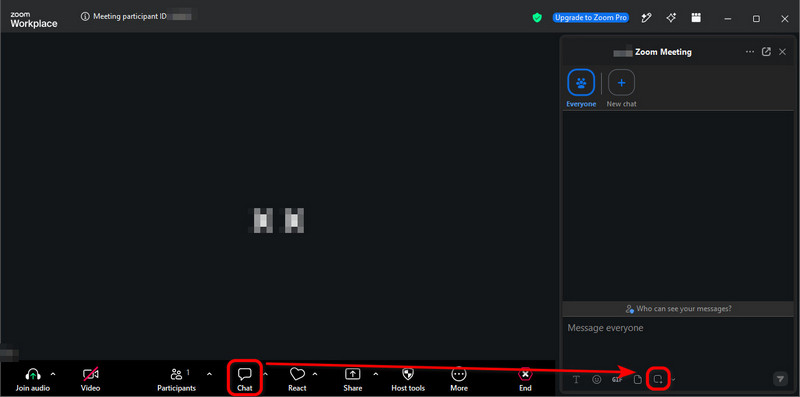
etapa 3Arraste o cursor do mouse sobre a parte da tela que você deseja selecionar e clique. Capturar.
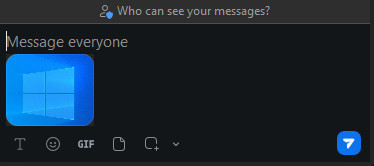
A captura de tela já está no caixa de bate-papoVocê pode enviá-lo para outros participantes da reunião com um único clique. avião de papel ícone no canto inferior direito.
- A captura de tela na caixa de bate-papo NÃO é salva automaticamente no seu computador. Se você quiser salvá-la, clique com o botão direito do mouse na imagem e selecione Salvar como….
- Embora esse método seja muito simples e rápido, às vezes ele falha porque o anfitrião pode desativar o bate-papo da reunião ou o salvamento do bate-papo. Quando isso acontecer, você já sabe o que fazer: use os recursos do sistema operacional ou uma ferramenta de terceiros, como o AVAide Screen Recorder.
O que é um "Gerador de Capturas de Tela de Reuniões do Zoom"?
Parece uma ferramenta de captura de tela, certo? Me enganou a princípio, mas na verdade é uma ferramenta de terceiros que... cria imagens falsas de chamadas do Zoom.
Eles oferecem simulações de chamadas do Zoom, onde você carrega fotos e insere nomes para gerar uma captura de tela realista de uma reunião com participantes fictícios.
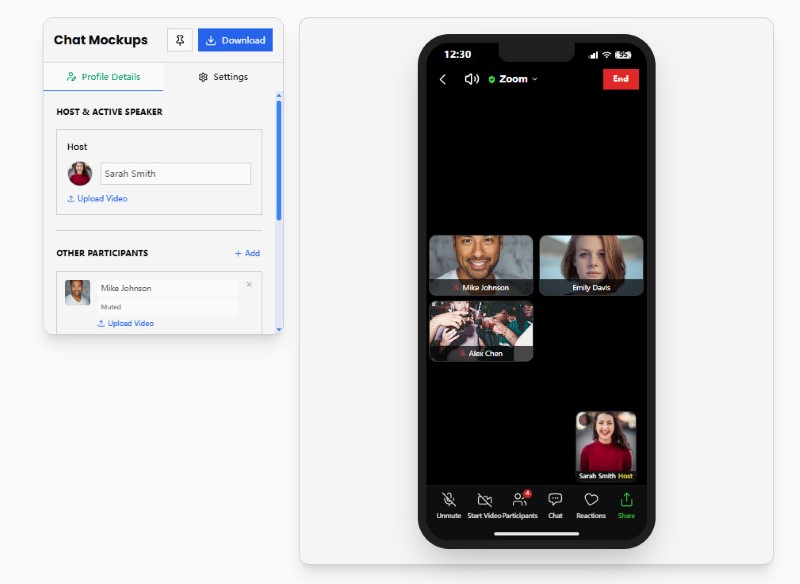
Geradores de capturas de tela de reuniões do Zoom não são o que procuramos neste artigo. Mas se você estiver interessado em gerar memes falsos do Zoom, experimente sites como Pradoy ou Kapwing. Eles são muito divertidos.
Parte 5. O Zoom notifica as capturas de tela?
Resumindo, o Zoom NÃO informa quando um participante tira capturas de tela, seja usando os recursos do sistema operacional, uma ferramenta de terceiros ou o recurso de captura de tela integrado do Zoom.
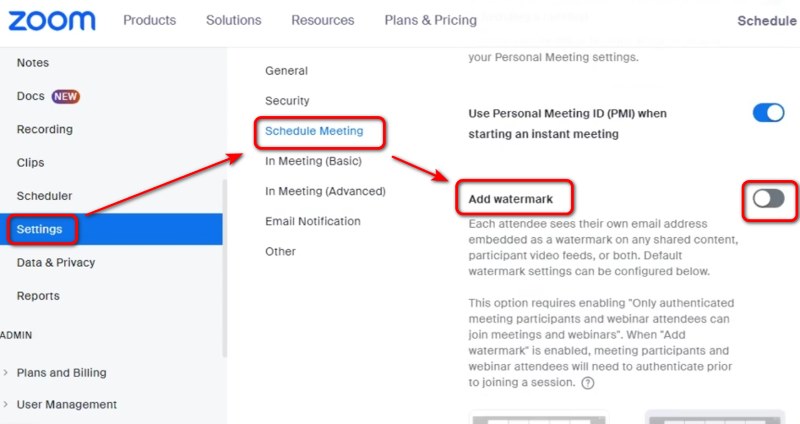
Como anfitrião ou alguém que compartilha a tela, você pode se preocupar com a possibilidade de o conteúdo da sua tela ser divulgado sem o seu conhecimento. Até o momento, não existe uma maneira específica de evitar isso, exceto adicionar uma marca d'água à sua tela – para isso, acesse as Configurações do portal web do Zoom e ative a opção "Adicionar marca d'água".
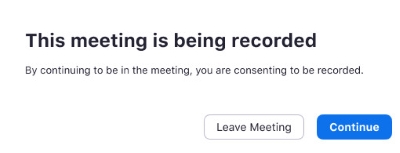
Mas o Zoom notifica quando alguém grava a reunião do ZoomAo entrar em uma reunião que está sendo gravada, ou quando o anfitrião começar a gravar, você receberá uma notificação de consentimento. Você pode dar seu consentimento ou sair da reunião.
Tirar capturas de tela no Zoom É fácil fazer isso no Windows, Mac, iPhone e Android usando os recursos do dispositivo, ferramentas de terceiros ou os próprios recursos do Zoom. O Zoom não notifica os anfitriões ou participantes quando você tira uma captura de tela padrão. No entanto, ainda é importante respeitar a privacidade, os direitos autorais e quaisquer regras da reunião antes de capturar ou compartilhar conteúdo do Zoom. Se você se preocupa com a privacidade, deixe claro para os participantes que você não aprova capturas de tela antes de compartilhar sua tela.
SOBRE O AUTOR

Capture o melhor momento com o AVAide Screen Recorder. Screencast, personalizar e compartilhar em segundos.
Gravação de tela