Minecraft é um dos jogos mais conhecidos da atualidade, com mais de 151 milhões de usuários ativos diariamente. Disponível em diversas plataformas como PlayStation, PC, Xbox e celulares, ele se destaca pelas inúmeras possibilidades de atividades em seu mundo. Nele, você pode cultivar, jogar com amigos, caçar tesouros e até mesmo criar seu próprio mundo, e certamente desejará registrar esses momentos marcantes. Dependendo da plataforma que você utiliza, as configurações podem variar. Capturas de tela do Minecraft É tão fácil quanto este artigo reúne métodos que você pode usar. Então, vamos lá e comecemos.
Parte 1. Como tirar uma captura de tela no Minecraft
Minecraft possui duas versões para PC com maneiras diferentes de capturar fotos dentro do jogo. Confira as edições Java e Bedrock e aprenda como tirar screenshots no Minecraft para PC.
1. Edição Java - O Método Clássico F2
Esta edição do Minecraft é a versão original para computador e possui um recurso integrado de captura de tela. Veja como tirar uma captura de tela no Minecraft Java:
Passo 1Prepare a parte do jogo que deseja capturar e pressione F2 no seu teclado.
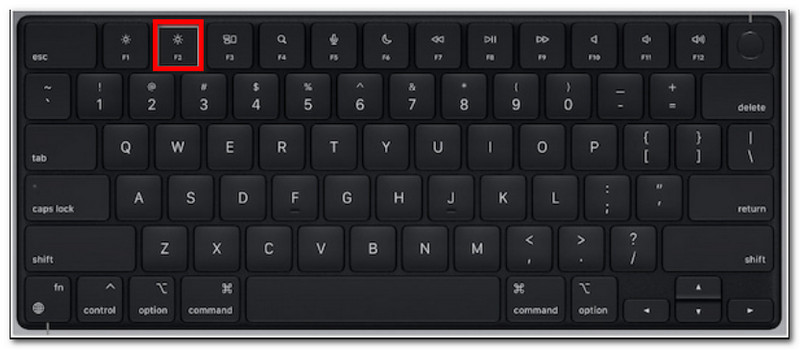
Passo 2Quando aparecer uma mensagem com o nome de um arquivo, clique nela para visualizar a captura de tela.
2. Edição Bedrock - Dois Métodos Diferentes
A edição Bedrock destaca o jogo multiplataforma. Isso significa que, mesmo se você estiver usando um PC, poderá jogar com amigos que usam dispositivos diferentes. Além disso, existem dois métodos populares para tirar screenshots nesta edição.
Método A (Barra de jogos do Xbox)
Passo 1Imprensa Windows + G simultaneamente no seu teclado. Sua tela escurecerá, então clique no Câmera ícone para tirar uma captura de tela.
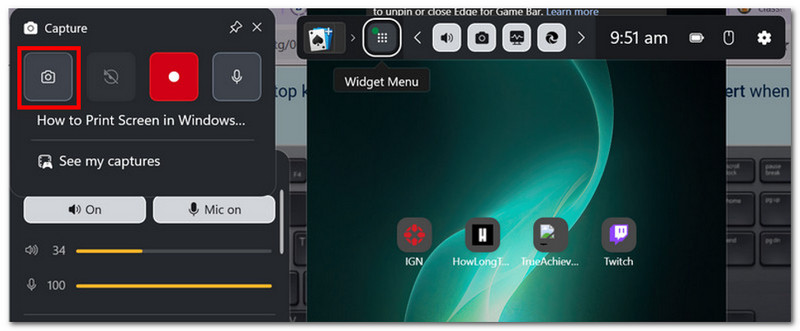
Passo 2Você pode acessar a pasta de capturas de tela do Minecraft a partir de Vídeos > Capturas, onde se encontram as fotos tiradas pelo Game Bar.
Método B (Câmera no Jogo)
Passo 1Abra o Minecraft e entre em um mundo. Clique no Captura de tela do Minecraft Pressione o botão ou F2 na tela para capturar a imagem.
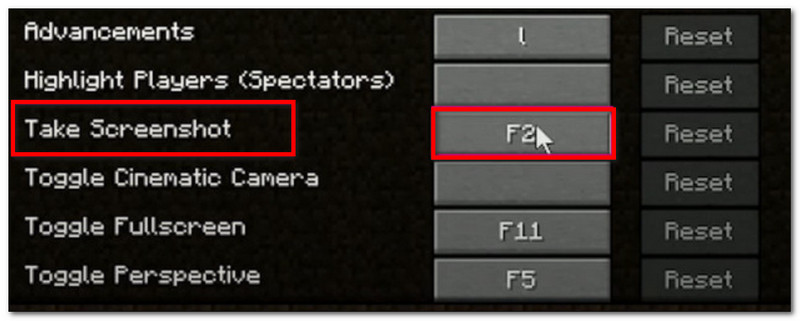
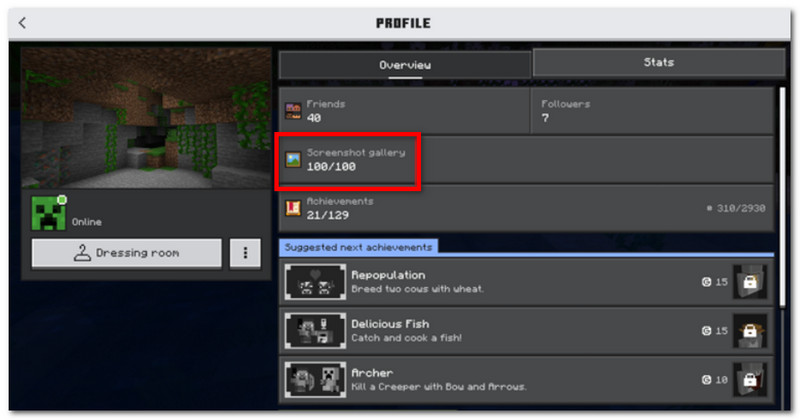
Passo 2Para encontrar a localização da captura de tela do Minecraft, basta ir para Perfil e aberto Galeria de capturas de tela.
3. Gravador de tela AVAide
Gravador de tela AVAide O AVAide é uma ferramenta alternativa para Minecraft Java e Bedrock. É uma solução completa que permite capturar telas, gravar vídeos e áudios. Sua função de captura de tela é intuitiva e permite tirar screenshots em diferentes modos: tela cheia, janela ativa e modo livre, usando atalhos personalizáveis. Além disso, permite exportar screenshots em formatos de imagem populares, como JPEG, PNG e GIF. O que torna o AVAide a melhor alternativa é a opção de edição integrada, que permite editar screenshots com ferramentas como desenho, anotações e outros elementos. Sem mencionar que o software oferece gravação de tela de alta qualidade, perfeita para capturar suas partidas em dispositivos como PCs e celulares.
Passo 1Baixe e instale o gravador de tela. Abra-o e escolha a opção desejada. Captura de tela No menu superior esquerdo, certifique-se de que o Minecraft esteja instalado no seu computador.

DOWNLOAD GRATUITO Para Windows 7 ou posterior
 Download seguro
DOWNLOAD GRATUITO Para Mac OS X 10.13 ou posterior
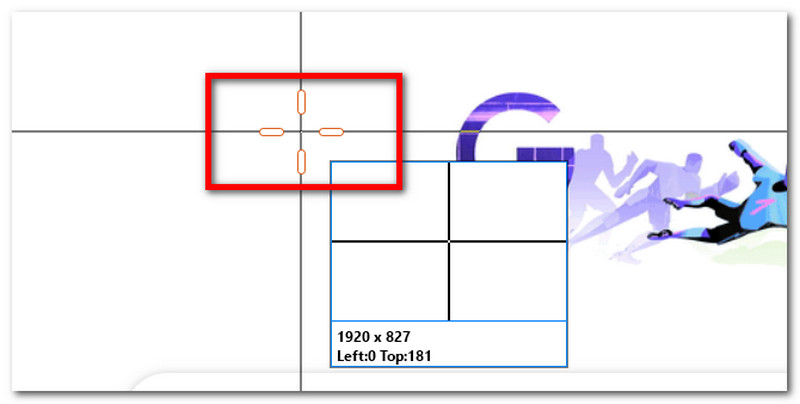
Download seguroPasso 2Quando o cursor do mouse se transformar em uma mira, selecione a área que deseja capturar. Pressione Esc Se você quiser sair da Captura de Tela.
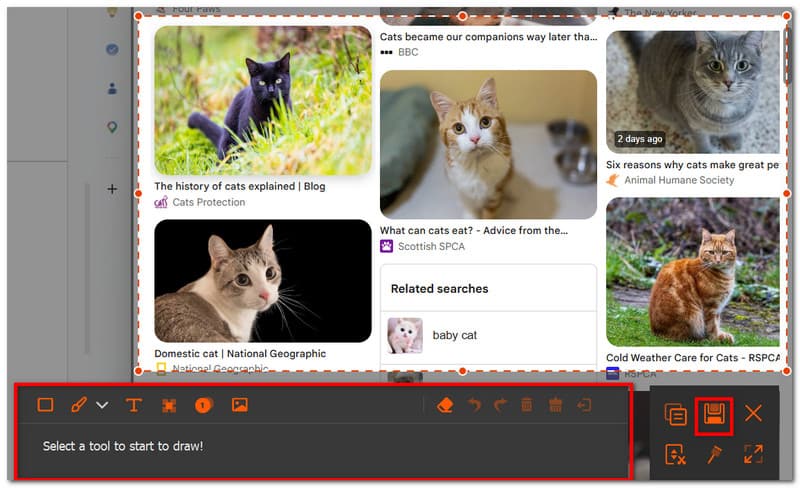
etapa 3Utilize as opções de edição para editar a imagem. Em seguida, clique em Salve Para salvar a captura de tela no seu dispositivo, o diretório de capturas de tela do Minecraft seria... Estúdio AVAide > Gravador de tela AVAide.
Parte 2. Onde encontrar capturas de tela
Como o Minecraft está disponível em praticamente todas as plataformas, você pode se perguntar: "Onde as capturas de tela do Minecraft são salvas?" Esta seção mostrará a localização exata da pasta onde as capturas de tela são armazenadas, de acordo com o sistema operacional específico.
Windows 10/11 (Edição Java)
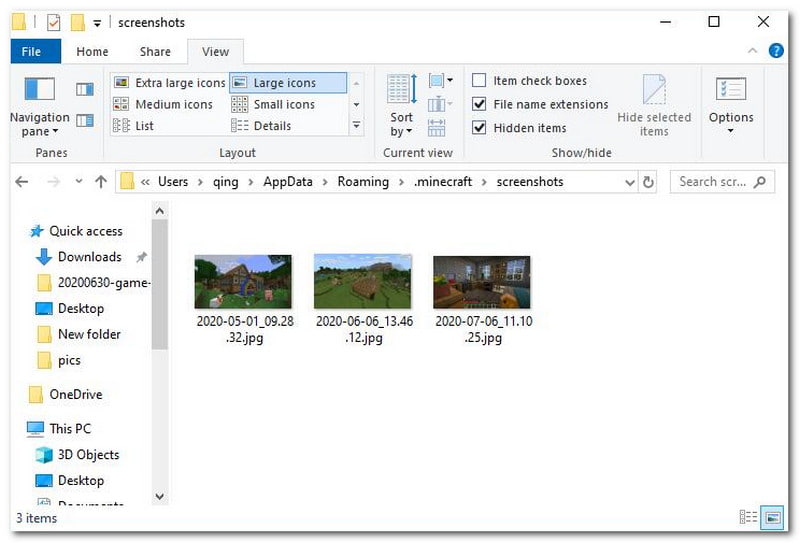
Depois de tirar a captura de tela, você pode acessá-la no chat. Mas, caso não a encontre, vá até a barra de pesquisa e digite %appdata%, então vá para Pasta .minecraft > capturas de tela.
Windows 10/11 (Edição Bedrock)
A galeria de capturas de tela do Minecraft Bedrock Edition para Windows pode ser encontrada dentro do jogo, localizada em Perfil > Galeria de capturas de tela.
Mac
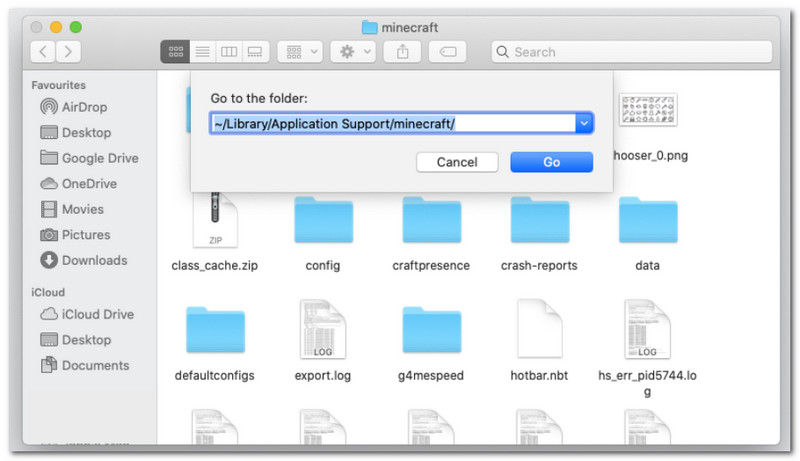
Se você joga Minecraft e aprende Como tirar uma captura de tela no Mac, pode ser encontrado em ~/Library/ApplicationSupport/minecraft/screenshots.
Linux
Você pode acessar as capturas de tela do jogo no diretório raiz do Minecraft. ~/.minecraft/screenshots.
Chromebook
A pasta de capturas de tela do Minecraft no Chromebook é idêntica à de outros sistemas operacionais ao usar o método F2 para tirar screenshots. Você pode encontrar as fotos em Galeria de capturas de tela no jogo.
Parte 3. Capturas de tela do console e do celular
Depois de aprender como encontrar capturas de tela do Minecraft no Windows 11 e em outros sistemas operacionais, você também poderá tirar capturas de tela em dispositivos menores e consoles. Siga os passos para a plataforma em que você joga.
Nintendo Switch
Passo 1Use o Joy-Con esquerdo e pressione o Câmera botão para tirar uma captura de tela do jogo.
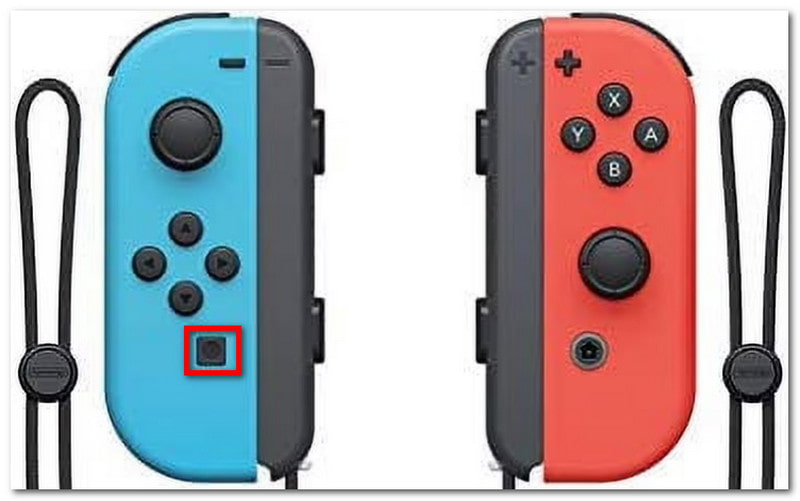
Passo 2Para visualizar a captura de tela, saia do jogo e acesse o Álbum onde as capturas de tela do Minecraft são salvas.
PlayStation
Passo 1Como tirar uma captura de tela do Minecraft usando o DualShock 4 do PS4? Pressione e segure o Compartilhado botão por cerca de um segundo. Se você tiver um PS5 DualSend, pressione o Crio botão.
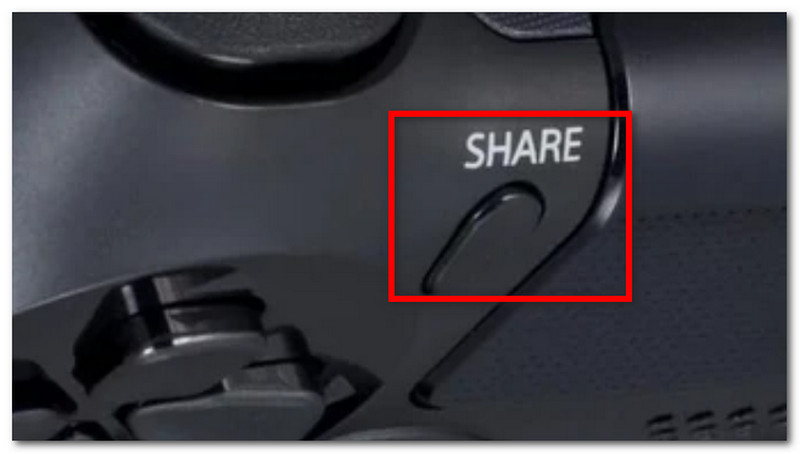
Passo 2Você pode visualizar a captura de tela navegando até o Galeria de captura aplicativo ou usando o PlayStation Aplicativo para visualizar no seu celular.
Xbox
Passo 1Para um controle padrão do Xbox, basta tocar duas vezes no Xbox botão na parte do meio e pressione S Para capturar. No Xbox Series, pressione o Compartilhado Pressione o botão uma vez para tirar uma captura de tela.
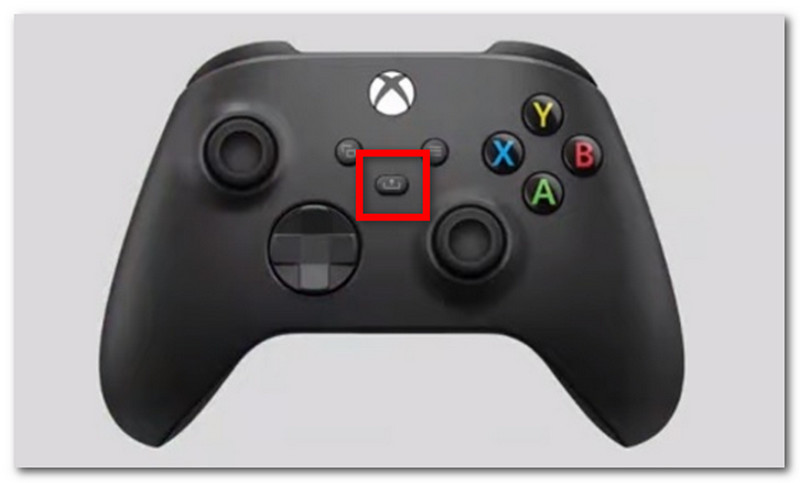
Passo 2Se você não sabe como acessar as capturas de tela do Minecraft, basta pressionar o Xbox botão e vá para o Capture e compartilhe aba.
iOS
Passo 1aperte o Poder e Aumentar o volume botões no seu iPhone para tirar uma captura de tela.
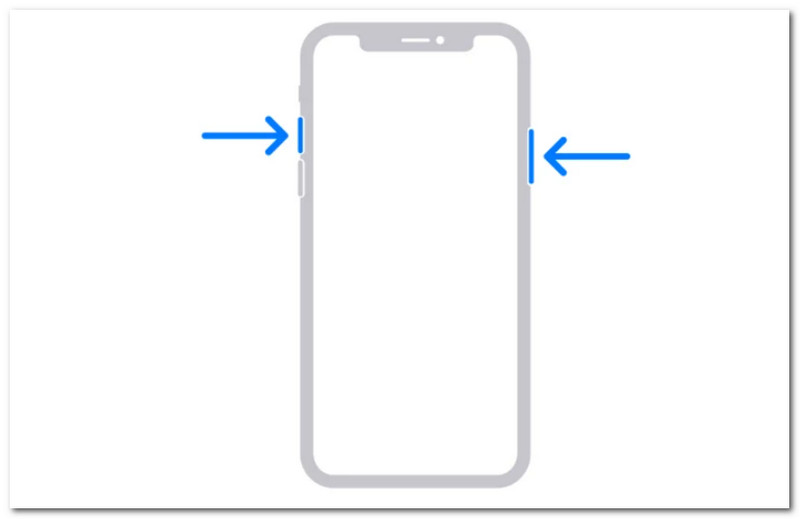
Passo 2Como encontrar capturas de tela do Minecraft no iPhone? Você pode encontrar as capturas de tela no aplicativo Fotos.
Android
Passo 1Prepare o jogo e a área que deseja capturar. Pressione e segure o Poder e Diminuir o volume botões no seu telefone.
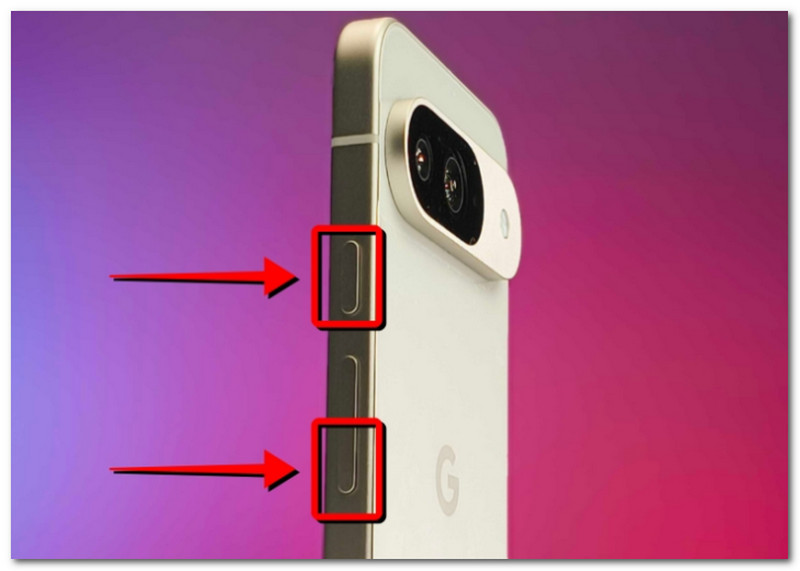
Passo 2Quando a tela piscar, a captura de tela estará pronta e você poderá encontrá-la no aplicativo Galeria.
Parte 4. Gerenciando sua coleção de capturas de tela
Além de compartilhar capturas de tela com seus amigos, você também pode aproveitar para acompanhar seu progresso no Minecraft. Mas tirar capturas de tela aleatoriamente só vai resultar em arquivos salvos desorganizados e confusos. Se você não sabe por onde começar, pode seguir estas regras básicas para organizar sua coleção de capturas de tela.
1. Compreendendo os nomes dos arquivos
Ao usar o método F2 no Minecraft, é importante entender o nome do arquivo, pois ele pode ajudar a definir a data em que a captura de tela foi feita. O nome de arquivo padrão será AAAA-MM-DD_HH.MM.SS.png, que se traduz no ano, mês, dia, hora, minuto e segundo em que a captura de tela foi feita.
2. Criar subpastas
Não deixe suas capturas de tela em uma única pasta, pois isso dificultará a localização de imagens específicas. Crie subpastas com categorias como "construção de mundo", "projeto" e "função".
3. Renomear arquivos
Você pode renomear suas capturas de tela do Minecraft para identificá-las não apenas pela data e hora, mas também pelo seu progresso no jogo. Escolha sempre um nome de arquivo que destaque sua evolução no Minecraft.
4. Faça backup das suas fotos.
Para evitar a perda das capturas de tela caso seu dispositivo apresente algum problema, certifique-se de fazer backup delas em um serviço de nuvem como o OneDrive ou em um disco rígido externo.
5. Compartilhar capturas de tela
Depois de organizar tudo, mostre seu progresso no Minecraft em diversas plataformas. Seus espectadores vão adorar as capturas de tela organizadas que mostram sua evolução no jogo.
Minecraft é um jogo adorado por todos, e aprender a tirar screenshots permite que você salve os melhores momentos da sua partida. Este artigo não só mostra os vários métodos para capturar a beleza do mundo do jogo, como também demonstra como fazer screenshots. Como visualizar capturas de tela do Minecraft em diferentes plataformas. Como alternativa, este artigo recomenda o uso do AVAide Screen Recorder, pois ele é flexível para capturar telas em computadores, celulares e consoles de jogos. Adquira um dos melhores gravadores de jogos Baixe gratuitamente para Windows e Mac e comece a gravar jogos sem limites.
SOBRE O AUTOR

Gravar tela, áudio, webcam, jogabilidade, reuniões online, bem como tela do iPhone/Android no seu computador.
Gravação de tela