Como gravar uma mensagem de voz em um iPhoneBem, gravar uma mensagem de voz é uma maneira rápida de compartilhar seus pensamentos ou enviar áudio personalizado sem precisar digitar. Com o recurso de mensagens de voz integrado ao iPhone, você pode gravar, salvar e compartilhar seus clipes de áudio instantaneamente com apenas alguns toques. Portanto, se você está procurando uma maneira completa de gravar e enviar uma mensagem de voz no seu celular, confira este tutorial para obter o resultado desejado.
Parte 1. Como gravar e enviar uma mensagem de voz no iMessage
O iMessage não é apenas uma ferramenta de comunicação simples. Ele também oferece o recurso de mensagens de voz. Com esse recurso, você pode enviar ou compartilhar suas mensagens e pensamentos por meio da sua voz. Essa é uma função ideal se você quiser enviar mensagens sem precisar digitar nada no teclado. A melhor parte é que enviar uma mensagem de voz é simples, tornando-a perfeita para todos os usuários. Então, se você quiser começar a gravar e enviar mensagens, siga as instruções abaixo.
Como gravar uma mensagem de voz no iPhone
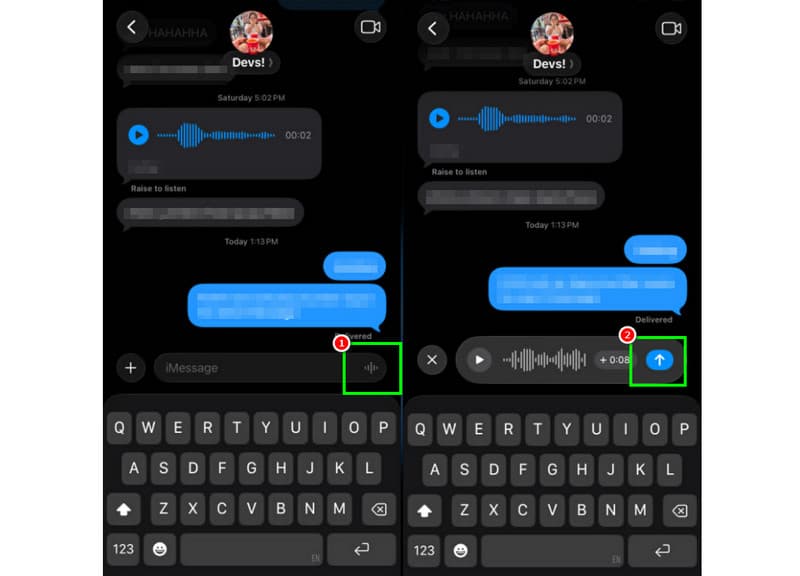
Passo 1No seu iPhone, abra o iMessage Em seguida, acesse o aplicativo e selecione a pessoa com quem deseja se comunicar.
Passo 2Na tela, pressione e segure o Microfone opção. Enquanto segura a tela, você pode começar a gravar e falar sua mensagem.
etapa 3Para interromper a gravação, solte o dedo do botão. Em seguida, toque no Enviar flecha botão para enviar a mensagem.
Ouça as mensagens de voz recebidas
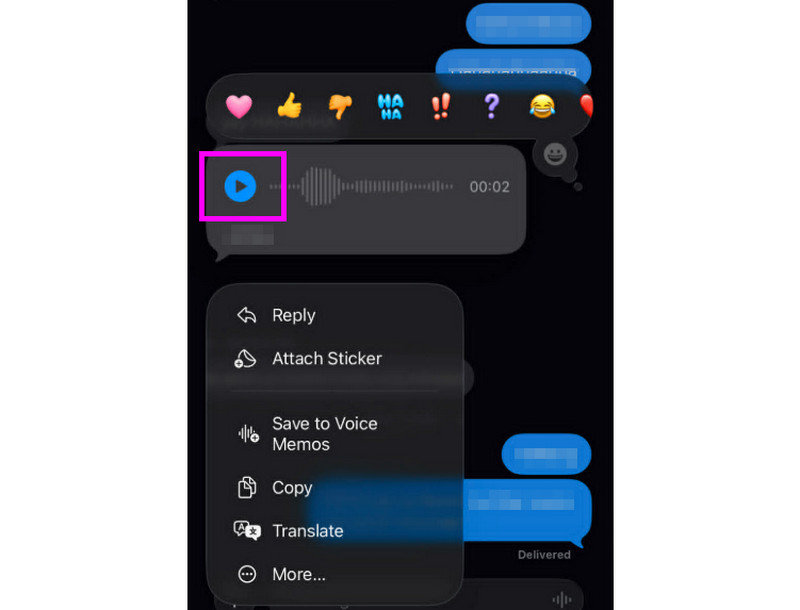
Passo 1Após receber a mensagem de voz, você pode tocar em Toque botão.
Passo 2Você também pode ajustar o volume usando o botão lateral do seu iPhone para ouvir a mensagem corretamente.
etapa 3Após dois minutos, a mensagem de voz expirará. Para manter a mensagem, basta pressionar o botão. Manter opção abaixo.
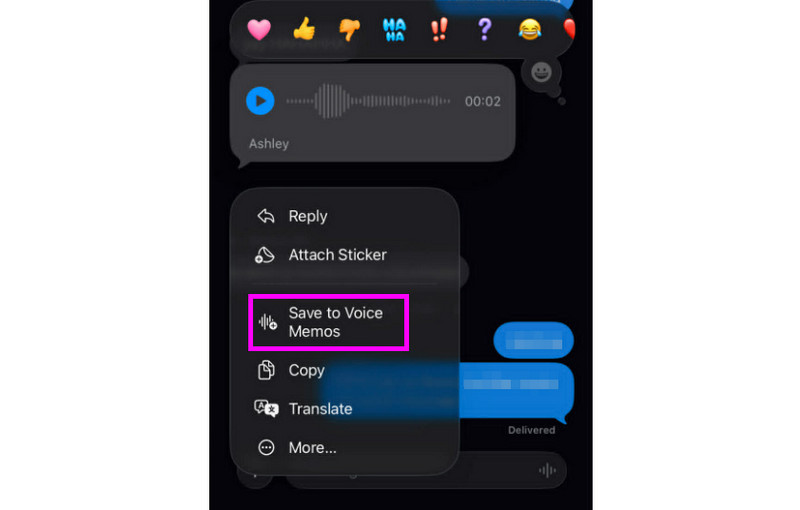
Passo 4Se quiser salvar a mensagem de voz, basta pressioná-la e segurar e tocar em Salvar em Gravador de Voz aplicativo. Com isso aplicativo de gravador de vozVocê pode reproduzir a mensagem a qualquer hora e em qualquer lugar.
Ajustar configurações de mensagens de voz
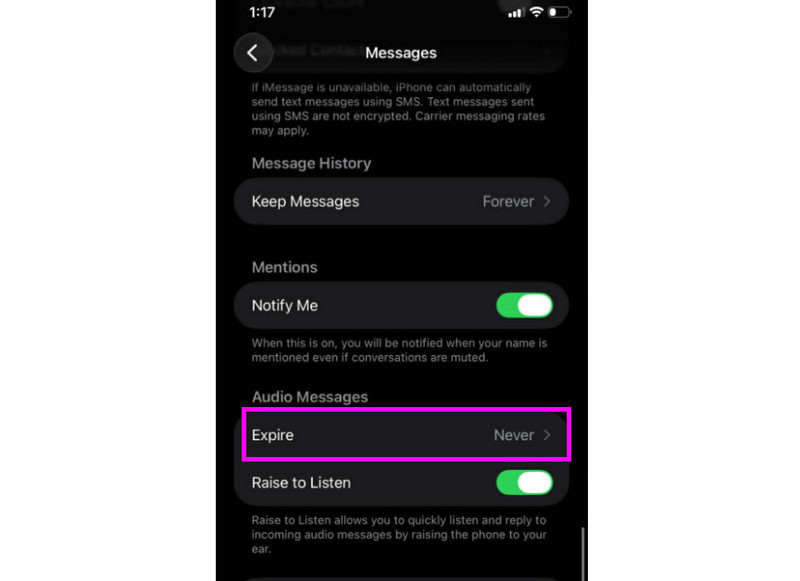
Passo 1Vá para sua Configurações aplicativo. Em seguida, prossiga para o Mensagens aplicativo.
Passo 2Navegue até o Mensagens de áudio > Expirar seção e toque no Nunca opção. Dessa forma, as mensagens de voz do seu iMessage não expirarão.
Parte 2. Método para gravar uma mensagem de saudação de correio de voz no iPhone
Quando você estiver inacessível, quem ligar receberá uma mensagem personalizada se você gravar uma saudação de correio de voz no seu iPhone. É fácil criar uma nova saudação, modificar ou remover uma antiga e até mesmo usar uma saudação temporária para eventos especiais. Você pode personalizar completamente a forma como sua mensagem de voz soa para outras pessoas com apenas alguns toques no aplicativo Telefone. Veja os métodos e aprenda como gravar uma mensagem de correio de voz no iPhone.
Configurando sua mensagem de correio de voz
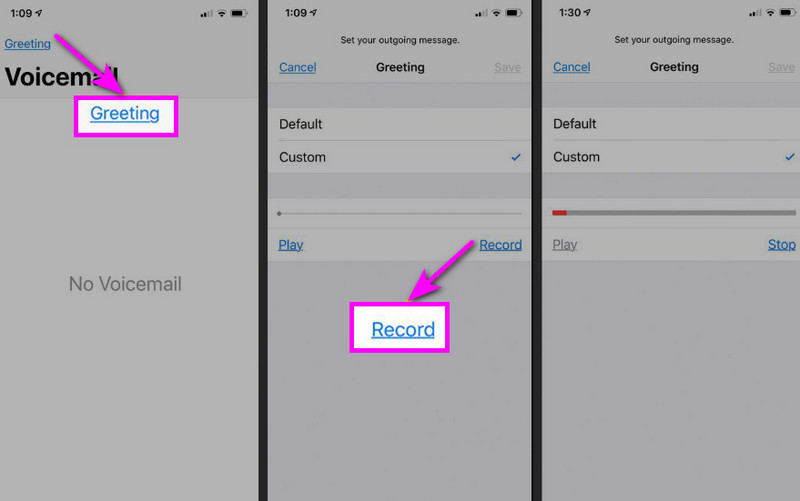
Passo 1Prossiga para o Telefone aplicativo e toque no Correio de voz opção.
Passo 2Depois disso, pressione o Saudações Acesse a função no canto superior esquerdo da tela. Pressione Personalizado > Registro para iniciar Gravar áudio no seu iPhone como sua saudação.
etapa 3Toque Pare Para finalizar e reproduzir o vídeo para avaliação. Depois de concluído, clique em Salve Para defini-la como sua saudação ativa.
Alterar ou excluir sua saudação
Passo 1Você pode voltar para o Correio de voz > Saudações seção.
Passo 2Bater Personalizado e grave uma nova saudação para substituir a antiga.
etapa 3Em seguida, para reverter para o padrão, você pode selecionar Predefinição em vez de Personalizado.
Dica profissional: Saudação temporária
Se você estiver indisponível por um curto período, grave uma saudação temporária seguindo os mesmos passos descritos em "Personalizado". Assim que retornar, basta voltar à sua saudação normal ou à opção padrão.
Parte 3. Solução de problemas - Não consigo gravar mensagens de voz
Acesse esta seção e consulte o guia de solução de problemas que aborda algumas das dificuldades encontradas ao gravar ou enviar mensagens de voz em um iPhone.
O botão do microfone está acinzentado nas mensagens.
Solução: Certifique-se de que o acesso ao microfone esteja ativado. Para isso, acesse Configurações > Privacidade e segurança > Microfone e permita o acesso para o app Mensagens.
A mensagem de voz não será enviada.
Solução: Verifique sempre sua conexão com a internet. Além disso, certifique-se de que o iMessage esteja ativado em Ajustes > Mensagens > iMessage.
Não é possível gravar a mensagem de saudação da caixa postal.
Solução: A opção de saudação só aparecerá se a operadora for compatível com o correio de voz visual. Caso não esteja disponível, você pode pressionar e segurar o número 1 no aplicativo Telefone para discar diretamente para o correio de voz. Em seguida, você poderá seguir as instruções da operadora para gravar uma saudação.
Os destinatários dizem que não conseguem te ouvir.
Solução: Você pode testar o microfone usando o aplicativo Gravador de Voz. Você também pode remover qualquer capa ou acessório que possa estar bloqueando o microfone. Outro método que você pode usar é limpar a abertura do microfone com um pano ou uma mini escova.
Guia rápido: Mensagem de voz vs. Correio de voz
Quer saber mais sobre mensagens de voz e correio de voz? Então, confira a tabela abaixo.
| Funcionalidade | Mensagem de voz (iMessage) | Correio de voz (Operadora) |
| Como é enviado | • Gravado no aplicativo Mensagens • Enviado via iMessage | • Saudação gravada • Áudio armazenado pela operadora |
| É necessário ter acesso à internet. | Sim (Wi-Fi ou dados móveis) | Não, funciona através de uma rede celular. |
| Armazenar | Salvo na conversa do iMessage | Armazenado no sistema de correio de voz da operadora. |
| Ao controle | O usuário pode reenviar, excluir ou salvar. | A operadora controla o acesso e o armazenamento. |
Bônus: A melhor ferramenta para ajudar você a editar gravações de voz.
Depois de salvar a gravação de voz ou a mensagem de voz, às vezes você deseja editá-la para obter uma melhor qualidade de áudio. Nesse caso, ao editar seu áudio, é recomendável utilizar uma excelente ferramenta de edição, como... AVAide Video ConverterEste programa oferece um recurso de edição de áudio que permite editar seus arquivos de áudio. Você pode cortar, dividir e mesclar faixas de áudio. Também é possível ajustar o volume e o atraso de acordo com suas preferências. O melhor de tudo é que você pode salvar o áudio em qualquer formato usando o recurso de conversão do programa. Você pode salvar sua gravação de voz como MP3, WAV, M4A, FLAC e muitos outros, com a melhor qualidade, até 320 kbps. Portanto, se você está procurando um software ideal para editar suas gravações de voz, o AVAide Video Converter é a escolha certa.

DOWNLOAD GRATUITO Para Windows 7 ou posterior
 Download seguro
DOWNLOAD GRATUITO Para Mac OS X 10.13 ou posterior
Download seguroMais recursos:
- Ele pode oferecer um procedimento de edição de áudio tranquilo.
- O programa pode mesclar vários arquivos de áudio para criar um único arquivo.
- Ele pode converter formatos de áudio e vídeo com uma velocidade de conversão 120 vezes maior.
- O programa também pode oferecer editores de vídeo integrados, como mesclador, divisor, aparador, cortador, etc.
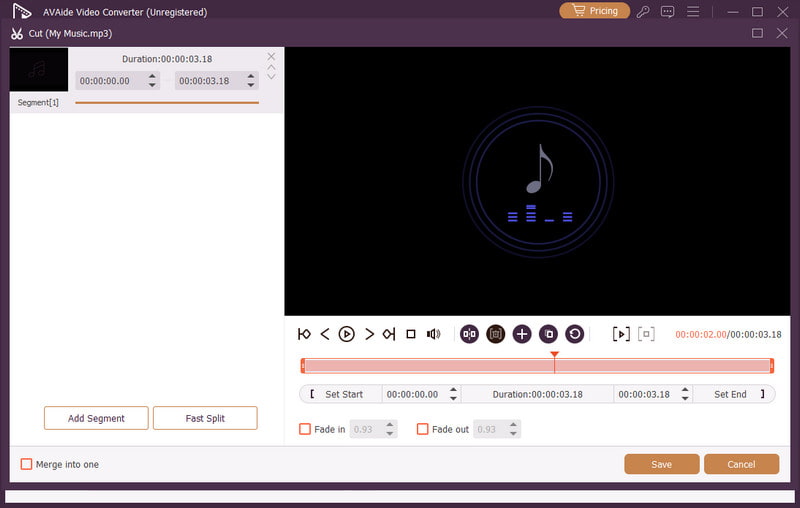
Enviar uma mensagem de voz em um iPhone É uma maneira ideal se você quiser enviar sua mensagem mais rapidamente. Graças a este tutorial, você aprendeu como gravar e enviar uma mensagem de voz com eficiência. Você também obteve informações suficientes sobre como salvar a mensagem de voz para reproduzi-la sem limitações. Além disso, se você quiser editar suas gravações de voz, será melhor acessar [o editor de áudio]. AVAide Video ConverterCom o recurso de edição de áudio deste programa, você pode aprimorar seu áudio, resultando em uma reprodução melhor e mais satisfatória.
SOBRE O AUTOR

Capture atividades na tela com áudio, reuniões online, vídeos de jogos, música, webcam, etc.